

 100% Security Verified | No Subscription Required | No Malware


 ChatGPT
 Perplexity
 Gemini
 Claude
 Grok
Grok
This guide walks you through Filmora filters that mimic YouTube outdoor vlog LUTs with a bright, clean look so your daylight footage feels crisp, colorful, and binge-worthy.
Whether you film travel adventures, lifestyle diaries, or daily walks around town, use these presets as a fast starting point to get that polished YouTube aesthetic without spending hours on color grading.
In this article
Bright Golden Hour in City Parks and Waterfronts
Sunlit City Path
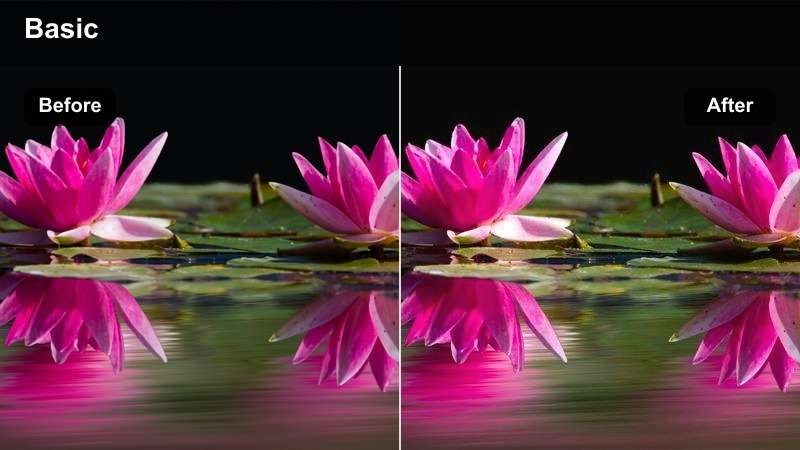
- Effect look: Clean, bright contrast with soft warm highlights ideal for late afternoon walking shots.
- Best for: YouTube outdoor walking vlogs on paved paths, promenades, and riverfronts during golden hour.
- Editing tip: Slightly reduce contrast if faces look too harsh and add a touch of vibrance to keep city colors lively.
Use Sunlit City Path when you want that classic golden hour vlog look without losing detail in sidewalks, buildings, and riverside railings. In Filmora, this filter quickly lifts midtones and adds a gentle warmth that flatters skin while keeping whites clean, so your footage feels bright and intentional instead of overexposed.
Apply the filter, then fine-tune contrast and vibrance in the Color panel until skin tones stay natural and the sky holds texture. If the background feels too intense, lower filter intensity slightly and rely on Filmora exposure sliders to balance your face against the bright riverfront scenery.
Use AI to Match a Consistent Bright Outdoor Look
After you dial in a bright look you like on one riverside walking clip, use Filmora AI tools to spread that same style across your entire vlog. AI Color Matching analyzes a well-graded hero shot and helps you bring park, city, and coastal scenes into the same clean, sunny palette.
This keeps your vlog from jumping between different color temperatures or brightness levels, even if clips were filmed on different days or cameras.
 secure download

Preview Filters on Your Vlog Clips in Seconds
Before you commit to a look for your entire outdoor vlog, drag a few bright filters onto a short test sequence in Filmora. Toggling them on and off lets you quickly compare how each preset treats sky, sidewalks, and skin in real time.
Once you find the most flattering option, copy and paste the color settings or apply the same filter across all relevant clips for a fast, unified grade.
secure download1000+ Video Filters and 3D LUTs
Filmora includes a large library of video filters and 3D LUTs so you can treat these bright vlog presets like customizable LUT-style grades. Start with a daylight or lifestyle filter, then adjust intensity, exposure, contrast, and saturation until it fits your channel branding.
By combining built-in filters with manual tweaks, you get LUT-level consistency while still being able to adapt the look to parks, streets, and coastal shots in the same project.
secure downloadGolden Park Vibes
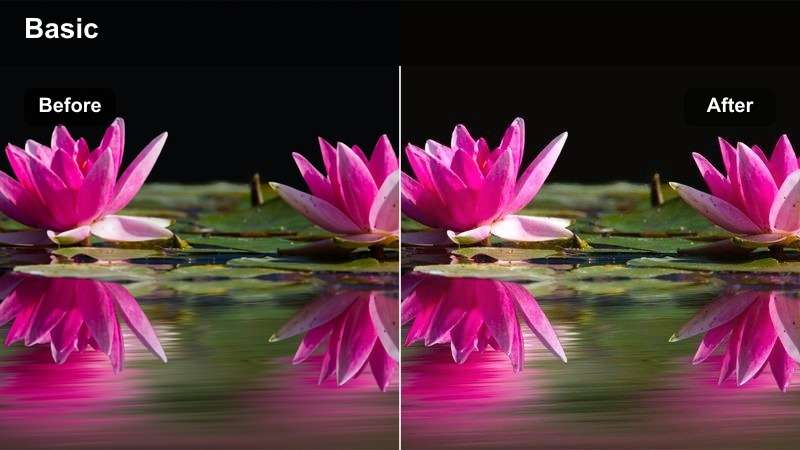
- Effect look: Soft brightening with gentle warmth and a subtle haze that flatters faces in backlit shots.
- Best for: Sit-down vlogs on benches, picnic scenes, and casual chats in open city or town parks.
- Editing tip: Increase clarity slightly if the backlight is strong to avoid looking too foggy on YouTube compression.
Golden Park Vibes is ideal for relaxed sit-down segments where the sun is behind you, creating a halo around hair and shoulders. The filter lifts brightness and warmth while adding a light haze that smooths contrast, helping your face stay soft and flattering even when trees and paths are strongly lit.
In Filmora, apply this filter and then nudge clarity and sharpness until details in your eyes, hair, and park textures remain crisp enough for YouTube compression. If your camera exposure leans too bright, pull exposure down slightly and let the filter provide the glow so you keep more detail in the sky and foliage.
Riverside Boardwalk Glow
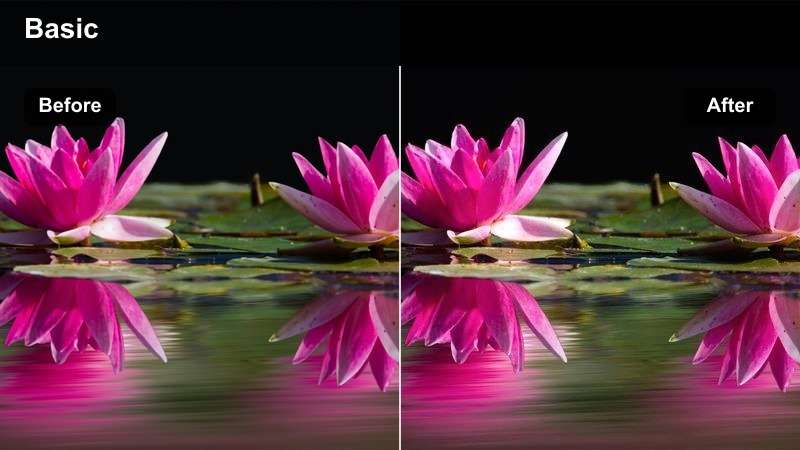
- Effect look: Bright, punchy colors with clean whites and a slight teal shift in shadows for modern vlog style.
- Best for: B-roll of city waterfronts, bike rides on boardwalks, and cinematic b-roll between talking segments.
- Editing tip: Use this filter at 60-80 percent strength so the teal shadows feel modern without turning the scene unnatural.
Riverside Boardwalk Glow gives your waterfront b-roll that modern YouTube look, with clear whites, saturated colors, and cooler shadows that make water, railings, and buildings pop. It works especially well for montage sections between talking clips, where you want energy and style more than strict color accuracy.
In Filmora, apply the filter to both A-roll and b-roll, then reduce intensity on your talking clips to keep skin realistic. For the most cinematic result, combine this grade with smooth camera movement or stabilization so the crisp detail and teal-leaning shadows feel intentional and not distracting.
Bright Sunny Streets and Urban Cafes
Street Daylight Clean
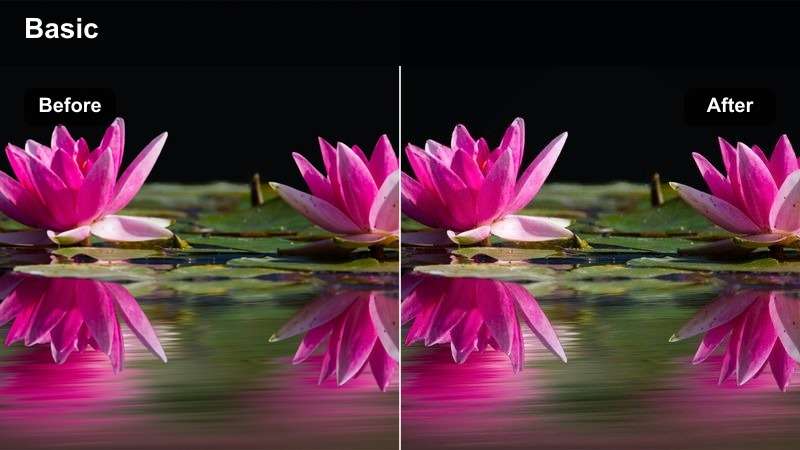
- Effect look: Neutral brightening with crisp edges and clean whites that keep city details sharp.
- Best for: Handheld walking-and-talking shots through busy downtown streets in direct sunlight.
- Editing tip: If signs and buildings look too sharp, pull back sharpness and keep brightness to avoid a harsh smartphone look.
Street Daylight Clean is built for fast-paced city walks where you want viewers to see storefronts, signs, and traffic clearly while still keeping focus on your face. The filter brightens midtones and whites without pushing heavy color casts, creating a clean, documentary-style street vlog aesthetic.
In Filmora, pair this filter with stabilization and slight noise reduction so bright edges stay crisp rather than jittery. If your camera oversharpens by default, reduce sharpness in the Color or Enhance controls, leaving brightness and contrast to sell that polished, professional YouTube vibe.
Cafe Window Clarity
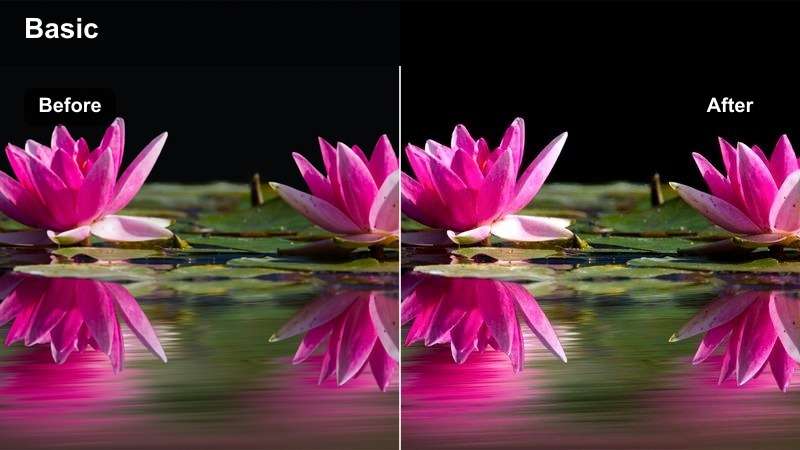
- Effect look: Bright interior exposure with gentle contrast and clean skin tones for mixed indoor-outdoor lighting.
- Best for: Talking to camera at cafe tables near big windows where the background street is visible.
- Editing tip: Raise exposure slightly so your face is the brightest part of the frame, then use the filter to tame background highlights.
Cafe Window Clarity helps balance tricky window light, keeping your face well-lit while preserving enough detail in the street outside. The filter subtly lifts your mids and smooths contrast, so skin tones stay natural even when strong daylight pours through glass behind you.
In Filmora, start by adjusting exposure so your face is clearly the brightest subject, then apply the filter and pull highlights down if the outside world looks too hot. This approach lets you keep that inviting cafe atmosphere while avoiding blown-out windows that distract viewers from your story.
Sidewalk Lifestyle Pop
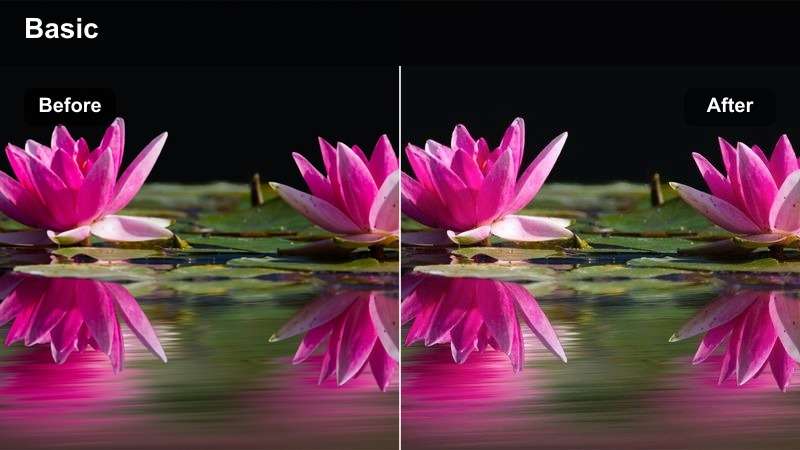
- Effect look: Bright lifestyle aesthetic with slightly lifted shadows and boosted saturation for outfits and storefronts.
- Best for: Outfit-of-the-day segments, shopping vlogs, and street-style intros in front of colorful stores.
- Editing tip: Dial saturation down a little for red tones if lipstick or signs start to clip on smaller screens.
Sidewalk Lifestyle Pop is designed to make outfits, storefronts, and signage stand out with a fun, elevated lifestyle feel. The filter brightens your scene, gently lifts shadows, and enhances saturation so clothing textures and brand colors look intentional and eye-catching in thumbnails and feeds.
Inside Filmora, apply this filter to fashion or shopping segments, then fine-tune saturation per color if reds and oranges begin to overpower skin. Slightly reducing intensity for A-roll while keeping stronger pops on b-roll cutaways helps your vlog look stylish without overwhelming viewers on mobile screens.
Bright Open Trails and Hilltop Views
Trail Day Bright
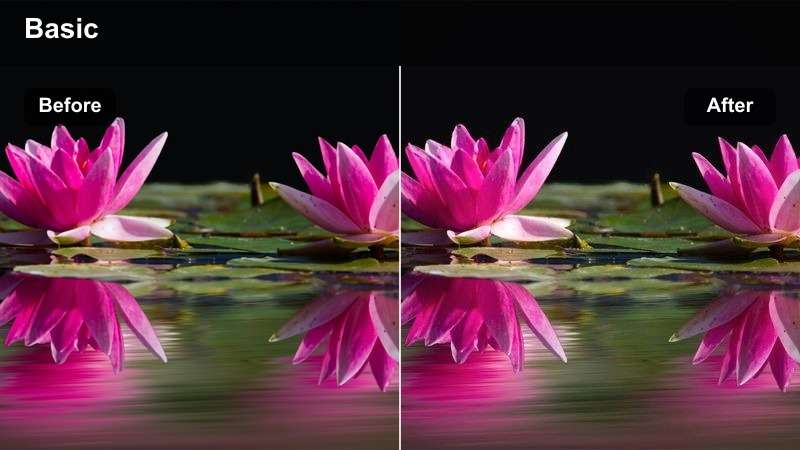
- Effect look: Clear daylight boost with slightly cooler shadows that keep open trails crisp and airy.
- Best for: Hiking vlogs, running paths, and fitness walks filmed under strong midday sun.
- Editing tip: Lower the filter strength if skin starts to look too cool while keeping the sky and path bright.
Trail Day Bright is built for exposed paths and hillsides where the sun is harsh and the sky fills most of the frame. It lifts brightness while cooling shadows just enough to keep dirt paths, grass, and tree lines feeling fresh and ventilated instead of muddy or flat.
In Filmora, combine this filter with Highlight and Shadow controls to hold cloud detail and keep your face readable when the sun is overhead. If skin shifts too blue, lower filter intensity and warm your white balance slightly so you maintain a cool, airy landscape without giving yourself a cold cast.
Hilltop Panorama Glow
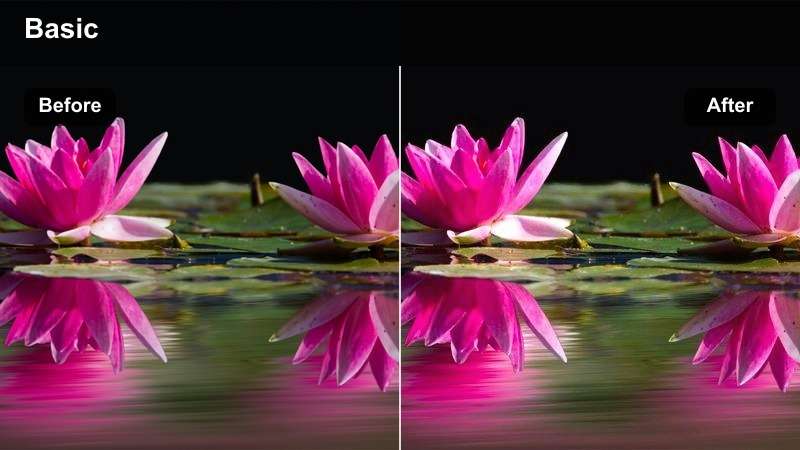
- Effect look: Bright, slightly warm global exposure lift that emphasizes distant city skylines and ridge lines.
- Best for: Wide establishing shots from hilltops overlooking cities, suburbs, or valleys.
- Editing tip: Zoom in a bit when framing so YouTube compression does not soften small city details in the distance.
Hilltop Panorama Glow is perfect for sweeping openers and cutaways where the main subject is the view itself. The filter lifts overall exposure and adds a touch of warmth, helping distant skylines, valley floors, and ridge lines feel more defined and inviting without needing heavy manual grading.
In Filmora, apply this filter to your widest shots and combine it with gentle camera moves like slow pans or tilts for cinematic intros. Keep an eye on histogram and highlights, pulling them back if the brightest buildings or clouds push too far, so your panoramic sequences stay bright but still hold structure and texture.
Sunny Overlook Portrait
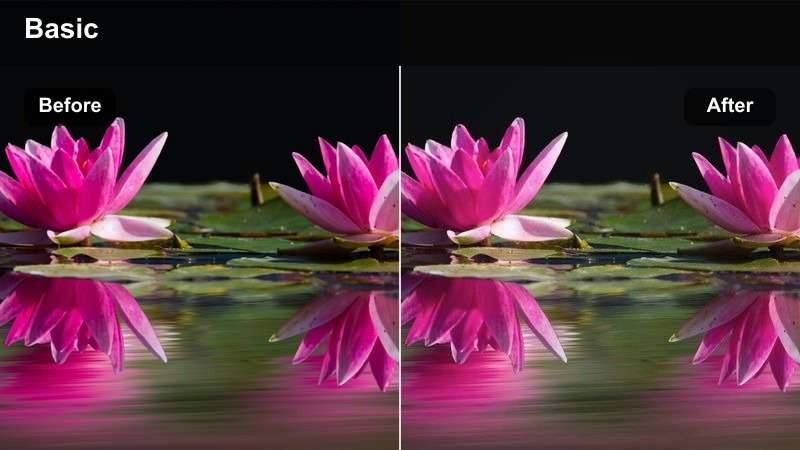
- Effect look: Bright portrait-focused look with softened contrast and flattering midtones for close-ups outdoors.
- Best for: Selfie shots at viewpoints, rooftop decks, and overlooks with the city or landscape behind you.
- Editing tip: Use a slight vignette so your face remains the focal point even with a dramatic bright background.
Sunny Overlook Portrait helps keep your face front and center when filming tight shots at scenic viewpoints. It brightens and smooths midtones, softens contrast a bit, and maintains enough background clarity so the city or landscape behind you still reads clearly on smaller screens.
Inside Filmora, apply this filter to selfie and mid-shot clips, then add a gentle vignette and lift exposure on your face with masking or adjustment tools. This combination lets you maintain a bright, impressive overlook while subtly guiding the viewer's eye to you as the main subject of the vlog.
Bright Seaside Piers and Coastal Walks
Pier Midday Refresh
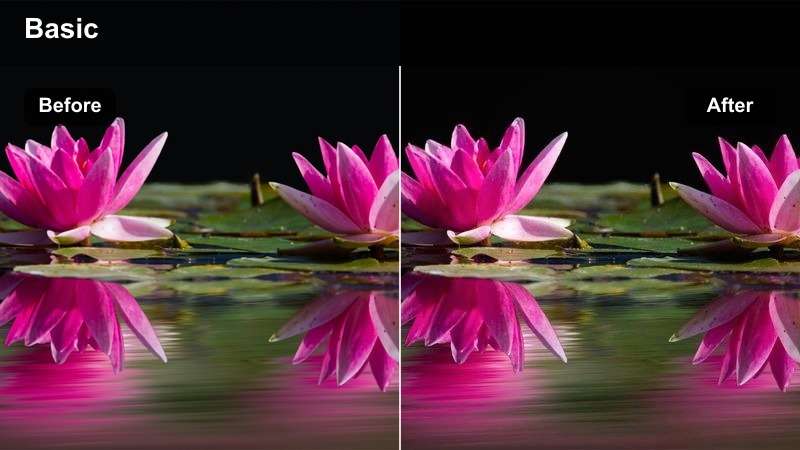
- Effect look: High-key brighten with cool, clean whites that keep water and sky looking refreshing.
- Best for: Midday vlogs on piers, seaside promenades, and docks where sun reflects off the water.
- Editing tip: Bring highlights down just enough so reflections on the water still show texture and color.
Pier Midday Refresh is made for harsh seaside sun where the water and sky dominate your frame. The filter pushes a high-key, cool look that makes whites feel crisp and the overall scene feel refreshing, which works especially well for travel and summer vlogs filmed at busy piers.
In Filmora, apply this filter and then refine Highlights and Whites so specular reflections on the water do not clip to pure white. If skin gets slightly too cool, nudge temperature a bit warmer or selectively adjust skin tones while keeping the overall pier and ocean bright and invigorating.
Coastal Promenade Breeze
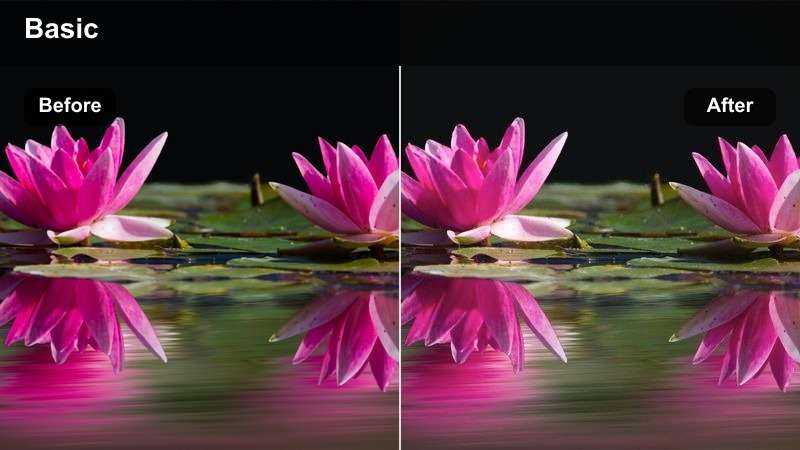
- Effect look: Soft brightening with pastel blues and gentle contrast for relaxed, breezy walking shots.
- Best for: Slow walk-and-talk segments along coastal paths, marina boardwalks, and beachfront streets.
- Editing tip: Leave a little room in the frame above your head so the bright sky feels spacious and cinematic.
Coastal Promenade Breeze gives your seaside walks a calm, airy character, emphasizing pastel blues and soft light that feel easy to watch. It is great for conversational segments where you want the mood to be chilled and inviting rather than punchy or high-contrast.
In Filmora, combine this filter with slower pacing and gentle camera moves so the relaxed grade matches the rhythm of your edit. If your footage was shot under slightly gray skies, use the Color tools to nudge saturation of blues and cyans up a bit, keeping the pastel feel while avoiding a dull or flat atmosphere.
Harbor Sun Sparkle
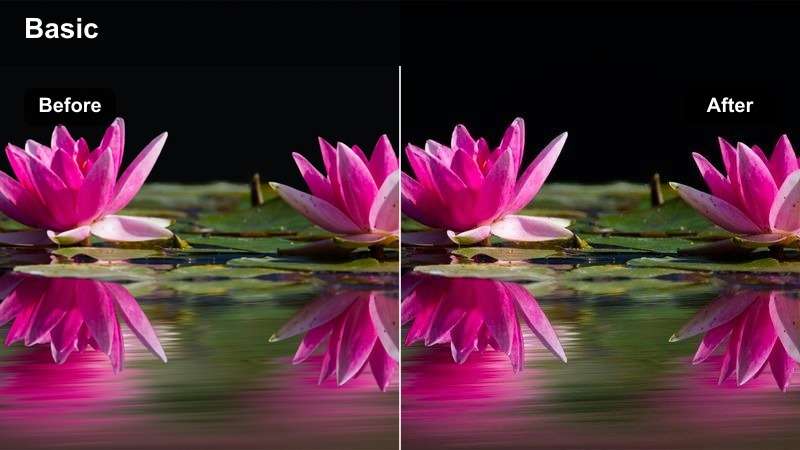
- Effect look: Crisp bright look with boosted highlights on water and slightly richer blues for a summer vibe.
- Best for: Harbor b-roll, boat departures, and establishing shots around marinas and coastal city edges.
- Editing tip: Use shorter clips with this strong bright effect so the sparkle stays exciting instead of overwhelming.
Harbor Sun Sparkle is a bold filter that turns marina and harbor scenes into energetic summer visuals. It emphasizes highlights on water and intensifies blue tones, making waves, hulls, and sky stand out in quick cutaway shots or vlog intros.
In Filmora, apply this effect mainly to short b-roll segments at the start or between story beats, and balance it with softer filters for talking clips. If the sparkle feels too aggressive, reduce filter intensity and highlights slightly while keeping saturation on blues elevated so the harbor still reads as a bright, iconic location.
Tips for Using Youtube Outdoor Vlog Luts Bright Look Filters in Filmora
- Film with exposure slightly under what looks ideal in camera, then lift brightness with Filmora filters to protect sky and highlight detail.
- Pick one or two bright filters as your channel signature so viewers recognize your outdoor vlog style instantly.
- Always check how bright grades look on a phone screen since most YouTube viewers watch on mobile.
- Use lower filter intensity for talking clips and stronger intensity for b-roll to keep the focus on your face.
- If your background is very colorful, slightly reduce saturation after applying the filter to keep the scene comfortable to watch.
- Match white balance across clips before adding filters so your bright look stays consistent from street to park to seaside.
With the right Filmora filters, you can turn raw daylight footage into bright, polished YouTube outdoor vlogs that feel consistent from intro to outro.
Choose a few presets from this guide, fine-tune them to your taste, and you will have a fast, repeatable workflow for every sunny vlog you shoot next.
secure download