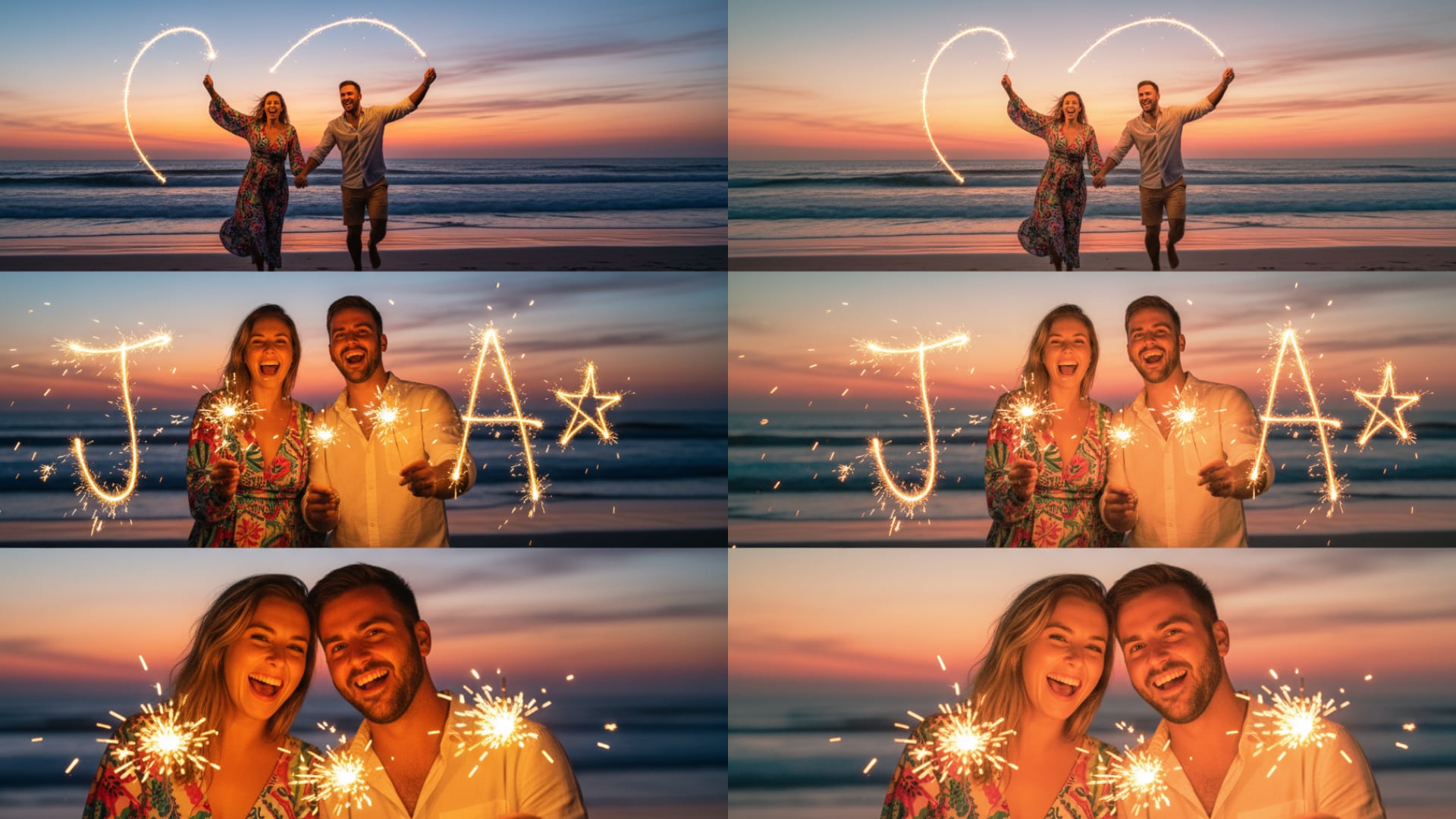
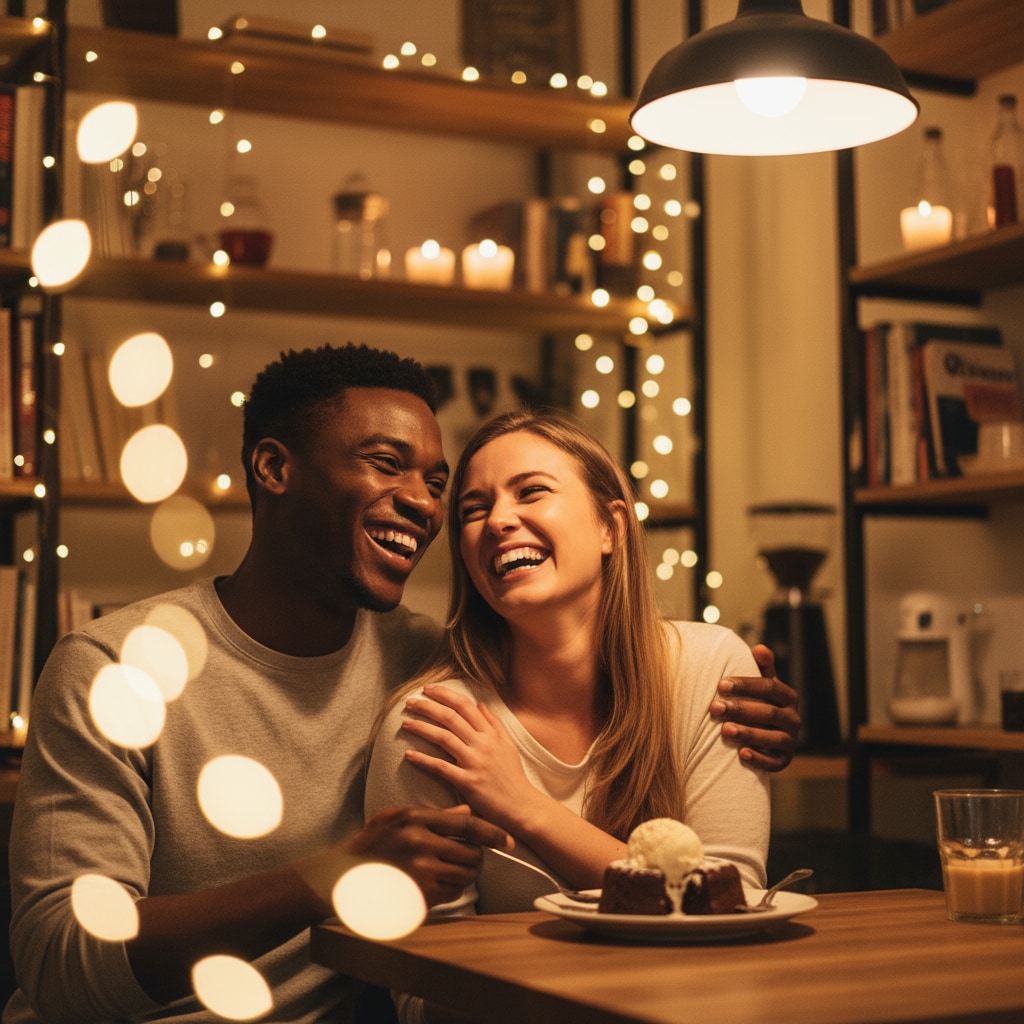
20+ Rose Day AI Photo Prompts:
Easy Copy, Paste & Generate Instantly
These curated rose day AI photo prompts are designed for both AI image generation and AI photo editing workflows. From romantic couple portraits and rose bouquet scenes to proposal moments and soft cinematic lighting, each prompt works seamlessly with popular tools like Gemini AI and Filmora’s AI Image Generator. Simply choose a prompt, copy it, and generate high-quality Rose Day images ready for Instagram, TikTok, Snapchat, or WhatsApp sharing.
Loading more templates...
 Category:
 Duration:
 Aspect Ratio:
Create Stunning Rose Day Photo Effects
With Nano Banana Pro Prompts
Want more control than basic filters? Filmora’s advanced AI image generator, powered by Google's Nano Banana model, helps you turn any rose day photo editing prompt into a polished, share-ready image.
It also works smoothly with rose day gemini AI prompts and rose day gemini ai photo prompts, so you can generate romantic visuals with realistic roses, soft lighting, and natural skin tones—perfect for couples, proposals, or festive greetings.
Turn Any Prompt Into Viral Rose Day Photo Effects
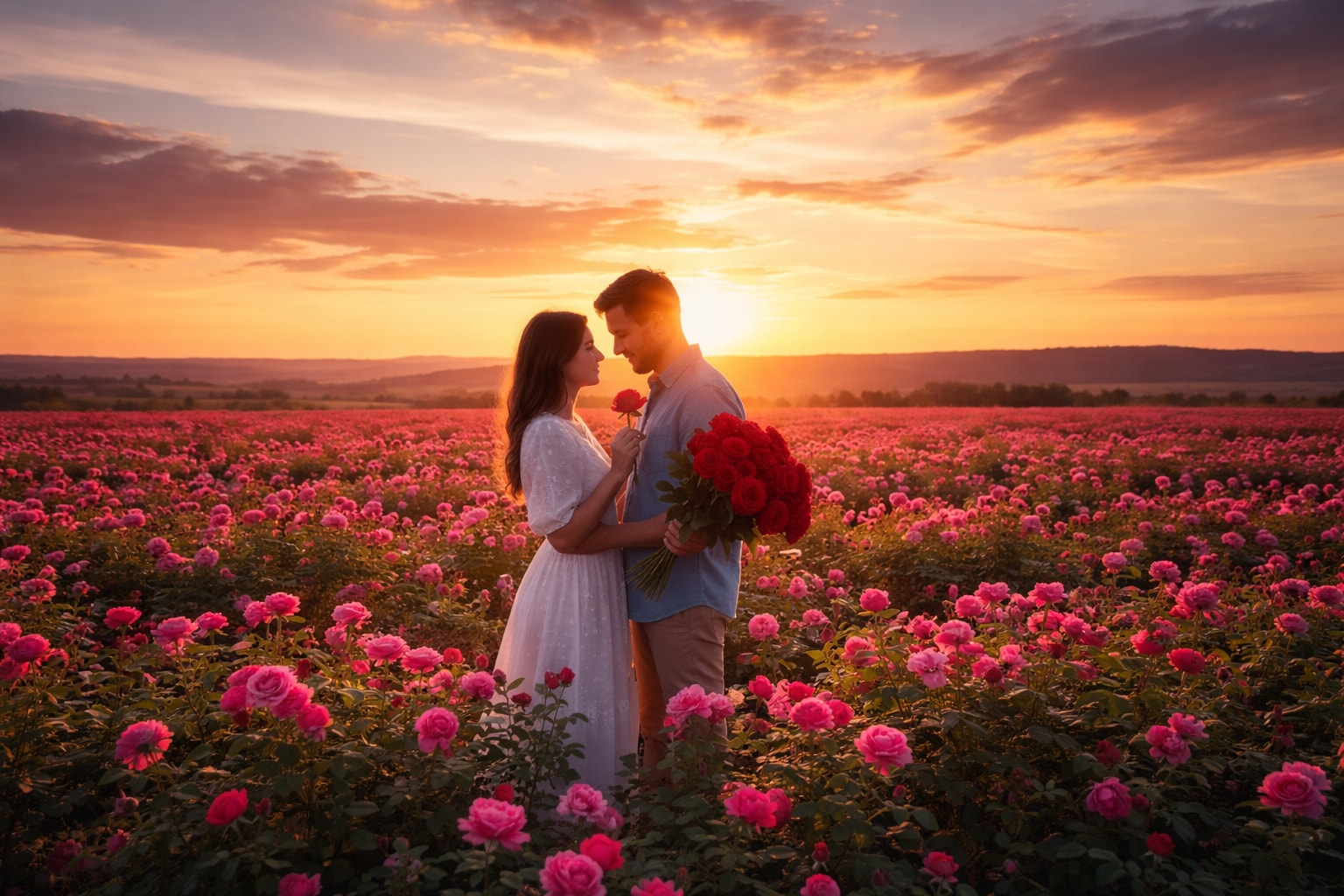
Turn Any Prompt Into Viral Rose Day Photo Effects
From soft romantic portraits to cinematic proposal scenes, these rose day AIimage prompts help you visualize love stories in seconds. You can adapt each rose day couple ai prompt for selfies, full-body portraits, or even background replacement. Just paste the prompt, select your style, and let AI (including Gemini-compatible workflows) do the rest.
- Copy-Paste Any Prompt - Access over 16 creative rose day photo prompts ready to use.
- Multiple Styles - Romantic, vintage, modern Instagram filters, and artistic rose designs.
- Photo Reference Supported - Upload your photos for personalized rose day enhancements.
Make Rose Day Photo Videos Instantly with Filmora App Templates
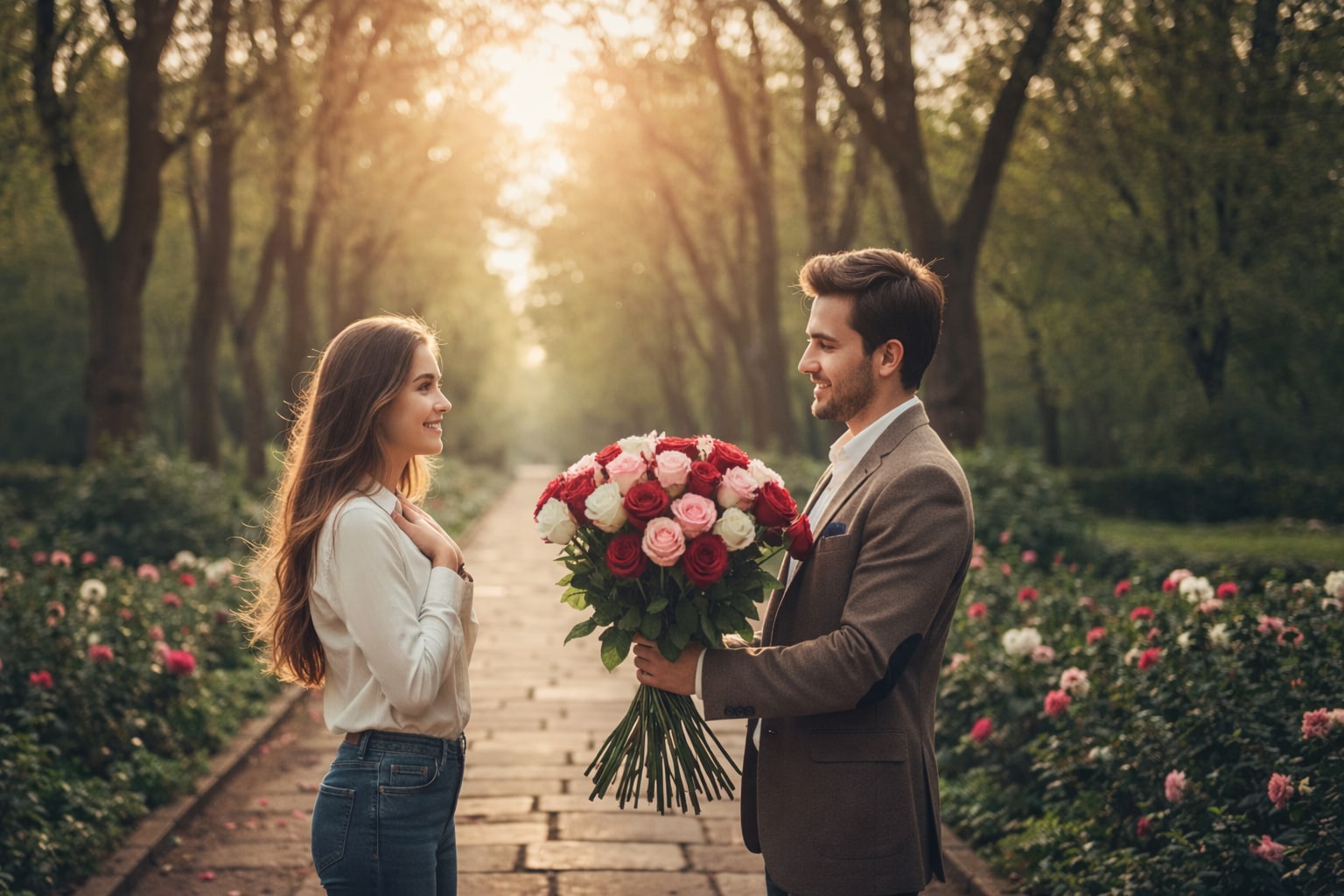
Make Rose Day Photo Videos Instantly with Filmora App Templates
Filmora includes Nano Banana Pro-driven Rose Day templates that turn your pictures into heartfelt, viral clips—perfect for TikTok and Instagram Reels.
- Pre-Made Rose Day Templates - Create romantic videos with rose petals, bouquets, and love-themed animations.
- No Prompt Writing Needed - Upload a photo, pick a Rose Day template, and generate instantly.
- Customizable Effects - Add personal touches or let AI optimize your Rose Day visuals.
- Photo to Animated Video - Transform still Rose Day photos into smooth, eye-catching videos automatically.
- Built-In Love Music & SFX - Add romantic sound effects to boost engagement.
Add Custom Text and Decorations to Your Rose Day Photo

Add Custom Text and Decorations to Your Rose Day Photo
Finish your Rose Day visual with clean text, romantic captions, and subtle decorations. Filmora’s editing tools help you turn a generated image into a polished post—add “Happy Rose Day” text, adjust colors, or layer rose stickers without over-editing the photo.
- 🗨️ Custom CaptionsAdd romantic text styles, rose-themed speech bubbles, or personalized notes with ease.
- 🔤Beautiful FontsChoose from elegant handwritten fonts, classic serif styles, and social media-friendly typography.
- 🎨 Decoration ToolsApply color gradients, text shadows, rose petal overlays, and shimmer effects.
FAQs About Rose Day Photo Effects
How to Create a Rose Day Photo Effect in Filmora?
Using a well-written rose day AI photo prompt makes a huge difference in image quality. With Filmora, you can combine Gemini-style prompts and AI image tools to generate, refine, and edit Rose Day photos for TikTok, Instagram, and YouTube—without switching between multiple platforms.
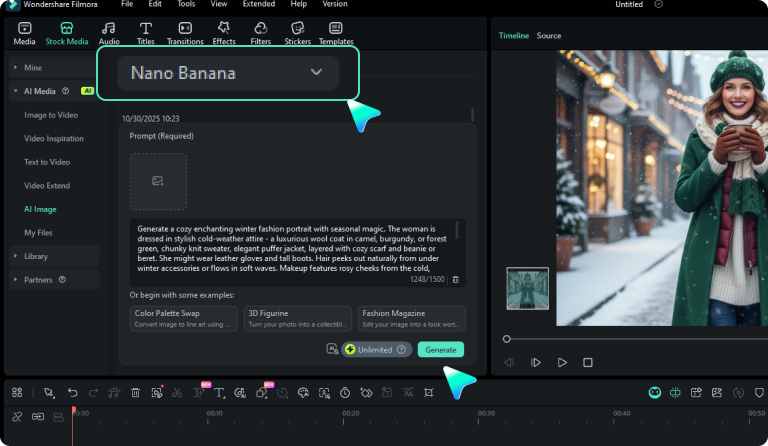
Step 1 Open Filmora and Access AI Image Tool
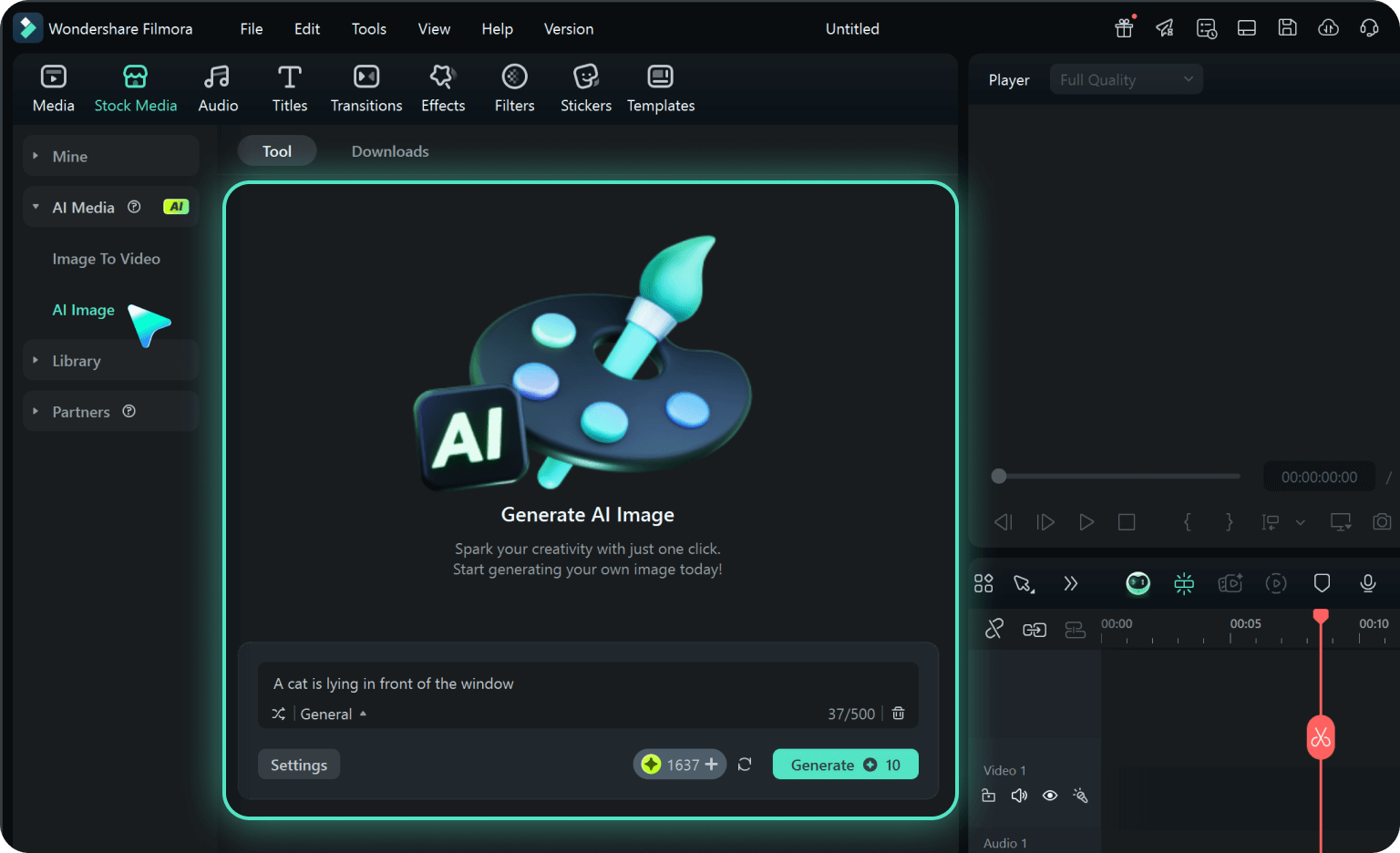
Step 2 Generate a Rose Day Photo
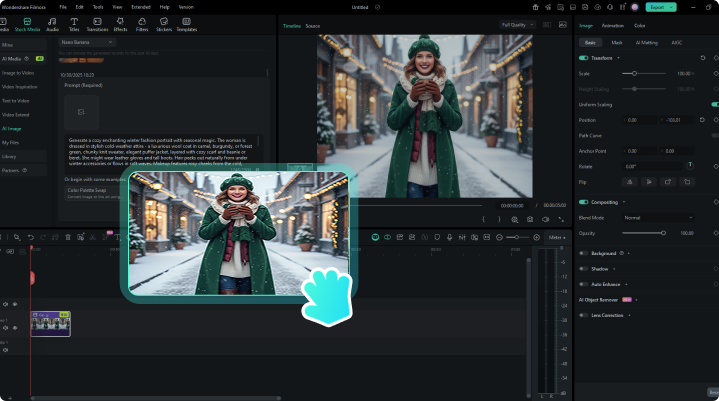
Step 3 Save and Edit Your Rose Day Photo
-
1:Open Filmora and Access AI Image Tool
Launch Filmora, create a project, and click "Stock Media", then choose "AI Image" from the media panel. -
2:Generate a Rose Day Photo
Select the AI model and enter a prompt like "rose day photo editing prompt: add rose petals, romantic glow, soft bokeh background, cinematic lighting", then click "Generate". -
3:Save and Edit Your Rose Day Photo
Download the photo and use Filmora’s timeline to add edits, music, or effects for a perfect Rose Day video or slideshow.
More Than Just Rose Day Photo Creators
Filmora lets you do more than just make rose day photo effects. Generate romantic AI photos, create themed videos from prompts or pictures, and edit them with powerful tools—all in one place for perfect social sharing.