

 100% Security Verified | No Subscription Required | No Malware


 ChatGPT
 Perplexity
 Gemini
 Claude
 Grok
Grok
Cinematic YouTube video filters can instantly give your channel a polished, movie-style identity, even if you are filming on a compact camera or smartphone. With the right Filmora presets, you can add depth, drama, and color harmony in just a few clicks.
Below are curated cinematic YouTube video filters designed for cinematic YouTubers, filmmaking creators, and high production vloggers who want a consistent film look across their content without complex color grading.
In this article
Core Cinematic Film Look Filters
Soft Film Matte
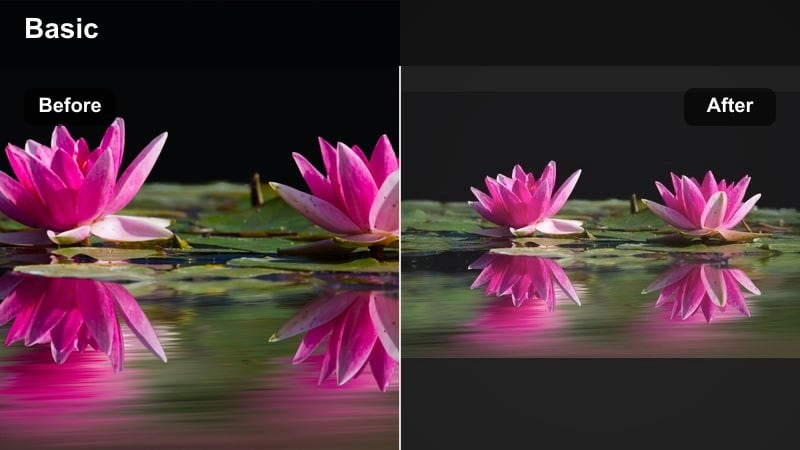
- Effect look: Soft contrast with gentle fade in the blacks and a subtle warm highlight roll-off for a classic film print feel.
- Best for: Narrative YouTube shorts, cinematic B-roll, and lifestyle sequences with natural light.
- Editing tip: Lower the filter intensity to around 60-70 percent and slightly increase midtone contrast to keep faces from looking washed out.
Soft Film Matte is a versatile base filter that adds a timeless matte film finish without overpowering your original footage. In Filmora, it is a strong starting point for creating a cohesive cinematic YouTube video because it gently rolls off highlights and slightly lifts the blacks, mimicking the way real film handles bright and dark areas.
Use this look on lifestyle clips, walking B-roll, or quiet narrative moments where you want a subtle, cinematic feel rather than a heavy stylized grade. Apply Soft Film Matte to an adjustment layer, fine-tune intensity, then tweak exposure and midtone contrast so skin remains natural while the overall frame still has that soft movie-like atmosphere.
Speed up your film look with AI-powered color tools
Filmora s AI color tools help you get to a polished cinematic YouTube look faster by analyzing your footage and suggesting balanced exposure and color starting points. This reduces the time you spend fixing basic issues like incorrect white balance or uneven contrast.
Once AI sets a clean base, you can drop in any of these cinematic YouTube video filters or cinematic LUT-style looks to refine mood, match shots, and keep your channel s visuals consistent from upload to upload.
 secure download

Preview cinematic filters in real time
Use Filmora s live preview to scroll through cinematic filters on a test clip and immediately see how each style affects your highlights, shadows, and skin tones. This helps you avoid trial-and-error exports and keeps your workflow fast.
Cinematic YouTubers and filmmaking creators can audition multiple film looks side by side, then lock in a grade that matches the story, location, and lighting of each scene before applying it across an entire sequence.
secure downloadCombine filters with cinematic LUT-style presets
For deeper control, layer these filters with Filmora s LUT-style presets to stack subtle color shifts on top of your main film look for YouTube. This gives you the flexibility to craft a signature grade that still adapts to different locations and lighting setups.
Keep your filter at a lower opacity as the base mood, then add a cinematic LUT-style grade for final polish, contrast, and color separation. The result is a movie-style finish that looks complex, but is quick to build and easy to reuse across an entire series.
secure downloadAnalog Warm Glow
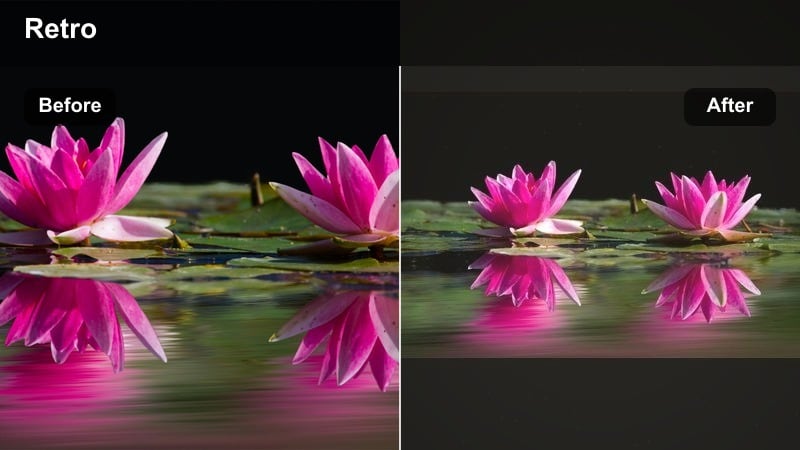
- Effect look: Golden highlights, slightly lifted shadows, and subtle halation-style glow around bright areas for a nostalgic analog feel.
- Best for: Golden hour walk-and-talk vlogs, travel diaries, and cinematic YouTube intros.
- Editing tip: Reduce saturation in the yellows and oranges slightly so skin tones stay natural while the image keeps its dreamy warmth.
Analog Warm Glow turns flat outdoor footage into story-driven scenes that feel like frames from a modern film shot at sunset. In Filmora, this filter brightens highlights and adds a gentle glow, helping street lamps, sun flares, and backlit hair look more expressive on screen.
Use it on golden hour vlog segments, travel intros, or couple shots where you want to emphasize warmth and emotion. Adjust the global saturation and fine-tune the yellow and orange ranges so skin remains believable, then balance exposure and contrast to keep details in skies and light-colored buildings.
Moody Low-Key Cinema
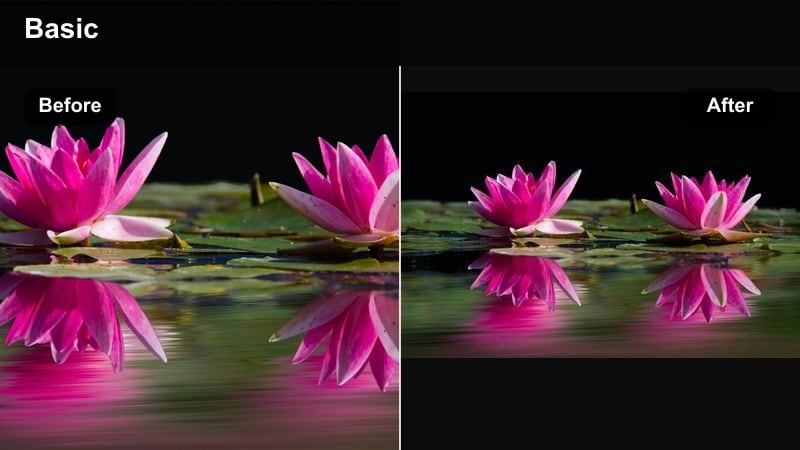
- Effect look: Deep contrast with rich blacks, desaturated colors, and cool shadows for a dramatic, low-key movie tone.
- Best for: Cinematic talking-head videos, storytime content, and dramatic narrative scenes.
- Editing tip: Use a softbox or window light on one side of the face and let the other side fall into shadow so this filter can sculpt depth across your subject.
Moody Low-Key Cinema is a bold cinematic filter that can make simple bedroom or studio setups look like stylized film frames. It pushes blacks deeper, cools down the shadows, and reduces overall saturation so that light and shadow shape your subject more than color.
Apply this look to serious storytime videos, cinematic monologues, or dramatic sequences when you want to shift mood instantly. In Filmora, refine the exposure before applying the filter, then adjust shadow and midtone levels so you keep enough detail in hair and background while preserving that intentional, low-key drama.
Cinematic Filters for Travel and Urban B-Roll
Teal and Orange City Grade
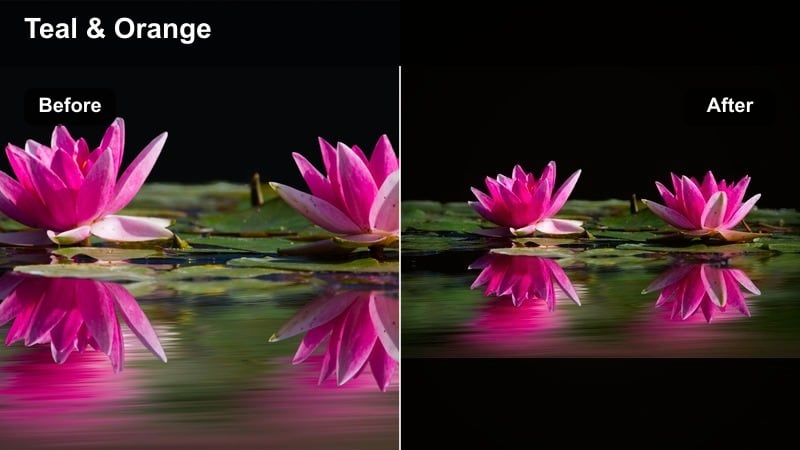
- Effect look: Punchy contrast with teal shadows and warm orange midtones for a blockbuster-style city palette.
- Best for: Urban B-roll, car scenes, and street-style cinematic YouTube montages.
- Editing tip: Dial back saturation on the blues so the teal does not overpower skin tones, and use keyframes to slowly ramp filter intensity in and out of sequences.
Teal and Orange City Grade gives your city footage the trending blockbuster look that audiences instantly recognize as cinematic. It separates subjects from backgrounds by pushing skin and warm surfaces toward orange while sidewalks, streets, and sky shadows lean into teal.
Use this filter on dynamic street montages, car sequences, or skyline B-roll. In Filmora, combine it with slow motion, speed ramps, and lens flares, then refine HSL channels to keep skies natural and skin tones flattering while maintaining that bold teal-and-orange contrast.
Travel Pastel Film
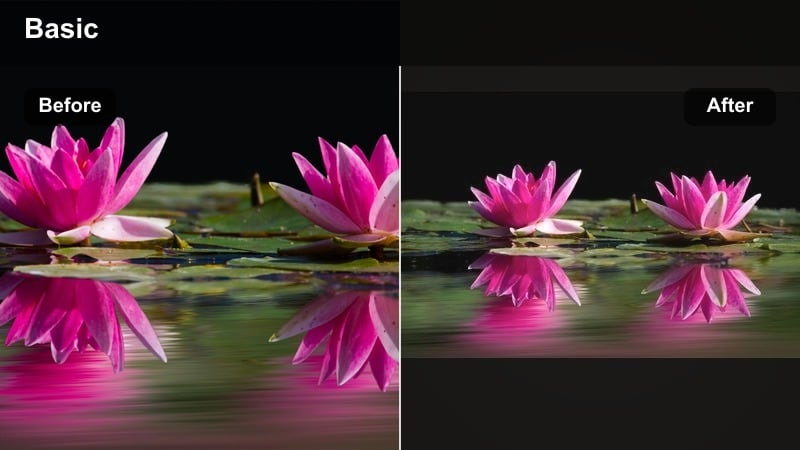
- Effect look: Softened contrast with bright midtones and light pastel colors for airy travel vlog visuals.
- Best for: Coastal city walks, cafe B-roll, and light-hearted cinematic travel episodes.
- Editing tip: Add a tiny amount of film grain and keep shutter speed slightly higher in camera to maintain crisp motion with the dreamy palette.
Travel Pastel Film brightens travel scenes, softens harsh transitions, and gently shifts colors toward a pastel, postcard-like palette. It works especially well in locations with bright walls, blue water, and colorful storefronts, turning everyday shots into relaxed cinematic frames.
Apply this filter to seaside promenades, cafe interiors, and airy street scenes to keep your channel feeling uplifting and easy on the eyes. In Filmora, pair it with light film grain, gentle vignettes, and smooth camera moves, and make sure your base exposure is slightly under to preserve detail in skies and bright highlights.
Night Neon Cinema
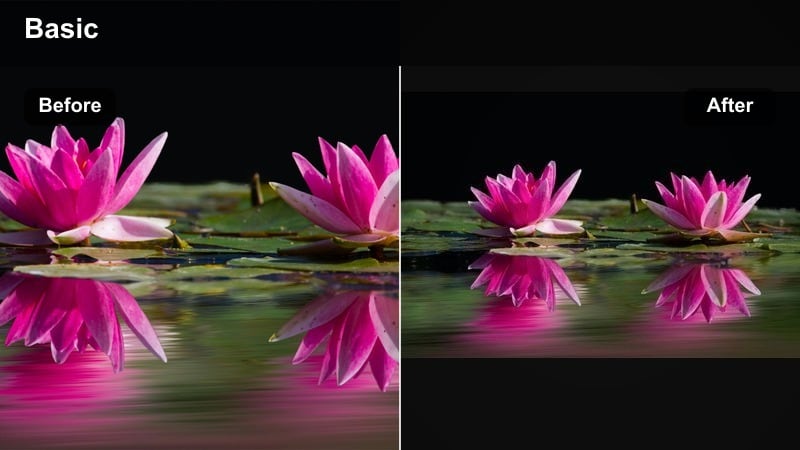
- Effect look: High contrast with saturated neons, cool shadows, and subtle bloom around bright signs for a cyberpunk-style night look.
- Best for: Night city vlogs, rain-soaked streets, and handheld B-roll with neon lights.
- Editing tip: Stabilize your footage in Filmora first, then apply the filter so the bold neon edges remain sharp and cinematic.
Night Neon Cinema transforms noisy night footage into stylized frames where neons and reflections take center stage. It enhances colored signs, car lights, and wet pavement, giving your city nights a cyberpunk-inspired, cinematic character.
Use it on moody night walks, club exteriors, or rainy street B-roll to make limited light sources look intentional and artistic. In Filmora, lightly denoise your clips first, stabilize handheld shots, then add the filter and fine-tune saturation in magenta, cyan, and green so faces stay natural while neon signage still pops.
Film-Style Filters for Story-Driven Vlogs
Cinematic Neutral Base
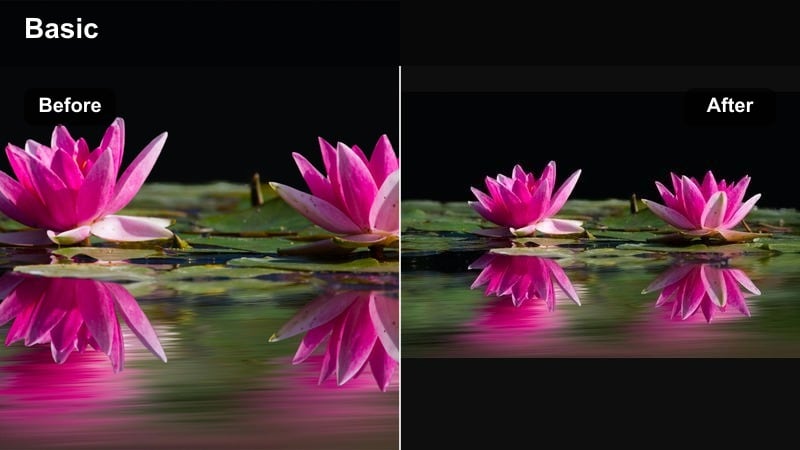
- Effect look: Balanced contrast, slightly desaturated colors, and natural skin tones for a clean, film-inspired base grade.
- Best for: Daily vlogs with cinematic B-roll, productivity films, and educational YouTube videos.
- Editing tip: Stack this as your primary look, then add Filmora s highlight and shadow adjustments per clip for quick scene-to-scene matching.
Cinematic Neutral Base is a subtle film-style filter that keeps your channel looking consistent without locking you into a heavy stylized grade. It gently pulls saturation back and shapes contrast so your footage feels cinematic while still being versatile for any niche.
Apply it as an adjustment layer across an entire project in Filmora, then use per-clip exposure and white balance tweaks to match shots from different cameras or locations. This approach creates a unified base look while letting you customize individual scenes with additional effects or overlays.
Soft Portrait Fade
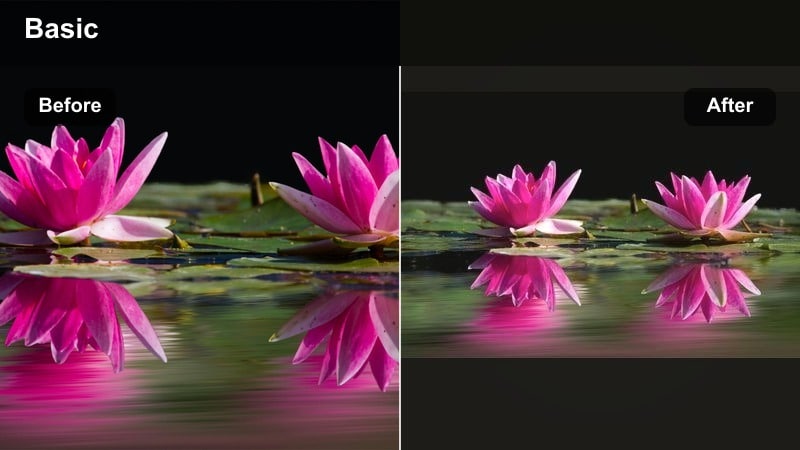
- Effect look: Gentle faded blacks, low contrast, and slightly warmer skin for a character-focused, emotional tone.
- Best for: Sit-down storytelling, emotional voice-overs, and close-up portrait shots in vlogs.
- Editing tip: Combine with a subtle background blur or slower depth-of-field style shot to separate your face from the environment.
Soft Portrait Fade emphasizes emotion and storytelling by softening distractions and guiding attention toward faces. It lifts the blacks, reduces contrast, and adds a touch of warmth, which flatters skin and gives your storytime segments a gentle, cinematic softness.
Use it on close-ups, reaction shots, or moments where you want viewers focused on your eyes and expressions. In Filmora, pair this filter with shallow depth-of-field footage, mild vignettes, and selective sharpening on the eyes so the image feels dreamy without losing important facial detail.
Documentary Cool Tint
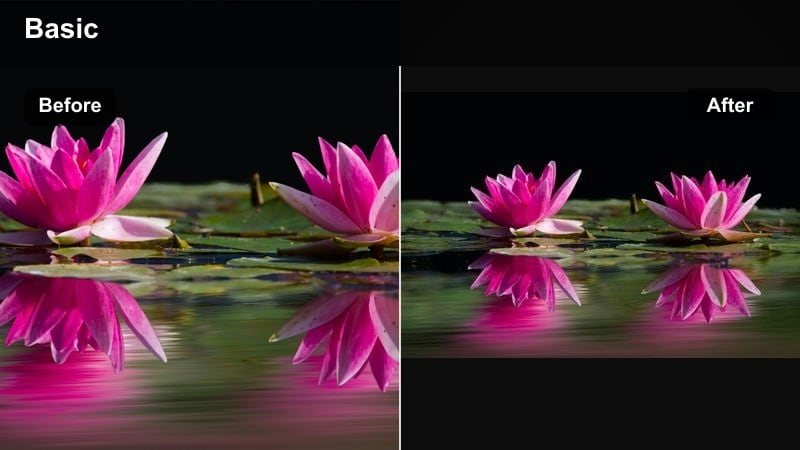
- Effect look: Cool, calm color balance with clean whites and moderate contrast for a documentary-style film look.
- Best for: Behind-the-scenes videos, process documentaries, and educational cinematic YouTube content.
- Editing tip: Keep the filter strength consistent across the episode and use Filmora s color match to quickly align shots from different locations.
Documentary Cool Tint gives informational content a polished, serious tone without feeling overwrought. It cools down the overall palette slightly, keeps whites clean, and maintains realistic skin tones so your footage feels credible and professional.
Apply this filter to BTS sequences, process breakdowns, interviews, and tutorials where clarity is key. In Filmora, maintain a consistent strength level across the entire timeline, then use color match and minor exposure tweaks to ensure that indoor and outdoor scenes still feel like part of the same cohesive documentary.
Creative Aesthetic Filters for High-Production Looks
Retro Film Fade
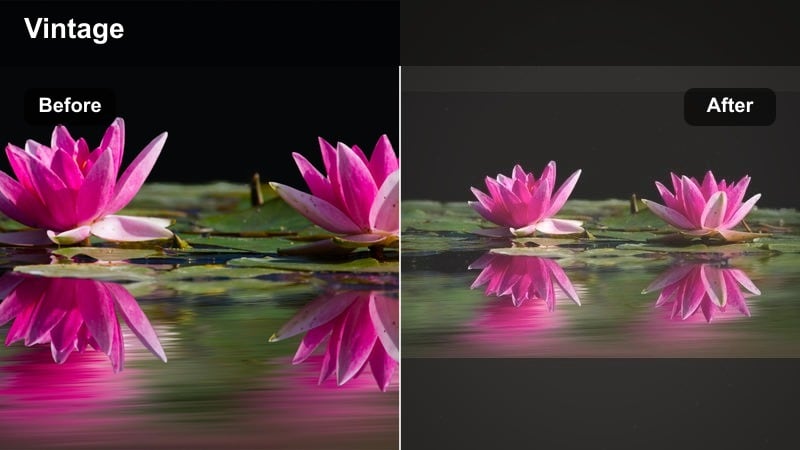
- Effect look: Desaturated colors, heavy matte, and slight color shift toward green and yellow for a vintage movie vibe.
- Best for: Throwback sequences, memory flashbacks, and stylized chapters inside longer cinematic videos.
- Editing tip: Use on B-roll or cutaway shots only so the effect feels intentional; keep your main narrative filter more neutral.
Retro Film Fade instantly signals to viewers that they are watching a memory, flashback, or time-jump in your story. The strong matte, muted colors, and vintage tint echo the look of older film stocks and aged home movies.
Use it sparingly on transitions, chapter breaks, and nostalgic cutaways within longer videos. In Filmora, combine this filter with film grain, light leaks, or dust overlays, and keep sharpening low so the image remains slightly soft and authentically retro.
Color Pop Cinema
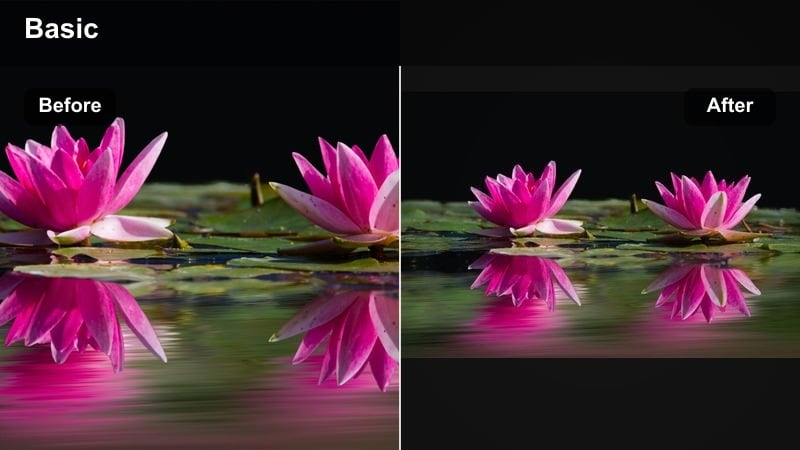
- Effect look: Medium contrast with targeted saturation boosts to specific hues while keeping backgrounds slightly muted.
- Best for: Product B-roll, fashion lookbooks, and detail shots in high production vlogs.
- Editing tip: Use Filmora s masking to apply the filter only to the subject or product, leaving the rest of the frame more neutral for separation.
Color Pop Cinema spotlights key colors in your frame, making products, outfits, or props stand out while the environment stays quieter. This is ideal for creators who want their gear, clothing, or brand elements to be the immediate focal point on screen.
Apply it to tabletop product shots, fashion reels, and close-up B-roll. In Filmora, refine saturation and hue for the boosted colors, then experiment with masks or adjustment layers so only the subject receives the pop while the background remains subtly desaturated and cinematic.
Black and White Art Film
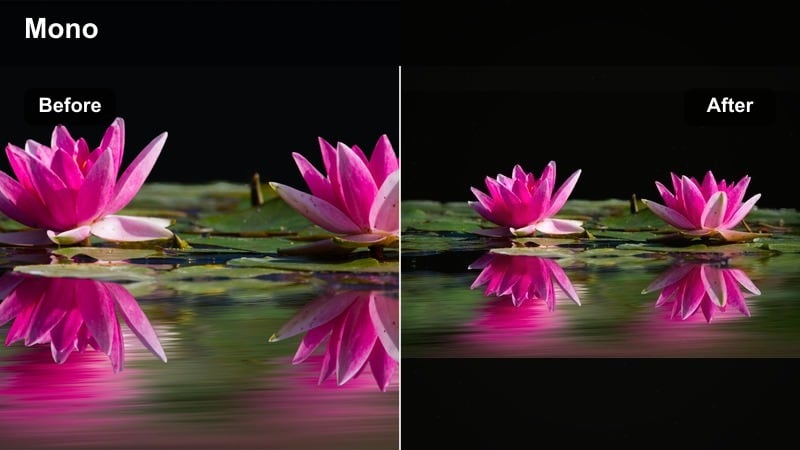
- Effect look: Rich monochrome with strong contrast, detailed midtones, and cinematic grain for an art-house film aesthetic.
- Best for: Experimental sequences, opening titles, and dramatic monologues where color is not essential.
- Editing tip: Raise midtone detail and slightly decrease shadows so important texture in hair, clothing, and backgrounds stays visible.
Black and White Art Film strips away color and focuses attention on framing, performance, and light. With strong contrast and detailed midtones, it turns ordinary setups into moody, art-house style scenes that can open or close your videos in a memorable way.
Use it for intros, poetry readings, monologues, or experimental segments. In Filmora, plan your lighting carefully, then apply the filter and fine-tune curves to retain detail in hair, clothing, and backgrounds while still delivering a bold, punchy black-and-white cinematic finish.
Tips for Using Youtube Video Cinematic Filters in Filmora
- Shoot in a flat or neutral picture profile in-camera so Filmora s cinematic filters have more dynamic range to work with.
- Use adjustment layers in Filmora to apply the same cinematic filter across multiple clips for faster, more consistent grading.
- Always correct exposure and white balance before adding strong cinematic filters to avoid exaggerated color casts.
- Lower filter intensity on close-up shots so skin stays natural while the overall frame still feels cinematic.
- Create preset combinations of filter plus small tweaks in Filmora and save them as custom presets for different series on your channel.
- Experiment with mixing a neutral base filter and a stronger creative look on separate layers to balance realism with style.
- Preview your grade on both desktop and mobile screens to ensure your cinematic look reads well at different sizes and brightness levels.
- Use Filmora s scopes and histograms when available to keep highlights from clipping and shadows from crushing under heavy filters.
Cinematic YouTube video filters in Filmora give you an accessible way to turn everyday footage into movie-style content, whether you are shooting cinematic vlogs, travel B-roll, or storytelling videos.
Start with a core film-look filter that matches your channel s mood, refine it with a few simple adjustments, and then explore more aesthetic YouTube video filters to build a recognizable visual identity from video to video.
secure downloadNext: Explore Aesthetic YouTube Video Filters for Your Next Upload
