

 100% Security Verified | No Subscription Required | No Malware


 ChatGPT
 Perplexity
 Gemini
 Claude
 Grok
Grok
Beach footage can look flat and washed out straight from the camera, especially under harsh midday sun or hazy coastal light. With the right beach video filters for YouTube, you can turn your travel vlogs and ocean adventures into vibrant, cinematic clips that viewers want to keep watching.
This guide walks YouTube travel creators and beach vloggers through 12 Filmora style filters and grades tailored for sand, sea, and sunset scenes. Use these presets as starting points to fix skin tones, deepen blue water, and add tropical warmth without spending hours on manual color grading.
In this article
Bright Day Beach Filters for YouTube Vlogs
Soft Sun Glow
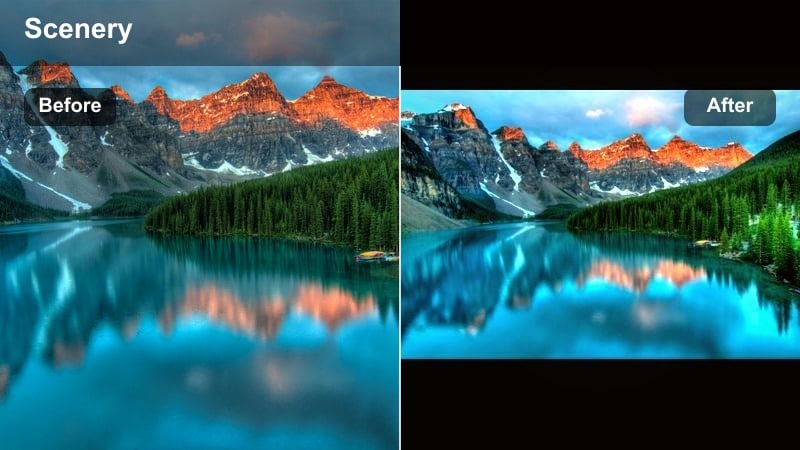
- Effect look: Gentle warm contrast that brightens sand, softens shadows, and keeps skin tones flattering in harsh sun.
- Best for: Midday beach walks, talking-to-camera vlogs on the sand, wide establishing shots under clear skies.
- Editing tip: Lower intensity to around 60–70 percent if your original footage is already bright to avoid clipping highlights on white sand.
Soft Sun Glow is a subtle daylight enhancer that adds warmth and contrast to your beach videos without blowing out highlights or making colors look artificial. It lifts the brightness of pale sand, calms hard midday shadows, and keeps your face looking natural when you are speaking directly to the camera under strong sun.
In Filmora, drag this filter onto your clips, then adjust the effect intensity slider until sand still shows texture and sky detail is preserved. If faces start skewing orange, use the HSL or color adjustment controls to gently reduce saturation in reds and oranges while leaving the filter active. For best results, shoot slightly underexposed so this filter has room to brighten your footage instead of fighting clipped white areas.
Use AI Color Match to Keep Your Beach Filters Consistent
If you shoot beach videos across different days, cameras, and lighting conditions, even the best beach video filters for YouTube can look slightly off from clip to clip. Filmora’s AI Color Match helps you even out those differences in a few clicks.
Choose your favorite graded beach shot as the reference, then let AI analyze and apply a similar color style to your other clips. This keeps your sand, ocean, and skin tones aligned so your entire vlog feels like one cohesive story instead of a patchwork of different looks.
 secure download

Preview Beach Filters on Your Footage in Real Time
Rather than guessing which preset will work, use Filmora’s real-time filter preview to test several beach looks on the same clip. This makes it easy to compare a clean youtube beach LUT style against a more cinematic tropical youtube grade.
Drag different filters onto a duplicate of the same shot, place the clips side by side, and play them back together. You will instantly see which look fits your channel tone, your audience, and the specific beach conditions you filmed in.
secure downloadCombine Filters with LUTs for Advanced Beach Grades
When you want more control, pair Filmora’s style filters with a youtube beach LUT to push specific tones in your sand and ocean. LUTs can define the overall color direction, while filters refine contrast, glow, and clarity.
Apply your chosen LUT first for the overall mood, then add a light beach filter on top to fine-tune brightness and punch. This layered approach gives you a professional, customized ocean youtube filter look without getting lost in complex color tools.
secure downloadAqua Sand Pop
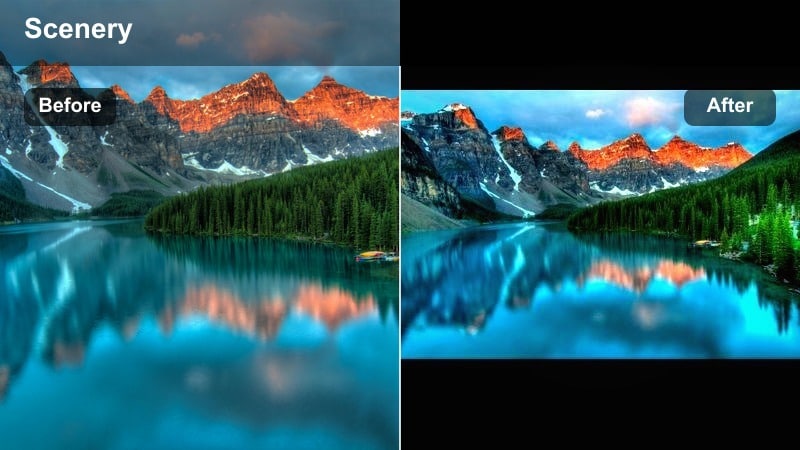
- Effect look: Punchy blues and cyans in the water with clean, brighter sand and a crisp modern YouTube look.
- Best for: Tropical beach b-roll, drone flyovers, cinematic openings for ocean travel channels.
- Editing tip: Add a light vignette and slow zoom keyframes with this filter to make turquoise water stand out even more in your intro shots.
Aqua Sand Pop is designed to make turquoise water and pale sand leap off the screen, perfect for thumbnails, intros, and any hero shot in a beach vlog. It adds saturation and contrast in the blue and cyan ranges while keeping whites clean, giving your footage that high-impact, modern YouTube style.
Inside Filmora, apply Aqua Sand Pop to your favorite overhead or wide shots, then animate a slow zoom-in using scale keyframes to draw attention to the brightest part of the water. If you plan to use a frame as a thumbnail, slightly boost blue saturation and export a still image so your thumbnail perfectly matches the video grade. Be careful not to overdo saturation, as extreme blues can produce banding after YouTube compression.
Clean Coast Neutral
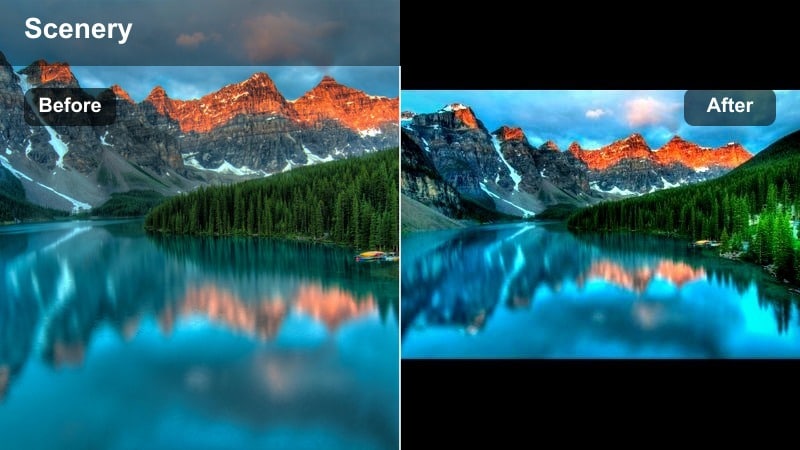
- Effect look: Natural, low-saturation grade that evens out harsh sun and keeps colors true to life for documentary-style vlogs.
- Best for: Informational beach guides, gear reviews on the sand, and realistic travel storytelling content.
- Editing tip: Pair this filter with gentle noise reduction and light sharpening so your footage feels clean and professional without looking over-processed.
Clean Coast Neutral is ideal when you want your beach videos to look accurate and trustworthy rather than hyper-stylized. It lightly compresses contrast and pulls back saturation, creating a calm, realistic palette that works well for guides, how-tos, and travel logs where information matters as much as aesthetics.
In Filmora, use this filter as a base layer across your whole beach project, then apply subtle tweaks per clip with the color adjustment panel. Add mild noise reduction and small amounts of sharpening to give your footage a polished, broadcast-style finish. Save the combination as a custom preset and apply it to every similar vlog so your channel maintains a steady, documentary-grade visual identity.
Sunset and Golden Hour Beach Filters
Sunset Amber Wash
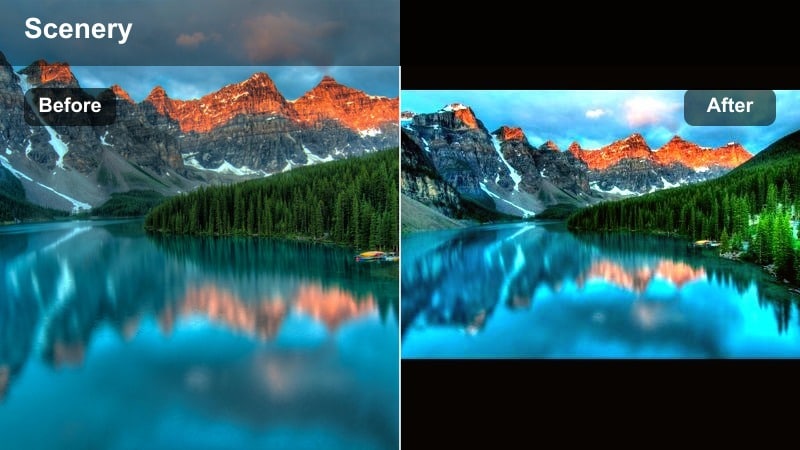
- Effect look: Rich amber and gold tones that enhance sunsets and warm up skin tones while preserving detail in the sky.
- Best for: Golden hour talking segments, romantic beach walks, and slow-motion sunset b-roll.
- Editing tip: Reduce midtone contrast slightly when shooting directly into the sun to keep silhouettes smooth and avoid harsh banding in the sky.
Sunset Amber Wash intensifies golden hour light so every cloud and wave reflects a deep, cinematic warmth. It enhances orange and yellow tones without destroying highlight detail, making it easy to keep texture in the clouds and reflections on wet sand.
Apply this filter in Filmora to your late-afternoon and sunset clips, then fine-tune contrast to balance silhouettes and sky detail. If you are shooting directly at the sun, lower midtone contrast and slightly reduce highlights so gradients stay smooth. For story-driven vlogs, try fading into this filter partway through your edit to signal the shift from daytime exploring to evening reflections.
Tropical Sunset Cinema
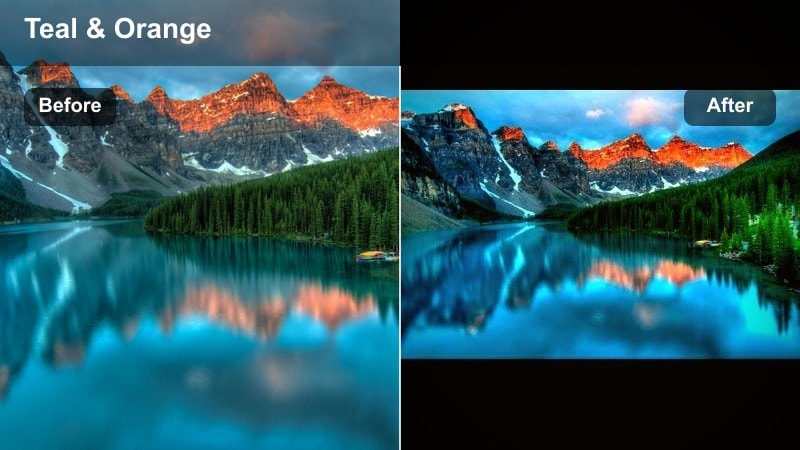
- Effect look: Deep oranges and magentas in the sky with teal-tinted shadows, giving a cinematic tropical movie grade.
- Best for: Cinematic travel montages, teaser intros, and hero shots for channel trailers.
- Editing tip: Use this filter on every clip in a short sequence to maintain a consistent tropical youtube grade across your entire sunset montage.
Tropical Sunset Cinema adds a classic teal-and-orange style to your beach sunsets, pushing warm hues in the sky and cool tones in shadows for maximum cinematic contrast. The result is a dramatic, movie-like look that feels perfect for trailers and highlight reels.
Within Filmora, apply this filter to a curated set of your most dramatic sunset shots and keep it consistent across the entire montage. You can adjust intensity to keep skin tones from going too magenta on close-ups, while letting wide shots go bold and stylized. Once you are happy with the grade, reuse the same settings on future sunset sequences to build a recognizable signature look for your channel.
Pastel Dusk Soften
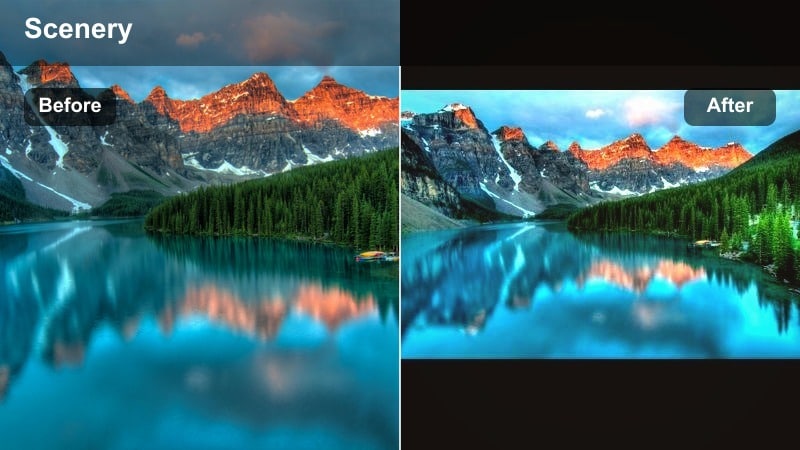
- Effect look: Soft pastel blues, pinks, and purples with reduced contrast for dreamy post-sunset shots.
- Best for: Calm beach reflections, storytelling voiceovers, and slow, emotional endings to your vlogs.
- Editing tip: Lower sharpness slightly and add a touch of motion blur on pans to reinforce the gentle, dreamy aesthetic of dusk.
Pastel Dusk Soften is built for blue hour and early nightfall, turning remaining light into gentle gradients of pink, purple, and blue. It reduces contrast and sharpness a bit so waves, clouds, and shorelines feel soft and atmospheric instead of harsh.
In Filmora, place this filter on the final minutes of your timeline and consider slightly lowering global sharpness or adding a touch of blur on movement to support the dreamy vibe. Combine with calmer music and fewer jump cuts to create a clear emotional landing point for your vlog, signaling to viewers that the story is wrapping up for the day.
Ocean Color and Deep Blue Filters
Deep Ocean Clarity
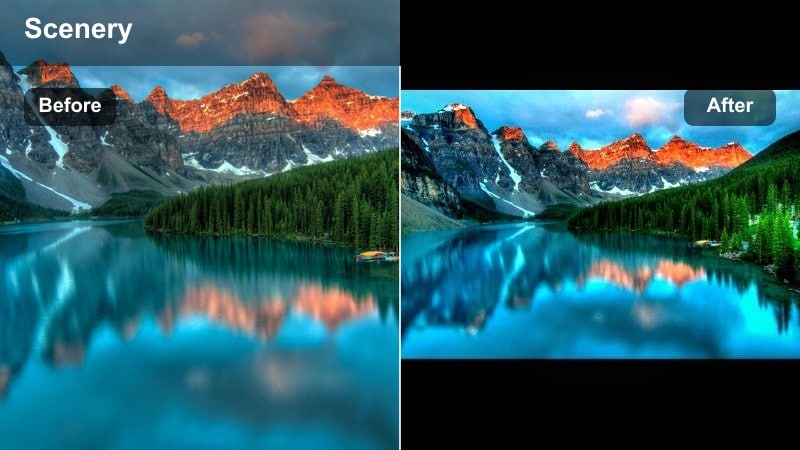
- Effect look: Clean, deep blues with boosted clarity and micro-contrast that reveals details under the water surface.
- Best for: Snorkeling clips, boat shots, and viewing platforms over clear blue water on ocean travel channels.
- Editing tip: Reduce luminance noise before applying extra sharpening so underwater textures stay crisp instead of grainy.
Deep Ocean Clarity focuses on making water look rich and detailed, adding subtle contrast and structure to ripples, waves, and underwater rocks. It deepens blues while keeping them natural, ideal for diving footage or any time the ocean itself is the star.
In Filmora, run noise reduction on your underwater or action camera shots first, then apply Deep Ocean Clarity to bring out fine details. Use sharpening sparingly to avoid noisy patterns, and adjust the color controls per clip if you are mixing footage from different cameras like GoPros and phones. Save the final settings as a custom ocean preset so future underwater videos immediately match your established look.
Turquoise Shoreline Lift
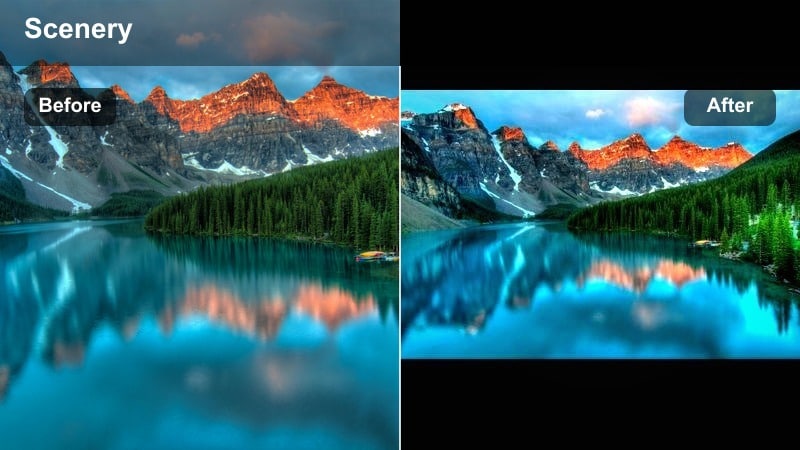
- Effect look: Bright turquoise highlights in shallow water with gentle lift in shadows for lighter, airy shoreline scenes.
- Best for: Shallow water shots near the sand, sandbar walks, and playful family or friends content at the edge of the ocean.
- Editing tip: Add slow push-in keyframes on clips with this filter to emphasize the bright, inviting turquoise tones for your audience.
Turquoise Shoreline Lift is tailored to shallow water videos where sunlight hits the sand beneath the surface. It lifts shadows and brightens cyan and green tones so the shoreline looks airy, clean, and inviting, perfect for intros, lifestyle shots, and channel idents.
Apply this filter in Filmora to clips where you or your friends walk through ankle-deep water, then add slow push-in or push-out animations to emphasize the calm, welcoming feel. Overlay your logo or channel name on one recurring shoreline clip to create a signature opener, and keep the filter intensity consistent so viewers instantly associate that turquoise look with your brand.
Stormy Coast Drama
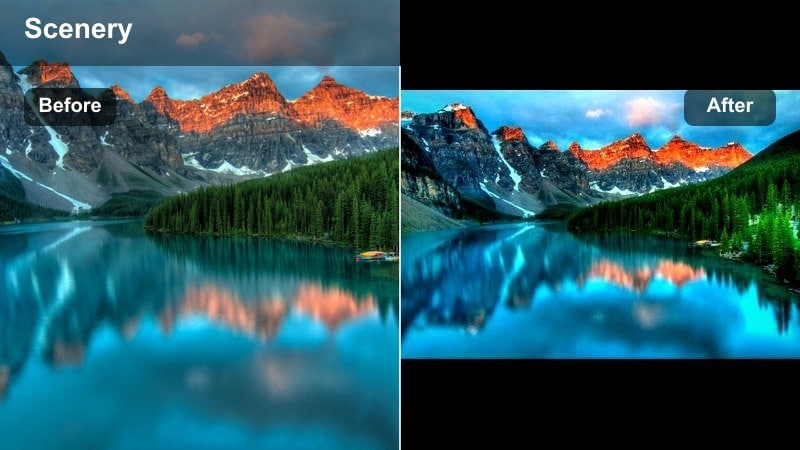
- Effect look: Moody, desaturated blues with higher contrast and darker skies for dramatic storm or overcast days.
- Best for: Stormy beach visits, powerful wave shots, cliffside overlooks, or dramatic storytelling episodes.
- Editing tip: Keep this filter’s intensity a bit lower on face shots and higher on cutaway b-roll so people stay natural while the environment looks dramatic.
Stormy Coast Drama turns gray, overcast beach days into cinematic moments, leaning into desaturated blues, darker skies, and stronger contrast. It is perfect when you want to showcase powerful waves, moody cliffs, or more serious storytelling episodes that contrast with your sunny uploads.
In Filmora, apply this filter at full strength on b-roll of waves, rocks, and skies, then duplicate and lower intensity on clips featuring your face so skin still looks natural. Pair with slower pacing, longer shots, and sound design built from wind and crashing surf to create an immersive, dramatic sequence that proves bad weather can still produce compelling content.
Creator-Friendly Filters for Beach Vlogs
Creator Skin-Safe Beach
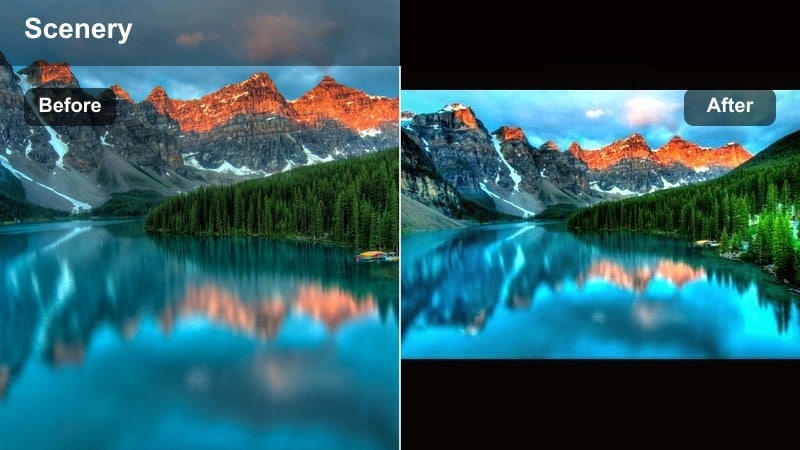
- Effect look: Balanced skin tones with gently warmed sand and moderated blues for flattering talking-to-camera shots.
- Best for: Vlogging intros and outros, sit-down beach Q and A videos, and sponsored segments shot on the sand.
- Editing tip: Place a light diffusion filter over your face clips only so backgrounds stay bright while your skin looks smooth and natural.
Creator Skin-Safe Beach prioritizes your face while still giving the environment a subtle sunny boost. It gently warms sand and tones down overly strong blues so skin looks healthy and clean, making it a great choice for intros, outros, and any sponsored content filmed by the water.
Use this filter in Filmora on your A-roll tracks, then fine-tune exposure and white balance to match each setup. You can add Filmora’s skin smoothing or a light blur to just the face area while keeping the beach background sharp and bright. Combine this A-roll look with stronger, more stylized grades on your B-roll for a dynamic but cohesive overall vlog.
Travel Channel Clean Pack
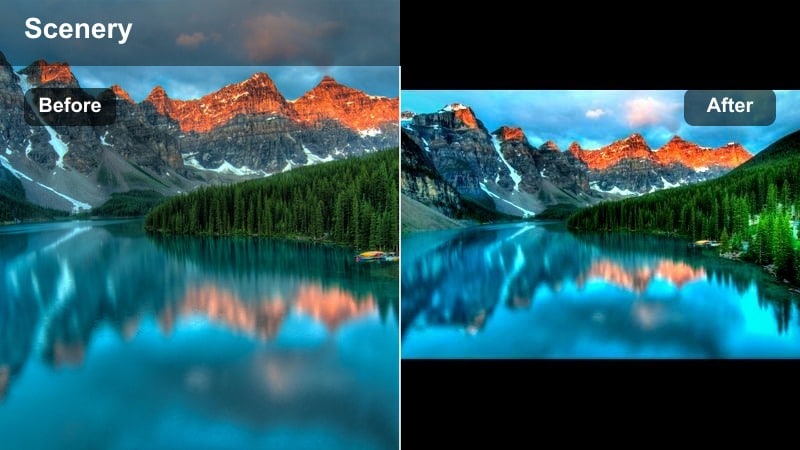
- Effect look: Crisp, modern YouTube look with medium saturation, strong clarity, and subtle vignette ideal for series branding.
- Best for: Channel trailers, episode intros, and recurring segments across ocean travel channels.
- Editing tip: Create a dedicated Filmora project with your title animations and this filter pre-applied, then reuse it as a template for every new beach upload.
Travel Channel Clean Pack is a versatile, polished grade that works as a default look for most beach travel content. It adds clarity, moderate saturation, and a gentle vignette, helping your subjects stand out while keeping the frame feeling premium and intentional.
In Filmora, apply this filter to your main series elements such as intros, transitions, and recurring segments. Build a template project with this grade already applied alongside your titles, music, and lower thirds so you can duplicate it for every new episode. Over time, this consistency helps viewers instantly recognize your work, even before they see your logo.
Handheld Vlog Stabilized Look
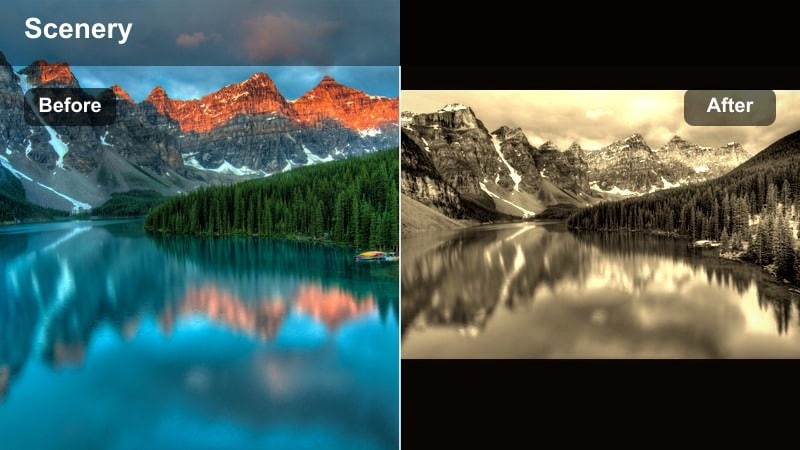
- Effect look: Slightly muted saturation with boosted midtone contrast and subtle grain that gives handheld clips a filmic, intentional style.
- Best for: Walking through beach markets, boardwalk scenes, handheld POV shots, and casual daily vlogs near the ocean.
- Editing tip: Apply Filmora’s stabilization first, then this filter, so the grain and contrast sit on top of a smoother, more watchable handheld image.
Handheld Vlog Stabilized Look is perfect for run-and-gun creators who capture spontaneous beach content. By softening saturation, boosting midtone contrast, and adding a light grain, it turns slightly shaky camera work into a deliberate, filmic style that feels intentional rather than messy.
In Filmora, stabilize your handheld clips first, then drop this filter on top to ensure the grain and contrast are applied to the corrected footage. Use it on POV walks, boardwalk explorations, and casual B-roll layered under voiceover. Combined with quick jump cuts, this look keeps your pacing energetic while the consistent grain ties together clips from different locations and cameras.
Tips for Using Beach Video Youtube Filter Filters in Filmora
- Shoot a simple five-second test clip at each new beach location and try two or three filters on it in Filmora before grading the entire vlog.
- Decide on your channel’s overall vibe first, then commit to two or three favorite beach filters so your audience quickly recognizes your visual style.
- Avoid pushing turquoise water and blue skies too far in saturation, since heavy compression on YouTube can introduce color banding and artifacts.
- Use different filters for A-roll and B-roll in the same project, but keep their color temperature similar so the edit still feels unified.
- Take advantage of Filmora’s AI Color Match to align sand, ocean, and skin tones when you mix footage from different cameras or shooting days.
- Save completed grades as custom presets named by lighting condition such as midday, golden hour, and overcast to speed up future beach edits.
- Test how your chosen filters look on both desktop and mobile playback, and adjust brightness or contrast so details remain visible on smaller screens.
- Build one re-usable Filmora template with your favorite beach filter, titles, and music so every new beach upload starts from the same visual baseline.
With a handful of well-chosen beach video filters for YouTube, you can transform flat coastal clips into consistent, cinematic stories that match your travel brand.
Test a few of these Filmora styles on your next beach vlog, refine them into custom presets, and use them as the visual foundation for all your ocean travel content before you explore filters for TikTok and other platforms.
secure download