

 100% Security Verified | No Subscription Required | No Malware


 ChatGPT
 Perplexity
 Gemini
 Claude
 Grok
Grok
These curated beach video filters for Filmora give your seaside and tropical travel footage instant cinematic color grades, from bright turquoise oceans to warm golden sunsets.
Whether you are a beach vlogger, travel influencer, or photographer turning clips into reels, use these filters as quick, LUT-like presets to match the mood of beach holidays, ocean scenes, and tropical adventures.
In this article
Bright Tropical Beach Video Filters
Sunlit Turquoise Glow
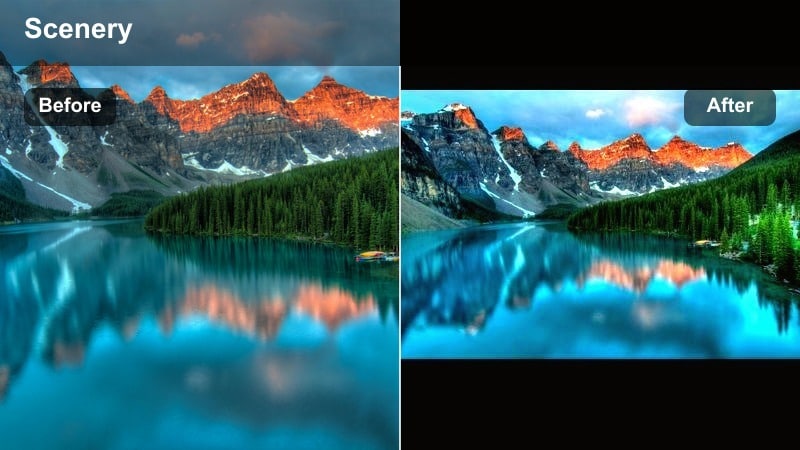
- Effect look: Boosted turquoise water, bright sand, and crisp skies for postcard-style tropical vlogs.
- Best for: Midday beach holidays with clear skies, snorkeling intros, B-roll of shoreline waves.
- Editing tip: Lower saturation on skin tones slightly to avoid oversaturation and keep faces natural while oceans stay vibrant.
Sunlit Turquoise Glow gives your beach holidays that clean, high-contrast, postcard feel, making turquoise water and white sand stand out beautifully. In Filmora, you can drop this filter onto your clips like a ready-made LUT, then fine-tune intensity with the Effects panel slider to match different cameras and lighting conditions.
Use it on wide shots of shorelines, walk-and-talk vlogs on bright sand, and snorkeling intros where you want the ocean to look vivid but still believable. Combine it with Filmora masks to keep the filter strongest on the sea and sky while slightly reducing its effect on faces for a polished, professional tropical vlog look.
Let Filmora’s AI Help You Match Beach Colors
Filmora’s AI-driven color tools work perfectly alongside these beach filters when you are mixing footage from phones, action cameras, and drones. Before you commit to a final look, run AI color matching on a few key clips so your ocean blues, sand highlights, and sky tones align across the whole project.
Once your sources are balanced, apply your favorite beach video filter as a base look and only make small exposure and saturation tweaks per clip. This workflow saves time and helps your tropical color grade stay consistent from your vlog intro to the final montage.
 secure download

Preview Beach Filters on Your Footage
To quickly compare different beach looks, build a short test sequence in Filmora and drag several beach filters onto duplicated clips. Toggle each effect’s visibility icon in the timeline to see instant before-and-after comparisons and decide which style fits your vlog or reel best.
Once you lock in a favorite, copy and paste that effect onto similar clips or save it as a custom preset for future beach projects. This keeps your ocean video filter workflow fast and consistent, especially when editing multiple episodes from the same trip.
secure downloadUse Filters Like Beach LUTs
Filmora includes 1000 plus video filters and 3D LUTs, so you can treat these beach styles like one-click LUT presets. Start by choosing a look that fits your scene, such as a tropical color grade or moody ocean video filter, then refine exposure, saturation, and white balance with Filmora’s color controls.
By saving your adjusted settings as a custom preset, you can create a signature beach LUT that carries across vlogs, shorts, and highlight reels. This is ideal for travel influencers and creators who want a recognizable, branded beach aesthetic on every platform.
secure downloadTropical Lagoon Pop
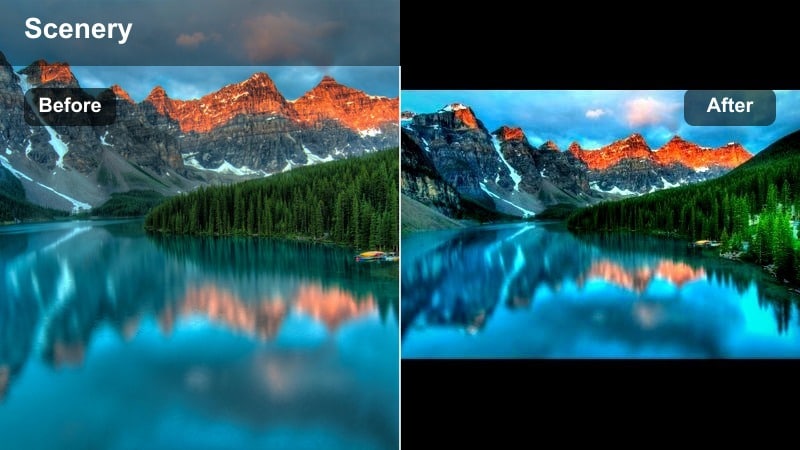
- Effect look: Punchy saturation, rich greens, and teal-shifted shadows for lush tropical lagoons.
- Best for: Drone shots over islands, palm tree coastlines, tropical resort walkthroughs.
- Editing tip: Use this filter at 60-80 percent strength on clips that already have good natural light to avoid color clipping in foliage.
Tropical Lagoon Pop is built for vivid, travel-influencer style content where teal water and dense, green palms need to stand out immediately in a feed. In Filmora, it behaves like a beach LUT that intensifies tropical hues, especially in drone flyovers and sweeping coastal reveals.
Apply it to your best-lit shots, then pull back intensity on any clips where foliage starts to look neon. You can also combine this filter with Filmora’s sharpening and stabilization on aerial footage so every palm frond and reef edge stays crisp without blowing out highlights in the surf.
Sandbar Vlog Clean
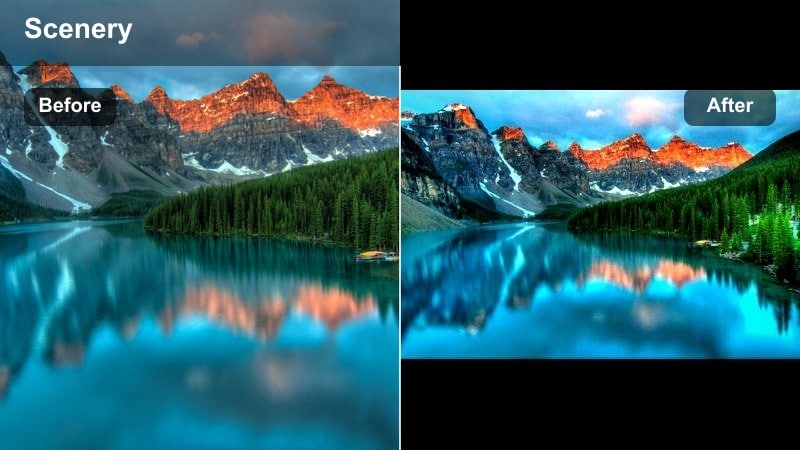
- Effect look: Soft contrast, slightly lifted shadows, and natural colors for casual, vlog-style storytelling.
- Best for: Beach vlogs with a lot of talking to camera, walk-and-talk sandbar tours, family beach clips.
- Editing tip: Pair with light skin smoothing and subtle sharpening to keep faces flattering when shooting under harsh sun.
Sandbar Vlog Clean keeps your beach stories natural and approachable, with gentle contrast and balanced tones that work well on faces. In Filmora, this is an excellent base filter for long-form vlogs and YouTube episodes where viewers see a lot of your skin tones and expressions.
Use it as a subtle clean-up layer on mixed lighting clips, like sandbar walks or shaded cafes by the shore, then add targeted color correction only where needed. Because the look is not overly stylized, you can safely apply it across entire timelines without distracting from your narrative or voice-over.
Deep Ocean and Blue Tone Filters
Deep Ocean Cinematic
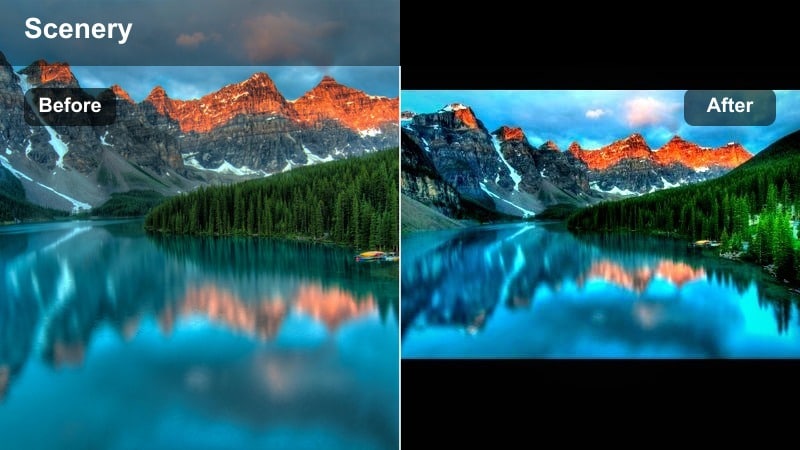
- Effect look: Cool, cinematic blues with slightly desaturated mids and crushed blacks for moody ocean visuals.
- Best for: Stormy ocean scenes, rocky coastline B-roll, intros and title sequences.
- Editing tip: Use on clips with strong texture in waves and rocks, and avoid low-detail phone footage where crushed blacks may look muddy.
Deep Ocean Cinematic transforms regular sea views into dramatic, trailer-like visuals with deep blues and strong contrast. In Filmora, this filter is ideal for intros, chapter breaks, or moody B-roll that sets a more serious tone between lighter beach vlog segments.
Apply it to textured shots of waves crashing against rocks, piers, or cliffs, then add a vignette and film grain for extra drama. Keep it away from flat, noisy clips, and balance overall exposure with Filmora’s color tools so your blacks stay rich but not muddy.
Aqua Snorkel Clear
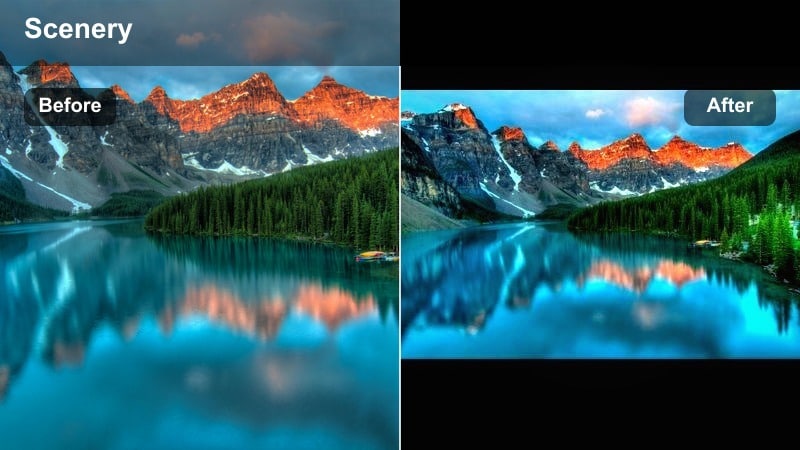
- Effect look: Clean aqua and cyan boost with clarity in midtones for underwater and surface-level swim footage.
- Best for: Snorkeling shots, GoPro underwater clips, paddleboarding and over-under waterline shots.
- Editing tip: Reduce green tint with temperature and tint controls before applying to correct common action camera color casts.
Aqua Snorkel Clear is tailored to fix washed-out or greenish underwater footage by restoring clear aqua and cyan tones. Drop it on your GoPro or action cam clips in Filmora, especially those taken while snorkeling, diving, or swimming just below the surface.
Correct heavy green casts first with basic white balance and tint, then let the filter add pop and midtone clarity. You can also pair it with stabilization and noise reduction so bubbles, coral, and fish textures stay sharp and vibrant, even on fast-moving shots.
Blue Hour Shoreline
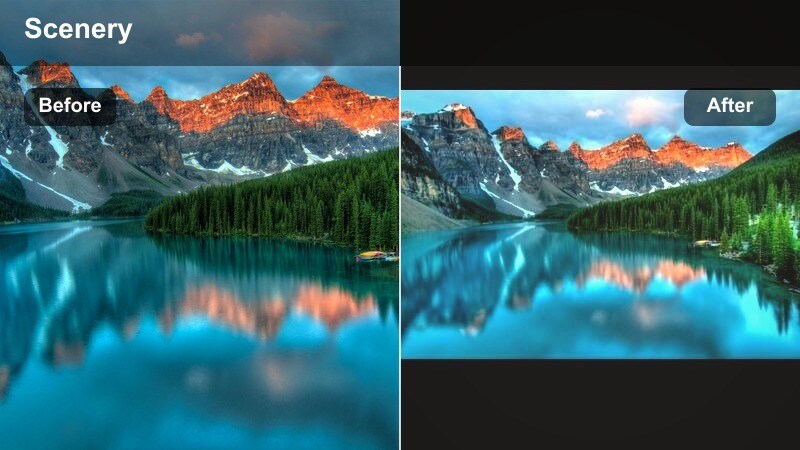
- Effect look: Soft, cool-blue highlights with gently faded contrast for twilight and early-morning beaches.
- Best for: Dawn walks, blue hour drone passes, quiet shoreline B-roll before sunrise crowds arrive.
- Editing tip: Increase exposure slightly and then add the filter so shadow noise does not dominate low-light clips.
Blue Hour Shoreline enhances the natural calm of twilight with pastel blues and a slightly faded, cinematic contrast. In Filmora, it works well for establishing shots at the start or end of your vlog, signaling a change in time and mood.
Brighten your low-light clips just enough to control noise, then apply the filter to smooth color and preserve the peaceful ambiance. Blend it with warmer midday beach filters in the same project to create a natural progression from cool dawn to bright afternoon and back to evening.
Sunset and Golden Sand Filters
Golden Tide Glow
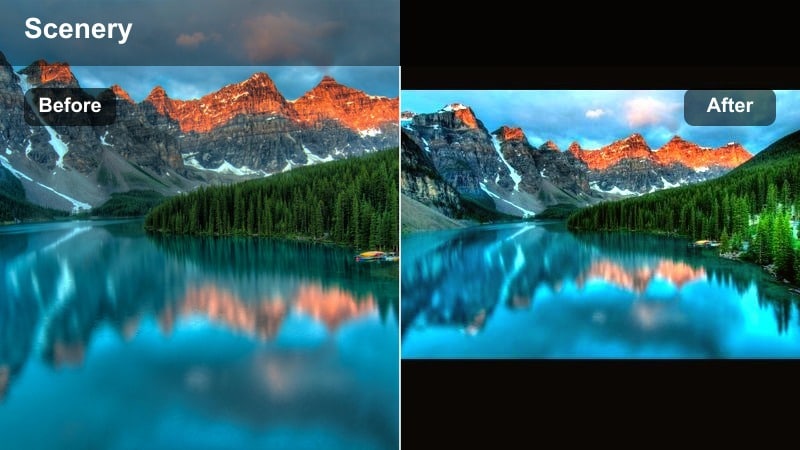
- Effect look: Warm, golden highlights and gentle halation for romantic sunset scenes and silhouettes.
- Best for: Couple shoots on the beach, sunset walks, silhouette dancing in front of the sun.
- Editing tip: Expose slightly darker in-camera, then add the filter to keep highlight detail in the sun and reflections on wet sand.
Golden Tide Glow wraps your subjects in rich, golden-hour light, perfect for romantic or nostalgic sunset sequences. In Filmora, it adds a subtle glow around bright highlights, emphasizing backlit silhouettes and reflections along the shoreline.
Apply this filter to carefully exposed sunset shots, then fine-tune highlight and shadow sliders to keep details in the sky and wet sand. You can also add a light blur or glow effect to intensify the dreamy vibe for music-driven montages and reels.
Sunset Coral Warmth
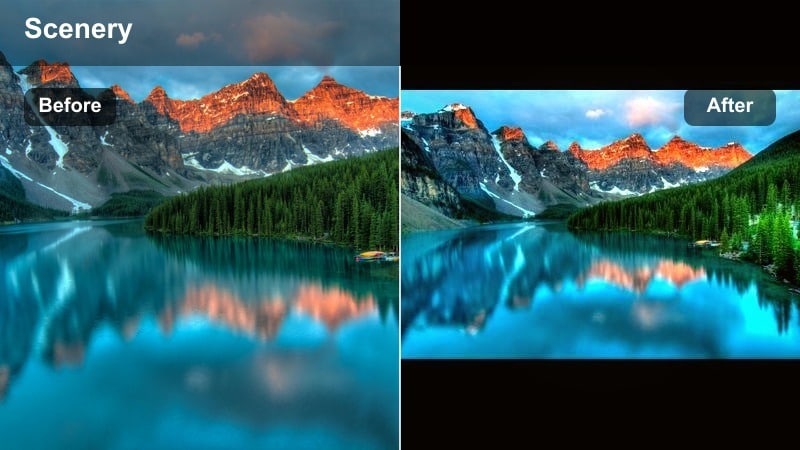
- Effect look: Coral-tinted mids and rose-gold highlights for colorful, social-media friendly sunsets.
- Best for: Instagram and YouTube shorts, sunset time-lapses, tropical rooftop bar views by the sea.
- Editing tip: Increase saturation slightly in oranges and pinks, but keep reds controlled to avoid unnatural skin tones.
Sunset Coral Warmth pushes your skies toward coral, pink, and rose-gold hues that stand out in vertical feeds and thumbnails. In Filmora, it is especially effective on time-lapses or static tripod shots where the sky is the hero of the frame.
Use it for your opening hook or closing shot, then add titles in white or very light tones to stay readable against the rich gradients. If you are including people in the frame, balance red saturation so skin remains flattering while the sunset still looks intense and stylized.
Soft Dune Pastel
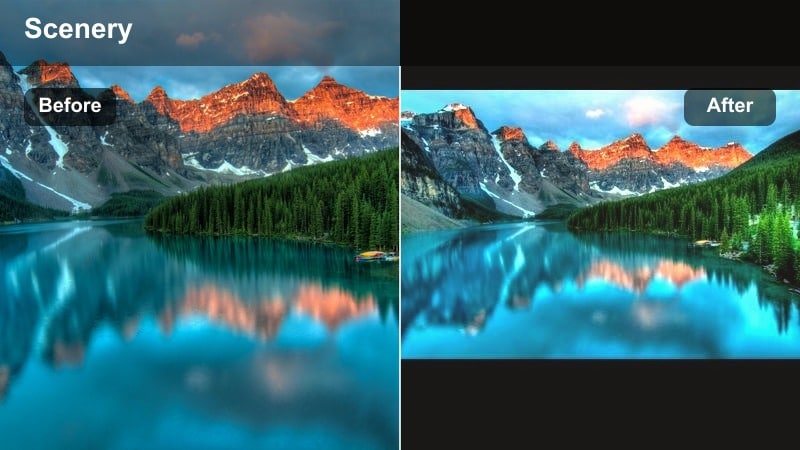
- Effect look: Desaturated, pastel sand and sky with reduced contrast for a film-style lifestyle aesthetic.
- Best for: Lifestyle beach photo-video mixes, wardrobe lookbooks on dunes, minimal aesthetic travel content.
- Editing tip: Dial down clarity slightly to soften harsh textures in sand and create a subtle, editorial haze.
Soft Dune Pastel creates a minimal, editorial look by softening contrast and gently muting colors across sand, sky, and wardrobe. It is ideal in Filmora for lookbooks, aesthetic reels, and mood-based travel edits where you want a calm, curated feel rather than punchy saturation.
Apply it to dune walks, minimal compositions, and shots with neutral outfits or props, then slightly reduce clarity for a hazy film-style finish. If any single object is too bright or colorful, use masks and color adjustment tools to selectively tone it down so the pastel grade stays cohesive.
Signature Travel Vlog Beach Looks
Influencer Tropical Pack
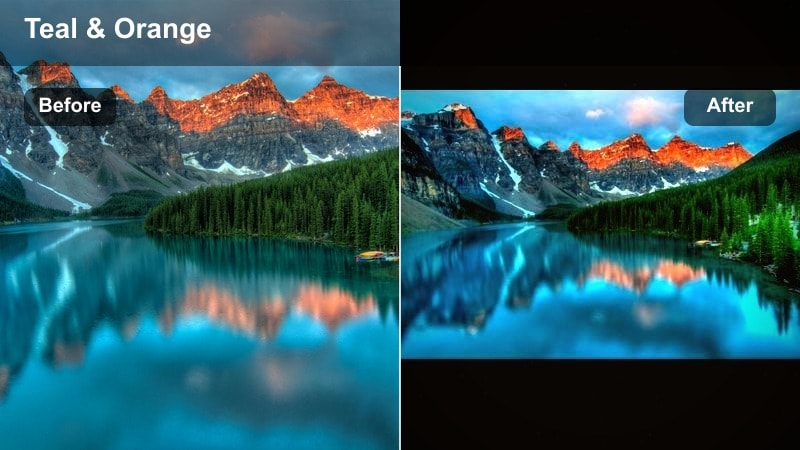
- Effect look: High-contrast, punchy teal and orange style with bright whites and crisp details for bold, branded feeds.
- Best for: Travel influencer intros, beach montage sequences, thumbnails and hero shots.
- Editing tip: Apply heavily to B-roll and more lightly to talking clips so your brand look is consistent but not overwhelming.
Influencer Tropical Pack delivers a bold teal-and-orange style that is perfect for recognizable beach branding across YouTube, TikTok, and Instagram. In Filmora, you can use this filter as the foundation of your channel look, especially on hero shots, thumbnails, and montage sequences.
Push the effect harder on scenic B-roll and drone clips, then reduce intensity for talking segments so skin tones remain natural. Once you like the balance, save your adjustments as a custom preset and reuse it across all your tropical and ocean playlists for instant brand recognition.
Documentary Coastline Natural
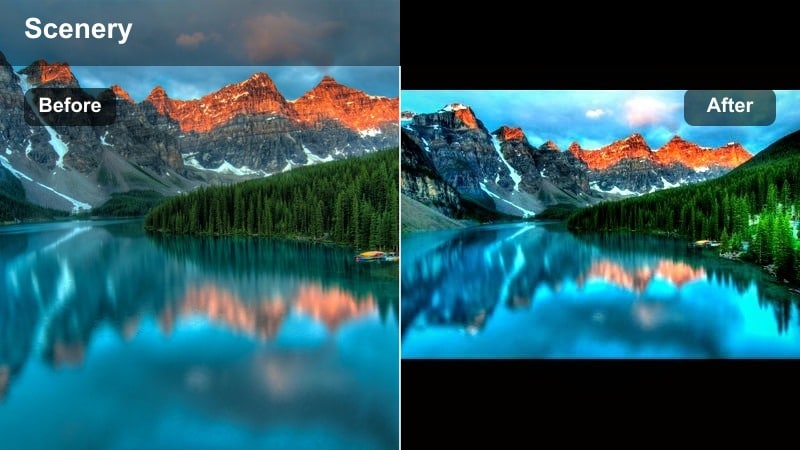
- Effect look: Neutral, balanced color with gentle contrast, preserving natural blues, greens, and skin tones.
- Best for: Travel documentaries, educational ocean videos, behind-the-scenes footage for photographers.
- Editing tip: Use subtle color curves to protect dynamic range, especially when mixing drone, phone, and mirrorless footage.
Documentary Coastline Natural prioritizes accurate, realistic color, making it ideal for educational or story-first content. In Filmora, this filter works well as a base grade for entire projects where you are mixing shots from multiple cameras and do not want an overly stylized look.
Apply it across your timeline using an adjustment layer, then tweak curves and white balance on a few reference clips to align all sources. This approach keeps your coastline, water, and skin tones consistent while leaving room to add more dramatic filters only on selected B-roll.
Tropical Reel Boost
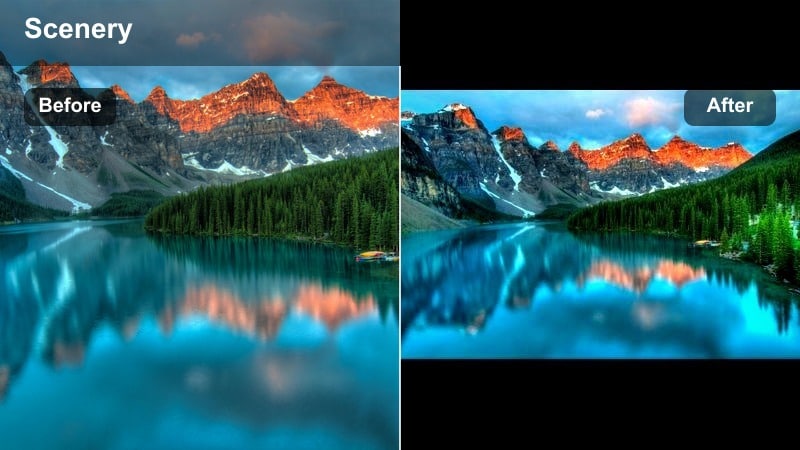
- Effect look: Fast-impact saturation and contrast boost with crisp edges tailored for vertical short-form content.
- Best for: TikTok and Instagram Reels, YouTube Shorts, high-energy beach highlight reels.
- Editing tip: Add the filter after cropping to vertical so you can fine-tune brightness for the exact framing viewers will see.
Tropical Reel Boost is optimized for vertical short-form content where viewers decide in seconds whether to keep watching. In Filmora, use this filter on cropped 9:16 clips so your waves, skies, and outfits immediately appear vivid and sharp on mobile screens.
Cut your sequence to the beat of your soundtrack, then apply the filter and adjust intensity across clips to match shifts in energy. Combine it with speed ramps, quick zooms, and text overlays for high-impact beach highlight reels that stand out in crowded feeds.
Tips for Using Beach Video Filter Filters in Filmora
- Shoot slightly flatter in-camera if possible, then apply beach filters in Filmora to prevent clipped highlights in bright sand and water.
- Set white balance manually at the beach so strong tropical or ocean filters do not create shifting color casts between shots.
- Create separate presets for midday, golden hour, and blue hour beach scenes and label them clearly in Filmora for fast selection.
- Use adjustment layers with your chosen beach LUT-style filters so global color changes update across entire sequences instantly.
- Apply masks or skin-tone adjustments to gently reduce filter strength on faces if they start to look too orange, red, or overly tanned.
- Stabilize handheld ocean and shoreline shots before adding contrast-heavy filters to keep wave patterns and textures crisp.
- Export a short test reel with your selected beach video filter and review it outdoors on your phone to judge real-world brightness and color.
- Group similar lighting conditions together on your timeline and grade those clips as a block for smoother color and mood transitions.
With the right mix of tropical, ocean, and sunset beach video filters in Filmora, you can turn raw travel clips into cohesive, cinematic stories that match your personal brand.
Save your favorite looks as reusable presets, test them on new beach holidays and ocean scenes, and refine the grade until your viewers instantly recognize your beach style on every platform.
secure download