

 100% Security Verified | No Subscription Required | No Malware


 ChatGPT
 Perplexity
 Gemini
 Claude
 Grok
Grok
These GoPro Hero 11 action LUT-style filters are designed for action-heavy footage, giving your clips bold contrast, crisp details, and cinematic color while keeping skin tones and skies natural.
Use the presets below as starting points for your GoPro adventures, then fine-tune exposure, contrast, and saturation in Filmora to match different locations, lighting conditions, and storytelling styles.
In this article
Sunlit Trails and Mountain Rides
Sun-Crisp Trail Pop
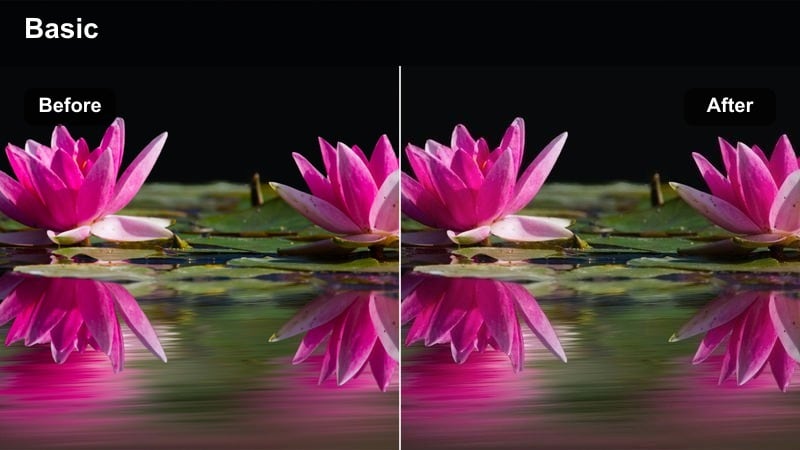
- Effect look: Punchy daylight filter that brightens dust, rock textures, and trail details while keeping the sky rich and blue.
- Best for: Mountain biking, trail running, and off-road rides on sunny days with strong natural light.
- Editing tip: Lower saturation slightly if jerseys or helmets look too neon, and add a light vignette to pull attention toward the rider.
Sun-Crisp Trail Pop is built for harsh daylight on the GoPro Hero 11, where shadows can get heavy and highlights feel intense. The filter adds bold contrast and local clarity so dust, rocks, and trail ruts stand out, while protecting the deep blues in the sky that often get washed out in action camera footage.
In Filmora, apply this filter at 60 to 80 percent strength, then refine with slight exposure and contrast tweaks to keep riders and scenery balanced. Combine it with a small clarity boost and a tiny reduction in overall sharpness so your trail details stay defined without the over-processed, crunchy look that can distract from fast movement.
Filmora s AI tools can auto-balance exposure and white balance on your GoPro Hero 11 clips before you apply these action LUT-style filters, giving you a more consistent base. Once AI has evened out the lighting, you can use Sun-Crisp Trail Pop more subtly while still getting vivid terrain and natural-looking skies.
For longer rides or mixed-light sessions, run AI correction across the full batch first, then sync this filter across selected clips so your color stays cohesive from start to finish.
 secure download

Filmora lets you hover over filters to preview how they transform your GoPro Hero 11 footage directly in the timeline. This real-time preview is ideal when you are deciding whether to use a punchy trail look, a softer coastal grade, or a gritty city style for your latest adventure.
Quickly compare several action filters on the same clip, then lock in the look that matches your story, pacing, and environment before you spend time on detailed color tweaks.
secure downloadYou can combine Filmora s built-in filters with GoPro Hero 11 action LUTs and manual HSL or curves adjustments to craft a signature adventure look. Start with a base filter for contrast and mood, then fine-tune specific color ranges so trails, skies, and gear colors align with your channel style.
This layered color workflow lets you move from a one-click grade to a polished, cinematic finish that is still fast enough for regular uploads, reels, and shorts.
secure downloadGolden Ridge Glow
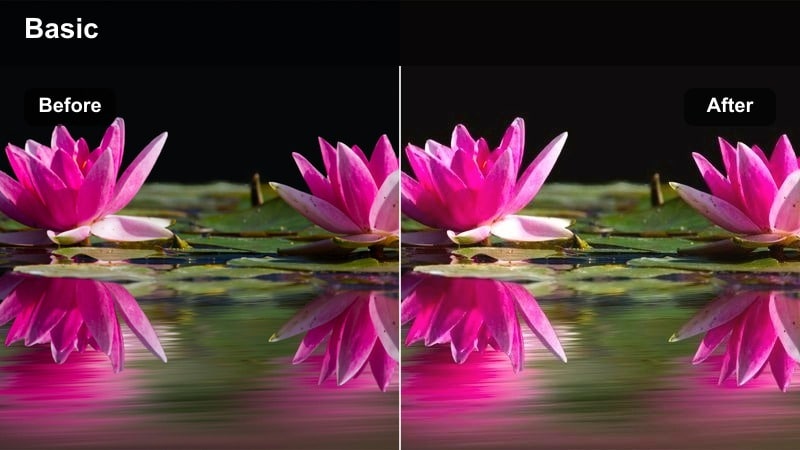
- Effect look: Warm, cinematic golden-hour filter that lifts midtones and adds a soft glow to peaks and ridgelines.
- Best for: Sunrise or sunset hikes, mountain ridgeline rides, and drone-style hero shots recorded with your GoPro Hero 11.
- Editing tip: Use keyframes on filter intensity across the clip so the warmth increases slowly as the sun dips, enhancing the time-of-day feel.
Golden Ridge Glow is tuned for low-angle sun, where highlights strike mountain edges and riders from the side. It lifts midtones and adds warmth so your GoPro Hero 11 footage feels cinematic without turning the entire frame orange.
In Filmora, combine this filter with keyframed intensity so the warmth builds through the sequence, matching the movement of the sun. If faces get too saturated, lightly reduce orange and yellow saturation in HSL while keeping the sky and cliffs glowing and dramatic.
Dusty Descent Contrast
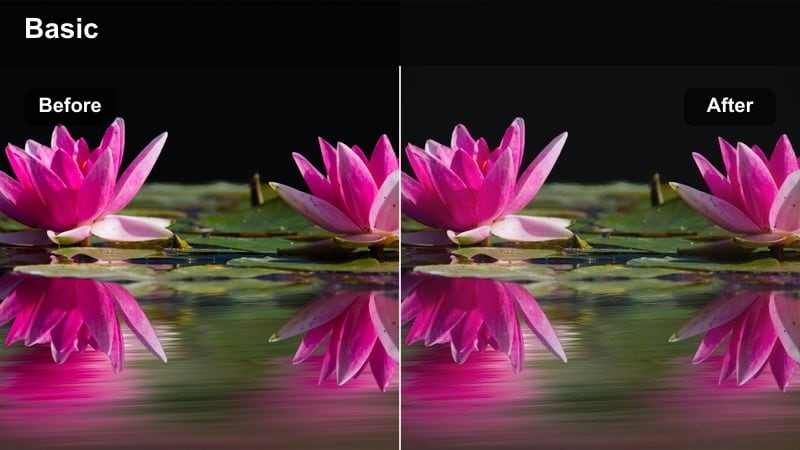
- Effect look: Gritty, contrasty filter that deepens shadows and emphasizes dust clouds, rocks, and motion trails.
- Best for: Downhill MTB, enduro racing, and fast descents with lots of dust, loose rock, and aggressive riding.
- Editing tip: Slow down critical moments with speed ramping and let this filter emphasize the dust and debris as the rider carves through the trail.
Dusty Descent Contrast leans into high-speed aggression by deepening shadows and pushing micro-contrast, so every dust plume and rock fragment feels intense. It gives GoPro Hero 11 downhill and enduro clips a tougher, more dramatic vibe right out of the box.
In Filmora, pair this filter with speed ramps and short slow-motion segments to spotlight berm slashes, jumps, and hard braking. If shaded areas start to show noise, gently pull back filter strength and add a mild noise reduction pass, keeping the gritty feel driven by contrast rather than digital grain.
Coastal Surf and Ocean Adventures
Deep Aqua Punch
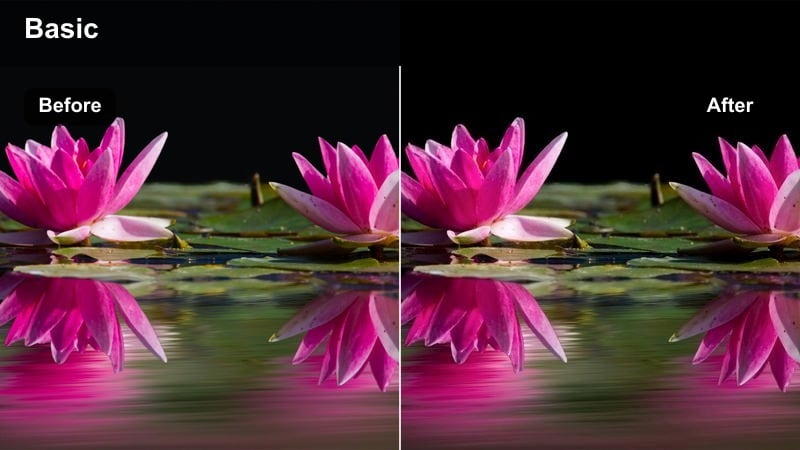
- Effect look: Bold teal-blue filter that enriches ocean water, adds clarity to waves, and keeps white foam crisp and clean.
- Best for: Surf sessions, snorkeling near the surface, and paddleboarding with clear blue or turquoise water.
- Editing tip: Raise midtone brightness slightly if underwater skin tones look too dark, and use Filmora s HSL controls to keep reds from appearing washed out.
Deep Aqua Punch is tuned to make clean water look cinematic, bringing out teal and blue tones that often appear dull in raw GoPro Hero 11 clips. It adds separation between deep water, wave faces, and bright foam so every ripple and spray reads clearly.
Use this filter in Filmora at moderate strength, then adjust midtones for better visibility on surfers and swimmers. If warm elements like skin or boards look pale, nudge reds and oranges up slightly in HSL while keeping overall saturation balanced so the ocean remains the star of the shot.
Sunset Swell Warmth
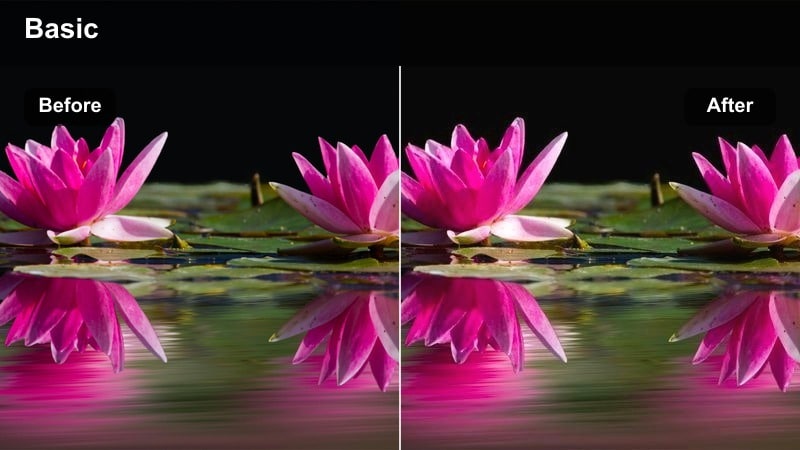
- Effect look: Warm-toned coastal filter that softens contrast and adds amber highlights to waves and shorelines.
- Best for: Evening surf, beach walks, and GoPro Hero 11 time-lapses of the setting sun over the ocean.
- Editing tip: Add a slight blur or glow effect on duplicate layer and blend softly to boost the dreamy, cinematic coastal atmosphere.
Sunset Swell Warmth adds a gentle amber glow across water and sky, ideal for golden-hour surf and shoreline clips. Instead of heavy contrast, it softens transitions in the highlights so reflections on the water feel smooth and cinematic.
In Filmora, layer this filter with a subtle glow or Gaussian blur on a duplicated clip set to a soft blend mode. If sand or skin becomes too orange, reduce orange saturation and cool the shadows slightly to keep the scene dreamy while maintaining natural-looking subjects.
Coastal Mist Matte
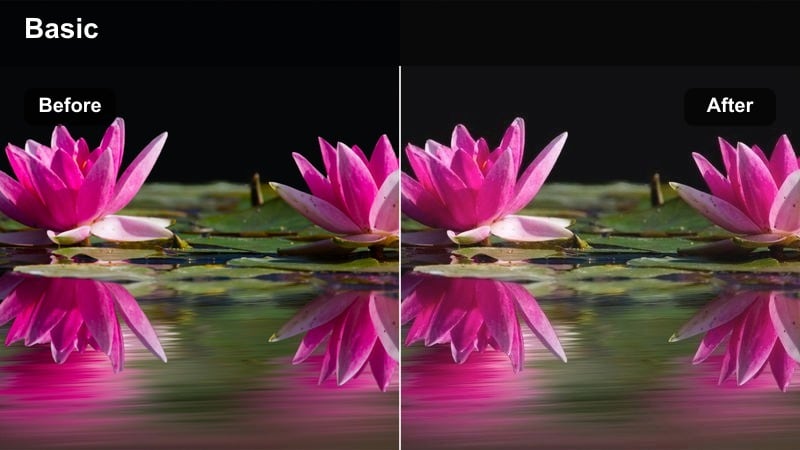
- Effect look: Soft matte filter that lowers contrast, cools shadows, and emphasizes atmosphere in foggy or overcast coastal scenes.
- Best for: Cliff hikes, stormy beaches, and moody drone-style shots captured on the shoreline with your GoPro Hero 11.
- Editing tip: Combine with slow-motion or stabilized footage to turn choppy, windy clips into cinematic, moody sequences.
Coastal Mist Matte shifts bright, flat daylight into a moody, filmic look by lowering contrast and gently cooling the color palette. This filter is perfect for gray-sky hikes and stormy coastlines where you want to emphasize atmosphere and depth rather than punchy color.
Apply it in Filmora, then restore selective clarity and sharpness around your subject so they do not disappear into the foggy environment. A subtle vignette and slight boost in local contrast will help maintain depth while preserving that soft, mist-driven mood.
Night City Runs and Urban Chases
Neon Street Charge
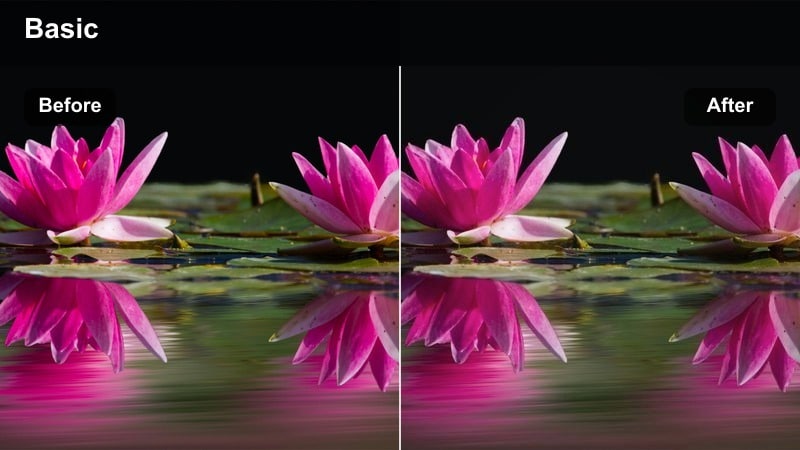
- Effect look: High-energy neon filter that boosts saturation in blues, magentas, and cyans while deepening city shadows.
- Best for: Night runs through downtown, skate sessions under city lights, and urban POV chases with your GoPro Hero 11.
- Editing tip: Reduce luminance in blue hues to make neon signs pop and add a tiny bit of motion blur to smooth out low-light noise.
Neon Street Charge supercharges city light colors, emphasizing bright blues, magentas, and cyans while pushing shadows deeper for a cyberpunk-style vibe. It turns typical GoPro Hero 11 night footage into bold, stylized sequences that feel fast and energetic.
In Filmora, keep this filter at moderate intensity and fine-tune blue luminance so signs and reflections stand out against the darker streets. Add controlled motion blur or use Filmora s noise reduction to smooth out sensor noise without losing the punch of glowing highlights.
Urban Gold Rush
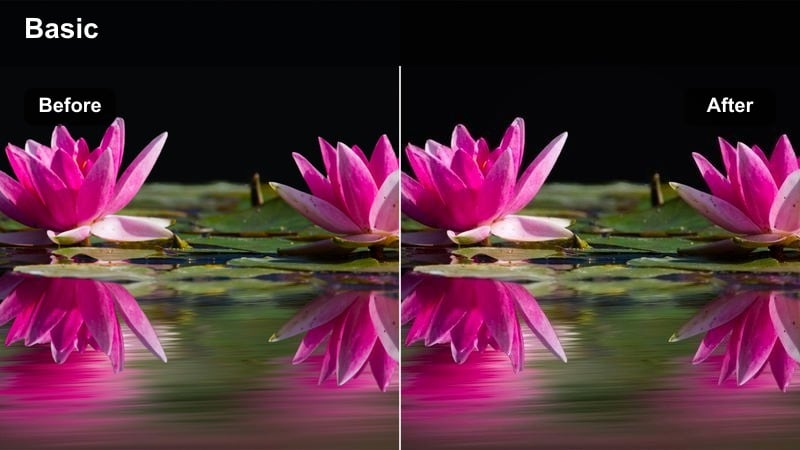
- Effect look: Warm, cinematic street filter that turns sodium-vapor lights into rich gold while keeping shadows neutral and clean.
- Best for: Downtown bike rides, city traffic POVs, and car-mounted GoPro Hero 11 shots at dusk or night.
- Editing tip: Use gentle lens flare overlays sparingly on bright highlights to amplify the cinematic city vibe without overwhelming the frame.
Urban Gold Rush embraces the natural warmth of streetlights, turning them into rich golden accents against cooler, neutral shadows. It is ideal for car rigs and bike POVs where long light streaks and reflections play a big role in the composition.
Inside Filmora, apply the filter, then cool down midtones slightly if the frame feels too yellow overall. Add subtle lens flare overlays or light leaks on key highlights, keeping them minimal so the scene stays readable while still feeling cinematic and polished.
Concrete Chase Grit
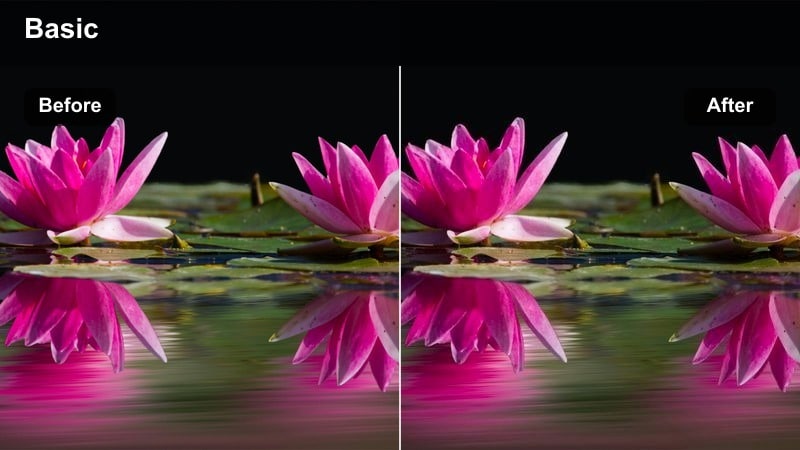
- Effect look: Desaturated, contrasty filter that emphasizes grays and deep blues for a gritty, high-speed urban chase feel.
- Best for: Parkour runs, rooftop sprints, and stairwell chases filmed with a head- or chest-mounted GoPro Hero 11.
- Editing tip: Use jump cuts and speed ramps with this filter to lean into the rough, unstaged energy of your urban sequences.
Concrete Chase Grit strips most color from the scene while preserving strong contrast, making concrete, steel, and shadow detail the focus. It gives parkour and rooftop chases a raw, almost documentary-style edge that suits fast handheld GoPro Hero 11 motion.
Use it in Filmora alongside aggressive editing techniques like jump cuts, speed ramps, and handheld camera shake to amplify energy. If faces or key actions get lost in the darkness, selectively lift shadows on the subject only, leaving the rest of the frame deep and moody.
Snow Park Drops and Winter Action
Frost Bite Contrast
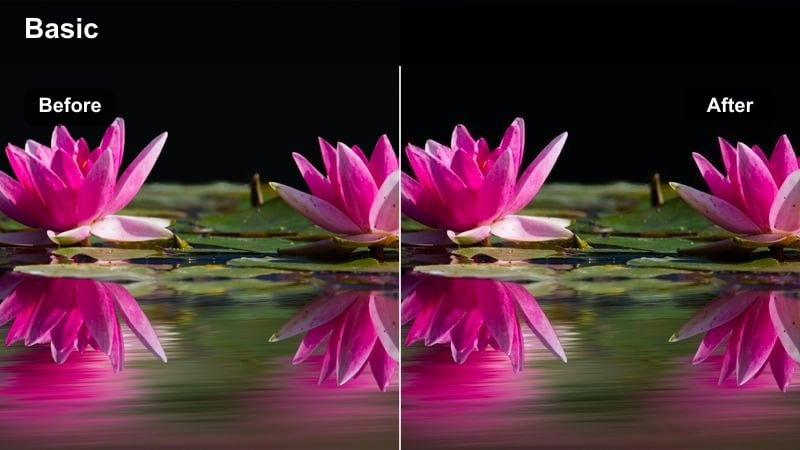
- Effect look: Cool, high-contrast filter that keeps snow bright and clean while adding depth to trees, rocks, and gear.
- Best for: Snowboarding, skiing, and snowmobile runs filmed in bright winter daylight on the GoPro Hero 11.
- Editing tip: Lower highlights slightly to recover snowy detail and boost saturation just in blues to make the sky stand out.
Frost Bite Contrast is designed to manage extreme brightness in snow while maintaining crisp detail and a cool winter feel. It pushes blues in the shadows and sky, giving GoPro Hero 11 mountain runs a clean, high-altitude atmosphere.
In Filmora, apply this filter and then pull down highlights and exposure until snow texture returns on slopes and landings. Add a gentle saturation boost to blues only so the sky pops without oversaturating jackets or boards, and monitor scopes to avoid clipped whites.
Park Pop Freeze
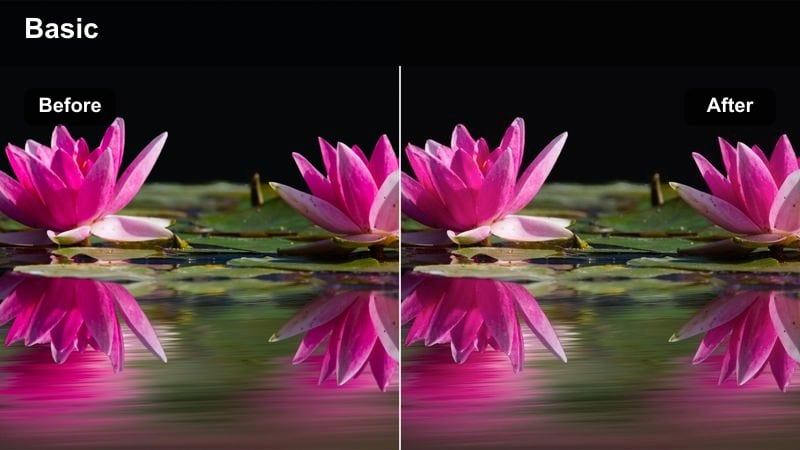
- Effect look: Vibrant, playful winter filter that saturates jackets, helmets, and park features against a neutral, clean snow base.
- Best for: Terrain park sessions, rail lines, and trick montages shot with a GoPro Hero 11 on a pole or helmet mount.
- Editing tip: Cut on landings and spins while letting the filter emphasize colorful gear, then add beat-synced zooms for extra energy.
Park Pop Freeze turns the terrain park into a high-energy color playground by boosting the saturation of riders and features while keeping snow bright but neutral. It helps tricks read clearly on social feeds where bold colors catch the viewer s eye first.
Use this filter in Filmora for park montages, then sync your cuts to music beats and add subtle digital zooms on landings and spins. If neon gear becomes overwhelming, ease off the filter strength and selectively lower green and yellow saturation so the scene still feels fun without looking cartoonish.
Blizzard Matte Drift
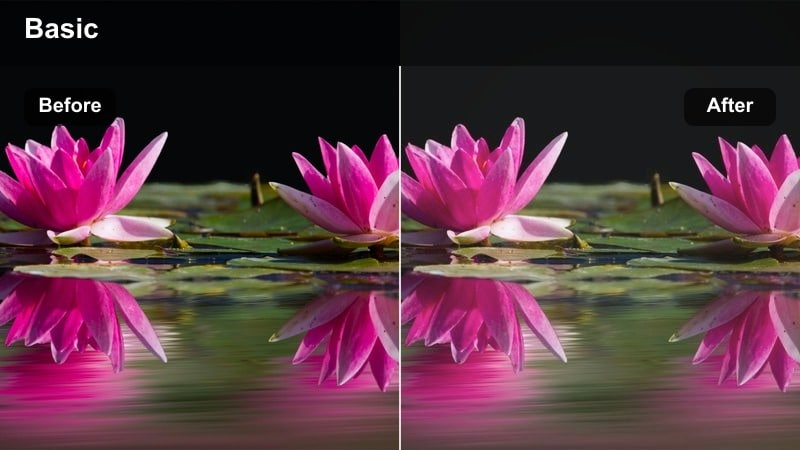
- Effect look: Soft matte winter filter that reduces harsh contrast in overcast or snowy conditions and highlights falling snow.
- Best for: Whiteout rides, tree runs in heavy snow, and slow-motion powder sprays captured with your GoPro Hero 11.
- Editing tip: Shoot at higher frame rates and slow down the clip so the matte look accentuates the floating snowflakes in the air.
Blizzard Matte Drift calms harsh whites and flattens strong contrast so snowfall becomes the visual focus. It makes whiteout and tree-run footage from the GoPro Hero 11 feel dreamy, turning chaotic conditions into smooth, cinematic motion.
Apply it in Filmora, then slow your footage down using high frame rate clips to showcase drifting flakes and powder sprays. If everything begins to look too hazy, increase local contrast or clarity on the rider and slightly darken the edges with a vignette to guide the viewer s eye.
Tips for Using Gopro Hero 11 Action Luts Filters in Filmora
- Shoot GoPro Hero 11 footage in a flat or neutral color profile when possible so these action LUT-style filters have more dynamic range to work with.
- Expose slightly darker than you think in bright snow and surf scenes to avoid blown highlights that no filter or LUT can fully recover.
- Use Filmora keyframes to fade filters in and out when light changes mid-clip, such as moving from shade to sun on a bike trail.
- Match your filter choice to the environment first trail, ocean, city, or snow before chasing a specific color trend or social media look.
- Stack subtle adjustments like curves, HSL, and vignette after your main filter instead of cranking filter intensity to 100 percent.
- Stabilize shaky GoPro Hero 11 footage in Filmora before grading so motion blur and compression artifacts do not get exaggerated by contrast-heavy filters.
These GoPro Hero 11 action LUT-style filters give you fast, reliable looks for trails, surf, city nights, and winter sessions while leaving plenty of room for your own color tweaks.
Experiment with intensity, stacking, and keyframing inside Filmora to turn these presets into a repeatable, cinematic workflow for every new action edit you create.
secure downloadNext: DJI Drone LUTS Cinematic
