

 100% Security Verified | No Subscription Required | No Malware


 ChatGPT
 Perplexity
 Gemini
 Claude
 Grok
Grok
These travel video filters for reels are designed to make your Instagram Reels and short travel videos look cinematic, polished, and consistent in just a few taps. Whether you are a Reels creator or a travel content creator, you will find looks that match beaches, city breaks, road trips, and outdoor adventures.
Below are 12 curated travel filters organized by vibe and scenario, each with a clear description, best use case, and quick editing tip so you can grade fast and post confidently without getting lost in complex color settings.
In this article
Warm and Golden Travel Reels Filters
Sunset Boulevard
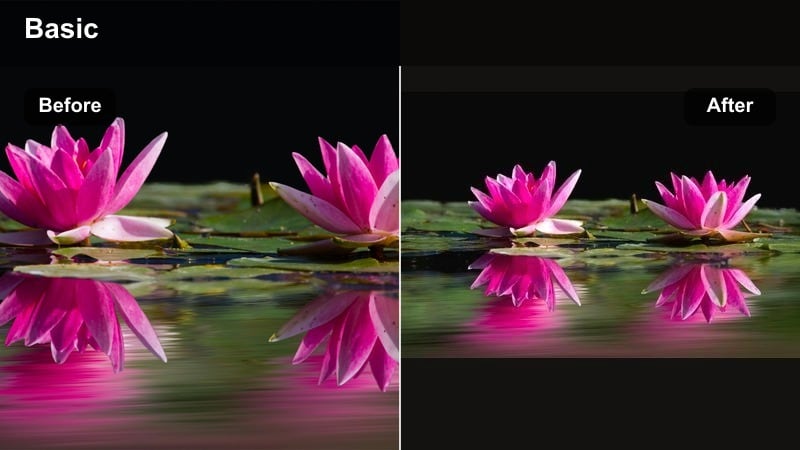
- Effect look: Soft golden highlight boost with gentle contrast and a warm orange tint that mimics late-afternoon sunlight on skin and scenery.
- Best for: Beach sunsets, rooftop golden hour shots, couples walking in backlight, and city skyline silhouettes in warm evening light.
- Editing tip: Lower the filter intensity to around 60-70 percent and slightly reduce highlights so the sky does not clip while still keeping the warm glow on skin.
Sunset Boulevard is your go-to travel reel filter when you want instant golden-hour magic, even if the real light was only average. It wraps your scene in soft orange warmth, smooths harsh transitions between shadows and highlights, and flatters skin so your subjects look naturally sun-kissed. The gentle contrast gives silhouettes more shape while keeping enough detail in the midtones for Instagram and TikTok compression.
In Filmora, apply Sunset Boulevard on your beach, rooftop, or backlit walking clips, then adjust the filter intensity slider until the sky retains detail but the scene still feels dreamy. Use the highlights and whites controls to protect clouds and sunsets from clipping, and pair the look with slow motion or subtle speed ramps to accentuate the romantic mood. Save the final combination as a custom preset so all your golden-hour reels share the same signature aesthetic.
Instant Travel Color Matches with AI-Powered Tones
Filmora s AI-driven color tools help you quickly match these travel video filters for reels to your own footage, even when lighting changes between clips or locations. By letting AI auto-correct exposure and white balance first, you give each filter a clean, neutral base so the final grade looks more consistent from shot to shot.
Once AI has balanced your clip, apply your favorite warm or cool travel reel filter and fine-tune intensity and contrast. This workflow is ideal for fast-paced travel creators who shoot on different cameras or phones and still want a unified look across beaches, cities, and mountain adventures.
 secure download

See Travel Filters in Action on Real Reels Footage
To find the best reel-ready look, drop a short travel clip into Filmora and cycle through different filters in real time. Watch how each style treats skin tones, skies, water, and buildings as you move the intensity slider, and focus on which option supports the story you want to tell rather than the most extreme color shift.
Testing on a 15-30 second clip makes it easy to compare how long viewers are likely to stay watching once the color grade sets the mood. You can export multiple quick tests and review them directly inside the Instagram or TikTok interface to judge which filter feels the most scroll-stopping.
secure downloadCombine Filters and LUTs for Cinematic Reels Color
For more advanced travel color grading, blend Filmora filters with cinematic LUTs to gain deeper control over contrast, saturation, and tonal curves. Keep your chosen filter at a moderate intensity, then drop in a compatible travel reel LUT to sculpt the overall mood without crushing detail.
This layered approach lets you refine highlights, midtones, and shadows precisely while still enjoying the speed of one-click filters. It is ideal for creators who want a recognizable style across destinations and devices without building a complex grade from scratch every time.
secure downloadDesert Haze
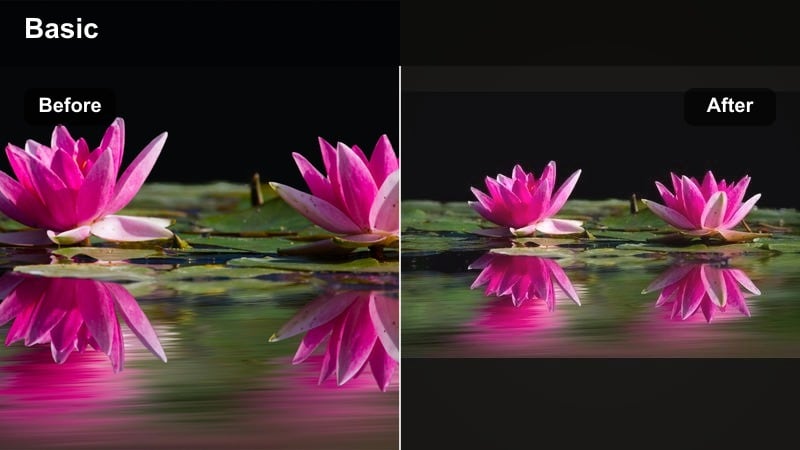
- Effect look: Matte, dusty warmth with softened blacks, muted blues, and sand-toned highlights for a sun-bleached travel aesthetic.
- Best for: Desert trips, canyon hikes, terracotta cityscapes, stone streets, and sun-washed architecture shots.
- Editing tip: Increase contrast just a touch if your original footage is already flat, and slightly boost clarity on close-up details like rocks or buildings.
Desert Haze brings a soft, cinematic patina to harsh, sun-baked locations by muting blues and cooling shadows while letting sandy tones dominate. The slightly matte finish reduces the harshness of midday sun, creating a gentle, filmic roll-off in highlights that suits dunes, canyons, and terracotta walls. This look works especially well for reels where you want a cohesive, editorial travel aesthetic across a full desert series.
In Filmora, use Desert Haze on every clip from your desert or stone-built destinations, then dial in a little extra contrast if your camera profile is already flat or log-like. Add subtle clarity or texture to emphasize rock details without fighting the matte style. For a consistent feed, copy and paste your filter settings or save them as a preset, only adjusting exposure shot by shot so every reel feels like part of the same dusty adventure story.
Terracotta Trails
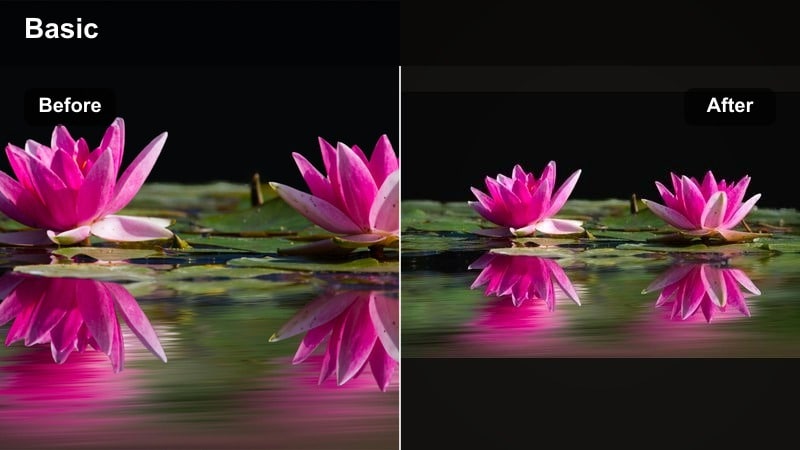
- Effect look: Rich warm oranges and browns with slightly lifted shadows and creamy highlights that emphasize earthy travel tones.
- Best for: Old towns, hillside villages, Mediterranean alleys, warm brick walls, and cafe street scenes.
- Editing tip: Dial saturation down a little on already colorful scenes so the warmth feels cinematic instead of overly intense or cartoonish.
Terracotta Trails is designed for warm, historic cityscapes where stone, brick, and clay dominate the frame. It boosts oranges and browns to make alleys, rooftops, and cafe facades feel rich and inviting while lifting shadows to keep details visible in narrow streets. The creamy highlights help soften strong sunlight and reflections, making your handheld street clips feel like polished travel film frames.
Inside Filmora, apply Terracotta Trails to your city walks, static architecture shots, and cozy cafe B-roll, then gently reduce overall saturation if local signage or clothing is already very colorful. Use curves or contrast to bring back depth where needed while preserving the soft highlight roll-off. This filter works particularly well when you plan your compositions with leading lines and central framing, turning even quick walk-and-talk reels into cinematic city-wandering sequences.
Cool and Tropical Travel Reels Filters
Turquoise Tides
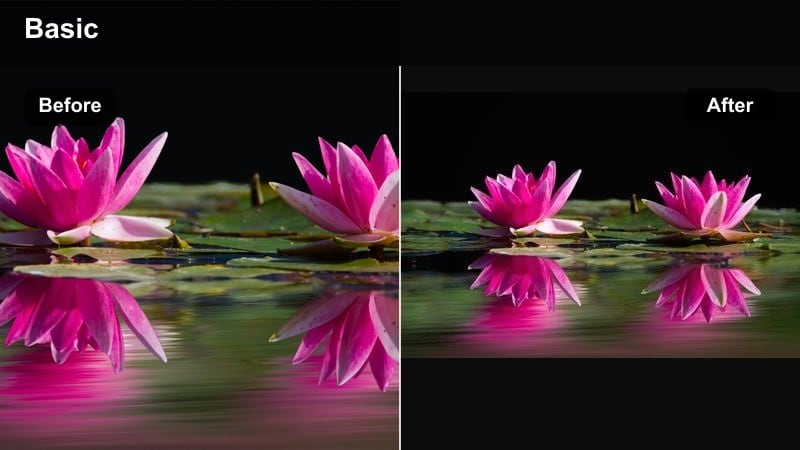
- Effect look: Crisp teal and aqua boost with bright whites and slightly cooled shadows that make ocean water pop without oversaturating skin.
- Best for: Tropical beaches, islands, overwater bungalows, snorkeling shots, and poolside clips with bright blue water.
- Editing tip: If the water looks too electric, gently pull back overall saturation and increase luminance in blues instead to keep a premium feel.
Turquoise Tides is built to make clear ocean water, pools, and lagoons look irresistibly bright and tropical. It pushes teals and aquas while preserving realistic skin tones, so your subjects never look alien next to vibrant seas. Bright whites and slightly cooled shadows add a clean, premium touch that feels perfect for sunny vacation reels and resort showcases.
In Filmora, drop Turquoise Tides on your drone shots, boat clips, and beach walks, then fine-tune intensity so the water glows without banding or blown-out highlights. Use color controls to lift blue luminance rather than cranking saturation if the scene starts to feel artificial. You can also add gentle stabilization and slow motion to emphasize the clarity of the water, turning simple splashes and waves into scroll-stopping hero moments.
Island Escape
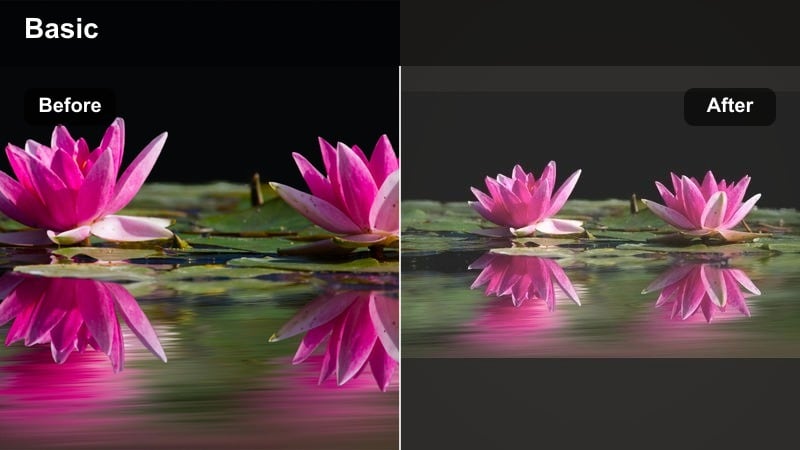
- Effect look: Soft pastel blues and greens with airy highlights and a gentle fade that gives a dreamy, almost film-like vacation mood.
- Best for: Drone island flyovers, palm tree silhouettes, hammock shots, and slow-motion waves on bright days.
- Editing tip: Slightly slow down your footage and add a mild blur or reduced sharpness to complement the softer pastel color style.
Island Escape turns bright tropical scenes into soft, postcard-like memories with pastel blues, gentle greens, and a subtle fade in the shadows. Highlights stay airy and luminous, creating an easygoing mood that suits lazy beach days, hammock shots, and sweeping aerial views. This filter is ideal when you want your reel to feel relaxing and dreamy rather than hyper-saturated.
Use Island Escape in Filmora for your slower-paced clips: palm trees swaying, waves rolling in, or sunrise drone shots. Reduce sharpness slightly or add a minimal blur effect to keep details from feeling too crisp against the pastel grade. Combine the look with slower music and smooth crossfades between shots so color, motion, and sound all support the same calm island story.
Harbor Teal
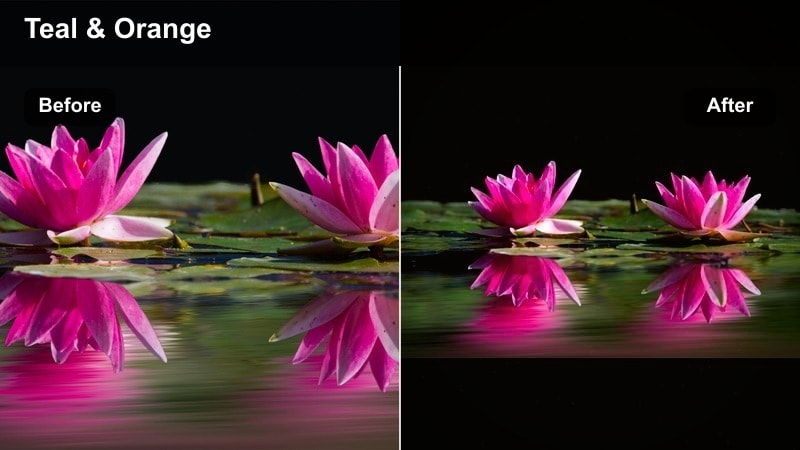
- Effect look: Teal-and-orange inspired balance with cool water, warm neutrals, and boosted clarity for detailed coastal city scenes.
- Best for: Harbor walks, marina shots, boat rides through cities, and coastal skylines at midday.
- Editing tip: Use this filter at medium strength and slightly reduce sharpening to avoid harsh edges when filming detailed architecture or water ripples.
Harbor Teal brings a modern teal-and-orange flavor to coastal cities by cooling water and sky while warming buildings, boats, and skin tones. The boosted clarity helps emphasize rigging, reflections, and architectural details, making marinas and waterfront promenades look crisp and cinematic. It is especially effective for midday scenes where you want to add depth and style without turning everything neon.
In Filmora, apply Harbor Teal to harbor walks, boat tours, and skyline pans, then keep intensity around the mid-range so the look stays tasteful. If your footage contains a lot of fine patterns, gently decrease sharpening to avoid a crunchy, over-processed feel. You can also refine orange saturation for skin tones while leaving teal values strong, ensuring your travel companions look natural in every reel you post.
Urban and Night Travel Reels Filters
Neon Nomad
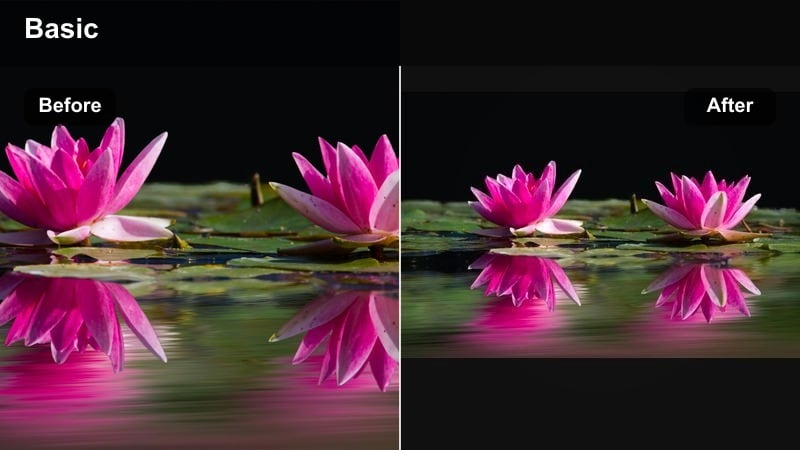
- Effect look: Punchy neon highlights, deep contrast, and cool shadows that make city lights and signboards glow in night footage.
- Best for: Night markets, neon streets, urban nightlife, and rainy reflections in big city travel reels.
- Editing tip: Drop highlights slightly to keep neon signs from blowing out, and add a touch of noise reduction to clean up high-ISO footage.
Neon Nomad is tailored for night travel reels where bright signs, billboards, and shopfronts dominate the frame. It deepens contrast and cools shadows to make colors like magenta, cyan, and yellow pop against dark environments. The result is a bold, cyberpunk-inspired look that suits busy streets, markets, and nightlife scenes drenched in artificial light.
In Filmora, use Neon Nomad on clips shot in low light, then gently lower highlights and whites to preserve detail in signage and LED boards. Add a small amount of noise reduction for high-ISO phone or camera footage, and consider slight stabilization for handheld walking shots. Pair the grade with puddle reflections, glass surfaces, and slow camera moves to maximize the glowing neon effect in your reels.
Metro Mood
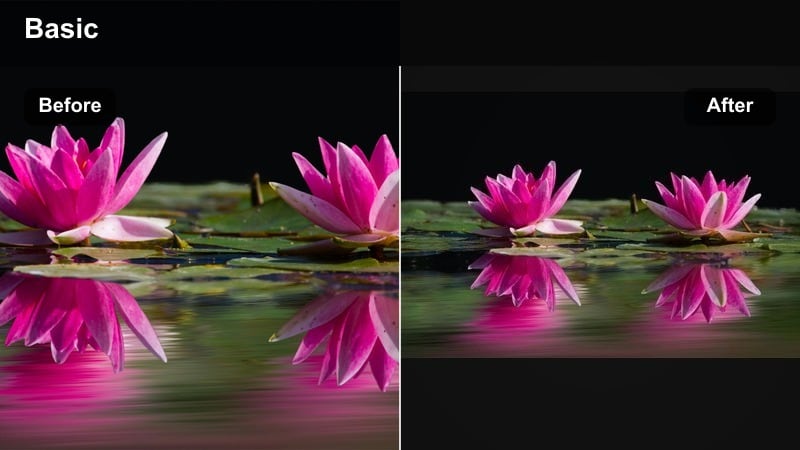
- Effect look: Cool, cinematic blues and desaturated backgrounds with lifted shadows to keep detail in darker urban scenes.
- Best for: Subway rides, train stations, bus stops, tunnels, and moody city transitions between locations.
- Editing tip: Stabilize handheld clips and add a mild vignette to keep attention on faces or key details within the cool-toned frames.
Metro Mood is a moody urban filter that leans into cool blues and muted tones to give transit spaces a cinematic, in-between feel. Shadows are lifted enough to preserve detail in tunnels, platforms, and carriage interiors, while the overall desaturation shifts focus toward shapes, light, and movement. It is perfect for connecting different destinations within one reel by using metro and transit shots as atmospheric transitions.
Inside Filmora, apply Metro Mood to all your subway, tram, and bus clips from a trip, then add a slight vignette to draw attention to faces or key architectural features. Stabilize handheld footage to avoid distracting shakes in darker scenes and adjust exposure clip by clip so the subject remains visible. When you cut these moments between brighter daytime scenes, the consistent cool grade helps your reel feel like a cohesive travel film rather than random clips.
Rooftop Amber
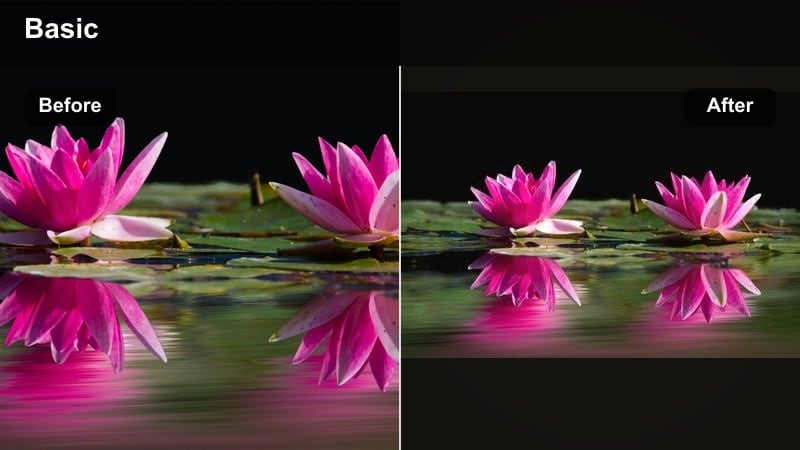
- Effect look: Warm amber lights with soft contrast and slightly faded blacks that flatter skin while preserving city detail at blue hour.
- Best for: Rooftop bars, skyline views, twilight cityscapes, and golden-to-blue hour time-lapse reels.
- Editing tip: Use slight exposure compensation clip by clip so faces stay bright enough as natural light fades across your sequence.
Rooftop Amber is built for twilight and early night shots where city lights begin to glow against a still-blue sky. It warms artificial lights and skin tones with an amber cast, softens contrast, and introduces gently faded blacks so the scene feels cinematic and inviting. This makes rooftop bars, skyline panoramas, and balcony views feel like polished establishing shots from a travel documentary.
In Filmora, apply Rooftop Amber across your entire sunset-to-night rooftop sequence and tweak exposure per clip as the light falls. This keeps faces bright enough while preserving the romantic glow of the cityscape behind them. Use slow pans, time-lapses, or tilt movements to show the city evolving from day to night, and rely on this single warm filter to keep the full reel visually unified.
Adventure and Nature Travel Reels Filters
Alpine Air
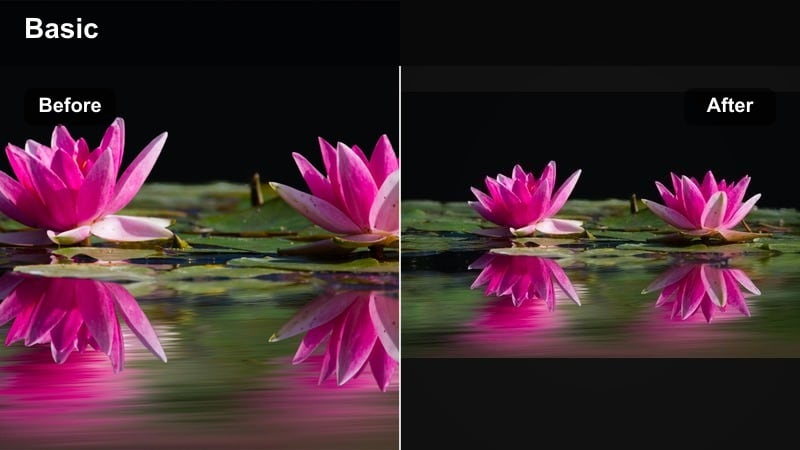
- Effect look: Clean, crisp greens and blues with slightly cooler whites and high clarity to emphasize mountain and forest textures.
- Best for: Hikes, peaks, snow-capped mountains, pine forests, and wide landscape shots in cooler climates.
- Editing tip: If your footage looks too cold, nudge temperature a little warmer while keeping the clarity and micro-contrast from the filter.
Alpine Air is designed to make high-altitude and forest scenes feel fresh and detailed, with crisp greens, strong blues, and cool, clean whites. The added clarity brings out the structure in rocks, trees, and snow textures, which helps your wide landscape shots look more three-dimensional on small phone screens. It is particularly effective for reels that feature big vistas, ridgelines, and sweeping camera moves.
In Filmora, use Alpine Air on hiking POVs, drone passes over peaks, and tripod shots of lakes or valleys. If the image starts to feel too icy, slightly warm the overall temperature while keeping the clarity boost intact. You can also combine the look with a bit of parallax or slow panning motions in your edit to emphasize depth between foreground, midground, and background layers.
Jungle Journey
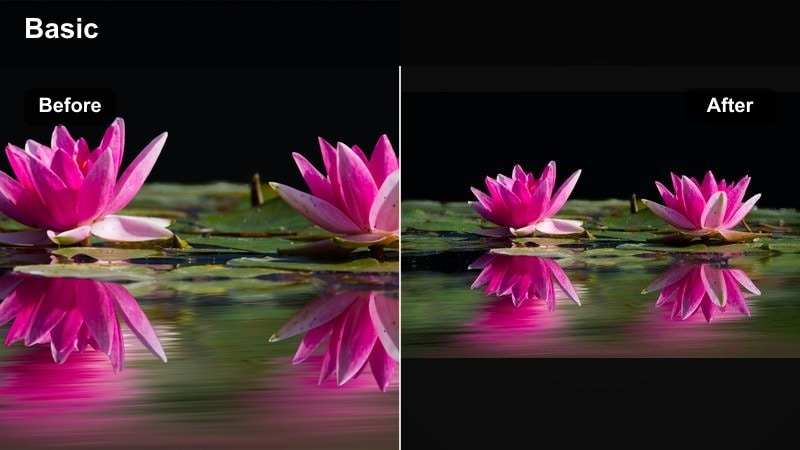
- Effect look: Deep, rich greens with slightly darker shadows and moody highlights that make foliage feel dense and tropical.
- Best for: Rainforest trails, waterfalls, lush rice terraces, and close-up nature details in humid environments.
- Editing tip: If greens start to look oversaturated, pull back luminance instead of global saturation so leaves retain texture and depth.
Jungle Journey amplifies the depth and richness of tropical foliage, turning ordinary forest clips into dense, cinematic jungle scenes. By deepening shadows and enriching greens, it helps waterfalls, rice terraces, and mossy paths feel more immersive and mysterious. Highlights stay controlled so sunlight filtering through leaves does not overpower the scene.
In Filmora, add Jungle Journey to any clip featuring lots of vegetation, from wide rainforest shots to macro details of leaves and flowers. If greens edge toward neon, adjust green luminance down rather than cutting saturation across the whole image, keeping textures intact. Combine the grade with slow, handheld camera moves and shallow depth of field so the darkened greenery frames your subject in a natural, moody vignette.
Roadtrip Raw
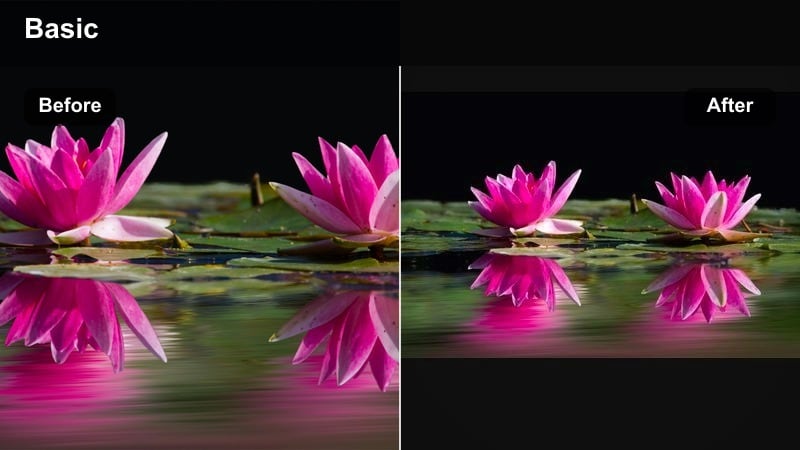
- Effect look: Slightly desaturated colors with lifted shadows, subtle warm highlights, and a film-inspired grainy feel for candid travel moments.
- Best for: Car windows, train rides, gas station stops, roadside landscapes, and behind-the-scenes travel snippets.
- Editing tip: Trim your clips tightly to moments of motion or expression, and add a hint of grain if your editor allows to match the raw look.
Roadtrip Raw is made for in-between moments: glances out of windows, passing landscapes, and casual clips from buses, trains, and gas stations. Its muted colors, lifted shadows, and gentle warmth give footage a nostalgic, analog-inspired feel, making everyday travel scenes feel like personal memories. This filter works especially well when you want to show the human, unpolished side of your journeys.
In Filmora, apply Roadtrip Raw to short, candid clips and cut them into a quick montage between your main destination scenes. Keep shots tight and focused on expressions, movement, or changing scenery outside the window. If your version of Filmora supports it, add a small amount of film grain to reinforce the analog vibe and pair the visuals with softer, emotionally driven music and ambient road noise.
Tips for Using Travel Video Reels Filter Filters in Filmora
- Shoot in a slightly flatter profile when possible and avoid overexposed highlights so your travel filters have room to sculpt color without breaking the image.
- Pick one or two core filters for each destination and stick to them to keep your Instagram Reels grid visually consistent and on-brand.
- Always check skin tones after applying strong blue, green, or teal filters and correct temperature or tint if faces start to look too magenta or too yellow.
- Adjust exposure and contrast for every clip individually, even when using the same filter, so transitions feel smooth and the reel flows naturally.
- Experiment with filter intensities between about 40 and 80 percent instead of leaving every look at full strength, which can feel over-edited.
- Combine vertical framing, leading lines, and strong foreground elements with your chosen color grade to create more scroll-stopping compositions.
- Export a short draft reel and preview it on your phone inside the Instagram or TikTok interface to see how colors really appear on small screens.
- Match your color style with complementary music and pacing so the mood of the filter, edit rhythm, and soundtrack all tell the same travel story.
With the right travel video filters for reels, you can turn simple clips from your trips into cinematic, on-brand short videos that stand out in an endless scroll of content.
Choose a few signature looks from this collection, tweak intensity for each scene, and save them as presets so every new trip can be edited faster and more consistently.
secure download