

 100% Security Verified | No Subscription Required | No Malware


 ChatGPT
 Perplexity
 Gemini
 Claude
 Grok
Grok
Canon C80 footage is already cinematic out of camera, but the right LUT-style filters in Filmora can push your images into a polished, big-screen look in just a few clicks.
Below you will find scene-based Canon C80 LUT-inspired filters tailored for filmmakers working on cinema production, from low-key drama to bright commercial work, all designed to help you move fast while staying consistent across your project.
In this article
Moody City Night Drama Scenes
Neon Noir C80
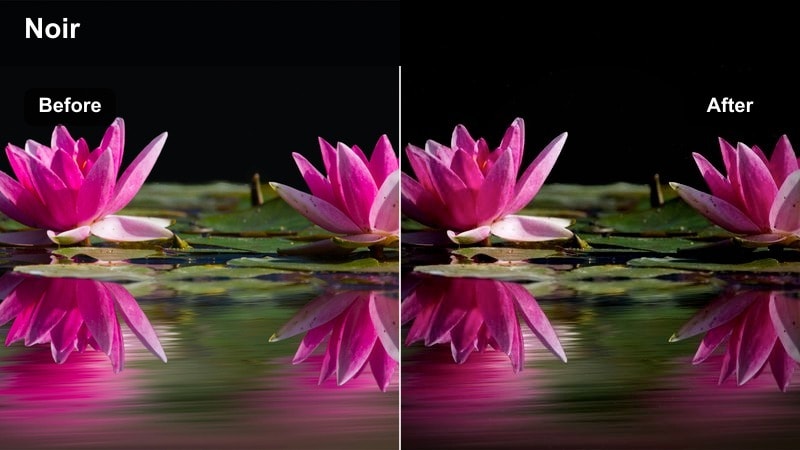
- Effect look: Deep contrast, cyan shadows, and magenta highlights for a stylized neo-noir city look.
- Best for: Night exteriors, rain-soaked streets, and dialogue scenes lit by storefronts and billboards.
- Editing tip: Expose slightly brighter in-camera with the Canon C80, then pull down blacks in Filmora to retain neon detail without crushing shadows.
Neon Noir C80 leans into the Canon C80s clean low-light performance, sculpting your night footage with punchy contrast and a bold cyan-magenta color split. Use it when you want your city streets to feel like a graphic novel come to life, with reflections and signage taking on a vivid, stylized glow.
In Filmora, apply the filter to your shot or an adjustment layer, then fine-tune exposure and contrast so neon signs remain readable and do not clip. If skin tones start to skew too magenta under heavy neon, nudge Filmoras HSL or skin controls slightly warmer so faces stay natural while the environment keeps its heightened noir character.
Use Filmora's AI Color Tools with Canon C80 LUTs
Filmoras AI-powered color tools can quickly balance Canon C80 clips before you apply any cinema-style LUT-inspired filters, giving you a clean, neutral base in just a few seconds.
Let AI auto-correct exposure and white balance across a batch of shots, then refine contrast and saturation manually so your Canon C80 night and daylight footage matches your directors preferred look.
 secure download

Preview Filters on Canon C80 Footage in Real Time
Filmoras real-time preview makes it easy to cycle through Canon C80 LUT-style filters while your scene plays back, so you can see how each look responds to camera movement and lighting changes.
Use split-screen comparison to view graded footage alongside the original, helping you quickly choose between moody, warm, or neutral palettes for each part of your story.
secure downloadCombine Cinema LUTs and Filmora Filters for a Show Look
If you already use dedicated Canon C80 cinema LUTs, Filmora lets you stack them with creative filters to refine highlights, shadows, and saturation into a unified show look.
Keep your technical log-to-Rec.709 conversion on the base layer, then layer Filmora filters and manual color tools above so you can adjust mood later without breaking Canon C80 color science.
secure downloadSubway Gloom C80
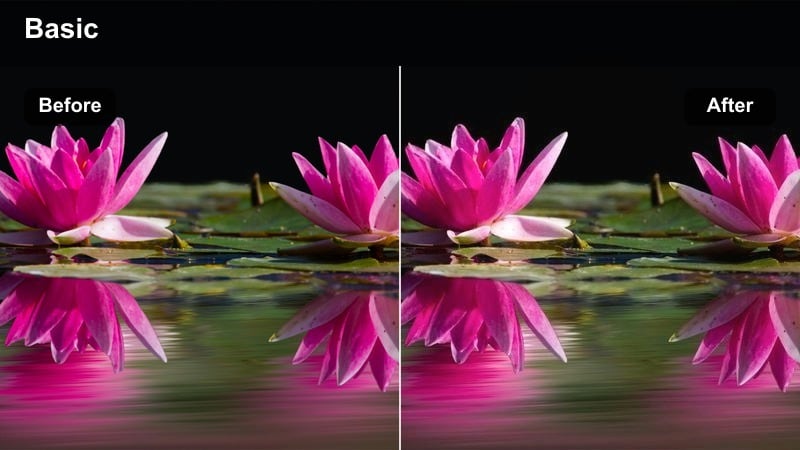
- Effect look: Muted colors with cool green shadows and soft highlights for tense underground scenes.
- Best for: Subway platforms, underground parking garages, and gritty interior walk-and-talk sequences.
- Editing tip: Lower saturation of yellow and green slightly after applying the filter to avoid sickly skin while preserving the oppressive atmosphere.
Subway Gloom C80 introduces a cool, desaturated palette that emphasizes concrete, metal, and fluorescent lighting, perfect for thriller or crime sequences. The Canon C80s clean image gives you plenty of detail in the darker areas, while the filter pushes the mood toward claustrophobic and tense.
After applying the look in Filmora, adjust yellow and green saturation to keep complexions believable under harsh tube lights. Add a subtle vignette or mask-based darkening around the frame edges so viewers focus on your subject as they move through tunnels, corridors, and platforms.
Rooftop Thriller C80
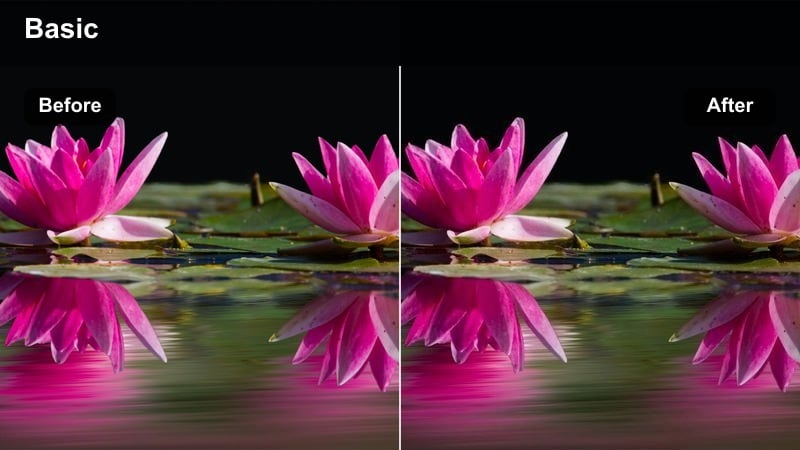
- Effect look: Crisp contrast with steel-blue mids and controlled highlights for suspenseful skyline scenes.
- Best for: Night rooftop confrontations, skyline establishing shots, and action beats against city lights.
- Editing tip: Drop highlights slightly to keep city light bulbs from clipping and add a touch of clarity to emphasize building edges.
Rooftop Thriller C80 enhances the drama of skyline shots by cooling midtones and keeping specular highlights in check, giving your Canon C80 footage a sleek, thriller-ready finish. It works especially well on silhouettes and side-lit characters standing against a busy city background.
In Filmora, apply the filter, then use highlight and white point controls to prevent window lights and signage from blowing out. A small boost in clarity or local contrast around buildings and horizon lines will help define the cityscape without introducing harsh digital halos.
Natural Daylight Street Cinema
Street Documentary C80
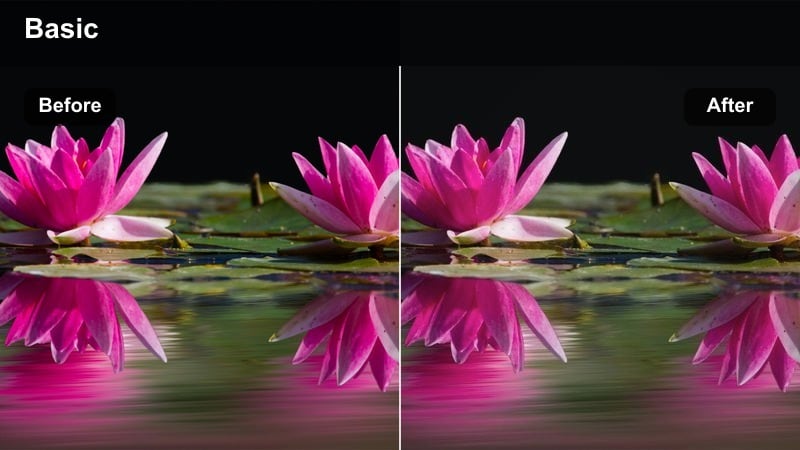
- Effect look: Soft contrast and balanced colors with a gentle filmic curve for authentic city daylight.
- Best for: Run-and-gun street documentaries, city b-roll, and observational scenes shot handheld.
- Editing tip: Add a tiny bit of Filmora grain after the filter to hide minor exposure shifts between shots and enhance the documentary feel.
Street Documentary C80 keeps your Canon C80 daylight footage honest and grounded, introducing a subtle filmic roll-off without pushing colors too far. It is ideal when you want viewers to feel like they are experiencing real life on the street rather than watching a heavily stylized commercial.
Once the filter is applied in Filmora, group a sequence of shots on an adjustment layer so the tone curve stays consistent across your coverage. Light grain and small exposure trims on individual clips will smooth out handheld variations, especially in fast-paced observational or vérité-style projects.
Sunlit Boulevard C80
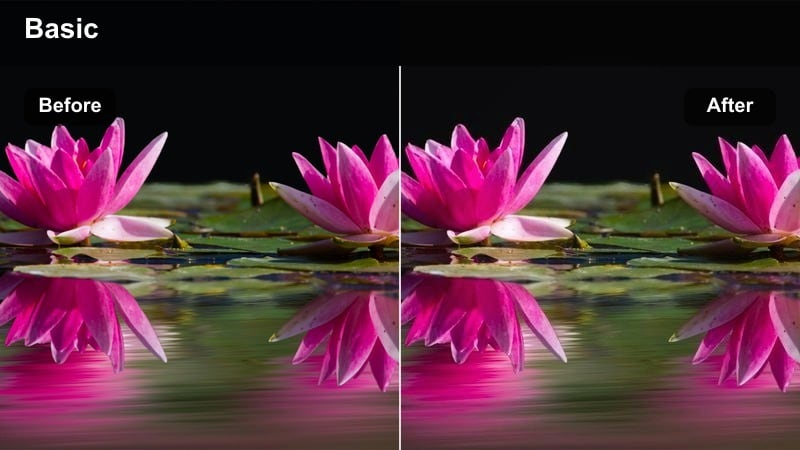
- Effect look: Warm highlights, gentle teal shadows, and a subtle bloom effect for golden-hour city avenues.
- Best for: Late afternoon walking scenes, romantic city montages, and soft commercial visuals.
- Editing tip: Shoot slightly underexposed on the Canon C80 at golden hour, then lift mids in Filmora after applying the filter for a glowing yet controlled look.
Sunlit Boulevard C80 leans into golden-hour warmth, giving your Canon C80 images glowing skin tones and soft, teal-leaning shadows that feel cinematic but not overdone. It is a strong fit for romance, lifestyle, and brand spots that want a dreamy, optimistic mood.
In Filmora, apply the look and then raise midtones rather than highlights to preserve texture in bright skies and reflective surfaces. Use Filmoras highlight protection tools or local exposure masks on windows and clouds if you need extra control, keeping the overall image radiant without losing important detail.
Urban Portrait C80
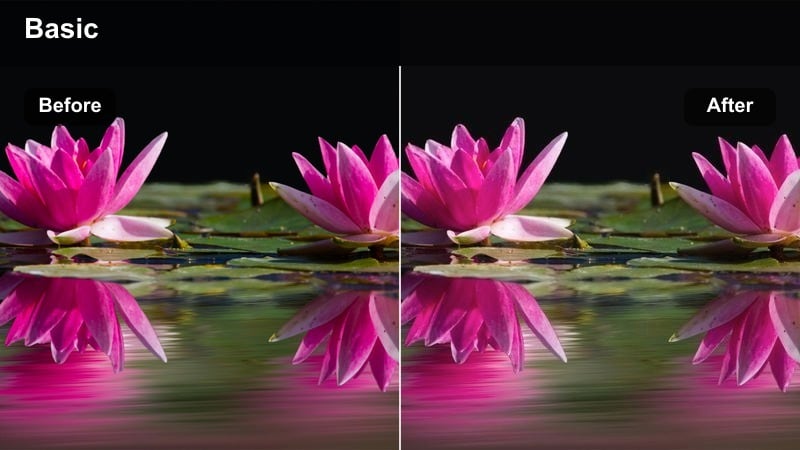
- Effect look: Softened contrast with skin-tone priority and slightly muted backgrounds for city character moments.
- Best for: Character introductions, talking-head pieces on the sidewalk, and emotional close-ups in city settings.
- Editing tip: Lower overall saturation a touch after the filter, then bring back only the orange range slightly to keep faces vivid and backgrounds subtle.
Urban Portrait C80 gently pulls back busy city colors so attention stays on your subject, taking advantage of the Canon C80s pleasing skin rendition. The softer contrast helps faces look flattering in both hard midday sun and softer overcast conditions.
After applying the filter in Filmora, selectively boost the orange or skin-tone range if your actor blends too much into the background. You can also use a shallow depth-of-field shot combined with subtle background darkening or blur filters to further separate the subject from traffic, signage, and crowds.
Low-Key Interior Drama and Dialogue
Apartment Drama C80
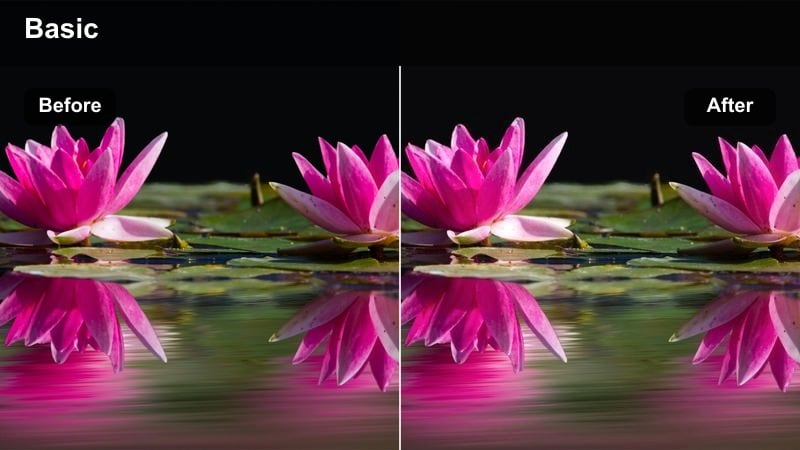
- Effect look: Low-contrast, warm interiors with soft shadows and gently rolled-off highlights from windows.
- Best for: Dialogue scenes in small apartments, intimate living room conversations, and indie drama interiors.
- Editing tip: Lower Filmora sharpness slightly after applying the filter to soften digital edges and mimic a higher-budget lens feel.
Apartment Drama C80 turns compact locations into cozy, story-friendly spaces by warming tones and easing off contrast, which suits the Canon C80s clean, video-like base image. It is tuned for natural window and lamp light, maintaining a believable interior while avoiding harsh, crunchy blacks.
In Filmora, add the filter and then reduce sharpening to taste so faces and backgrounds feel more cinematic and less clinical. You can further sculpt the room using masks or vignettes to darken corners, letting pockets of light draw attention to the most important characters and props in the scene.
Office Intrigue C80
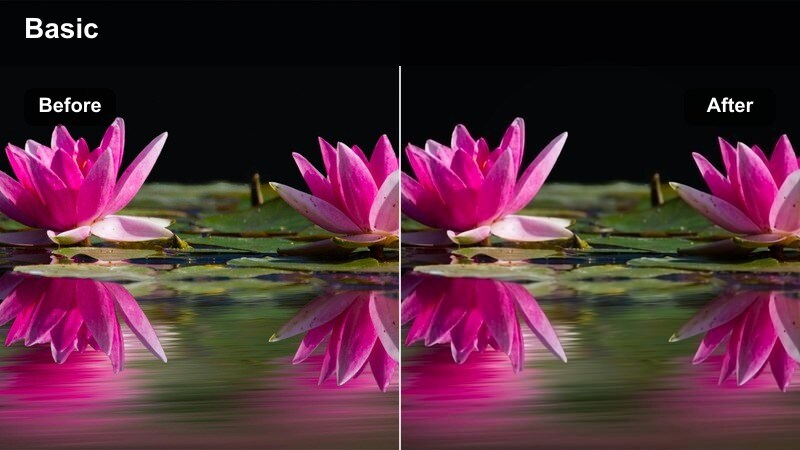
- Effect look: Cool neutrals with restrained saturation and crisp contrast for corporate interiors and tense meetings.
- Best for: Boardroom confrontations, corporate thrillers, and procedural scenes set in modern offices.
- Editing tip: Keep white balance slightly cool in-camera, then fine-tune tint in Filmora for consistent fluorescent and LED office lighting.
Office Intrigue C80 brings a controlled, professional polish to Canon C80 office footage, leaning slightly cool to emphasize glass, steel, and modern decor. The restrained saturation and crisp contrast help corporate spaces feel serious and cinematic without slipping into a stylized commercial vibe.
Once you apply the filter in Filmora, balance white point and tint so skin tones remain neutral against windows, computer screens, and overhead lighting. Use the color wheels or selective HSL to subtly align different light sources, preventing green or magenta casts from distracting viewers during key dialogue moments.
Café Conversation C80
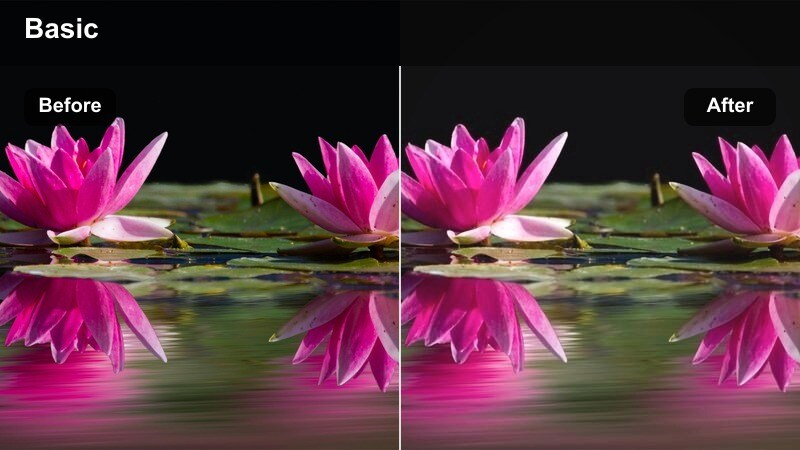
- Effect look: Soft warmth with lifted blacks and a subtle filmic fade, ideal for relaxed interior dialogue.
- Best for: Café meetups, casual bar scenes, and character-driven conversations in cozy locations.
- Editing tip: If the fade feels too strong, slightly lower the black level and add a hint of contrast to reclaim depth while keeping the filmic mood.
Café Conversation C80 gives Canon C80 interior scenes a nostalgic, indie-film feel by warming tones and gently lifting blacks. The result is a soft, inviting image where shadows never get too heavy, reinforcing the intimacy of personal conversations.
In Filmora, adjust the curve if you need more depth, especially for projects that intercut with higher-contrast exteriors or action sequences. You can keep the faded character but fine-tune black levels and midtone contrast so every angle in a dialogue scene matches and cuts together smoothly.
Cinema-Scale Establishing Shots and Action
City Epic C80
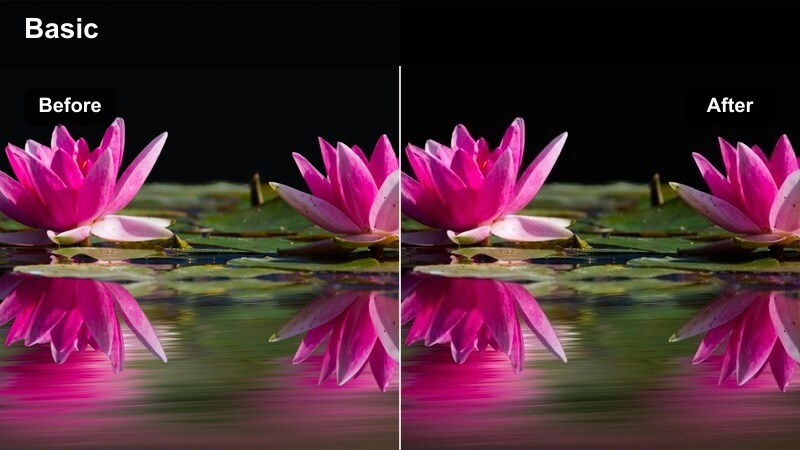
- Effect look: High dynamic range feel with rich contrast and slightly cool shadows for sweeping city vistas.
- Best for: Aerials, crane shots, and wide establishing shots of the city skyline in feature films and series.
- Editing tip: Use Filmora's curves to add a subtle S-curve after the filter if you want a more aggressive blockbuster punch.
City Epic C80 maximizes the Canon C80s dynamic range, giving skyline and wide city shots strong contrast while holding detail in buildings, skies, and deep streets. The cool-leaning shadows give the image a modern, high-end feature film flavor that works well for openings and transitions.
After applying the filter in Filmora, use curves and highlight controls to fine-tune the balance between sky and city so neither dominates. If haze flattens distant buildings, add a selective dehaze or localized contrast boost to the background while leaving foreground elements natural and free of heavy processing.
Chase Sequence C80
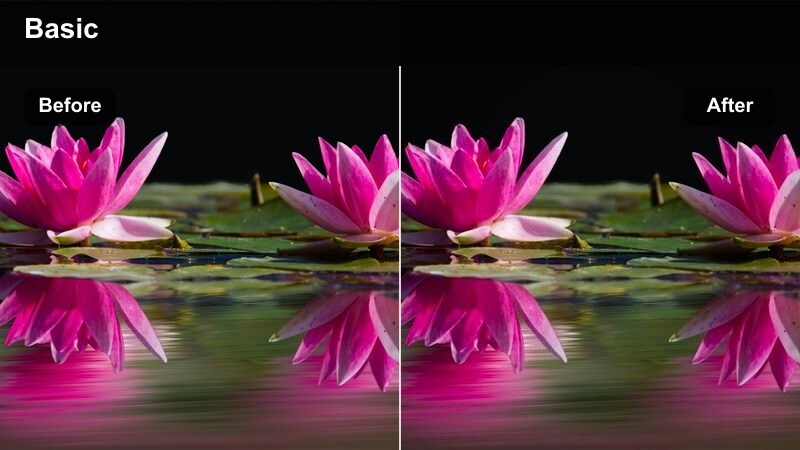
- Effect look: Punchy contrast, vivid primary colors, and slightly cooler mids for kinetic city action.
- Best for: Foot chases through alleyways, car sequences, and handheld action in crowded streets.
- Editing tip: Stabilize first, then apply the filter, and finally add a controlled amount of motion blur or grain to keep movement feeling organic.
Chase Sequence C80 is tuned for energy, making Canon C80 action footage pop with bold contrast and color while keeping midtones cool enough to feel gritty. It helps moving subjects stand out clearly in complex urban environments full of signage, vehicles, and extras.
In Filmora, stabilize and trim your clips before applying the filter to avoid amplifying any artifacts. Once graded, add a small amount of motion blur or film grain so the intense contrast still feels organic, and avoid pushing blacks too deep so important details in fast-moving shadows remain visible.
Cinema Log Base C80
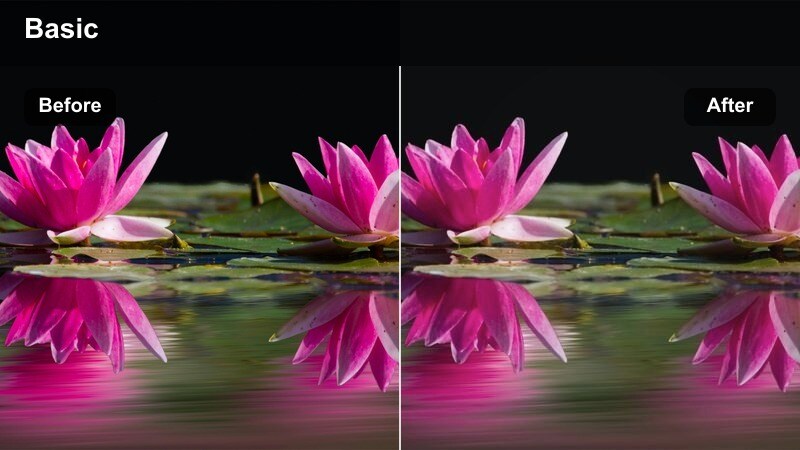
- Effect look: A gentle conversion-style base that normalizes Canon C80 log footage while preserving maximum grading latitude.
- Best for: Any cinema production using Canon C80 log profiles as a starting point before creative LUTs or filters.
- Editing tip: Apply Cinema Log Base C80 first on all log clips, then stack other stylized Filmora filters on an adjustment layer above for unified control.
Cinema Log Base C80 is designed to behave like a technical LUT, taking Canon C80 log footage to a natural contrast and color starting point without baking in a heavy style. It preserves highlight and shadow latitude, giving you the flexibility to explore different creative directions later in the grade.
Use this filter as the first step in Filmora on every log clip, keeping its strength consistent throughout the project. Then, layer creative filters such as Neon Noir C80 or Apartment Drama C80 on top via adjustment layers; this separation makes it much easier to re-balance the shows overall mood without redoing your base correction.
Tips for Using Canon C80 Filters in Filmora
- Shoot in a consistent Canon C80 picture profile or log setting across the whole project so Filmora filters and LUT-style looks respond predictably.
- Build a short look-test timeline with representative scenes and try multiple filters to see how they cut together before locking your visual style.
- Apply global Canon C80 base looks and creative filters on adjustment layers, then use per-clip corrections only for exposure and white balance.
- Use Filmoras scopes alongside a calibrated or trusted display so your contrast, saturation, and skin-tone decisions hold up on different screens.
- Export short graded test clips and review them on a TV, tablet, and phone to confirm your Canon C80 grades translate beyond your edit monitor.
- Organize presets in Filmora by scene type, such as night city, interiors, and daylight streets, so you can quickly match new shots to your show look.
- Save custom versions of these Canon C80-inspired filters with tweaked contrast or saturation levels for different genres, from drama to commercial.
- When mixing multiple cameras with the Canon C80, first match them using basic color tools, then apply your chosen Filmora filters to the entire sequence.
With the right Canon C80 LUT-inspired filters in Filmora, you can move efficiently from flat log or neutral footage to a polished, cinema-ready grade that supports the emotion of your story.
By building a consistent pipeline that uses a solid base conversion, scene-appropriate filters, and light manual tweaks, your Canon C80 cinema production will carry a cohesive visual language from the opening frame all the way through the final credits.
secure downloadNext: Best Canon R50 LUTs
