

 100% Security Verified | No Subscription Required | No Malware


 ChatGPT
 Perplexity
 Gemini
 Claude
 Grok
Grok
This City Sunset Skyline Video LUT filter collection is designed for content creators who want every golden-hour city shot to look cinematic, polished, and on-brand.
From warm rooftop silhouettes to neon-lit twilight streets, these filters help you enhance skyline colors, shape contrast, and keep skin tones natural while the city lights come alive.
In this article
Golden Hour Rooftops and Terraces
Soft Amber Glow
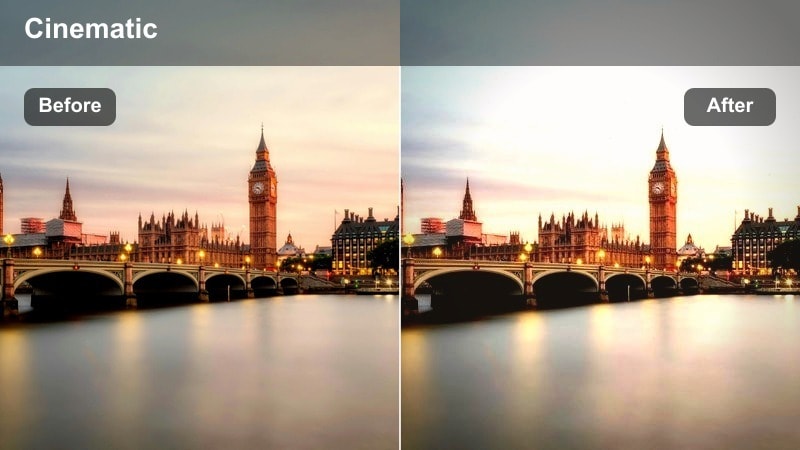
- Effect look: Gentle warm wash that softens contrast for dreamy rooftop sunsets.
- Best for: Handheld vlog shots on high terraces and casual rooftop hangouts during golden hour.
- Editing tip: Lower the filter intensity to around 60 percent and slightly reduce highlights to keep sky detail.
Soft Amber Glow wraps your rooftop skyline shots in a flattering, amber-toned warmth that smooths harsh contrast without making the scene look flat. In Filmora, this style filter is perfect for creators who want romantic, cinematic golden-hour vibes while still keeping building edges and skyline details visible in the background.
Apply this filter to your handheld rooftop vlogs, then fine-tune white balance so faces stay natural while the skyline stays rich and warm. If your footage starts to look too orange, gently nudge the temperature toward blue instead of pulling down the filter strength, so you keep a consistent look across your entire city sunset sequence.
Match Your City Sunset Aesthetic with AI Color Tools
Use Filmoras AI-powered color tools to automatically balance exposure and white balance before you add any city sunset skyline video LUT style filters. A clean, neutral base grade helps every rooftop and skyline clip react more predictably to warmth, contrast, and tone shifts.
Once AI has evened out your footage, you can stack these sunset filters to build a recognizable visual identity across rooftop chats, skyline B-roll, and daily commute vlogs without spending extra time on manual color correction.
 secure download

See the City Sunset Filters in Action
Inside Filmora, you can quickly preview how each city sunset skyline filter transforms flat rooftop footage into cinematic, color-rich scenes. Use split-screen or before-and-after views to compare different looks on the same skyline shot and decide which one best fits your vlog or B-roll sequence.
Test several options on timelapses, drone passes, or walking intros, then save your favorites as presets so you can apply the same sunset mood to every new episode in just a few clicks.
secure downloadBlend Filters with LUTs for a Signature Skyline Style
Filmora includes 1000 plus video filters and 3D LUTs, giving you fine control over how your city sunset skyline shots feel. Start by choosing a LUT that sets the overall color direction, then layer one of these sunset filters at lower intensity to lock in the final contrast and mood.
This workflow lets you keep skin tones believable while still pushing skylines, reflections, and traffic lights into a stylized, cinematic space. Once you find a combo that matches your brand, save it as a custom preset for fast one-click grading on future urban vlogs.
secure downloadRooftop Cinematic Fade
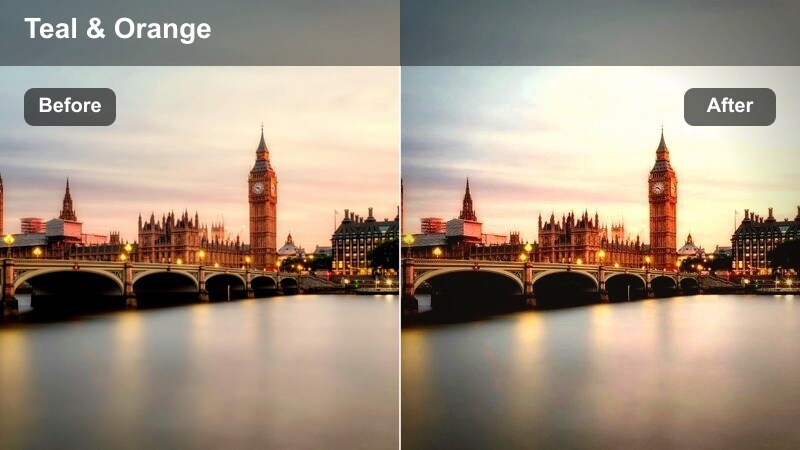
- Effect look: Soft faded contrast with subtle teal shadows and warm highlights for a cinematic grade.
- Best for: Slow-motion B-roll of skyline pans, rooftop drone reveals, and moody vlog intros.
- Editing tip: Add a slight vignette and reduce clarity a touch to emphasize the city skyline outlines.
Rooftop Cinematic Fade gives your skyline shots that modern teal-and-warm highlight balance with a gentle fade in the shadows. In Filmora, it is ideal for establishing shots, intros, and outros where you want the city to feel polished and cinematic without looking overly saturated.
Use this filter on slow pans, drone reveals, or static rooftop frames that carry your titles or end screens. Add a subtle vignette and slightly lowered clarity so viewers eyes are drawn toward the skyline silhouette and any on-screen text, creating a cohesive, branded introduction to your urban vlogs.
Golden Hour Portrait Pop
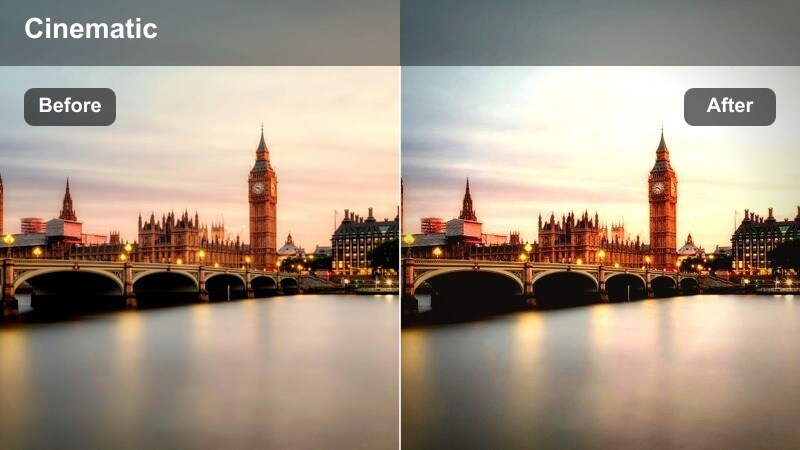
- Effect look: Punchy contrast with warm highlights and protected skin tones for talking-head shots.
- Best for: Rooftop talking segments, quick updates, and creator portraits framed against the skyline.
- Editing tip: Slightly lower saturation on oranges to avoid oversaturated skin while keeping the sky vibrant.
Golden Hour Portrait Pop is tuned to keep your face looking clean and natural while still embracing the rich glow of a sunset skyline. It adds contrast and warmth, but it protects skin tones so that talking-head segments remain flattering even when the background is intense.
In Filmora, apply this filter to any shot where you are speaking directly to camera with the city behind you. If your camera pushes orange too hard, slightly reduce orange saturation in the color controls rather than lowering the filter strength, so you can maintain a radiant sky and a professional, high-contrast look on your subject.
Orange-to-Blue Sunset Transitions
Urban Teal Shift
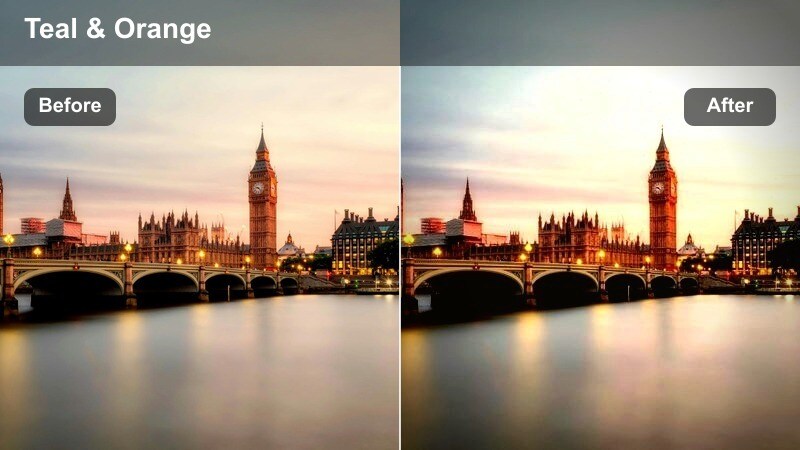
- Effect look: Teal-blue shift in shadows with preserved warm sunset highlights for a modern urban grade.
- Best for: Dynamic B-roll between sunset and early blue hour with moving traffic and city crowds.
- Editing tip: Use speed ramps with this filter on skyline drives to accent the teal-orange color motion.
Urban Teal Shift pushes your shadow areas into a cool teal while keeping sunset highlights warm, delivering that punchy teal-orange look that suits fast-paced urban stories. It is especially effective on shots with lots of depth, like layered buildings, busy streets, and reflective windows.
In Filmora, combine this filter with speed ramps and dynamic cuts on driving sequences, crowd shots, and gimbal passes. Keep your white balance neutral in camera or correct it first so that the teal cast comes from the filter itself, maintaining a consistent, stylized mood across multiple locations and angles.
Sunset to Night Bridge
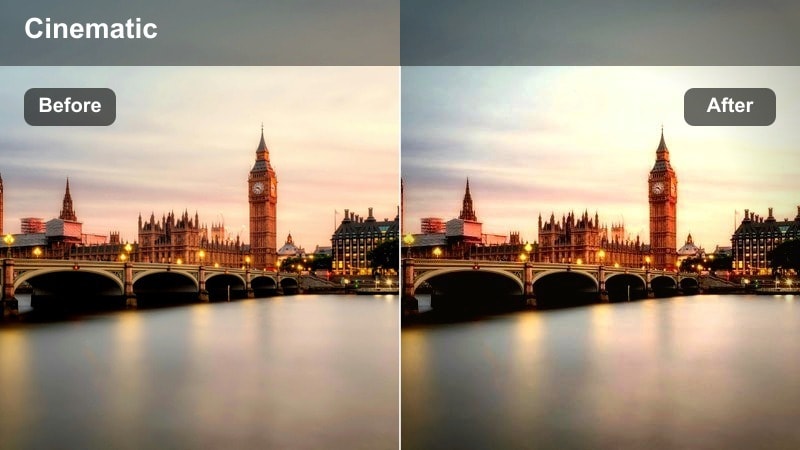
- Effect look: Gradual cool-down feel with lifted shadows and gentle highlight roll-off for smooth time transitions.
- Best for: Timelapse clips of the skyline shifting from orange sunset to deep blue dusk.
- Editing tip: Stack this filter with a light sharpen to keep building edges crisp as the city darkens.
Sunset to Night Bridge is designed for sequences that span the change from warm sunset into cool dusk. It lifts shadows slightly and softens highlight roll-off, helping you maintain detail in buildings and clouds as the ambient light fades and city lights take over.
Use this filter in Filmora on timelapse clips, multi-shot montages, or any stretch of your vlog that shows the passage of time. Apply the same filter across the entire sequence for color continuity, then sharpen just enough to keep skyscraper edges and small light sources looking clean as the image gets darker.
Hazy Sunset Film
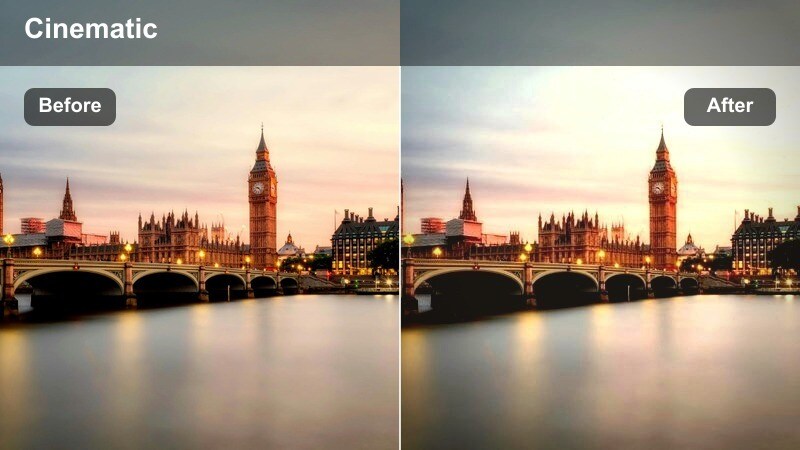
- Effect look: Soft, slightly grainy film-inspired look with muted blues and smoky oranges.
- Best for: Story-driven city walk vlogs, reflective monologues, or narrative B-roll at dusk.
- Editing tip: Lower sharpness slightly and add gentle film grain to complete the analog look.
Hazy Sunset Film emulates a subtle analog aesthetic with softened edges, smoky orange highlights, and muted blues. It is ideal when you want your city sunset footage to feel nostalgic, introspective, or cinematic rather than crisp and digital.
In Filmora, pair this filter with slow, deliberate camera moves and backlit compositions where the sun or bright sky sits behind buildings or subjects. Reduce overall sharpness a touch, then add a light layer of film grain to finish off the vintage mood while keeping skylines and silhouettes readable.
Street-Level Sunsets and Commutes
Commuter Gold
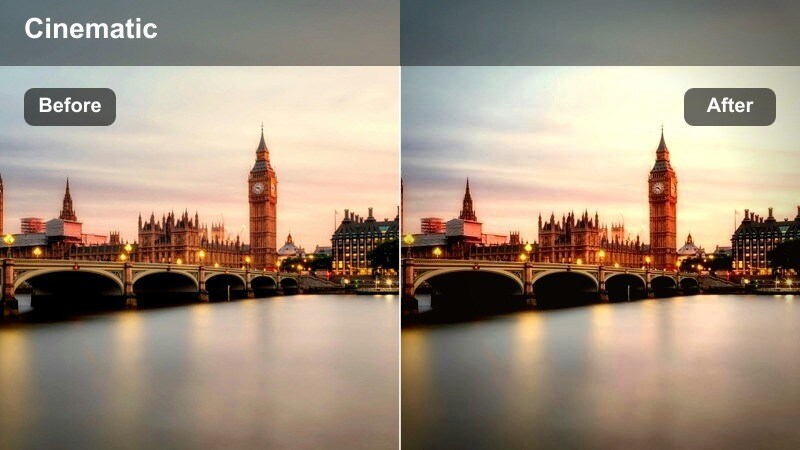
- Effect look: Rich golden tint with boosted midtones that brighten faces in street-level shots.
- Best for: Walking vlogs, bike rides, and commuting sequences with buildings towering overhead.
- Editing tip: Stabilize handheld clips first, then apply this filter to keep textures crisp without jitter.
Commuter Gold turns everyday streets and sidewalks into glowing, cinematic corridors of light. By boosting midtones and adding a rich golden cast, it helps keep your face bright and visible even when you are framed between tall buildings or shooting against the sun.
In Filmora, stabilize your handheld clips first, then apply this filter to walking vlogs, bike rides, or transit transitions. Slightly underexpose in camera or drop overall exposure a bit so the sky retains drama, letting the filter naturally lift midtones for a balanced, filmic city commute look.
Sidewalk Silhouette
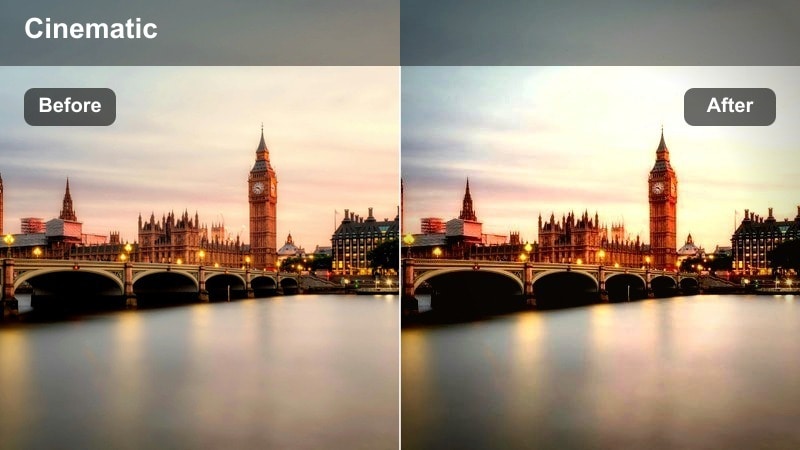
- Effect look: Deep contrast with silhouetted figures and strong orange and magenta sky tones.
- Best for: Backlit walking scenes, long-lens sidewalk shots, and creative B-roll of people against the sunset.
- Editing tip: Reduce blacks slightly if silhouettes lose detail you want to keep in clothes or hair.
Sidewalk Silhouette emphasizes bold shapes and outlines by deepening blacks and pushing sky colors into vivid oranges and magentas. It is meant to turn pedestrians, street poles, and building edges into graphic silhouettes against a glowing horizon.
Use this filter in Filmora on backlit shots where people walk through pools of sunset light, or on long-lens clips that compress busy sidewalks into layered silhouettes. If you need to preserve a bit more detail in clothing or hair, gently lift blacks or shadows while keeping the overall high-contrast style intact.
Traffic Glow Trails
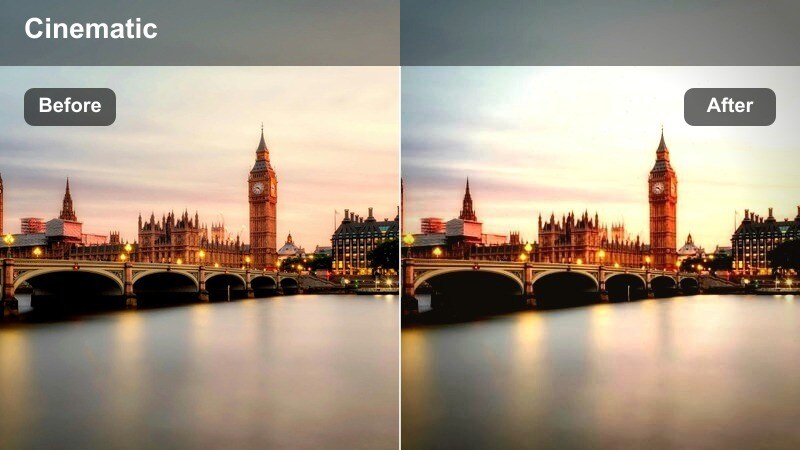
- Effect look: Vibrant reds and ambers with boosted saturation on car lights and reflective surfaces.
- Best for: Car-mounted shots, overpass views of traffic, and timelapses of light trails at sunset.
- Editing tip: Combine with slight motion blur or long-exposure style effects to accent light trails.
Traffic Glow Trails is built to amplify car lights, brake streaks, and reflective surfaces, turning evening traffic into dynamic streams of color. Reds and ambers get extra saturation while the overall scene stays grounded in a warm sunset palette.
In Filmora, apply this filter to timelapses, overpass shots, or car-mounted drives where light trails and reflections dominate the frame. Add a motion blur effect or long-exposure style blur to emphasize movement, and if colors feel overwhelming, pull back red saturation while leaving filter intensity high to retain the dramatic glow.
Blue Hour Skylines and Early Night Glow
Skyline Afterlight
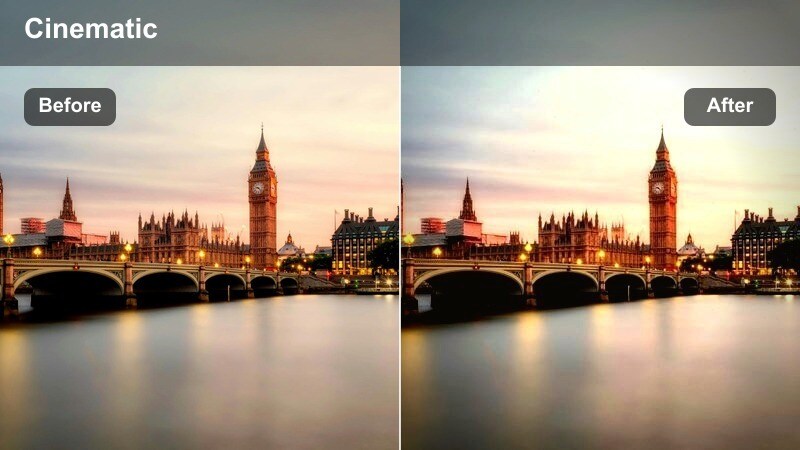
- Effect look: Cool blue shadows with preserved warm window lights and subtle highlight bloom.
- Best for: Static skyline shots once the sun has dipped but the sky is still deep blue.
- Editing tip: Increase contrast slightly on hazy days to help building edges stand out against the sky.
Skyline Afterlight leans into the natural blue tones of early night while letting office windows and streetlights glow warmly. It introduces cool shadows, gentle highlight bloom, and enough contrast to keep distant buildings from looking muddy or flat.
Use this filter in Filmora on locked-off tripod shots or slow pans captured 15 to 30 minutes after sunset. Keep ISO low to avoid noisy shadows, then apply the filter and slightly increase contrast or clarity on hazier days to separate the skyline from the darkening sky without losing the calm blue-hour atmosphere.
Glass Tower Reflections
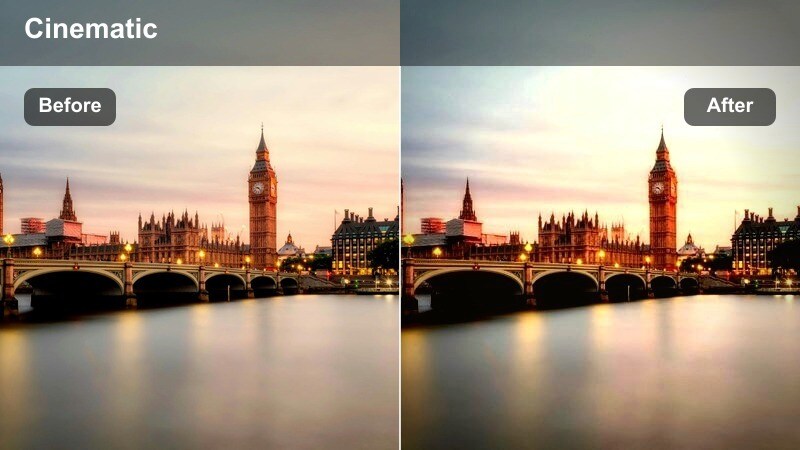
- Effect look: High clarity and crisp reflections with slightly cool midtones and neutral highlights.
- Best for: Close-ups of skyscraper glass, mirrored facades, and reflective city surfaces after sunset.
- Editing tip: Add a subtle local sharpen to window lines to emphasize geometry and reflection patterns.
Glass Tower Reflections focuses on clarity and geometric detail, making glass facades and mirrored surfaces look razor sharp and modern. Slightly cool midtones keep the city feeling sleek while neutral highlights prevent specular reflections from blowing out too harshly.
In Filmora, pair this filter with slow, controlled camera moves around skyscraper windows, shopfronts, or glass railings. If you see moire or aliasing on tight patterns, dial back global sharpness a notch but keep the filter active, then use localized sharpening only where you want architecture and reflections to stand out.
Early Night Vlog Mood
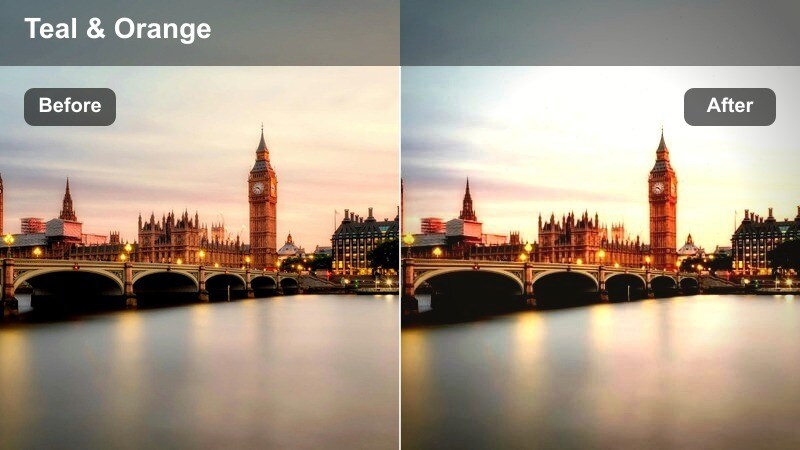
- Effect look: Balanced contrast with gentle teal in shadows, warm skin tones, and lifted exposure.
- Best for: Blue-hour and early night vlogs where the city is lit but the sky is still visible.
- Editing tip: Slightly desaturate blues if your camera oversaturates the sky or LED signs at night.
Early Night Vlog Mood is a versatile filter that brightens your subject while preserving the depth and glow of an evening skyline. Shadows pick up a subtle teal cast, skin tones stay warm and inviting, and overall exposure lifts enough to keep your face visible without crushing the city lights behind you.
Use it in Filmora on balcony monologues, street-corner updates, or any early night vlog segments where you rely on billboards, storefronts, and windows as practical light sources. If blues in the sky or LED signs look too intense, gently lower blue saturation so your audience focuses on you and the overall mood rather than distracting hot spots of color.
Tips for Using City Sunset Skyline Video Lut Filters in Filmora
- Shoot during the last 30 minutes before sunset and the first 30 minutes after for the most flexible color range with these filters.
- Keep your white balance consistent across a whole sequence so the filter looks uniform from shot to shot.
- Use a variable ND filter when filming toward the sun so you can preserve highlight detail the filters can enhance later.
- Stabilize handheld skyline shots before you grade; sharpening and contrast from filters will exaggerate any jitters.
- Save custom presets in Filmora once you dial in exposure, filter strength, and saturation for your favorite skyline look.
- Combine these filters with Filmora LUTs at reduced intensity to create layered color grades that are easy to repeat.
- Test a few filters on the same clip and compare before and after previews to see which style best matches your channel aesthetic.
- Adjust individual color channels, such as orange and blue, after applying a filter to fine-tune skin tones and skyline hues.
With the right city sunset skyline video LUT style filters, even quick handheld clips can feel like carefully crafted cinematic scenes.
Load your next urban vlog into Filmora, test a few of these filters on rooftops, streets, and blue-hour skylines, and build a sunset look that viewers instantly recognize as yours.
secure download