

 100% Security Verified | No Subscription Required | No Malware

The Canon Cinema Gamut color space is renowned for its wide dynamic range and rich color fidelity, making it a favorite among professional filmmakers and colorists. Translating that cinematic look into your editing suite requires precision, and that's where LUTs come in.
Our Free Canon Cinema Gamut LUT Pack brings the full power of this color space to Filmora users. Whether you're grading footage from commercials, cinematic projects, or high dynamic range scenes, these filters help you achieve a polished, filmic look with minimal effort.
In this article
Cinematic Interiors & Low-Light Scenes
Cinema Noir
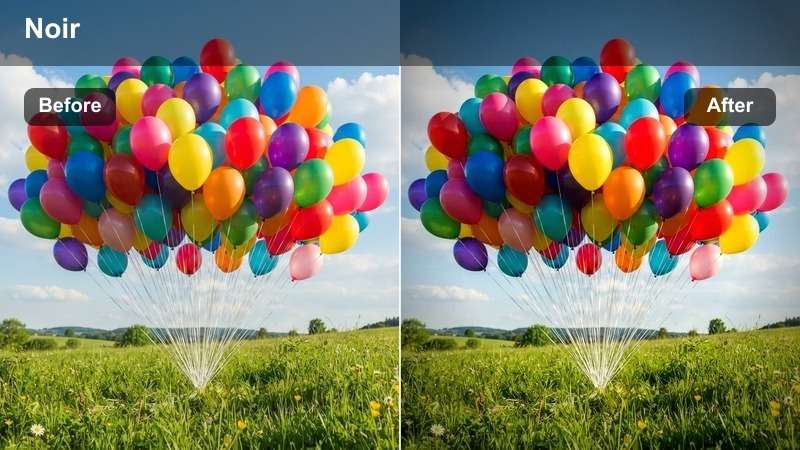
- Effect look: Deep shadows with cool blue undertones and subtle contrast lift
- Best for: Dimly lit interiors, dramatic interviews, thriller scenes
- Editing tip: Use with slight exposure boost to retain detail in dark areas
Cinema Noir delivers a moody, high-contrast aesthetic that emulates classic film noir cinematography. The LUT enhances shadow depth while introducing cool blue tones to create a sense of tension and drama, ideal for storytelling with emotional weight.
In Filmora, apply Cinema Noir to low-light scenes shot in LOG to maximize shadow recovery. Adjust the exposure slider slightly upward to reveal facial details without compromising the dark atmosphere. This LUT pairs well with minimal lighting setups, making it perfect for indie filmmakers and narrative creators.
 secure download

Warm Lounge
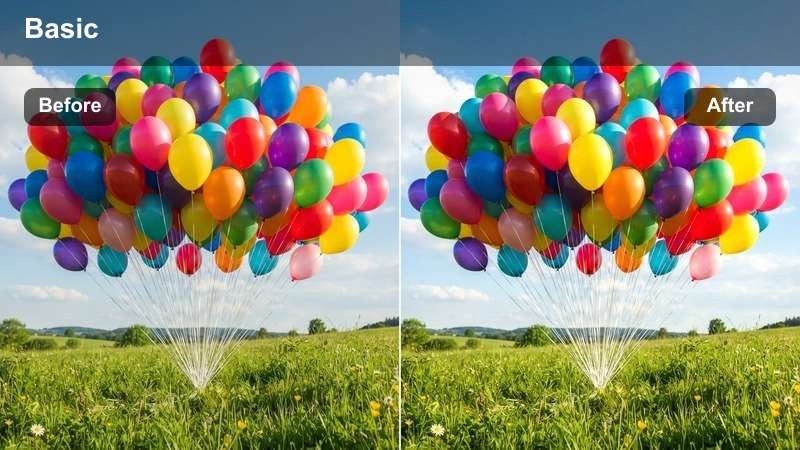
- Effect look: Amber-rich tones with soft highlights and gentle saturation
- Best for: Cozy interiors, lifestyle content, restaurant scenes
- Editing tip: Pair with vignette for a more intimate framing effect
Warm Lounge enhances ambient lighting with golden and amber tones, creating a welcoming and intimate visual experience. The LUT gently lifts midtones and highlights, making interiors feel lived-in and emotionally engaging.
In Filmora, use Warm Lounge for lifestyle vlogs, hospitality content, or any scene where comfort and warmth are central. Combine it with a subtle vignette and a soft glow effect to deepen the cozy atmosphere. It works exceptionally well with footage lit by practical lamps or candlelight.
Neutral Studio
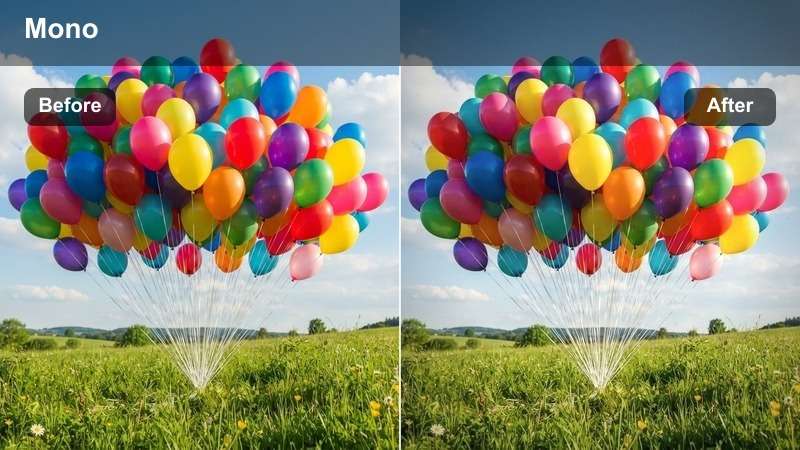
- Effect look: Flat, balanced grayscale with accurate skin tones and minimal contrast
- Best for: Interviews, product demos, talking-head videos
- Editing tip: Ideal as a base for further color grading in post
Neutral Studio provides a clean, color-accurate foundation that preserves the integrity of your original footage. With minimal contrast and neutral tones, it ensures skin tones remain natural and lighting appears consistent.
Apply Neutral Studio in Filmora when you need a reliable starting point for color grading. It's especially useful for corporate videos, tutorials, or any project requiring a professional, unobtrusive look. From here, you can layer additional effects or LUTs without color contamination.
Urban Landscapes & City Nightlife
Neon Pulse
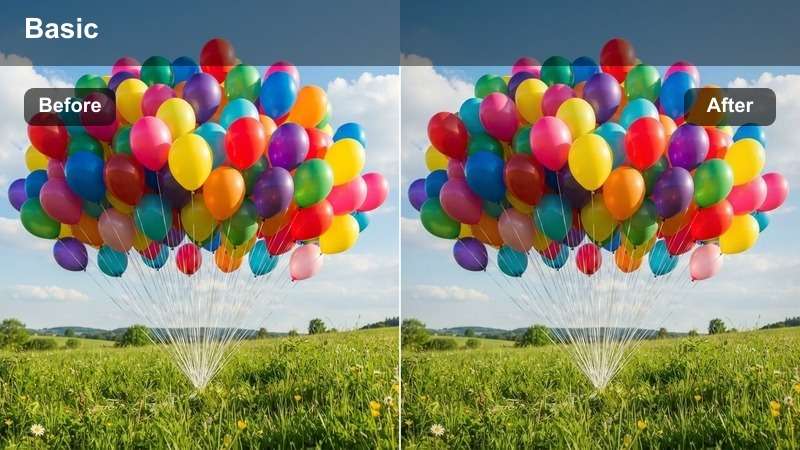
- Effect look: Enhanced cyan and magenta highlights with deep blacks
- Best for: City nights, neon signs, music videos
- Editing tip: Boost saturation slightly to make lights pop
Neon Pulse intensifies artificial lighting, making urban night scenes feel vibrant and futuristic. The LUT emphasizes cool tones in highlights while maintaining deep, rich blacks for a high-impact visual style.
In Filmora, use Neon Pulse for music videos, travel vlogs, or any project set in a city at night. Increase saturation slightly to make neon signs stand out, and consider duplicating the layer with a mask to enhance reflections on wet surfaces for added realism.
Metropolitan Steel
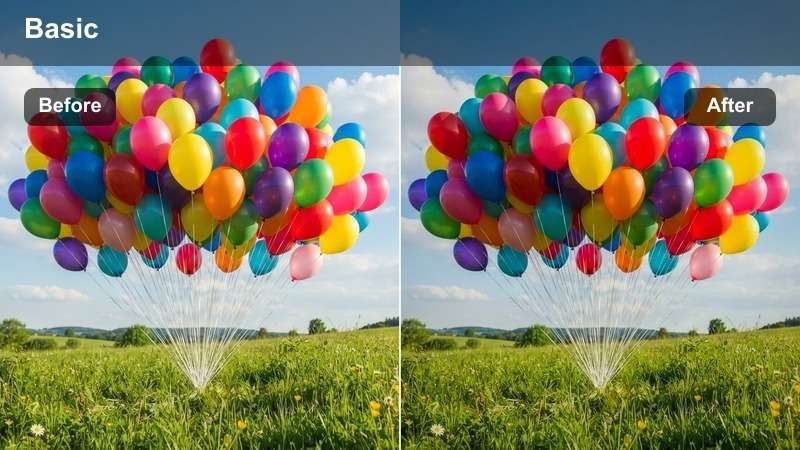
- Effect look: Cool gray base with greenish undertones and high contrast
- Best for: Architectural shots, cityscapes, drone footage
- Editing tip: Use with dehaze filter to cut through atmospheric fog
Metropolitan Steel emphasizes structural clarity and metallic textures, giving cityscapes a sleek, modern feel. The cool color tone and high contrast enhance the geometry of buildings and infrastructure.
In Filmora, pair Metropolitan Steel with the dehaze tool to improve visibility in foggy or hazy conditions. This LUT is ideal for real estate videos, drone tours, or architectural showcases where precision and detail are key.
Golden Grid
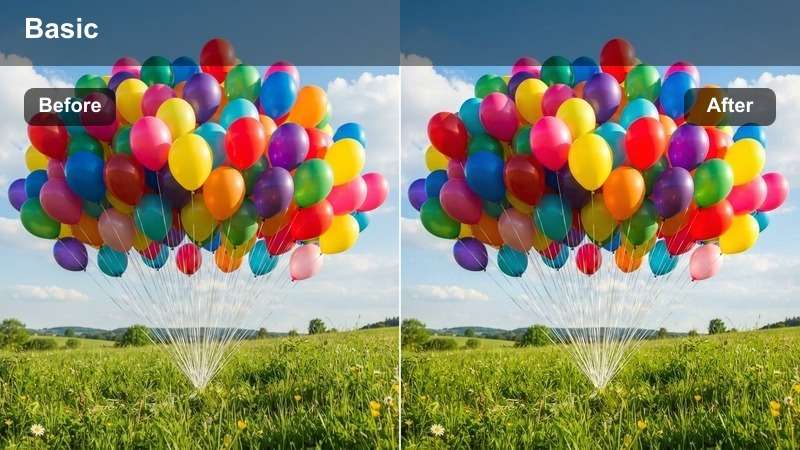
- Effect look: Warm highlights with cool shadows and balanced midtones
- Best for: Sunset city views, golden hour exteriors
- Editing tip: Slightly increase exposure to highlight warm tones
Golden Grid captures the fleeting beauty of golden hour in urban environments, balancing warm sunlight with cool shadow areas. The result is a harmonious, cinematic look that enhances depth and dimension.
Use Golden Grid in Filmora to elevate time-lapse sequences or exterior shots during sunrise or sunset. Increase exposure slightly to emphasize the warmth, and apply a graduated filter to protect sky detail from overexposure.
Commercial & Product-Focused Scenes
Crisp Ad
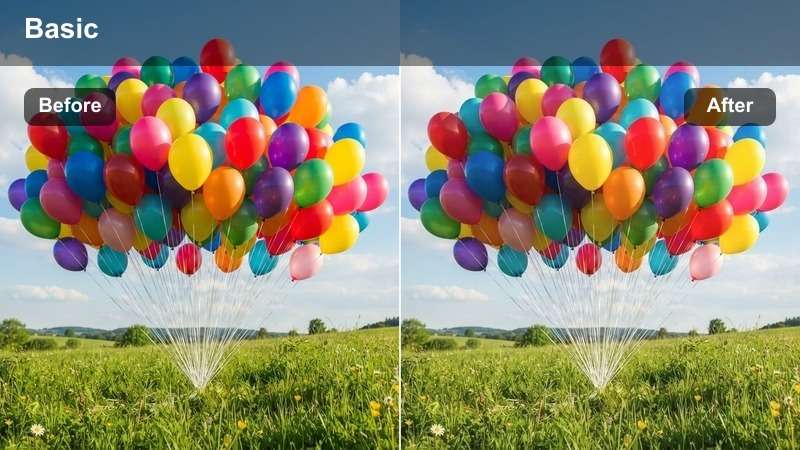
- Effect look: High clarity with boosted whites and natural skin tones
- Best for: Product ads, fashion shoots, beauty content
- Editing tip: Use with slight sharpening to enhance texture
Crisp Ad delivers a polished, high-end aesthetic with bright whites and sharp detail, perfect for commercial content that demands visual precision. Skin tones remain natural while textures are accentuated.
In Filmora, apply Crisp Ad to fashion or beauty videos to make fabrics and makeup stand out. Use light sharpening to bring out texture without over-processing, and pair with a subtle vignette to focus attention on the subject.
Vibrant Shelf
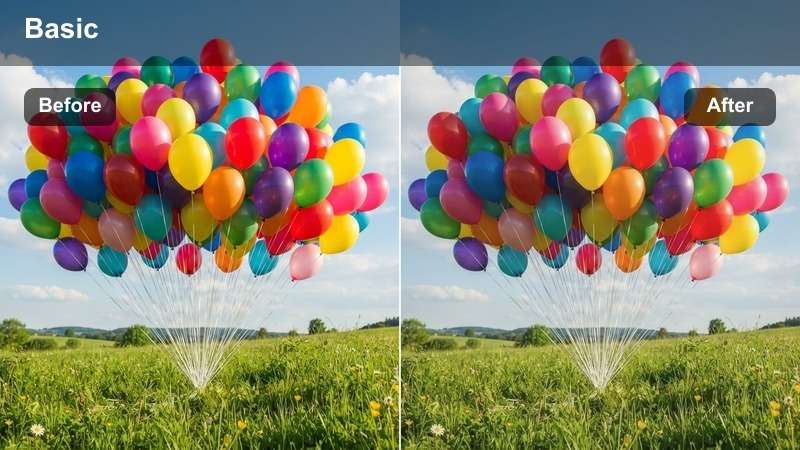
- Effect look: Saturated colors with lifted blacks and vivid highlights
- Best for: Retail displays, food packaging, lifestyle products
- Editing tip: Adjust hue selectively to fine-tune product colors
Vibrant Shelf makes on-screen products pop with bold, saturated colors and clean highlights. The lifted blacks prevent muddy shadows, ensuring packaging and labels remain clear and vibrant.
Use Vibrant Shelf in Filmora for e-commerce videos or product showcases. Fine-tune individual hues using the color correction panel to ensure brand colors are accurate. A slight vignette helps draw focus to the central product.
Matte Finish
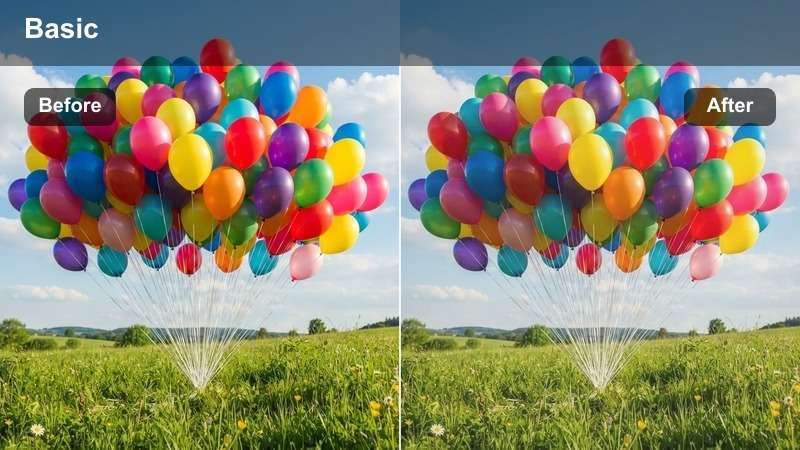
- Effect look: Desaturated tones with soft contrast and film-like grain
- Best for: Luxury brands, minimalist ads, premium products
- Editing tip: Add subtle film grain for authenticity
Matte Finish creates a refined, understated look with muted colors and soft contrast, ideal for luxury branding. The film-like grain adds texture and authenticity to high-end visual storytelling.
In Filmora, apply Matte Finish to ads for watches, jewelry, or fashion brands. Use polarizing filters during shooting to reduce glare, and in post, adjust specular highlights to preserve detail on reflective surfaces.
High Dynamic Range & Outdoor Cinematics
HDR Horizon
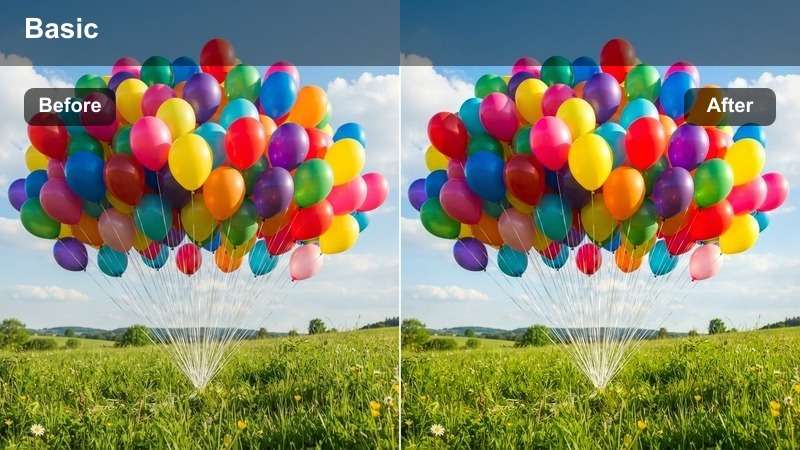
- Effect look: Expanded dynamic range with balanced shadows and highlights
- Best for: Landscape shots, outdoor scenes, drone footage
- Editing tip: Use with exposure grading to fine-tune sky and ground
HDR Horizon preserves detail in both bright skies and dark terrain, making it perfect for high-contrast outdoor scenes. The LUT balances exposure across the frame for a natural yet cinematic result.
In Filmora, use HDR Horizon for mountain vistas, seascapes, or any scene with extreme lighting. Apply gradient masks to adjust sky and ground independently, and use color contrast to enhance depth between warm highlights and cool shadows.
Sunflare Drama
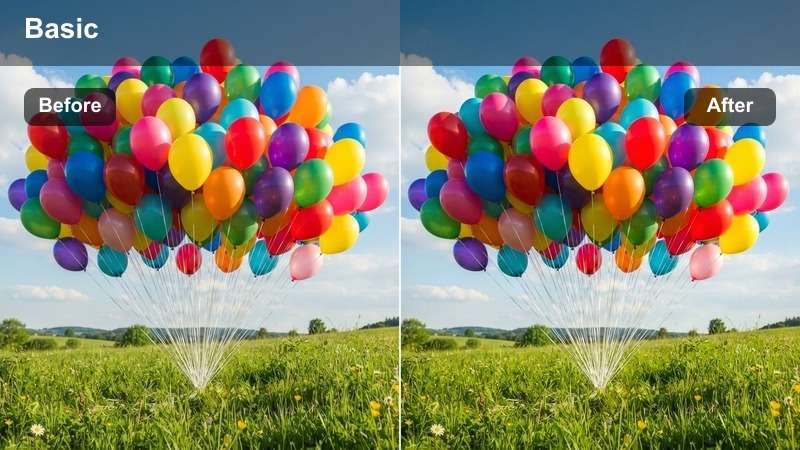
- Effect look: High contrast with warm flares and boosted red-orange tones
- Best for: Sunrise/sunset scenes, dramatic transitions, emotional moments
- Editing tip: Add lens flare manually to match sun position
Sunflare Drama creates emotionally charged visuals with intense sunlight and warm color grading. The high contrast and red-orange boost evoke drama and grandeur in outdoor storytelling.
In Filmora, enhance Sunflare Drama by adding an anamorphic lens flare overlay set to screen blend mode. Animate the flare slightly to simulate camera movement and deepen the cinematic feel.
Cinematic Dawn
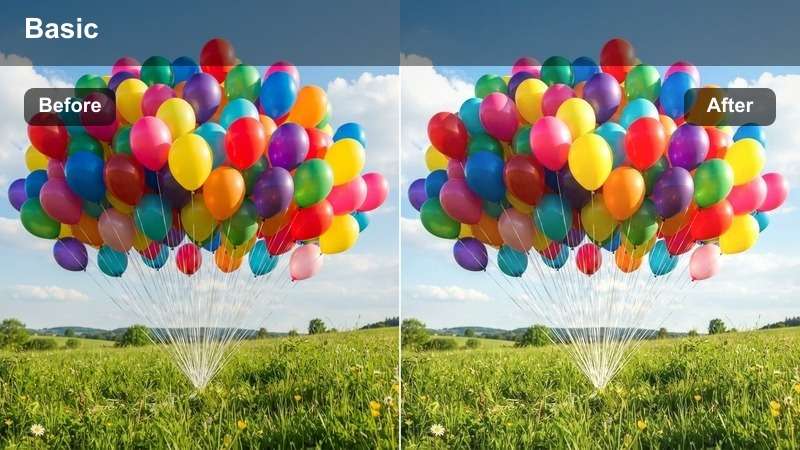
- Effect look: Soft blue base with warm rising highlights and gentle contrast
- Best for: Morning scenes, emotional openings, nature documentaries
- Editing tip: Use slow fade-in to enhance the mood
Cinematic Dawn captures the quiet transition from night to day with a delicate balance of cool shadows and warm highlights. The gentle contrast evokes peace and renewal.
In Filmora, pair Cinematic Dawn with a slow zoom or fade-in to emphasize tranquility. Add a light fog overlay with low opacity to enhance the misty atmosphere of early morning forest or field scenes.
Filmora's AI Color Palette analyzes your scene and suggests complementary color adjustments to pair with your Canon Cinema Gamut LUTs.
Whether you're going for a cool urban tone or a warm cinematic glow, the AI helps maintain consistency across shots.
Let AI enhance your grading workflow.
secure download Preview each LUT in real time with Filmora's instant filter demo feature.
Compare looks side by side and adjust intensity to match your creative vision without leaving the timeline.
See the difference instantly.
secure download Import and apply the Free Canon Cinema Gamut LUT Pack directly in Filmora with drag-and-drop simplicity.
No need for external software—grade your Canon footage seamlessly within the editor.
Bring cinematic color to your timeline today.
secure download Tips for Using Canon Cinema Gamut Lut Download Filters in Filmora
- Always shoot in LOG profile when using Cinema Gamut LUTs for maximum flexibility.
- Use adjustment layers to apply LUTs to multiple clips uniformly.
- Fine-tune white balance before applying any LUT to avoid color shifts.
- Combine LUTs with Filmora's color correction tools for a custom look.
The Free Canon Cinema Gamut LUT Pack unlocks professional-grade color grading for Canon cinema users and colorists alike, making it easier than ever to achieve cinematic results in Filmora.
From moody interiors to vibrant commercials and breathtaking outdoor scenes, these filters empower you to tell your story with rich, accurate color—download the pack today and elevate your footage.
secure download 