

 100% Security Verified | No Subscription Required | No Malware

Capturing authentic stories demands color grading that preserves realism while enhancing emotional depth. The Free Professional Documentary LUT Bundle delivers cinematic consistency across diverse lighting conditions found in real-world environments.
Designed for documentary teams, journalists, and field reporters, these filters streamline post-production for interviews, street footage, and on-location reporting—ensuring your message stays clear and compelling.
In this article
Natural Light Interviews
Daylight Natural
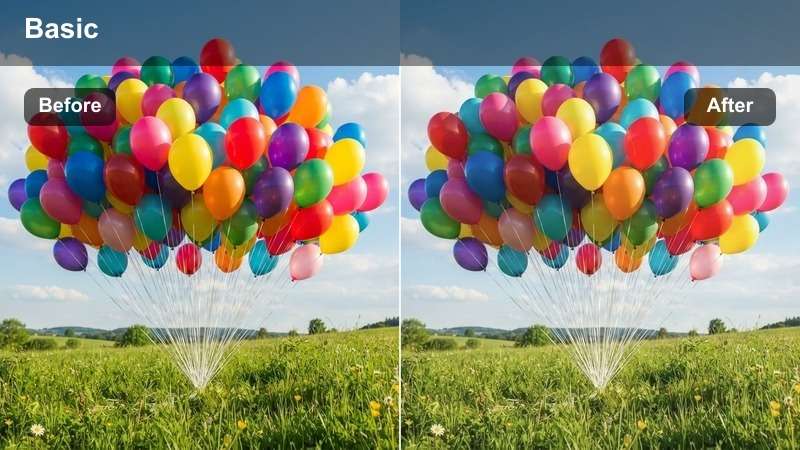
- Effect look: Balanced skin tones with soft contrast and natural highlights
- Best for: Outdoor interviews in midday sun
- Editing tip: Use with slight exposure correction to avoid blown-out skies
This LUT ensures accurate skin tones and a natural dynamic range, making it ideal for capturing interviews under harsh daylight without losing detail in highlights or shadows. It subtly enhances contrast to add depth while maintaining a documentary-appropriate level of realism.
In Filmora, apply the Daylight Natural LUT early in your timeline to preview how it interacts with your footage. Adjust exposure using the built-in color correction tools to fine-tune brightness and prevent overexposure, especially when shooting in direct sunlight.
Preserve Skin Consistency
Apply a slight desaturation to reds before using this LUT to prevent overly warm skin tones.
Pair with a subtle sharpening mask to bring out facial details without introducing noise.
 secure download
 secure downloadsecure download
Golden Hour Warmth
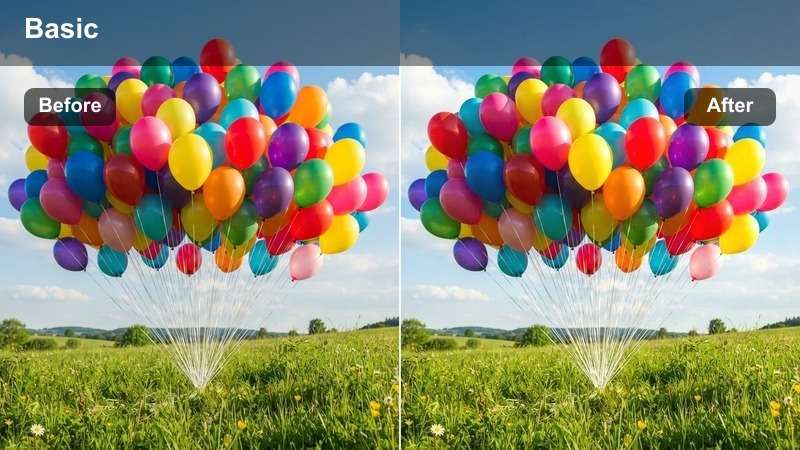
- Effect look: Warm golden tones with gentle shadows and soft highlights
- Best for: Early morning or late afternoon interviews
- Editing tip: Reduce intensity by 15% to maintain subtlety in low light
The Golden Hour Warmth LUT enhances the natural beauty of sunrise and sunset lighting, delivering a cinematic glow that emphasizes emotion without sacrificing authenticity. It warms the midtones and lifts highlights gently to reflect the soft quality of golden-hour light.
In Filmora, use this LUT to unify multiple shots taken during twilight hours. Lower the intensity slider if the warmth feels too strong, especially when the subject is backlit. Combine with a power window to protect facial exposure and retain detail in bright areas.
Control Highlight Bloom
Use a power window to protect the subject's face if backlit.
Apply a noise reduction pass after grading to clean up shadow areas.
Overcast Clarity
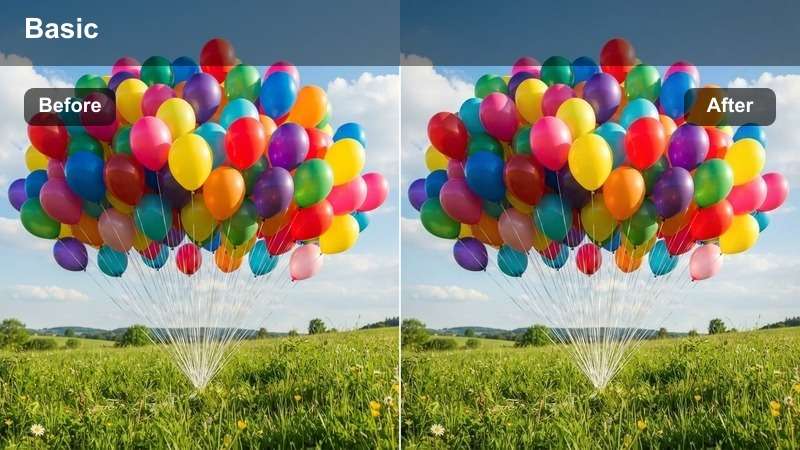
- Effect look: Cool-neutral base with enhanced midtone definition
- Best for: Flat, overcast lighting conditions
- Editing tip: Boost contrast slightly to add depth to flat scenes
This LUT is engineered to rescue footage shot under dull skies by introducing a clean, structured look with improved midtone separation. It avoids artificial warmth, preserving the natural coolness of overcast environments while adding clarity and presence.
In Filmora, apply Overcast Clarity to flat-looking interview segments to instantly add dimension. Use the contrast and saturation sliders to fine-tune the effect—especially useful when matching shots across different weather conditions or camera types.
Add Dimension with Contrast
Use a graded contrast curve to lift midtones subtly.
Avoid lifting blacks too much to preserve documentary realism.
Urban Field Reporting
City Grit
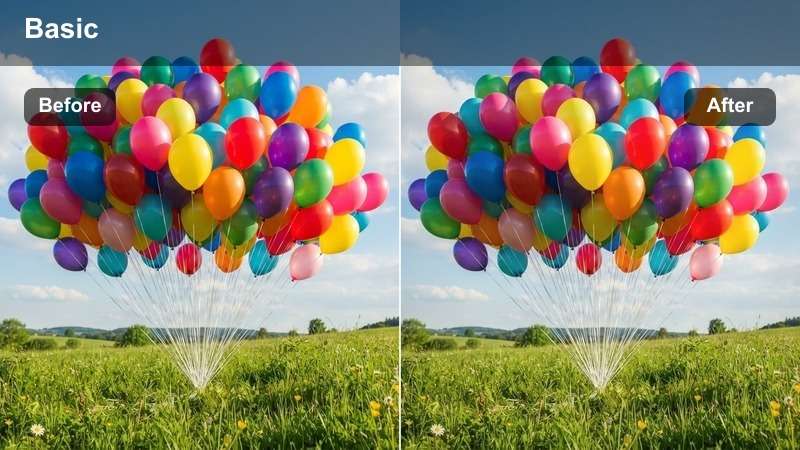
- Effect look: Desaturated base with boosted grays and subtle film grain
- Best for: Street-level news reporting in dense cities
- Editing tip: Layer with a slight vignette to focus attention on the reporter
City Grit delivers a raw, observational aesthetic perfect for news and investigative reporting in urban environments. It reduces color distraction while enhancing texture and tonal depth, giving footage a grounded, journalistic feel.
In Filmora, pair this LUT with noise overlays and vignettes to increase immersion. Use secondary color correction to mute overly bright signs or vehicles, ensuring the reporter remains the visual focal point.
Minimize Distracting Colors
Use secondary color correction to tone down bright signage.
Apply a noise overlay at 5% opacity for analog authenticity.
Night Watch
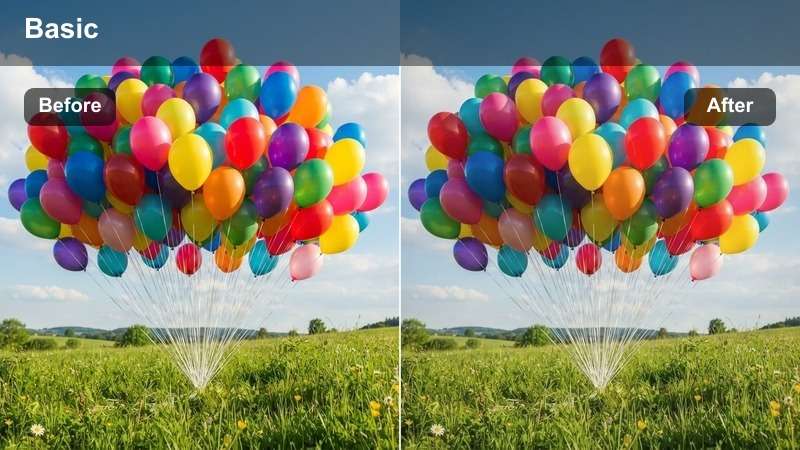
- Effect look: Deep blacks with cyan-leaning shadows and punchy highlights
- Best for: Nocturnal field reporting and surveillance footage
- Editing tip: Use with ISO noise reduction to clean up dark areas
Night Watch creates a tense, immersive atmosphere ideal for nighttime reporting and investigative segments. It emphasizes shadow detail and contrast while introducing a cool undertone that enhances the sense of urgency and realism.
In Filmora, apply this LUT after noise reduction to maintain clean blacks. Use shadow recovery tools before grading to preserve detail in low-light areas, and avoid over-sharpening to prevent halos around light sources.
Protect Shadow Detail
Use a shadow recovery LUT before applying Night Watch for better detail.
Avoid over-sharpening to prevent haloing in dark zones.
Traffic Pulse
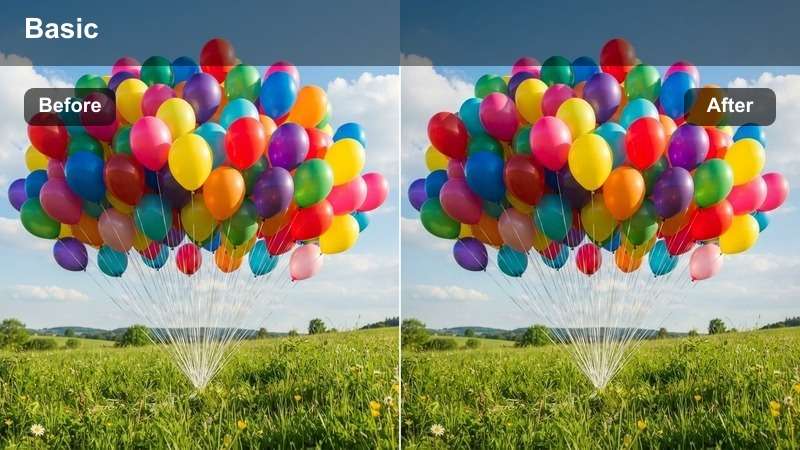
- Effect look: Slightly saturated reds and blues with dynamic contrast
- Best for: Footage involving vehicles, traffic, or emergency response
- Editing tip: Use motion blur reduction to stabilize fast-moving shots
Traffic Pulse enhances the visual impact of emergency and high-motion scenes by emphasizing red and blue tones commonly seen in sirens and emergency lighting. It increases contrast dynamically to match the energy of the environment.
In Filmora, use this LUT to unify clips from dashcams, bodycams, or handheld shots near emergency scenes. Apply motion stabilization and flicker correction to maintain professionalism, and desaturate background colors to keep focus on the subject.
Balance Flashing Lights
Use a dynamic key to stabilize flickering exposure from strobes.
Desaturate non-essential colors to keep focus on the subject.
Historical & Archival Footage
Vintage Archive
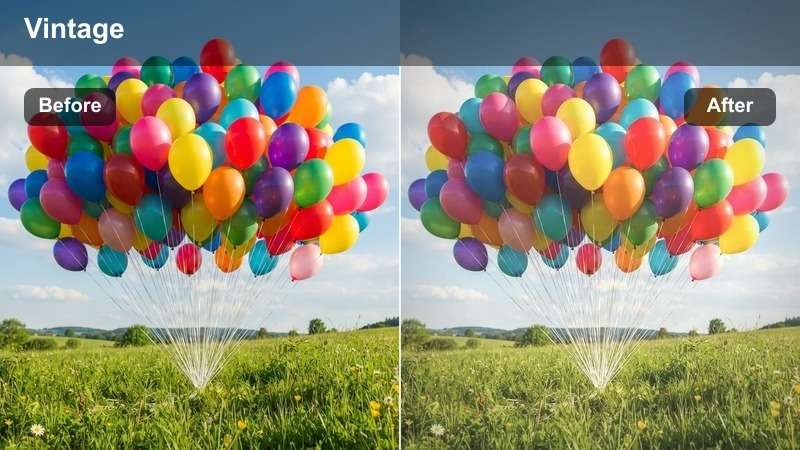
- Effect look: Faded blacks, lifted shadows, and slight sepia tint
- Best for: Restoring and matching archival clips
- Editing tip: Blend with original footage at 70% opacity for seamless integration
Vintage Archive helps unify modern and older footage by applying a warm, faded look reminiscent of analog film. It lifts shadows and softens blacks to mimic the degradation of aged recordings while maintaining clarity.
In Filmora, use this LUT when combining current interviews with historical clips. Adjust opacity to match the era, and overlay a 16mm grain texture to further blend sources for a cohesive narrative.
Match Grain Structure
Overlay a 16mm film grain texture at low opacity to unify sources.
Adjust scan lines if working with digitized VHS material.
Monochrome Record
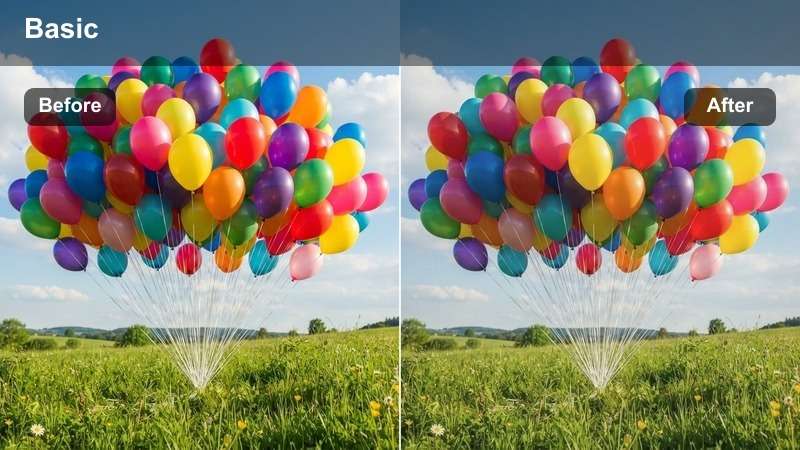
- Effect look: True black-and-white with medium contrast and soft grain
- Best for: Historical segments requiring timeless gravitas
- Editing tip: Use channel mixing to control tonal separation before applying
Monochrome Record delivers a classic, dignified look suitable for solemn historical moments. It removes color distraction and emphasizes tonal range, making it ideal for recreations or dramatizations of past events.
In Filmora, use channel mixing to fine-tune how skin, sky, and clothing appear in grayscale. Apply a gentle curve to roll off highlights and prevent harsh clipping, preserving detail in bright areas.
Fine-Tune Tonal Range
Adjust red and green channels to control skin and sky tones.
Use a slight curve roll-off in highlights to avoid harsh clipping.
Time-Worn Film
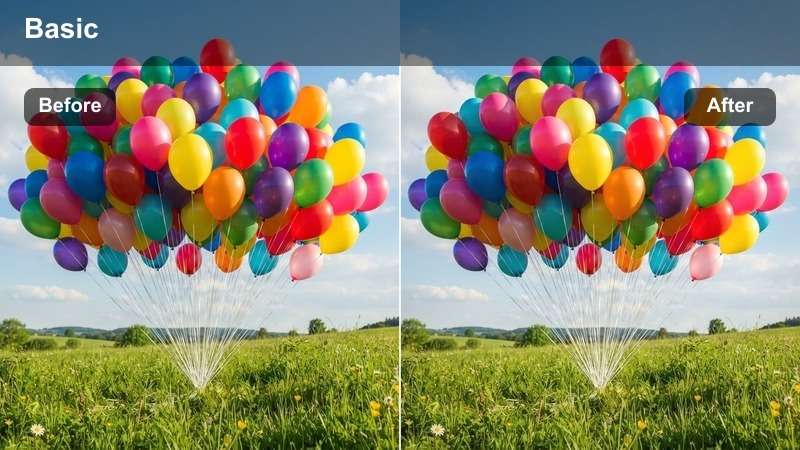
- Effect look: Scratches, flicker, and color instability with muted palette
- Best for: Simulating aged film reels or damaged recordings
- Editing tip: Animate the damage overlay for natural variation
Time-Worn Film adds authentic imperfections like scratches, flicker, and color drift to simulate degraded film stock. It’s perfect for dramatized sequences meant to look like recovered archival material.
In Filmora, animate the scratch and flicker layers to avoid repetitive patterns. Use a luminance key to restrict damage to darker areas and maintain subject visibility, enhancing realism without sacrificing clarity.
Control Damage Intensity
Use a luminance key to restrict scratches to darker areas.
Add a flicker effect at 23.976fps for authentic film instability.
Emotional & Human Stories
Intimate Close
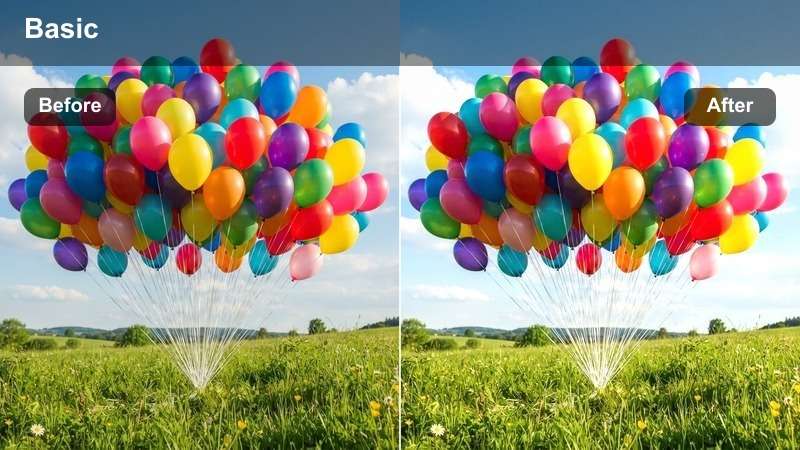
- Effect look: Soft focus glow with warm midtones and gentle shadows
- Best for: Personal testimonies and emotional close-ups
- Editing tip: Apply a subtle glow filter after grading for added softness
Intimate Close enhances emotional vulnerability by softening focus and warming the image subtly. It creates a sense of closeness and empathy, drawing viewers into personal, heartfelt moments.
In Filmora, pair this LUT with a shallow depth-of-field mask to blur backgrounds gently. Avoid over-processing to maintain the authenticity of the subject’s expression and environment.
Enhance Emotional Focus
Use a shallow depth-of-field mask to blur the background slightly.
Avoid over-processing to preserve the rawness of the moment.
Blue Reflection
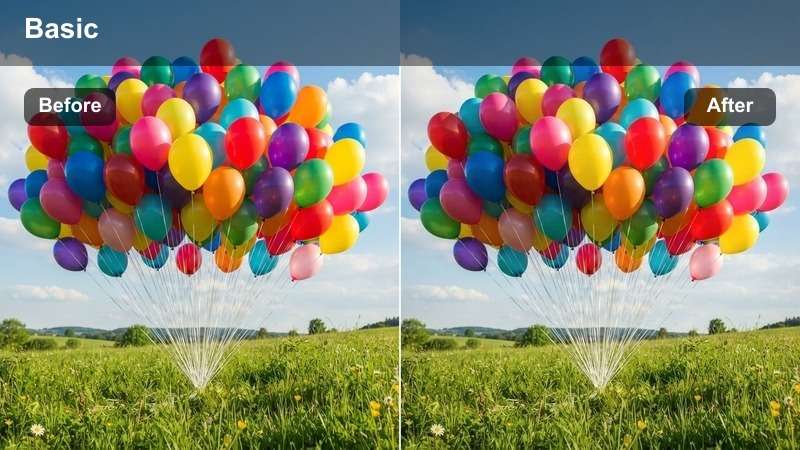
- Effect look: Cool blue base with subdued highlights and deep shadows
- Best for: Moments of solitude, loss, or contemplation
- Editing tip: Boost blue mids slightly to reinforce mood
Blue Reflection establishes a melancholic, introspective tone by cooling the entire image and deepening shadows. It’s ideal for scenes that explore grief, isolation, or quiet reflection.
In Filmora, use this LUT to set the mood in slower, narrative-driven segments. Add a hint of amber to skin tones to prevent them from appearing lifeless, and use gradient maps to fine-tune shadow temperature.
Balance Coolness with Warmth
Add a hint of amber in skin tones to prevent unnatural pallor.
Use a gradient map to control shadow temperature precisely.
Hope Light
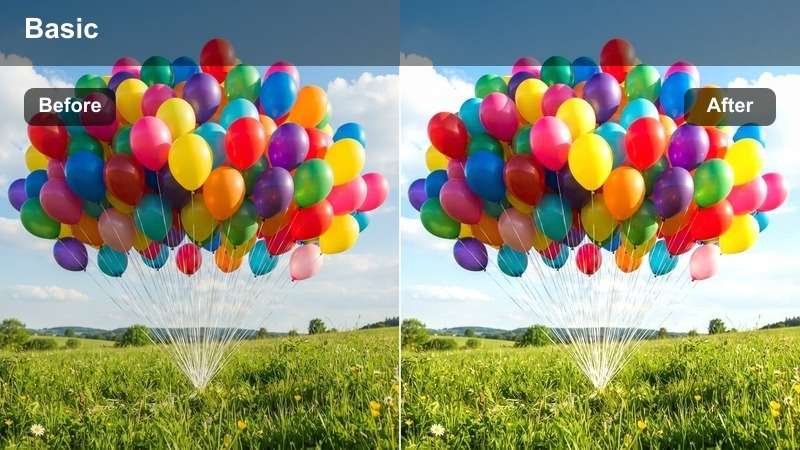
- Effect look: Lifted shadows, soft highlights, and warm ambient glow
- Best for: Redemption arcs and uplifting conclusions
- Editing tip: Use a radial filter to simulate natural light entry
Hope Light introduces a sense of renewal and optimism by lifting shadows and wrapping the subject in a warm, ambient glow. It’s perfect for closing scenes that signal healing, progress, or new beginnings.
In Filmora, use a radial filter to direct attention toward the light source. Animate exposure slightly to mimic natural light changes and enhance realism, making the moment feel organic and earned.
Guide the Viewer's Eye
Use a light wrap effect to blend the subject into the glow.
Animate the exposure slightly to simulate natural light changes.
Tips for Using Documentary Lut Download Filters in Filmora
- Always shoot in flat log profile for maximum grading flexibility.
- Use reference monitors or scopes to ensure skin tones remain accurate.
- Apply LUTs early in the timeline to preview color behavior during editing.
- Save custom presets based on each LUT for faster future use.
The Free Professional Documentary LUT Bundle empowers filmmakers to achieve cinematic, broadcast-ready results without spending hours on color correction.
Whether covering breaking news, intimate interviews, or historical retrospectives, these filters ensure your story is told with clarity, emotion, and authenticity.
secure download