

 100% Security Verified | No Subscription Required | No Malware

Color grading is a critical step in shaping the mood and tone of any video project. With the right LUTs, editors can streamline their post-production workflow and deliver consistent, cinematic results across client revisions and finishing stages.
The Free LUTs for Editors Collection offers a curated selection of professional-grade color presets tailored for video editors and post-production teams. Whether you're working on narrative films, commercials, or client-driven content, these LUTs integrate seamlessly into your editing workflow.
In this article
City Nights & Neon Glows
Neon Noir
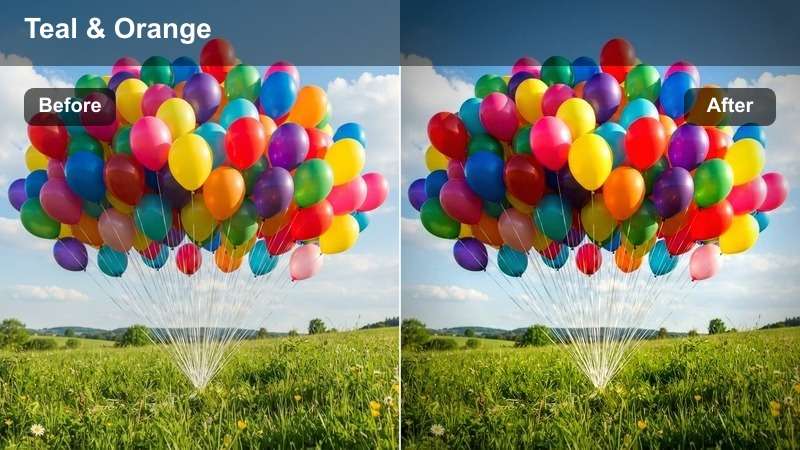
- Effect look: High-contrast teal and orange with deep shadows and vibrant neon highlights
- Best for: Urban night scenes, crime dramas, music videos
- Editing tip: Use with slight opacity to preserve skin tones in dialogue scenes
The Neon Noir LUT delivers a cinematic, high-contrast look that enhances urban night footage with rich teal and orange tones. It deepens shadows while boosting neon highlights, making city lights pop against dark backgrounds.
In Filmora, apply this LUT to scenes shot in low light with mixed artificial sources. Adjust opacity to maintain natural skin tones in character close-ups, especially in dialogue-heavy sequences where realism is key.
 secure download
 secure download secure download
 Downtown Dusk
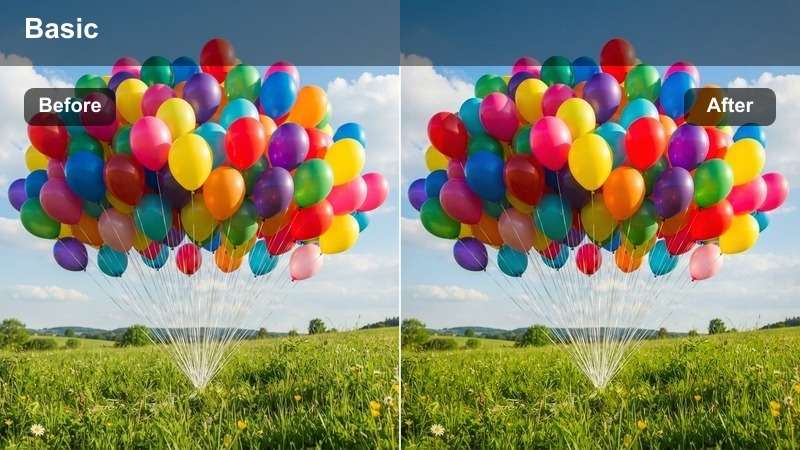
- Effect look: Warm amber highlights with cool blue shadows and soft contrast
- Best for: Sunset cityscapes, travel vlogs, lifestyle content
- Editing tip: Boost midtones slightly to enhance golden hour warmth
The Downtown Dusk LUT creates a balanced transition between day and night, blending warm amber skies with cool blue shadows across city structures. It enhances the natural beauty of twilight without oversaturating the scene.
In Filmora, this LUT works exceptionally well for aerial or rooftop shots during golden hour. Use a gradient mask to intensify the sky’s warmth while preserving building details in the lower frame.
Metro Gloom
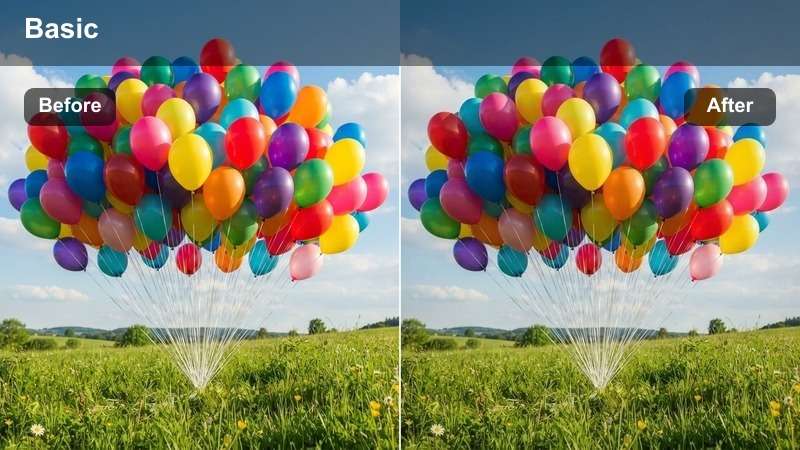
- Effect look: Desaturated base with muted greens and blues, subtle greenish tint in shadows
- Best for: Documentaries, indie films, urban realism
- Editing tip: Combine with film grain for added texture and authenticity
Metro Gloom delivers a naturalistic, subdued look ideal for documentary-style footage shot in urban environments. It reduces saturation to emphasize realism while introducing a slight greenish cast in shadows for atmospheric depth.
In Filmora, pair this LUT with low-light footage from subways or street scenes under fluorescent lighting. Add a film grain overlay at low opacity to enhance the gritty, authentic feel without compromising clarity.
Natural Daylight & Outdoor Realism
Sunlit Streets
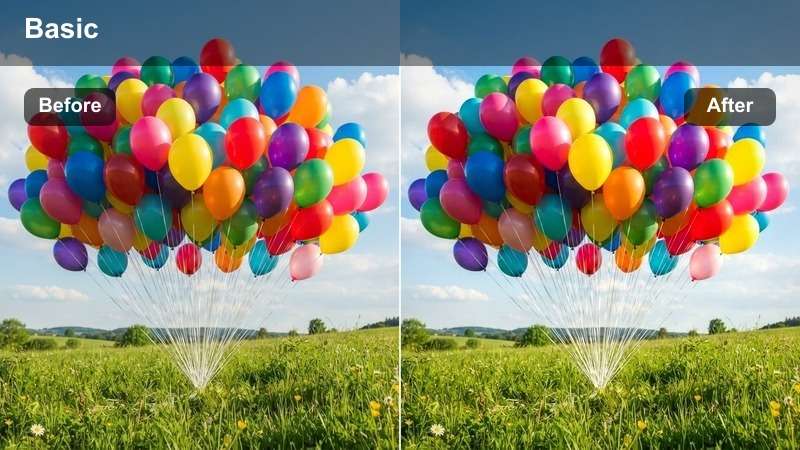
- Effect look: Bright, clean whites with warm highlights and balanced shadows
- Best for: Vlogs, commercials, outdoor interviews
- Editing tip: Use exposure compensation if shooting in harsh sunlight
The Sunlit Streets LUT enhances natural daylight footage by balancing exposure and boosting warm highlights. It ensures crisp whites without clipping, making outdoor scenes look vibrant and professional.
In Filmora, apply this preset to vlogs or promotional content shot in bright conditions. Use waveform monitoring to prevent highlight blowout, especially in midday sun, and pair with a dehaze filter when needed.
Urban Park Tone
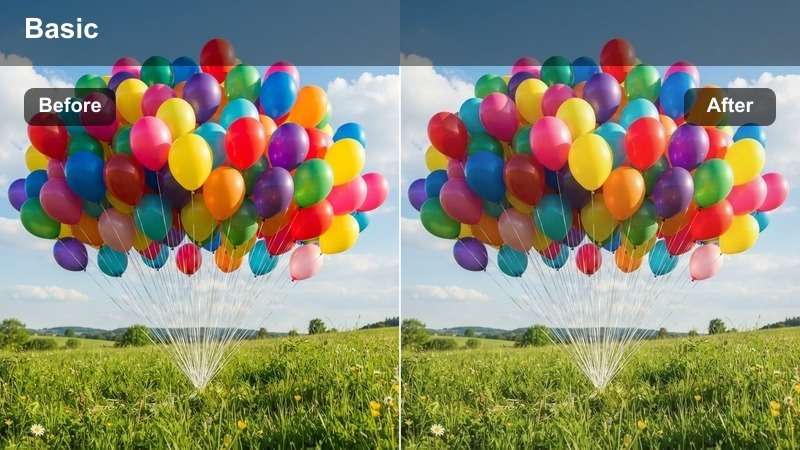
- Effect look: Soft green and beige tones with gentle contrast and natural skin rendering
- Best for: Lifestyle shoots, family content, outdoor branding
- Editing tip: Adjust contrast slightly higher in overcast conditions
Urban Park Tone is optimized for green urban spaces, delivering soft, inviting colors that reflect natural foliage and ambient daylight. It maintains accurate skin tones, making it ideal for people-centric content.
In Filmora, use this LUT for family vlogs or brand shoots in parks. On cloudy days, increase contrast slightly to add definition, and apply a color correction layer to neutralize green spill from surrounding trees.
Clear Sky Balance
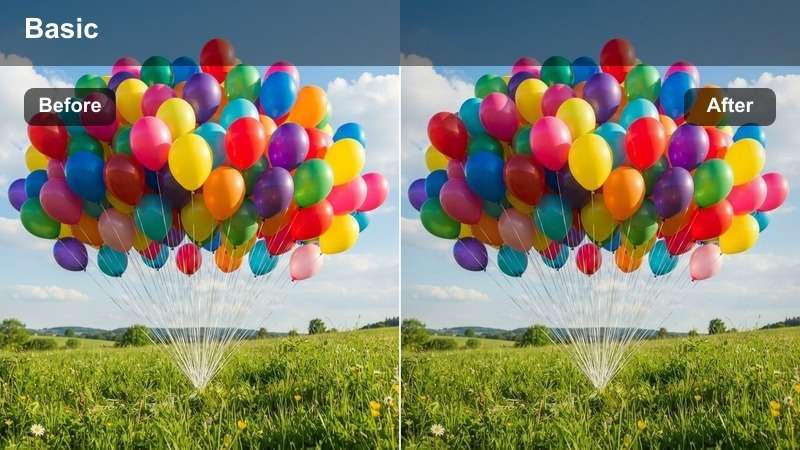
- Effect look: Enhanced blue skies with accurate whites and minimal saturation boost
- Best for: Aerial shots, real estate videos, travel content
- Editing tip: Apply selectively using masks to protect skin tones
Clear Sky Balance enhances the natural beauty of blue skies without oversaturating colors or distorting whites. It’s perfect for aerial and landscape footage where color fidelity is essential.
In Filmora, use a luminance mask to apply this LUT only to sky areas, preserving skin tones and ground-level details. Reduce saturation slightly in the lower third to avoid over-coloring streets and vehicles.
Industrial & Loft Interiors
Steel and Concrete
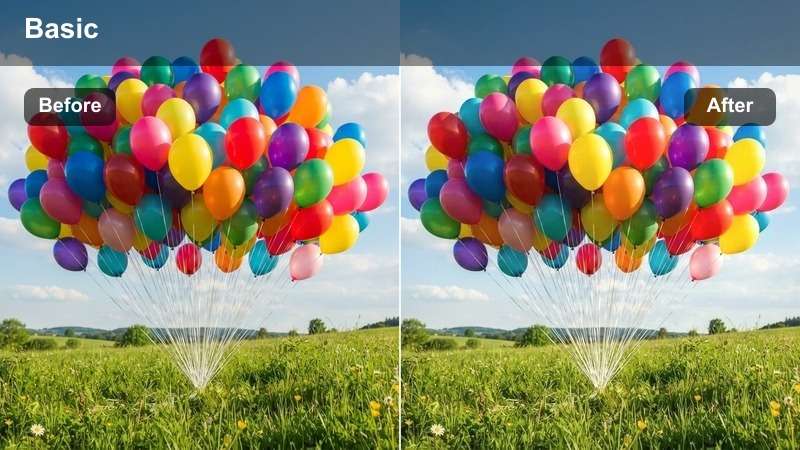
- Effect look: Cool gray base with subtle blue undertones and medium contrast
- Best for: Architectural videos, product shoots, modern interiors
- Editing tip: Use with warm lighting to create contrast in mood
Steel and Concrete delivers a sleek, modern look that emphasizes metallic and concrete textures. Its cool base tone enhances structural details, making it ideal for architectural and product content.
In Filmora, pair this LUT with warm artificial lighting to create visual contrast. Add a slight vignette to draw focus toward the center of the frame, especially in wide interior shots.
Warehouse Warmth
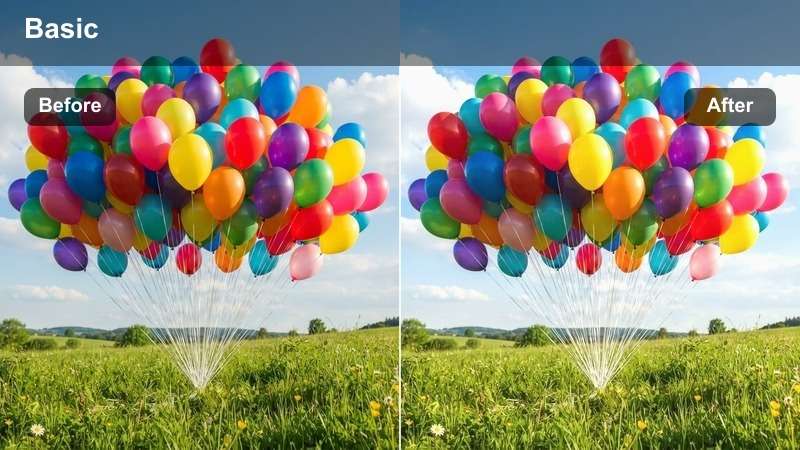
- Effect look: Warm amber base with soft shadows and golden highlights
- Best for: Creative studios, fashion shoots, event videos
- Editing tip: Reduce intensity if footage already has strong warm lighting
Warehouse Warmth adds a welcoming, golden glow to large industrial spaces, transforming cold environments into inviting settings. It enhances warm light sources like string lights or window glows.
In Filmora, layer this LUT with radial blur on background lights to create bokeh effects. Use the color wheel to slightly cool the shadows, adding depth and dimension to the scene.
Urban Industrial
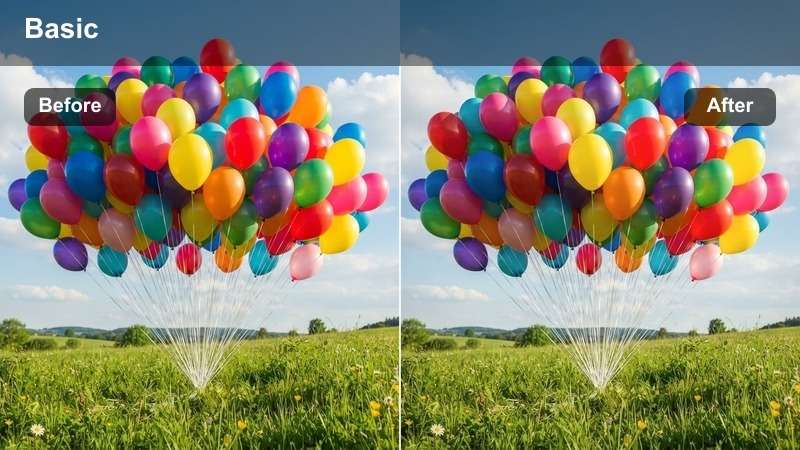
- Effect look: Muted base with slight rust-orange accents and medium-high contrast
- Best for: Documentary projects, gritty narratives, urban exploration
- Editing tip: Pair with desaturated B-roll for thematic consistency
Urban Industrial creates a raw, textured look that captures the essence of decay and history in abandoned or working urban structures. Rust-orange accents add subtle warmth without softening the grit.
In Filmora, boost clarity slightly to emphasize surface details like peeling paint and rusted metal. Apply noise reduction if shadow grain becomes too pronounced during low-light grading.
Low-Light & Cinematic Interiors
Moody Interior
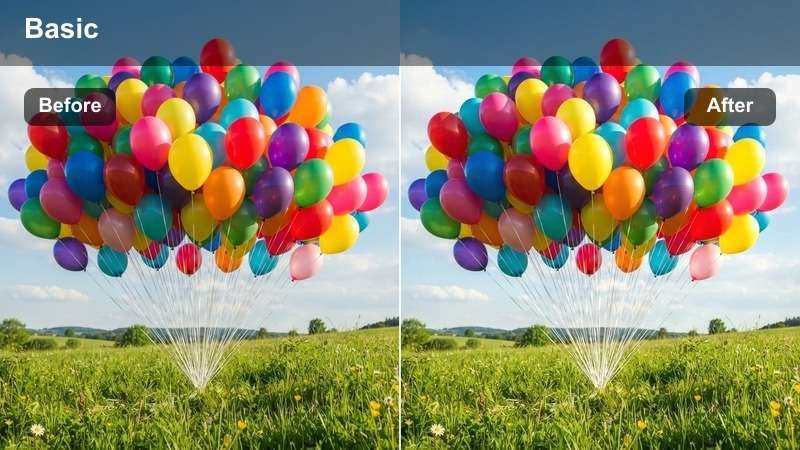
- Effect look: Deep shadows with warm amber pools of light and soft highlights
- Best for: Dramatic scenes, interviews, noir-style content
- Editing tip: Use with vignette to enhance focus on subject
Moody Interior creates a cinematic atmosphere in dimly lit rooms by deepening shadows and enhancing warm light sources. It’s perfect for scenes that rely on dramatic contrast and emotional tone.
In Filmora, use a brightness mask to protect overexposed lamps or windows. Apply a subtle color tint to shadows—like deep blue or burgundy—to add richness and depth to the scene.
Film Noir Base
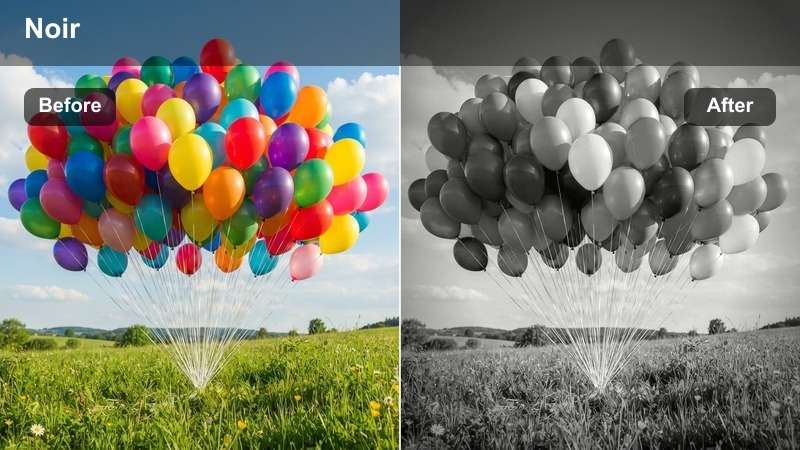
- Effect look: High contrast black and white with deep blacks and crisp whites
- Best for: Classic noir, monochrome storytelling, stylized content
- Editing tip: Use channel mixing to fine-tune grayscale conversion
Film Noir Base delivers a timeless black-and-white grade with strong contrast and dramatic lighting control. It transforms modern footage into a classic cinematic style reminiscent of 1940s detective films.
In Filmora, adjust red and green channels in the grayscale mix to control how skin and background tones render. Add a subtle grain layer to emulate the texture of vintage film stock.
Candlelit Ambience
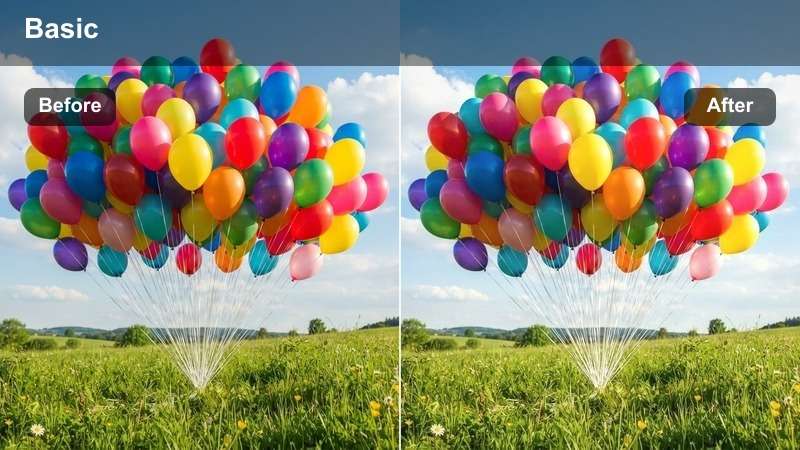
- Effect look: Warm flicker tones with soft orange highlights and deep shadows
- Best for: Romantic scenes, intimate interviews, period pieces
- Editing tip: Animate slight exposure fluctuations for realism
Candlelit Ambience simulates the soft, dynamic glow of real candlelight, adding warmth and intimacy to close-up scenes. It enhances flickering highlights and deepens surrounding shadows for realism.
In Filmora, use keyframes to animate slight variations in exposure and color temperature over time, mimicking natural flame movement. Add subtle lens distortion to enhance the vintage, organic feel.
Tips for Using Editors Lut Download Filters in Filmora
- Always shoot in flat color profile for best LUT results.
- Use adjustment layers to apply LUTs non-destructively.
- Group clips by scene and apply consistent LUTs for continuity.
- Save custom presets after tweaking a LUT for future projects.
The Free LUTs for Editors Collection empowers video editors and post-production teams to achieve professional color grading with minimal effort. These presets are designed to fit seamlessly into real-world workflows, from initial edits to final client approvals.
By integrating these LUTs into your projects, you can maintain visual consistency, reduce revision time, and focus more on storytelling. Explore the full range of looks and elevate your editing workflow today.
secure download 