

 100% Security Verified | No Subscription Required | No Malware

These free Halloween video filters in Filmora are designed for content creators and vloggers who want spooky, cinematic color grading without complicated setups.
Use them on Halloween parties, costumes, and decoration videos to instantly turn ordinary clips into eerie, dramatic, and share ready content for YouTube, TikTok, and Instagram.
In this article
Haunted House Nights and Indoor Frights
Midnight Haunt Glow
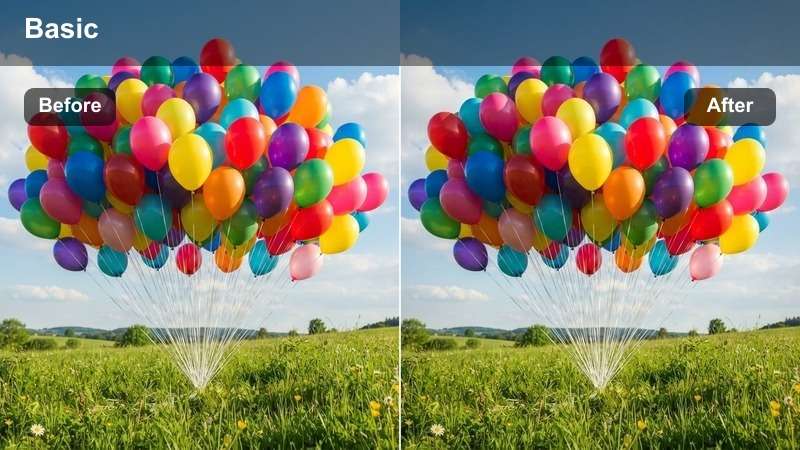
- Effect look: Deep blue shadows with subtle glow on highlights for a midnight haunted-house vibe.
- Best for: Indoor haunted house walkthroughs, dimly lit hallways, and spooky room reveals.
- Editing tip: Lower exposure slightly and add a slow push-in to enhance the eerie, creeping atmosphere.
Midnight Haunt Glow is ideal when you want ordinary dark interiors to look like cinematic horror scenes instead of underexposed phone footage. In Filmora, you can drop this filter on your clip to instantly cool down the shadows, add a gentle glow to practical lights, and create that classic aftermath-of-midnight tone that suits haunted house tours and POV walkthroughs.
For best results, slightly reduce your clip exposure in the Color panel, then apply the filter at around 60 to 80 percent intensity so faces and costumes are still visible. Combine it with a slow zoom or push-in using Filmora keyframes, plus a touch of grain, to hide high ISO noise while keeping the tension building as you move down the hallway.
Speed up spooky color grading with AI-powered Filmora tools
Filmora AI tools help you quickly balance mixed lighting and camera types before you start stacking Halloween filters. Use AI color correction or AI Color Match as a foundation, then drop Midnight Haunt Glow or any of the other styles on top for a polished, consistent look across your entire Halloween vlog.
This workflow gives you creepy, stylized grading without spending hours on manual curves and color wheels, which is perfect when you are editing same-night uploads from parties or haunted attractions.
 secure download

Preview Halloween filters on parties, costumes, and decor
Instead of guessing which Halloween filter fits your video, Filmora lets you rapidly audition options on your own clips. Import a short segment from your party, costume, or decor B-roll, then flick through the Halloween-ready filters and LUTs until you find a look that matches your channel vibe.
Use side-by-side comparisons in the preview window to test moody vs colorful looks on the same shot. This makes it easy to lock in a signature style for your Halloween uploads and keep the visual mood consistent from intro to end screen.
secure downloadOver 1000 video filters and 3D LUTs built into Filmora
Beyond these dedicated Halloween looks, Filmora includes a large library of filters, overlays, and 3D LUTs you can stack for unique seasonal styles. Start with a spooky base filter, then add glow, blur, light leaks, or film grain to create your own horror-inspired presets for future Octobers.
Because all filters and LUTs are real-time preview friendly, you can experiment freely without long renders. Save your favorite combinations as custom presets so your next Halloween video keeps the same recognizable color story.
secure downloadPumpkin Candlelight Warmth
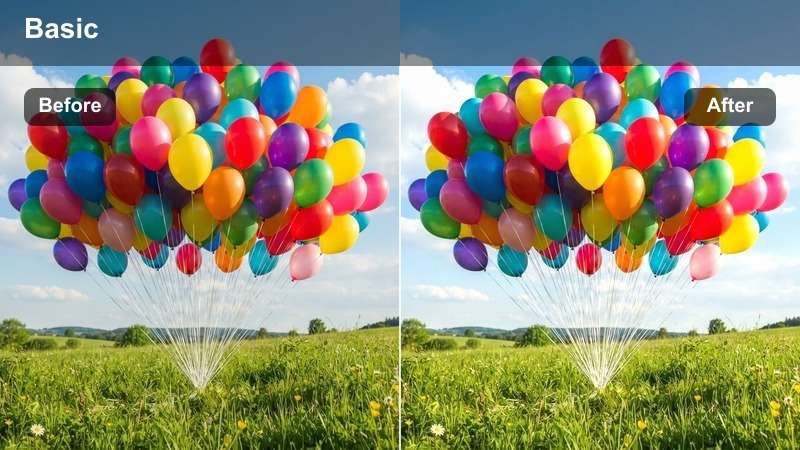
- Effect look: Warm orange glow that mimics flickering pumpkin candlelight with soft contrast.
- Best for: Close-ups of carved pumpkins, cozy indoor decorations, and costume portraits by candlelight.
- Editing tip: Boost saturation on oranges and reds while keeping shadows soft to avoid a muddy, overly dark image.
Pumpkin Candlelight Warmth is perfect when you want your Halloween vlog to feel cozy and inviting instead of purely scary. In Filmora, it wraps your shot in a rich orange tint that enhances jack-o-lanterns, garlands, and tabletop scenes, while keeping skin tones flattering for sit-down intros or family moments around the decor.
Place your subject close to the real pumpkin light, then apply the filter and slightly raise the orange and red saturation sliders for extra glow. Add a subtle vignette in Filmora to keep the eye on faces and pumpkins, and keep contrast gentle so fine details in carved designs and decorations do not disappear into the dark.
Ghostly Fog Soft Fade
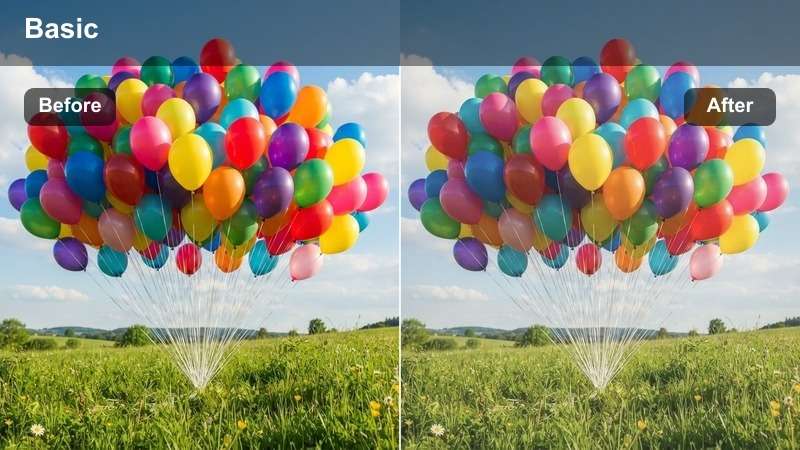
- Effect look: Desaturated, hazy fade with lifted blacks that feels like a soft ghostly mist over the footage.
- Best for: Fog-machine shots, ghost costumes, and slow-motion scenes in dim rooms.
- Editing tip: Use slower motion and longer takes to let the misty look breathe instead of cutting rapidly.
Ghostly Fog Soft Fade turns your footage into a dreamy, paranormal world by lifting the blacks and desaturating colors. In Filmora this creates a veiled, mist-like atmosphere that works especially well with fog machines, white costumes, or backlit windows, making your ghosts and spirits feel like they are drifting through a different dimension.
Apply the filter to clips with gentle movement, then slow them down slightly with Filmora speed controls to emphasize the floaty, ethereal feel. Avoid heavy sharpening or extra contrast; instead, lean into Filmora noise reduction and soft focus transitions so the entire sequence feels like one continuous eerie dream.
Trick-or-Treat Streets and Neighborhood Walks
Candy Route Night Pop
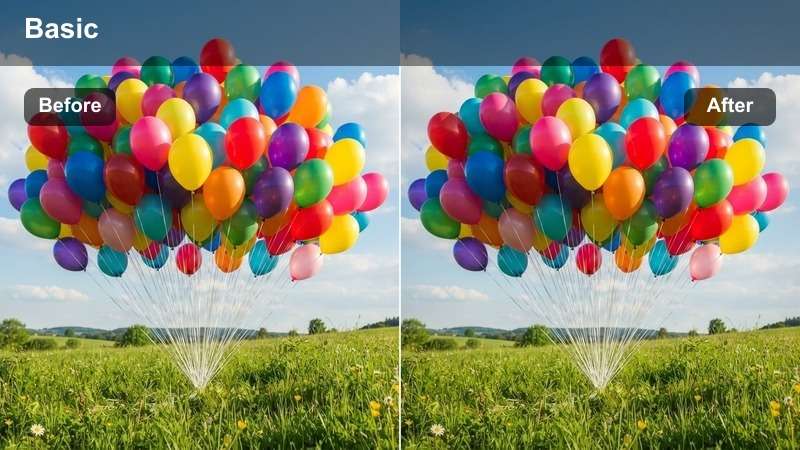
- Effect look: Vibrant saturation with clean contrast to make costumes, candy buckets, and street lights pop at night.
- Best for: Trick-or-treat vlogs, kids in colorful costumes, and neighborhood walk-and-talks.
- Editing tip: Stabilize handheld shots and slightly increase exposure so the filter has enough detail to boost colors.
Candy Route Night Pop is built for fast-paced trick-or-treat footage where you want costumes and candy bags to stand out, even under dim streetlights. In Filmora, this filter boosts saturation and contrast just enough to make neon fabrics, reflective tape, and glowing buckets look lively without turning the scene into noisy chaos.
Before applying the filter, raise exposure a touch and run Filmora stabilization on shaky clips so the punchy look stays clean. Once the filter is on, trim your cuts to moments of movement like running, jumping, or doorbell greetings, which keeps the candy-fueled energy matching the bright, crisp grade.
Porch Lantern Vintage Night
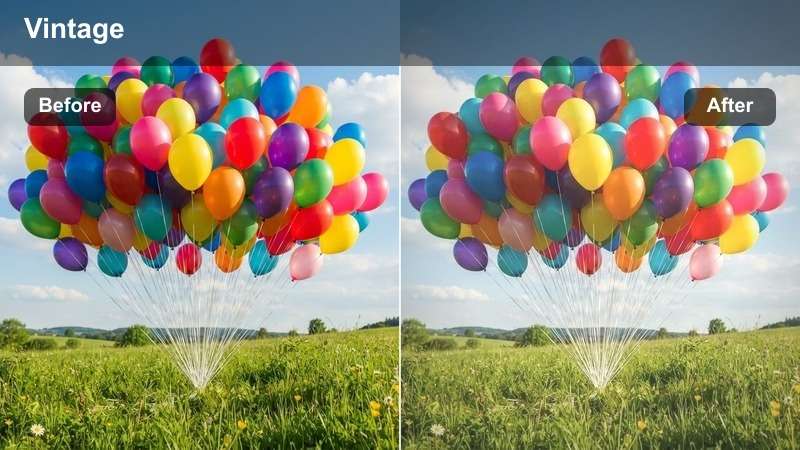
- Effect look: Slightly faded contrast with warm highlights and muted shadows for a nostalgic porch-light feel.
- Best for: Doorstep trick-or-treat greetings, porch decorations, and family group photos.
- Editing tip: Frame your subject near porch lights and dim extra sources so the filter focuses warmth where it matters.
Porch Lantern Vintage Night adds a soft, nostalgic glow to front-door moments and family photos on the steps. In Filmora, this filter slightly fades contrast and warms up highlights, making porch lights and jack-o-lanterns feel like they are straight out of a classic Halloween postcard.
Position your subjects close to the main lantern or porch bulb, then apply the filter and gently reduce saturation in greens and blues so background lawns do not steal attention. A small vignette and slower camera moves, such as gentle pans or static tripod shots, will keep the focus on faces, costumes, and the warm halo of light around the doorway.
Shadow Lane Street Horror
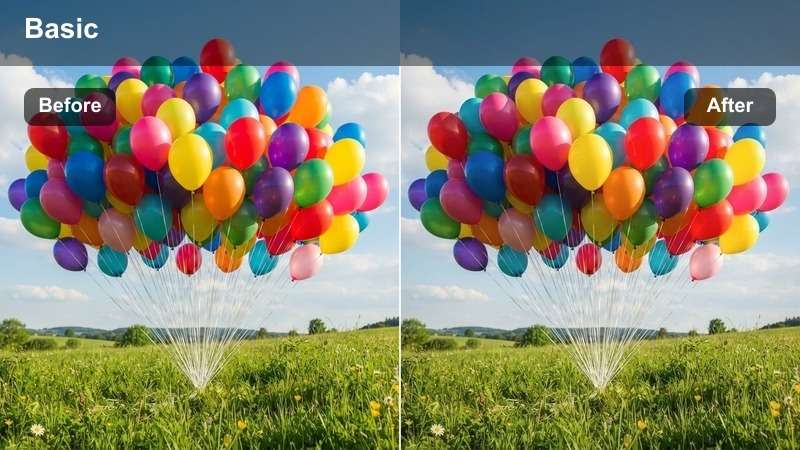
- Effect look: High contrast, cool shadows, and subtle green tint for horror-style neighborhood streets.
- Best for: Creepy B-roll of empty sidewalks, slow pans of houses, and suspenseful narrative shots.
- Editing tip: Use it sparingly on narrative sequences instead of every clip so the scary tone feels intentional.
Shadow Lane Street Horror reimagines ordinary neighborhood streets as tense horror sets, with deep shadows and a cool, slightly green cast. In Filmora, this filter is great for cutaway shots of empty sidewalks, flickering streetlights, and slow pans across quiet houses to build suspense in your Halloween shorts or mini-movies.
Use a mostly neutral grade for the rest of your vlog, then introduce this filter only when the story shifts toward something ominous. Pair it with slower frame rates, longer lenses, and lingering cuts, and use Filmora sound design tools or whoosh transitions to make each graded shot feel like a deliberate step deeper into danger.
Costume Close-Ups and Character Intros
Witch Aesthetic Teal-Orange
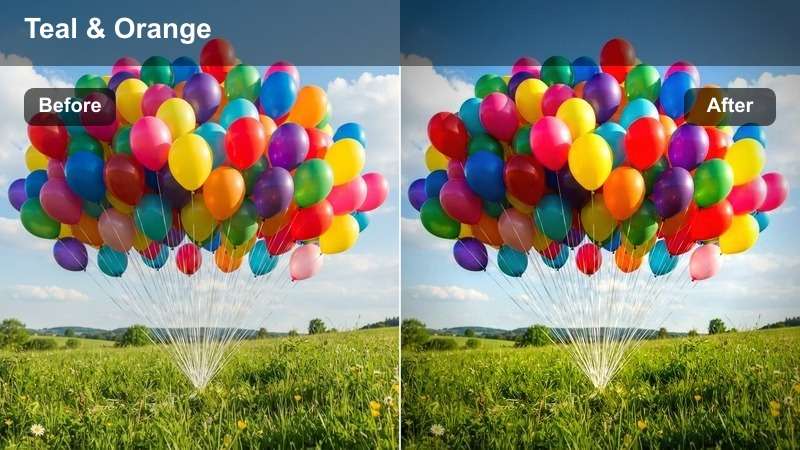
- Effect look: Modern teal-and-orange grade with slightly crushed blacks and stylized skin tones.
- Best for: Character introduction shots, witch or vampire makeup close-ups, and cosplay reveals.
- Editing tip: Shoot against a neutral background so the teal shadows and warm skin tones stay clean and consistent.
Witch Aesthetic Teal-Orange gives your Halloween characters a cinematic, blockbuster color grade that feels instantly high-end. In Filmora, it pushes shadows toward teal and warms up faces, making detailed makeup, hats, and props stand out while gently crushing blacks for extra drama.
Film costume intros or transitions against a neutral wall or dark backdrop, then apply the filter and fine-tune exposure so eyes and facial details remain sharp. Add a small amount of Filmora portrait-style blur or depth-of-field simulation and keyframed push-ins to hide messy rooms and keep all attention on your witch, vampire, or cosplay centerpiece.
Neon Ghoul Party Color
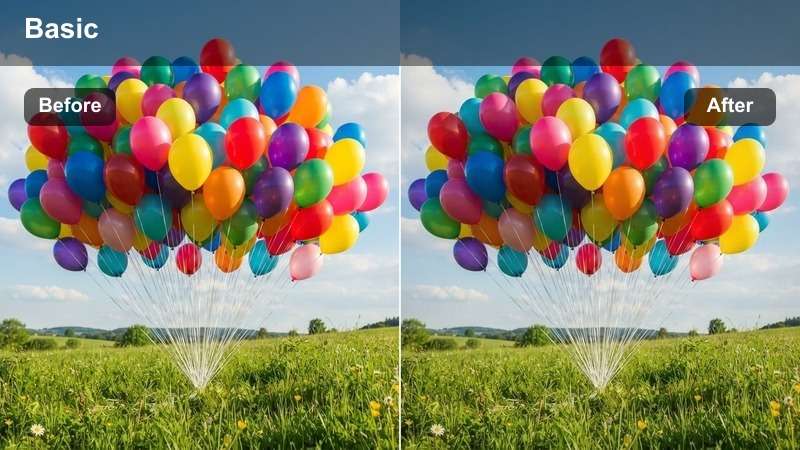
- Effect look: Bold neon greens and purples with increased contrast, perfect for UV or LED-lit scenes.
- Best for: Glow-in-the-dark makeup, LED costume details, and Halloween party dance floors.
- Editing tip: Reduce exposure slightly so neons do not clip, then let the filter intensify the glow.
Neon Ghoul Party Color is built for blacklight parties, LED masks, and glow-in-the-dark face paint. In Filmora, this filter dials up greens and purples, adds contrast, and makes fluorescent details look electric while keeping the rest of the frame dark and club-like.
Lower your base exposure a little before adding the filter so bright neons do not blow out, then let the filter bring back the punch. Avoid stacking extra saturation on top; instead, use Filmora to add slow motion, speed ramps, or beat-synced cuts so your glowing makeup reveals and dance floor shots feel like a professional party promo.
Vampire Drama Deep Reds
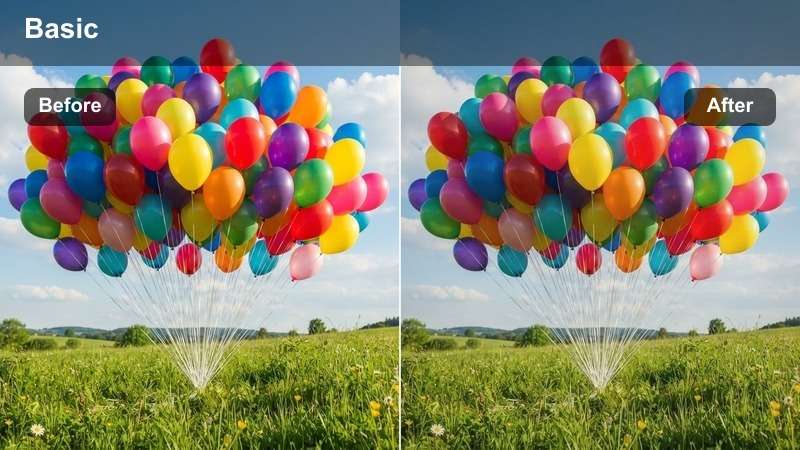
- Effect look: Rich crimson accents, lowered saturation elsewhere, and deep shadows for a dramatic, gothic style.
- Best for: Vampire costumes, gothic fashion, and slow, dramatic character turns toward camera.
- Editing tip: Emphasize red elements in costume and set while keeping the rest of the frame darker and simpler.
Vampire Drama Deep Reds focuses attention on crimson details like capes, lipstick, or blood effects by muting most other colors. In Filmora, it deepens shadows and enriches red tones to create a stylized gothic look that is ideal for character intros, transformation sequences, or fashion-style reels.
Plan your shots so key costume elements are red, then apply the filter and tweak saturation for other hues downward so nothing else competes. Combine the grade with slow, deliberate camera moves, crossfades, and close-up cut-ins in Filmora to guide the viewers eye from eyes, to fangs, to the flowing red cape in a smooth, dramatic rhythm.
Decor Details and B-Roll Atmosphere
Cobweb Corner Dusty Fade
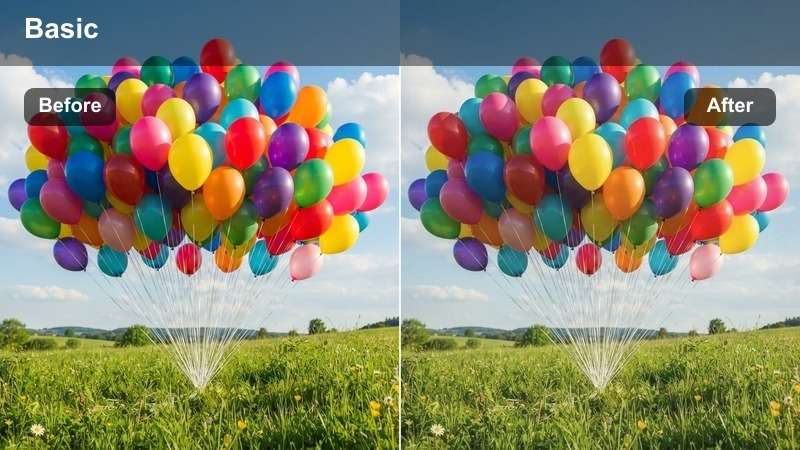
- Effect look: Soft, low-contrast fade with cool shadows and a dusty, aged cast.
- Best for: Close-ups of cobweb decor, wall details, and slow pans of haunted room setups.
- Editing tip: Shoot with slow camera moves and keep the background uncluttered so the aged effect reads clearly.
Cobweb Corner Dusty Fade gives your decor B-roll an old, abandoned-house vibe with gently faded contrast and cool-toned shadows. In Filmora, this filter works especially well on close-ups of fake cobwebs, wall signs, and textured props, turning simple decorations into atmospheric storytelling shots.
Capture slow, steady movements across your decor and apply the filter to create a visual break between high-energy clips. Let these shots linger slightly longer on the timeline and use Filmora cross-dissolves or slow zooms so viewers have time to notice the textures and soak in the haunted mood you are building.
Evil Glow Accent Pop
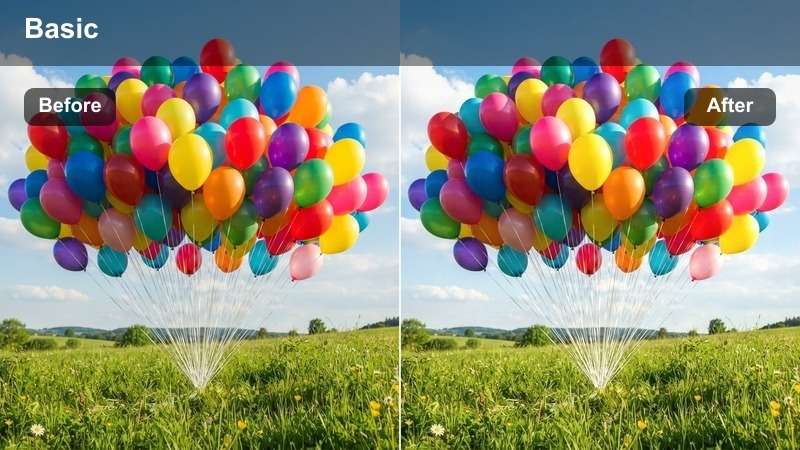
- Effect look: Punchy contrast with glowing oranges and greens, ideal for lit decorations and props.
- Best for: Skull lights, animated decorations, and glowing window silhouettes.
- Editing tip: Frame close and fill the composition with glowing elements so the filter's pop feels intentional.
Evil Glow Accent Pop is made to supercharge the brightness and color of lit Halloween props like skull strings, animated figures, and window silhouettes. In Filmora, it boosts contrast and selectively intensifies oranges and greens so cheap decorations suddenly look bold, vivid, and ready for thumbnails.
Get close to your props, fill the frame with glowing shapes, and then apply the filter for maximum effect. Add a gentle handheld sway or slider move using Filmora stabilization if needed, and consider pairing with dark sound effects or short whooshes so each illuminated object feels like a deliberate cinematic insert between your main scenes.
Classic Black-and-Orange Grade
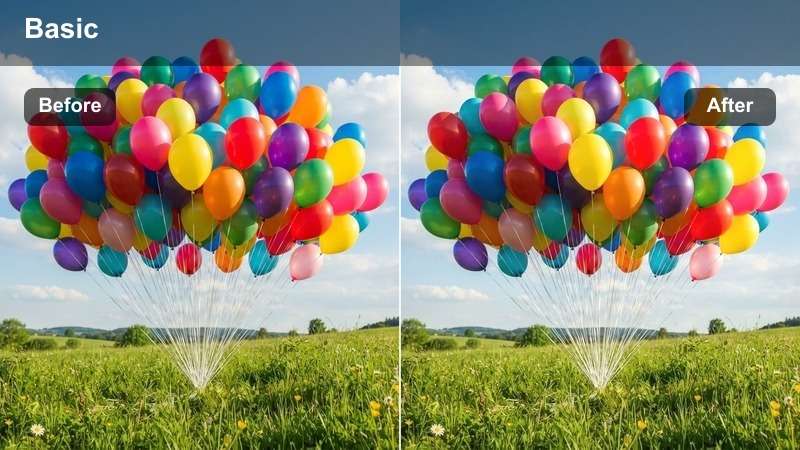
- Effect look: Muted overall palette with strong emphasis on blacks and oranges for a timeless Halloween style.
- Best for: Room tours, table setups, and wide shots of Halloween party decorations.
- Editing tip: Remove distracting colorful objects from the frame so the black-and-orange palette stays clean.
Classic Black-and-Orange Grade locks your footage into the most iconic Halloween palette: deep blacks and rich oranges. In Filmora, this filter mutes other hues so banners, pumpkins, balloons, and table decor instantly read as on-theme, making it ideal for room tours, party overviews, and establishing shots.
Before shooting, remove or hide brightly colored non-Halloween items, then apply the filter across all your wide shots for a cohesive series look. Save your customized version as a Filmora preset, and reuse it on future Halloween uploads to keep your channel thumbnails, intros, and B-roll visually consistent year after year.
Tips for Using Halloween Video Filters Filters in Filmora
- Shoot slightly brighter than you think you need so Halloween filters have enough detail to work with in the shadows.
- Keep your white balance consistent across shots; filters look more professional when the base footage matches.
- Use different filters for A-roll and B-roll so viewers can feel the shift between storytelling and atmospheric shots.
- Export a short test sequence with multiple filters before grading your full Halloween vlog or montage.
- Match your thumbnail grading to the filter style used in the video so viewers know exactly what mood to expect.
- Combine filters with Halloween LUTs in Filmora to refine overall color direction without overprocessing your clips.
- Save your favorite Halloween filter combinations as custom presets to speed up editing for future seasonal content.
- Use Filmora keyframes and transitions to enhance each graded clip with subtle motion and mood shifts.
With these free Halloween video filters in Filmora, you can turn everyday party clips, costumes, and decorations into spooky, cinematic stories that stand out on any platform.
Experiment with mixing filters, subtle adjustments, and Halloween LUTs until you find a look that fits your channel, then save it as your go-to seasonal style.
secure download