

 100% Security Verified | No Subscription Required | No Malware


 ChatGPT
 Perplexity
 Gemini
 Claude
 Grok
Grok
If you film a lot of selfie videos for YouTube, the right filter can instantly make your skin look smoother, your background cleaner, and your whole channel more professional. Instead of fighting harsh lighting or noisy rooms, you can build a consistent on-camera look that viewers recognize in every upload.
Below are 12 Filmora selfie video filters designed for YouTubers and vloggers who shoot daily vlogs and Q&A videos. Each one includes what the effect looks like, when to use it, and a quick editing tip so you can dial in a clean creator look fast.
In this article
Soft Natural Beauty Filters for Face-Cam Videos
Soft Daylight Glow
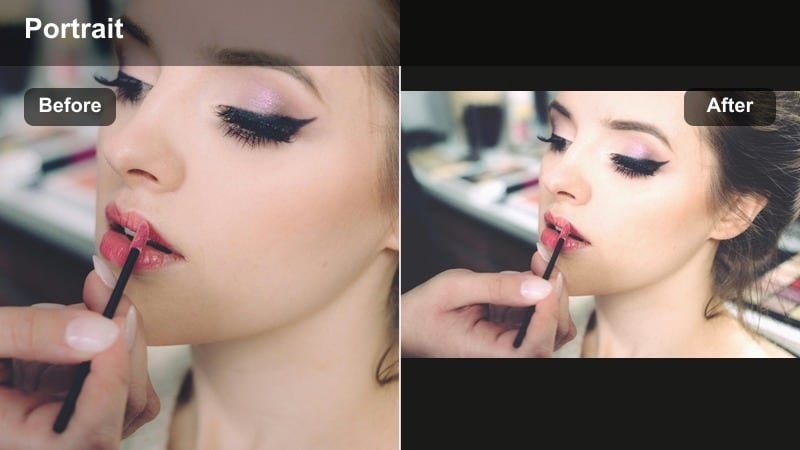
- Effect look: Gentle brightening with soft contrast that smooths skin while keeping natural textures visible on your face.
- Best for: Daily vlog intros filmed near a window when you want flattering selfie lighting without looking overly filtered.
- Editing tip: Reduce filter intensity to around 60-70 percent and add a tiny bit of sharpening so your eyes stay crisp on camera.
Soft Daylight Glow is ideal when you are filming in natural light and want that clean creator look without drifting into full-on beauty mode. In Filmora, this filter lifts the midtones around your cheeks and forehead while gently taming contrast, so your skin looks smoother but still shows real-life texture and detail.
Apply Soft Daylight Glow to your vlog intros, channel updates, or quick check-ins recorded near a window. Start at full strength, then pull the intensity slider down until your skin looks bright and even but your pores and hairlines stay visible. Add a touch of sharpening around your eyes and lashes so they remain the sharpest part of the frame, helping your audience lock into your expressions.
Match Your Selfie Filters with an AI Color Palette
Once you choose a go-to selfie video filter for YouTube, keep your thumbnails and overlays in the same color family so your channel feels cohesive. Filmora s AI-driven color tools can analyze a single selfie frame and build a ready-to-use palette from it.
Grab a still from a daily vlog or Q&A clip, run the AI Color Palette feature, and save those colors for your titles, borders, and stickers. This keeps your on-camera look, branding, and thumbnails visually synced, which helps viewers recognize your videos in their feed instantly.
 secure download

Preview Selfie Filters in Real Time
You can audition multiple selfie video filters in Filmora without rendering or exporting. Load your face-cam clip on the timeline, open the filters panel, and scrub through presets while watching the preview update in real time.
This makes it easy to compare soft natural beauty, warm vlog, and cool tech looks on the same clip. Once you find a style that flatters your skin and fits your video mood, fine-tune the intensity slider instead of stacking heavy effects.
secure downloadSave Your Signature Selfie Look as a LUT
After you dial in the perfect combination of filter, exposure, and color tweaks for your selfie videos, you can save that style as a custom 3D LUT in Filmora. This turns your favorite look into a one-click preset for future projects.
Use your LUT across daily vlogs, Q&A videos, and even vertical edits for TikTok or Shorts. It keeps your face, background, and overall color tone consistent so viewers immediately recognize your content, while also speeding up your editing workflow.
secure downloadSkin Smooth Lite
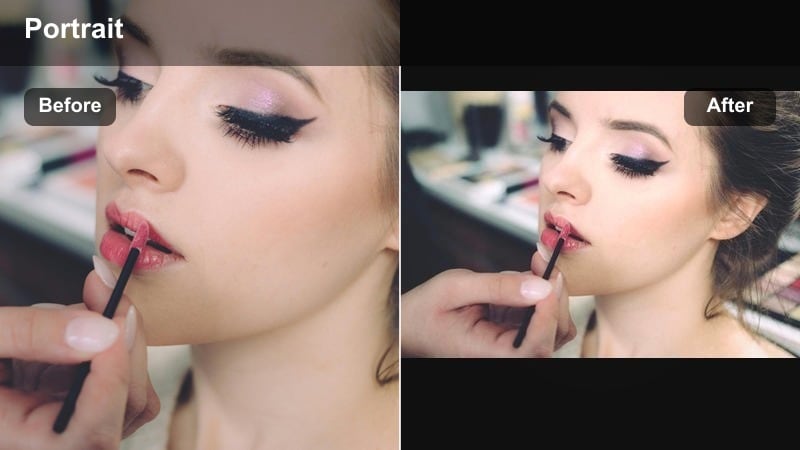
- Effect look: Subtle skin smoothing that hides minor blemishes and under-eye shadows while preserving pores and hair details.
- Best for: Talking-head Q&A videos where you want to look rested and polished without obvious beauty retouching.
- Editing tip: Pair with slight color temperature warmth to avoid a clinical look, and use vignette very lightly to frame your face.
Skin Smooth Lite is Filmora s answer to heavy, unrealistic beauty filters. It gently fills in minor imperfections, softens under-eye shadows, and evens out your complexion while keeping pore texture, facial hair, and fine details intact. On 4K YouTube uploads, it reads as clean and rested rather than airbrushed.
Use this filter on Q&A sessions, tutorials, and any tighter selfie framing where viewers see your face up close for several minutes. Combine it with a small warmth adjustment to keep your skin from looking too pale, then add a very soft vignette so the corners darken just enough to pull attention toward your eyes.
Natural Room Light
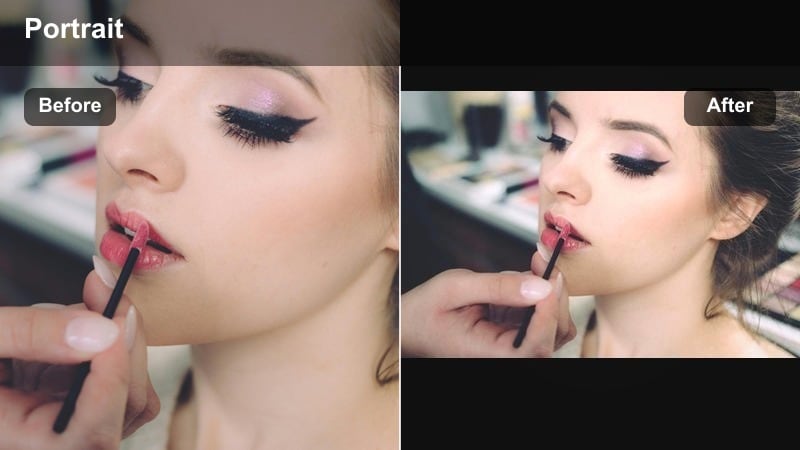
- Effect look: Balances mixed indoor lighting, tones down yellow casts, and brightens shadows around your face in selfie videos.
- Best for: Bedroom or office vlogs filmed with simple room lighting and no dedicated YouTube lighting setup.
- Editing tip: Cut your clip first, then apply the filter so every shot in a sequence keeps the same color and exposure balance.
Natural Room Light is built for creators filming in regular bedrooms, dorms, or home offices with basic lamps and overhead bulbs. It evens out color temperature when part of your scene looks yellow and another part looks blue, while gently lifting shadows so your face stays visible and clean.
Apply this filter after you rough-cut your talking points, then copy and paste the effect to every shot in that sequence. This keeps your color and brightness consistent, which makes your channel feel much more professional even if you do not own a full lighting kit.
Bright Clean Creator Look Filters
Studio Whitewash
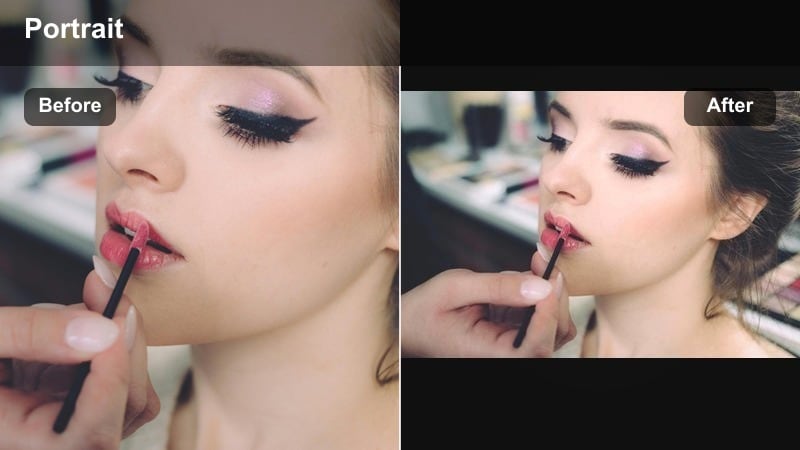
- Effect look: Bright, high-key exposure with lifted shadows and clean whites that mimic a minimalist studio background.
- Best for: Tutorials, sit-down Q&A sessions, and channel trailers where you want a polished, brand-ready selfie frame.
- Editing tip: Lower highlights slightly if your forehead or nose look too shiny and add contrast to avoid washed-out skin.
Studio Whitewash transforms small or cluttered rooms into bright, studio-style spaces by boosting whites and lifting shadows. In Filmora, this filter is especially useful when your walls or backdrop are light colored, because it turns them into a soft, clean canvas behind your face.
Use it on channel trailers, sponsored reads, and any piece of content where you want a polished, brand-friendly appearance. If your skin begins to look blown out, reduce highlight levels and gently raise contrast, so your features remain defined while the overall frame feels airy and professional.
Creator Clean Pop
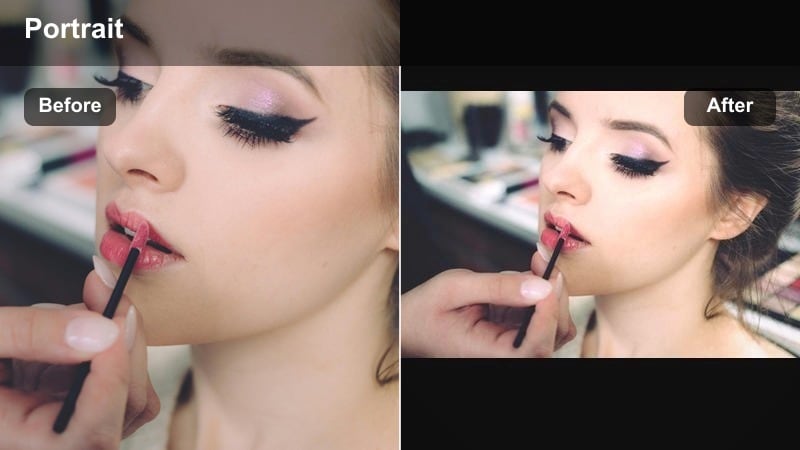
- Effect look: Punchy contrast and mild saturation boost that makes your eyes, lips, and hair color stand out on camera.
- Best for: High-energy daily vlogs and selfie storytime videos that need extra color and on-screen personality.
- Editing tip: Combine with a tiny crop-in for vertical-safe framing so the look works for both YouTube and TikTok edits.
Creator Clean Pop adds a touch of drama by increasing contrast and giving colors a modest boost. It is great for upbeat content where you want your expressions, eye color, and outfits to stand out without tipping into overly saturated territory.
Apply this filter to storytime videos, challenge clips, or energetic vlog segments. In Filmora, pair it with a small crop that keeps your face centered inside a vertical-safe area so you can repurpose the same footage for Shorts or TikTok without re-framing from scratch.
Minimal Desk Setup
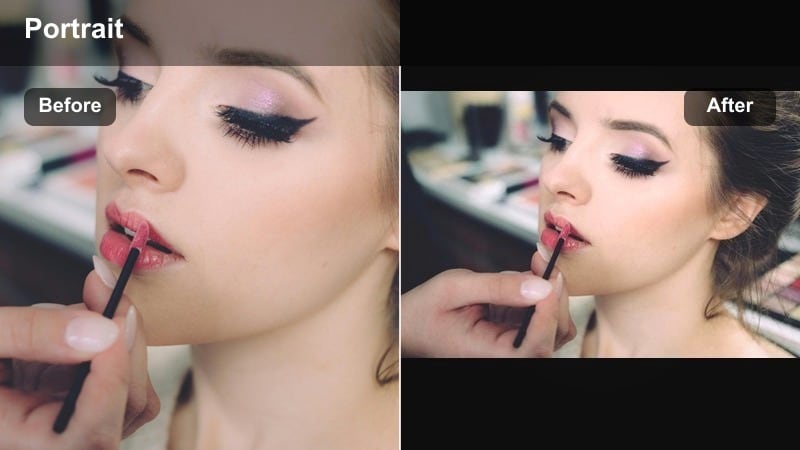
- Effect look: Cool, modern tone with clean edges that makes monitors, shelves, and decor look organized behind you.
- Best for: Desk vlogs, productivity videos, and coding or study-with-me sessions filmed as selfie videos at your workstation.
- Editing tip: Lower sharpening on low-quality webcams and increase it slightly on DSLR footage to keep the background tidy but not crunchy.
Minimal Desk Setup is designed for creators who film at their workstation with bookshelves, monitors, and gear in the background. The filter cools down overall color, straightens out contrast, and makes the scene feel neat and intentional.
Use it for productivity vlogs, study-with-me sessions, or tech-focused uploads where your desk is part of your personal brand. In Filmora, adjust sharpening depending on your source: reduce it for webcams to avoid noisy edges, and nudge it up for DSLR or mirrorless footage to keep your background structured but not distracting.
Warm Vlog Aesthetic Filters
Golden Vlog Glow
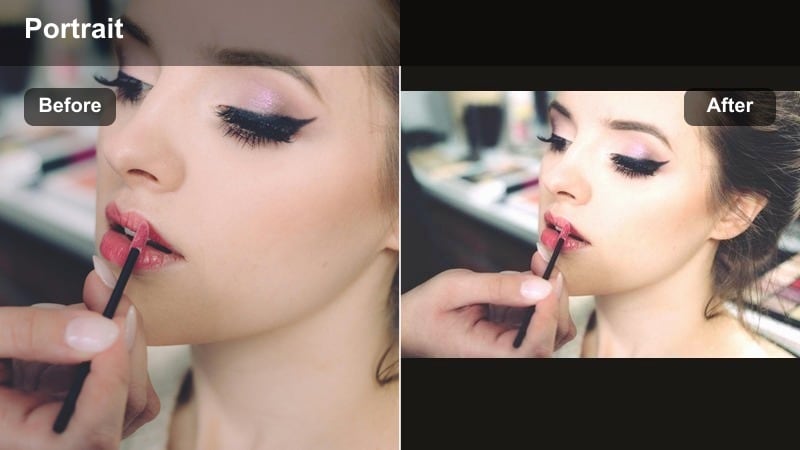
- Effect look: Warm golden tint with soft contrast that mimics late-afternoon sunlight on your skin and hair.
- Best for: Cozy daily vlogs, morning routines, and lifestyle Q&A videos filmed in bedrooms or kitchens.
- Editing tip: Add a light grain layer to sell the warm, cinematic feeling and avoid pushing the warmth past natural skin tones.
Golden Vlog Glow gives your selfie videos that golden-hour feeling even when you are filming indoors. The filter adds a gentle amber tint to skin tones and hair, softens harsh edges, and slightly lowers contrast for a cozy, lifestyle aesthetic.
Use it for morning routines, chill evening recaps, or aesthetic B-roll of you talking to the camera in warm spaces. In Filmora, pair the filter with a subtle grain overlay and keep an eye on your white balance slider so your skin stays believable, not orange.
Sunset Chat
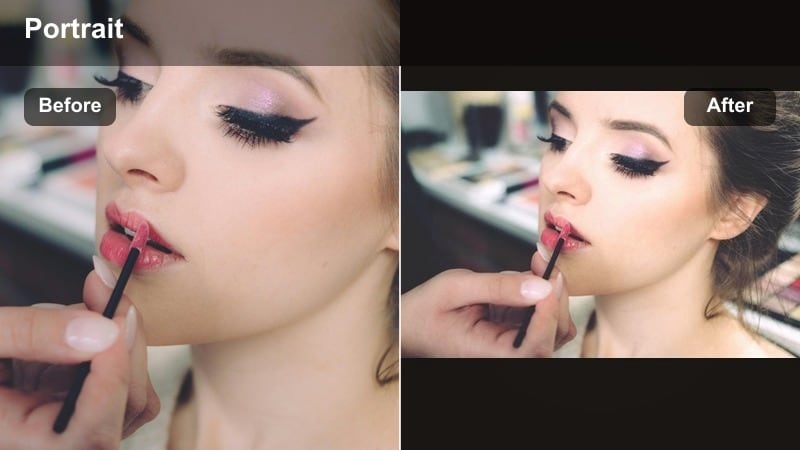
- Effect look: Soft magenta and orange cast that simulates sunset colors across your face and background.
- Best for: Sit-down Q&A or confessional style videos where you talk directly to camera about deeper topics.
- Editing tip: Use gentle camera zoom keyframes while the filter is on to create a slow, emotional pull-in during important moments.
Sunset Chat creates a moody, end-of-day look with a mix of magenta and orange hues. It adds emotional weight to face-cam moments, making your Q&A answers or personal stories feel more cinematic and intimate.
Apply this filter to confessionals and reflective segments, especially when you are sitting still and talking directly to your audience. In Filmora, combine it with slow zoom keyframes that move in slightly during key sentences, giving your viewers a subtle sense of closeness.
Coffee Shop Vibe
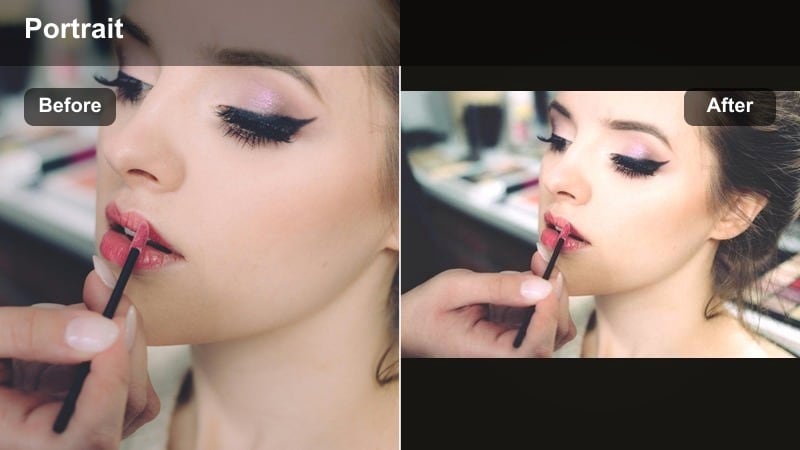
- Effect look: Muted highlights with warm browns and soft shadows that resemble a cozy cafe interior.
- Best for: On-the-go vlog check-ins filmed at coffee shops or quiet corners with mixed indoor lighting.
- Editing tip: Stabilize handheld clips first, then apply the filter so the cozy look is not ruined by distracting camera shake.
Coffee Shop Vibe leans into browns, creams, and warm neutrals to make noisy indoor footage feel like a curated cafe scene. The filter softens highlights so overhead lights do not blow out, and gently deepens shadows for a more cinematic mood.
Use it when you film handheld updates in coffee shops, co-working spaces, or any public indoor location. In Filmora, stabilize your shots before adding the filter so the relaxed aesthetic is not undercut by jittery motion, then trim saturation in the background so your face remains the focal point.
Cool and Clean Modern Filters
Cool Tech Creator
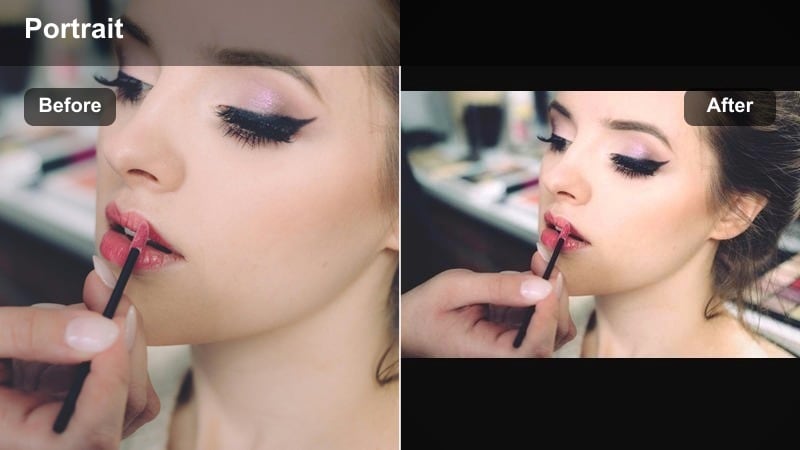
- Effect look: Cool blue bias with crisp contrast that highlights screens, LED strips, and neon signs in your background.
- Best for: Tech reviews, gaming face-cam intros, and productivity vlogs filmed at your setup with RGB lighting.
- Editing tip: Reduce the filter s intensity on your skin specifically using masks if your face starts to look too cold or pale.
Cool Tech Creator is built for RGB and neon-heavy setups, boosting blues and cyans while sharpening edges for a futuristic style. It makes monitors, LED strips, and decor lights pop, creating a strong tech or gaming identity around your selfie shots.
Apply it to your intros, commentary segments, or desk-based monologues. In Filmora, you can use masking tools to keep the effect stronger on your background while dialing it back on your skin so your face looks natural against a cool-toned scene.
City Night Selfie
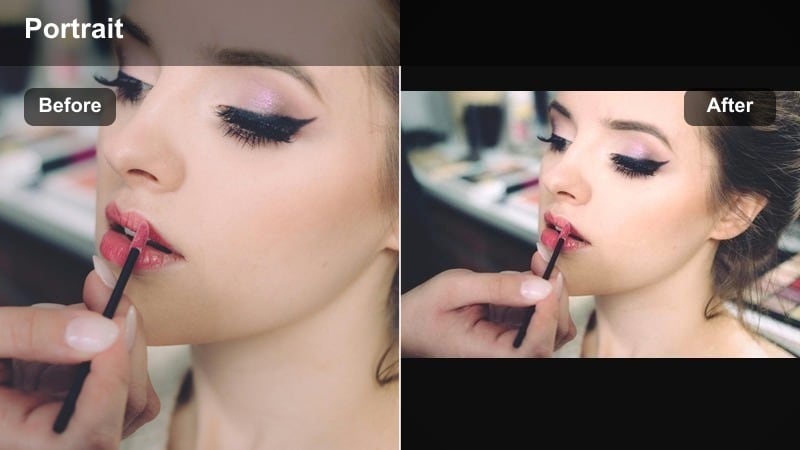
- Effect look: Deepened blacks with boosted neon colors that help your face stand out in low-light city backgrounds.
- Best for: Night walk vlogs, festival check-ins, and street food reviews filmed selfie-style after dark.
- Editing tip: Apply noise reduction before this filter so the darker areas stay smooth instead of becoming grainy on YouTube compression.
City Night Selfie is tuned for low-light environments, deepening black levels while pushing neon and street lights to feel vivid and alive. It helps your face remain readable even when your main light source is nearby signage or storefronts.
Use it when you vlog at night in busy downtown areas, at concerts, or around food stalls. In Filmora, clean up noisy footage with noise reduction first, then apply the filter so your dark areas remain smooth and your colors stay bold after YouTube compression.
Clean Cool Neutral
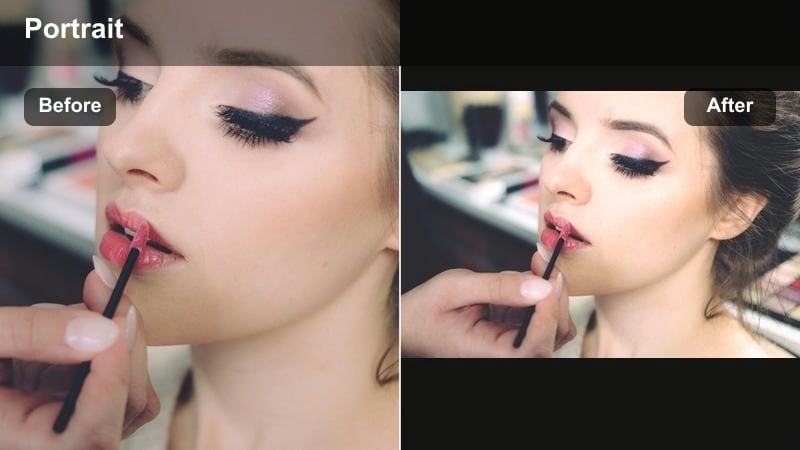
- Effect look: Balanced cool tone with gentle contrast and low saturation that gives a calm, professional creator style.
- Best for: Educational Q&A videos, explainer content, and channel updates where clarity matters more than drama.
- Editing tip: Add on-screen text and graphics after the filter so colors match the new neutral palette and stay easy to read.
Clean Cool Neutral gives your selfie videos a subtle, modern look with slightly cool tones and controlled saturation. It keeps the image calm and distraction-free, which is ideal when viewers need to focus on what you are teaching or explaining.
Apply this filter to tutorials, how-tos, and announcement videos. In Filmora, design your lower thirds, titles, and callouts after the filter is applied so your text colors contrast clearly against the new palette and remain accessible on both mobile and desktop screens.
Tips for Using Selfie Youtube Creator Filters in Filmora
- Record a short selfie test clip before each filming session and try two or three filters to see which one matches the current lighting.
- Keep filter intensity lower than you think you need so your skin still looks real when YouTube compresses the video.
- Use one main selfie filter across your series playlists to build a repeatable visual identity for your channel.
- Combine subtle beauty filters with good lighting and framing instead of relying on heavy smoothing.
- Check your selfie videos on both phone and desktop to make sure the filter looks flattering on different screens.
- Save separate presets for daily vlogs and Q&A videos so you can switch looks quickly without rebuilding your grade every time.
The right selfie video filters for YouTube can turn simple face-cam recordings into clean, consistent creator content that feels ready for subscribers and sponsors. By choosing a few go-to looks and adjusting them for different lighting and moods, you can keep your workflow fast while always showing up polished on camera.
Experiment with these 12 filters in Filmora, save your favorite combinations as presets or LUTs, and use them across daily vlogs and Q&A videos. Over time, your audience will recognize your signature selfie style the moment your video appears in their feed.
secure downloadNext: Best Selfie Video Filters for TikTok: Stand Out in Vertical Shorts
