



 100% Security Verified | No Subscription Required | No Malware


 ChatGPT
 Perplexity
 Gemini
 Claude
 Grok
Grok
Many times, an AI-generated image does not match what you imagined because the prompt is not clear enough. Even with advanced AI art tools, it can be hard to describe the lighting, texture, or style you want.
This is where image-to-prompt tools help creators. Rather than guessing which words to use, you can upload a photo and let the AI describe it for you. Whether you use browser extensions to copy styles or want to turn a photo into a video, learning to use AI image prompts well can help you make better digital art every time.
Quick Solution: Finding the Right Workflow

There is no one best way to turn images into prompts. Most creators use one of three main types of tools:
- Online Web Tools: Quick, browser-based generators like CLIP Interrogator.
- Browser Extensions: Great for extracting prompts while browsing galleries like Midjourney or Lexica.
- Built-in Software: Comprehensive creative suites that handle the entire pipeline.
If you want to avoid switching between several browser tabs, an all-in-one tool like Filmora is a popular choice. It goes beyond just generating a text prompt by including image prompt AI features directly in its video and image editing workflow. This makes it a strong option for creators who work with different types of media.
For example, if you want to use the style of a photo for a TikTok video, Filmora makes it simple. Upload your photo, let the AI create a matching prompt, and use that prompt to make a video in the same style—all within the same program. You do not need to switch apps or copy and paste so that you can move from idea to finished content more quickly.
Best AI Image Prompt Tools: Top Picks for 2026
With so many AI tools available, it can be hard to choose where to begin. To help, we have selected the best options based on their accuracy, ease of use, and advanced features.
CLIP Interrogator (via Hugging Face)
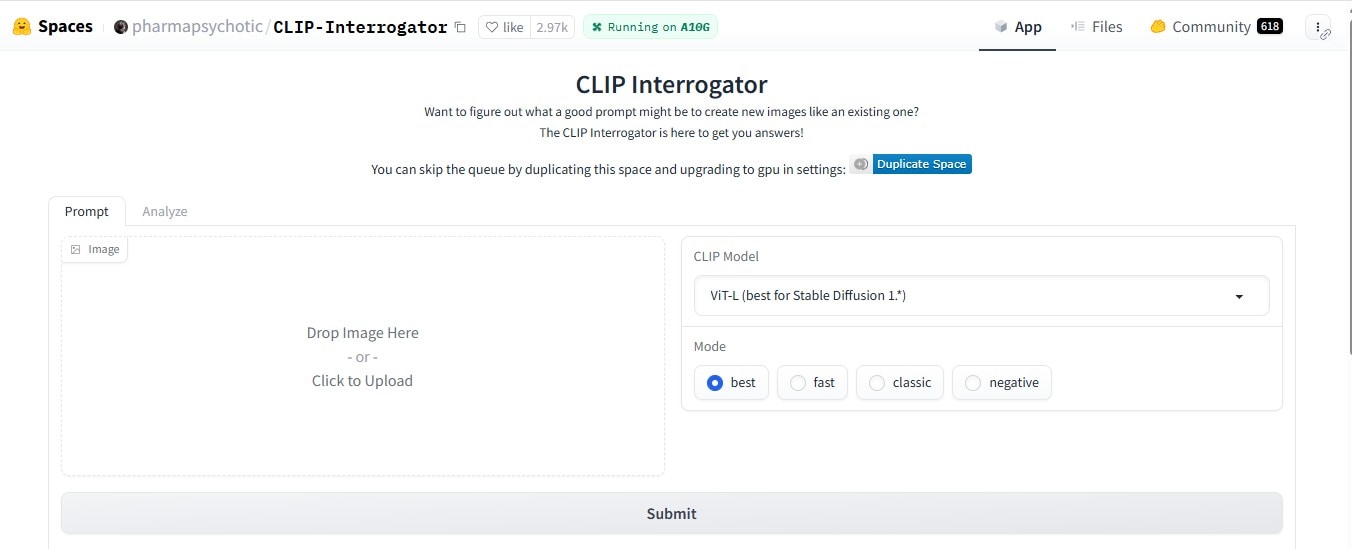
CLIP Interrogator uses OpenAI's CLIP models to analyze an image and generate a detailed text description of its contents and style.
- Key Features: Multiple model selection (Base, Large, ViT); deep style recognition.
- Pros: Highly technical and accurate; free to use on Hugging Face.
- Cons: Can be slow during peak times; the UI is purely functional and not very friendly.
- Best For: Users who need a highly detailed AI prompt image for Midjourney or Stable Diffusion.
Midjourney /describe Command
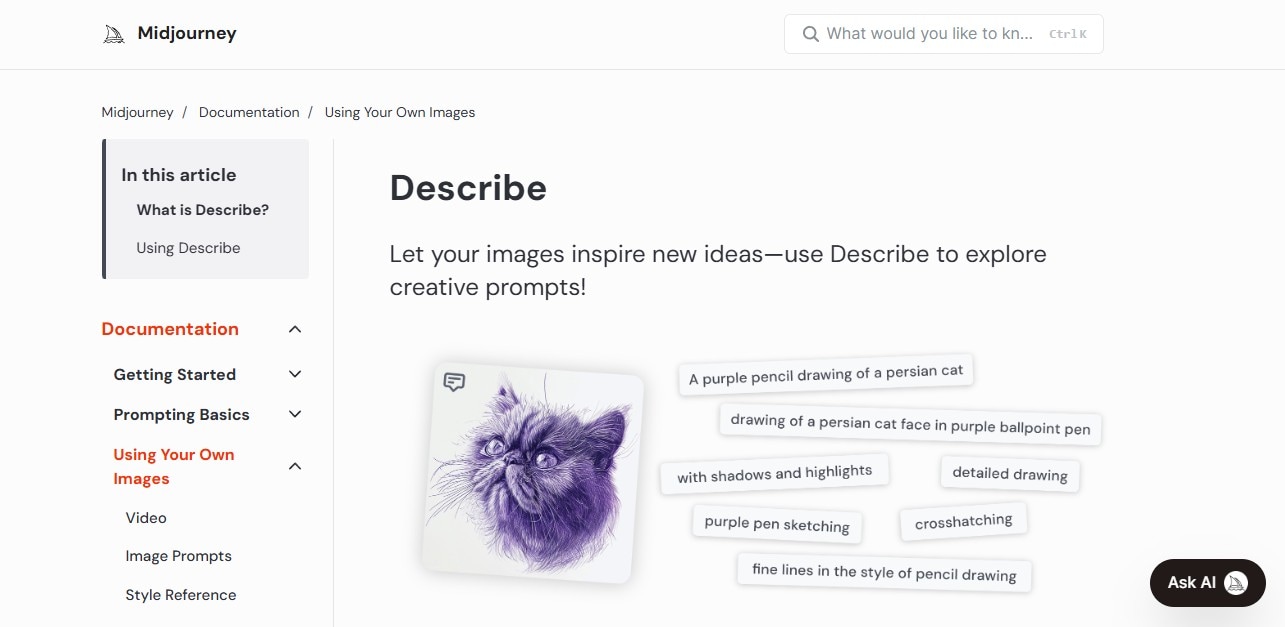
Midjourney's /describe feature generates four distinct prompts for each uploaded image, providing integration for users already on the platform.
- Key Features: Generates four distinct prompt variations for every image uploaded.
- Pros: Seamlessly integrated; suggests unique vocabulary you might not think of.
- Cons: Requires a paid subscription; only accessible via Discord.
- Best For: Dedicated AI artists already within the Midjourney ecosystem.
Leonardo.ai (AI Image Guidance)
Leonardo.ai offers an easy-to-use interface for image guidance. Users upload an image to create prompt-like blueprints for new generations.
- Key Features: Visual strength sliders to determine how much the AI follows the original image.
- Pros: Very intuitive; great for maintaining character or architectural consistency.
- Cons: The prompt generation is often tied to internal credits.
- Best For: Hobbyists who prefer a point-and-click experience over coding.
Comparison: The Reality of Standalone Tools
These tools are powerful, but they share some common drawbacks. Most of the time, they only create a prompt, and you still need to copy and paste it into another program to finish your image or video.
Quick Tip: To save time on copy-paste workflows, try setting up clipboard managers or automation tools like ClipboardFusion or a simple macro that automatically copies generated prompts and pastes them into your preferred AI art platform. Some browser extensions can also streamline the process by letting you right-click to send prompts directly where you need them.
If you use different tools for prompts and image generation, it can be difficult to keep a consistent style when making videos. For content creators, switching between tools for images and videos can slow you down and make your work feel less unified.
Filmora: An Integrated AI Creation Hub
If you want to create AI image prompts quickly, your main goal is to get results faster. Filmora stands out because it includes prompt generation as part of your creative process, making it a step within your project instead of something separate.
Image to Prompt Feature in Filmora
With this software, you can turn images into prompts directly in the program. You do not need to use other websites. If you like a certain style or color palette, just upload your image and the system will quickly create the text you need to match that look.
Why It’s Different
The main benefit is how smooth the workflow becomes. Most tools only give you a text prompt, and you have to handle the rest. With Filmora, you can use an image prompt to create a new AI image or video immediately, all in one place. This makes the process much simpler.
- You move from reference image to prompt to final result in one smooth process. This saves time for social media managers and YouTubers who need quick results.
Additional Capabilities
Beyond being a prompt image AI tool, the platform offers:
- AI Video Generation: Use your prompts to create motion content.
- AI Image Expansion: You can resize your images to fit different formats, such as 9:16 for TikTok, 16:9 for YouTube, 1:1 for Instagram, or vertical for Pinterest. This makes it easy to create content for any platform, including Instagram carousels, Pinterest boards, Snapchat stories, and more.
- Built-in Editing: Since it’s a full-fledged editor, you can color-grade your AI results and add transitions in the same window.
How to Use Image to Prompt and Image to Video in Filmora
Filmora combines Image to Prompt and Image to Video features to help creators turn a single reference image into a fully generated AI video. This workflow allows you to extract visual styles from an image and instantly apply them to video generation without switching tools.
1. Generate a Prompt from an Image (Image to Prompt)
Step 1: Import Your Reference Image
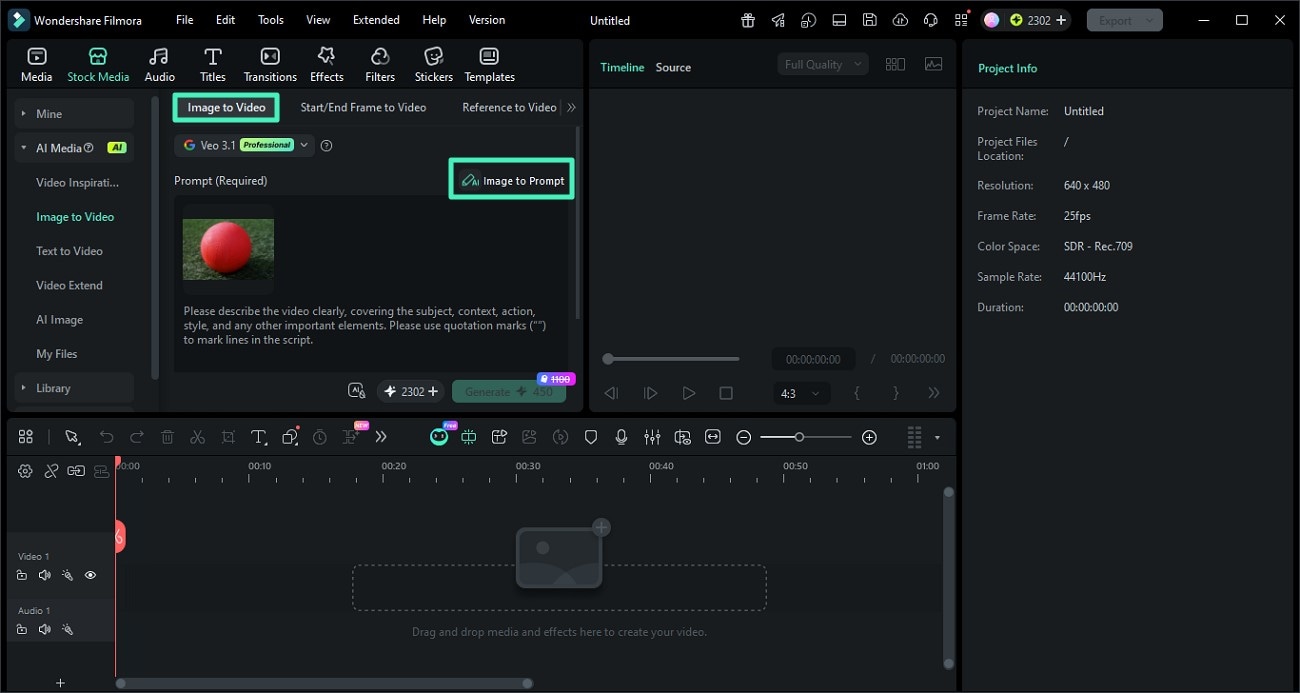
Open Filmora and go to the AI Image to Video feature. Upload the image you want to use as a reference for style, composition, or lighting.
Step 2: Click Image to Prompt
Select the image and click the Image to Prompt option. Filmora will analyze the visual elements such as objects, colors, and style to generate a descriptive prompt.
You can review and edit the generated prompt to better match your desired creative direction.
Step 3: Confirm and Apply the Prompt
Once satisfied, apply the generated prompt. This prompt will now serve as the base for creating AI-generated content with a consistent style.
2. Turn the Prompt into a Video (Image to Video)
Step 1: Adjust Video Settings
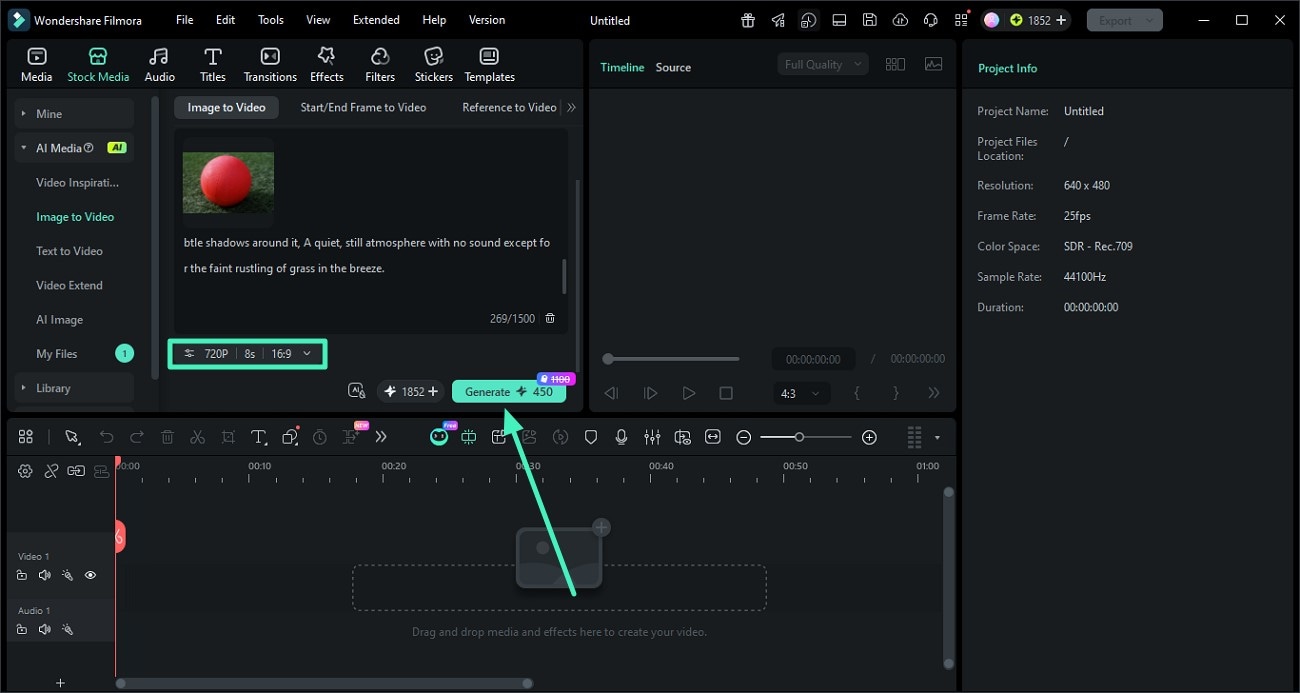
After applying the prompt, configure your video settings such as resolution, aspect ratio, and duration. This ensures your final output matches your target platform like TikTok, YouTube, or Instagram.
Step 2: Generate the AI Video
Click Generate to let Filmora create a video based on your prompt and image reference. The AI will maintain visual consistency in style, lighting, and composition.
Step 3: Preview and Export
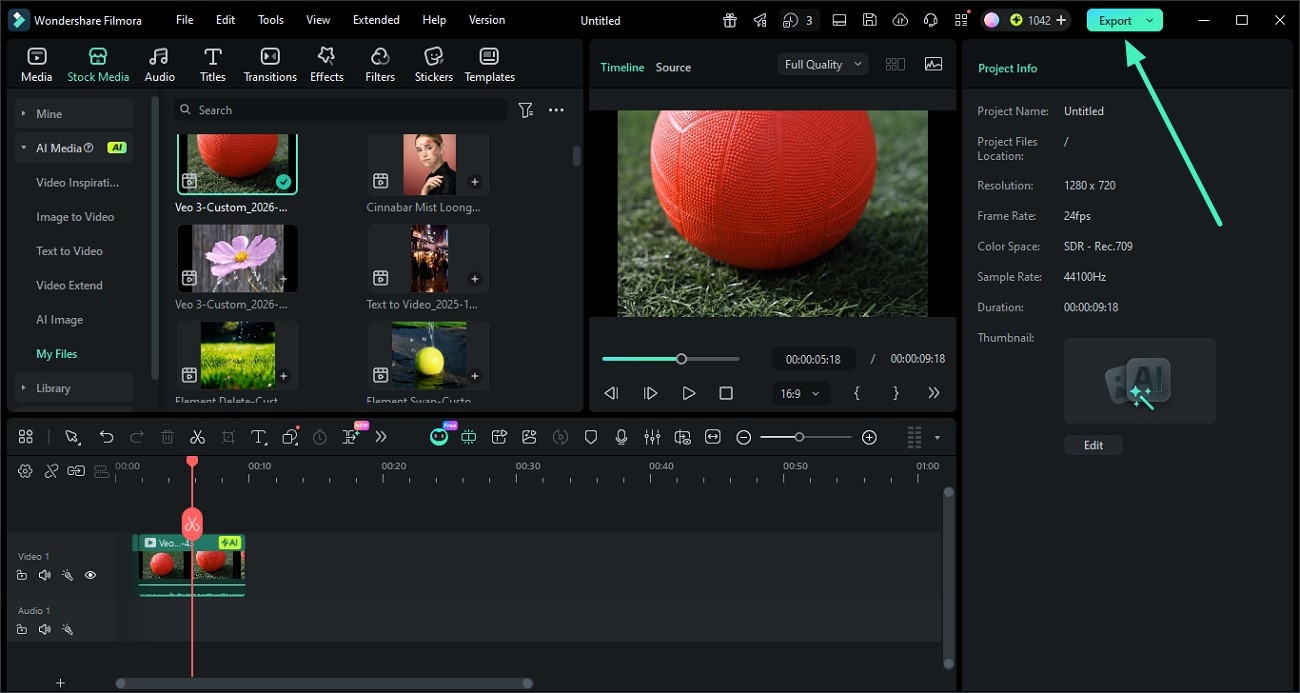
Once the video is ready, preview the result. If everything looks good, click Export to save the video or share it directly to your desired platform.
Conclusion
AI art is moving from guessing to copying styles more accurately. Standalone AI image prompt tools are great for detailed work, but they can feel disconnected for many creators.
If you want to create content faster, all-in-one tools are the best choice. When your tool connects images, prompts, and videos, you avoid the hassle of searching for the right prompt. Whether you work in SEO or just create for fun, try starting with an image next time you are stuck—you might be surprised by how much it helps.
Curious how much easier your workflow could be? Choose a tool like Filmora or one of the other top picks above, and try turning one of your favorite images into an AI prompt. Test it out on your next project and see the results for yourself.
FAQs
1. What is an image-to-prompt tool?
An image-to-prompt tool is an AI utility that uses computer vision to analyze an uploaded photo and generate a descriptive text prompt. This text can then be used in AI generators like Midjourney, DALL-E, or Filmora to create similar-looking images or videos.
2. What is the best tool for this purpose?
It depends on your goal. For pure technical accuracy, CLIP Interrogator is excellent. For ease of use and a professional creative workflow, Filmora is the best choice because it combines prompt generation with actual video and image editing tools.
3. Can I use image prompts for video creation?
Yes. This is one of the fastest-growing trends in AI. By extracting a prompt from a static image, you can feed that description into an AI video generator to create a motion clip that maintains the exact aesthetic, lighting, and feel of the original photograph.
