

 100% Security Verified | No Subscription Required | No Malware


 ChatGPT
 Perplexity
 Gemini
 Claude
 Grok
Grok
These BMPCC 4K cinematic LUT-style filters are designed for videographers and creators who want fast, filmic color grading inside Filmora without diving deep into technical nodes and curves.
Use this preset-style collection to match your BMPCC 4K footage to cinematic tones for different scenes, from golden-hour portraits to moody nighttime cityscapes, while keeping your workflow simple and consistent.
In this article
Warm Golden-Hour Portraits and Lifestyle
Sunset Soft Skin
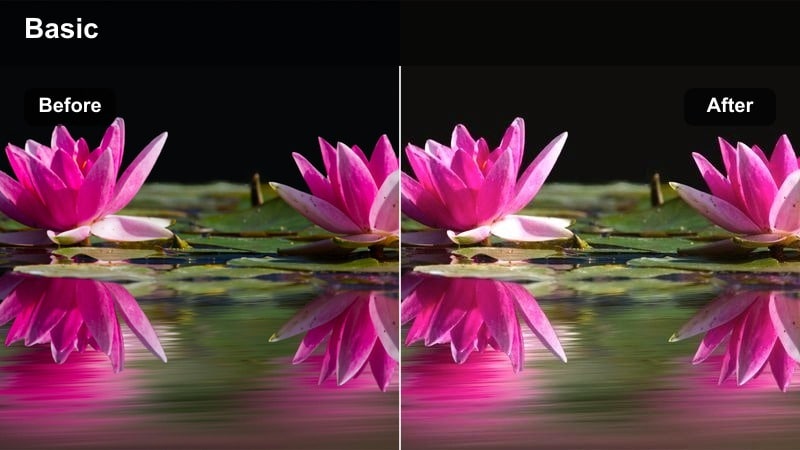
- Effect look: Warm, low-contrast glow that flatters skin tones and softens harsh highlights for BMPCC 4K portraits at sunset.
- Best for: Lifestyle vlogs, engagement shoots, and handheld golden-hour walk-and-talks with the BMPCC.
- Editing tip: Lower contrast and slightly pull down highlights in Filmora to preserve dynamic range from your Blackmagic log profile.
Sunset Soft Skin is tuned to enhance the flattering qualities of golden-hour light from your BMPCC 4K, giving faces a gentle glow while keeping highlight roll-off smooth and cinematic. It keeps contrast low enough that you can still see detail in bright skies and reflective backgrounds, which is crucial when shooting backlit portraits or walk-and-talk sequences.
Drop this filter onto your log or Film profile footage in Filmora, then fine-tune exposure and highlights so skin stays soft without losing detail. For close-ups, combine it with a subtle vignette or mild skin-smoothing to complete the filmic portrait feel, and save the combo as a preset to reuse across your entire golden-hour sequence.
Speed Up Your BMPCC 4K Grades with AI Color Tools
Filmora s AI-powered color tools can quickly balance exposure and white balance on your BMPCC 4K clips before you add any cinematic filter. Let AI handle the technical base correction so your LUT-style looks sit cleanly on top without strange color casts.
Use AI color matching to keep portraits consistent when you move between locations or lighting setups, so your Sunset Soft Skin and other filters look intentional from shot to shot.
 secure download

Preview Filters on Real BMPCC 4K Footage
Import a few BMPCC 4K clips into Filmora, then audition multiple filters on duplicated tracks to see how each responds to your lenses and lighting. Side-by-side previews make it easy to decide whether a warm portrait look or a cooler street tone better fits your scene.
Once you find a favorite look, you can refine contrast and saturation so the style is strong but still natural, especially for skin and key storytelling elements.
secure download1000 plus Video Filters and 3D LUTs
Filmora includes a large library of creative filters, overlays, and 3D LUT-style looks that pair perfectly with BMPCC 4K footage. You can stack them with the cinematic filters in this guide to build complex styles without touching complicated grading nodes.
Experiment with film emulations, glow effects, and subtle texture overlays, then save your favorite stacking combinations as reusable presets for future Blackmagic projects.
secure downloadAmber Street Glow
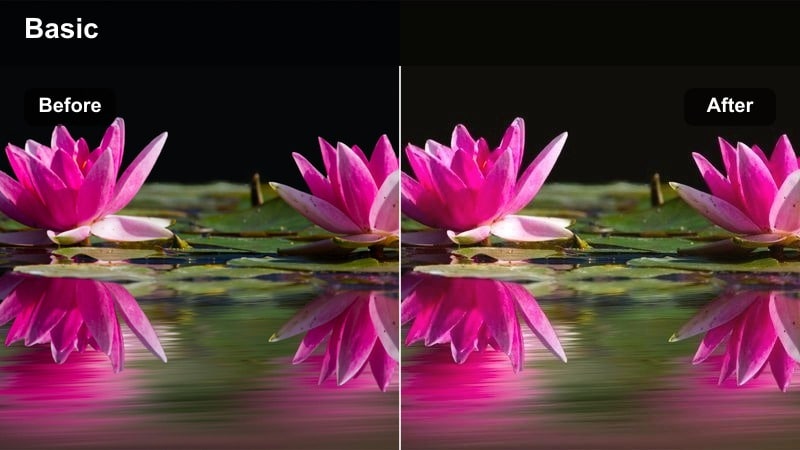
- Effect look: Rich amber tones with gentle halation-style glow around bright light sources and soft lifted blacks.
- Best for: Backlit street portraits, cafe exteriors, and lifestyle B-roll during late afternoon with practical lights.
- Editing tip: Add a subtle vignette in Filmora and reduce clarity slightly to boost the dreamy LUT-like character.
Amber Street Glow gives your BMPCC 4K street portraits a warm, cinematic sheen, emphasizing practical lights and storefronts with a soft halo that feels like vintage glass. The lifted blacks add a modern filmic fade, preventing dark areas from going too dense while still keeping subjects separated from the background.
Apply this filter in Filmora to late-afternoon or early-evening footage, then refine vignettes to guide the viewer s eye toward your subject. Dial clarity down just a touch to smooth digital sharpness, and use local exposure adjustments on faces if backlighting makes them too dark compared to glowing street lamps or windows.
Hazy Backlight Dream
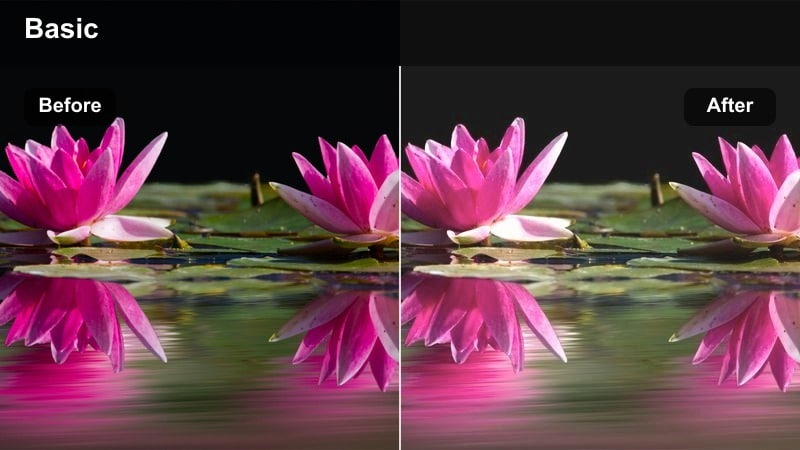
- Effect look: Low-contrast, pastel highlights with a milky haze that lifts blacks for a soft filmic backlit look.
- Best for: Backlit portraits, lifestyle b-roll, and hair-light silhouettes shot against bright windows or skies.
- Editing tip: In Filmora, pull down saturation slightly and fine-tune white balance to keep skin from going too pastel.
Hazy Backlight Dream is designed for those high-key backlit BMPCC 4K shots where the sun or a window wraps around your subject. It adds a soft veil over highlights and gently lifts shadows, turning potentially harsh contrast into a pastel, dreamy aesthetic similar to diffusion filters on cinema lenses.
In Filmora, use this filter on clips where you want a romantic or nostalgic feel, especially for silhouettes and profile shots. If colors begin to look washed out, selectively reduce saturation in the most dominant hues and nudge white balance warmer or cooler until skin and key wardrobe items keep enough separation from the background glow.
Moody Urban Night and Neon Cityscapes
Neon Teal Crush
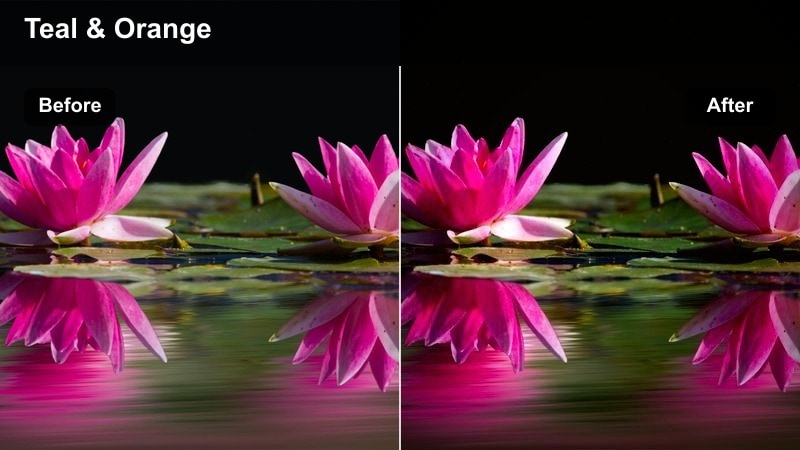
- Effect look: Strong teal shadows with preserved skin tones and high-contrast neon highlights reminiscent of cyberpunk LUTs.
- Best for: Night street B-roll, neon signs, rainy sidewalks, and handheld city runs with the BMPCC.
- Editing tip: Use Filmora s HSL to fine-tune blues and cyans if your city lights push too far into green.
Neon Teal Crush builds a dramatic teal-and-neon palette that plays beautifully with reflective night surfaces like wet streets and glass. It pushes shadows into teal while working to keep skin within a more natural range, giving your BMPCC 4K footage a stylized, cyberpunk-inspired mood without losing your subject in the grade.
Apply it as a base look in Filmora for night sequences, then adjust HSL sliders for blues and cyans depending on how your local signage is colored. If noise appears in the deeper teal shadows, raise shadow levels slightly before grading, and finish with Filmora s noise reduction tools for a cleaner, more premium-looking final image.
Midnight Film Noir
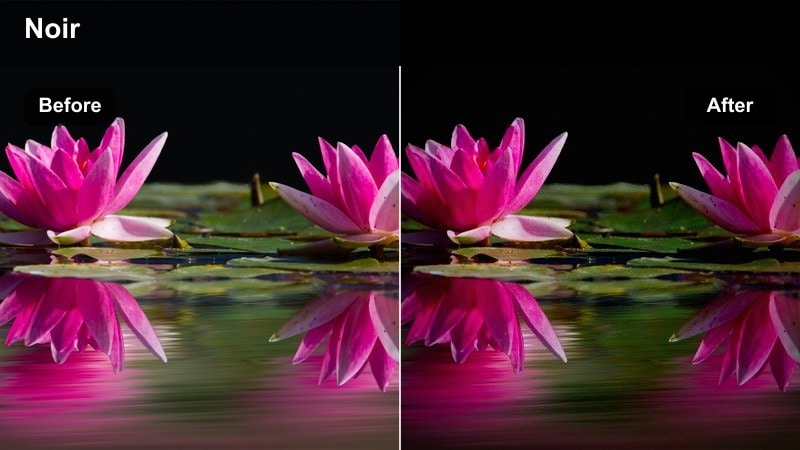
- Effect look: High-contrast, desaturated tones with deep blacks and selective highlight bloom for a noir-inspired LUT feel.
- Best for: Alleyways, parked cars under street lamps, and moody character studies in the city at night.
- Editing tip: In Filmora, slightly reduce saturation and then adjust curves to keep important detail in the midtones.
Midnight Film Noir turns your BMPCC 4K night scenes into stark, story-driven frames with deep shadows and punchy highlights. The desaturated palette and strong contrast channel classic noir cinema, making it ideal for character intros, tense confrontations, or introspective walks through the city.
In Filmora, place this filter on shots where practical lights or single street lamps shape the frame, then carefully manage the curve so midtones retain clothing and facial detail. Start with a slightly brighter exposure in camera, and in post crush only as much of the blacks as needed to preserve texture in coats, hair, and wet pavement.
Purple Neon Fade
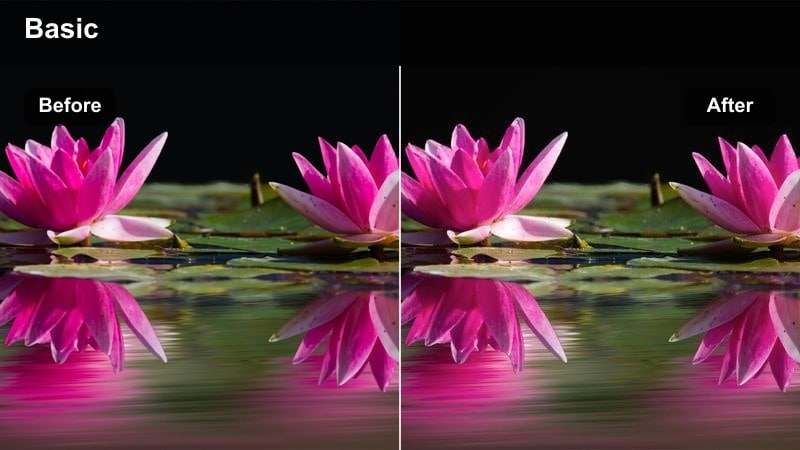
- Effect look: Soft, faded contrast with magenta and purple neon accents that keep highlights punchy but shadows gentle.
- Best for: City rooftop scenes, night markets, and handheld neon-lit B-roll.
- Editing tip: Reduce global contrast slightly in Filmora and tweak magenta saturation to taste based on your neon signage.
Purple Neon Fade leans into magenta and purple tones to give your BMPCC 4K night visuals a dreamy, music-video style feel. Contrast is softened just enough to keep shadows from crushing, while neon signs and colored LEDs stay bright and eye-catching against the city backdrop.
Use this look in Filmora for rooftops, night markets, or carnival scenes where color is part of the story. If skin tones start shifting too far towards magenta, lower the saturation of the magenta channel and, if needed, apply a gentle warm correction over faces so they remain readable while the environment stays richly stylized.
Clean Daylight Street and Documentary Looks
Neutral Documentary Grade
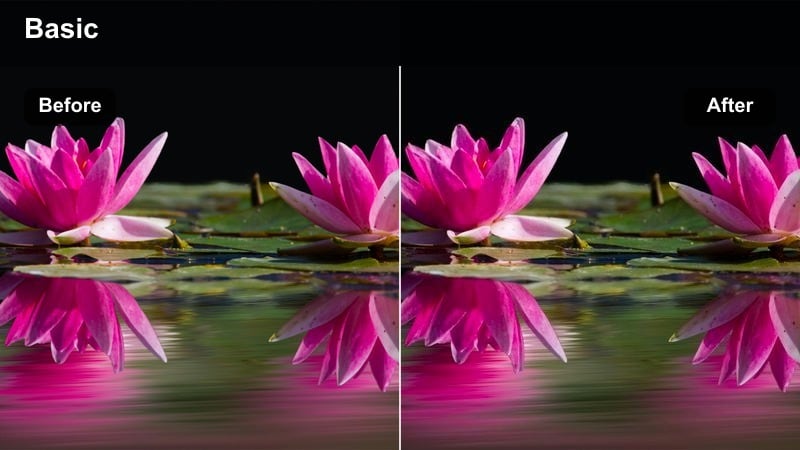
- Effect look: Clean, low-saturation contrast curve that mimics a neutral cinema LUT while keeping colors natural.
- Best for: Run-and-gun documentaries, interviews, and street coverage in daylight with the BMPCC.
- Editing tip: Use Filmora scopes to set true white and black points after applying this filter for broadcast-safe results.
Neutral Documentary Grade gives your BMPCC 4K footage a polished, professional baseline without pushing colors into a heavy stylization. The gentle contrast curve adds depth, while moderated saturation keeps skin, clothing, and environment believable for journalistic or factual storytelling.
In Filmora, apply this look across an entire project as your primary grade, then fine-tune exposure and white balance per clip for consistency. Use the waveform and vectorscope to ensure whites do not clip and colors remain within a safe range, especially if your documentary is headed for broadcast or strict online delivery specs.
Soft Street Chrome
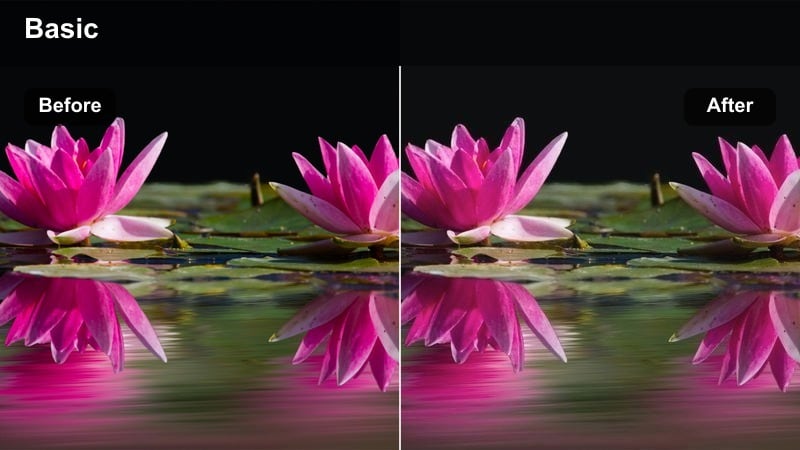
- Effect look: Slightly cool highlights, gentle contrast, and a subtle filmic fade that feels like modern street photography in motion.
- Best for: Walking tours, travel vlogs, and observational street footage in overcast or bright conditions.
- Editing tip: In Filmora, add a small clarity boost to restore micro-contrast if your lens is already soft.
Soft Street Chrome brings a refined, almost photographic feel to BMPCC 4K daylight footage, cooling off highlights slightly while preserving natural midtones. The mild fade and restrained contrast help city textures feel cinematic without making everyday scenes look overly dramatic.
Use this filter for walk-through tours, transit sequences, and observational B-roll, tweaking clarity in Filmora to match your lens and diffusion choices. If faces begin to feel too cool, selectively warm up skin tones with local color adjustments while keeping the overall scene in that chic, cool-leaning street style.
Sunlit City Pop
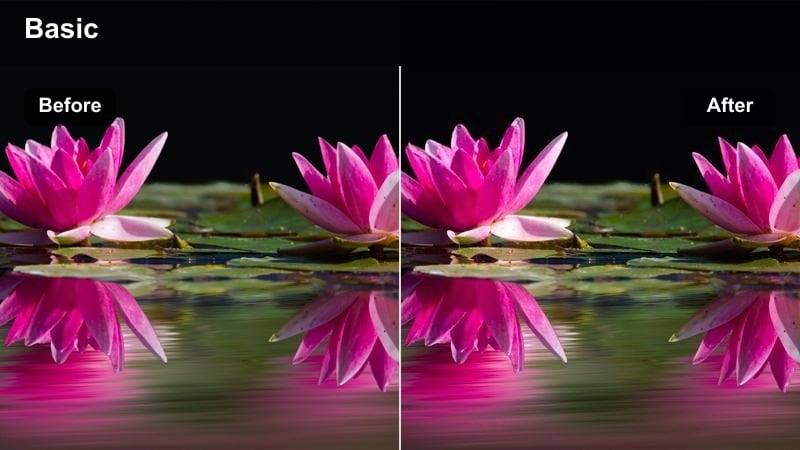
- Effect look: Crisp contrast, vibrant yet controlled saturation, and warm mids that make sunlit buildings and streets pop.
- Best for: Travel montages, establishing shots, and wide city views shot on bright days.
- Editing tip: Dial back saturation of reds in Filmora if traffic lights and signs start to clip or look cartoonish.
Sunlit City Pop is ideal when you want your BMPCC 4K daylight footage to feel bright, energetic, and inviting. It adds punchy contrast and rich color to skylines, architecture, and busy streets, with a slight warmth in the midtones that flatters skin and stone alike.
In Filmora, apply this filter to wide shots, drone inserts, and fast-paced travel montages, then tame oversaturated reds and yellows so signs and cars stay within a tasteful range. If your daylight is very harsh, pull down highlights and consider adding a touch of film grain to soften the digital edge while keeping that vivid, postcard-like impact.
Cinematic Interiors and Creative Story Scenes
Warm Apartment Cinema
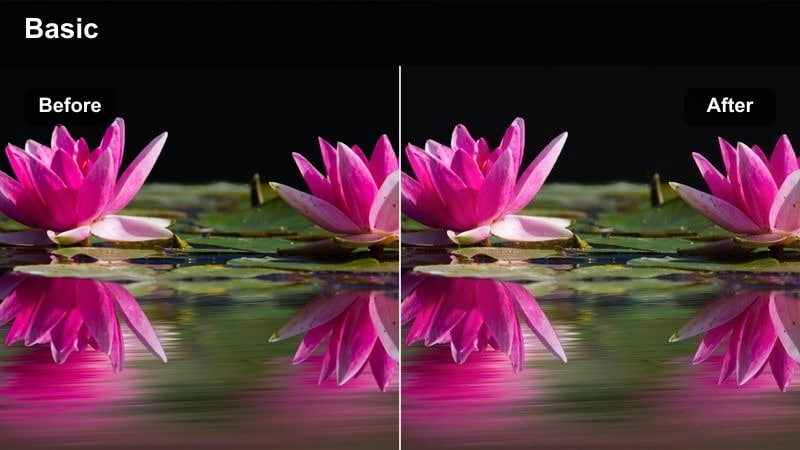
- Effect look: Cozy warm mids, gentle contrast, and soft shadows tuned for indoor tungsten and practical lights.
- Best for: Apartment scenes, desk setups, and dialogue moments lit with lamps and practicals.
- Editing tip: Use Filmora s white balance to cool the image slightly if your room bulbs are very orange.
Warm Apartment Cinema emphasizes the intimacy of indoor scenes shot with the BMPCC 4K, enhancing practical lamp light and candle glow with rich, warm mids. Soft shadows and moderate contrast keep faces readable even in small rooms, helping dialogue and character beats feel inviting and cinematic.
Apply this look in Filmora for living-room conversations, cozy desk setups, or podcast-style interviews, then adjust white balance if your tungsten bulbs skew too orange. Gently controlling highlights from lamps and screens ensures you keep detail in those bright practicals while still letting them feel like the natural source of your scene s warmth.
Muted Story Pastel
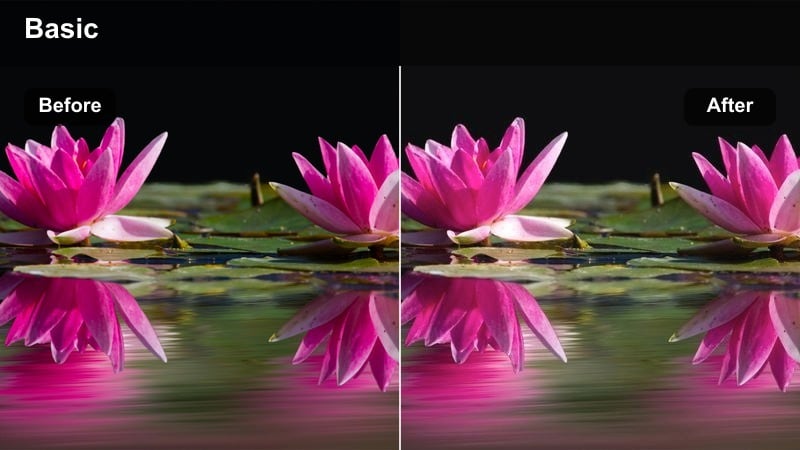
- Effect look: Desaturated pastels, soft contrast, and lifted shadows that emphasize emotion over realism.
- Best for: Short film interiors, character moments, and quiet narrative beats with controlled lighting.
- Editing tip: In Filmora, slightly reduce saturation in greens to keep indoor plants or walls from stealing attention.
Muted Story Pastel pulls saturation down and lifts shadows to create a gentle, introspective mood well-suited to narrative interiors. Colors become soft and understated, allowing expressions, gestures, and composition from your BMPCC 4K footage to carry more of the emotional weight.
Use this filter in Filmora when you want an artful, restrained look for kitchens, bedrooms, or reflective scenes. If specific props like plants or painted walls feel too dominant, target their hues in the color tools and reduce saturation so they recede, keeping focus on characters and key story objects.
Cool Window Drama
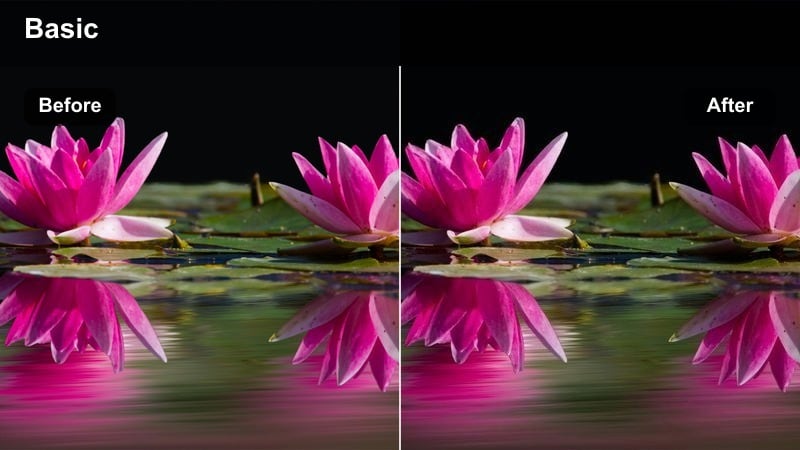
- Effect look: Cool-toned window light with moderate contrast and clean shadows that feel like prestige TV drama.
- Best for: Interior scenes near windows, office sequences, and thoughtful character portraits.
- Editing tip: Use Filmora s gradient masking to slightly brighten faces while keeping backgrounds moodier.
Cool Window Drama takes advantage of natural daylight spilling through windows, shifting it toward a cooler, more serious tone that echoes high-end drama series. It controls contrast so that shadows remain clean but not crushed, letting your BMPCC 4K capture fine detail in suits, hair, and interior textures.
Apply this look to office conversations, contemplative window gazes, or interior monologues in Filmora, then shape light with gradient masks to balance faces against bright panes. A subtle vignette opposite the key light can help frame your subject, guiding attention to eyes and expressions without calling attention to the grade itself.
Tips for Using Bmpcc 4k Cinematic Luts Filters in Filmora
- Shoot BMPCC 4K in log or Film profile to give these cinematic filters more latitude for highlight roll-off and shadow detail.
- Always set exposure and white balance before applying a filter so the look stays consistent from clip to clip.
- Use Filmora s scopes to avoid clipping highlights when stacking contrasty filters on bright city or daylight scenes.
- Lower filter intensity if your footage starts to look over-processed, and lean on subtle local adjustments for faces and key details.
- Create separate presets for day, night, and interior BMPCC footage to keep grading faster and more organized.
- Test each filter on a short reference sequence first, then lock in a show look to stay visually consistent across your edit.
- Combine Filmora s AI color tools with these filters to speed up base correction before you apply your creative grades.
With these BMPCC 4K cinematic LUT-style filters in Filmora, you can move from flat log footage to polished, film-inspired images in just a few steps.
Build a small toolkit of favorite filters for portraits, city nights, and interiors so your grading workflow stays fast, consistent, and ready for any story you want to tell.
secure downloadNext: BMPCC 6K Film LUTS
