

 100% Security Verified | No Subscription Required | No Malware


 ChatGPT
 Perplexity
 Gemini
 Claude
 Grok
Grok
This Canon C70 cinematic LUT pack inspired filter collection is designed for videographers and creators who want rich, filmic color straight out of Filmora without a complex grading workflow.
Below you will find 12 scene-based filters modeled on popular Canon C70 LUT looks, each tuned for different lighting conditions, storytelling moods, and shooting scenarios you face in real productions.
In this article
Golden Hour Stories and Soft Daylight
Sunset Soft Portrait
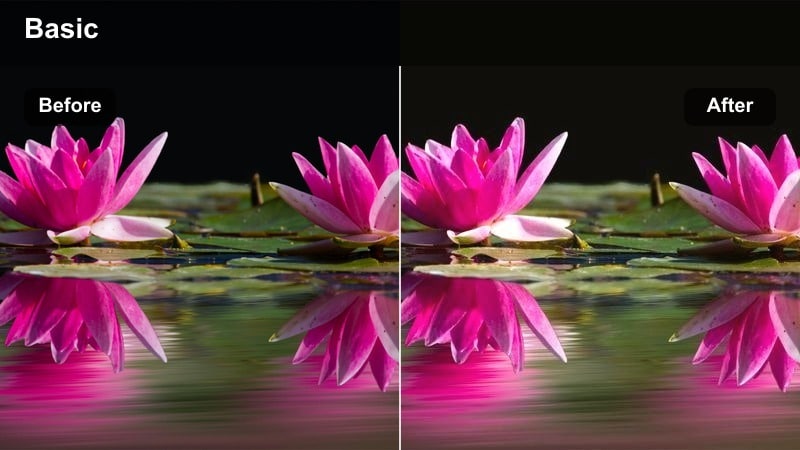
- Effect look: Warm, low-contrast cinematic glow that lifts skin tones and rolls off highlights gently for late-afternoon portraits.
- Best for: Golden hour walk-and-talks, handheld character moments, and backlit Canon C70 lifestyle vlogs.
- Editing tip: Lower the filter intensity to around 60% and slightly reduce midtone saturation to keep sun flares from looking overly orange.
Use Sunset Soft Portrait when you want your Canon C70 golden hour shots to feel romantic and flattering without heavy grading work. The filter adds warmth and a subtle haze that smooths highlight transitions, which works especially well on backlit faces and hair light. In Filmora, apply it on an adjustment layer above your portrait sequence so you can fine-tune intensity for each shot while maintaining a cohesive look.
After you dial in the look, balance the image further with Filmora tools like white balance and curves to keep skin realistic while preserving that cinematic warmth. If your footage was shot in Canon log, convert it with a base Canon C70 LUT first, then stack this filter on top to get both accurate exposure and a filmic finish. For extra polish, add a gentle vignette and sharpen just a touch around the eyes.
Match Canon C70 Color with AI-Powered Controls
Use Filmora s AI color tools to quickly align your Canon C70 footage with the cinematic style of this LUT inspired pack, even when exposure or white balance is slightly off. Starting with a balanced base lets each golden hour, night, or interior filter deliver cleaner, more consistent results across your timeline.
AI assisted adjustments also help you keep skin tones unified across multiple locations, so you can move between exteriors and interiors without obvious color shifts. Once the base is matched, you can focus on creative choices like contrast, mood, and intensity rather than technical corrections.
 secure download

Preview Filters on Real Canon C70 Footage
To see how each look reacts to Canon C70 color science, drop a short sequence of mixed shots into Filmora and quickly cycle through different filters. A few seconds of golden hour, night city, and interior footage is enough to compare how skin tones, highlights, and shadows behave with each style.
Use Filmora s split screen preview to place two or three candidate filters side by side on the same shot. This makes it easy to choose the mood that best fits your story, whether you want soft portraits, gritty neon, or neutral interviews.
secure download1000+ Video Filters and 3D LUTs
Beyond this Canon C70 cinematic LUT inspired pack, Filmora includes a large library of filters and 3D LUTs you can stack for unique looks. Mix stylized filters with subtle film emulations, then save the combination as a preset for fast reuse on future C70 projects.
Experiment by placing a technical Canon C log conversion LUT at the bottom of your stack, then layer creative filters above it for different scenes. This workflow keeps your exposure and color consistent while letting you quickly shift mood from warm travel vibes to intense urban drama.
secure downloadAmber City Glow
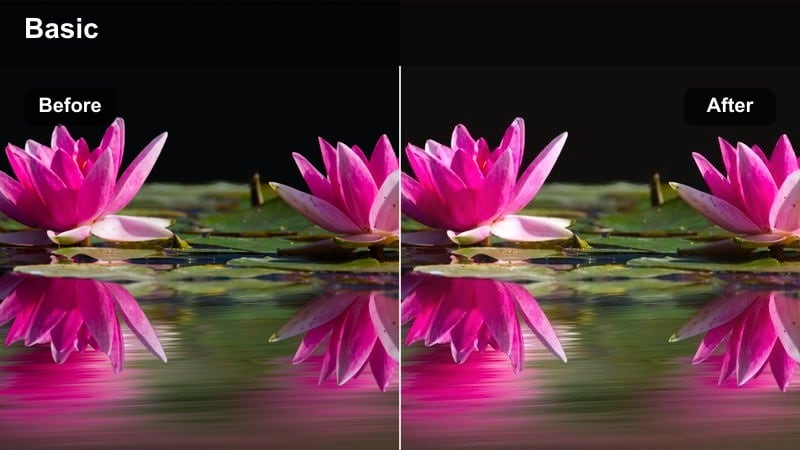
- Effect look: Soft amber cast with lifted shadows and gentle halation-style bloom on streetlights and window reflections.
- Best for: City rooftop sequences, skyline b-roll, and moody golden hour establishing shots on the Canon C70.
- Editing tip: Add a subtle vignette after the filter to guide the viewer's eye toward the subject and give extra depth to skyline shots.
Amber City Glow is ideal for urban sunsets where skyscrapers, windows, and reflective surfaces dominate the frame. The filter wraps the scene in a warm amber cast while lifting shadows enough to keep city detail visible, which complements Canon C70 s dynamic range nicely. Apply it on an adjustment layer spanning your entire rooftop or skyline sequence so the warm tone stays consistent as you cut between angles.
In Filmora, combine this filter with slow push ins or slider shots to enhance the sense of depth it creates. To avoid overdoing the warmth, use white balance controls to keep clouds and concrete from going too orange while letting lights and skin stay rich. A light vignette and a touch of film grain can help sell the cinematic city atmosphere for intros, b roll, and transitions.
Creamy Daylight Film
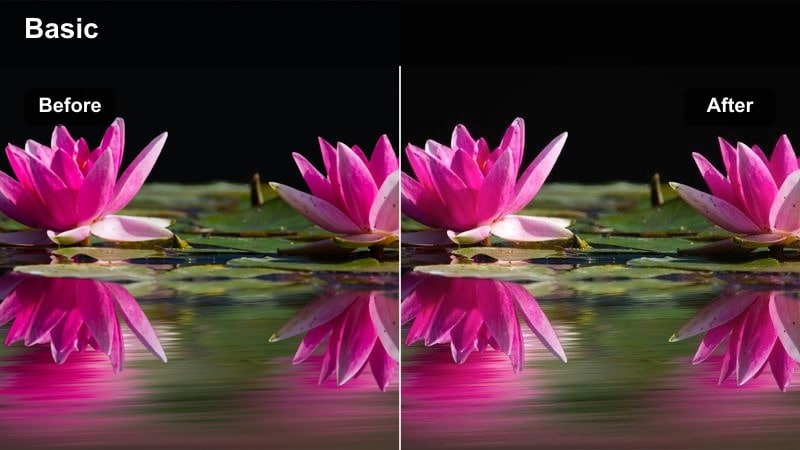
- Effect look: Neutral, creamy contrast with subtle film-like softness and gently rolled-off highlights for daylight exteriors.
- Best for: Daytime interviews, travel vlogs, and documentary b-roll where you want Canon C70 clarity with a filmic finish.
- Editing tip: Dial in a slight S-curve on the luma curve after the filter if your log footage feels a bit too flat for social content.
Creamy Daylight Film gives bright Canon C70 footage a polished, cinematic base without leaning too stylized. It softens harsh mid day light and smooths highlights so faces and skies look more controlled, which is perfect for interviews and to camera vlogs recorded outdoors. Because the palette remains fairly neutral, this filter works well across different locations in the same project.
In Filmora, you can treat this look as your default daytime grade: apply it to an adjustment layer, then fine tune exposure and contrast using curves and basic color tools. If you are editing for platforms where images need more punch, add a gentle S curve and slight saturation boost after the filter. This keeps the creamy character while making your shots stand out on smaller mobile screens.
Night Streets, Neon Signs, and City Lights
Neon Noir Streets
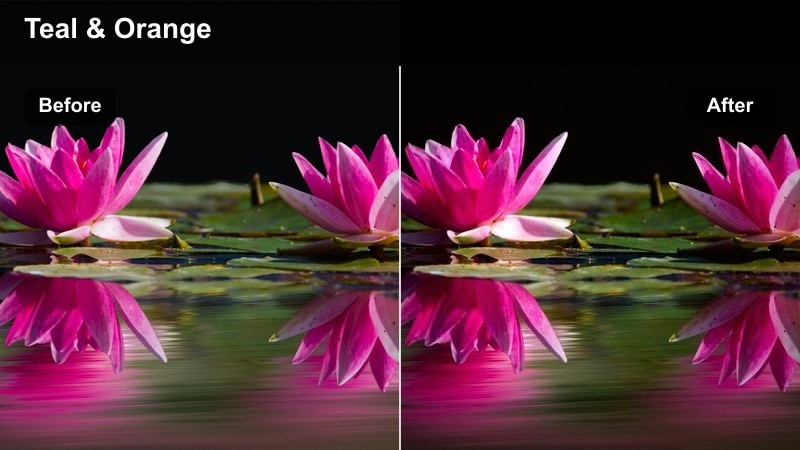
- Effect look: High-contrast, teal-and-magenta leaning palette with rich blacks and saturated neon glow in wet streets.
- Best for: Night city b-roll, cyberpunk-inspired sequences, and handheld Canon C70 run-and-gun street scenes.
- Editing tip: Reduce luminance in blues slightly to deepen the night sky and let neon signs pop without overexposing them.
Neon Noir Streets is built to turn your Canon C70 night footage into a stylized city thriller. The filter deepens blacks, pushes colors toward teal and magenta, and emphasizes reflections on wet pavement and glass. It pairs especially well with shots that include puddles, reflective windows, and bright signage, giving you a moody cyberpunk feel straight out of Filmora.
Apply this look on an adjustment layer over your entire night sequence so the palette stays consistent as you move between locations. To control noise, run light noise reduction before adding the filter, then shape the contrast with Filmora s curves or color wheels. You can also add slight motion blur or speed ramps to accentuate the sense of energy and chaos in fast moving city scenes.
Amber Night Drive
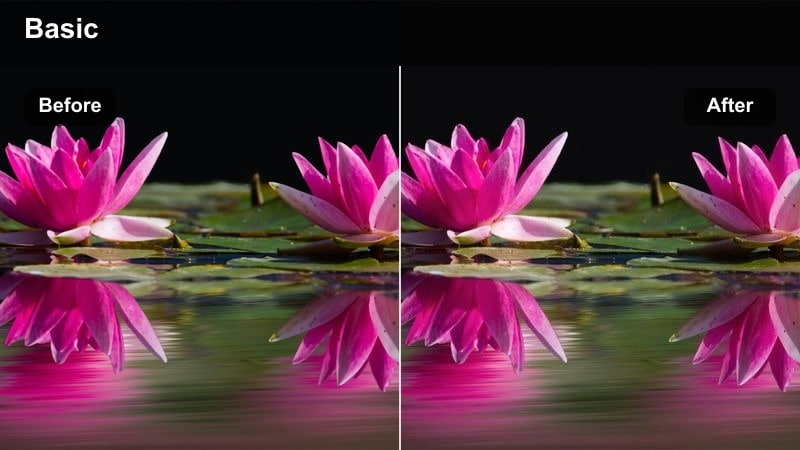
- Effect look: Soft, warm tungsten emphasis with cleaner shadows and gentle halation on car headlights and street lamps.
- Best for: Car-mounted shots, late-night city cruising sequences, and dialogue scenes lit by streetlights on the Canon C70.
- Editing tip: Apply a slight blur on a duplicate track set to low opacity above your main footage to enhance the bloom on bright lights.
Amber Night Drive leans into the nostalgic feel of tungsten streetlights and dashboard glows. When used with Canon C70 car rigs or window framed shots, it adds a comforting warmth while keeping shadows relatively clean so you can still read details inside the vehicle. Headlights and traffic lights gain a subtle bloom that feels cinematic, especially in rain or light fog.
In Filmora, try duplicating your clip, adding a small blur to the top layer, then lowering its opacity to amplify the halation effect around light sources. Adjust the filter intensity to balance warmth with natural looking skin, and use color wheels to keep deep shadows from going muddy. This look is great for narrative road movies, reflective vlogs, and transitional b roll between scenes.
Urban Night Documentary
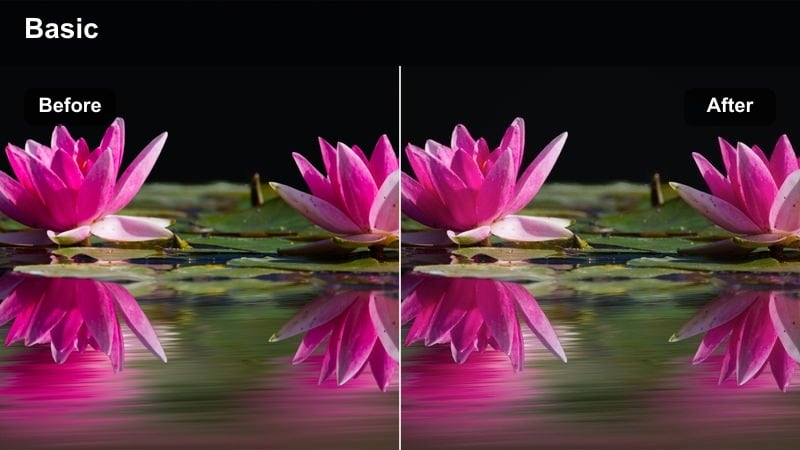
- Effect look: Balanced low-light look with controlled noise, neutral color, and slightly lifted shadows for readable city details.
- Best for: Street interviews, observational docs, and event coverage where accurate color and visibility matter.
- Editing tip: Use Filmora's noise reduction sparingly before applying the filter so texture remains but digital grain is tamed.
Urban Night Documentary is designed for factual work where you need clean, realistic color rather than heavy stylization. It slightly lifts shadows and moderates contrast so background details in the city remain readable, while keeping skin tones natural. On the Canon C70, this filter helps you get the most out of available light without making the image look artificially bright.
When grading in Filmora, perform gentle noise reduction before adding the filter, especially if you shot at higher ISOs. After applying the look on an adjustment layer, refine exposure with the basic color controls and check your waveform to ensure faces are properly placed in the midtones. This approach keeps your documentary footage honest while still giving it a subtle cinematic polish.
Interior Scenes, Interviews, and Dialogue
Soft Room Cinema
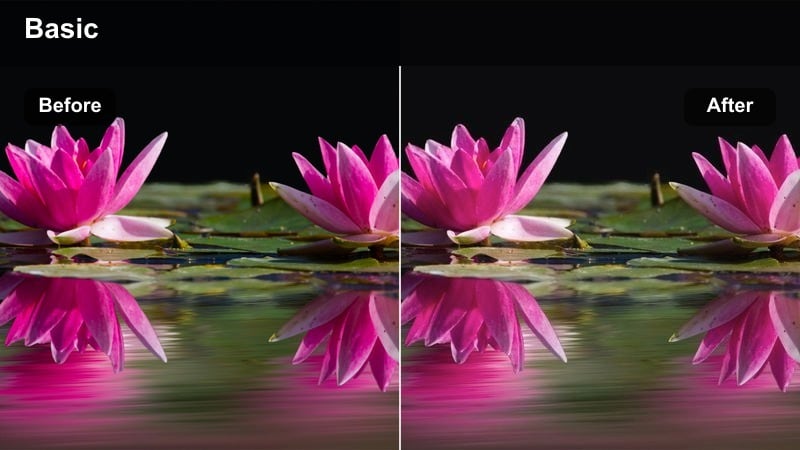
- Effect look: Low-contrast, gentle pastel shift with subtle highlight roll-off for natural-looking interior lighting.
- Best for: Narrative dialogue scenes, talking head setups, and slow, intimate interior moments on the Canon C70.
- Editing tip: Lower clarity slightly after the filter to reduce digital harshness on skin without making the image look blurry.
Soft Room Cinema brings a relaxed, film like quality to interior scenes, especially those lit by windows or soft key lights. It lowers contrast slightly and smooths highlights, helping Canon C70 footage avoid a harsh digital feel in close ups. The gentle pastel shift works well for relationship scenes, lifestyle content, and any moment where you want the environment to feel inviting and calm.
In Filmora, apply this filter to your entire scene, then finesse skin tones using HSL or color wheels if needed. Dropping clarity or sharpness a bit on faces can further reduce harshness while leaving important detail intact. Combine the look with subtle camera movement and well shaped lighting to create an intimate, cinematic atmosphere for dialogue and interviews.
Neutral Interview Pro
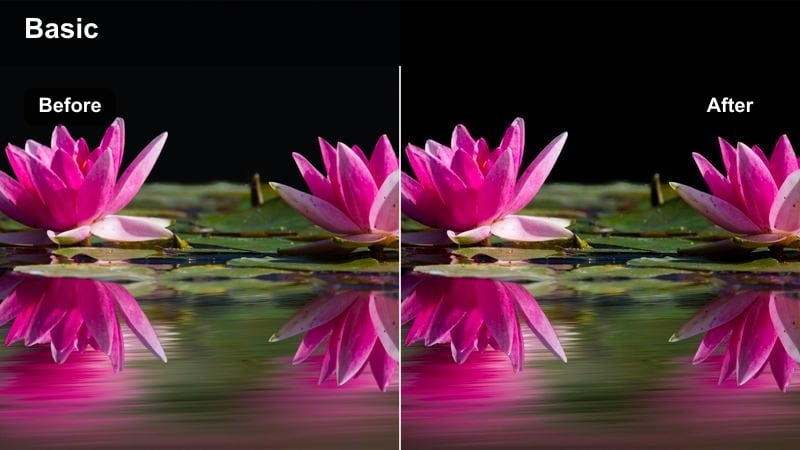
- Effect look: Clean, broadcast-friendly contrast with accurate color and slight micro-contrast enhancement for sharp details.
- Best for: Corporate interviews, educational content, and social clips where brand colors must remain true.
- Editing tip: Push the filter intensity higher than usual, then pull back saturation a touch for a polished, high-end corporate look.
Neutral Interview Pro is built for professional work where accurate skin tones and brand colors are critical. The filter adds a gentle contrast curve and a hint of micro contrast so details like eyes, text, and logos appear crisp without looking over processed. On Canon C70 footage, it gives office and studio interviews a clean, broadcast ready finish.
Inside Filmora, increase the filter intensity a bit more than you might for cinematic pieces, then slightly lower global saturation to maintain a refined aesthetic. Use scopes to ensure whites and blacks stay within safe broadcast levels, and check that brand colors in the frame look faithful. This makes the look ideal for client projects, training videos, and social explainers where consistency and clarity matter.
Moody Office Drama
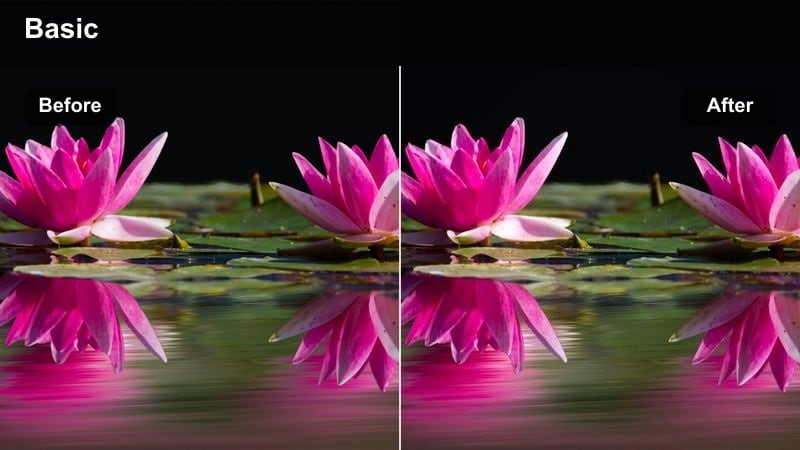
- Effect look: Cooler shadows with warm skin retention, deeper blacks, and focused contrast for tense interior storytelling.
- Best for: Short film office scenes, desk shots, and narrative pieces set in workplaces or studios with mixed lighting.
- Editing tip: Add a subtle gradient mask to darken the background side of the frame and make your subject pop against the room.
Moody Office Drama shifts the tone of ordinary workspaces into something more cinematic and story driven. It cools down shadows while preserving warmth in skin, deepens blacks, and tightens contrast so pools of light feel intentional. This suits Canon C70 narrative work where you want offices, studios, or home workstations to look like dramatic sets rather than flat environments.
In Filmora, use masking tools to gently darken the background or one side of the frame, drawing focus to your subject s face. After applying the filter, refine white balance on the subject so they do not look too cool against the rest of the room. A bit of film grain and selective sharpening around eyes can further elevate the mood, especially in close ups of characters under a single key light or practical lamp.
Travel, Street Vlogs, and Adventure B-Roll
Street Vlog Clean
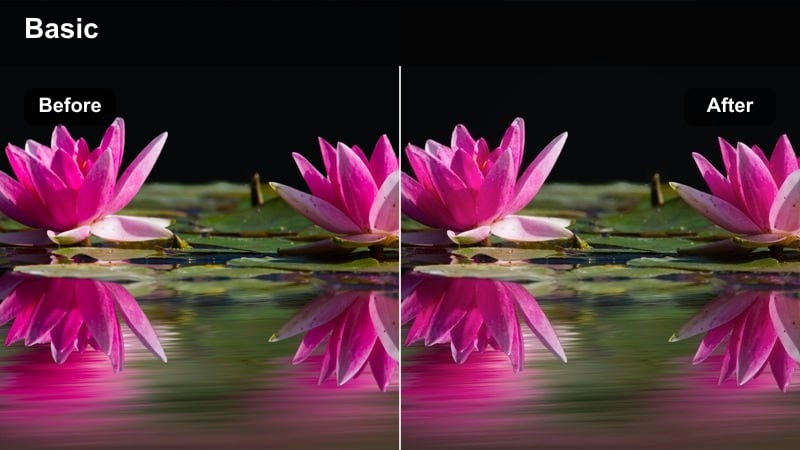
- Effect look: Crisp, punchy contrast with slightly boosted saturation and clean whites for energetic street vlog footage.
- Best for: Canon C70 vlog setups, walk-and-talk sequences, and creator content shot in busy city centers.
- Editing tip: Use slight warp stabilization and crop after applying the filter to keep handheld street footage feeling smooth and professional.
Street Vlog Clean is tuned to make creator content pop on social feeds while keeping Canon C70 footage looking sharp and modern. It adds punchy contrast, a bit of saturation, and clean whites so storefronts, clothing, and signage stand out in crowded environments. This makes it a great everyday look for handheld walk and talk vlogs, reaction shots, and live commentary segments.
When editing in Filmora, apply warp stabilization first if needed, then grade with this filter on an adjustment layer over your vlog sequence. You can fine tune exposure for your face using brightness and contrast, ensuring you remain clearly visible against a busy background. For multi platform delivery, leave some safe margins or frame with vertical crops in mind so the energetic look translates well to shorts, reels, and stories.
Travel Film Postcard
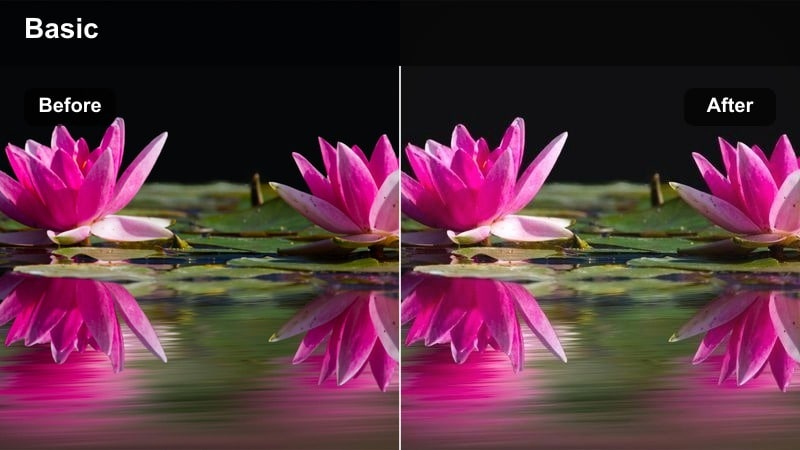
- Effect look: Warm, slightly faded contrast with gentle highlight bloom and soft saturation for nostalgic travel sequences.
- Best for: City explorations, architecture walkthroughs, and cinematic travel montages on the Canon C70.
- Editing tip: Cut to the beat and mix in slow-motion shots; this filter loves lingering movement and subtle camera drift.
Travel Film Postcard leans into nostalgia, giving Canon C70 travel footage a warm, slightly faded charm. It softens contrast and saturation a bit, introduces gentle highlight bloom, and makes old streets, architecture, and landscapes feel like memories. This filter works best with slower camera moves, lingering shots, and natural light.
Inside Filmora, structure your edit around music and apply this look to the entire montage using an adjustment layer. Incorporate slow motion clips, whip pans, and small parallax moves to keep the sequence dynamic while the filter unifies the mood. If the image feels too faded for your taste, gently increase contrast and saturation after the filter until you hit the balance between romantic and readable.
Adventure Contrast Boost
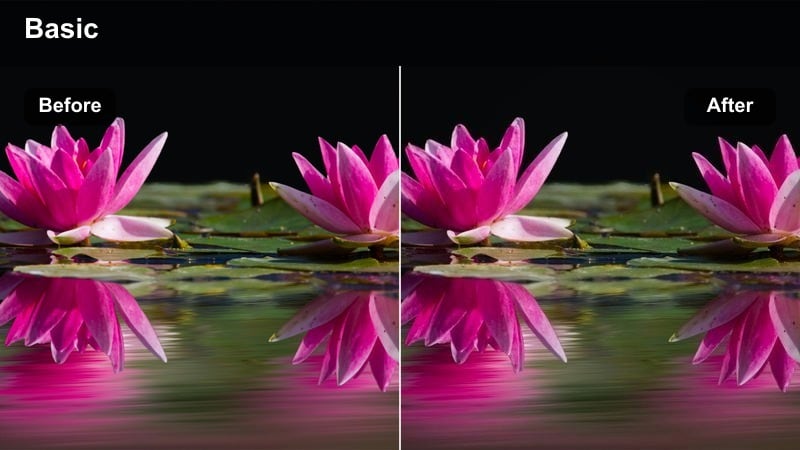
- Effect look: Bold contrast, deeper blues, and clean highlights with a slight cinematic green shift in foliage and city parks.
- Best for: Urban exploring, rooftop adventures, skate sessions, and energetic b-roll on the Canon C70.
- Editing tip: Use speed ramps and dynamic zooms after applying the filter to accentuate movement and impact in your sequence.
Adventure Contrast Boost is made for high energy sequences where you want every frame to feel punchy and dramatic. The filter intensifies contrast, deepens blues in skies and shadows, and adds a subtle green shift to foliage that enhances city parks and rooftop gardens. Canon C70 clips of skating, climbing, or fast paced exploring gain extra impact with this style.
In Filmora, pair this filter with speed ramps, dynamic zooms, and quick cuts to emphasize motion and rhythm. Apply the look across your entire action sequence, then adjust exposure so highlights stay clean and do not clip. Mixing 24 fps shots with slow motion segments will create a strong sense of peaks and valleys in the edit, with the bold grade underlining each big moment.
Tips for Using Canon C70 Cinematic Lut Pack Filters in Filmora
- Shoot Canon C70 log or a flat profile to give these cinematic filters more dynamic range and flexibility when you grade in Filmora.
- Expose for highlights in bright city scenes so skies, windows, and signs keep texture once contrasty filters are applied.
- Use adjustment layers for filters instead of applying them clip by clip to keep your timeline clean and easy to tweak.
- Match white balance across all shots in a scene before adding filters to avoid inconsistent skin tones and color shifts.
- Check noise levels in night sequences and apply light noise reduction first so the added contrast does not exaggerate grain.
- Create separate looks for A roll and B roll so dialogue stays natural while inserts and b roll can be more stylized.
- Monitor your image with Filmora scopes to ensure blacks are not crushed and highlights are not clipping after grading.
- Save project templates with your favorite filter stacks so recurring series or client videos maintain a consistent visual identity.
This Canon C70 cinematic LUT pack styled collection of Filmora filters gives videographers and creators scene specific looks for everything from golden hour portraits to neon soaked city nights. Each filter is tuned to take advantage of Canon color science while keeping your workflow fast.
Experiment with intensity, stacking, and Filmora s AI color tools to shape each look to your project, then save the combinations that best match your Canon C70 storytelling style. Over time you can build a personal library of presets that make every new edit start closer to your final vision.
