

 100% Security Verified | No Subscription Required | No Malware


 ChatGPT
 Perplexity
 Gemini
 Claude
 Grok
Grok
Canon M50 vlog LUTs and filters help you quickly turn standard footage into polished, cinematic videos that stand out on YouTube, TikTok, and Instagram. With the right looks, your skin tones stay natural, skies stay vibrant, and your entire vlog feels cohesive from shot to shot.
Below are curated Filmora filter presets tailored to Canon M50 vloggers, grouped by real-world shooting scenarios so you can pick the perfect look whether you are filming at your desk, walking through the city, or capturing golden hour b-roll.
In this article
Indoor Talking-Head Vlogs and Desk Setups
Soft Studio Glow
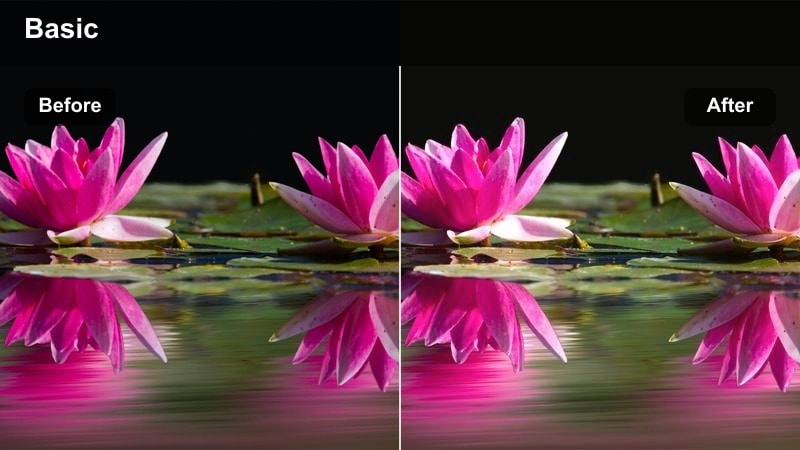
- Effect look: Soft, low-contrast glow with gentle skin smoothing and warm highlights for cozy talking-head shots.
- Best for: Bedroom or home-office vlogs with LED key lights, desk setups, and tutorial style content.
- Editing tip: Lower the filter intensity to around 60-70 percent on the Canon M50 to keep details in hair and eyes while still flattering the skin.
Soft Studio Glow is ideal when your Canon M50 is locked off on a tripod for tutorials, reactions, or any sit-down A-roll. The filter wraps a subtle warmth around highlights, slightly lowers contrast, and gently smooths skin so your face becomes the natural focal point of the frame without looking overly retouched.
In Filmora, apply Soft Studio Glow on top of a well-exposed clip, then fine-tune intensity so your background remains detailed but less distracting. Combine it with light sharpening on the eyes and a touch of vignette to guide attention to your subject, creating a studio-style look even in small bedrooms or makeshift offices.
Match Your Canon M50 Vlog Look with AI Color Tools
Filmora AI color tools can quickly harmonize Canon M50 shots that were recorded in slightly different lighting or picture styles. Once you dial in a Soft Studio Glow grade on one talking-head clip, you can use AI color match to push the rest of your A-roll and B-roll toward the same tone and contrast.
This keeps skin tones consistent across cuts and saves time compared with manually adjusting every clip. It is especially useful when you mix natural window light with LEDs or record over several days.
 secure download

Preview Filters Live on Your Canon M50 Vlog Clips
Before you commit to a look, drop a few Canon M50 clips into Filmora and cycle through multiple filters. Side-by-side preview lets you compare Soft Studio Glow against other styles, so you can see which one fits your desk lighting, wall colors, and personal brand.
Once you find a combination you like, save it as a custom preset so future talking-head sessions are just a couple of clicks away from a finished, upload-ready look.
secure download1000+ Video Filters and 3D LUTs
Beyond a single preset, Filmora gives you a full library of filters and 3D LUTs that pair perfectly with Canon M50 vlog footage. You can stack creative looks, film-style LUTs, and utility adjustments to build a reusable grade that matches your channel aesthetic.
Experiment with different combinations, then save your favorite stacks so every new upload has the same cinematic color mood, whether you are filming indoors or on the go.
secure downloadClean Tech Setup
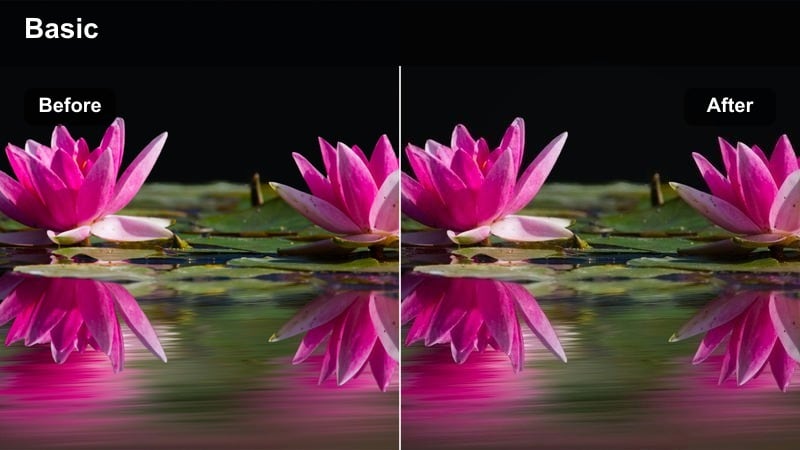
- Effect look: Neutral, crisp contrast with cool midtones and slightly lifted shadows for a modern tech-aesthetic.
- Best for: Desk tours, productivity vlogs, and overhead shots that feature laptops, monitors, and minimal decor.
- Editing tip: Increase clarity and sharpness modestly to make your keyboard, screens, and gear details pop without introducing noise.
Clean Tech Setup pushes your Canon M50 desk footage toward a polished, minimal aesthetic with cool midtones and sharp details. Whites stay neutral, shadows are soft but defined, and screens, keyboards, and gadgets appear crisp and professional.
In Filmora, combine this filter with controlled highlight recovery so bright monitors are not clipped while still looking vivid. Add a subtle vignette or mask to darken the background around your gear, and use text and callouts over the clean image to enhance educational or productivity-focused content.
Warm Cozy Room
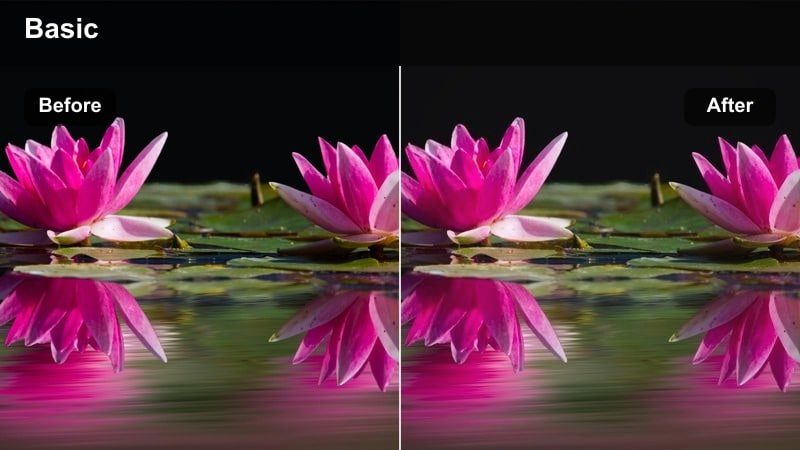
- Effect look: Warm, amber-toned highlights with gentle fade in the blacks, perfect for evening and lamp-lit vlogs.
- Best for: Nighttime room vlogs, journal-style check-ins, and storytime videos lit with practical lamps or LED strips.
- Editing tip: Reduce saturation slightly if your wall colors or blankets become too orange, keeping the warmth mainly on skin and lights.
Warm Cozy Room enhances the natural glow from lamps and LED strips when you shoot late-night Canon M50 vlogs. It lifts blacks subtly, softens contrast, and adds a warm tint to highlights so the frame feels intimate and inviting, perfect for storytelling and personal updates.
In Filmora, apply the filter and then balance overall saturation so the warmth stays focused on skin and practical lights instead of overpowering wall colors. Add gentle noise reduction for high ISO footage and pair the grade with slower cuts and softer music to complete the relaxed, cozy vibe.
Street and City Walk Vlogs
Urban Neutral Walk
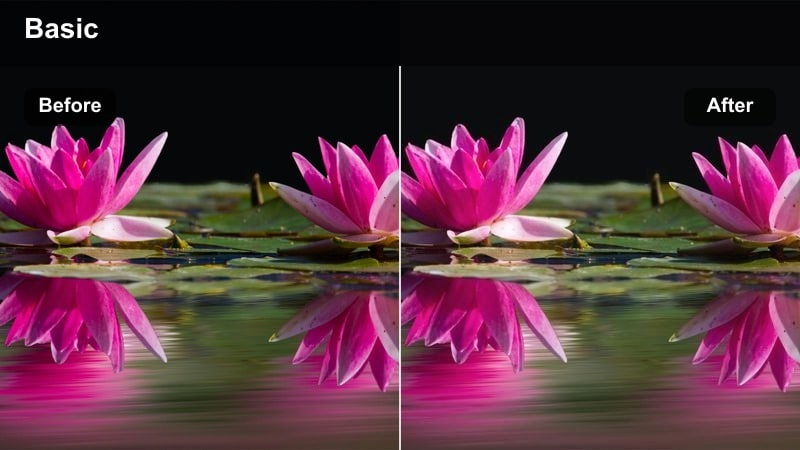
- Effect look: Balanced contrast with slightly desaturated colors and clean skin tones for realistic yet polished city footage.
- Best for: Everyday city walk vlogs, errands, and handheld B-roll shot on busy streets.
- Editing tip: Stabilize your Canon M50 clips in Filmora first, then apply the filter and add a subtle vignette to draw focus to the subject.
Urban Neutral Walk is designed to keep Canon M50 street footage looking true-to-life while gently smoothing out harsh color shifts from mixed lighting. It tones down overly bright signage, cleans up skin tones, and adds just enough contrast to feel cinematic without looking over-processed.
In Filmora, run stabilization and basic exposure correction before adding the filter to avoid amplifying motion blur and noise. Once the grade is on, you can use a light vignette or masks to keep your face or subject prominent among busy backgrounds, making your walk-and-talk segments easier to follow.
City Punch Vlog
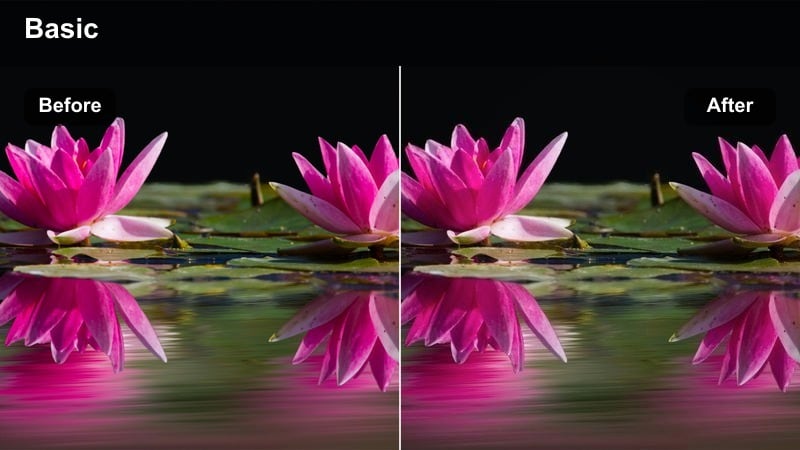
- Effect look: High-contrast, vibrant colors with punchy blues and reds to make signage and street art pop.
- Best for: Travel vlogs in colorful districts, markets, and busy downtown areas with bright storefronts.
- Editing tip: Dial down saturation for reds if skin tones start to look too intense while keeping the rest of the cityscape vivid.
City Punch Vlog is built for energetic Canon M50 city content where color is part of the story. It amplifies blues, reds, and yellows so signage, murals, and storefronts stand out, while strong contrast adds urgency and excitement to your pacing and camera moves.
In Filmora, apply this filter to well-exposed footage and then fine-tune saturation for specific hues using HSL controls, protecting skin tones while letting buildings and signs stay bold. Pair the grade with faster cuts, dynamic transitions, and upbeat music to reinforce the high-energy city atmosphere in your vlogs.
Moody Rainy Street
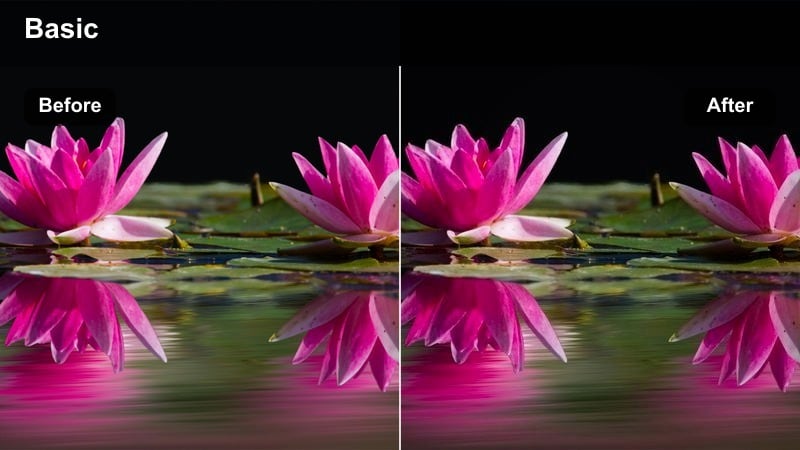
- Effect look: Cool, moody tones with lifted blacks and softened highlights, ideal for overcast or rainy city days.
- Best for: Cloudy day vlogs, evening city walks, and cinematic B-roll of wet pavements and reflections.
- Editing tip: Add a subtle film grain layer after applying the filter to enhance the cinematic mood without overwhelming fine detail.
Moody Rainy Street complements overcast Canon M50 footage by leaning into cooler tones and lifted blacks, giving your city walks a cinematic, reflective atmosphere. Reflections on wet pavement and glass gain extra texture, while highlights stay soft to avoid harsh glare.
Inside Filmora, use this filter on slightly underexposed clips to maintain sky detail, then add a fine grain overlay and gentle vignette for a film-inspired finish. Slow motion clips, lingering shots of streets, and close-ups of raindrops will all feel more intentional and story-driven under this moodier grade.
Outdoor Daylight and Travel Vlogs
Sunny Day Pop
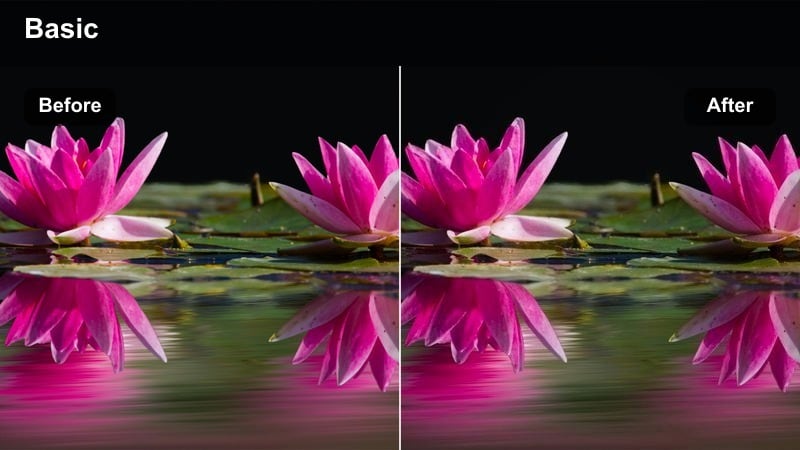
- Effect look: Bright, colorful look with crisp contrast, rich skies, and clean whites ideal for sunny days.
- Best for: Outdoor adventures, city sightseeing, and day trips shot in strong daylight with the Canon M50.
- Editing tip: Pull highlights down slightly and protect blue channels to avoid banding in skies after applying this punchy filter.
Sunny Day Pop is tuned for Canon M50 footage captured under intense sunlight, boosting color and contrast while keeping whites from turning muddy. Blues in the sky become richer, foliage feels more alive, and overall brightness matches the energy of daytime adventures.
In Filmora, add this filter to stable, correctly exposed clips, then adjust highlight and blue channel controls to preserve smooth gradients in the sky. If your skin tones get too saturated, dial back global saturation a touch and rely on the filter s contrast and clarity to keep the scene looking punchy and travel-ready.
Travel Film Soft
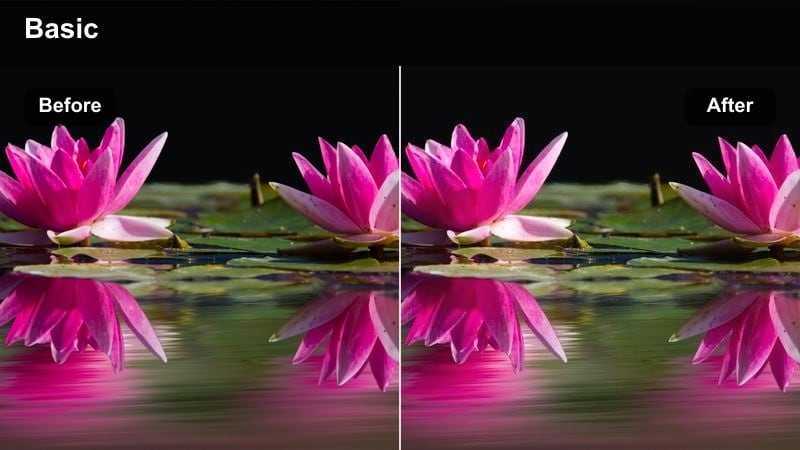
- Effect look: Soft, filmic contrast with slightly muted saturation and gentle halation around highlights for a nostalgic vibe.
- Best for: Slow-paced travel vlogs, handheld street exploration, and scenic overlook shots.
- Editing tip: Reduce sharpness from in-camera on the Canon M50, then let the filter s softness create a subtle film look.
Travel Film Soft gives Canon M50 travel footage a nostalgic, film-like character with gentle contrast and restrained saturation. Highlights bloom slightly, shadows roll off smoothly, and the overall image feels more like a memory than a raw digital capture.
In Filmora, pair this look with slower pacing, cross-dissolves, and lingering scenic shots to emphasize mood over detail. You can stack a light vignette and some ambient sound design over the graded clips, helping your viewers feel immersed in each location instead of distracted by hyper-sharp, clinical visuals.
Nature Day Neutral
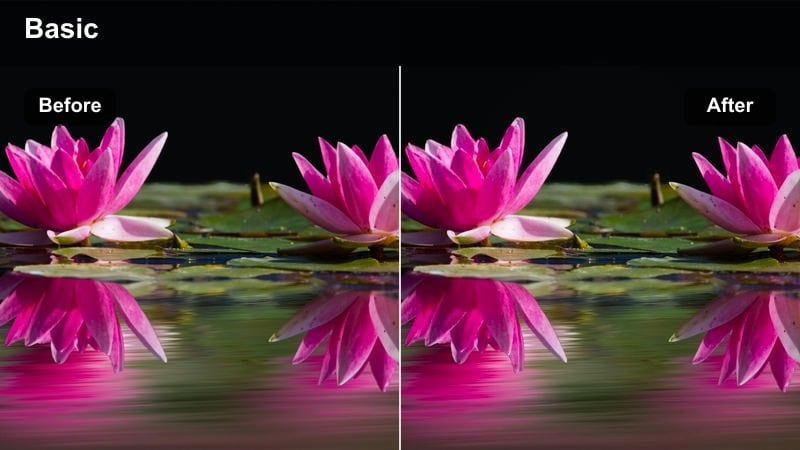
- Effect look: Neutral, true-to-life colors with slightly boosted greens and clear midtone detail for outdoor scenes.
- Best for: Parks, riversides, and hiking vlogs where you want natural foliage and accurate skin tones on the Canon M50.
- Editing tip: If greens look too intense, pull back the green saturation slightly while lifting luminance to keep leaves bright but not oversaturated.
Nature Day Neutral keeps your Canon M50 hiking and park footage looking clean and realistic while giving greens a subtle boost. Skin tones remain accurate, skies stay believable, and the overall color palette feels like what you saw in person, just slightly more polished.
Within Filmora, use this filter on clips with consistent daylight and then fine-tune individual color channels if foliage starts to overpower your subject. A touch of clarity in the midtones can emphasize texture in trees and pathways, while keeping the overall image relaxed and easy on the eyes for longer vlog episodes.
Low-Light, Night, and B-Roll Cinematics
Neon Night Vlog
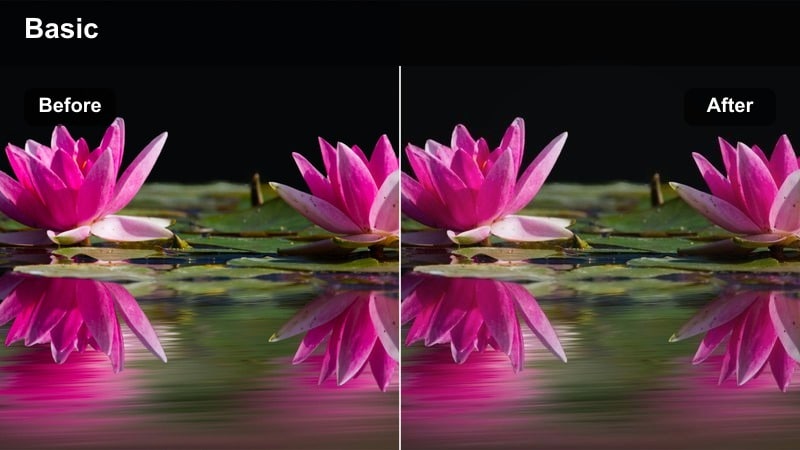
- Effect look: High contrast with deep blacks and vibrant neon colors that emphasize signs, billboards, and street lights.
- Best for: Night city vlogs, street food alleys, and downtown skylines captured on the Canon M50.
- Editing tip: Denoise your high ISO footage lightly in Filmora before applying the filter so neon edges stay crisp without exaggerated grain.
Neon Night Vlog is tailored to Canon M50 night footage in busy urban areas, where colorful signs and billboards dominate the frame. It pushes blacks deeper, intensifies neon hues, and increases contrast to turn casual walk clips into dramatic, stylized sequences.
In Filmora, lightly denoise and stabilize your clips before applying the filter to prevent noise and jitter from becoming more pronounced. After grading, adjust black levels and saturation until you strike a balance between bold, punchy neon and an acceptable noise floor, then sync the look across your whole night sequence for a cohesive night-in-the-city episode.
Golden Hour Glow
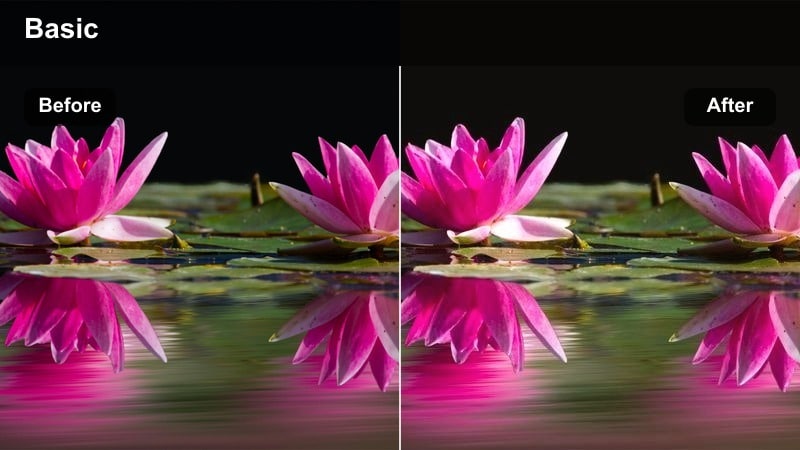
- Effect look: Warm, sun-kissed highlights with soft contrast and gentle flare in bright areas for sunset scenes.
- Best for: Golden hour B-roll, slow motion walking shots, and cinematic silhouettes filmed with the Canon M50.
- Editing tip: Expose your Canon M50 slightly under the sun, then let the filter lift highlights and midtones to achieve a radiant, glowing look.
Golden Hour Glow is crafted to enhance the warm, directional light of sunrise and sunset in Canon M50 footage. It adds a sun-kissed hue to highlights, softens overall contrast, and allows backlit edges to bloom slightly, making even simple walking shots feel cinematic.
Inside Filmora, apply the filter to clips that protect highlight detail, then gently raise exposure or midtones until skin and skies glow without clipping. You can layer in a subtle light leak or lens flare effect and slow motion to further emphasize the dreamy, end-of-day atmosphere in your vlogs and B-roll sequences.
Cinematic B-Roll Fade
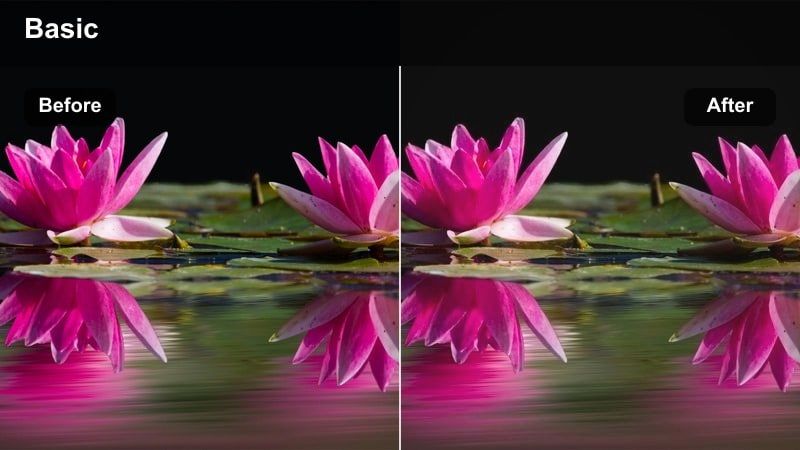
- Effect look: Faded blacks, gentle contrast roll-off, and cool shadows designed for slow, stylized B-roll sequences.
- Best for: Detail shots of city architecture, transitions, and slow-motion B-roll around lights and reflections.
- Editing tip: Pair this filter with slower music and speed ramping in Filmora to emphasize your B-roll pacing and style.
Cinematic B-Roll Fade shifts Canon M50 footage toward a softer, more atmospheric style with lifted blacks and cooler shadows. It works especially well on detail shots of architecture, reflections, and environmental textures that bridge major sections of your vlog.
In Filmora, use this filter selectively on B-roll sequences rather than your entire timeline, so transitions feel distinct and story beats are clearly marked. Combine the grade with speed ramps, gentle motion blur, and beats in your soundtrack to create rhythmic transitions and polished montage sections that separate your content from standard point-and-shoot vlogs.
Tips for Using Canon M50 Vlog Luts Filters in Filmora
- Shoot your Canon M50 in a flatter picture style so Filmora filters and LUTs have more room to shape contrast and color.
- Keep white balance consistent within each scene so your Canon M50 vlog LUTs and filters do not have to fight big color temperature shifts.
- Adjust intensity for every filter instead of using it at 100 percent so skin tones and details remain natural.
- Stabilize handheld Canon M50 clips before grading; shaky footage quickly looks worse with high-contrast looks.
- Balance exposure globally in Filmora before stacking multiple LUTs and filters to avoid clipped highlights and muddy shadows.
- Use Filmora color wheels or HSL tools to refine specific hues like greens and reds after applying a LUT for more precise control.
- Export a short color test vlog and watch it on your phone and laptop to confirm your LUT and filter choices translate well.
- Save your favorite Canon M50 LUT and filter combinations as custom presets so every new vlog starts from a consistent base grade.
With the right Canon M50 vlog LUTs and Filmora filters, you can turn casual everyday footage into cohesive, cinematic stories without getting lost in complex grading tools. Different looks help you match the mood of each scene, from cozy desk setups to neon city nights.
Start by matching a filter to your scene type, tweak intensity and exposure, then save your favorites as presets so every new vlog keeps the same polished, recognizable style across your channel.
secure downloadNext: Canon R7 Outdoor LUTS
