

 100% Security Verified | No Subscription Required | No Malware


 ChatGPT
 Perplexity
 Gemini
 Claude
 Grok
Grok
These City Plaza Lifestyle Video LUT-inspired filters are designed for content creators who want a clean, modern urban look without spending hours in color grading panels.
From daytime shopping scenes to golden-hour walks and neon-lit nights, you can quickly match your plaza footage with cohesive tones that feel cinematic, minimal, and on-brand.
In this article
Bright Daytime City Plaza Vibes
Soft Plaza Glow
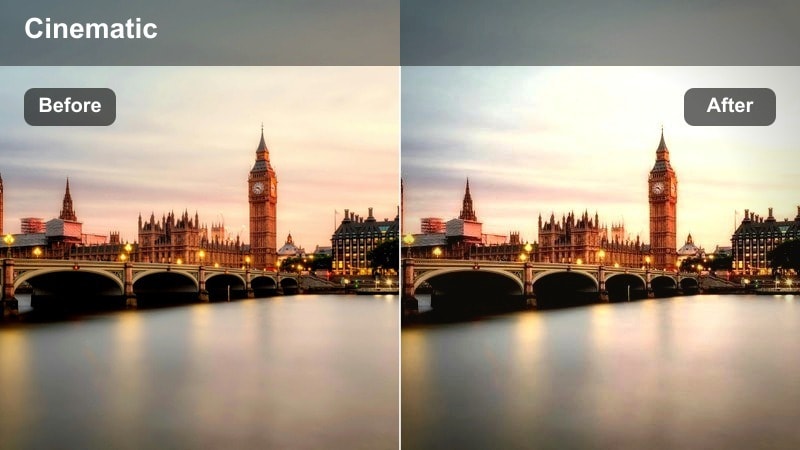
- Effect look: Softens contrast and lifts shadows for a bright, airy plaza feel.
- Best for: Lifestyle vlogs, coffee runs, and casual daytime shopping shots in open plazas.
- Editing tip: Dial back the filter intensity to 60-70 percent and slightly boost saturation to keep skin tones natural.
Soft Plaza Glow is ideal when you want your city plaza footage to feel light, inviting, and effortless. By gently lifting shadows and reducing harsh contrast, it smooths out distracting details in the background while keeping your subject in flattering, soft daylight. In Filmora, this look is perfect for handheld vlog sequences as you move between storefronts, open squares, and glass facades.
Apply the filter on an adjustment layer above your clips, then use the intensity slider to fine-tune how bright and airy the scene becomes. If your camera exposed for the background, slightly increase exposure and saturation in Filmora so skin tones do not look washed out. Combine this filter with subtle stabilization and a soft vignette to keep focus on you, even in busy mid-day plaza environments.
Let Filmora AI Match Your City Plaza Aesthetic
If you like the City Plaza Lifestyle Video LUT style but need it to align with your specific camera profile and lighting, Filmora AI tools can quickly normalize exposure and color. Start by applying AI Smart Color to balance your overall image, then use AI Portrait to refine skin tones before layering your plaza-inspired filter.
This workflow gives you a reliable base grade, so every Soft Plaza Glow or other plaza filter sits consistently across different clips and shooting days. You spend less time fixing color problems and more time shaping a signature city aesthetic.
 secure download

Preview Filters on Real City Plaza Footage
Instead of guessing how a plaza filter will react, drop a short clip of a walk through your local square into Filmora and cycle between multiple looks on adjustment layers. This makes it easy to compare soft lifestyle grading against higher-contrast options in real time.
As you preview, watch how window reflections, paving stones, and clothing colors shift with each style. When you find a combination that flatters your plaza while keeping skin natural, save it as a custom preset you can reapply in a click.
secure download1000+ Video Filters and 3D LUTs in Filmora
Filmora includes an extensive library of filters and 3D LUTs that you can stack with these plaza-inspired looks to refine your brand identity. Mix subtle film emulation, color shifts, and texture overlays to build a layered grade that feels unique to your channel.
Once you have dialed in the combination you love, save it as a reusable preset so every city plaza vlog, reel, or ad automatically shares the same polished treatment.
secure downloadCrisp Urban Plaza
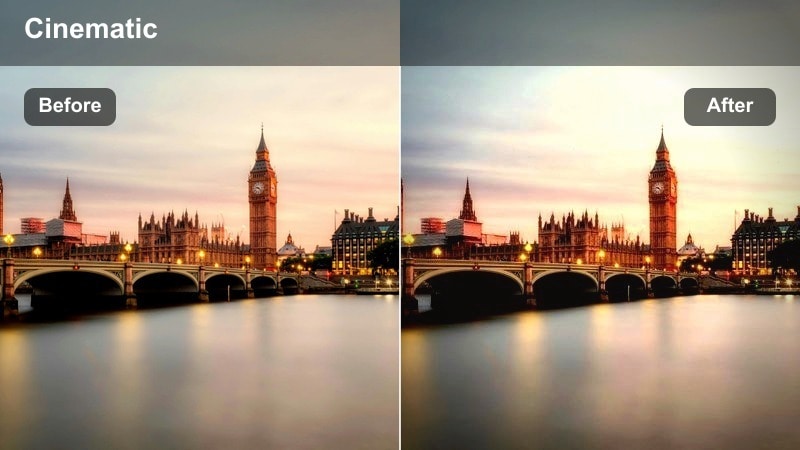
- Effect look: Adds clean contrast and neutral color balance for a polished city aesthetic.
- Best for: Talking-head clips filmed near fountains, benches, and storefronts in city plazas.
- Editing tip: Reduce highlights slightly to protect skies and building details, then add a tiny clarity boost.
Crisp Urban Plaza is made for A-roll where you want your message and your face to look professional and reliable. The neutral color balance prevents color casts from glass, concrete, or reflective surfaces from dominating your frame, while the added contrast sharpens edges on architecture and clothing.
In Filmora, place this filter on all your primary timeline shots, then manually trim highlight levels so clouds, glass reflections, and signage stay detailed. Add a subtle clarity or sharpen adjustment to enhance micro-contrast on your features. Reuse this grading for recurring series or playlists so viewers instantly recognize your polished city plaza look.
Plaza Pastel Lite
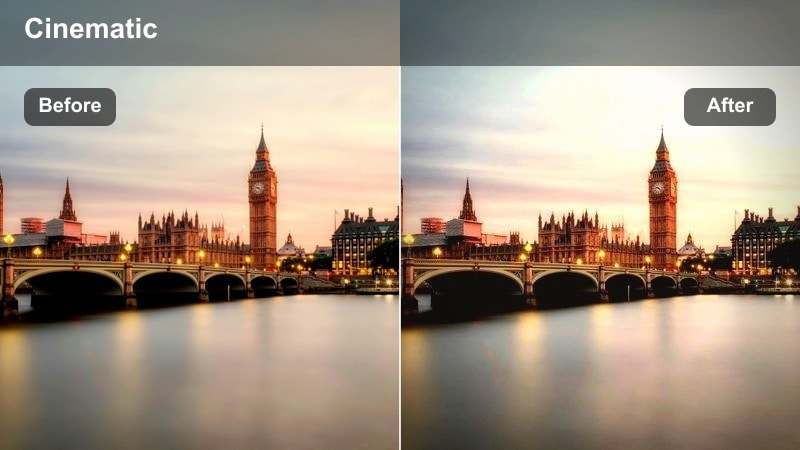
- Effect look: Soft pastel treatment with reduced contrast and gentle color shifts.
- Best for: Outfit-of-the-day clips, storefront browsing, and relaxed lifestyle reels.
- Editing tip: Lower saturation on reds and oranges if storefront signs feel too loud in the background.
Plaza Pastel Lite transforms high-energy city scenes into calm, aesthetic backdrops that support your outfit and posing. By easing off contrast and nudging colors into a softer palette, it tones down harsh reds, bright signage, and busy details so the frame feels curated rather than chaotic.
Use this filter in Filmora on fashion-focused clips, then refine the look with HSL controls to subdue any distracting brand colors behind you. Keep exposure slightly on the bright side and pair the pastel grade with gentle camera movements or slow motion for an editorial, scroll-stopping style across Reels, Shorts, and TikTok exports.
Golden Hour Plaza Lifestyle
Sunset Plaza Warmth
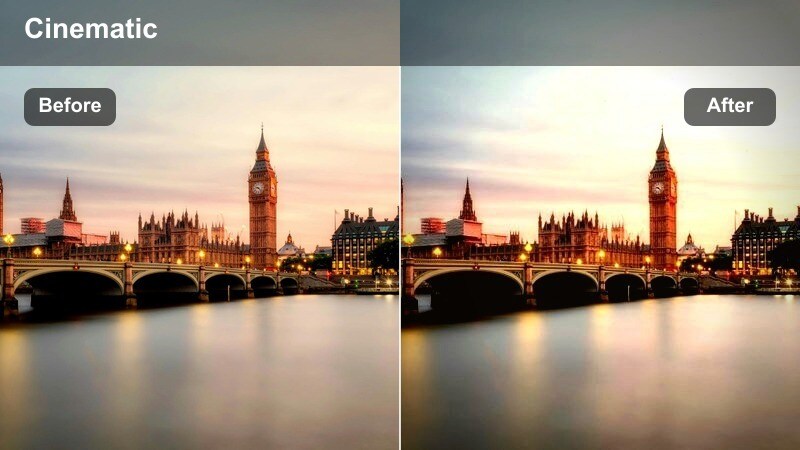
- Effect look: Enhances golden tones, warms skin, and deepens midtones for a cinematic sunset feel.
- Best for: Golden-hour walks, rooftop views over the plaza, and couples' lifestyle content.
- Editing tip: Fine-tune white balance slightly cooler if your original footage was already very warm.
Sunset Plaza Warmth leans into late-afternoon and early-evening light, emphasizing sun flares, long shadows, and glowing skin. The deepened midtones add cinematic weight to silhouettes, while warm highlights make glass, brick, and metal surfaces feel rich and romantic.
In Filmora, apply this filter to clips captured within an hour of sunset, then adjust white balance if your camera already recorded strong orange tones. Use keyframes on intensity if your sequence shifts from sunlit plaza paths to shaded alleys, so the warmth feels natural. Layer with light leaks or flare overlays at low opacity to emphasize sun direction without obscuring your subjects.
Amber Plaza Stroll
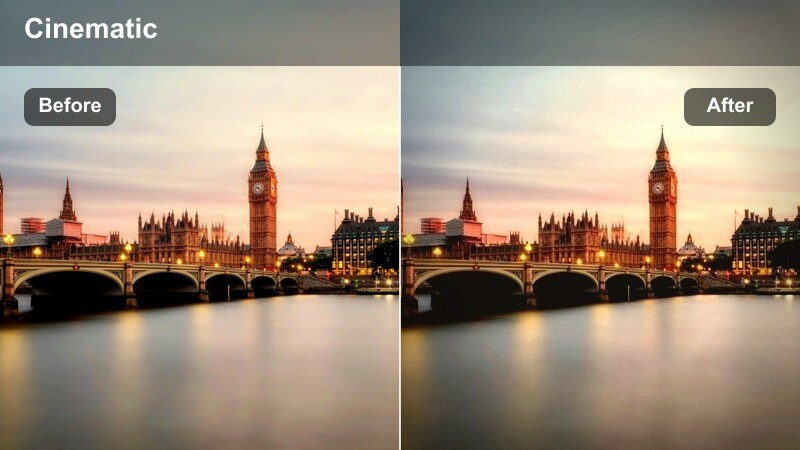
- Effect look: Adds amber highlights and gentle fade in the shadows for a nostalgic vibe.
- Best for: Slow-motion walking shots, group hangouts, and candid plaza moments at dusk.
- Editing tip: Slow your clips to 50-60 percent speed and add gentle motion blur to emphasize the dreamy mood.
Amber Plaza Stroll wraps your dusk footage in a soft, memory-like glow that feels perfect for friendship clips and reflective lifestyle edits. The amber tint in the highlights mimics the last light of day, while the faded shadows remove harsh contrast and give footage a subtle vintage atmosphere.
Inside Filmora, pair this filter with slowed footage and smoother transitions such as dissolves or whip pans. Add a tiny amount of Gaussian blur on an adjustment layer and lower the opacity to create an even more dreamy texture. Use it on B-roll that bridges day and night sequences so your viewers feel the shift in time through color, speed, and sound design.
Golden Plaza Cinematic
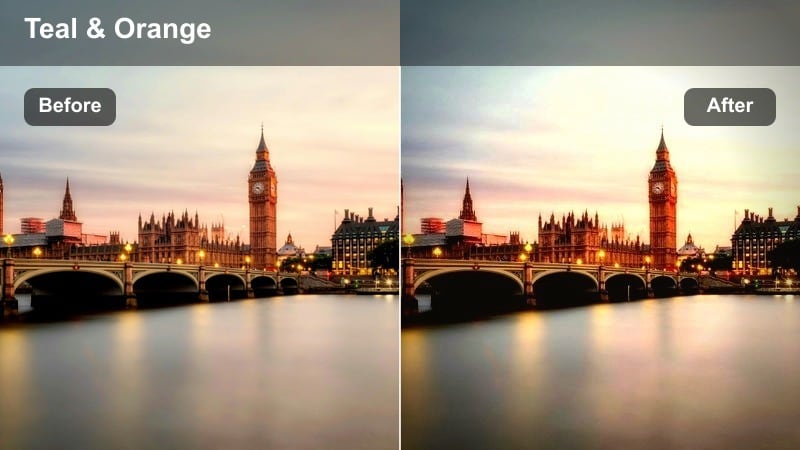
- Effect look: Boosts contrast, adds slight teal shadows, and highlights warm sunlight for a blockbuster style.
- Best for: Hero shots of creators, cinematic B-roll, and product showcases in outdoor malls.
- Editing tip: Frame your subject against the sky or tall buildings to take advantage of the teal and gold palette.
Golden Plaza Cinematic pushes your golden-hour footage into a bold teal-and-gold palette that instantly feels like a movie trailer. Stronger contrast carves out shapes in architecture and clothing, while cool shadows complement the intense golden highlights on skin and sunlit surfaces.
Use this look sparingly in Filmora on hero shots, intros, and outros so it feels special and elevated. Add letterbox bars, a slower frame rate conversion, or cinematic sound design to reinforce the mood. For product shots, position items so warm sunlight wraps around them, letting the teal shadows in the background provide dramatic separation and focus.
Neon Nightlife and Evening Plaza Scenes
Neon Plaza Pop
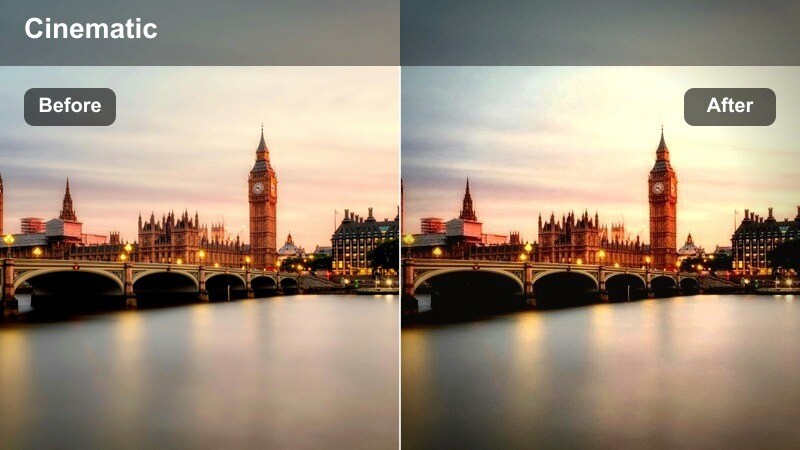
- Effect look: Intensifies neon signage, deepens blacks, and adds subtle cool shadows.
- Best for: Night shopping districts, city plaza billboards, and streetwear reels.
- Editing tip: Reduce noise first, then apply the filter so deep blacks stay clean and rich.
Neon Plaza Pop is tailored for high-energy night scenes packed with LEDs, billboards, and store signs. By deepening blacks and enriching saturated colors, it makes signage and streetwear details punch through the frame, giving your plaza content a bold nightlife identity.
In Filmora, start with noise reduction on your raw clips to clean up high-ISO footage, then add this filter on top. Consider raising saturation selectively on blues, magentas, and cyans using HSL to make specific neon tones stand out. Combine with faster cuts, beat-synced transitions, and sound effects like crowd murmur or traffic for dynamic street edits.
Cool Plaza Midnight
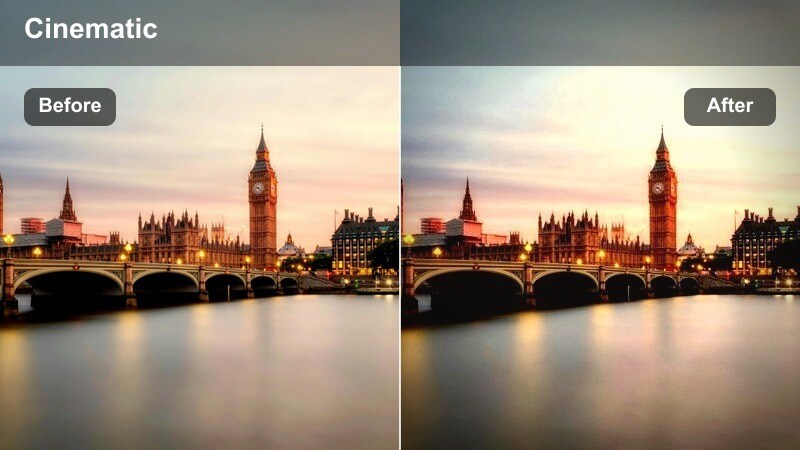
- Effect look: Cools overall tones, softens highlights, and pulls skin slightly neutral for low-light shots.
- Best for: Late-night conversations on benches, moody cinematic walks, and reflection shots in windows.
- Editing tip: Lift shadows just a bit so details in dark clothing and paving stones stay visible.
Cool Plaza Midnight shifts your night scenes into a blue-leaning, cinematic palette that feels introspective and calm. Highlights are tamed to prevent blown-out streetlights, and skin tones are balanced so they do not pick up unwanted color from nearby signs or windows.
Within Filmora, this filter works especially well for narrative or voiceover-driven segments. Slightly raise the blacks and shadows to keep texture in dark areas, then add a subtle vignette to focus attention on your subject. Pair with slower camera moves and ambient soundtracks to create thoughtful night walks, bench talks, or reflective storytelling sequences.
Cinematic Night Plaza
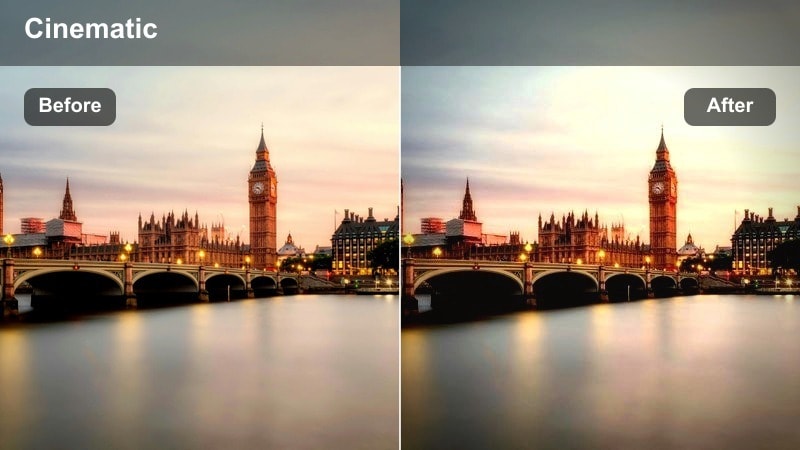
- Effect look: Adds strong contrast, rich color density, and subtle film-like halation around bright lights.
- Best for: Montages of nightlife, restaurant patios, and time-lapse shots across the plaza.
- Editing tip: Use moderate sharpening and a slight vignette to keep attention on subjects under bright streetlights.
Cinematic Night Plaza turns ordinary plaza lighting into dramatic, filmic highlights with rich color depth. The added contrast and density make crowds, facades, and light pools feel more dimensional, while the subtle glow around bright points emulates classic film halation.
In Filmora, apply this look to time-lapses, drone shots, or B-roll montages of nightlife to bridge different scenes or chapters of your video. Punch in with digital zooms on key moments, and use speed ramps to accent beats in your soundtrack. A gentle vignette and controlled sharpening will help your main subjects stand out from the busy evening environment.
Minimal and Brand-Friendly City Plaza Looks
Minimal Plaza Clean
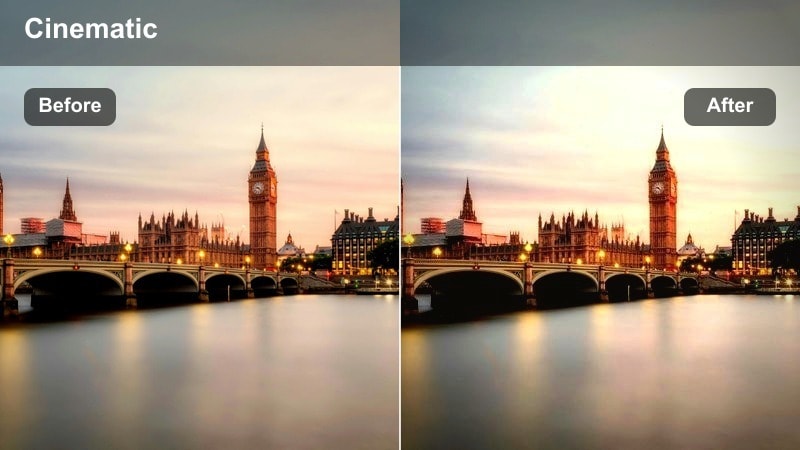
- Effect look: Desaturates busy colors slightly while keeping skin tones balanced and bright.
- Best for: Brand collaborations, product placements, and influencer talking-heads filmed in plazas.
- Editing tip: Keep this filter subtle and adjust exposure manually so logos and products stay readable.
Minimal Plaza Clean is built for sponsored segments and brand-safe content where clarity and professionalism matter. By slightly muting background colors while protecting skin tones, it reduces visual noise from signs, ads, and crowds so the viewer focuses on you and the product.
Apply this filter in Filmora whenever you shoot ads or product mentions in busy plazas, then fine-tune exposure and contrast by hand. Check that packaging colors and logos remain accurate by toggling the filter on and off. Combine with simple lower-thirds and clean typography so your entire sponsored segment feels cohesive and on-brand for both you and your partners.
Plaza Neutral Film
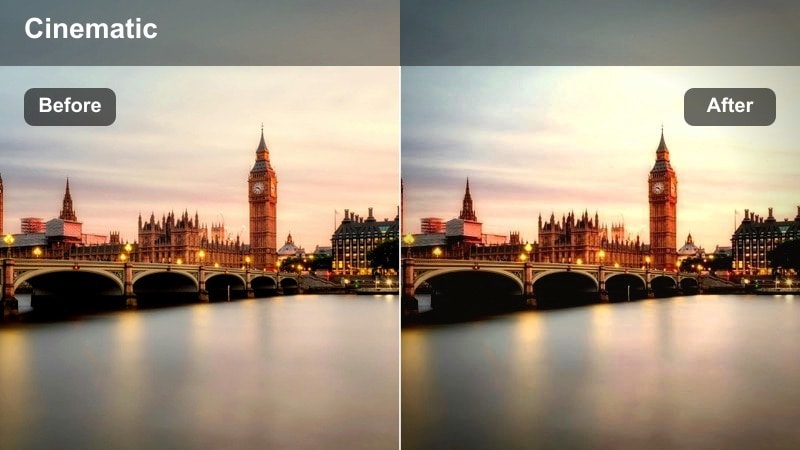
- Effect look: Adds a soft film-like curve with neutral colors and slight grain-style texture.
- Best for: Lookbooks, slow fashion edits, and cinematic lifestyle sequences in open squares.
- Editing tip: Lower the filter intensity for close-ups so faux grain and contrast do not overpower faces.
Plaza Neutral Film gives your plaza shots a timeless editorial flavor with gentle contrast and a subtle film-inspired texture. Colors stay neutral and versatile, making this look ideal for fashion, lifestyle stories, and long-form series where you want a consistent visual identity that will not date quickly.
In Filmora, use this filter across multiple episodes or playlists, especially when you are mixing close-ups with wide plaza vistas. Dial the intensity down for tight shots so the simulated grain and contrast do not become distracting. Save your preferred settings as a custom preset or LUT-style workflow so every new city shoot can instantly match the established series look.
Plaza Brand Matte
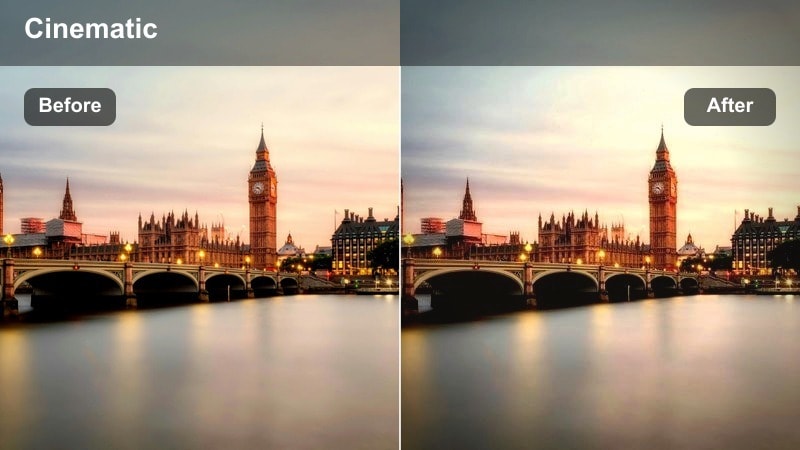
- Effect look: Introduces a gentle matte finish with lowered contrast and controlled highlights.
- Best for: Channel intros, text overlays, and minimal aesthetic reels set in city plazas.
- Editing tip: Overlay your logo or text in white or brand colors to stand out against the softened background.
Plaza Brand Matte flattens contrast slightly and softens bright areas, creating a calm, neutral backdrop that is perfect for titles, graphics, and branding. The matte finish makes text easier to read over complex city scenes and keeps the overall frame feeling intentional and design-driven.
Use this look in Filmora on channel openers, end screens, and announcement posts shot in plazas. Leave negative space in your framing so there is room for logos, subtitles, or call-to-action graphics. Save a template project that combines this filter, your intro animation, and your brand fonts so every new video can start with the same polished visual identity.
Tips for Using City Plaza Lifestyle Video Lut Filters in Filmora
- Film plaza clips with slightly flatter exposure so your filters have room to add contrast and character without clipping highlights.
- Shoot a short reference walk in your main city plaza at different times of day, then test which filters best match each lighting condition.
- Keep filter intensity between 50-80 percent for sponsored or client work so colors stay natural and logos remain accurate.
- Stick to one or two core filters for A-roll and use bolder ones only on B-roll to maintain visual consistency across your videos.
- Save your favorite plaza filter combinations as presets in Filmora so you can apply your signature look to new footage instantly.
- Use adjustment layers in Filmora to apply plaza filters across multiple clips at once, making global tweaks faster and more consistent.
- Combine Filmora AI enhancements with plaza filters to quickly correct exposure and skin tones before you stylize your footage.
- Export short test clips with different plaza filters and review them on your phone to see how the colors feel on typical viewer screens.
City Plaza Lifestyle Video LUT-style filters give content creators a fast way to build a consistent, cinematic look across daytime, golden-hour, and night scenes in busy urban squares.
Experiment with intensity, exposure, and AI tools in Filmora until you land on a city plaza aesthetic that matches your personal brand, then turn it into a preset you can reuse on every new project.
secure download