

 100% Security Verified | No Subscription Required | No Malware


 ChatGPT
 Perplexity
 Gemini
 Claude
 Grok
Grok
City footage can look flat straight out of the camera, especially under mixed neon, street, and daylight. With the right city video filters for YouTube, you can quickly give your urban vlogs and exploration clips a cohesive, cinematic style that stands out in the feed.
Below are 12 Filmora friendly city filters and grades tailored for YouTube city vloggers and urban content creators, with practical examples for typical YouTube city vlogs and urban exploration channels.
In this article
Warm City Glow and Golden Hour Filters
Sunset Rooftop Glow
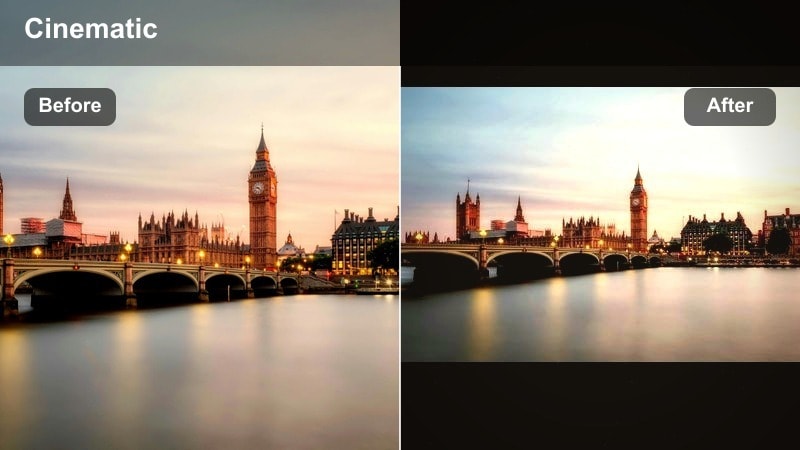
- Effect look: Soft golden highlights with gentle contrast that warms buildings and skin tones for romantic city rooftops.
- Best for: Golden hour YouTube city vlogs, casual rooftop talks, and travel intros over skyline b-roll.
- Editing tip: Lower the filter intensity to around 40–60 percent and slightly reduce saturation in Filmora if your original sunset is already vivid.
Sunset Rooftop Glow wraps your skyline shots in a warm, cinematic glow that instantly upgrades simple rooftop setups and balcony views. It enhances sunset gradients, warms concrete and glass, and smooths out harsh contrast so faces look flattering even when the sun is low and bright behind you.
In Filmora, this city video YouTube filter works especially well on establishing shots, slow pans across skylines, and talking head segments against the city. Apply it on a separate adjustment layer, then dial the intensity back until skin tones look natural and the sky keeps detail. Use Color Tuning to cool down shadow areas slightly so your frame has depth instead of becoming flat and overly orange.
Speed up your city grading with AI powered color tools
Filmora’s AI driven color and tone tools help you lock in the right city video filters for YouTube faster by analyzing exposure, contrast, and color balance in each clip. Instead of tweaking sliders blindly, you can let AI suggest a balanced starting point that respects your original footage.
Once you choose a creative city vlog grade, use AI assistance to normalize brightness and contrast across multiple street clips shot on different days or cameras. This keeps your warm rooftop scenes, backlit sidewalks, and interior cafe shots visually consistent without hours of manual grading.
 secure download

Preview Filmora city filters in real time
Filmora lets you hover over different city filters and instantly preview them on your actual footage, so you can compare warm rooftop looks, neon night styles, and clean documentary grades in seconds. This real time feedback makes it easy to spot which urban filter best matches your channel’s identity.
For YouTube city vloggers and urban exploration creators, this means you can design episodes with distinct moods while still keeping a coherent base look. Test a few options on a short b-roll sequence, then lock in your favorites as reusable presets for future uploads.
secure downloadCombine filters with city LUTs for a signature look
If you already rely on a favorite YouTube city LUT, you can stack it with Filmora filters to refine shadows, highlights, and skin tones without losing your core style. Start by applying the LUT for overall color direction, then add a subtle filter to polish contrast and saturation.
This layered workflow helps you maintain one recognizable city vlog grade across YouTube, Shorts, and TikTok. You can make platform specific tweaks, such as slightly more contrast for mobile screens, while keeping the same underlying LUT and filter combo.
secure downloadGolden Commute Soft
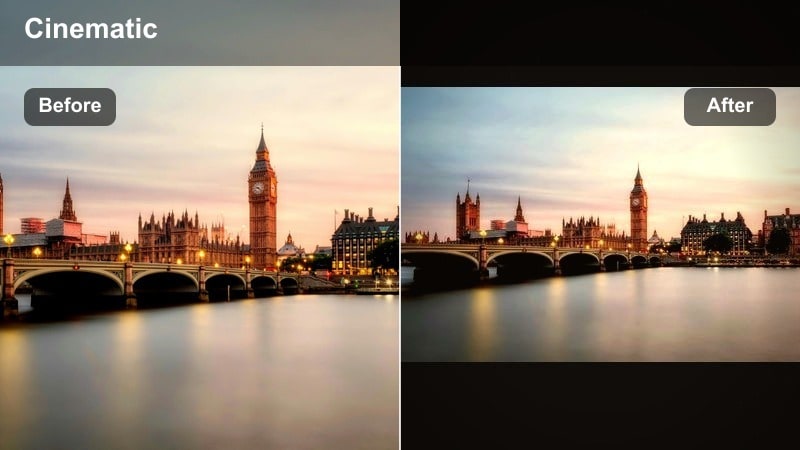
- Effect look: Muted contrast with creamy highlights that make traffic, trams, and sidewalks feel cinematic and relaxed.
- Best for: Daily commute vlogs, walking and talking along busy streets, or A-roll filmed near large windows.
- Editing tip: Use Filmora’s vignette tool lightly with this filter to guide attention toward the subject without making the edges too dark.
Golden Commute Soft turns hectic traffic scenes into smooth, story friendly b-roll by softening contrast and giving highlights a creamy roll off. It works particularly well on bus windows, glass buildings, and sunlit sidewalks, transforming everyday errands into visually cohesive sequences.
In Filmora, apply this filter to both your walking shots and cutaway b-roll of crosswalks or vehicles to keep your city vlog grade consistent. Add a gentle vignette and a bit of stabilization to handheld clips so the viewer stays focused on your face while the softened background adds atmosphere instead of distraction.
Amber City Vlog Grade
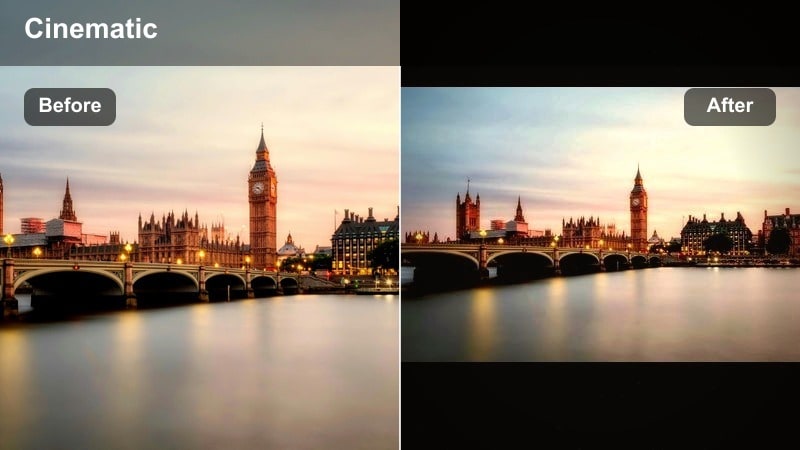
- Effect look: Rich amber midtones and slightly lifted blacks that give city vlog footage a polished lifestyle YouTube look.
- Best for: Lifestyle city vlogs, fashion walkabouts, shopping district b-roll, and influencer style intros.
- Editing tip: In Filmora, combine this filter with mild sharpening and a touch of clarity to keep signs and building textures crisp.
Amber City Vlog Grade adds a modern, influencer friendly glow to storefronts, outfits, and skin tones by infusing midtones with a tasteful amber hue. Lifted blacks prevent shadows from crushing, which helps maintain detail in clothing, hair, and city textures even when you are backlit by windows or shop lights.
Use this filter in Filmora on A-roll fashion walks, coffee runs, and shopping segments to give your channel a premium, lifestyle oriented finish. Pair it with light sharpening and clarity so logos, signage, and architectural lines remain crisp, then fine tune orange and yellow saturation to keep whites and brand colors clean.
Neon Nights and Cyberpunk City Filters
Neon Rush Chrome
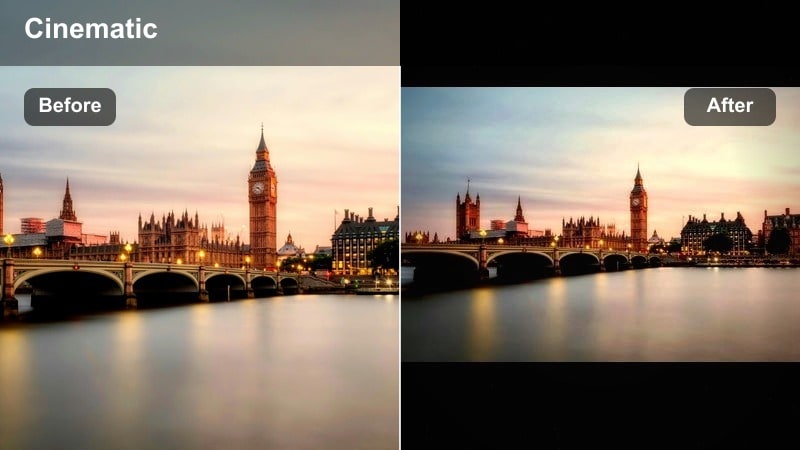
- Effect look: High contrast neon with cool shadows and punchy magentas that turn night streets into a cyberpunk scene.
- Best for: Nighttime urban exploration channels, street photography style b-roll, and cinematic city montages.
- Editing tip: Expose your footage slightly darker in camera, then apply this filter and lift shadows selectively in Filmora to keep neon signs from clipping.
Neon Rush Chrome is designed to make night streets and wet pavements explode with neon color, adding cool shadows and bright magentas for a cyberpunk inspired look. It emphasizes reflections on asphalt, puddles, and metal surfaces, which helps simple walking shots feel like stylized movie sequences.
In Filmora, apply this filter to your night b-roll, slow motion crosswalk shots, and sign close ups to create a consistent neon city vlog grade. Use keyframed exposure or curves to keep highlights under control around the brightest signs, and if faces look too synthetic, selectively reduce magenta and blue in the skin tone range while keeping the background intense.
Metro Noir Glow
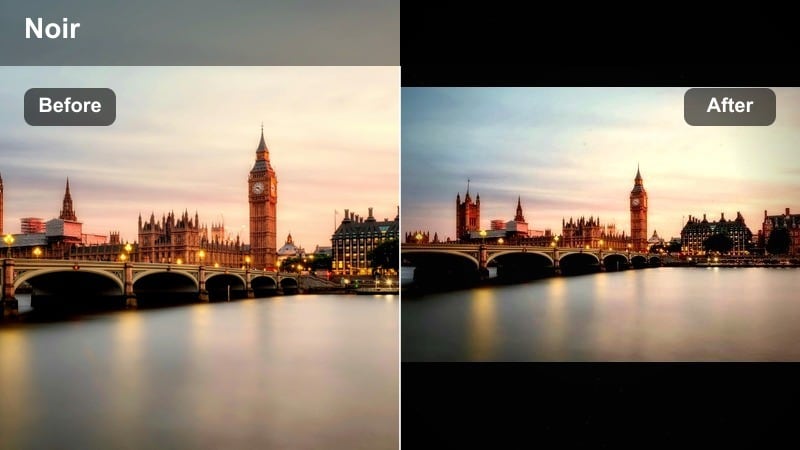
- Effect look: Moody blue shadows with soft halation around lights, mixing film noir vibes with subtle glow on windows and street lamps.
- Best for: Subway sequences, rainy sidewalks, reflective storefronts, and narrative YouTube city short films.
- Editing tip: Pair the filter with Filmora’s slight blur on duplicated overlay clips for extra glow, then lower opacity to keep details visible.
Metro Noir Glow gives underground stations and late night sidewalks a cinematic, noir inspired atmosphere by cooling shadows and adding a gentle glow around practical lights. It is ideal for scenes where your subject is framed by train windows, street lamps, or storefront reflections, emphasizing light sources as part of the storytelling.
Inside Filmora, you can duplicate your clip, add a little blur to the copy, and layer it above the original with Metro Noir Glow to amplify halation without losing sharpness. Adjust opacity and brightness on key lights near your subject so the viewer’s eye naturally travels along your intended path through the frame.
Arcade Neon Punch
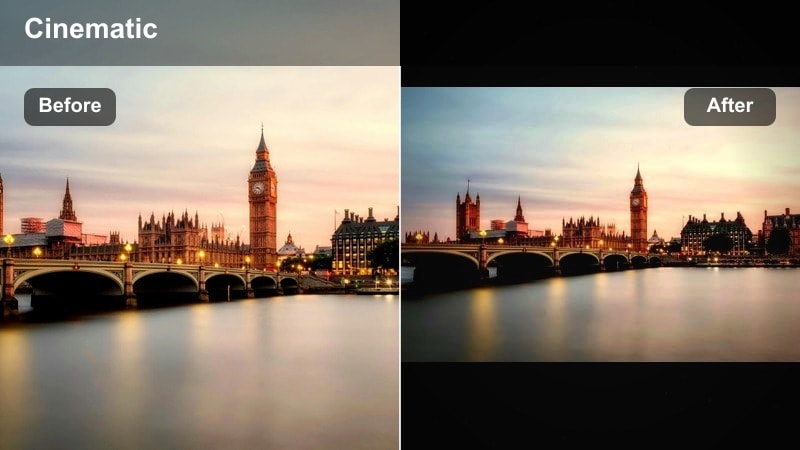
- Effect look: Saturated purple and teal city tones with crisp edges that make arcades, billboards, and LED panels explode with color.
- Best for: High energy city edits, B-roll sequences for tech channels, or gaming themed city walk vlogs.
- Editing tip: In Filmora, sync your cuts to music beats and keep this filter at full strength for B-roll, but reduce intensity on talking head shots for readability.
Arcade Neon Punch is built for energy, driving up saturation in purples and teals to make LED panels, billboards, and gaming arcades feel electric. The added edge crispness works well on fast moving sequences, emphasizing light streaks, on screen animations, and quick camera moves.
Use this filter in Filmora for music driven montages and highlight reels, keeping it at or near full intensity on pure B-roll while dialing it down for dialogue segments. Check your scopes and reduce saturation slightly in the most intense channels to avoid clipping gradients in neon signs, especially when exporting for mobile platforms where compression is stronger.
Clean Daytime Street and Documentary Filters
Urban Clean Cinematic
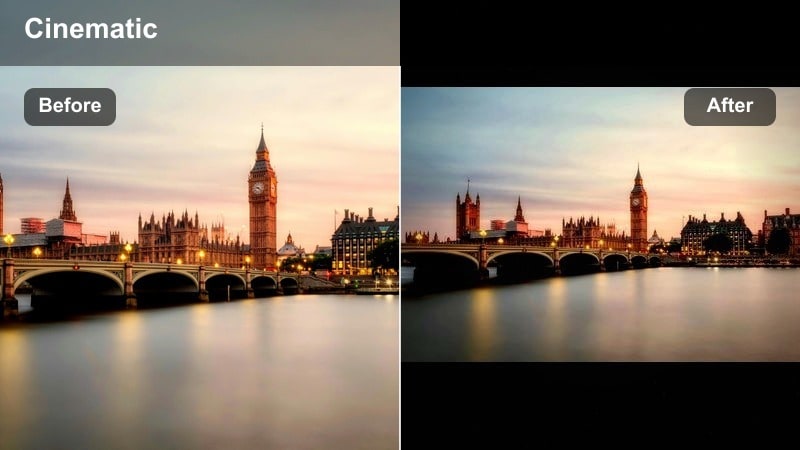
- Effect look: Balanced contrast with neutral colors and a shallow filmic roll off in highlights for professional looking city b-roll.
- Best for: Documentary style city videos, architecture tours, and urban planning explainers on YouTube.
- Editing tip: Use consistent white balance across clips before applying this filter in Filmora to keep walls, skies, and pavements the same tone.
Urban Clean Cinematic keeps your city scenes neutral and professional, adding just enough contrast and highlight roll off to feel filmic without drifting into a strong stylized look. It is ideal when you want accurate colors for buildings, roads, and signage while still elevating your footage beyond a raw, unprocessed feel.
In Filmora, correct white balance on each clip first so your sky and concrete tones match, then apply this filter across the sequence for a cohesive documentary grade. Add mild sharpening and a subtle vignette only where needed to highlight key subjects such as interviewees, landmarks, or important visual details in your story.
Street Story Soft Flat
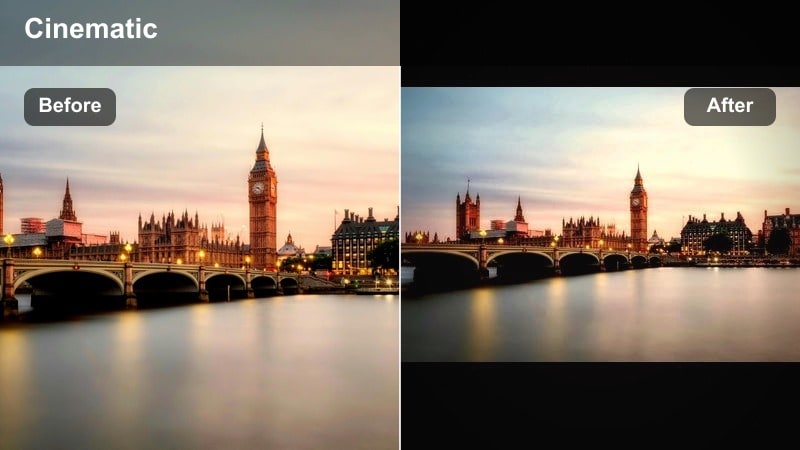
- Effect look: Low contrast, slightly desaturated city tones that give space for text overlays, subtitles, and graphics.
- Best for: Talking over street b-roll, commentary channels, and city explainers where on screen text is important.
- Editing tip: Apply this filter to background b-roll and keep your A-roll slightly more contrasty so the presenter remains visually dominant.
Street Story Soft Flat is a gentle background oriented grade that lowers contrast and saturation so overlays, charts, and subtitles stay easy to read. It works especially well behind voiceover segments where city life supports the message instead of competing with it.
When editing in Filmora, apply this filter only to your b-roll layers while leaving A-roll or talking head shots with a slightly stronger contrast grade. Combine it with drop shadow or box styled subtitles so text remains legible over busy sidewalks or moving crowds without needing heavy background blurs.
City Docu True Color
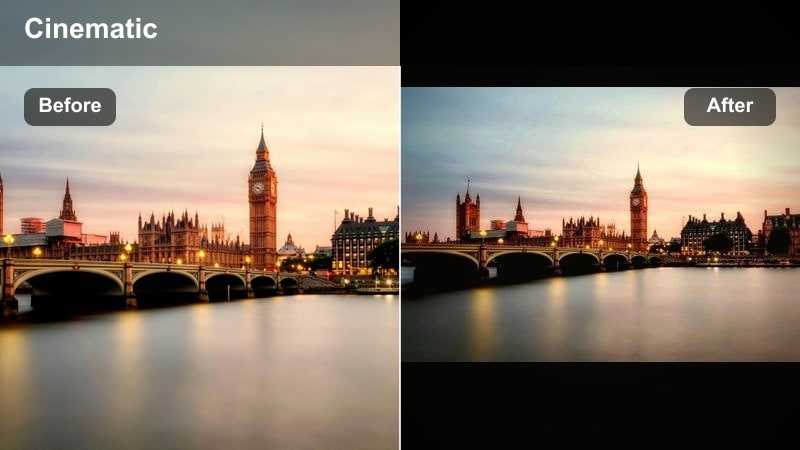
- Effect look: True to life colors with a slight boost in micro contrast and clarity for streets, traffic, and people.
- Best for: News style city coverage, event recaps, protests, or urban documentary vlogs where accuracy matters.
- Editing tip: Use Filmora’s color correction to lock white balance first, then apply this filter at around 70 percent for realistic but polished footage.
City Docu True Color focuses on authenticity, preserving the original palette of your city while adding subtle micro contrast for extra detail. It is great for interviews, protest coverage, or event recaps where the exact colors of signs, clothing, and branding need to remain accurate.
In Filmora, normalize exposure and white balance before applying this filter around 70 percent intensity for a natural yet refined result. Use color match across different camera sources, then fine tune saturation on the most vibrant elements so crowds, banners, and vehicles stay readable without oversaturation.
Stylized Aesthetic and Travel Vlog Filters
Pastel City Wash
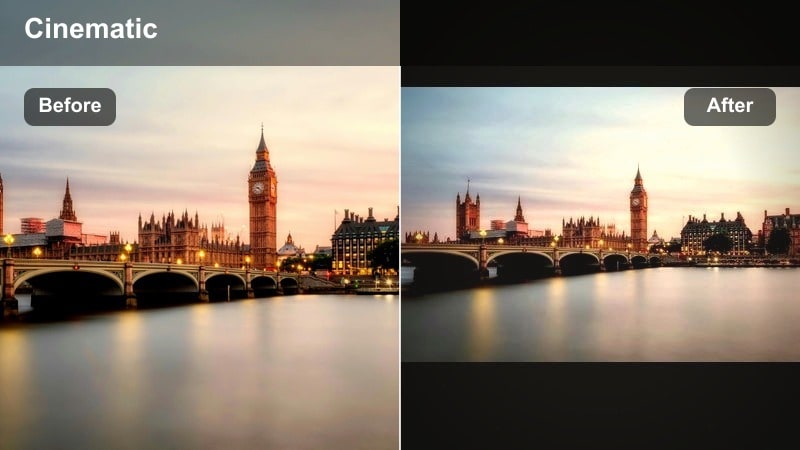
- Effect look: Soft pastel city tones with reduced contrast and slightly lifted blacks for dreamy everyday moments.
- Best for: Minimalist lifestyle vlogs, cafe hopping, bookstore tours, and calm city morning routines.
- Editing tip: In Filmora, lower saturation of greens and blues so signage and foliage do not distract from your face or outfit.
Pastel City Wash transforms hard city lines into a softer, more dreamy canvas by lowering contrast and adding a gentle pastel tint. It is particularly effective for slow paced vlogs featuring cafes, bookstores, and quiet side streets where you want a relaxed, aesthetic mood.
Apply this filter in Filmora to sequences that showcase outfits, interiors, or minimalistic compositions, then reduce saturation in greens and blues so signs and trees do not pull focus. Add a touch of midtone contrast afterward to preserve clarity in faces and key objects while maintaining the soft, washed look.
Travel Journal Chrome
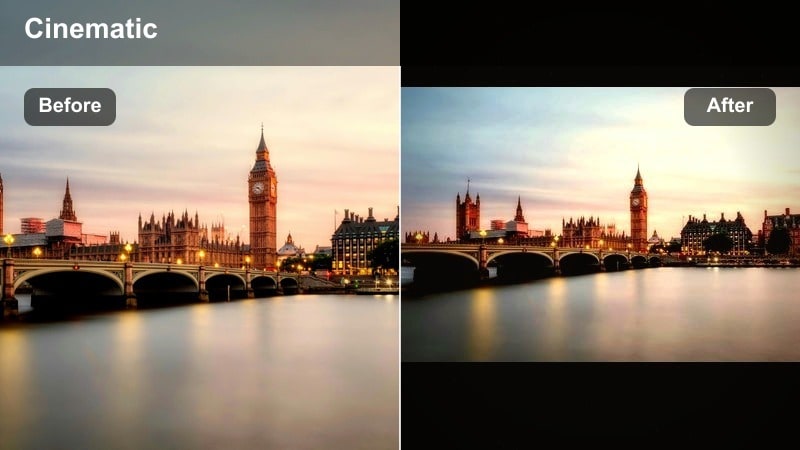
- Effect look: Subtle teal and warm skintone shift with crisp details that give city travel vlogs a timeless postcard style.
- Best for: Travel diaries, city hopping montages, and cinematic B-roll for destination guides on YouTube.
- Editing tip: Use Filmora’s speed ramping with this filter on street transitions to blend shots smoothly between different cities.
Travel Journal Chrome adds a cinematic teal and warm skin tone balance that works consistently across different cities, climates, and lighting conditions. It enhances skies, water, and distant buildings with a cooler tone while keeping faces inviting and natural.
Inside Filmora, use this filter on your entire travel timeline to unify clips from multiple destinations into one coherent visual story. Combine it with speed ramps on street transitions and quick whip pans so moving from one city to another feels dynamic and polished, then save your final adjustments as a custom preset for future trips.
Urban Grain Diary
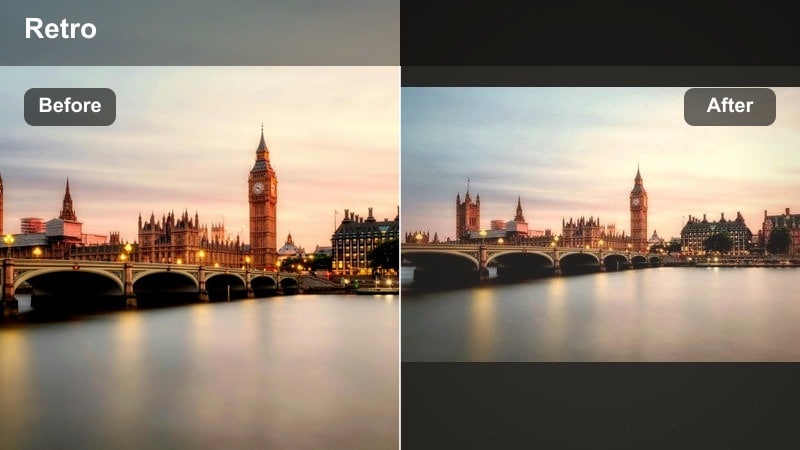
- Effect look: Faded film look with soft grain and slightly cool shadows that feel like analog street photography.
- Best for: Moody city diaries, creative B-roll sequences, and storytelling cuts between scenes in longer vlogs.
- Editing tip: In Filmora, keep grain lower on faces and higher on wide shots by using masks or splitting clips with different filter intensities.
Urban Grain Diary brings a nostalgic film texture to your city visuals, combining subtle cool shadows with a faded palette and soft grain. It shines in reflective moments, alleyway shots, and transitional scenes where you want your vlog to feel more like a visual journal than a standard travel recap.
In Filmora, you can split clips or use masks to vary grain strength, keeping close up faces cleaner while allowing heavier texture on wide establishing shots. Apply this filter strategically to specific chapters of your video so the vintage mood feels intentional, and slightly reduce grain for Shorts or heavily compressed platforms to avoid muddy details.
Tips for Using City Video Youtube Filter Filters in Filmora
- Shoot with a slightly flatter picture profile so your city filters and YouTube LUTs in Filmora have more dynamic range and highlight detail to work with.
- Pick one warm daytime grade and one neon night filter as your main channel styles so viewers instantly recognize your uploads in the feed.
- Use Filmora’s color match function to push the same city vlog grade across clips from different streets, cameras, or days.
- Lower filter intensity on talking head shots to keep skin tones natural while leaving the background stylized and on brand.
- Export a short test sequence and review it on your phone to confirm that neon signs, shadows, and grain all look clean on smaller screens.
- Organize your favorite urban filters and LUT combos into a custom preset folder so you can grade new vlogs in just a few clicks.
- Balance saturation between billboards, skies, and faces so bright signage supports, rather than overpowers, your main subject.
- Use slightly different filters for day and night segments, but keep overall contrast and warmth close so the full vlog still feels unified.
With the right city video filters for YouTube, your urban vlogs can move from flat and inconsistent to cinematic, polished, and on brand in just a few clicks. A thoughtful mix of warm day looks, neon night styles, and clean documentary grades keeps your channel flexible without losing its identity.
Test a warm daytime grade, a neon night look, and one softer aesthetic filter in Filmora, then save your favorites as presets so every new city vlog or urban exploration upload starts with a consistent, creator ready style.
secure downloadNext: Explore City Video Filters for TikTok to Match Your YouTube Look
