

 100% Security Verified | No Subscription Required | No Malware


 ChatGPT
 Perplexity
 Gemini
 Claude
 Grok
Grok
The Clean White Tone Video Filter pack is designed for content creators who want bright, minimal, and polished footage that still looks natural. These Filmora presets soften harsh colors, clean up muddy shadows, and give your video a fresh, airy style that works across vlogs, tutorials, lifestyle content, and branded videos.
Use these filters to create a cohesive white-toned aesthetic across all your clips, from studio shoots to daylight city walks. Each preset balances whites, soft contrast, and skin tones differently so you can quickly match the look to your scene without heavy manual color grading.
In this article
Bright Interior and Studio Scenes
Soft Studio White
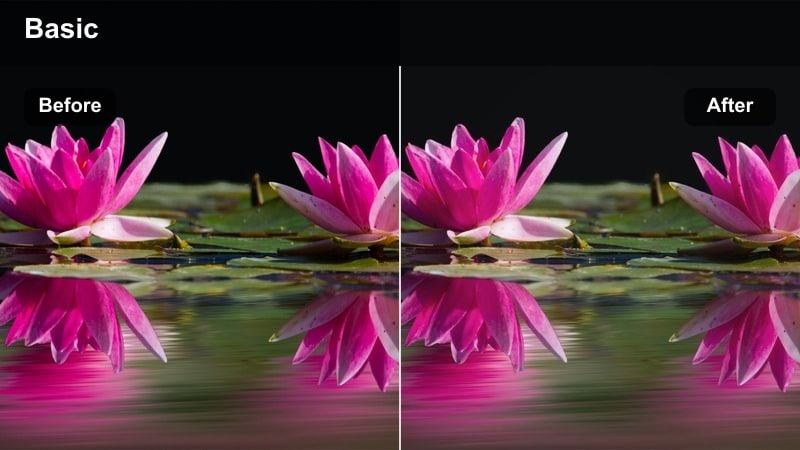
- Effect look: Gives studio footage a soft, bright wash with clean whites and gentle contrast.
- Best for: Talking-head videos, desk setups, and minimal product demos shot indoors.
- Editing tip: Lower saturation slightly if your background has strong brand colors to keep the white tone dominant.
Soft Studio White is tailored for indoor setups where you want your background to look polished and distraction free. In Filmora, it subtly lifts exposure and neutralizes color casts so white walls, desks, and shelves look crisp without turning gray or yellow. This gives talking-head clips and desk-based shots a modern, minimal style that feels intentional and professional.
Apply this preset early in your edit, then adjust exposure and temperature lightly to match your specific lighting. Use it on A-roll and B-roll from the same studio session to keep your channel visuals consistent. If you film branded content, combine Soft Studio White with Filmora text and logo tools so your graphics sit cleanly on top of bright, neutral backgrounds.
Use AI Tools to Refine Your Clean White Tone
After applying a clean white tone video filter in Filmora, refine your look using AI-powered color correction and balance. These tools quickly remove stubborn green, yellow, or magenta casts from walls, ceilings, and furniture while preserving realistic skin tones.
Let AI set a neutral baseline, then fine-tune your chosen preset for a bright, minimal style that stays consistent across different rooms and shooting days. This workflow helps every video in a series share the same clean white signature.
 secure download

Preview Clean White Filters on Real Creator Footage
Before committing to a full edit, load a short test clip into Filmora and cycle through the Clean White Tone Video Filter presets. Seeing how each preset behaves with your camera profile and lighting helps you quickly identify which ones flatter your space and skin tones.
Use Filmora's preview comparison to evaluate subtle differences in contrast, brightness, and color balance. When you find a favorite, save it as a custom preset so every future video starts with the same polished white base look.
secure download1000+ Video Filters and 3D LUTs
Once your clean white base is in place, expand your look with Filmora's library of 1000+ filters and 3D LUTs. You can add subtle color accents, cinematic tones, or stylized overlays while keeping whites bright and backgrounds minimal.
Combine clean white tone presets with low-intensity LUTs to give your channel a recognizable color signature. Fine-tune intensity and blend so your footage stays polished and natural without heavy manual color grading.
secure downloadMinimal Desk Glow
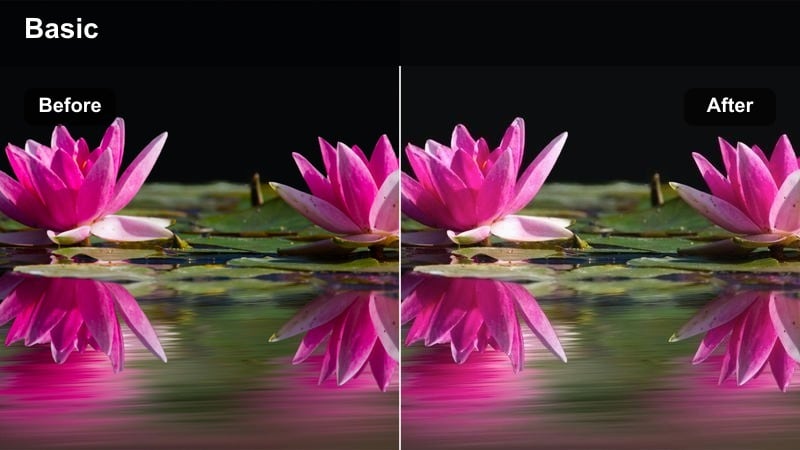
- Effect look: Adds a gentle glow to whites and smooths midtones for a soft, editorial desk aesthetic.
- Best for: Lifestyle desk vlogs, workstation tours, and minimal productivity content.
- Editing tip: Increase sharpness by a small amount if text on screens or paper needs to remain extra crisp.
Minimal Desk Glow gives bright workspaces a soft, editorial finish while still feeling clean and organized. It slightly lifts highlights and smooths midtones so your keyboard, notebook, and decor appear cohesive and flattering on camera, ideal for productivity and lifestyle desk content.
In Filmora, apply this filter to overhead and eye-level shots from the same session so transitions feel seamless. If you are filming planners or on-screen notes, add a touch of sharpness or local contrast to specific areas to keep text perfectly readable while preserving the overall glowing white tone.
Pure Wardrobe Room
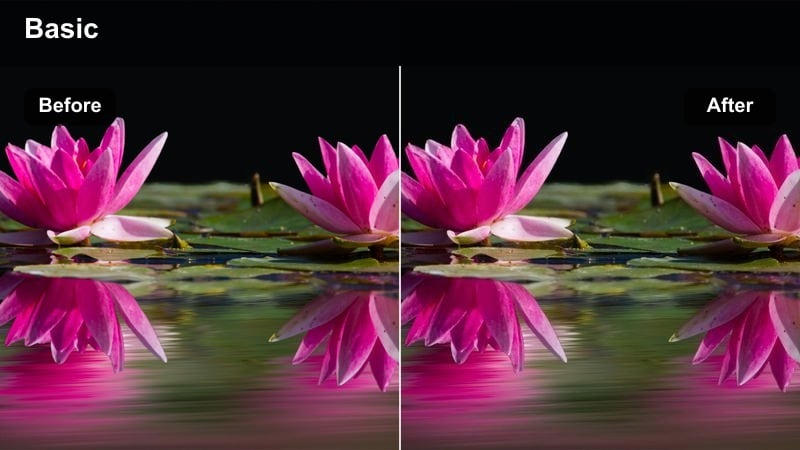
- Effect look: Cleans up color casts in closets and bedrooms, pushing walls and furniture toward pure, neutral white.
- Best for: Fashion try-ons, closet tours, and bedroom makeover reveals.
- Editing tip: Lift shadows slightly to keep clothing details visible against bright white backdrops.
Pure Wardrobe Room is built for fashion and lifestyle interiors where walls, doors, and furniture should look neutral and bright. It corrects yellow or green tints from indoor bulbs, turning your bedroom or closet into a clean canvas that makes outfits stand out.
Use this preset on try-on segments, mirror shots, and B-roll of your space so your entire fashion video shares the same bright, polished feel. In Filmora, gently raise shadows or adjust exposure if darker fabrics start to lose detail against the whiter background, keeping both texture and color accurate.
Daylight Lifestyle and Vlog Footage
City Window Wash
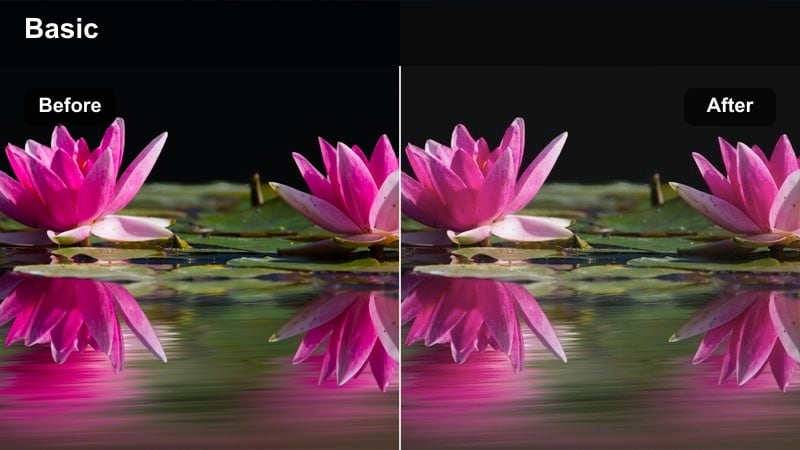
- Effect look: Brightens city apartment interiors while keeping window light soft and milky white.
- Best for: Day-in-the-life vlogs shot near windows in urban apartments or offices.
- Editing tip: Use a vignette at low strength to keep the viewer's eye on your subject when backgrounds are very bright.
City Window Wash is ideal for bright apartments and offices where large windows dominate the frame. It lifts interior exposure and softens hard edges around windows, turning harsh daylight into a gentle, milky glow that feels airy but controlled.
In Filmora, apply this preset to clips filmed on your sofa, at the dining table, or by your desk to keep all window-side shots visually consistent. If the background feels too attention grabbing, add a subtle vignette or reduce highlights slightly so your face remains the focal point in lifestyle vlogs.
Cafe Morning Clean
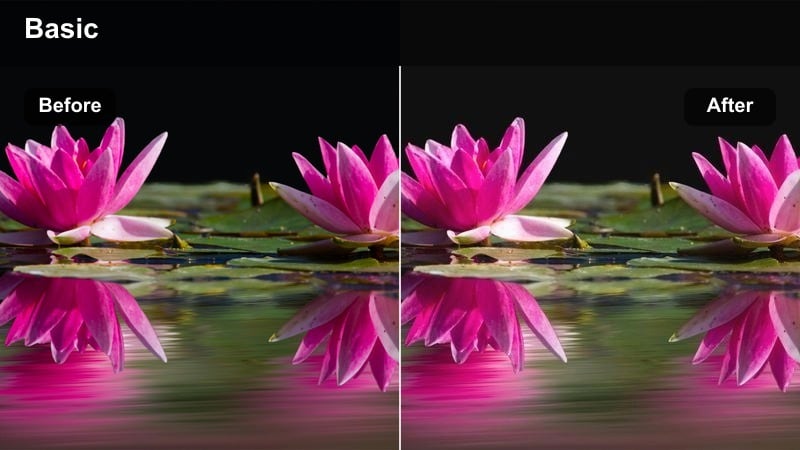
- Effect look: Gives cafe and coworking shots a soft, matte white tone while calming warm color casts.
- Best for: Remote work vlogs, study sessions, and casual coffee shop check-ins.
- Editing tip: If the scene looks too cool, nudge temperature slightly warmer instead of increasing saturation.
Cafe Morning Clean is tuned for spaces with mixed warm lighting, like coffee shops and coworking areas. It softens strong yellows and oranges while adding a matte, bright finish to tabletops, mugs, and laptops, creating a relaxed but polished aesthetic.
Use this preset across your cafe B-roll and talking segments to keep the environment cohesive despite changing light sources. In Filmora, adjust white balance a touch warmer if your skin looks too neutral, and use HSL controls sparingly to keep the white tone dominant without over-saturating the background.
Street Daylight Fresh
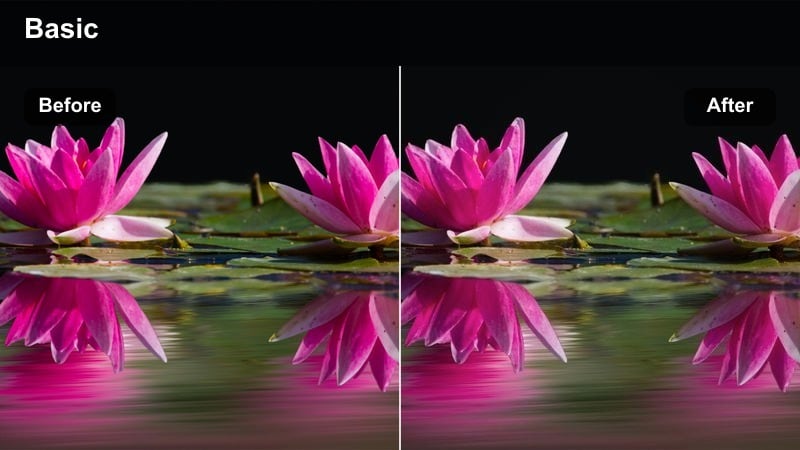
- Effect look: Softens harsh midday sun and lifts whites for a fresh, almost editorial street look.
- Best for: Walking vlogs, outfit-of-the-day shots, and quick street monologues.
- Editing tip: Reduce contrast slightly if your shadows appear too strong under bright sunlight.
Street Daylight Fresh helps you handle bright outdoor conditions where concrete, buildings, and sidewalks can look harsh. It gently raises whites and softens contrast so your footage feels airy and editorial rather than overly contrasty.
Apply this preset on walking-and-talking clips, quick street cutaways, and OOTD shots to unify your daytime city aesthetic. In Filmora, fine-tune contrast and shadows per clip to keep details in clothing and facial features visible while preserving that clean, fresh street style.
Creator Setups and Tutorial Shots
Course Board Bright
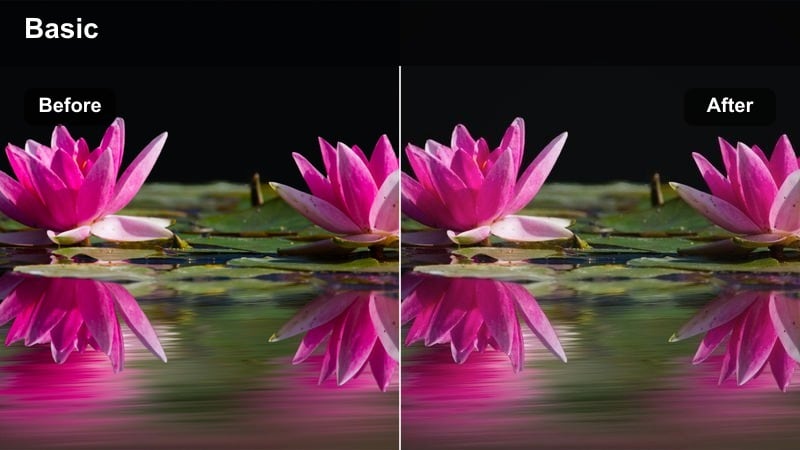
- Effect look: Turns whiteboards and light backdrops into crisp, clean whites while keeping markers and text legible.
- Best for: Online courses, educational tutorials, and explainer videos filmed against whiteboards or paper backdrops.
- Editing tip: Increase local contrast around text using a mask if handwriting looks too soft.
Course Board Bright is designed for educators and tutorial creators who film against whiteboards, flip charts, or paper backdrops. It removes gray and yellow tints so your background reads as true white while making sure colored markers and printed text remain clear.
Use this preset on all your teaching angles so slides, notes, and board content stay consistent from lesson to lesson. In Filmora, add a masked contrast or sharpness boost around critical text areas if handwriting looks slightly softened, maintaining maximum readability without sacrificing the clean white aesthetic.
Top-Down Tutorial Plain
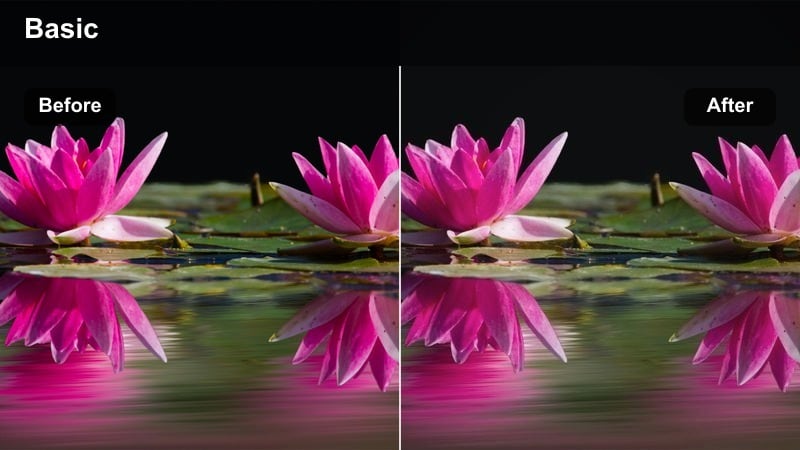
- Effect look: Brightens overhead shots and flattens color for a clean, almost paper-like white surface.
- Best for: Top-down DIY tutorials, tech unboxings, and notebook walkthroughs on light surfaces.
- Editing tip: Adjust exposure by small amounts instead of contrast to protect detail in small objects.
Top-Down Tutorial Plain is made for overhead shots on white desks or backdrops, where you want a paper-like, minimal surface. It brightens the frame and slightly flattens colors so hands, tools, and products pop clearly against a calm, neutral background.
Apply this filter to all top-down segments in a sequence such as unboxings, bullet journal tours, or DIY crafts. In Filmora, tweak exposure in small increments to keep stickers, cables, and small accessories from blowing out, and add a gentle clarity boost only if tiny details need more definition.
Monitor Frame Crisp
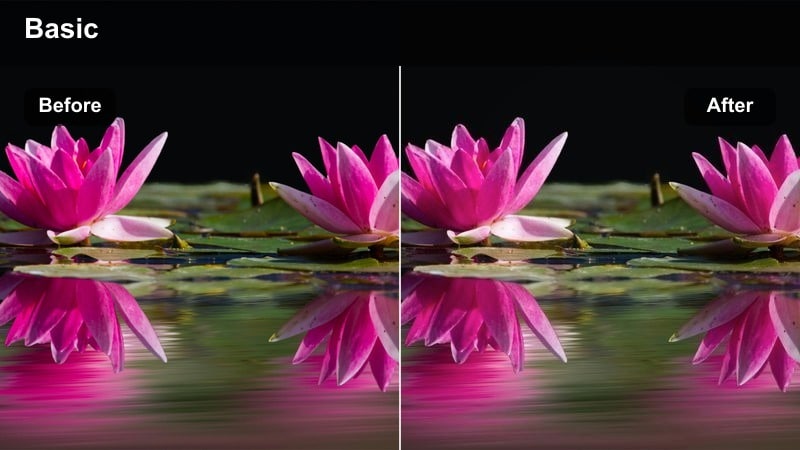
- Effect look: Keeps skin and background whites bright while preventing monitor screens from blowing out.
- Best for: Screen-record plus face-cam tutorials and reaction videos filmed at a desk.
- Editing tip: Use separate layers or masking to keep this filter off the actual screen capture if colors need to stay accurate.
Monitor Frame Crisp is tailored for desk setups where your monitor shares the frame with your face and background. It brightens your environment and skin while controlling highlight intensity around the screen area, helping avoid a blown-out white rectangle behind you.
In Filmora, apply this preset to the camera clip in a multi-track layout while leaving raw screen recordings unfiltered for accurate colors. If needed, use masks to limit the effect to walls, decor, and your face so the monitor remains crisp and readable while the rest of the scene stays clean and white.
Branding, Reels, and Social-First Clips
Logo Wall Spotless
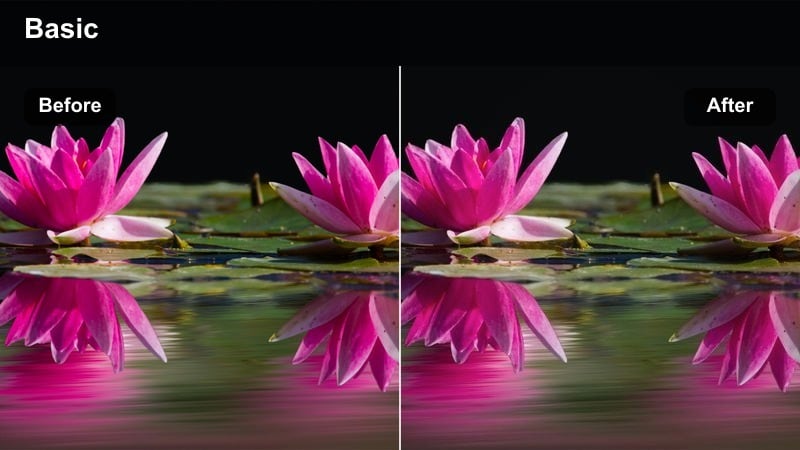
- Effect look: Creates a spotless white wall behind logos or text overlays while keeping edges crisp.
- Best for: Brand intro clips, social media announcements, and simple text-on-screen videos.
- Editing tip: Keep brand colors strong by avoiding extra saturation cuts after applying this high-white filter.
Logo Wall Spotless is built for clean, brand-forward shots where your wall becomes a digital canvas. It evens out shadows, removes color casts, and pushes your backdrop toward pure white so logos, titles, and lower thirds look sharp and professional.
Use this preset on intro clips, announcements, and sponsored segments where you stand next to or in front of a logo. In Filmora, overlay your graphics after applying the filter, and resist heavy saturation changes so brand colors remain accurate and eye-catching against the spotless white background.
Vertical Reels Airy
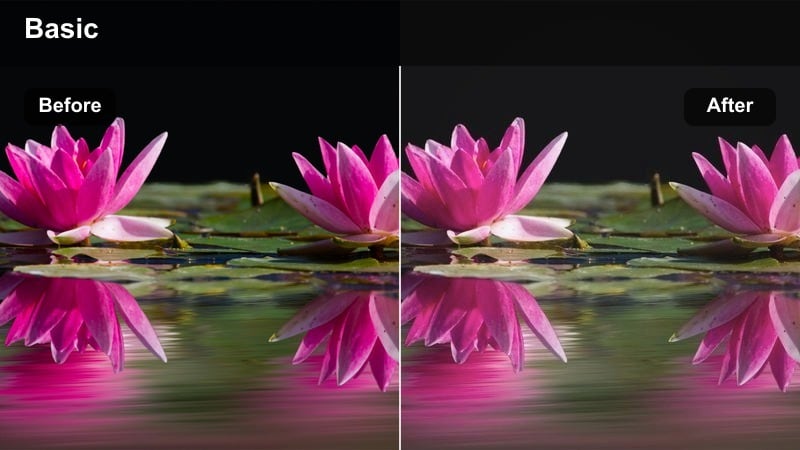
- Effect look: Adds an airy, high-key white tone that flatters vertical social clips and transitions.
- Best for: Instagram Reels, TikToks, and YouTube Shorts filmed in bright rooms or hallways.
- Editing tip: Crop and straighten before applying this filter so the soft edges feel intentional in vertical format.
Vertical Reels Airy is optimized for short-form, vertical content where a bright, high-key look stops the scroll. It lifts exposure and softens contrast just enough to create an airy aesthetic that flatters outfits, transitions, and quick talking clips.
In Filmora, set your aspect ratio and reframe your shots before dropping this preset on your sequence. Batch-apply it across all clips in a Reel or Short, then adjust brightness per segment to keep transitions smooth and your clean white tone consistent from start to finish.
Product Shelf Pristine
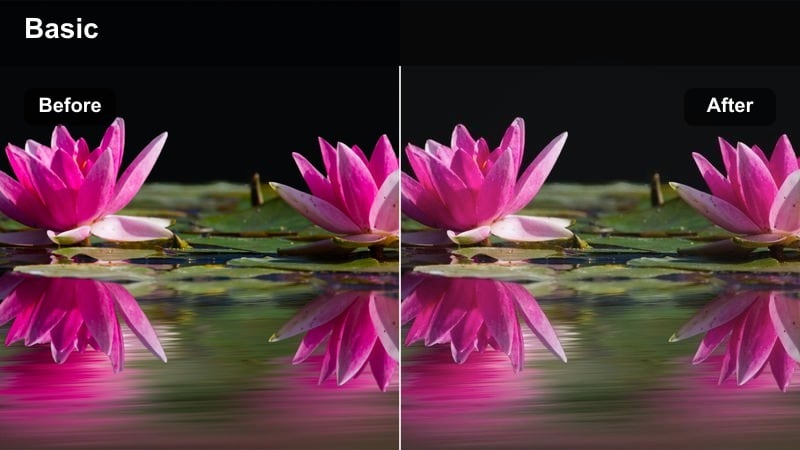
- Effect look: Turns shelves and backdrops into near-pristine whites while maintaining subtle depth and shadows.
- Best for: Short product highlights, shelf tours, and clean brand hero shots.
- Editing tip: Slightly lift blacks if your darker packaging blends too much into the clean white style.
Product Shelf Pristine is crafted for product shots displayed on white shelves or stands. It brightens backgrounds to near-pristine whites while preserving gentle shadows and depth, giving packaging and labels a premium, studio-like appearance.
Use this preset on hero shots, shelf tours, and short product features destined for Reels, Shorts, or ads. In Filmora, nudge blacks or shadows up if dark boxes start to disappear into the clean look, and consider adding a subtle local contrast boost around featured items to keep logos and fine text sharp.
Tips for Using Clean White Tone Video Filter Filters in Filmora
- Shoot slightly underexposed in bright rooms so the clean white tone filters can lift exposure without losing highlight detail.
- Try to keep at least one neutral gray or white object in your frame to make white balance corrections easier before you apply a preset.
- Batch-apply your chosen clean white filter to an entire sequence, then make small per-clip adjustments to exposure and contrast only.
- Use Filmora's scopes to confirm your whites are bright but not clipped, especially on backgrounds and white clothing.
- If skin tones start to look too cool or flat, add a little warmth or vibrance after the filter instead of removing it.
- Combine these filters with light noise reduction to keep large white areas looking smooth but not plastic.
- Avoid overly saturated props or decor in your set if you want the pure white tone to dominate the look.
- Save your favorite clean white tone combination as a custom preset in Filmora so every new project starts with the same base look.
Clean white tone video filters give content creators a fast, reliable way to make footage look bright, minimal, and polished without heavy color grading skills. With a few preset choices, you can transform everyday rooms and locations into modern, cohesive sets.
Test a few of these Filmora presets on your typical shooting locations, refine one or two into custom looks, and use them consistently so your channel or brand feels cohesive from video to video.
secure download