

 100% Security Verified | No Subscription Required | No Malware


 ChatGPT
 Perplexity
 Gemini
 Claude
 Grok
Grok
These DJI Air 3 LUT-style filters are designed for videographers and creators who want fast, cinematic color in their aerial footage without spending hours in complex grading tools.
Below you will find 12 scene-based looks tailored for the DJI Air 3, each with a clear description, ideal use case, and practical editing tip so you can quickly match the mood of your story.
In this article
Golden Hour Landscapes and Scenic Vistas
Sunset Glow DJI Air 3
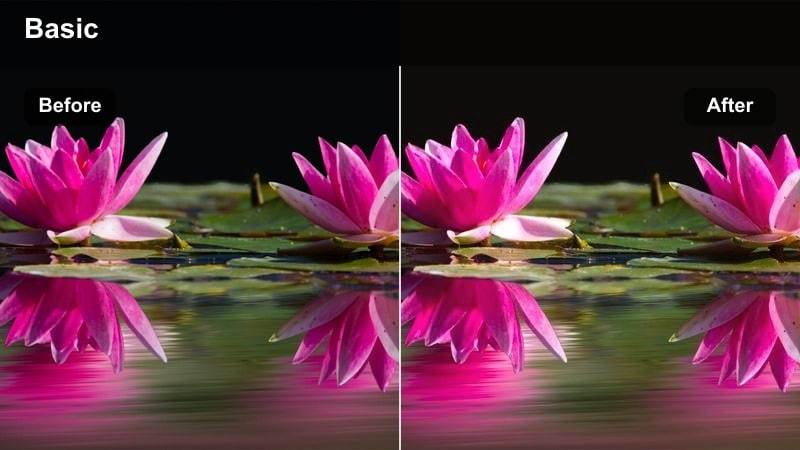
- Effect look: Warm, soft contrast filter that amplifies orange and magenta tones in the sky while keeping shadows gentle and cinematic.
- Best for: Golden hour coastline shots, sunset mountain flyovers, and slow, cinematic reveals over lakes or valleys.
- Editing tip: Lower overall saturation slightly and reduce highlights to preserve cloud detail, then add a subtle vignette for extra focus on the horizon.
In Filmora, the Sunset Glow DJI Air 3 look is ideal when your footage was captured at golden hour but still feels a bit flat or neutral. By enhancing oranges and magentas while keeping shadows soft, you can quickly create a cinematic, film-inspired sunset grade without manual curve work. This works especially well on drone clips where the sun is low on the horizon and the sky gradients are visible across the frame.
To get the most out of this look, start by correcting exposure and white balance so the image is neutral, then apply the filter. Use the Color panel to slightly pull highlights down and apply a gentle vignette effect to focus attention toward the brightest part of the sky. If skin or buildings are in the scene, ease back saturation a touch so the warm shift does not overpower faces or architecture.
Speed up your DJI Air 3 color work with AI-powered palettes
Instead of building every look from scratch, you can use Filmora AI Color Palette to quickly push DJI Air 3 footage toward a consistent cinematic mood. The tool analyzes your shot or a reference image and generates a color base that already feels stylized.
Once the AI palette is applied, fine-tune contrast, saturation, and skin tones with Filmoras manual sliders, then stack one of these DJI Air 3 filters on top to finish the look.
 secure download

Preview aerial filters before you commit
Filmora makes it easy to preview DJI Air 3 filters on test clips so you can quickly A/B compare different looks. Load a short sample from your sunset, city, or forest flight, then switch between presets to see how they affect skies, shadows, and midtones.
Once you find a match, you can save that combination of filters and color tweaks as a preset and apply it to every shot in your sequence for a consistent, cinematic finish.
secure download1000+ Video Filters and 3D LUTs
Beyond these DJI Air 3 looks, Filmora includes a large library of built-in filters and 3D LUTs that you can stack for more advanced aerial grades. Mix cinematic LUTs with light leaks, vignettes, and film styles to craft a signature look for travel, real estate, or outdoor content.
You can save your favorite combinations as reusable presets, so every new DJI Air 3 project can reach a polished, cinematic result in just a few clicks.
secure downloadPastel Horizon DJI Air 3
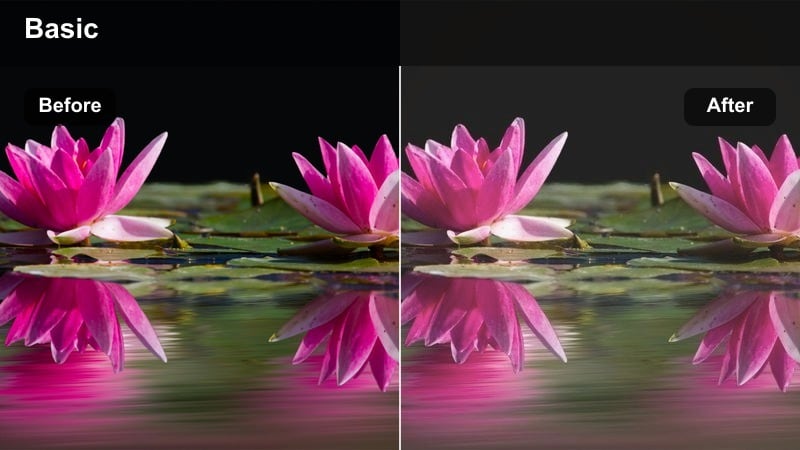
- Effect look: Soft pastel grading with lowered contrast and gentle cyan-magenta balance for dreamy skyline transitions.
- Best for: Early morning flights, foggy ridgelines, and calm ocean shots where you want a romantic, ethereal mood.
- Editing tip: Increase midtone brightness and reduce clarity slightly to keep textures smooth and dreamy, especially in clouds and water.
In Filmora, Pastel Horizon DJI Air 3 helps you turn low-contrast sunrise or foggy footage into a dreamy, story-driven look. The lowered contrast and pastel color balance are especially flattering for sequences where the light is soft and directional, emphasizing atmosphere over hard detail.
After basic exposure correction, apply this filter and raise midtones using the Color controls to keep the scene bright but gentle. Reduce clarity or add a small amount of blur or glow to clouds and water surfaces so transitions between colors feel smooth, giving your drone footage an elegant, cinematic softness.
Amber Ridge DJI Air 3
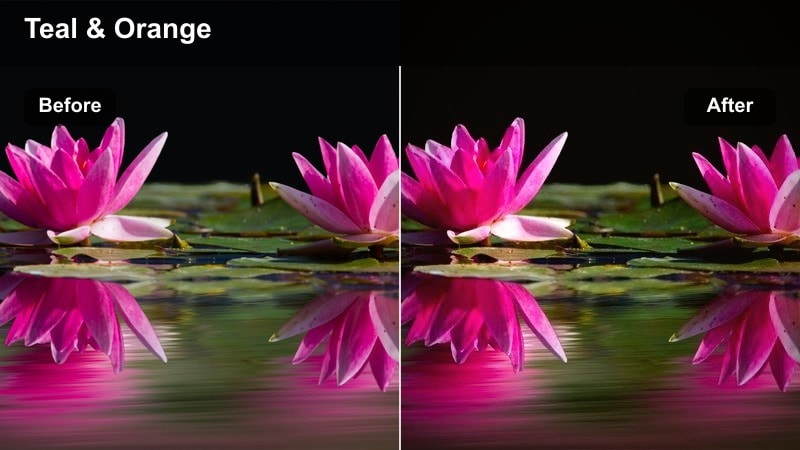
- Effect look: Rich amber tones in highlights with deeper, cooler shadows for a cinematic teal-and-gold landscape contrast.
- Best for: Sunset ridge lines, desert scenes, and autumn forests where you want bold, stylized color separation.
- Editing tip: Use HSL to subtly deepen oranges and yellows in foliage while protecting greens so the stylized look still feels natural.
Amber Ridge DJI Air 3 brings a modern teal-and-gold character to your landscapes inside Filmora, pushing warm highlights against cooler shadows for a bold cinematic style. It works best on scenes with clear directional sunlight, such as ridges, dunes, or fall forests, where light and shadow already create strong shapes from above.
Apply this filter after setting a neutral base, then open the HSL controls to gently adjust orange, yellow, and green ranges. You can deepen foliage hues for more richness while protecting midtone greens from becoming too artificial. A slight fade in the shadows using the tone controls helps maintain a film-like roll-off that keeps the stylized grade looking intentional and polished.
Urban Skylines and Night Flights
Neon City DJI Air 3
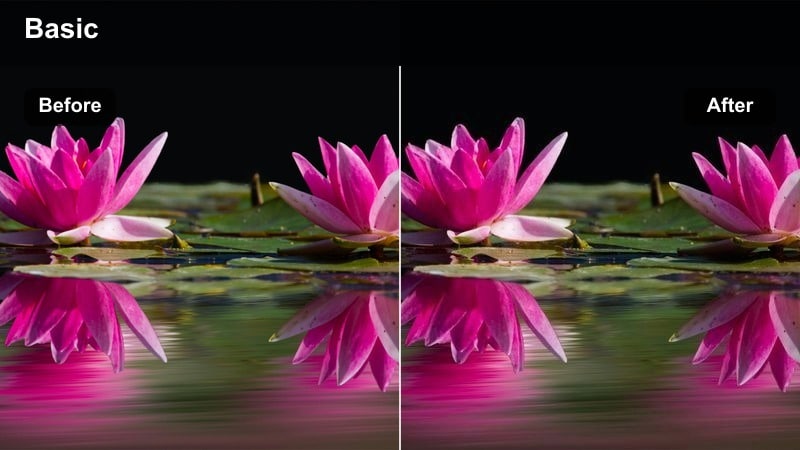
- Effect look: High-contrast urban filter that boosts neon blues, magentas, and deep blacks for a futuristic city-at-night vibe.
- Best for: Downtown skyline flyovers, rooftop reveals, and city streets with vibrant signage shot at dusk or night.
- Editing tip: Use selective noise reduction on shadows to keep the dark areas clean while preserving detail in neon signs and windows.
Neon City DJI Air 3 is designed in Filmora to make your night-time city flights feel like a cyberpunk movie. By enhancing blues and magentas and deepening blacks, it adds punch to neon signage, streetlights, and reflective glass, transforming ordinary skylines into stylized, high-energy sequences.
Before applying this filter, use Filmoras basic correction to manage exposure and reduce any extreme highlights. Afterward, apply selective noise reduction to the darkest parts of the frame to keep blacks rich but clean, while letting neon details remain crisp and bright. This workflow gives you sharp, futuristic city visuals without introducing distracting grain.
Cinematic Street DJI Air 3
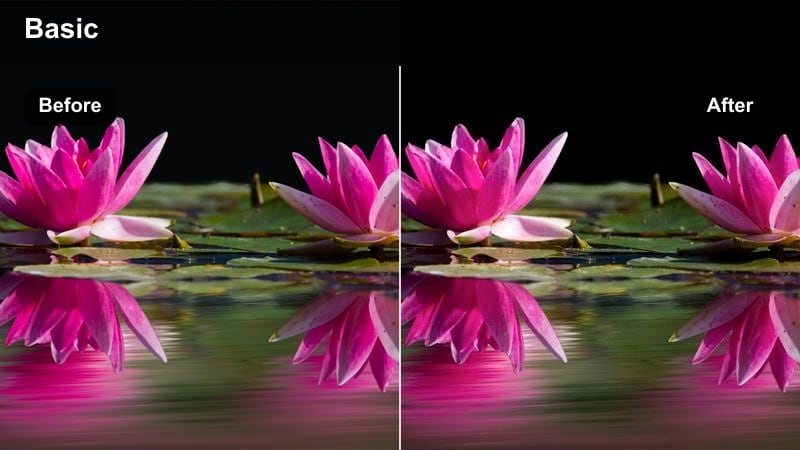
- Effect look: Muted highlights with rich, slightly desaturated colors and lifted blacks for a filmic, street-cinema mood.
- Best for: Slow passes over intersections, traffic timelapses, and moody urban establishing shots at blue hour.
- Editing tip: Add a subtle film grain layer and a 2.35:1 crop to reinforce the cinematic feeling without overpowering the image.
In Filmora, Cinematic Street DJI Air 3 helps you turn everyday traffic and intersections into atmospheric opening shots. The lowered highlights and lifted blacks create a soft, filmic response to bright signs and headlights, while slightly desaturated colors keep the mood grounded and cinematic.
Once you apply the filter, experiment with Filmoras film grain overlays at low opacity to add texture without introducing visible noise. A letterbox-style 2.35:1 crop can be added via the overlay or crop tools, focusing attention on key motion in the frame and giving your city sequences a premium movie-trailer aesthetic.
Steel and Glass DJI Air 3
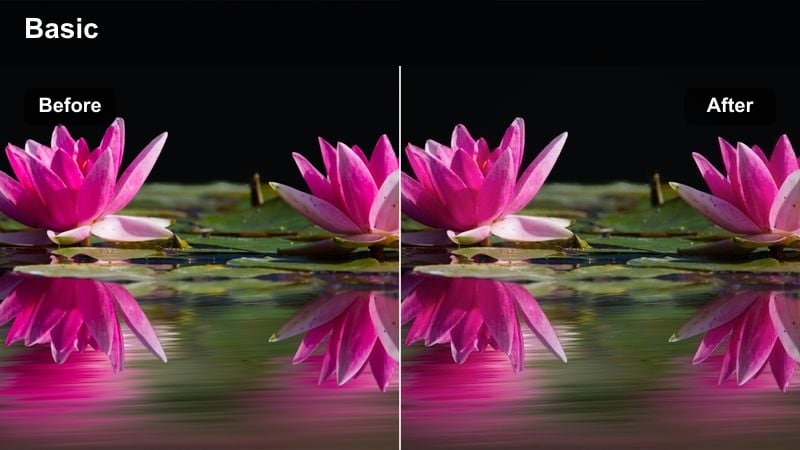
- Effect look: Cool, clean contrast that enhances blues and neutral grays in skyscrapers while keeping the sky crisp and modern.
- Best for: Daytime downtown skyline shots, corporate towers, and aerials used in tech or real estate promos.
- Editing tip: Increase clarity and sharpness slightly to bring out structure in windows and edges, but avoid overdoing it to prevent halos.
Steel and Glass DJI Air 3 gives your urban daytime footage a sleek, corporate tone inside Filmora. The cool color bias and crisp contrast highlight glass surfaces, metal facades, and clean blue skies, which is perfect for tech promos, architecture reels, or real estate marketing.
After stabilizing and correcting exposure, apply this filter and then carefully raise clarity and sharpness in the Color and Sharpen tools. Focus on enhancing building edges and window grids while monitoring for halos or artifacts. Used subtly, this approach makes your DJI Air 3 shots feel polished and professional without appearing overprocessed.
Coastal Shores, Lakes, and Water Scenes
Aqua Coast DJI Air 3
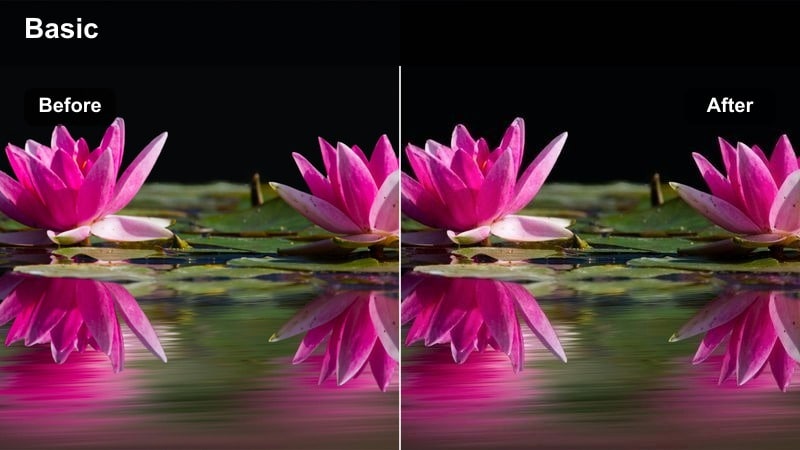
- Effect look: Vibrant turquoise water enhancement with clean whites in waves and lightly cooled shadows.
- Best for: Beach flyovers, tropical bays, harbors, and boats moving through clear water.
- Editing tip: Use HSL to isolate aquas and blues so sand, rocks, and buildings stay natural while water gets the extra pop.
Aqua Coast DJI Air 3 is tailored for bright, tropical-style coastlines in Filmora, making water appear clearer and more turquoise without ruining nearby skin tones or buildings. It is especially effective for overhead shots where waves, reefs, and sandbars draw patterns through shallow water.
After enabling the filter, head into the HSL panel and target aqua and blue channels to fine-tune saturation and luminance. Keep warm tones in sand and boats closer to natural so the final grade looks vibrant but believable. This approach lets the water stand out in travel vlogs, tourism promos, and beachmontages while maintaining a professional overall balance.
Misty Lake DJI Air 3
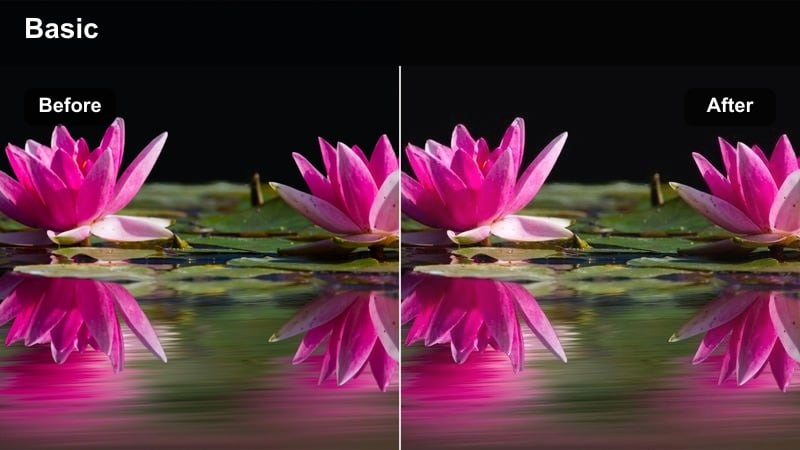
- Effect look: Soft, low-contrast cool grade that adds a gentle haze effect to lakes and rivers for a calm, cinematic feel.
- Best for: Morning lake flights, river bends in overcast light, and reflective water surfaces with minimal direct sun.
- Editing tip: Add a small amount of glow or bloom around the brightest parts of the water to accentuate the foggy, cinematic atmosphere.
Misty Lake DJI Air 3 is built for tranquil water scenes in Filmora, emphasizing calm reflections and subtle haze. The cool, low-contrast rendering works particularly well on overcast mornings, where boats, docks, or tree lines are mirrored on the surface.
Once the filter is applied, use Filmoras effects or blending modes to add a faint glow around brighter highlights on the water. Keep contrast relatively soft and avoid heavy sharpening so the entire frame feels atmospheric. This treatment turns simple establishing shots of lakes and rivers into cinematic opening scenes or meditative cutaways.
Sunlit Marina DJI Air 3
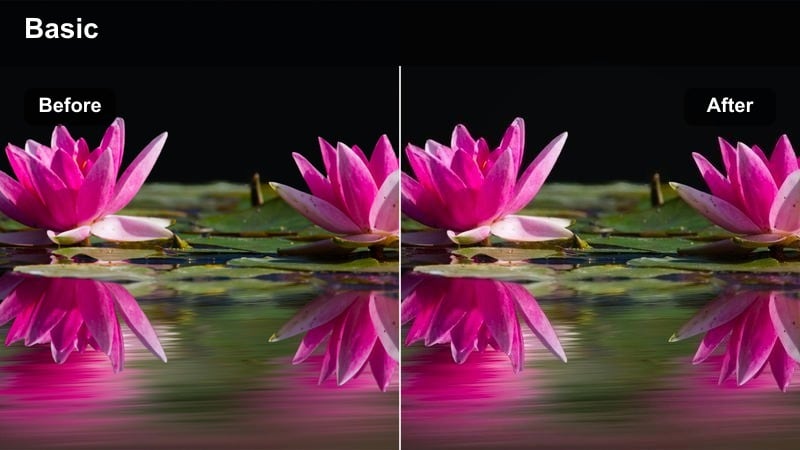
- Effect look: Clean, bright filter that balances warm decks and cool water, keeping boats crisp and well-defined.
- Best for: Marinas, harbors, yacht shots, and waterfront real estate under strong daylight.
- Editing tip: Reduce global contrast slightly and then use local contrast on boats and piers to keep them sharp without harshening the whole frame.
Sunlit Marina DJI Air 3 is optimized in Filmora for busy harbor shots with lots of white boats and strong sun. It aims to keep hulls and decks looking bright and clean while preserving depth in the surrounding water, which is perfect for real estate, tourism, or lifestyle content.
Apply the filter first, then slightly reduce global contrast to avoid clipping whites on boats. Use Filmoras masking or local adjustment tools to add targeted contrast and texture to piers and key vessels, ensuring they stay crisp and eye-catching. This way you keep the overall look soft enough for bright midday light while still guiding the viewers eye to important details.
Mountain Trails, Forests, and Adventure Paths
Evergreen Trail DJI Air 3
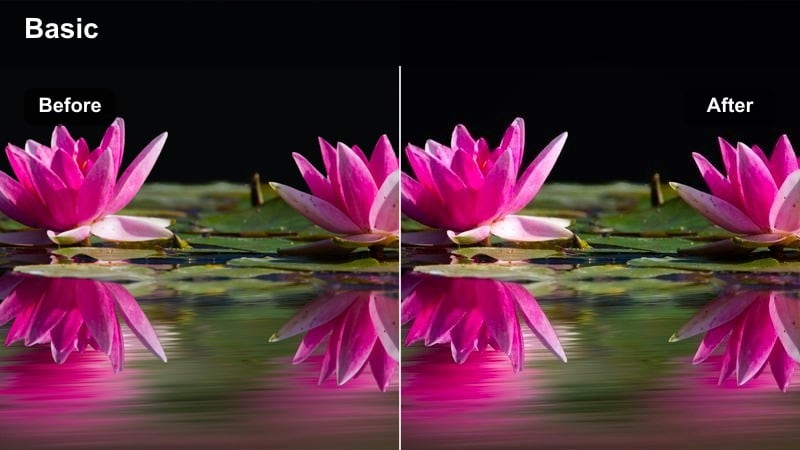
- Effect look: Rich greens with slightly warm highlights and medium contrast, ideal for forest canopies and winding paths.
- Best for: Drone shots over dense forests, hiking trails, and mountain bike routes under soft daylight.
- Editing tip: Fine-tune the green and yellow channels separately to avoid plastic-looking foliage while keeping the scene vibrant.
Evergreen Trail DJI Air 3 is built in Filmora to make forest footage feel lush and inviting without tipping into artificial neon greens. It enhances canopy depth from a top-down perspective and makes winding trails or bike lines stand out against dense foliage.
After applying the filter, use HSL to independently control the green and yellow ranges, dialing back saturation if leaves begin to look too intense. A modest contrast boost combined with a light vignette can help emphasize pathways or subjects cutting through the forest, giving your outdoor adventures a cinematic, story-driven presentation.
Alpine Clarity DJI Air 3
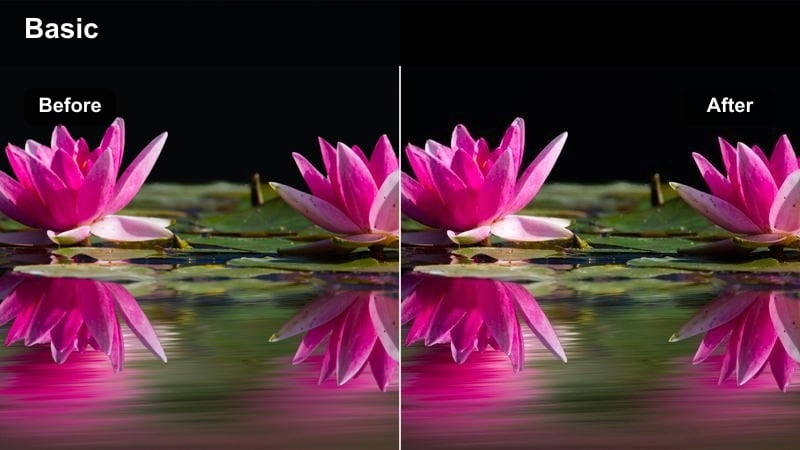
- Effect look: Cool, crisp mountain look with enhanced clarity, deep skies, and clean snow or rock textures.
- Best for: High-altitude ridges, snowy peaks, and rocky mountain passes with strong daylight.
- Editing tip: Increase local contrast on ridgelines and reduce haze slightly to make depth between foreground and distant peaks more pronounced.
Alpine Clarity DJI Air 3 is designed for high-altitude mountain flights in Filmora, where crisp air and strong sun create dramatic landscapes. The cool color bias and added clarity help emphasize rock textures, snow fields, and layered peaks, which is ideal for travel films and outdoor sports edits.
Once the filter is enabled, gently reduce haze and boost local contrast around important ridgelines using masks or adjustment tools. Keep an eye on blue saturation in the sky and snow highlights, pulling it back if colors become unnaturally intense. This balanced approach keeps your alpine footage sharp and detailed while still looking realistic and cinematic.
Trail Runner Cinematic DJI Air 3
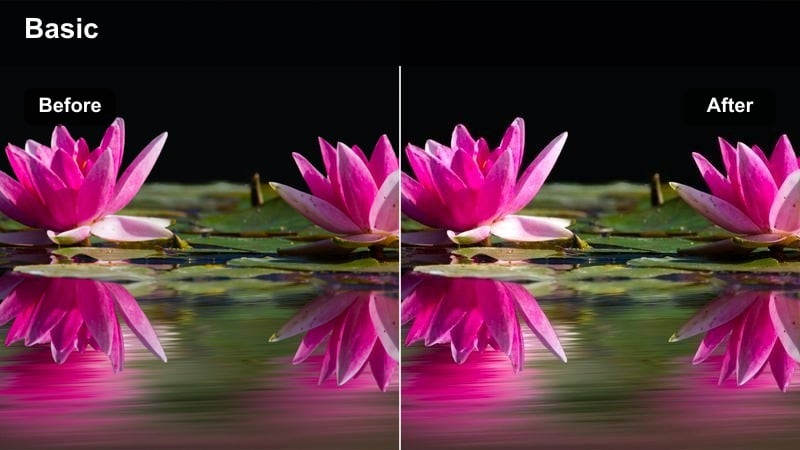
- Effect look: Cinematic contrast with slightly warm skin-friendly mids and restrained greens, ideal for following moving subjects on trails.
- Best for: Tracking runners, cyclists, or hikers along forest or mountain paths in mixed light.
- Editing tip: Use a subtle tracking mask on your subject to keep exposure consistent while allowing the background to breathe and shift slightly.
Trail Runner Cinematic DJI Air 3 is tuned for subject-focused outdoor shots in Filmora, where a person is moving through complex backgrounds of trees, rocks, or trails. The filter emphasizes warm, natural-looking skin tones while keeping greens controlled so the environment supports the story instead of overpowering it.
After adding the filter, create a soft tracking mask around your main subject to stabilize exposure and slightly lift mids so they pop against the surroundings. Let background luminance and color shift a bit with the natural light for a dynamic, realistic feel. This combination produces aerial action shots that look cinematic but still grounded in the real environment.
Tips for Using Dji Air 3 Luts Filters in Filmora
- Shoot in a consistent color profile like D-Log M or Normal across your DJI Air 3 clips so each filter and LUT-style look responds predictably in Filmora.
- Lock white balance in-camera to avoid shifting colors mid-shot when you apply strong warm or cool filters and LUTs during editing.
- Slightly underexpose bright skies and water surfaces to preserve detail that Filmora filters and corrections can recover later.
- Batch-apply your chosen DJI Air 3 filter to similar scenes, then fine-tune each clip individually for exposure, contrast, and saturation.
- Use scopes such as waveform and vectorscope in Filmora to keep skies, skin tones, and city lights within a natural, broadcast-safe range.
- Avoid stacking too many heavy effects on top of these filters, as aerial footage can quickly look overprocessed and noisy.
- Add subtle motion blur or grain only after finalizing your filter and color corrections so you do not amplify artifacts.
- Organize your DJI Air 3 looks into scene-based presets like sunset, city, water, and trails, then save your favorite adjustments as custom Filmora presets.
With the right filters inspired by DJI Air 3 LUTs, you can move from flat drone footage to polished, cinematic aerials in just a few clicks.
Use these 12 scene-based looks as a starting point, then refine exposure, contrast, and color in Filmora to craft a signature style that fits every project you shoot from the sky.
secure download