

 100% Security Verified | No Subscription Required | No Malware


 ChatGPT
 Perplexity
 Gemini
 Claude
 Grok
Grok
Cinematic DJI drone footage starts with the right color and contrast, and carefully tuned filters can instantly give your aerial shots a movie-ready look without complicated grading.
These DJI Drone LUTs Cinematic filters are designed for videographers and creators who want fast, consistent results, whether you are flying at golden hour, over dramatic cityscapes, or capturing sweeping landscapes.
In this article
Golden Hour Skies and Sunset Flyovers
Sunset Glow Cinema
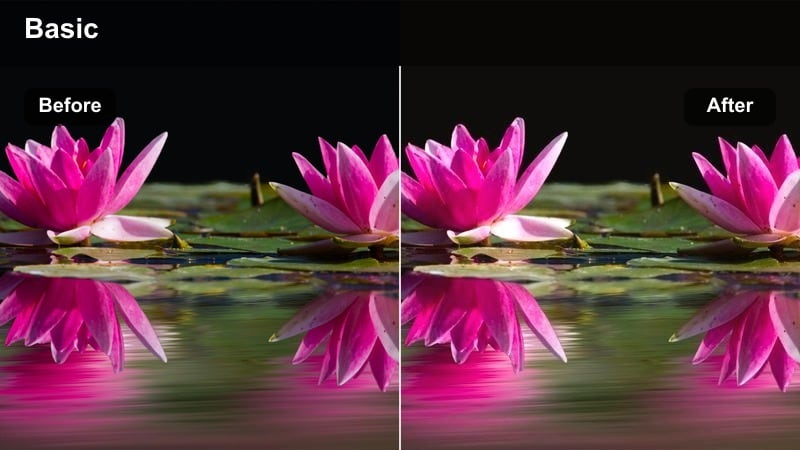
- Effect look: Warm cinematic glow with rich oranges and soft magenta skies.
- Best for: Sunset coastal flyovers, lakeside reveals, and skyline silhouettes.
- Editing tip: Lower contrast slightly to preserve detail in bright clouds and keep highlights from clipping.
Use Sunset Glow Cinema in Filmora when your DJI footage already has a strong sunset but feels flat or desaturated. The filter pushes warm oranges and magentas into the sky while keeping foreground elements darker, which naturally emphasizes silhouettes of coastlines, boats, or skylines for a film-style horizon shot.
After applying the filter, fine-tune the look by slightly lowering contrast and checking the scopes in Filmora, making sure highlights in clouds and reflections do not clip. If your shot includes people or city lights, adjust white balance to keep skin tones and lamps believable, then add a subtle vignette at low opacity to guide the viewer toward the brightest part of the sky.
AI-Powered Cinematic Color for DJI Drone Footage
Filmora s AI tools can analyze your DJI drone clips and suggest cinematic color palettes that pair perfectly with these LUTs and filters. This gives you a fast way to test different looks, from warm sunsets to cooler, dramatic skies, without dialing in curves from scratch.
Apply a cinematic filter like Sunset Glow Cinema, then use AI Color Matching to harmonize other clips in the same sequence so they all share a similar warmth, contrast, and saturation level.
 secure download

Preview Cinematic Filters on Your Drone Shots
With Filmora s real-time preview, you can cycle through different DJI Drone LUTs Cinematic filters while your aerial footage plays back. This makes it easy to see how warm sunset looks, cool city grades, or moody ocean tones affect the motion and lighting in your shot.
Audition several presets on the same clip, then compare them side by side on the timeline so you can quickly decide which style best fits the story you want to tell.
secure download1000+ Video Filters and 3D LUTs
Filmora includes a large library of creative video filters and 3D LUTs that you can stack with your DJI drone cinematic looks. Combine technical log-to-rec709 conversions with stylized grades to build anything from subtle commercial tones to bold, dramatic movie color.
Once you have built a look you love, save it as a custom preset so you can apply the same cinematic style to new drone flights in just one click.
secure downloadGolden Horizon Fade
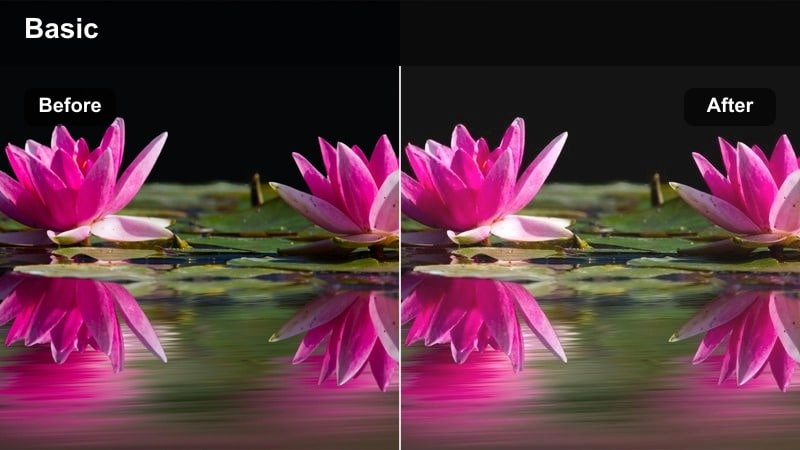
- Effect look: Soft contrast golden tones with a gentle fade in the shadows.
- Best for: Slow forward flights over fields, deserts, or mountain ridges at golden hour.
- Editing tip: Increase saturation a touch for greens and yellows while keeping reds slightly muted for a cinematic palette.
Golden Horizon Fade works well on DJI clips where the sun sits low on the horizon and your drone is gliding slowly forward. The filter adds warmth while slightly lifting the shadows, creating a dreamy, story-driven look that suits fields, deserts, and distant hills without crushing detail.
In Filmora, apply this filter, then gently raise saturation for greens and yellows so grass and foliage glow against the sky while reds stay under control. Adjust the blacks slider so the image still has enough depth to look good on mobile screens, avoiding an overly washed-out feel.
Amber Skyline Cine
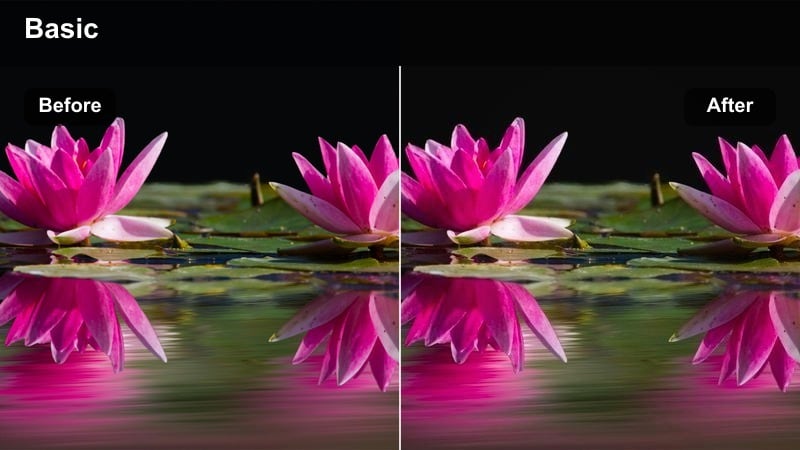
- Effect look: Amber-tinted skyline with boosted midtones and crisp detail in buildings.
- Best for: Sunset cityscape or harbor flyovers where the skyline is the main subject.
- Editing tip: Sharpen lightly and add a bit of clarity only in the midtones to make building edges pop without haloing the sky.
Amber Skyline Cine is ideal for DJI flights that track along or orbit a city skyline at sunset. The filter enhances amber tones in the sky and reflections on glass, while brightening midtones so buildings feel detailed and three-dimensional against the darker foreground.
Inside Filmora, combine this filter with a subtle midtone-only clarity boost and a light sharpening pass to define edges on skyscrapers and cranes. Use gradient masks to darken the lower portion of the frame and slightly tame highlights in water reflections, guiding the viewer s eyes to the skyline itself.
Urban Nightscapes and Neon City Flights
Neon Rail Cinema
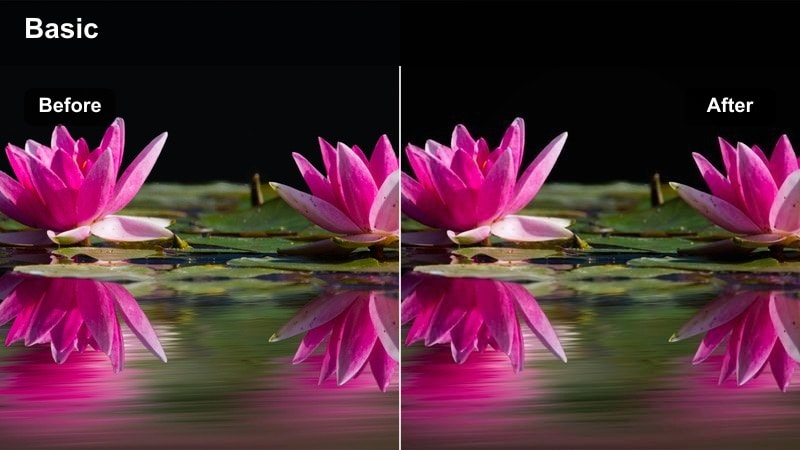
- Effect look: Punchy contrast with saturated neon blues and magentas and deep cinematic blacks.
- Best for: Nighttime flights over highways, train lines, and busy neon districts.
- Editing tip: Raise shadows slightly to recover detail in dark areas, then fine-tune saturation to avoid color noise.
Neon Rail Cinema turns DJI night flights over highways and train lines into stylized, futuristic scenes. The filter deepens blacks while intensifying neon blues and magentas, which makes traffic trails, billboards, and station lights stand out dramatically against the city grid.
In Filmora, apply this look to clips shot at higher ISO, then lift shadows just enough to reclaim structure in roads and buildings without exposing too much noise. Use noise reduction before sharpening so neon edges remain crisp, and carefully reduce overall saturation if you notice color speckling in darker portions of the frame.
Noir City Glow
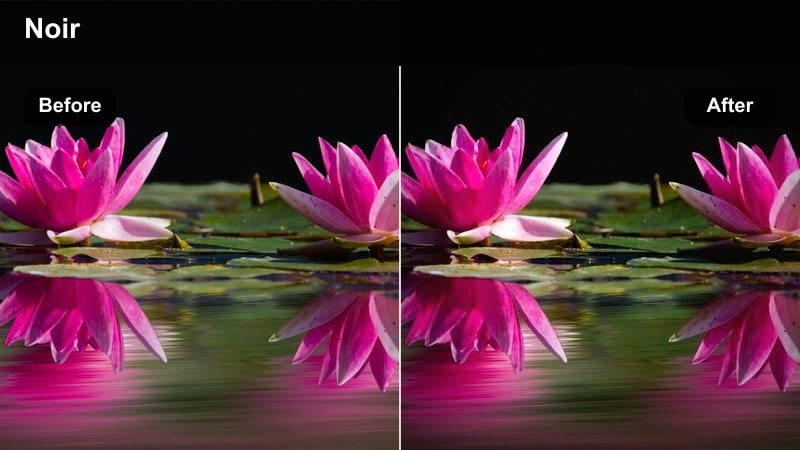
- Effect look: Cool-toned cinematic night look with lifted blacks and soft glowing highlights.
- Best for: Moody overhead shots of city blocks, alleys, and rooftop scenes.
- Editing tip: Dial down global saturation and then reintroduce color selectively in blues and cyans for a stylized noir palette.
Noir City Glow is perfect for top-down DJI drone shots where street grids, alleys, and rooftops form strong graphic patterns. The filter cools the overall palette, lifts blacks for a softer base, and adds a gentle glow to streetlights, giving your footage a moody, cinematic-noir flavor without going full monochrome.
In Filmora, reduce global saturation after applying the filter, then selectively boost blues and cyans to emphasize cold pavement and building shadows. Animate subtle exposure ramps across your clips so the viewer smoothly transitions from darker blocks to brighter intersections without distracting brightness jumps.
Urban Copper Nights
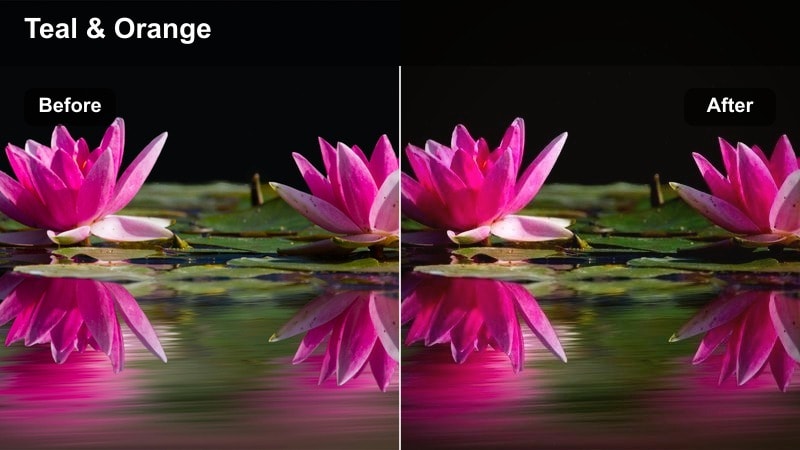
- Effect look: Cinematic teal and copper split-tone with strong contrast and vivid streetlights.
- Best for: Downtown fly-throughs above intersections, plazas, and nightlife zones.
- Editing tip: Push teal into shadows and copper into highlights using color wheels to reinforce the classic blockbuster night look.
Urban Copper Nights gives DJI city footage a classic teal-and-copper color grade, ideal for energetic downtown intersections and nightlife districts. Shadows shift toward teal while highlights and streetlights glow in rich copper tones, creating a polished blockbuster-style separation between roads, buildings, and light sources.
In Filmora, use this filter as your base, then refine with the color wheels: nudge shadows further into teal and gently warm the highlights for consistent copper signage and window light. Keep exposure consistent across the whole sequence using the waveform or histogram so bright headlights or screens do not blow out from shot to shot.
Coastal, Ocean, and Island Aerials
Aqua Cine Crisp
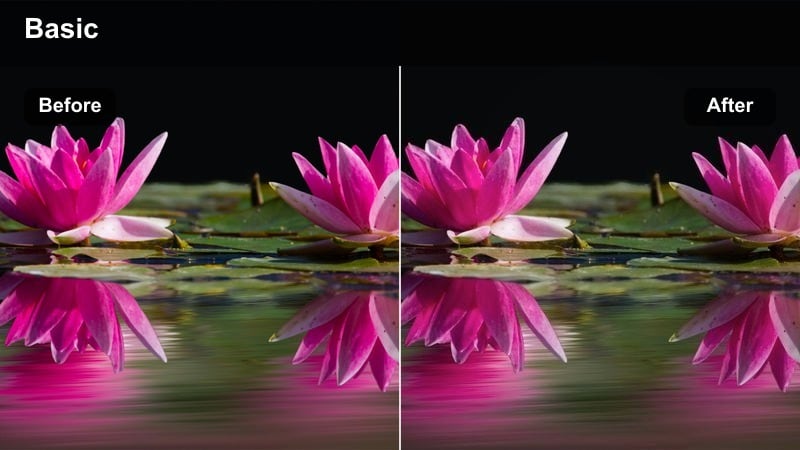
- Effect look: Clean cinematic blues with high clarity in water textures and neutral sands.
- Best for: Flyovers of clear coastlines, reefs, and tropical bays during daytime.
- Editing tip: Bounce vibrance up more than saturation so blues stay rich while skin tones and boats look natural.
Aqua Cine Crisp is designed for bright DJI coastal flights over clear water, reefs, and sandy beaches. The filter deepens ocean blues, adds clarity to water texture, and keeps sand tones neutral so the overall image feels clean and cinematic rather than oversaturated.
In Filmora, raise vibrance instead of global saturation after applying the filter so blues and aquas gain richness without pushing skin tones or boats into unnatural colors. Underexposed midday shots benefit from this look; pull highlights down slightly to protect bright waves and then fine-tune midtone contrast to reveal details in reefs and shoreline patterns.
Island Dream Cinema
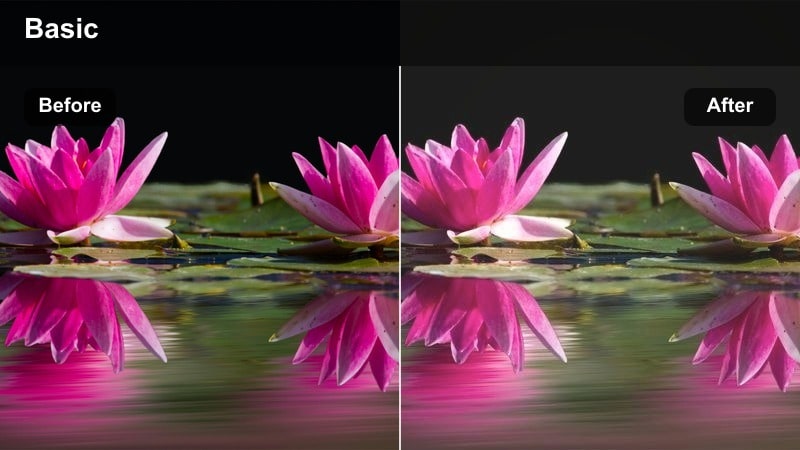
- Effect look: Soft pastel blues and greens with a subtle cinematic fade and gentle highlight roll-off.
- Best for: Slow reveals of islands, sandbars, and long beach tracking shots.
- Editing tip: Reduce overall contrast and then selectively add micro-contrast to the midtones so shorelines stay defined.
Island Dream Cinema softens DJI tropical footage with pastel tones and a mild fade, ideal for relaxed travel sequences. Blues and greens take on a gentle, airy feel while bright highlights roll off smoothly, making long tracking shots over islands and sandbars feel calm and cinematic.
After you apply the filter in Filmora, lower overall contrast a bit, then add micro-contrast only in the midtones to keep shorelines, boats, and palm trees well defined. Combine the look with smooth speed ramps and long crossfades, and keep your horizons level or carefully aligned to the rule of thirds for a polished, postcard-style reel.
Storm Sea Drama
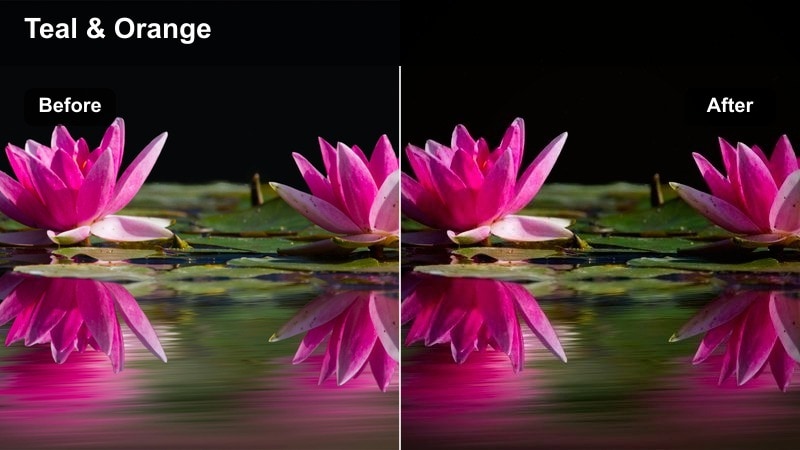
- Effect look: Moody teal and gray palette with strong contrast and darkened skies.
- Best for: Overcast ocean flights, stormy coastlines, and dramatic cliff passes.
- Editing tip: Pull down highlights in the sky and add local contrast on the waves to emphasize movement and tension.
Storm Sea Drama is tailored for DJI flights in overcast or stormy coastal conditions. The filter transforms flat gray scenes into intense teal-and-gray compositions, darkening skies and boosting contrast so waves, cliffs, and cloud formations feel powerful and cinematic.
Use this look in Filmora when your footage has strong weather but lacks punch: pull highlights down in the sky to retain cloud texture, then add local contrast or clarity to the sea to emphasize wave energy. Pair the grade with slow, controlled camera moves and slightly longer shot durations so viewers have time to absorb the brooding atmosphere.
Mountains, Landscapes, and Daytime City Skylines
Epic Ridge Cinema
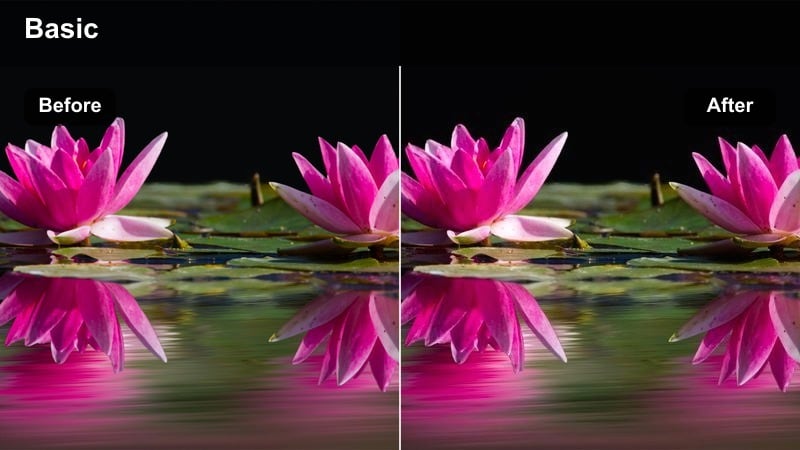
- Effect look: High dynamic range look with deep greens, crisp shadows, and cinematic contrast.
- Best for: Mountain ridgeline passes, valley reveals, and forest flyovers.
- Editing tip: Use curves to lift the deepest blacks slightly while preserving punch in the midtones for a film-like roll-off.
Epic Ridge Cinema is built for expansive DJI flights across mountains, valleys, and dense forests. The filter deepens greens and adds crisp contrast, helping you reveal layers of ridges and trees while maintaining good detail in both bright skies and darker slopes.
In Filmora, apply this filter first, then adjust the curves to gently lift only the deepest blacks so your footage keeps a filmic roll-off instead of harsh clipping. Slightly increasing atmospheric haze in the background can help separate distant peaks from the foreground, especially on sideways tracking shots that reveal landscape layers over time.
City Day Cinematic
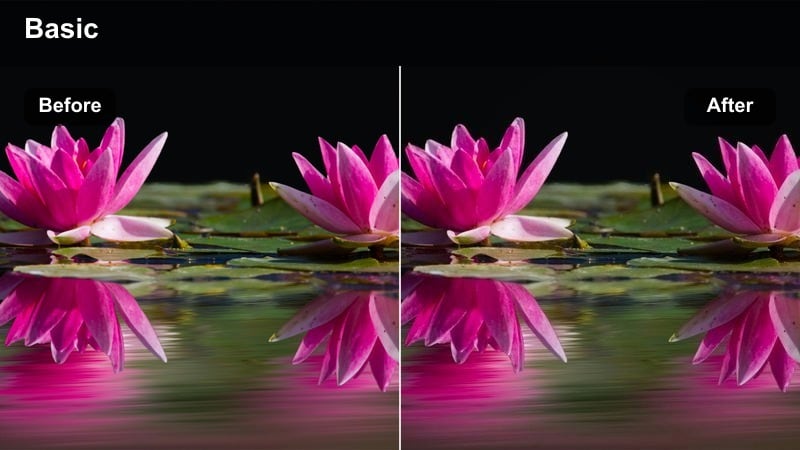
- Effect look: Neutral, slightly cool daytime palette with clean whites and controlled saturation.
- Best for: Daytime skyline or downtown flyovers with lots of glass and concrete.
- Editing tip: Reduce yellow and green saturation to keep buildings and roads looking modern and polished.
City Day Cinematic keeps DJI daytime city footage realistic but refined, which is ideal for brand and client projects. The filter leans slightly cool, cleans up whites, and reins in saturation so glass, steel, and concrete structures look modern without the heavy, stylized color of a dramatic grade.
Inside Filmora, lower yellow and green saturation a bit after applying the filter so streets, facades, and foliage do not distract from the architecture. Maintain straight verticals by minimizing camera tilt while flying and, if needed, apply perspective correction gently in post, preserving a high-end commercial feel.
DJI Log to Cinema Base
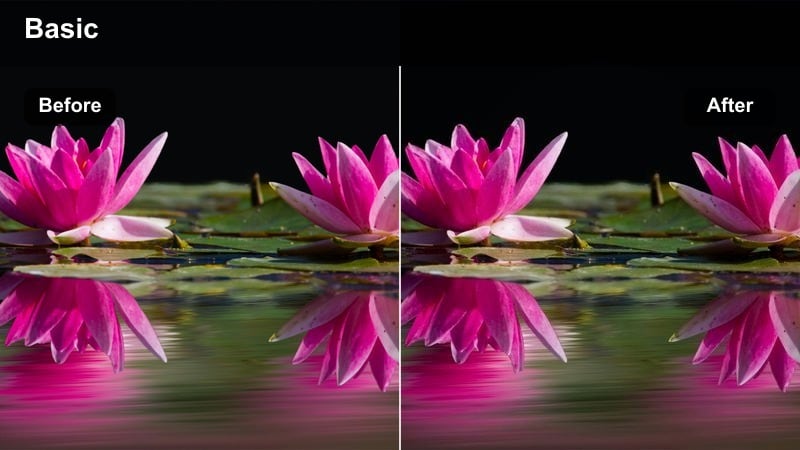
- Effect look: Natural cinematic base conversion from DJI D-Log or flat profiles with balanced contrast.
- Best for: Any outdoor scene shot in DJI Log that needs a flexible cinematic starting point.
- Editing tip: Apply this filter first, then stack stylistic filters lightly on top for specific moods without breaking skin tones or skies.
The DJI Log to Cinema Base filter is your starting point when grading flat or D-Log footage from DJI drones. It converts washed-out log images into a balanced, natural-grade foundation with proper contrast and color, making it much easier to apply creative cinematic looks later on.
In Filmora, normalize your whole sequence with this base filter before stacking other LUTs or filters. Once exposure and color are consistent across clips, you can selectively layer sunset, night, or landscape presets on top at reduced intensity, preserving accurate skin tones and skies while giving each scene a distinct cinematic mood.
Tips for Using Dji Drone Luts Cinematic Filters in Filmora
- Shoot in a flat or log profile on your DJI drone to get the most latitude and flexibility when applying cinematic LUTs and filters in Filmora.
- Bracket or slightly underexpose your footage to protect highlights in skies and water, then use Filmora filters to rebuild contrast instead of relying on in-camera processing.
- Match white balance across all clips before adding LUTs or filters so your DJI drone footage grades consistently from one scene to the next.
- Use smoother, slower drone movements, such as gradual reveals and orbits, so cinematic filters appear more polished and do not highlight sudden exposure or color shifts.
- Apply a base conversion like DJI Log to Cinema Base first, then gently layer creative filters to avoid over-processing and color banding.
- Check your scopes in Filmora to keep highlights from clipping and blacks from crushing, especially when stacking multiple LUTs or contrast-heavy filters.
- Create and save custom presets for your favorite DJI drone looks, so future flights can be graded in just a few clicks.
- Test your final grade on both large monitors and mobile screens to ensure your cinematic drone look holds up across different viewing environments.
Cinematic DJI drone LUTs and filters give videographers and creators a fast path from flat aerial footage to film-ready visuals, whether you are shooting sunsets, cities, oceans, or mountain ridges.
Experiment with a few core looks, save your favorites as presets, and you will be able to apply a consistent cinematic style to every new DJI flight in just a few clicks.
secure downloadNext: DJI Mini 4 Pro LUTS
