

 100% Security Verified | No Subscription Required | No Malware


 ChatGPT
 Perplexity
 Gemini
 Claude
 Grok
Grok
These DJI Mini 4 Pro LUT-style filters are designed for videographers and creators who want fast, cinematic color without spending hours in grading tools. Each look is tuned for common drone scenarios so you can drop it on your footage, tweak intensity, and export.
Whether you are filming sweeping landscapes, golden-hour city fly-throughs, or high-contrast coastal shots, this collection of 12 filters gives your DJI Mini 4 Pro footage a polished, consistent style that plays nicely with Filmora's editing workflow.
In this article
Golden Hour Landscapes and Scenic Flyovers
Sunset Glow Plateaus
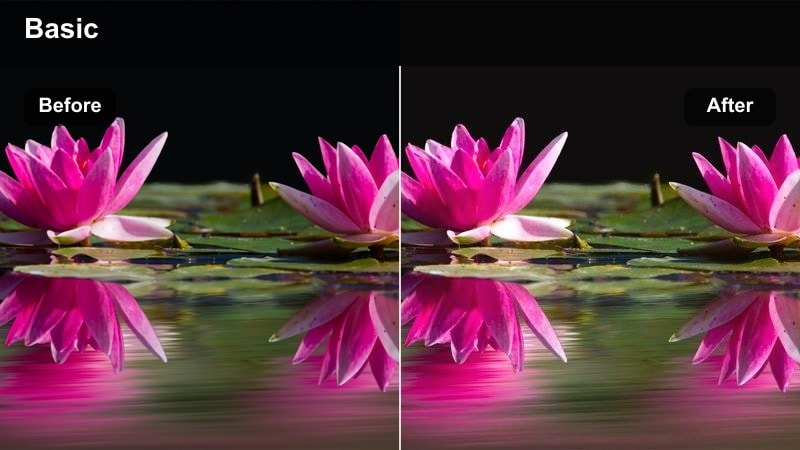
- Effect look: Warm, softly contrasted glow that emphasizes orange skies and gentle highlights for cinematic sunset passes.
- Best for: Golden-hour mountain ridges, plateau flyovers, and warm late-afternoon countryside scenes.
- Editing tip: Lower the filter intensity to around 60% for already colorful sunsets to avoid clipping in the reds and oranges.
Sunset Glow Plateaus is tuned to pull richer oranges and reds out of your DJI Mini 4 Pro sunset footage while keeping contrast smooth and cinematic. Highlights roll off softly so sky gradients stay clean, and lifted midtones keep plateaus, hills, and foreground details visible against a glowing horizon.
In Filmora, apply this filter to your base drone clip, then fine-tune intensity until the sky looks saturated but not oversharpened or clipped. If ground elements start to skew too orange, counterbalance with the HSL controls by reducing yellows and oranges slightly, and combine with a gentle curves adjustment to keep silhouettes and ridgelines well defined.
Once you pick a favorite filter from this DJI Mini 4 Pro LUT-style set, you can use Filmora's AI color tools to quickly match the rest of your clips for a uniform look. Let AI analyze one hero shot with Sunset Glow Plateaus applied, then transfer that balance to all supporting angles in your sequence.
Instead of grading every shot from scratch, you keep one reference clip as your master and let AI handle the heavy lifting, then make small tweaks where lighting changes between passes or altitudes.
 secure download

If you are unsure which DJI Mini 4 Pro filter best fits your project, build a short test timeline with a mix of landscape, city, and coastal clips. Drop different filters on duplicated sequences so you can compare how each LUT-style look handles motion, skies, and shadows side by side.
This approach makes it easy to audition dramatic versus soft looks before you commit to grading a full travel film or client job, and lets you see how each style holds up once transitions, titles, and music are in place.
secure downloadFilmora also includes 1000+ video filters and 3D LUTs you can combine with these DJI Mini 4 Pro looks for even more nuanced styles. Use one LUT or filter as your base grade, then layer subtle finishing filters to refine contrast, color separation, and atmosphere without rebuilding your grade from zero.
For example, stack a soft film LUT underneath a coastal filter, or add a gentle glow filter over a night city look to give highlights a more cinematic bloom while keeping details sharp.
secure downloadGolden Meadow Drift
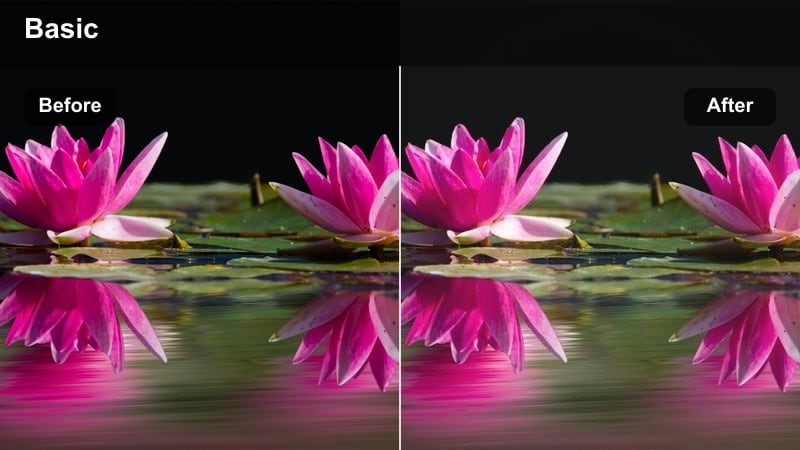
- Effect look: Soft golden tint with muted shadows and slightly lifted blacks for a dreamy, airy meadow feel.
- Best for: Low-altitude passes over fields, meadows, and rolling hills in late afternoon light.
- Editing tip: Add a slight vignette in Filmora to guide the viewer's eye toward the center of the frame when flying low over textured ground.
Golden Meadow Drift pushes warm midtones and gently lifts blacks to create a soft, pastoral mood that works especially well for low, slow flights. By slightly muting shadows, it keeps grass, paths, and field textures visible without introducing harsh contrast or crunchy detail.
Apply this filter in Filmora on clips shot in late afternoon or early evening, then refine with a modest vignette effect to pull attention toward the direction of travel. If the image starts to look too hazy, bring back a touch of clarity and reduce overall warmth just a few points so the golden tone feels intentional rather than overpowering.
Hazy Ridge Cinematic
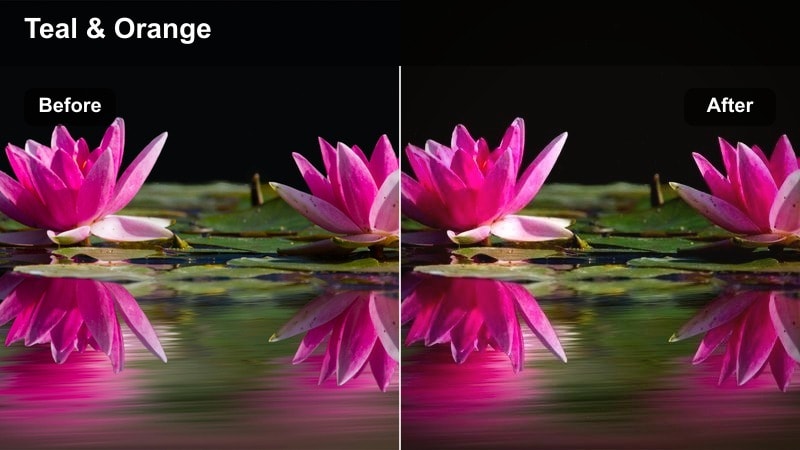
- Effect look: Desaturated greens, lifted blacks, and a subtle teal shadow cast for a filmic mountain atmosphere.
- Best for: Moody mountain ranges, misty valleys, and distant ridgelines shot in backlight or light haze.
- Editing tip: Gently increase clarity instead of contrast to keep the cinematic softness while restoring ridge detail.
Hazy Ridge Cinematic leans into teal-toned shadows and reduced saturation to create a modern film look on your mountain drone footage. The lifted blacks prevent deep areas from going pitch black, which preserves the layered, atmospheric feeling you get when shooting through mist and backlight.
In Filmora, use this filter on clips where your DJI Mini 4 Pro is high above valleys or ridgelines, then boost clarity slightly so the depth between mountain layers remains readable. If the teal push feels too strong, subtly reduce saturation on blues and cyans in HSL while keeping overall contrast low for that hazy, cinematic mood.
Urban Dusk and Night City Fly-Throughs
Neon Street Overlook
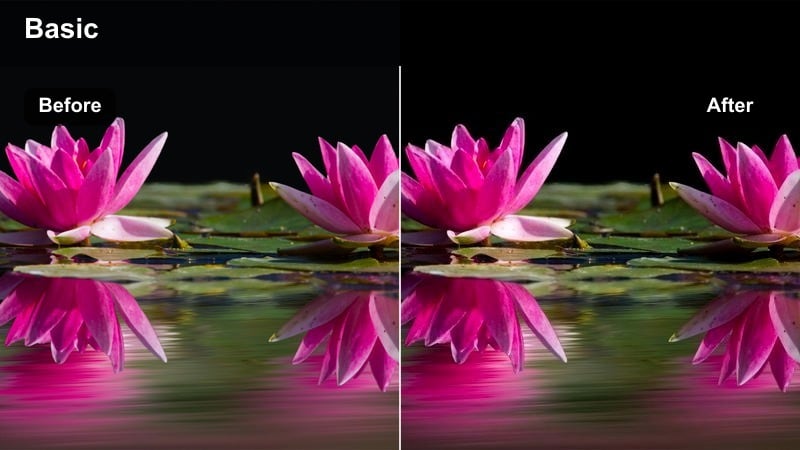
- Effect look: Bold contrast with boosted magentas and cyans that make city lights pop against cooler shadows.
- Best for: Twilight flights over downtown streets, lit billboards, and traffic trails from above.
- Editing tip: Lower saturation in skin tones if people are visible on rooftops or balconies to avoid overly pink highlights.
Neon Street Overlook pushes saturation in magentas and cyans and adds punchy contrast so neon signs, brake lights, and LED panels stand out against the city grid. Cooler shadows keep the overall palette modern and vibrant, making dusk and blue-hour flights feel like stylized cyber-city sequences.
After applying this filter in Filmora, fine-tune exposure so bright signage retains detail without turning into flat white blocks. If people or neutral objects start to pick up too much pink, selectively lower saturation in the red and orange channels, and consider adding a mild glow or bloom effect to emphasize the neon atmosphere even more.
Midnight Rooftop Run
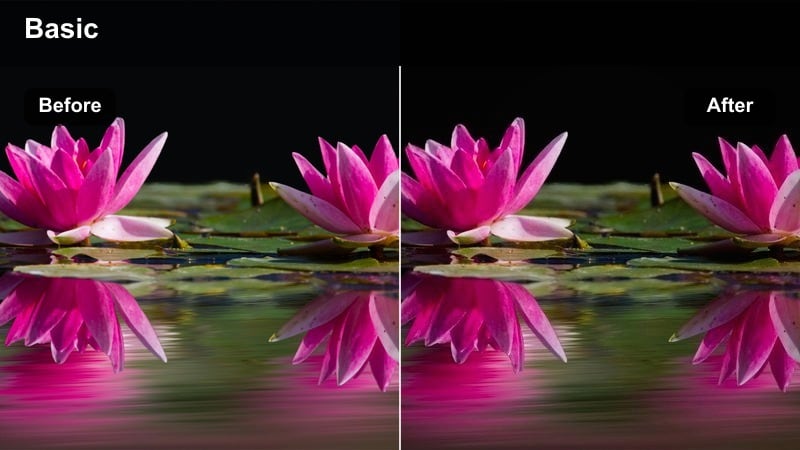
- Effect look: Cool, contrasty night look with deep blues and crushed shadows for a dramatic rooftop chase vibe.
- Best for: High-altitude or mid-level passes over city skylines and rooftops at night.
- Editing tip: Dial back the filter intensity to retain shadow detail if your drone footage is already very dark.
Midnight Rooftop Run drives your night city footage toward deep blues and strong contrast, creating a high-energy, cinematic style that suits skyline reveals and dramatic overhead passes. Crushed shadows help emphasize lit windows, signage, and traffic lines, giving the frame a bold graphic structure.
In Filmora, start by reducing noise with mild denoising if you shot at higher ISO, then apply the filter and adjust intensity until building edges stay defined without losing all rooftop detail. If the image feels too heavy, open up shadows slightly and nudge exposure up a fraction, keeping highlights protected so key light sources still anchor the composition.
Amber Avenue Cruise
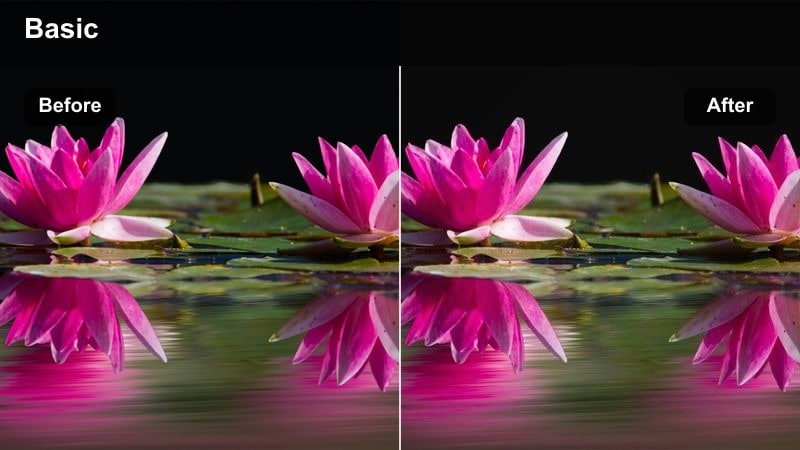
- Effect look: Warm amber shift in highlights with preserved neutral shadows for cozy, inviting city avenues.
- Best for: Evening streets lined with warm streetlights, slow fly-throughs along boulevards and riverside roads.
- Editing tip: Increase midtone brightness slightly to bring out detail in buildings without flattening the warm glow.
Amber Avenue Cruise focuses warmth into highlights and midtones, mimicking the feel of sodium-vapor and tungsten streetlights while keeping shadows closer to neutral. This balance makes evening avenues, bridges, and riversides feel inviting and cinematic without turning the entire frame orange.
Apply the filter in Filmora and then refine midtones with the color tools so building facades and trees stay visible under the glow. If signage or car lights start to skew too yellow, trim global temperature a touch cooler and fine-tune orange and yellow saturation in HSL to keep the warmth controlled and filmic.
Coastal, Beaches, and Waterway Scenes
Turquoise Coastline Sweep
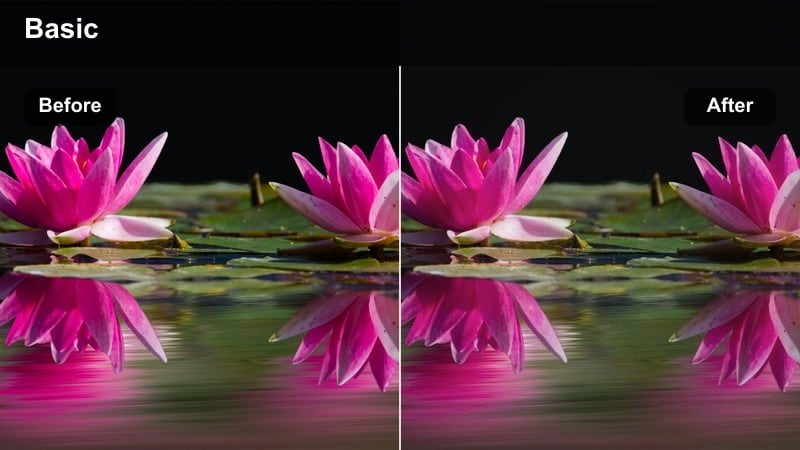
- Effect look: Clean, bright coastal palette with boosted aquas and crisp whites for tropical-style water.
- Best for: Beach flyovers, harbor entries, and clear-water shorelines shot in daylight.
- Editing tip: Reduce blue luminance slightly if the water starts to clip or lose texture in the brightest areas.
Turquoise Coastline Sweep elevates blues, aquas, and whites to give your DJI Mini 4 Pro beach footage a bright, postcard-style aesthetic. Highlights on waves and surf stay sharp, while sand and coastal structures remain relatively neutral so the water remains the star of the shot.
Inside Filmora, apply this filter to daylight shoreline clips, then adjust blue luminance and saturation until the water looks vibrant but still shows ripples and underwater detail. If the sky becomes too intense, selectively pull back cyan and blue saturation in HSL, and use a slight vignette or gradient to keep attention on the coastline or subject path.
Harbor Mist Soft Film
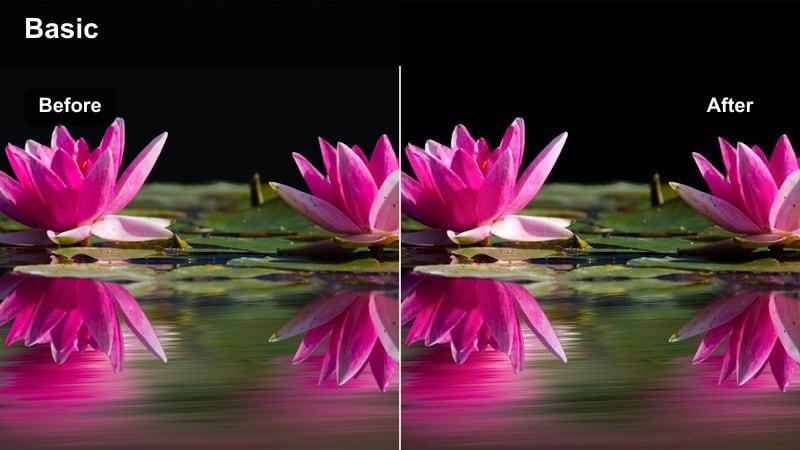
- Effect look: Muted colors with a cool gray-blue wash and lifted blacks for soft, cinematic harbor mornings.
- Best for: Overcast harbors, marinas, and river docks captured in early morning or light fog.
- Editing tip: Add a subtle film grain overlay after the filter to reinforce the soft cinematic atmosphere.
Harbor Mist Soft Film dials back saturation and contrast, introduces a gentle blue-gray tint, and lifts blacks to echo the mood of quiet, misty mornings. Boats, piers, and distant buildings take on a soft, almost analog-film character that works especially well in overcast or foggy light.
In Filmora, apply this look to marina or harbor clips, then add a light film grain overlay and maybe a minimal vignette to guide the eye toward the densest cluster of boats or structures. If your footage appears too flat, use a subtle S-curve to restore micro-contrast without losing the overall soft, low-contrast feeling.
Sun-Bleached Boardwalk
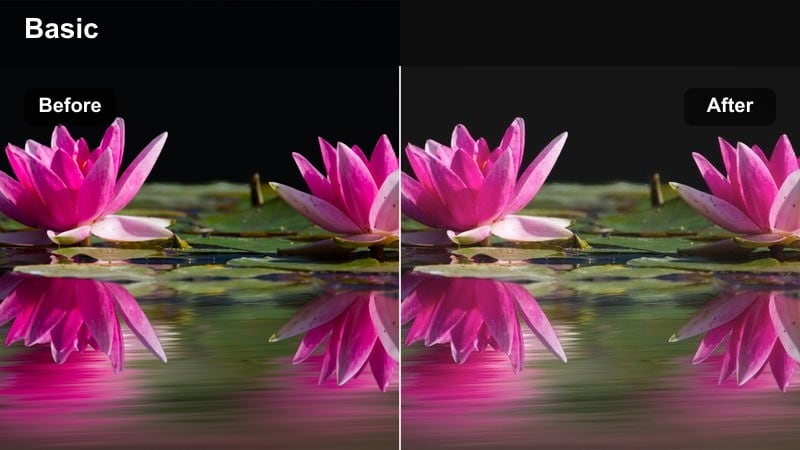
- Effect look: High-key look with slightly faded colors, reduced contrast, and soft highlights for midday seaside vibes.
- Best for: Boardwalks, piers, and bright beach towns shot under harsh midday sun.
- Editing tip: Lower global contrast and raise shadows after applying the filter to smooth out harsh drone midday shadows.
Sun-Bleached Boardwalk tames hard midday light by softening contrast, fading saturation slightly, and brightening highlights into a pleasant, airy glow. The result is a relaxed, lifestyle-friendly look that makes busy beach towns and piers feel inviting rather than harsh and overexposed.
When grading in Filmora, use this filter on clips with strong overhead sun, then gently lift shadows and slightly reduce contrast to minimize the sharp, dark shadows cast by people and railings. If faces or signs wash out too much, recover highlights with the highlight slider and add a tiny bit of clarity to keep edges clean without breaking the soft vibe.
Nature Trails, Forests, and Countryside Routes
Emerald Forest Pass
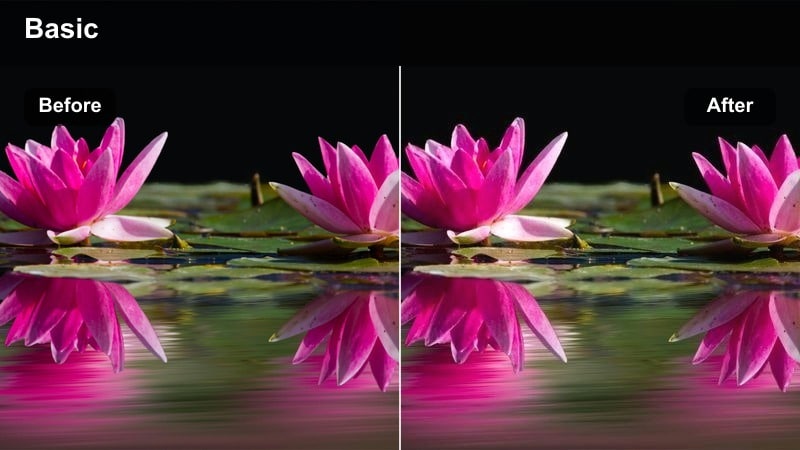
- Effect look: Rich greens with gentle contrast and slightly cool shadows for deep, lush forests.
- Best for: Forest paths, tree canopies, and river-adjacent woodlands seen from above.
- Editing tip: Use HSL to pull back yellow saturation so foliage looks rich but natural instead of neon.
Emerald Forest Pass intensifies greens and adds just a hint of coolness to the shadows, creating a lush woodland palette that works from canopy-top shots down to low passes along rivers. The contrast remains gentle so detail in leaves, trunks, and undergrowth stays visible without looking overly sharpened.
After applying this filter in Filmora, refine foliage color by reducing yellow saturation and slightly adjusting hue so grass and leaves remain natural rather than fluorescent. If the scene feels too dense, add a touch of exposure and lift shadows a little to reveal paths, streams, or subjects moving through the forest.
Country Road Journey
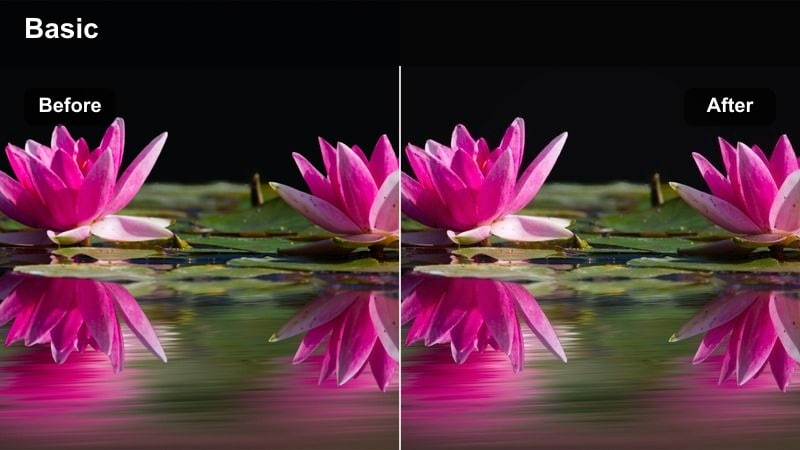
- Effect look: Balanced, natural color with a subtle warm lift in midtones for story-driven countryside routes.
- Best for: Drone reveals of winding country roads, farm routes, and rural villages.
- Editing tip: Combine the filter with a slow zoom or keyframed crop in Filmora for an extra narrative push-in on key shots.
Country Road Journey adds a gentle warm lift while preserving relatively neutral overall color, making it ideal for narrative sequences that follow a car, bike, or hiker along winding rural paths. Fields, trees, and small houses gain a subtle cinematic polish without looking heavily stylized.
In Filmora, pair this filter with keyframed crops or slow digital zooms to create a feeling of movement and progression as the road curves through the landscape. If skies appear too flat, add a soft S-curve to increase midtone contrast while keeping highlights controlled so clouds and horizon detail remain intact.
Misty Trail Morning
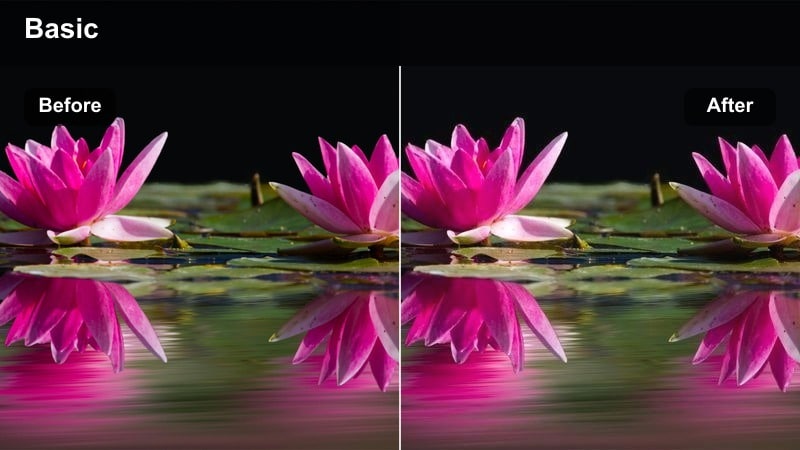
- Effect look: Low-contrast, cool-toned look with soft highlights that suits overcast or foggy forest paths.
- Best for: Early-morning flights over forest trails, riverside walks, and shaded parks.
- Editing tip: Add a small amount of dehaze only where needed; too much will fight the soft, misty character of the filter.
Misty Trail Morning cools the overall palette and reduces contrast to capture the calm, quiet feel of foggy or overcast scenes. Highlights remain gentle so fog layers and soft light through trees are preserved, while shadows are lifted enough that key paths and waterlines do not disappear.
Within Filmora, use this filter on morning or shaded park clips, then selectively apply dehaze or localized contrast only where you need slightly more structure, such as along the main trail. Avoid aggressive sharpening; instead, lean into the atmosphere by adding a very light vignette and stabilizing subtle shakes so the tranquil mood stays intact.
Tips for Using Dji Mini 4 Pro Luts Filters in Filmora
- Shoot in a flat or D-Cinelike profile on your DJI Mini 4 Pro to give these filters more room to shape contrast and color.
- Keep ISO as low as possible, especially for night city filters, so noise does not get exaggerated by added contrast.
- Always balance exposure for the brightest part of the frame first, especially skies and water, then recover shadows in Filmora.
- Use Filmora adjustment layers so you can try multiple filters on the same base clips without duplicating timelines.
- Keyframe filter intensity across a clip when flying from shadow into sunlight to maintain a consistent perceived grade.
- Match white balance across your drone clips before adding any filters to avoid sudden color shifts between shots.
- Combine subtle sharpening with these filters rather than pushing clarity too hard, which can break the cinematic look.
- Export a short 10–20 second test reel after grading to see how your DJI Mini 4 Pro footage looks on phones and TVs before final delivery.
These 12 DJI Mini 4 Pro LUT-style filters give videographers and creators fast, reliable ways to sculpt mood across landscapes, cities, coasts, and forest routes inside Filmora.
Combine them with careful exposure, stable flight paths, and Filmora's AI tools and you can turn everyday drone flights into cohesive, cinematic stories with minimal grading time.
secure downloadNext: DJI Air 3 LUTS
