

 100% Security Verified | No Subscription Required | No Malware


 ChatGPT
 Perplexity
 Gemini
 Claude
 Grok
Grok
This downtown shopping mall vlog filter collection is designed for content creators who film in bright indoor plazas, escalator halls, brand-lined corridors, and food court walk-throughs. Each preset helps you fix mixed lighting, boost storefront colors, and keep skin tones natural so your mall vlogs look polished and consistent.
Whether you are documenting a busy downtown weekend, filming fashion try-ons between boutiques, or capturing cinematic escalator shots, these Filmora-ready filters give you ready-made looks that save time and keep every mall scene on-brand.
In this article
Glossy Entrances and Storefront Walk-Ins
Neon Entrance Pop
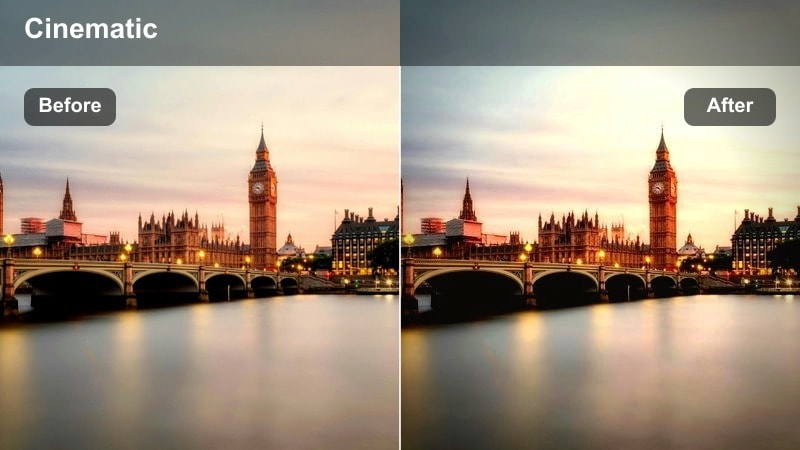
- Effect look: Vibrant contrast with boosted neon signs and crisp whites for bright mall entrances.
- Best for: Nighttime or low-light mall entrances with glowing billboards and LED signage.
- Editing tip: Lower saturation slightly if your camera already has vivid colors to avoid clipping bright store logos.
Neon Entrance Pop is designed to make your downtown mall entry shots feel energetic and eye-catching, even if the original footage looks flat or muddy. In Filmora, this filter deepens blacks, brightens whites, and selectively pushes saturation so LED signs, billboards, and animated screens instantly stand out without crushing detail.
Apply it to your opening walk-in clips, sliding-door reveals, or quick pans across the entrance area to hook viewers in the first few seconds of your vlog. If your camera profile is already vivid, pull back overall saturation or fine-tune specific color channels in Filmora to protect skin tones and keep store branding readable and professional.
Match Your Mall Vibe with AI-Driven Color
Filmora AI Color tools help you match the Neon Entrance Pop look across clips shot under different neon signs, LED panels, or mixed street lighting. Run AI color balance first to normalize exposure and white balance, then drop this preset on your entrance sequence to get a cohesive, city-night look.
This workflow lets you blend outdoor curb shots, automatic door walk-ins, and lobby b-roll so they all share the same punchy, urban palette. You spend less time fiddling with curves and more time arranging creative transitions and music.
 secure download

See the Filters in a Full Mall Vlog Flow
To keep your downtown mall vlog feeling like one smooth journey, test how Neon Entrance Pop transitions into your interior corridor and boutique presets. Arrange a short edit that starts at the entrance, glides up escalators, then lands inside your favorite stores to preview the full color story.
By assigning specific Filmora filters to entrances, corridors, shops, and food courts, viewers intuitively feel each chapter of your mall experience while your brand look stays consistent. You can quickly swap presets during this test phase until you find a flow that matches your channel style.
secure download1000+ Video Filters and 3D LUTs
Beyond this downtown shopping mall vlog filter collection, Filmora includes 1000+ filters, overlays, and 3D LUTs you can stack to build a unique, cinematic aesthetic. Start with one of these mall-focused presets, then experiment with additional LUTs or glow effects to refine your personal brand look.
Once you discover a combination that fits your city lifestyle content, save it as a custom preset or LUT. That way every future mall, plaza, or downtown episode can instantly match your established style with one click.
secure downloadGlass Facade Clean
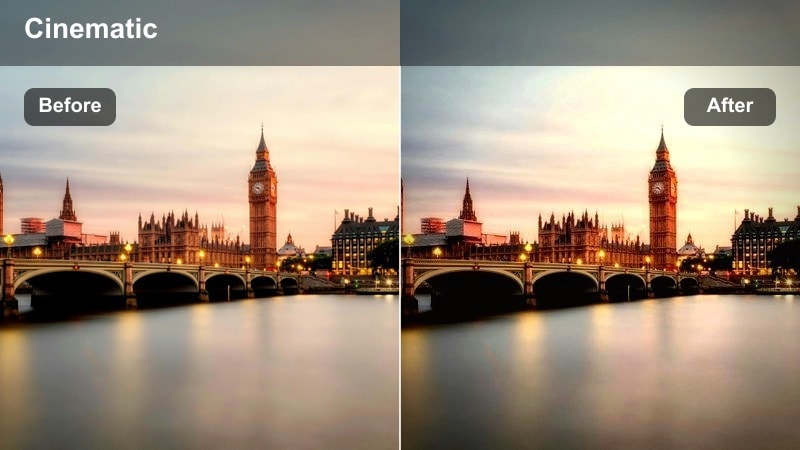
- Effect look: Clean, neutral tones with softened reflections and a subtle brightness lift.
- Best for: Daytime entrances with large glass facades, revolving doors, and street reflections.
- Editing tip: Increase highlight recovery to pull detail back into bright glass reflections and sky patches.
Glass Facade Clean helps you manage bright, reflective mall exteriors where glass walls, metal frames, and skies can easily blow out. In Filmora, this preset slightly lifts exposure while controlling highlights, so you keep architectural detail and city reflections without sacrificing clarity.
Use it on approaching-the-mall shots, revolving-door walks, and any b-roll where the glass frontage shows off the downtown environment. After applying the filter, nudge highlight and shadow sliders in Filmora to restore detail in clouds or sidewalk areas, keeping your entrance sequences crisp and professional.
Signage Showcase
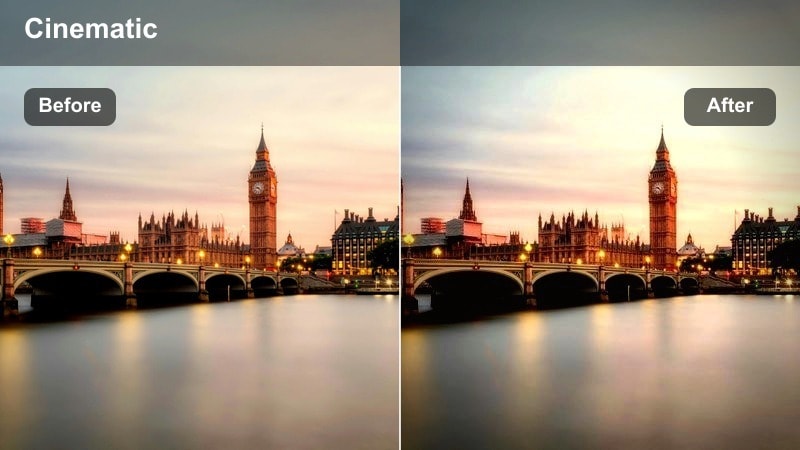
- Effect look: High micro-contrast with enhanced brand colors and punchy text on signs.
- Best for: Showcasing brand logos, mall directories, and storefront name boards in vlogs.
- Editing tip: Sharpen slightly after applying this filter to keep text on signs ultra legible in motion.
Signage Showcase is tuned to make logos and text elements stand out clearly, which is ideal for sponsored segments or store recommendations. In Filmora, it adds micro-contrast and color intensity around edges, helping directory maps, store names, and offer banners read clearly even on smaller screens.
Apply it to slow pans across storefronts, directory close-ups, or quick logo reveals between scenes. Consider adding a small amount of sharpening and stabilizing your handheld shots in Filmora so viewers can easily read every sign while still feeling the natural movement of your downtown shopping mall vlog.
Bright Interior Corridors and Escalator Rides
Escalator Glide Cinematic
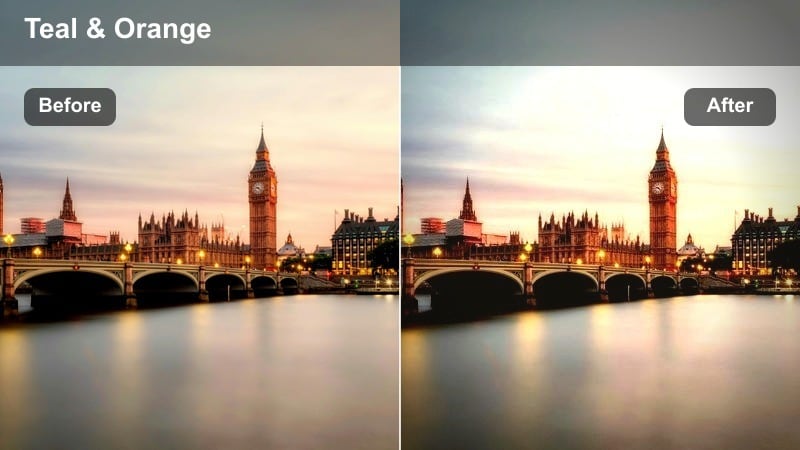
- Effect look: Soft cinematic contrast with a gentle teal-and-warm tint for moving escalator shots.
- Best for: Slow-motion escalator rides, balcony reveals, and multi-floor mall shots.
- Editing tip: Add a slight motion blur effect in Filmora to complement this filter and smooth out handheld jitters.
Escalator Glide Cinematic introduces a subtle teal-and-warm palette that gives your moving shots a filmic, story-driven feel. It slightly softens contrast and highlights to avoid harsh edges while you ride escalators or capture balcony views across multiple floors of the mall.
Use this preset for establishing sequences that show the scale of the mall or connect one shopping area to another. In Filmora, combine it with motion blur, stabilization, and perhaps a slow speed ramp to turn a simple ride up or down the escalator into a smooth, cinematic transition between vlog chapters.
Corridor Daylight Balance
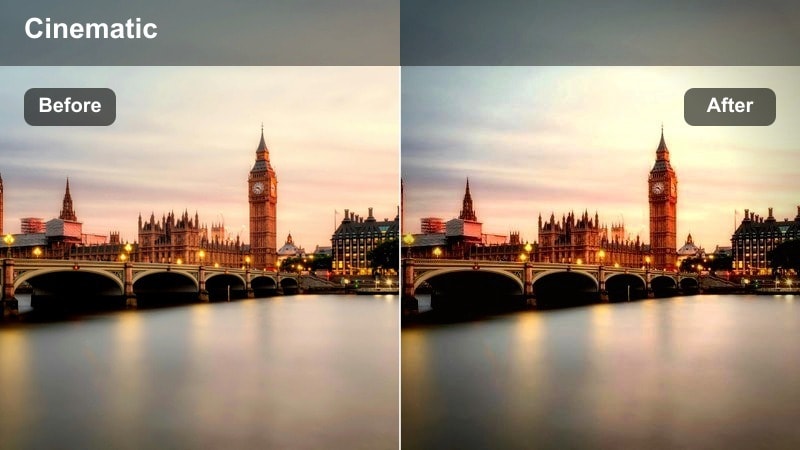
- Effect look: Balanced tones that correct yellow mall lighting and mix it with cool skylight.
- Best for: Walk-through clips near skylights, atriums, and glass roofs with mixed color temperature.
- Editing tip: Fine-tune white balance after applying the filter to match the time of day shown outside.
Corridor Daylight Balance is built for those tricky corridor shots where warm ceiling lights clash with cool skylight streaming through glass roofs. The preset evens out color temperature so your skin does not look too orange while storefronts and skylights still feel natural and bright.
Apply it to walk-and-talk segments, tracking shots past boutiques, or POV clips moving through open atriums. After the preset, adjust white balance and tint slightly in Filmora to sync the indoor look with whatever sky tone you see outside, whether it is midday blue or late-afternoon gold.
Mirror Rail Aesthetic
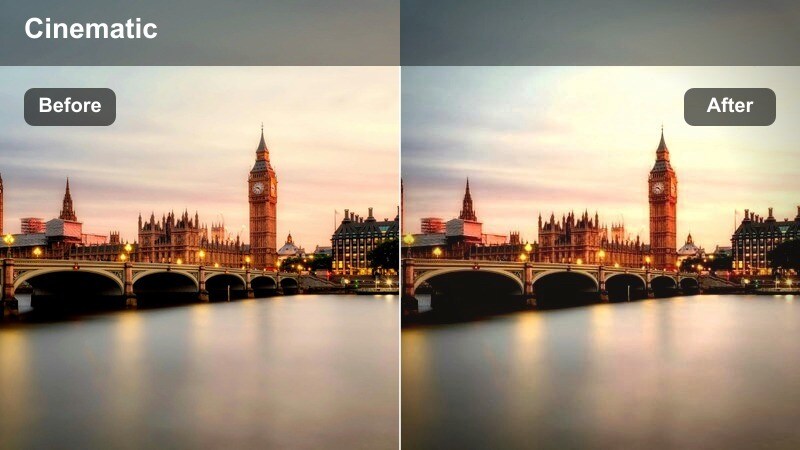
- Effect look: Slight fade with cool highlights and smooth skin for aesthetic railing and mirror shots.
- Best for: Selfie-style clips leaning on rails, glass balustrades, or mirrored escalator walls.
- Editing tip: Use Filmora's face smoothing sparingly after this filter to avoid overly plastic skin.
Mirror Rail Aesthetic adds a gentle fade and cool highlight tone that works well with reflective glass, polished railings, and mirrored walls. The look smooths skin slightly and softens the overall image so your aesthetic close-ups feel curated and Instagram-ready.
Use it for short monologues by the railing, reflection selfies, or B-roll where lights and corridor shapes appear in the glass beside you. In Filmora, keep any additional face smoothing light and consider adding a subtle vignette to draw viewer focus toward your face and the reflective composition.
Boutique Browsing and Fashion Try-On Scenes
Boutique Soft Glow
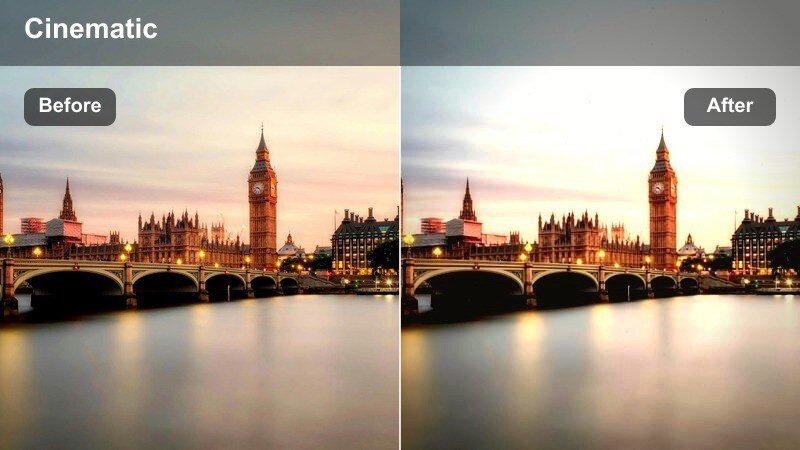
- Effect look: Warm, soft glow with flattered skin tones and gentle halation around lights.
- Best for: Fashion try-ons inside clothing stores and beauty counters with warm spotlights.
- Editing tip: Reduce contrast slightly for close-ups to keep makeup and fabrics from looking too harsh on camera.
Boutique Soft Glow is tailored for warm, intimate interior spaces where you show outfits, accessories, or beauty products. It introduces a soft radiance and subtle halation around spotlights while keeping skin tones creamy, which is perfect for mirror checks and dressing-room reveals.
Apply it to all your outfit-of-the-day segments, hanger hauls, and talking-to-camera shots in front of boutique mirrors. In Filmora, lower contrast a touch on very tight close-ups, and combine with gentle skin retouching to keep makeup, fabrics, and jewelry detailed yet flattering under strong in-store lighting.
Streetwear Contrast Boost
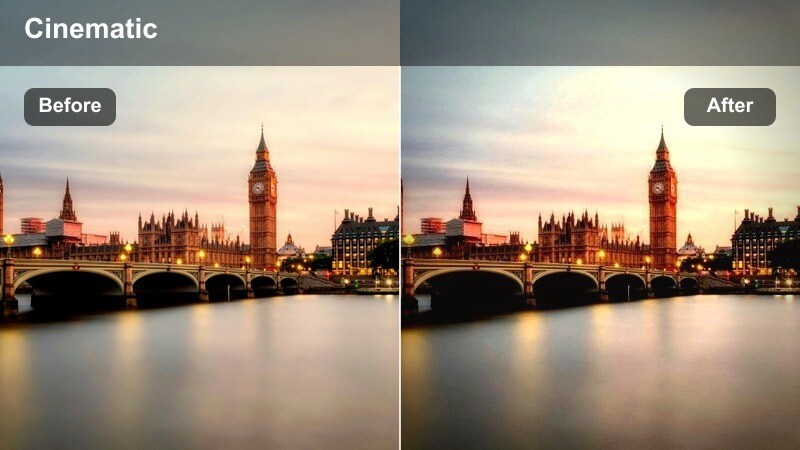
- Effect look: High contrast with bold blacks and saturated primary colors that fit urban streetwear.
- Best for: Streetwear sections, sneaker stores, and edgy downtown brand displays.
- Editing tip: Lower shadows slightly if black clothing is losing texture after applying this filter.
Streetwear Contrast Boost is made for bold sneakers, graphic tees, and neon-accented racks that define urban mall culture. It strengthens blacks and primary colors to give your streetwear segments a punchy, high-energy style that matches hip-hop, trap, or upbeat pop soundtracks.
Use it whenever you showcase limited-edition sneakers, logo-heavy hoodies, or edgy pop-up shops. In Filmora, keep an eye on dark fabrics; if they lose detail, gently lift the shadows or reduce contrast so textures and stitching remain visible while the overall frame still feels strong and urban.
Minimalist Lux Tone
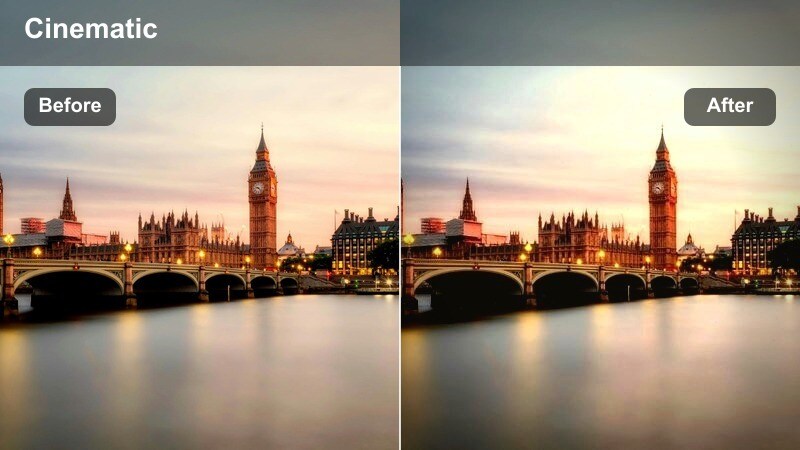
- Effect look: Muted saturation with creamy highlights for minimalist and luxury brand interiors.
- Best for: High-end boutiques, watch stores, and minimalist lifestyle sections of the mall.
- Editing tip: Avoid overexposing white interiors; slightly reduce exposure before applying this filter.
Minimalist Lux Tone gives your high-end segments a calm, upscale feel by muting saturation and smoothing highlights. White shelves, marble floors, and glass display cases retain a creamy, premium finish that contrasts nicely against the more colorful parts of your mall vlog.
Apply it when you step into designer fashion, jewelry, or watch boutiques to visually separate the luxury portion of your story. In Filmora, lower exposure a bit before adding this preset in very bright stores, then fine-tune highlights so logos, product details, and reflective surfaces stay clean without blowing out.
Food Courts, Chill Zones, and Evening Hangouts
Food Court Ambient
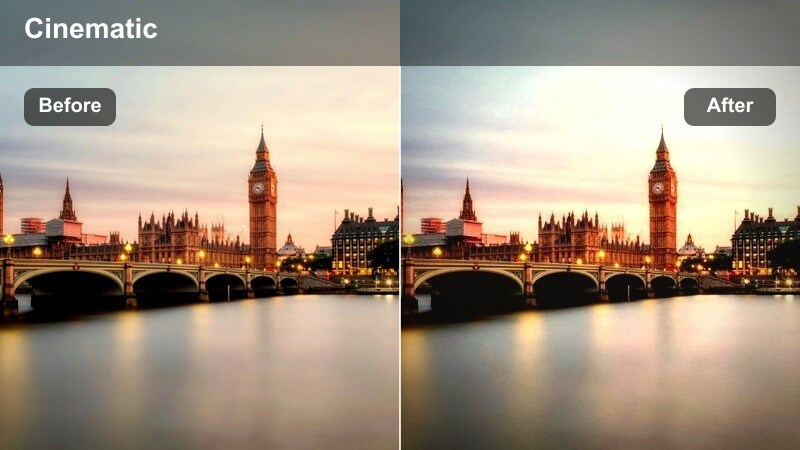
- Effect look: Balanced mid-tones with reduced color noise and gentle warmth for busy eating areas.
- Best for: Food courts, casual seating zones, and friends hanging out at mall tables.
- Editing tip: Use light noise reduction in Filmora before this filter if your ISO is very high in dim corners.
Food Court Ambient is tuned to handle mixed, sometimes dim lighting in crowded eating areas while keeping faces pleasant and inviting. It warms mid-tones slightly and tames color noise, so your group shots and taste tests look cozy instead of harsh or grainy.
Use it on sit-down chats, quick bites, and handheld food close-ups shared with friends. If you shot on a higher ISO, run a light noise reduction pass in Filmora before applying the preset, then adjust saturation so food colors look mouthwatering without oversaturating skin or background signage.
Evening Plaza Vibe
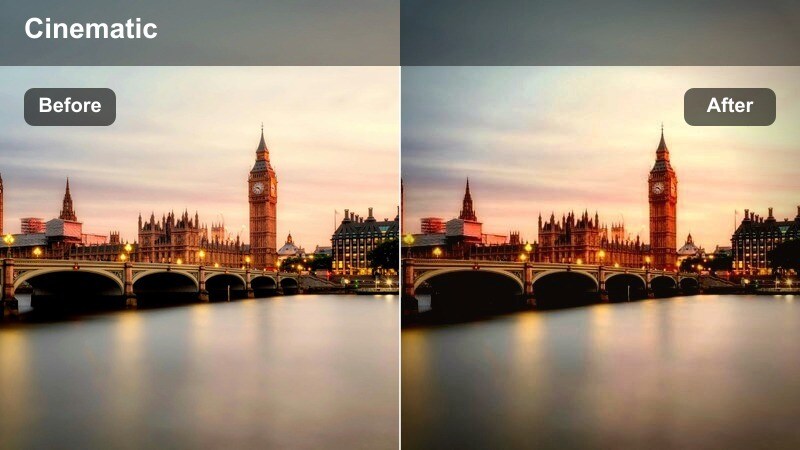
- Effect look: Moody, slightly desaturated tones with emphasis on ambient mall lights at dusk.
- Best for: Evening shots in open atriums, mall plazas, and window views to the city outside.
- Editing tip: Add subtle film grain if you want a cinematic night-city feel inside the mall.
Evening Plaza Vibe bridges the feeling between indoor mall life and the glowing downtown skyline outside. It slightly desaturates colors and emphasizes warm ambient lighting, creating a moody dusk aesthetic that works well for wrap-up scenes and reflective moments.
Apply it to atrium walk-throughs, balcony views of the city, and final recap clips as the day turns to night. In Filmora, consider adding a light film grain and slower crossfades between shots so your outro feels cinematic and helps viewers feel the shift into the evening city atmosphere.
Lounge Corner Soft Film
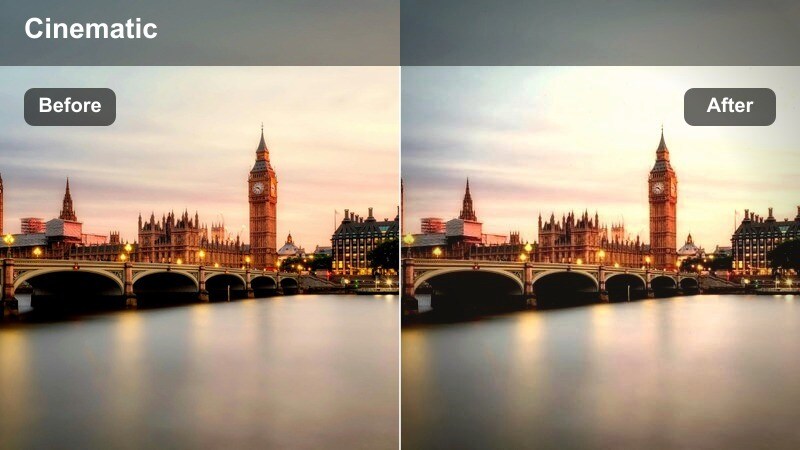
- Effect look: Soft filmic fade with lowered contrast and subtle warm shadows for cozy seating corners.
- Best for: Quiet lounge corners, coworking zones, and coffee-style seating areas in malls.
- Editing tip: Use slightly slower cuts and crossfades to match the gentle, film-style softness of this preset.
Lounge Corner Soft Film creates a relaxed, analog-inspired look by lowering contrast and adding a gentle warmth in the shadows. This makes couches, plants, and table lamps feel like a cozy hideaway where you can pause the shopping rush and talk directly to your audience.
Use it for storytime segments, haul recaps, or Q and A clips filmed in mall lounges, coffee nooks, or coworking corners. In Filmora, slow your pacing with longer shots and soft crossfades, and keep background music subtle so the intimate, filmic mood of the preset can fully support your storytelling.
Tips for Using Downtown Shopping Mall Vlog Filter Filters in Filmora
- Film in LOG or a flat picture profile when possible so these downtown shopping mall vlog filters have more dynamic range to work with in Filmora.
- Group clips by location type such as entrances, corridors, boutiques, and food courts so you can batch-apply the most suitable filter to each group.
- Roughly correct exposure and white balance in Filmora before adding any preset to avoid clipping highlights or over-processing mall footage.
- Use the same one or two presets for all talking-head segments to keep your face and skin tones consistent throughout the entire vlog.
- Add light stabilization to walking shots in corridors and on escalators so cinematic presets like Escalator Glide Cinematic look smooth and intentional.
- Test how each filter behaves under your camera brand and settings, then save tweaked versions as custom Filmora presets for future mall trips.
- Combine AI color matching with these presets to quickly unify footage shot under different store lights, skylights, and evening atrium lighting.
With the right downtown shopping mall vlog filter strategy, your indoor city content can look cinematic, consistent, and ready for binge-worthy playlist viewing. Matching filters to entrances, corridors, boutiques, and hangout zones helps every scene feel intentional and on-brand.
Test a few of these presets on your next mall trip, refine your favorites into a signature look, and then carry that style into your next city plaza lifestyle video LUT workflow. As you save presets in Filmora, your channel will gain a recognizable visual identity that keeps viewers coming back.
secure download