

 100% Security Verified | No Subscription Required | No Malware

These Free Downtown Night LUTs are designed for vloggers and filmmakers who want to turn any city night into a cinematic backdrop, whether you are walking through neon streets or capturing rooftop views.
Use these urban video filters in Filmora to balance harsh streetlights, deepen city shadows, and boost neon colors so your downtown walks, city vlogs, and nightlife videos look polished and consistent from clip to clip.
In this article
Neon Avenues and Streetlight Glows
Neon Pulse
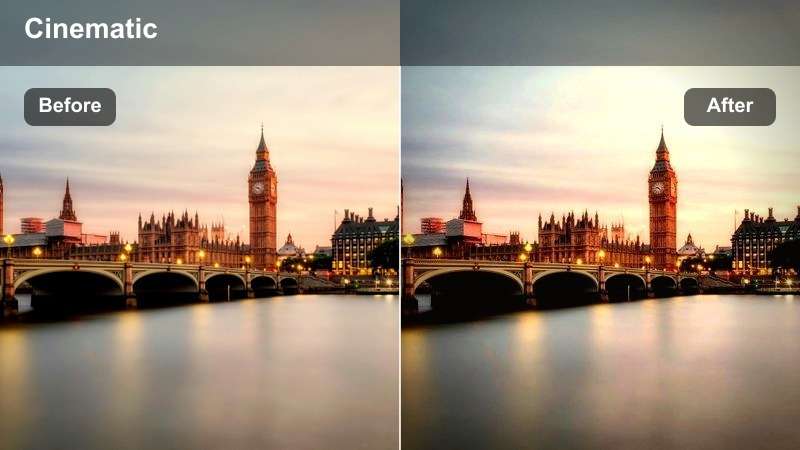
- Effect look: Vibrant neon highlights with rich contrast and saturated signage colors.
- Best for: City vlogs shot under colorful billboards, LED signs, and busy downtown crosswalks.
- Editing tip: Lower overall saturation slightly if skin tones start to look too electric under strong neon lights.
Neon Pulse pushes bright signage, LED strips, and billboard graphics to feel energetic without losing the darker character of the streets around them. In Filmora you can drop this LUT or filter on your downtown clips to make blues, reds, and magentas stand out while sidewalks, buildings, and the night sky stay rich and contrasty.
For practical use, place Neon Pulse on an adjustment layer above your entire neon sequence, then fine-tune intensity with the opacity slider so it blends naturally with your original footage. To keep faces from looking oversaturated, pair the filter with Filmora masks or the skin tone controls to selectively dial back saturation on your subject while leaving the background glowing.
Match Downtown Night Clips with AI Color Consistency
Filmora's AI-powered color tools help you match these Free Downtown Night LUTs and filters across different cameras and lighting conditions in your urban shoots. Even if you mix phone footage with mirrorless shots, AI color matching keeps your neon signs, streetlights, and city shadows aligned.
Use AI-driven color matching to quickly align your downtown walks, subway shots, and rooftop scenes so your entire night vlog feels like one cohesive story.
 secure download

See Urban Night Filters in Action on Real City Footage
Preview these downtown night filters on sample clips that include neon avenues, crosswalks, rooftop views, and quiet side streets to see how they react to mixed light sources. You can compare how each look treats highlights, deep shadows, and colored light spill before adding it to your own edit.
Scrub through before and after examples in Filmora to quickly decide which preset fits your city vlogs, nightlife montages, or cinematic B-roll sequences.
secure download1000+ Video Filters and 3D LUTs
Beyond these Free Downtown Night LUTs, Filmora includes a large library of cinematic filters, 3D LUTs, and color tools so you can build complete looks for every kind of project. You can move from city vlogs to travel films, weddings, and short films without leaving the same editing environment.
Combine a base downtown LUT with creative filters, HSL tuning, and blend modes to customize intensity, protect skin tones, and keep detail in both highlights and shadows.
secure downloadStreetlight Gold
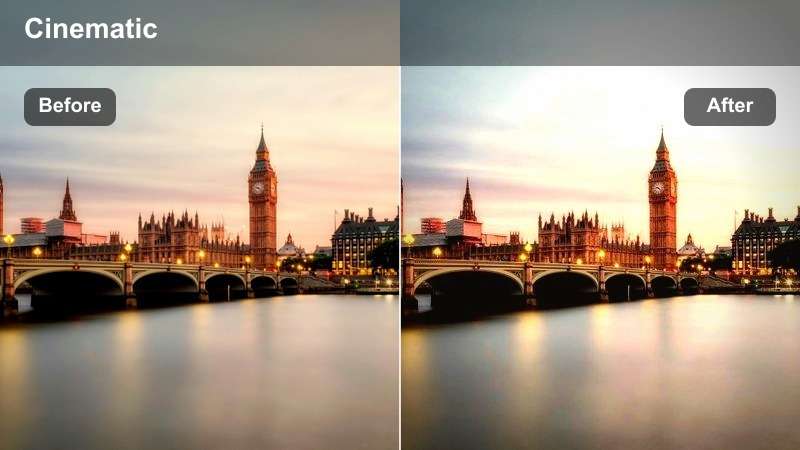
- Effect look: Warm amber glow with softened highlights and cozy streetlight tones.
- Best for: Slow-paced downtown walks, storytelling vlogs, and handheld walking-and-talking shots.
- Editing tip: Add a slight blur or reduced clarity on background clips to enhance the dreamy streetlight bokeh feel.
Streetlight Gold leans into the natural warmth of sodium-vapor lamps and café exteriors, giving your frames a nostalgic, cinematic atmosphere. It smooths out harsh highlights so streetlights bloom softly instead of blowing out, while midtones stay flattering for faces during walking monologues or couple shots.
In Filmora, layer Streetlight Gold over dialogue-heavy segments and pair it with gentle curves that lift shadows a touch so you do not lose detail in dark alleys. If the look becomes too yellow, keep the filter and instead nudge your midtone temperature slightly cooler and trim yellow saturation, preserving the golden storytelling mood without making skin look unnatural.
Crosswalk Cool
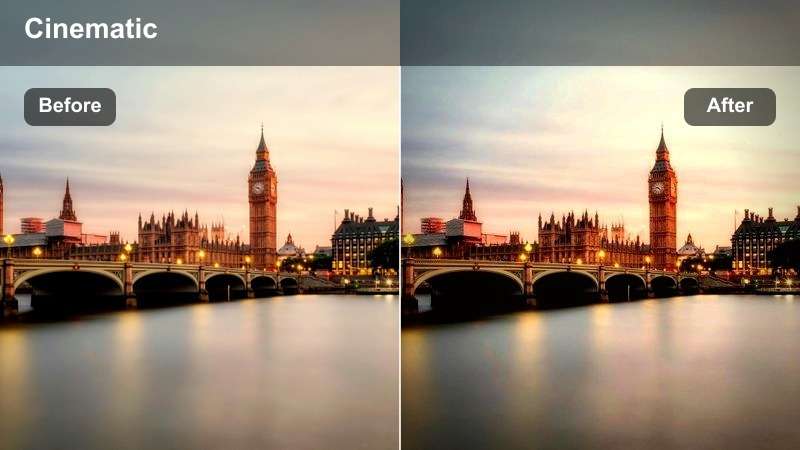
- Effect look: Cool blue and teal shift with clean whites and crisp traffic light colors.
- Best for: Urban b-roll, time-lapses of busy intersections, and moody narrative sequences.
- Editing tip: Increase contrast slightly and add a small fade in the shadows to get a more cinematic, film-like night look.
Crosswalk Cool gives intersections, traffic, and glass-fronted buildings a sleek, modern aesthetic by shifting the palette toward blue and teal. Whites stay clean so crosswalk markings and car headlights pop, while reds and greens from traffic signals remain defined, making your city motion shots feel controlled and stylish.
Use this look in Filmora on time-lapses or B-roll where cars streak through the frame and people cross under LED signage. After applying the filter, warm midtones slightly and use the HSL panel to keep reds and oranges alive on brake lights and signage, balancing the cinematic cool grade with natural skin tones and readable details.
Rooftop Views and Skyline Cityscapes
Rooftop Noir
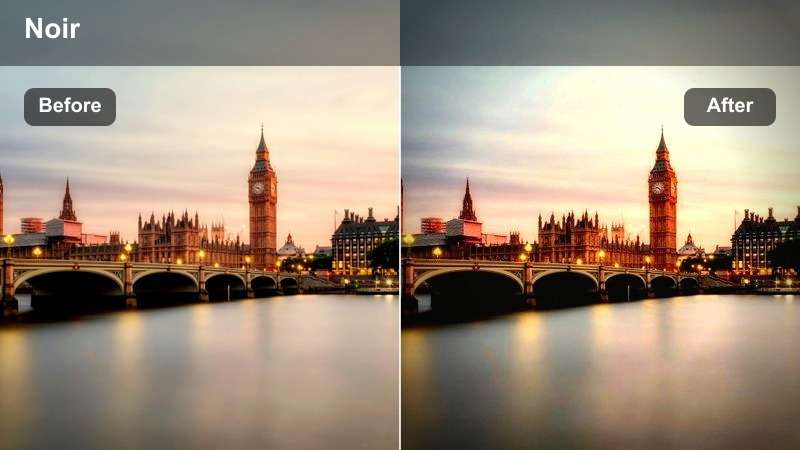
- Effect look: High-contrast, desaturated city tones with deep shadows and bright windows.
- Best for: Dramatic skyline reveals, cinematic talking shots on rooftops, and moody intros.
- Editing tip: Push the blacks slightly down and add a hint of film grain to emphasize the gritty night city energy.
Rooftop Noir pulls saturation back and boosts contrast to sculpt a hard-edged, graphic city skyline where office windows and street grids stand out against deep night shadows. It is ideal for intros, outros, and reflective voiceovers shot against sweeping urban backdrops where mood matters more than color accuracy.
In Filmora, apply Rooftop Noir to wide shots and hero moments on rooftops, then raise shadows a touch with curves to preserve texture in buildings and clothing. Add a subtle grain effect and maybe a slow push-in or pan to turn simple static angles into noir-inspired sequences that tie your downtown night story together.
Skyline Teal Glow
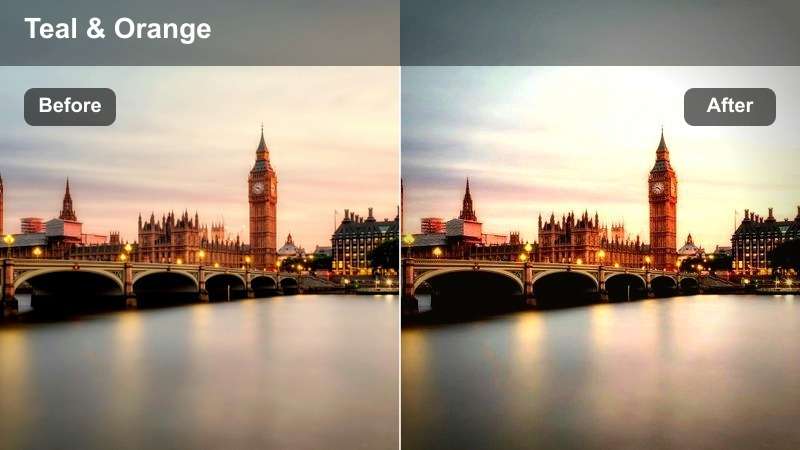
- Effect look: Teal-heavy city lights with slightly lifted blacks and cinematic contrast.
- Best for: Drone flyovers, wide establishing shots of downtown, and travel vlog skyline sequences.
- Editing tip: Add a very light vignette and reduce midtone saturation to keep the teal from overpowering the entire frame.
Skyline Teal Glow shifts building lights and reflections toward a modern teal palette while keeping blacks gently lifted, so night shots feel cinematic instead of crushed. It works especially well on drone shots and tripod pans where the city stretches across the frame and you want a cohesive blockbuster-style color wash.
Drop this look onto your establishing shots in Filmora, then gently restore a hint of warmth in the highlights so windows and streetlights still look believable. Combine with subtle vignettes and slow digital zooms to emphasize the sense of scale, letting this teal-forward grade act as the visual anchor between different scenes in your urban edit.
Glass Tower Reflections
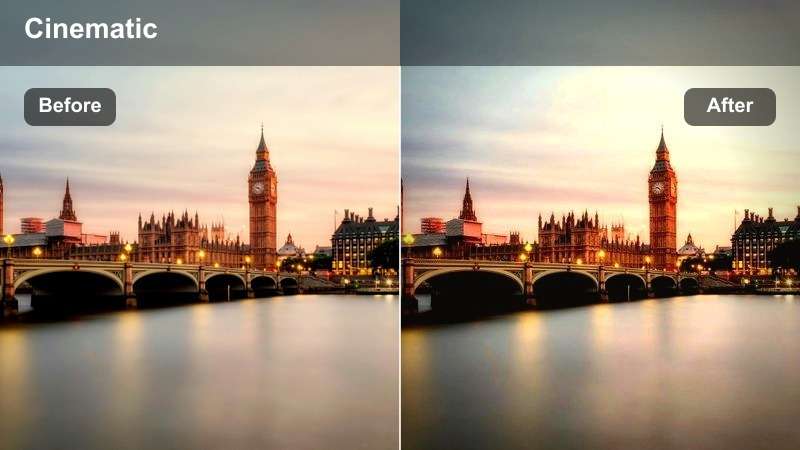
- Effect look: Clean, slightly cool contrast that enhances reflections and glass textures.
- Best for: Shots looking up at skyscrapers, reflections in office windows, and modern city b-roll.
- Editing tip: Increase sharpness and clarity moderately so window reflections and building edges stay crisp even in low light.
Glass Tower Reflections is tuned to emphasize edges, lines, and reflective surfaces, perfect for modern business districts and architectural features. The look keeps colors neutral to slightly cool so metal, glass, and LEDs all feel part of the same polished visual language, enhancing the sense of height and structure.
In Filmora, use this filter on upward-looking shots and panning moves across glass facades, then carefully add sharpness and clarity to define reflections without introducing noise. If highlights start to clip on windows or signage, pull back whites before adding extra contrast, ensuring neon streaks and building interiors stay visible and detailed.
Nightlife, Clubs, and Street Energy
Club Neon Rush
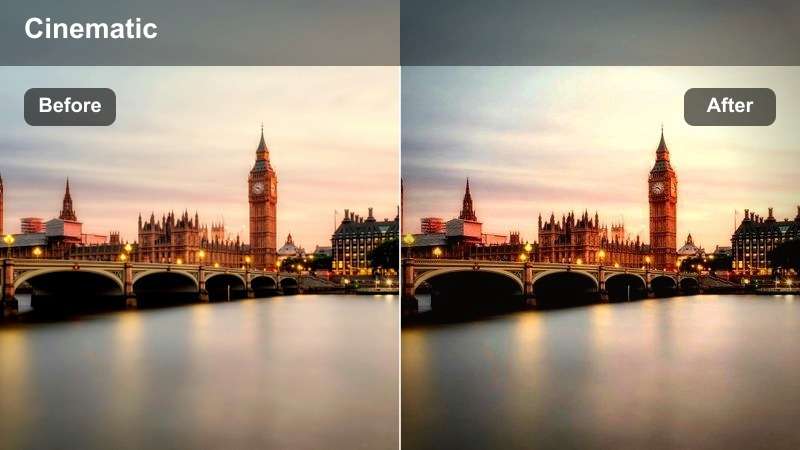
- Effect look: Intense color contrast with bold magentas, blues, and deep dark backgrounds.
- Best for: Nightlife montages, club entrances, and party sequences in crowded entertainment districts.
- Editing tip: Cut on the beat and use quick speed ramps so the bold color shifts match the energy of the music.
Club Neon Rush cranks up saturation and contrast to capture the chaos of nightlife streets, club exteriors, and party crowds. Darker areas fall into rich blacks while neon signage, LED panels, and car reflections explode with magenta and blue, creating a high-energy aesthetic that instantly feels like a weekend highlight reel.
Use this filter in Filmora on short, fast-cut sequences where the music is driving the edit, and control exposure with keyframes when strobe lights or flares hit the lens. If faces become too bright or washed out, gently lower highlight saturation and combine the look with subtle noise reduction so the scene stays intense but still readable.
Alley Cyberpunk
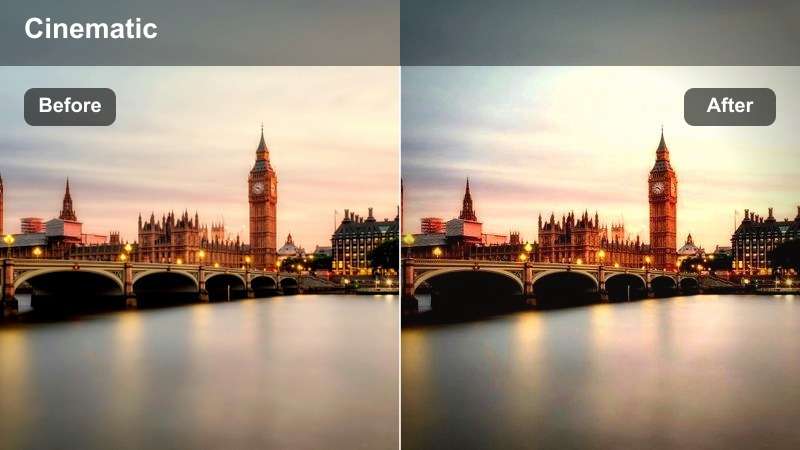
- Effect look: Stylized purple and cyan blend with rich blacks and futuristic contrast.
- Best for: Edgy downtown alleys, cinematic B-roll, and stylized narrative scenes with an urban sci-fi vibe.
- Editing tip: Slow down your footage slightly and add subtle lens blur to background elements for a more surreal cyberpunk feel.
Alley Cyberpunk is a highly stylized look that pushes your footage toward purple and cyan tones, ideal for turning mundane alleys and side streets into futuristic environments. It deepens shadows to almost ink-black while letting colored reflections on wet pavement and metal surfaces glow with a surreal intensity.
Apply this filter in Filmora first on B-roll, transitions, and cutaways so viewers adjust to the creative grade before you bring it into dialogue scenes. Use masks to keep key faces a bit less saturated and combine with gentle slow motion, lens blur, and sound design to build immersive, sci-fi influenced downtown sequences.
Bar Window Warmth
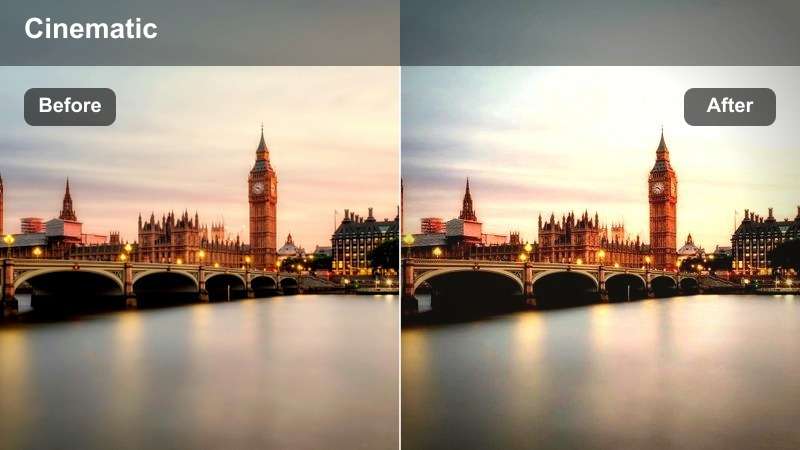
- Effect look: Soft warm interiors contrasted against cooler outdoor city tones.
- Best for: Shots through bar or cafe windows, casual nightlife hangouts, and intimate conversations.
- Editing tip: Boost exposure just inside the window area with a mask to keep faces visible while the outside city stays moody.
Bar Window Warmth creates a cozy pocket of warmth inside bars, cafes, and restaurants while leaving the exterior city slightly cooler and moodier. This contrast between interior and exterior makes your subjects feel safe and relaxed inside bustling nightlife areas, ideal for conversations and character-driven moments.
In Filmora, combine this filter with masked exposure boosts around faces so your subject stays clear against a darker, reflective window background. If the interior leans too orange, selectively reduce yellow and orange saturation rather than cooling the whole clip, keeping the emotional warmth while preserving a natural skin tone balance.
Quiet Corners and Late-Night Walks
Midnight Subway
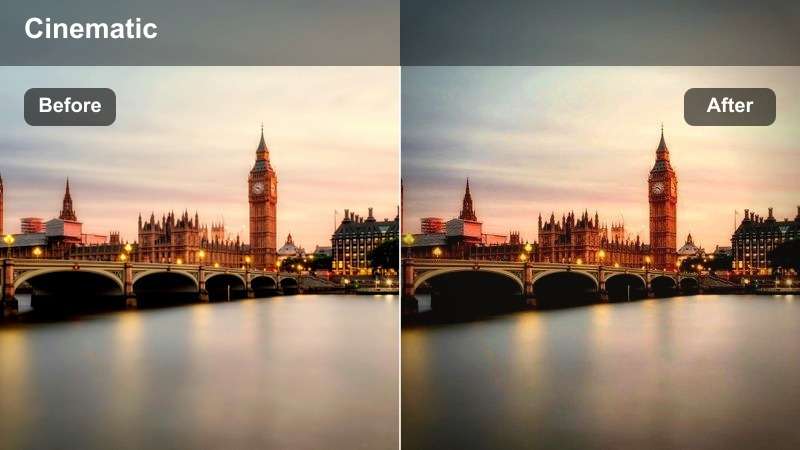
- Effect look: Slightly faded contrast with cool tones and cleaner fluorescent highlights.
- Best for: Subway platforms, underground passages, and late-night commuting sequences.
- Editing tip: Add subtle motion blur or use Filmora's speed ramping to emphasize passing trains and moving crowds.
Midnight Subway tames harsh fluorescent lighting by cooling tones and slightly fading contrast, turning underground spaces into calm, cinematic environments. It keeps signage legible and skin tones under control while removing the greenish cast that often shows up in subway and tunnel footage.
Use this look in Filmora on platforms, escalators, and train interiors, then add local contrast boosts so important details like faces and signs stand out from flat backgrounds. If overhead lights lean too green, gently shift them toward teal and pair the grade with motion blur or speed ramps to highlight trains arriving and crowds flowing through the frame.
Quiet Cross Street
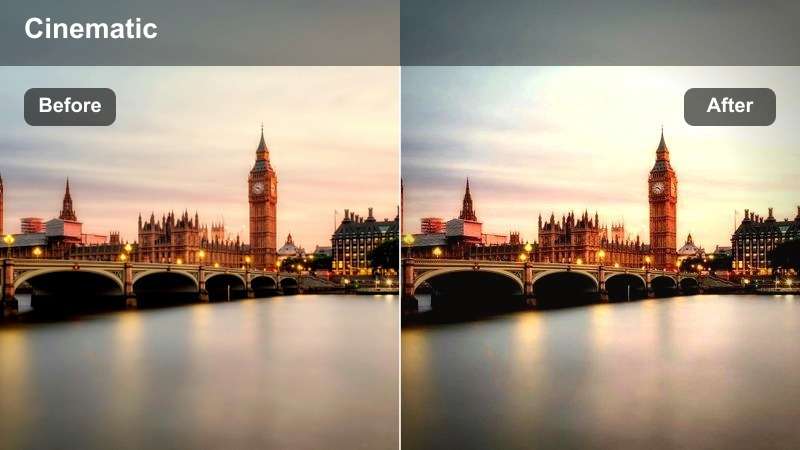
- Effect look: Soft contrast, neutral colors, and gentle highlight roll-off for calm night scenes.
- Best for: Solo walks, reflective monologues, and low-traffic residential cross streets near downtown.
- Editing tip: Slightly slow your footage and add gentle background music to match the calm visual tone.
Quiet Cross Street softens contrast and keeps colors neutral, ideal for introspective or transitional moments when the city finally slows down. Streetlights roll off smoothly instead of glaring, and shadows stay open enough to show environment detail while supporting a relaxed, reflective mood.
Apply this filter in Filmora on longer, fewer-cut sequences such as solo walks, closing shots, or narrative voiceovers. Combine the grade with gentle slow motion, low-volume ambient music, and restrained sound effects so each footstep, car pass, or distant siren supports the tranquil, late-night tone of your downtown story.
Rainy Block Reflections
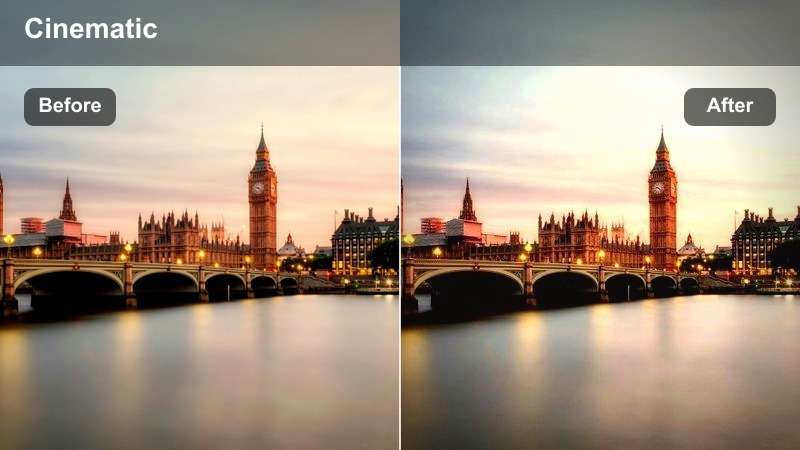
- Effect look: Enhanced reflections with rich saturation in wet pavement and soft contrast in the sky.
- Best for: Rainy night walks, umbrella shots, and b-roll of cars passing through wet city streets.
- Editing tip: Slow your clips slightly and add a touch of sound design like raindrops to emphasize the reflective surfaces.
Rainy Block Reflections is built to turn drizzle and puddles into assets by enriching the colors bouncing off wet pavement. It boosts saturation in reflections while keeping the sky and background contrast softer, so the eye is naturally pulled to shimmering traffic lights, neon signs, and passing headlights on the ground.
Use this filter in Filmora on any clip where streets are damp, umbrellas are visible, or taillights smear across the road. If highlights on the pavement feel too sharp, lower whites a bit and add a tiny blur or glow, then weave in rain Foley and slower motion to transform what might have been a weather problem into moody, cinematic texture.
Tips for Using Downtown Night Luts Filters in Filmora
- Shoot your downtown night footage slightly brighter in-camera to reduce noise when you later apply strong LUTs and filters in Filmora.
- Lock your white balance while filming so Free Downtown Night LUTs and city night filters behave consistently across alleys, rooftops, and subway platforms.
- Use adjustment layers in Filmora to apply one urban filter across multiple clips from the same scene and keep your nighttime color grading organized.
- Reserve the most stylized downtown night LUTs for B-roll and transitions so main talking shots remain clear and comfortable to watch.
- Mix wide skyline views with close-up street details and stay within one filter family to maintain visual continuity throughout your city vlog.
- Combine a base night LUT with subtle exposure, curve, and HSL tweaks in Filmora to protect skin tones while still leaning into bold neon and streetlight colors.
- Test several filters on short segments first, then commit to one or two key looks for each location to avoid a distracting, over-processed night sequence.
- Export test clips and check them on a phone and a larger display to make sure your downtown night grading does not look too dark or oversaturated on different screens.
With these Free Downtown Night LUTs and urban filters, you can turn ordinary city walks, nightlife outings, and rooftop hangs into a cohesive nighttime story that looks intentional and cinematic.
Load them into Filmora, experiment with stacks and intensity, and then move on to wedding reception LUTs to give your indoor evening events the same polished, professional mood.
secure download