

 100% Security Verified | No Subscription Required | No Malware


 ChatGPT
 Perplexity
 Gemini
 Claude
 Grok
Grok
If you shoot most of your content on an iPhone, the right free LUTs and filters can instantly give your videos a polished, cinematic feel with almost zero effort.
Below are ready-to-use filter ideas inspired by Filmora-style looks, designed for creators and editors who want fast, consistent color for vlogs, reels, and mobile projects without complex grading.
In this article
Golden Hour and Outdoor Vibes
Sunlit Street Glow
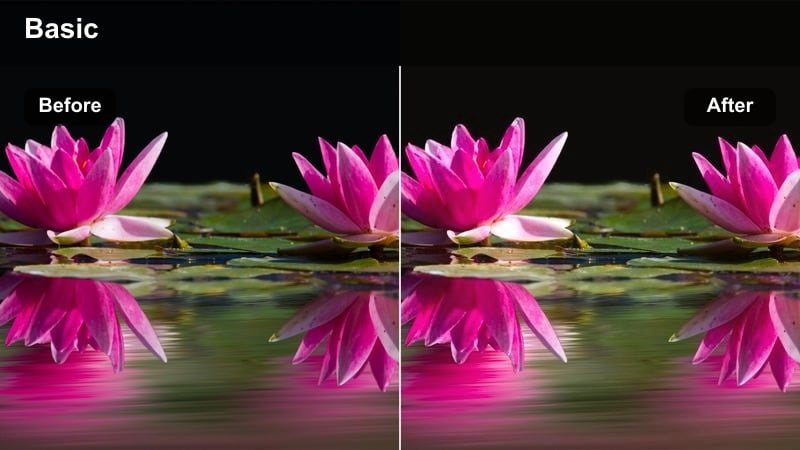
- Effect look: Warm, bright glow with boosted highlights that makes late-afternoon city streets look cinematic.
- Best for: iPhone vlog walks, travel B-roll, and outdoor talking-head clips shot in soft daylight or golden hour.
- Editing tip: Lower contrast slightly and add a touch of vignette to keep attention on your subject while preserving the warm tones.
Apply this LUT or filter to your iPhone street footage in Filmora when you want that classic golden hour vibe, even if the light was a bit flat in-camera. The warm shift in highlights and midtones helps buildings, sidewalks, and skin tones take on a gentle glow that feels cinematic without looking overdone.
In Filmora, drop this look on your vlog timeline, then fine-tune by slightly reducing contrast and softening the edges with a vignette so your subject remains the focus. If skin starts to skew orange, use HSL or color adjustment to lower yellow and orange saturation while nudging exposure down to protect bright skies and sidewalks.
Match Your iPhone Clips with AI Color Palette
Instead of manually recreating the same look on every clip, let an AI color palette tool in Filmora analyze a single reference shot and automatically align the rest of your iPhone footage with it. This is perfect when you have one great golden hour or travel shot and want the same color mood across your entire sequence.
By auto-matching your clips, your free LUTs and filters feel more professional because each scene shares consistent contrast, saturation, and tone from start to finish.
 secure download

Preview Filters on iPhone Footage Instantly
To find the right free LUTs for iPhone video, drop a few sample clips into Filmora and quickly A/B test different presets on duplicate tracks. This lets you see, side by side, how each filter reacts to your lighting, skin tones, and motion before you commit.
Focus on dialing in exposure and white balance first, then cycle through your favorite Filmora filters, saving the ones that consistently look good on your mobile footage as custom presets.
secure download1000+ Video Filters and 3D LUTs
Filmora includes an extensive library of video filters and 3D LUTs that you can combine with your free LUTs for iPhone video to create unique looks. From cinematic grading to stylized social aesthetics, you can stack multiple effects while still keeping control over intensity.
Use the built-in HSL and color tools alongside LUTs to refine skin tones, push specific colors, and maintain detail in highlights and shadows for a polished final export.
secure downloadHazy Sunset Travel
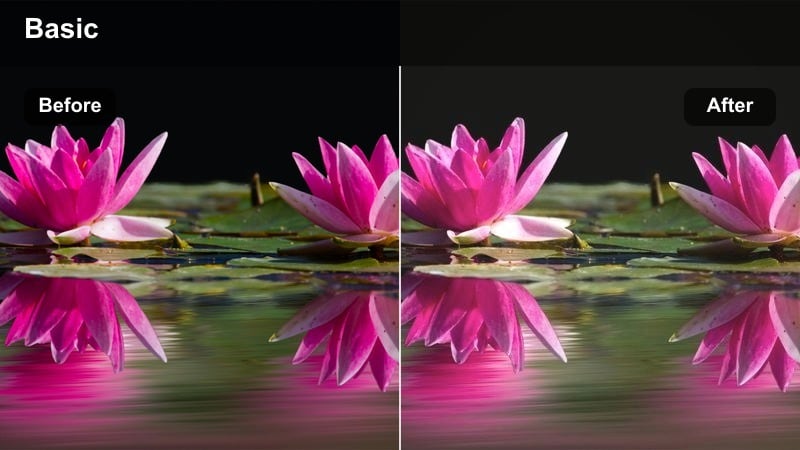
- Effect look: Soft, low-contrast haze with gentle magenta highlights for dreamy sunset travel clips.
- Best for: Coastal walks, skyline shots, handheld travel B-roll, and balcony views captured on iPhone near sunset.
- Editing tip: Add a bit of clarity or sharpness to foreground subjects so the scene feels dreamy without looking blurry on mobile screens.
This LUT style gently flattens contrast and adds a subtle magenta tint that makes sunsets feel more romantic and atmospheric. It is ideal when your iPhone sky looks a little dull and you want the whole frame to take on a soft, cinematic haze.
In Filmora, apply the filter across all your B-roll transition shots to give your travel vlog a consistent dreamy rhythm. Then slightly boost clarity or sharpness on your main subject so the viewer still has a clear focal point while the background stays smooth and pastel.
Bright Day Snap
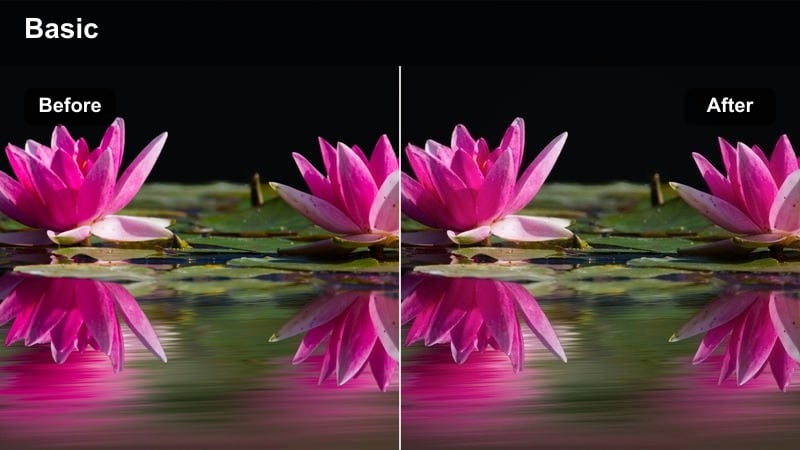
- Effect look: Clean, vibrant daylight boost that lifts shadows and adds crisp saturation without heavy stylization.
- Best for: Everyday outdoor clips, street content, quick social videos, and family moments captured on bright days.
- Editing tip: Reduce saturation just a touch for faces and keep it stronger for backgrounds to avoid cartoonish skin tones.
Bright Day Snap is designed to fix flat or slightly overcast iPhone footage by lifting shadows and adding punchy but controlled saturation. Colors like blue skies, greenery, and clothing pop more, while the overall contrast stays natural enough for everyday content.
In Filmora, use this as a go-to correction LUT for outdoor clips shot at different times of day, then tweak white balance per shot so everything feels like one continuous scene. Apply selective color or HSL controls to keep skin tones realistic while leaving background saturation a bit stronger for a lively, social-friendly look.
Cozy Indoor and Home Studio Looks
Soft Room Creator
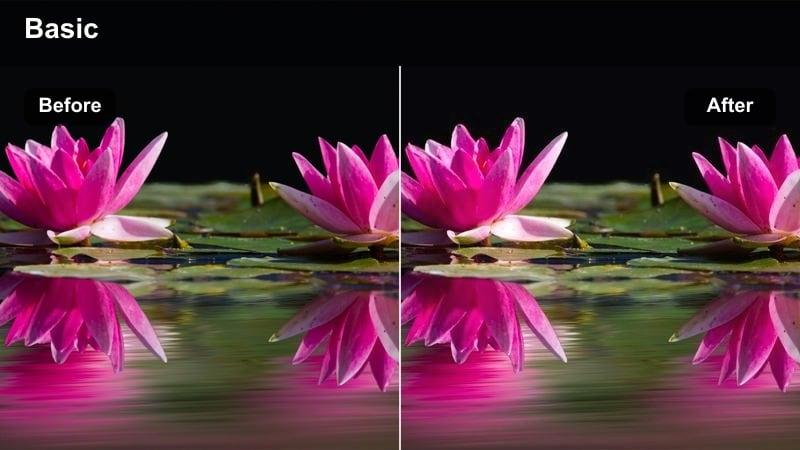
- Effect look: Gentle, low-contrast filter that softens shadows and gives indoor rooms a cozy, cinematic softness.
- Best for: Desk setups, room tours, product shots, and creator monologues filmed in bedrooms or offices.
- Editing tip: Dial back highlights and raise blacks slightly to avoid harsh digital contrast from overhead iPhone lighting.
This look smooths out harsh indoor lighting by lowering contrast and softening shadows, which is perfect when you are filming under mixed lamps or basic room lights. It gives your bedroom or office a filmic, gentle glow that flatters both your face and background details.
Inside Filmora, add this filter to your A-roll and B-roll room shots, then adjust highlights downward so lamps and monitors do not dominate the frame. If you are dealing with warm and cool light sources, shift tint slightly toward magenta and lock white balance in-camera to keep your colors from drifting between cuts.
Studio Neon Pop
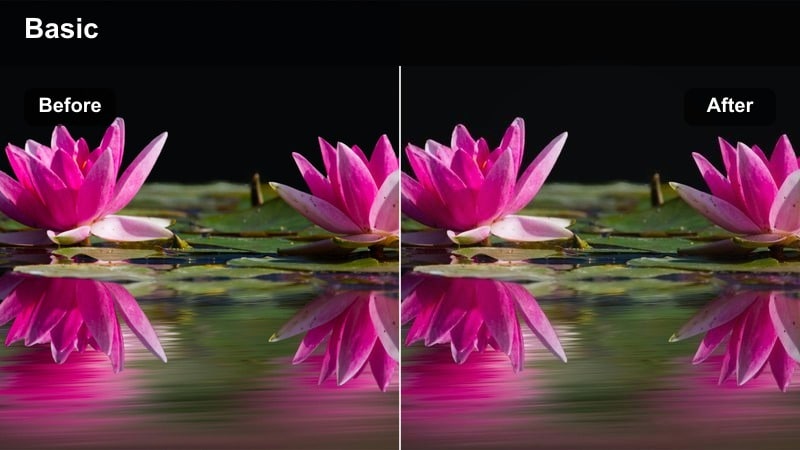
- Effect look: Punchy contrast with saturated colored lights that makes LED strips and accent lights stand out.
- Best for: Gaming setups, RGB-lit studios, vertical reels with neon signs or colored LED backgrounds.
- Editing tip: Keep exposure slightly under and then raise shadows with the filter so neon colors pop without blowing out whites.
Studio Neon Pop emphasizes bright RGB and neon lights by boosting saturation and contrast in the midtones, creating a bold, high-energy style. It works especially well with iPhone shots that feature LED strips, gaming rigs, or colorful backdrops in darker rooms.
In Filmora, underexpose the base clip a bit and then apply this filter so signs and screens hold detail while the LUT deepens surrounding shadows. You can then gently reduce highlight saturation to keep bright areas from clipping and add a small amount of film grain to make the digital neon look more intentional and cinematic.
Warm Living Room Chat
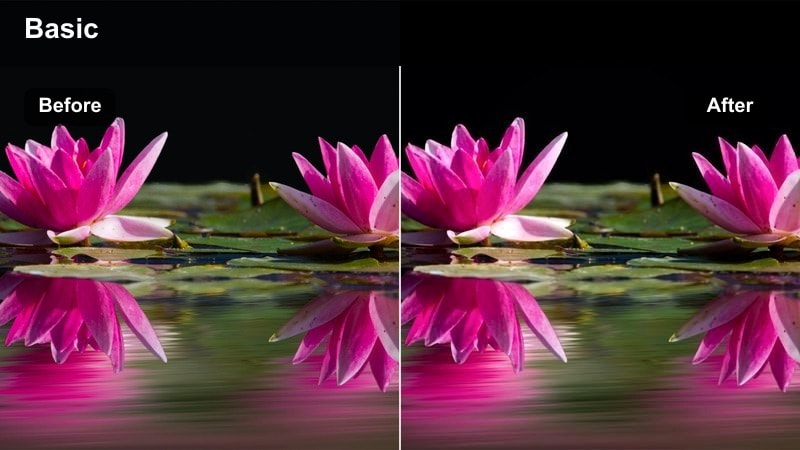
- Effect look: Subtle amber warmth with soft contrast that makes living room and couch scenes feel inviting.
- Best for: Podcast-style interviews, storytime videos, family moments, and lifestyle vlogs filmed on a couch or chair.
- Editing tip: Use a light vignette and keep the midtone saturation moderate so skin looks natural while the room still feels cozy.
Warm Living Room Chat adds a gentle amber tint and smooth contrast curve that makes sofas, blankets, and lamp light feel calm and inviting. It is perfect for long-form talking-head content, podcasts, or storytime pieces where the mood should be relaxed and intimate.
In Filmora, apply this look across all angles of the same conversation and mostly adjust exposure shot by shot so skin tone stays matched. If bright furniture or decor steals focus, use masking or selective adjustments to darken those spots slightly, letting faces remain the brightest part of the frame.
Night City and Low-Light Mood
Urban Night Cinema
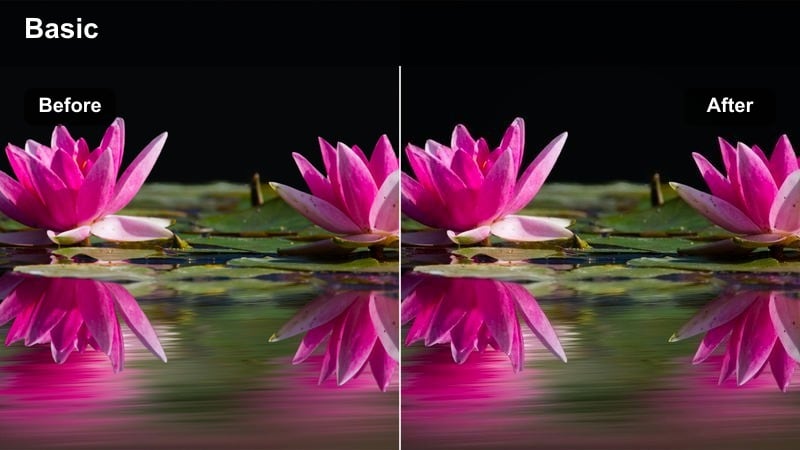
- Effect look: Moody, contrasty night filter that deepens shadows while keeping city lights colorful and cinematic.
- Best for: Street walks at night, car window shots, and handheld nightlife B-roll captured with iPhone in the city.
- Editing tip: Reduce digital noise with gentle denoising before applying this filter, then add a little film grain for texture.
Urban Night Cinema is tuned for city nights, darkening shadows to create depth while preserving saturated signs, traffic lights, and storefronts. It helps your iPhone footage look more like a cinematic night sequence instead of a flat, noisy low-light clip.
In Filmora, denoise your footage first, then apply this LUT to intensify contrast and color in the highlights. Expose for the brightest parts of the frame while shooting, and in editing, raise only the deepest shadows slightly so your subject is visible but the overall scene still feels dramatic and moody.
Noir Sidewalk Contrast
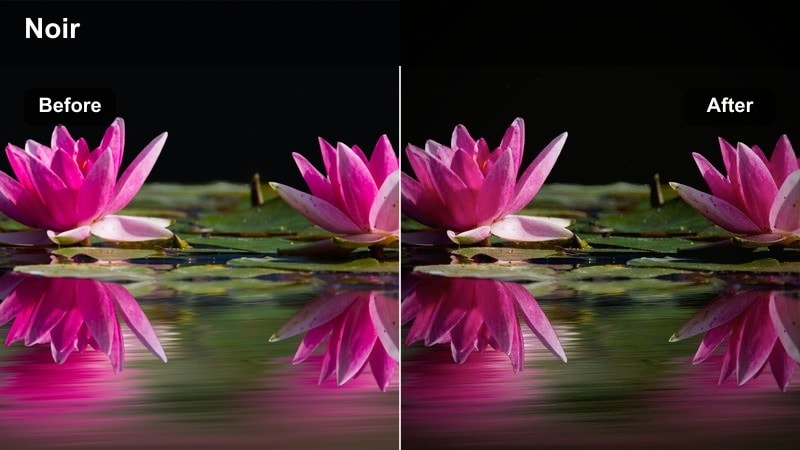
- Effect look: High-contrast monochrome style with strong blacks and crisp highlights for classic noir city vibes.
- Best for: Story-driven shorts, dramatic B-roll in alleys, rain-soaked pavements, and silhouette shots at night.
- Editing tip: Use this filter on carefully framed shots with simple shapes and avoid cluttered scenes that can become too busy in high contrast.
Noir Sidewalk Contrast converts your iPhone night footage into bold black and white with deep shadows and strong highlights, channeling a classic film noir aesthetic. Reflections on wet pavement, silhouettes, and streetlights all take on a dramatic, graphic quality.
In Filmora, apply this LUT to minimalist compositions where light shapes and silhouettes carry the story, then add a subtle vignette to guide the viewer toward your subject. Avoid overly busy backgrounds, and if midtones look muddy, nudge the curve to deepen blacks and brighten highlights for a cleaner, punchier monochrome look.
Neon Rain Reflections
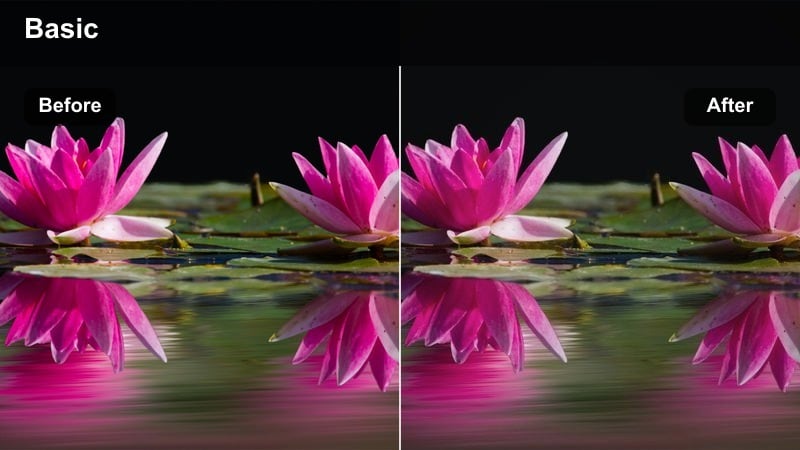
- Effect look: Saturated neon colors with lifted blacks and glossy reflections that emphasize wet streets and signs.
- Best for: Rainy city nights, puddle reflections, and handheld shots under colorful billboards or metro entrances.
- Editing tip: Slow down footage slightly and stabilize where possible to make reflections and neon streaks feel intentional and cinematic.
Neon Rain Reflections is built to maximize color intensity in neon signs and wet surfaces, slightly lifting blacks so reflections look glossy rather than crushed. It works best for rainy-night sequences, low angles over puddles, and shots where colored lights dominate the frame.
In Filmora, underexpose in-camera, then use this filter to boost saturation and midtones while keeping highlights controlled. Add a touch of stabilization and slow the clip to 60 to 80 percent speed so neon streaks and reflections feel smooth and deliberate, creating a stylized, cyberpunk-friendly look.
Social Reels and Aesthetic Vibes
Pastel Aesthetic Daily
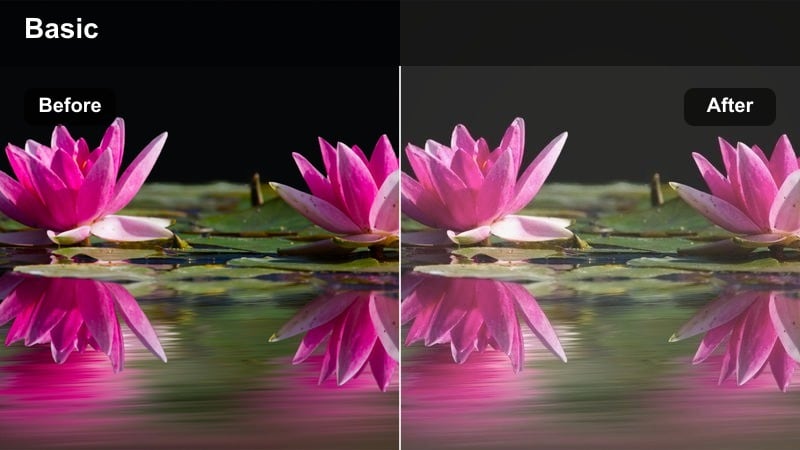
- Effect look: Soft pastel tones with gentle highlights and slightly faded blacks for dreamy lifestyle reels.
- Best for: Outfit-of-the-day clips, coffee shop reels, desk aesthetics, and POV lifestyle content shot on iPhone.
- Editing tip: Add slow zoom-ins and match cuts between clips so the pastel look carries the mood across your entire reel.
Pastel Aesthetic Daily mutes strong contrasts and shifts colors toward gentle pastels, giving everyday scenes that curated, soft lifestyle feel. Whites stay bright, blacks are slightly lifted, and bold colors are tamed so the whole reel looks cohesive and on-brand.
In Filmora, apply this LUT to all clips in an aesthetic reel, then reduce saturation for any distracting bright objects so they blend into the softer palette. Combine it with slow push-in motions, match cuts, and overlay text to create scroll-stopping vertical videos that feel calm and intentional.
Cool Street Edit
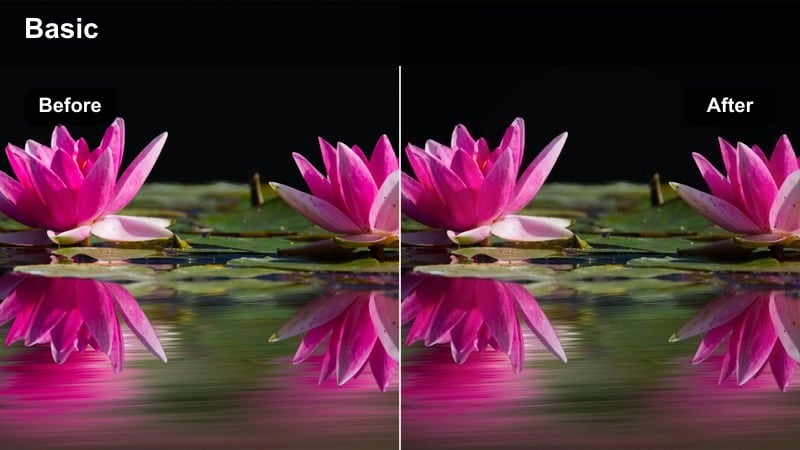
- Effect look: Cool-leaning tones with teal shadows and crisp contrast for modern, edgy social edits.
- Best for: Streetwear lookbooks, skate edits, fast-paced reels, and dynamic transitions on busy city streets.
- Editing tip: Match the beat by cutting on movement, then keep this filter consistent across all clips so the whole reel feels like one stylized set.
Cool Street Edit pushes shadows into teal and emphasizes contrast, giving your iPhone street footage a sharp, modern edge. Concrete, glass, and metal surfaces take on a sleek blue-green cast that pairs well with streetwear, dance, or skate content.
Inside Filmora, use this LUT across your entire sequence, then selectively protect skin tones by slightly reducing saturation in the orange channel. If the sky or blues look too cyan, nudge blue hues back toward neutral while keeping city shadows cool for a polished, music-video-style finish.
Retro Mobile Film
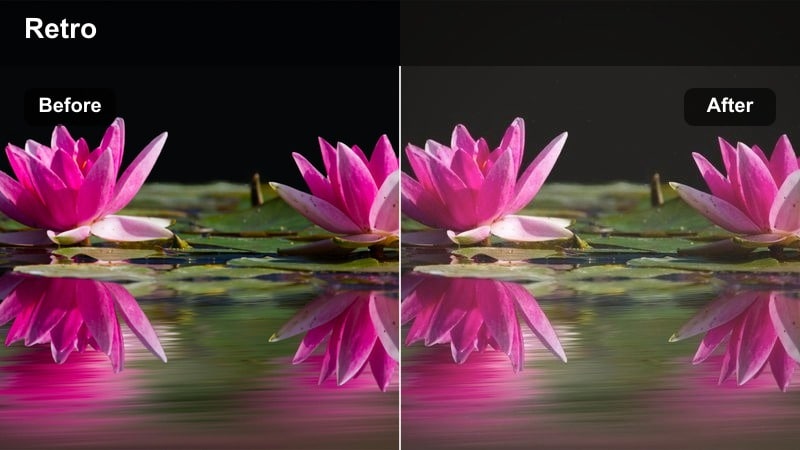
- Effect look: Faded contrast with subtle grain and warm tint for a nostalgic, film-like mobile look.
- Best for: Throwback edits, memory montages, urban walks, and family clips meant to feel like old home movies.
- Editing tip: Layer in light film grain and add very soft jitter or frame blur to sell the illusion of analog footage.
Retro Mobile Film softens your iPhone video by lowering contrast, warming the image, and introducing a touch of film-style fade. It instantly makes recent memories feel older and more sentimental, ideal for highlight reels, flashbacks, and story recaps.
In Filmora, apply this LUT to specific segments you want to read as memories, then add a little grain, vignette, and perhaps 4:3 or rounded-corner framing. Pair the visual with softer, slightly muffled audio or vintage-style music so viewers clearly feel the shift into a nostalgic, analog-inspired sequence.
Tips for Using Free Luts For Iphone Video Filters in Filmora
- Lock exposure and focus on your iPhone before shooting so your free LUTs and filters react consistently across every clip in Filmora.
- Shoot slightly flatter by avoiding in-camera contrast boosts; you can always add contrast later with filters without crushing detail.
- Build a small library of three or four Filmora presets for day, night, indoor, and aesthetic reels to speed up your mobile editing workflow.
- Always double-check skin tones after applying strong cinematic LUTs and reduce saturation if faces start to look too orange or too magenta.
- Use Filmora color tools like HSL and curves to fine-tune free LUTs so they match your brand colors and social feed aesthetic.
- Export short test reels with your new looks and preview them on your phone, tablet, and laptop to be sure the grade holds up on different screens.
- Save combined LUT and filter stacks as custom presets in Filmora so you can apply your signature iPhone look to new projects in one click.
Free LUTs for iPhone video can transform fast mobile shoots into polished, share-ready edits when you pair them with the right filters and a simple, repeatable workflow. With a few dependable looks saved in Filmora, you can grade vlogs, reels, and shorts in minutes instead of hours.
Choose a handful of favorite styles for daytime, indoor, night, and aesthetic content, apply them consistently, and refine with Filmora color tools until they feel uniquely yours. Over time, your audience will start to recognize your signature grade across every video you post.
secure download