

 100% Security Verified | No Subscription Required | No Malware


 ChatGPT
 Perplexity
 Gemini
 Claude
 Grok
Grok
These Fujifilm GFX LUTs cinematic-style filters are crafted for videographers and creators who want a rich, filmic look straight from Filmora without a heavy color-grading workflow.
Designed around Fujifilm color science and the dynamic range of GFX footage, each filter gives you a fast cinematic base you can tweak to match your story, from moody city nights to soft, natural portraits.
In this article
Moody Dusk City Sequences
GFX Noir Street
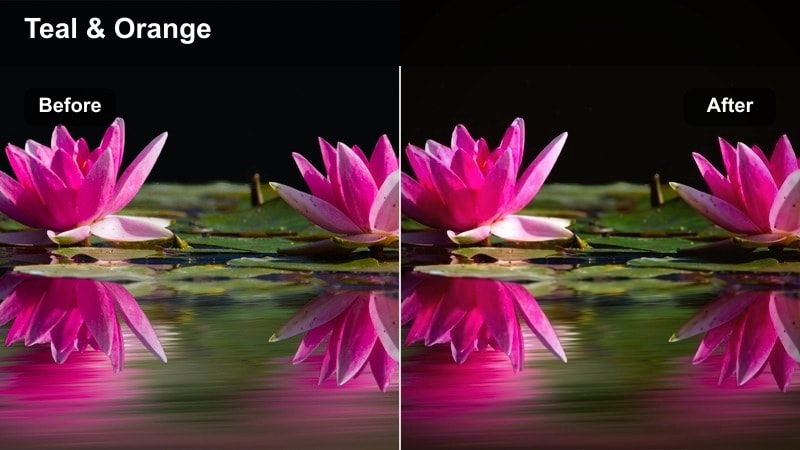
- Effect look: High-contrast, deep shadows with subtle teal highlights and muted warm skin tones for a modern film noir feel.
- Best for: Night city walks, neon-lit storefronts, rain-soaked streets, and handheld urban B-roll on Fujifilm GFX.
- Editing tip: Lower overall contrast slightly for faces, then add a touch of film grain to enhance the noir mood without crushing detail.
GFX Noir Street is tuned to the dynamic range of Fujifilm GFX sensors, letting you drive blacks deep while still holding texture in asphalt, jackets, and building facades. In Filmora, this filter quickly introduces a cinematic S-curve, with teal leaning into highlights like neon signs and car reflections while skin stays warm but slightly desaturated for a grounded film look.
Use this style whenever you are shaping narrative or B-roll around lonely streets, side alleys, and reflective pavements. Apply the filter, then fine-tune exposure and midtone contrast in Filmora so your subject remains visible inside those dense shadows. For extra grit, add light film grain and a subtle vignette, and stabilize handheld shots so the noir mood feels intentional rather than accidental.
Match Fujifilm GFX Color With AI Palette Suggestions
Filmora's AI Color tools help you adapt these Fujifilm GFX LUTs cinematic-style filters to any lighting, whether you are shooting soft dusk exteriors or harsh mixed neon. Instead of manual guesswork, AI analyzes your clip and proposes balanced temperature, tint, and saturation adjustments around the existing filter.
This keeps your Fujifilm color science intact while smoothing differences between cameras, lenses, or locations across an entire timeline. You can lock in a signature noir or teal look and still maintain consistent skin tones and sky detail from shot to shot.
 secure download

Preview Cinematic Filters in Real Time
Filmora lets you audition every Fujifilm GFX cinematic filter by simply hovering over presets in the Filters panel. The look updates on your selected clip in real time, so you can compare noir, teal, amber, and pastel styles without rendering or committing to a grade.
This streamlined preview workflow is especially useful when matching multiple GFX scenes: you can quickly identify which filter complements your exposure, GFX profile, and location, then lock it in for refinement.
secure download1000+ Video Filters and 3D LUTs
Beyond these Fujifilm GFX LUTs cinematic-style options, Filmora includes a large library of creative filters, 3D LUTs, and color tools you can stack for custom looks. You can use a subtle base filter for contrast, then layer stylized LUTs or HSL tweaks to refine specific hues.
This makes it easy to keep a consistent Fujifilm character while still exploring bold creative directions for branded content, short films, and social edits.
secure downloadTwilight Teal GFX
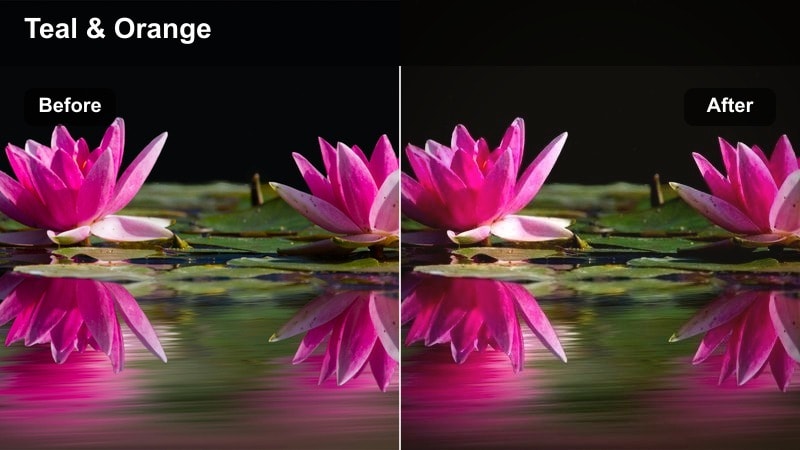
- Effect look: Cool teal shadows, soft highlights, and gentle fade in the blacks for a polished blue-hour atmosphere.
- Best for: Blue-hour cityscapes, skyline timelapses, bridges, and rooftop sequences where the sky still holds color.
- Editing tip: Increase vibrance instead of saturation to keep teal and orange separation clean while preserving the delicate twilight gradients.
Twilight Teal GFX leans into the natural blue-hour tones your Fujifilm GFX captures, emphasizing teal in the shadows while keeping building lights and windows softly warm. In Filmora, this filter smooths highlight roll-off so skies retain gradation and clouds, avoiding harsh clipping that can ruin dusk footage.
Use it on establishing shots, timelapses, and drone passes where you want a cinematic city overview that still feels believable. After applying, refine midtones with Filmora's basic correction sliders to balance detail between foreground city structures and the horizon, and add subtle motion like slow zooms to turn static twilight clips into atmospheric openers.
Amber City Glow
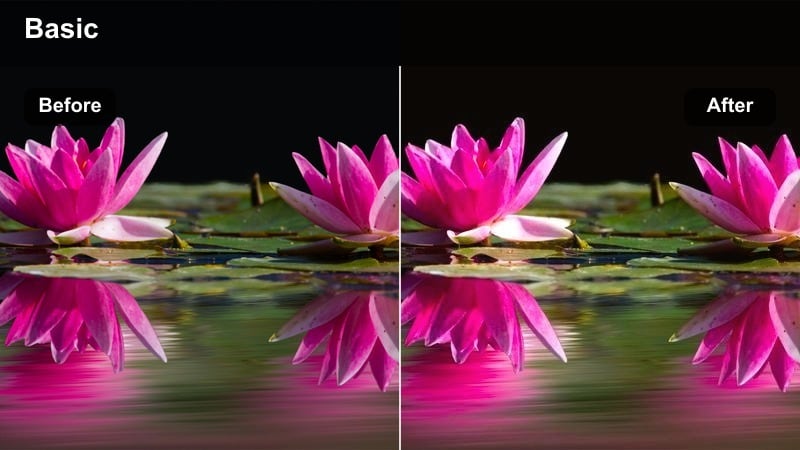
- Effect look: Warm amber highlights, lifted blacks, and subtle halation for a nostalgic late-evening urban glow.
- Best for: Street cafes, window reflections, golden street lamps, and intimate city storytelling shots.
- Editing tip: Dial back highlights to avoid blown signage, then adjust white balance slightly cooler if the warmth becomes overpowering.
Amber City Glow is designed to turn practical street lights, cafes, and shop windows into flattering golden sources, giving your Fujifilm GFX footage an instant nostalgic character. Blacks are gently raised so shadows feel soft rather than harsh, and a hint of halation look around bright lamps mimics vintage glass and film.
In Filmora, drop this filter onto scenes built around human connection, like conversations at outdoor tables or people passing illuminated storefronts. Fine-tune overall warmth with white balance and tint, and consider adding a subtle vignette to keep the viewer's eye in the center where that amber glow is strongest.
Clean Daylight Cityscapes
Urban Soft Film
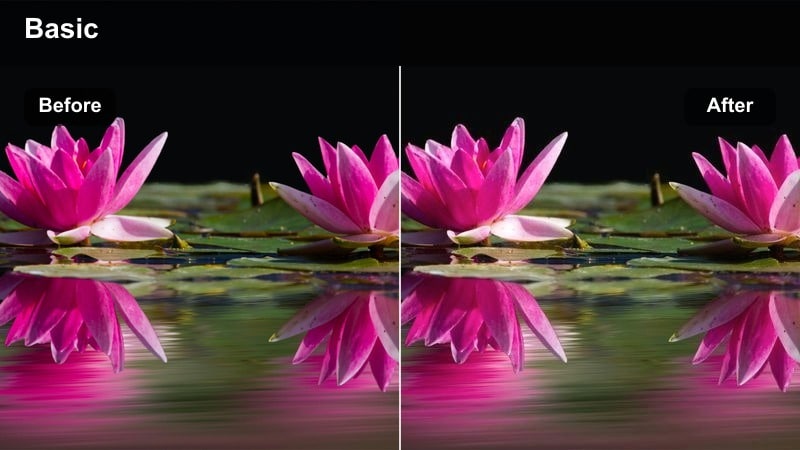
- Effect look: Low-contrast, softly rolled highlights with neutral colors and a gentle filmic curve.
- Best for: Daytime downtown walks, architectural details, and corporate city B-roll where you want a clean cinematic base.
- Editing tip: Fine-tune local contrast with Filmora's clarity tools to add structure to buildings without making skin look harsh.
Urban Soft Film gives bright Fujifilm GFX daylight clips a refined, understated polish, softening contrast and rolling off highlights so glass, concrete, and skies look controlled. Colors remain neutral and accurate, making this filter an ideal starting point before adding branding elements or text overlays.
In Filmora, apply this look to walking shots, street-wide angles, and office exteriors to achieve a premium but unobtrusive grade. Use local contrast or clarity controls on architecture and street details while keeping global contrast modest, ensuring that any people in frame maintain flattering skin texture and natural color.
Chrome Street GFX
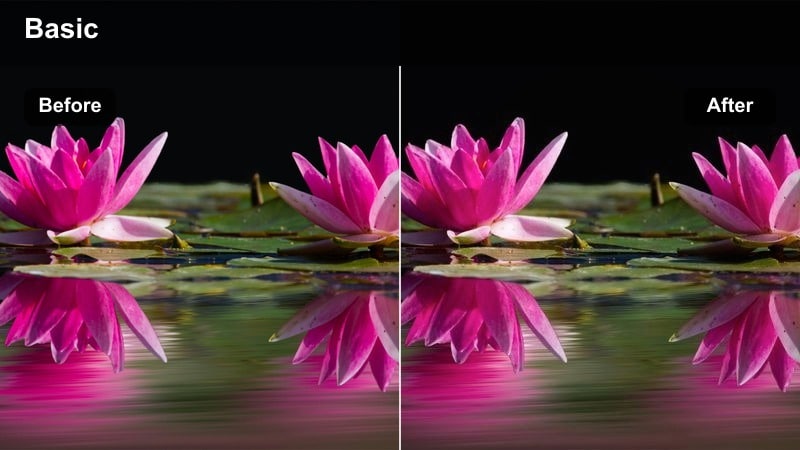
- Effect look: Punchy contrast, crisp micro-detail, and saturated yet controlled primary colors inspired by chrome slide film.
- Best for: Street fashion, colorful storefronts, urban markets, and detail-heavy Fujifilm GFX shots.
- Editing tip: Use selective saturation to slightly tame reds and yellows so clothing and signage stay vibrant but never clip.
Chrome Street GFX is built for bold city visuals, taking advantage of the GFX sensor's resolution to emphasize fine textures in clothing, signage, and traffic. Contrast is stronger and primaries are more saturated, echoing classic chrome film while still holding onto highlight detail in bright billboards.
Apply this filter in Filmora when you want energy and pop, such as fashion walk-throughs or bustling intersections filled with color. After applying, inspect reds and yellows with Filmora's color tools, gently reducing their saturation or brightness if they overpower faces, ensuring that viewers still connect with people amidst all the visual noise.
Pastel City Dream
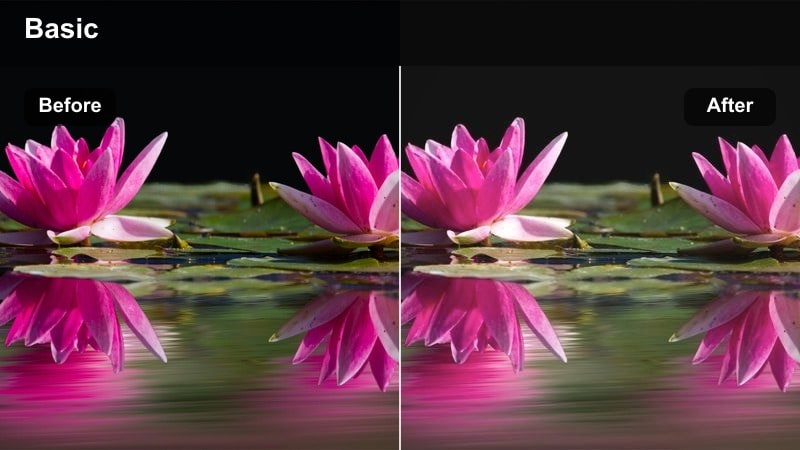
- Effect look: Soft pastels, lifted shadows, and reduced contrast for a dreamy high-key urban atmosphere.
- Best for: Minimalist architecture, travel montages, and airy lifestyle content shot on Fujifilm GFX.
- Editing tip: Raise exposure slightly and keep shadows open to avoid muddy tones, then add a gentle vignette to maintain subject focus.
Pastel City Dream transforms bright streets and minimalist buildings into light, airy canvases where sharp edges are softened by a lowered contrast curve. Your Fujifilm GFX footage becomes ideal for lifestyle, travel, and social content that aims for an uplifting, modern visual identity.
In Filmora, apply this filter to well-lit locations, increase exposure a touch, and avoid overly strong blacks to keep the pastel effect clean. Add a subtle vignette and maybe a mild blur on the background to guide attention to people or products while the gently colored environment supports the story.
Intimate Urban Portrait Moments
Cinema Portrait GFX
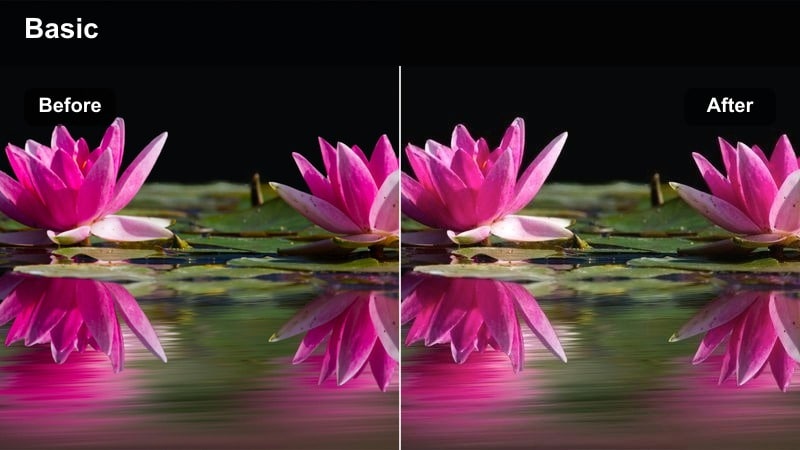
- Effect look: Natural skin tones, softened contrast, and subtle background cool-down for subject-focused city portraits.
- Best for: Close-up talking heads, character introductions, and emotional beats shot on Fujifilm GFX in the city.
- Editing tip: Slightly blur the background with Filmora effects only if your lens bokeh is limited, then keep sharpening low for a filmic finish.
Cinema Portrait GFX works with Fujifilm's skin-friendly color rendering to keep faces believable and flattering while muting and cooling the background. This separation makes it easier for viewers to focus on expressions and dialogue, even when shooting in visually busy city locations.
Use this filter in Filmora for interviews, vlog pieces to camera, and story-driven character moments. After applying, keep sharpening modest so pores and texture remain gentle, and if the environment feels distracting, use Filmora's blur and vignette tools in combination with the cooler backdrop tones to hold attention on your subject.
Subway Soft Drama
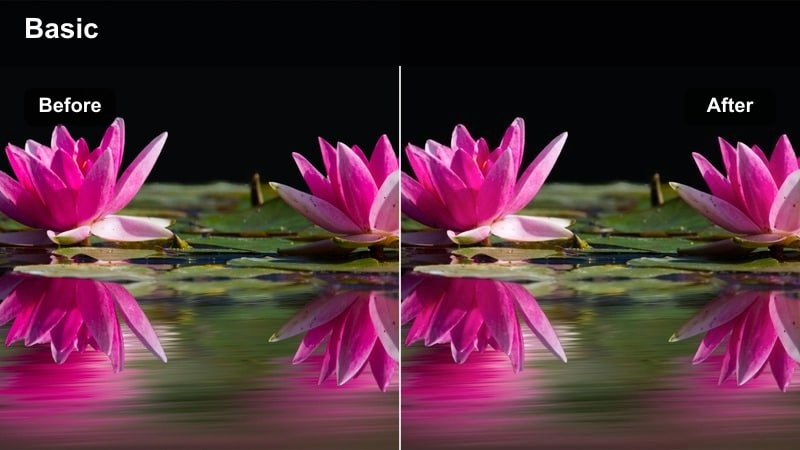
- Effect look: Muted colors, soft contrast, and gentle green-cyan shifts in shadows for underground transit scenes.
- Best for: Subway platforms, train interiors, escalators, and underground pedestrian tunnels shot with Fujifilm GFX.
- Editing tip: Lower midtone saturation to keep fluorescent lighting from looking harsh, and carefully raise shadows to reveal facial detail.
Subway Soft Drama tones down harsh fluorescent lights by muting overall saturation and shifting shadows slightly toward green-cyan, creating an understated, cinematic underground feel. The softer contrast curve helps your Fujifilm GFX keep detail in both dark tunnels and bright platform lights.
In Filmora, apply this filter to any transit-focused sequences or moody travel passages. Elevate shadow detail just enough to read expressions, then lower midtone saturation so the fluorescent cast feels stylized rather than distracting, letting ambient announcements and train sounds carry the intensity.
Window Light GFX
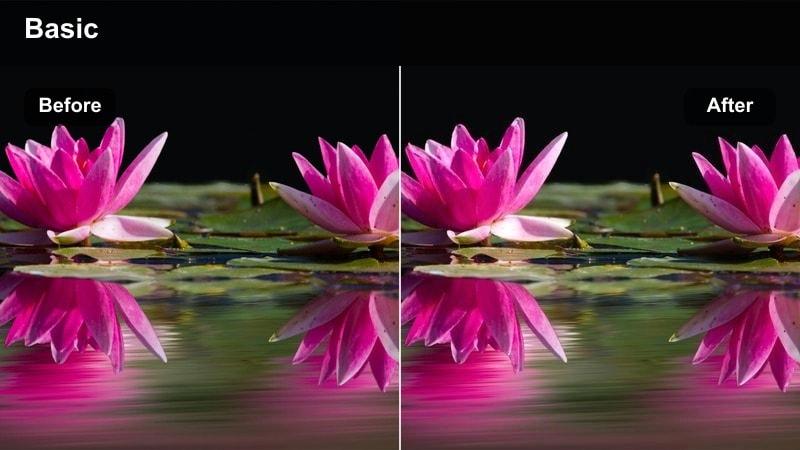
- Effect look: Soft, warm highlights near windows with gentle falloff into cooler, desaturated backgrounds.
- Best for: Cafe interiors, coworking spaces, and apartment scenes where natural window light shapes the subject.
- Editing tip: Lower highlight roll-off to keep detail in bright curtains or reflections, then add a soft bloom effect to the brightest areas.
Window Light GFX emphasizes the natural key light pouring in from windows, adding gentle warmth to skin and nearby surfaces while letting the rest of the room cool and desaturate. On Fujifilm GFX files, this creates a cinematic, intimate mood with strong directionality to the light.
In Filmora, use this filter for contemplative scenes, workspace portraits, and lifestyle shots around desks or cafes. After applying, carefully reduce highlight intensity to keep curtains, reflections, and sky outside the window from clipping, then add a subtle bloom or glow effect to the brightest parts of the frame for a soft, filmic finish.
Night Neon Storytelling Sequences
Neon Cyber GFX
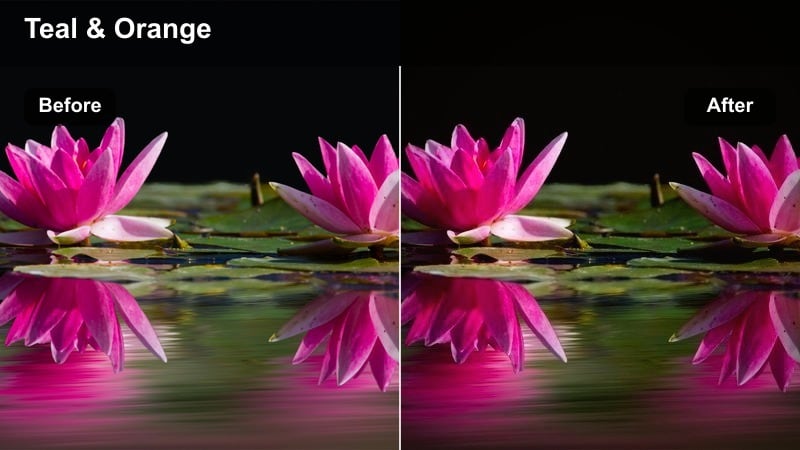
- Effect look: Strong teal and magenta color split, deep blacks, and glossy highlights for a cyberpunk-style city night.
- Best for: Night alleys, neon billboards, rainy sidewalks, and futuristic city B-roll on Fujifilm GFX.
- Editing tip: Reduce global saturation a touch, then selectively push magenta and cyan to avoid cartoonish color while staying stylized.
Neon Cyber GFX is your go-to filter when aiming for a stylized cyberpunk aesthetic, pushing teal and magenta hard while carving rich blacks through the frame. The Fujifilm GFX's clean high-ISO performance lets this look stay sharp in low light, with neon signs and reflections becoming the main design elements.
In Filmora, drop this filter on shots featuring billboards, LED panels, and reflective wet streets, then slightly pull back overall saturation to keep the grade watchable. Use selective color or HSL tools to boost cyan and magenta only where needed, and consider adding a gentle glow to neon shapes for an even more futuristic atmosphere.
Night Drama Log Match
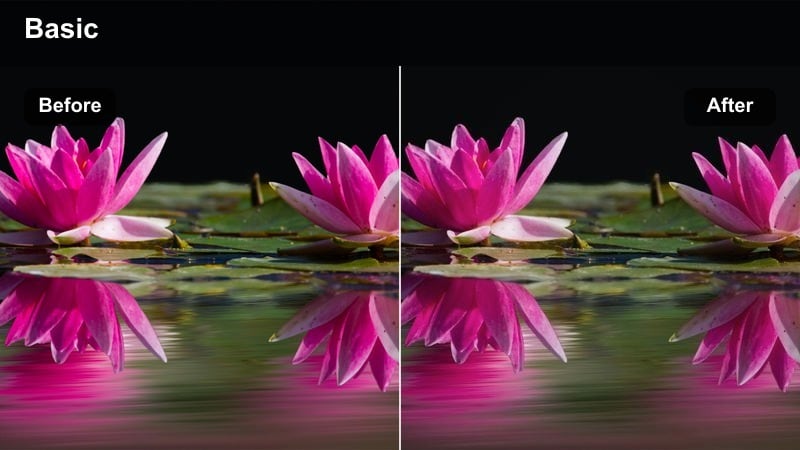
- Effect look: Log-friendly contrast curve with balanced color, preserving shadow detail and midtone richness for controlled night drama.
- Best for: F-Log or log-style GFX recordings of narrative night scenes, dialogues, and dramatic walk-and-talks.
- Editing tip: Start with a gentle exposure lift, then nudge midtones while watching skin; avoid pushing blacks too low to keep detail in the environment.
Night Drama Log Match is built specifically for Fujifilm F-Log or other flat profiles, converting them into a cinematic night-grade with controlled contrast and faithful color. It protects shadow detail so alleyways, doorways, and background architecture remain readable and not just pools of black.
In Filmora, apply this filter as your first creative step after basic exposure adjustment, then fine-tune midtones for faces and important objects. Resist the temptation to crush blacks too far; instead, use subtle vignettes and selective contrast to guide focus while allowing the environment to stay part of the story.
Rainy Street Cinema
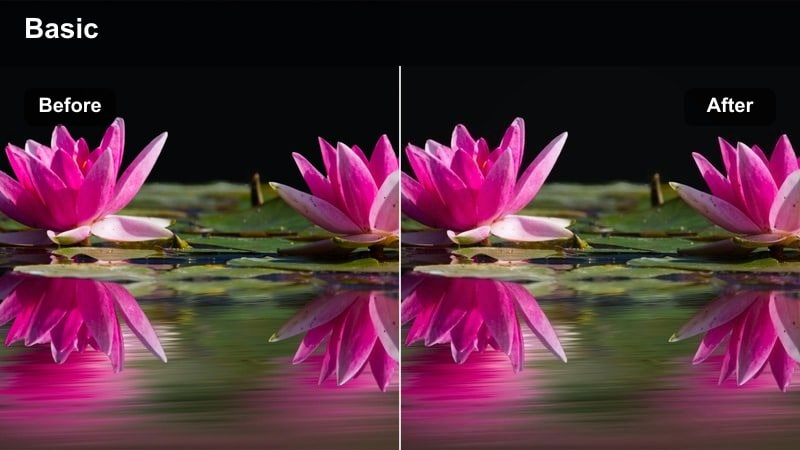
- Effect look: Glossy reflections, subdued saturation, and cool shadows with warm specular highlights on wet surfaces.
- Best for: Rainy intersections, crosswalks, taxi pickups, and atmospheric establishing shots in the city.
- Editing tip: Increase local contrast in midtones to emphasize reflections, and keep saturation modest so colored lights feel naturalistic.
Rainy Street Cinema takes advantage of wet roads, sidewalks, and puddles by accentuating their reflectivity while gently cooling overall shadows. Warm light sources like traffic signals and car headlights stay inviting, creating a color contrast that looks striking on Fujifilm GFX low-light footage.
Use this filter in Filmora on rainy-night B-roll, wide traffic scenes, and reflective close-ups of footsteps or tires. Add local midtone contrast to sculpt reflections, and keep global saturation controlled so the grade leans cinematic and moody rather than overly colorful, reinforcing the atmosphere of your night sequence.
Tips for Using Fujifilm Gfx Luts Cinematic Filters in Filmora
- Shoot in a flat or log profile on your Fujifilm GFX when possible so these cinematic filters have more dynamic range to shape.
- Lock in consistent white balance on location instead of auto to keep skin tones stable across clips before adding filters.
- Use Filmora's adjustment layers to apply a single filter across multiple GFX clips for a seamless cinematic look.
- Lower filter intensity if highlights or skin tones start to look unnatural, then fine-tune exposure and contrast manually.
- Export short test clips and review them on multiple screens to confirm your Fujifilm GFX cinematic look holds up everywhere.
- Mix different filters across scenes but maintain consistent skin tone treatment and contrast levels for a cohesive overall grade.
- Save your favorite filter plus adjustment combinations as custom presets in Filmora to speed up future Fujifilm GFX edits.
With the right filters, your Fujifilm GFX footage can jump straight from flat captures to polished cinematic sequences entirely inside Filmora.
Use these Fujifilm GFX LUTs cinematic-style presets as a fast starting point, then refine color and contrast to suit each scene, character, and story beat you shoot.
secure downloadNext: Fujifilm XT5 Travel LUTS
