

 100% Security Verified | No Subscription Required | No Malware

 ChatGPT
 Perplexity
 Gemini
 Claude
 Grok
Grok
If you shoot with a GoPro Hero 12, getting the right color and contrast is just as important as capturing the action. Instead of building complicated grades from scratch, you can use Filmora filters that behave like GoPro Hero 12 LUTs to apply clean, cinematic looks in a single click.
Below you will find 12 carefully chosen filter styles designed for GoPro footage, from bright daytime rides to moody night laps. Each look includes a quick description, best-use scenario, and an editing tip so videographers and creators can get reliable, repeatable results fast.
In this article
Bright Daylight and Outdoor Adventures
Hero 12 Sun Punch
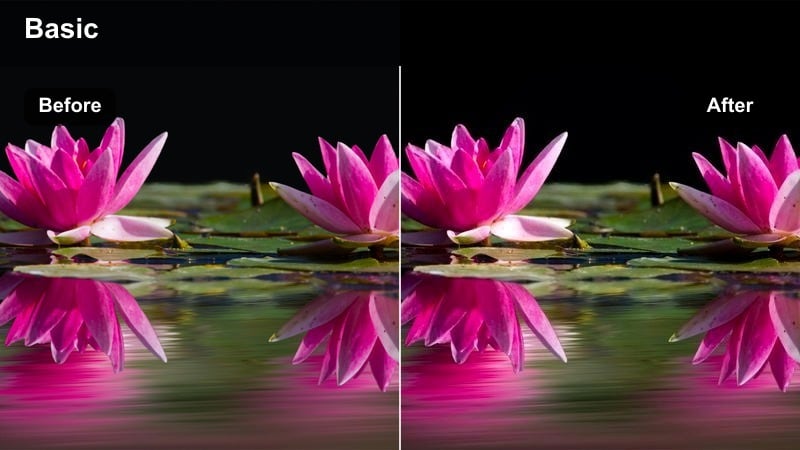
- Effect look: High-contrast, saturated daylight look that makes blue skies and greenery pop while keeping skin tones natural.
- Best for: Mountain biking, trail running, and hiking clips shot in bright midday sun.
- Editing tip: Lower exposure slightly if your highlights are clipping and add a touch of clarity to enhance trail texture.
Hero 12 Sun Punch is designed to give your brightest outdoor clips the kind of impact you would expect from a dedicated GoPro Hero 12 LUT. It adds snappy contrast, rich saturation, and clean skin tones so your skies stay deep blue, foliage turns vivid, and riders or runners remain natural instead of oversaturated. Applied in Filmora, it quickly transforms flat midday captures into sharp, share-ready adventure footage.
In practice, this filter works best when you first nudge overall exposure down in Filmora to preserve highlight detail in clouds and reflective rocks. Then apply Hero 12 Sun Punch at full strength and slowly reduce intensity until the scene feels powerful but believable. Finish by adding a little extra clarity or sharpening on the trail itself so rocks, roots, and gravel textures read clearly even at high speed.
Use AI Color Tools to Match GoPro Hero 12 LUTs Faster
Instead of dialing in every setting manually, Filmora s AI-powered color tools can quickly analyze your GoPro Hero 12 footage and suggest a balanced base grade. This gives you a neutral starting point that already corrects exposure and white balance before you stack on stronger LUT-style filters.
Once the AI pass is complete, you can layer the filters from this guide on top, adjusting contrast, saturation, and temperature in seconds. This workflow keeps your entire project visually consistent while still letting each scene have its own character.
 secure download

Preview GoPro Hero 12 Filters in Real Time
Filmora lets you hover over different filters and instantly see how each Hero 12 style will look on your clip before you apply it. This live preview makes it easy to compare cinematic, natural, and stylized options without rendering or committing to a look.
You can also adjust filter intensity, stack multiple filters, and toggle a split-screen before-and-after view. That way, you always know exactly how much your chosen GoPro-style LUT filter is changing the scene.
secure download1000+ Video Filters and 3D LUTs
Beyond these GoPro Hero 12 style filters, Filmora includes a large library of creative presets and 3D LUTs for every genre. You can mix cinematic looks, vintage tones, and stylized color grades to build your own signature aesthetic on top of your action footage.
If you want even more precision, open the HSL and curves controls to refine a favorite filter, then save it as a custom preset. This gives you LUT-level repeatability without needing a complex color grading setup.
secure downloadHero 12 Coastal Crisp
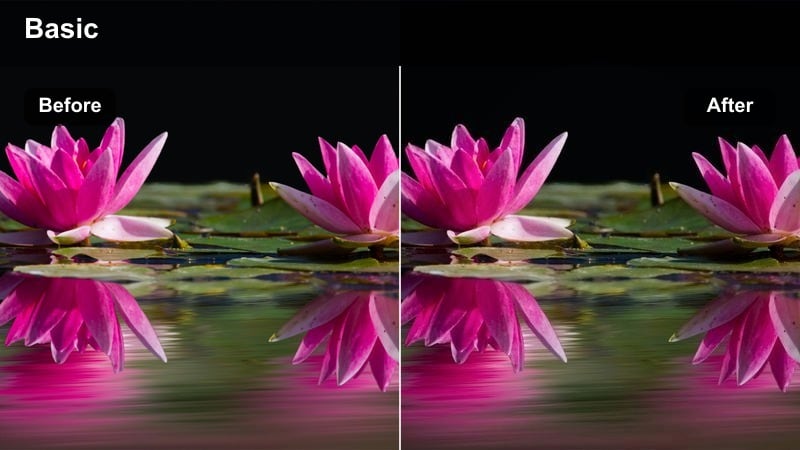
- Effect look: Cool, clean, and crisp palette that emphasizes aquas and cyans while keeping whites bright and neutral.
- Best for: Beach runs, coastal drone passes, and surf-side walks shot in clear daylight.
- Editing tip: Boost midtone contrast slightly to bring out wave detail and use a light vignette to draw attention to the subject.
Hero 12 Coastal Crisp is tailored for seaside footage where you want water to look turquoise and inviting without turning skin tones too blue. In Filmora, this filter cools the overall palette, enhances aquas and cyans, and keeps sand or clouds looking clean and neutral. It gives your GoPro Hero 12 clips the polished, travel-film look often associated with custom LUT packs.
Start by applying the filter and then gently increasing midtone contrast to sculpt wave textures and shoreline details. If your subject feels lost in the frame, add a very subtle vignette or use Filmora s focus tools to draw the eye to the runner, surfer, or board. If faces appear slightly cold, warm the global temperature by a small amount rather than dialing back the water s saturation.
Hero 12 Highland Haze
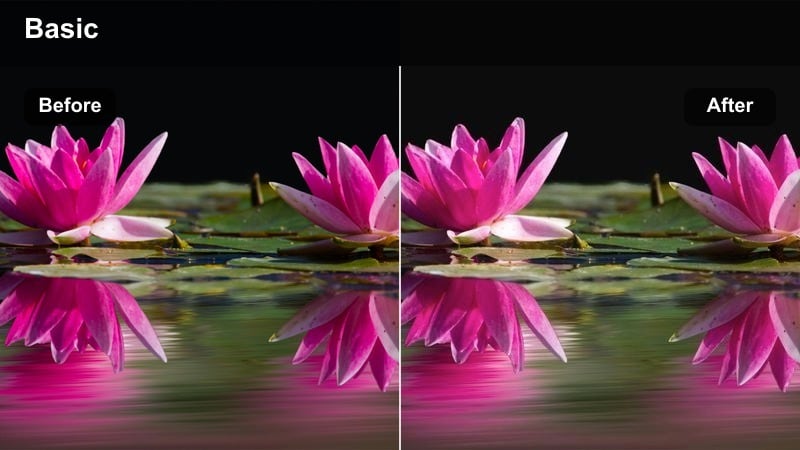
- Effect look: Soft contrast with gentle warmth and a slight haze that flatters distant landscapes and rolling hills.
- Best for: Slow hikes, drone reveals, and panoramic vistas captured in soft afternoon light.
- Editing tip: Reduce clarity a bit for a dreamy look, then sharpen just the subject area to keep the focus on the action.
Hero 12 Highland Haze gives your hiking and ridge-line shots a cinematic, airy atmosphere. Instead of hard contrast, it smooths transitions between highlights and shadows, adds a warm tint, and introduces a subtle haze that flatters distant mountains and valleys. This makes GoPro Hero 12 landscape footage feel more like a travel film and less like raw action camera output.
After applying the filter in Filmora, experiment with slightly lowering clarity or texture to create a dreamy, postcard-style look. Then mask your main subject and add a little sharpening or local contrast so they remain crisp against the softened background. This approach helps disguise sky noise or compression artifacts while still keeping hikers, ridges, and key foreground details clearly defined.
Urban Motion and Street Energy
Hero 12 Urban Punch
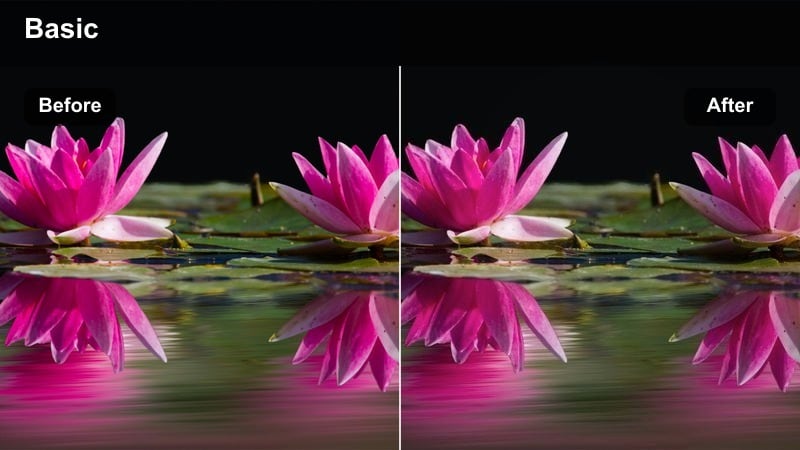
- Effect look: High-contrast, punchy urban grade with deep blacks, bold primaries, and slight teal in the shadows.
- Best for: City rides, skate sessions, and scooter commutes through colorful downtown streets.
- Editing tip: Add a subtle speed ramp on key moments and sync your cuts to the beat to match the energetic color style.
Hero 12 Urban Punch is built for speed and energy, giving city footage deep blacks, bold storefront colors, and a modern teal tint in the shadows. It mimics the kind of stylized GoPro Hero 12 LUTs that make downtown rides and skate lines feel like music videos. Applied in Filmora, it instantly makes gray streets and mixed lighting conditions look intentional and cinematic.
Use this filter on clips with strong movement such as handlebar POV, skatepark lines, or scooter commutes, then enhance the vibe with speed ramps and beat-matched cuts in Filmora s timeline. To avoid losing detail in darker alleys, raise the shadow slider slightly after applying the filter and rely on local contrast or sharpening to maintain grit on brick walls, pavement, and rails.
Hero 12 Street Neutral
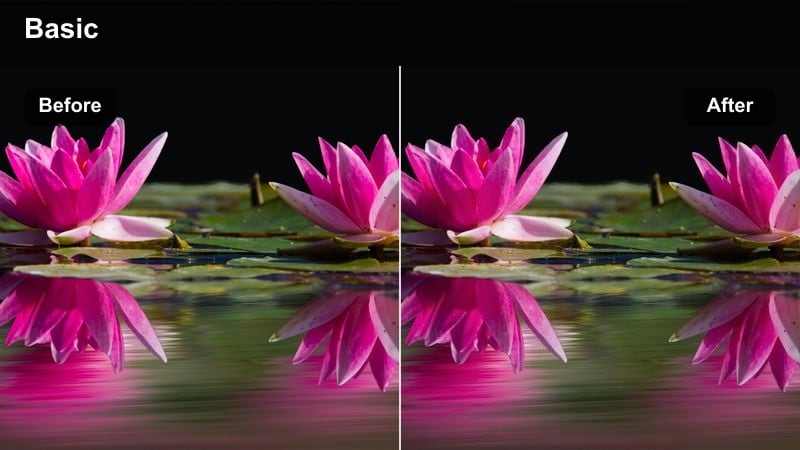
- Effect look: Balanced, documentary-style look with neutral colors and moderate contrast that works across mixed lighting.
- Best for: Run-and-gun vlogs, travel walk-throughs, and everyday city clips with changing light.
- Editing tip: Use this as a base look and then layer light color tweaks on specific shots to keep the whole edit consistent.
Hero 12 Street Neutral is your go-to base grade for urban vlogs and travel diaries. It keeps saturation controlled, contrast moderate, and white balance neutral so your GoPro Hero 12 footage looks natural across storefronts, sidewalks, interiors, and exteriors. This makes it an ideal substitute for a standard Rec.709 LUT when you want a clean, flexible starting point.
In Filmora, apply Street Neutral to all your urban clips first, especially if you are mixing Hero 12 shots with phone or mirrorless footage. Once everything shares this common baseline, you can fine-tune individual clips with slight warmth, added saturation, or extra contrast without the edit ever feeling disjointed. For multi-camera timelines, match exposure and white balance after applying the filter to keep every angle cohesive.
Hero 12 Neon Rush
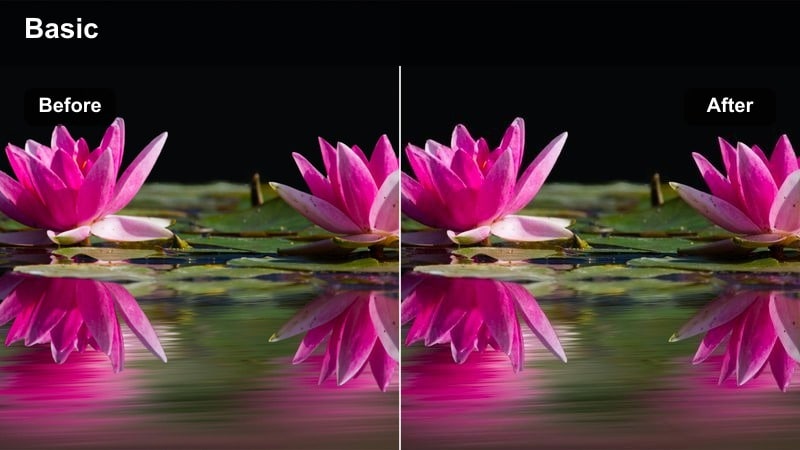
- Effect look: Vibrant, high-saturation grade that emphasizes neon signage and reflective wet streets at night.
- Best for: Urban night rides, rainy street laps, and cityscape B-roll with neon lights.
- Editing tip: Reduce luminance of blues slightly to deepen the sky or asphalt and let the neon colors stand out more.
Hero 12 Neon Rush turns city nights into glowing cyberpunk scenes, boosting saturation and contrast around neon signs, traffic lights, and reflections. It is particularly effective on wet streets where the extra color intensity creates mirror-like highlights. For GoPro Hero 12 clips that might otherwise look noisy or flat in low light, this filter provides an instant stylized upgrade in Filmora.
Before applying Neon Rush, consider running mild noise reduction on your night clips to avoid exaggerating grain. After the filter, gently darken blues to deepen the sky or asphalt and make neon details pop. Use Filmora s sharpening controls sparingly, focusing on edges like building outlines and vehicle shapes, so the image stays crisp without amplifying noise in shadowed areas.
Water Sports and Underwater Scenes
Hero 12 Aqua Correct
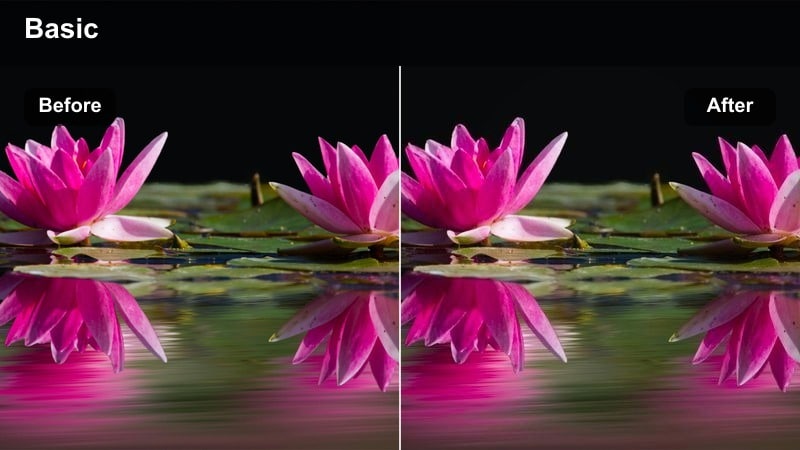
- Effect look: Color-corrective filter that pulls out greens and adds warmth to counteract underwater blue cast.
- Best for: Snorkeling, shallow reef swims, and surface-level underwater shots in clear water.
- Editing tip: Use white balance eyedropper on something neutral like sand or a surfboard to fine-tune after applying this look.
Hero 12 Aqua Correct is designed to fix the heavy blue cast that GoPro Hero 12 footage often picks up underwater. It restores reds and greens, adds subtle warmth, and brings coral, skin, and sand back to natural tones. This makes it an excellent starting point for snorkel and shallow reef clips that you want to match to topside footage in Filmora.
Apply Aqua Correct first, then use Filmora s white balance eyedropper on a neutral object such as sand, a fin, or a surfboard to nail accurate color. From there, tweak saturation and contrast conservatively so the water still looks clear and believable. For severely tinted clips, adjust curves slightly after the filter rather than overdriving global saturation, which can introduce color noise.
Hero 12 Surf Gold
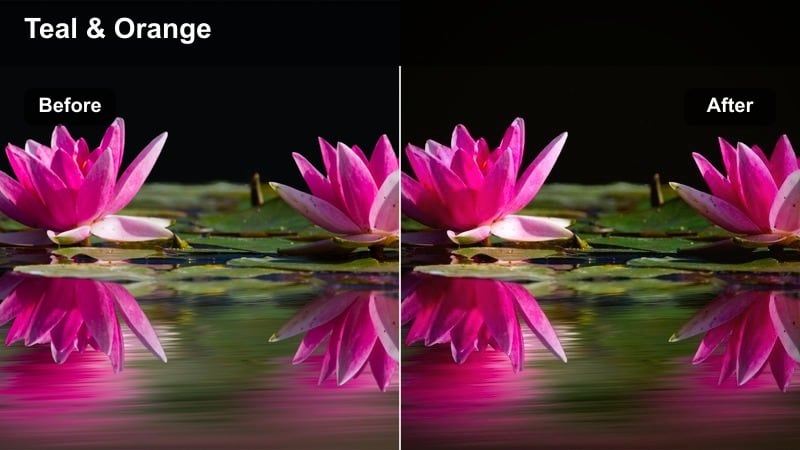
- Effect look: Warm, golden-toned surf grade with rich highlights and slightly teal shadows in the water.
- Best for: Sunrise and sunset surf sessions, paddle-outs, and backlit wave shots.
- Editing tip: Increase highlight roll-off softness to keep sun reflections on the water from blowing out too harshly.
Hero 12 Surf Gold leans into golden-hour color, giving sunlit waves a cinematic glow while holding pleasant teal tones in the shadows. It is ideal for GoPro Hero 12 surf clips shot at sunrise or sunset, where strong highlight reflections and backlight can easily clip. In Filmora, this filter shapes the tone curve to keep those bright areas rich instead of harsh.
Use Surf Gold on paddle-outs, barrel POVs, and lineup shots where the sun is low in the sky. If specular highlights on the water look too sharp, soften highlight roll-off or slightly lower exposure before or after the filter. Shooting a bit underexposed in-camera and then applying this look lets you recover the wave details while keeping that warm halo around the sunlit spray.
Hero 12 Deep Blue Drift
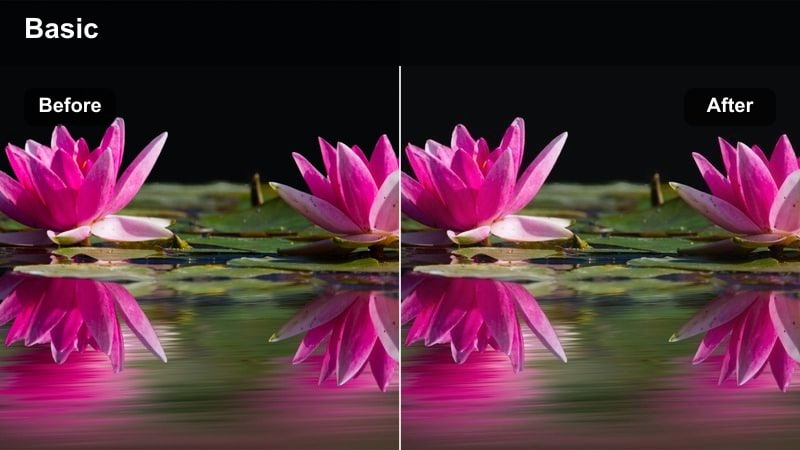
- Effect look: Moody, deep-blue tone with lifted blacks and soft contrast for deeper water and freediving clips.
- Best for: Freediving, offshore swims, and underwater descents into darker water.
- Editing tip: Use slower cuts and subtle speed ramps with this style to emphasize the calm, drifting feeling.
Hero 12 Deep Blue Drift is all about mood, giving deeper underwater footage a calm, cinematic feel. Instead of chasing perfect color accuracy, it embraces rich blues, lifted blacks, and soft contrast to highlight the sensation of drifting into the depths. This style works especially well with GoPro Hero 12 freedive clips where light naturally falls off with depth.
In Filmora, apply Deep Blue Drift and avoid over-sharpening; let the softer contrast convey the tranquil atmosphere. Slightly raise shadow detail so bubbles, particles, and suit textures remain visible even in low light. Pair the grade with slower cuts, gentle speed ramps, and ambient sound to reinforce the immersive, floating experience on screen.
Trails, Mountains, and Off-Road Action
Hero 12 Trail Clarity
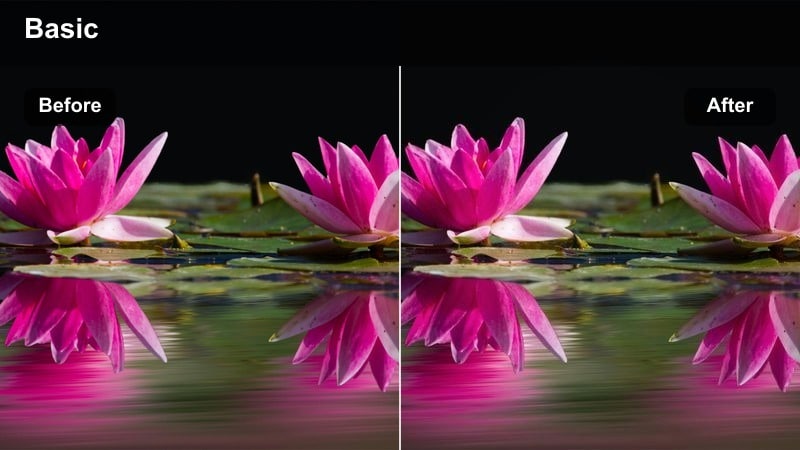
- Effect look: Clean, slightly desaturated look with high micro-contrast for revealing dirt, gravel, and foliage texture.
- Best for: Enduro, downhill MTB, gravel rides, and off-road rally tracks shot in mixed light.
- Editing tip: Apply selective sharpening on the center of the frame to keep edges smooth and avoid drawing attention to distortion.
Hero 12 Trail Clarity emphasizes terrain detail, making rocks, roots, and gravel stand out clearly in fast GoPro Hero 12 POV shots. By slightly pulling back saturation and boosting micro-contrast, it ensures your footage stays readable even when the camera is shaking over rough ground. It is ideal for bikers and off-road drivers who want viewers to feel every bump and line choice.
In Filmora, combine this filter with stabilization and moderate sharpening focused on the center of the frame. That way, important textures like the trail and front wheel remain crisp while the extreme edges stay smoother, reducing the impression of wide-angle distortion. Avoid aggressive global sharpening, which can make motion blur look stuttery on high-speed runs.
Hero 12 Ridge Cinematic
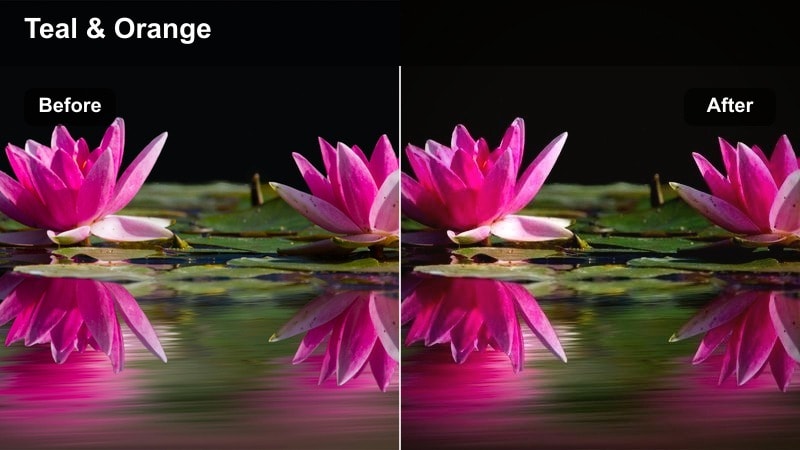
- Effect look: Cinematic, slightly teal-and-orange grade tuned for big vistas and subject separation on ridgelines.
- Best for: Slow hero shots on mountain edges, drone reveals, and dramatic landscape rides.
- Editing tip: Add a subtle letterbox and stabilize your key shots to reinforce the cinematic feel of this color style.
Hero 12 Ridge Cinematic gives your summit and ridge-line moments a classic teal-and-orange treatment, separating warm skin tones and gear from cooler backgrounds. This filter turns simple GoPro Hero 12 wide shots into poster-ready frames by deepening skies, enriching foliage, and giving cliffs more contrast. It is best used on slower, more composed shots where the viewer can appreciate the scenery.
After applying Ridge Cinematic in Filmora, stabilize your key hero shots and add a gentle letterbox to further sell the cinematic look. If some supporting clips were captured in flatter or hazier light, increase their saturation and brightness slightly before adding the filter so they match the energy of your main ridge scene. Keep movement smooth and deliberate with slow pans, controlled reveals, and minimal speed ramping.
Hero 12 Dust and Glow
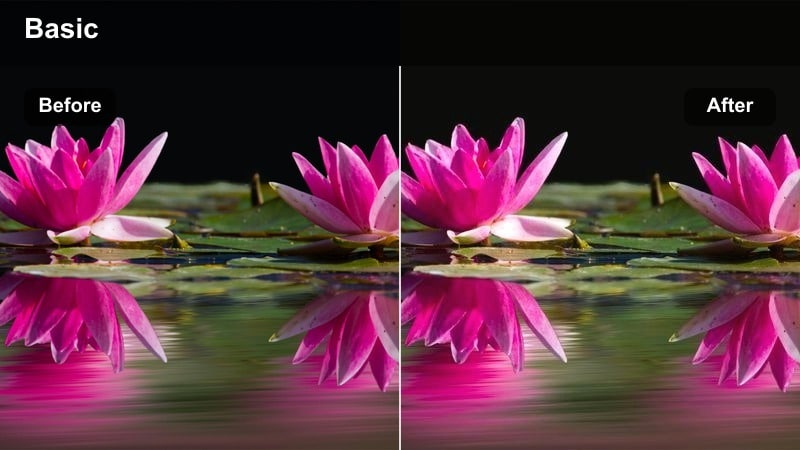
- Effect look: Warm, dusty tone curve with lifted highlights that catches particles of dust and backlit dirt.
- Best for: Desert rally, dirt bikes, and off-road trucks kicking up dust in low-angle sunlight.
- Editing tip: Add a small amount of glow or bloom to highlights to emphasize dust trails and light rays behind moving subjects.
Hero 12 Dust and Glow is crafted for desert rides and dirt-heavy action where backlit particles create dramatic atmospheres. It warms the overall palette, lifts highlights slightly, and emphasizes the way sunlight interacts with dust clouds. This gives GoPro Hero 12 off-road clips a gritty yet cinematic feel that looks like a stylized LUT grade.
For best results in Filmora, shoot into the sun or any strong backlight so dust and debris are naturally illuminated. Apply Dust and Glow, then add a subtle glow or bloom effect to the brightest areas to enhance rays and trails without blowing out the image. Clean the lens between takes and check playback for distracting flares or smudges, since the boosted highlights will exaggerate any imperfections on the glass.
Tips for Using Gopro Hero 12 Luts Filters in Filmora
- Shoot in a flatter GoPro color profile when possible to give these filters more room to shape contrast and color without breaking the image.
- Group clips by environment, such as city, trails, and water, and apply the same filter to each group to keep your edit consistent.
- Start with filter intensity at 100 percent, then dial it back until the look feels natural for the scene instead of overprocessed.
- Always correct exposure and white balance before pushing saturation and contrast with a strong filter or LUT-style look.
- Use Filmora s stabilization and speed ramping tools alongside filters to enhance the feeling of speed and impact in action shots.
- Save your favorite filter and adjustment combinations as Filmora presets so you can reuse them on future GoPro Hero 12 shoots.
- When mixing GoPro footage with other cameras, first apply a neutral filter to the GoPro clips, then match overall color before adding creative grades.
Using the right Filmora filters as GoPro Hero 12 LUT-style looks lets you turn raw action footage into a polished story without getting lost in complex color grading.
Try a few of these styles on your next session, refine them to match your taste, and then save your favorite combinations as presets so every new adventure is just a couple of clicks away from a finished, share-ready edit.
secure download
