

 100% Security Verified | No Subscription Required | No Malware


 ChatGPT
 Perplexity
 Gemini
 Claude
 Grok
Grok
If you shoot Instagram Reels in busy city streets, neon alleys, or moody rooftops, the right cinematic LUT-style filter can instantly turn handheld clips into scroll-stopping urban mini-films.
Below are 12 urban-inspired cinematic filter ideas you can recreate in Filmora to keep a consistent Instagram aesthetic, speed up your workflow, and give every Reel the same polished city-lens story.
In this article
Golden Hour Streets and Urban Sunsets
Warm Haze Avenue
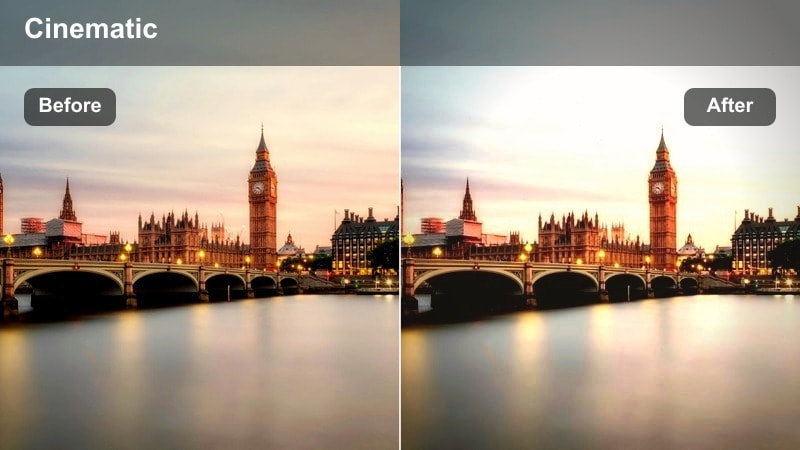
- Effect look: Soft amber glow with gentle bloom in highlights for a dreamy street-film look.
- Best for: Golden hour city walks, slow-motion outfit shots, lifestyle B-roll on sidewalks.
- Editing tip: Reduce contrast slightly and add a subtle vignette to keep attention on your subject in busy street frames.
Warm Haze Avenue leans into that late-afternoon city glow, wrapping your frame in soft amber tones while keeping enough detail in midtones for outfits and architecture. In Filmora, you can recreate this look by warming the white balance, softening highlights, and slightly lowering contrast so sunlit areas bloom instead of clipping.
For a polished Instagram Reels flow, pair this filter with slow-motion walking shots and gentle camera moves such as push-ins or pans. Use Filmora vignettes and a touch of HSL tuning to protect natural skin tones, and keep background saturation a bit lower so your subject remains the clear focus even in crowded city streets.
Lock in a Consistent Urban Color Story with AI Color Tools
Instead of manually copying every setting, use Filmora AI-powered color tools to quickly align your Instagram Reels with the same urban cinematic palette. Once you have a perfect Warm Haze Avenue style on one clip, you can let AI help match contrast and color across the rest of your timeline.
Analyze one Reel you love, then apply similar color balance to other city clips so your grid feels intentional and cohesive rather than random. This keeps your golden hour, alley, and rooftop shots living in the same visual universe.
 secure download

See Your City Footage Transform in Real Time
Load a few short street clips into Filmora and preview different filter presets to see which cinematic mood fits your story best. Toggling between warm, cool, and gritty looks in real time makes it easy to decide whether a dreamy golden hour grade or a high-contrast alley style suits your next Reel.
Drop at least three different city clips on the timeline, then cycle through Filmora filters side by side. Watching instant before-and-after results helps you lock in a signature urban look without endless trial and error.
secure downloadTurn Filters into Reusable LUT-Style Presets
Once you dial in a city look you love, save it as a custom preset in Filmora so it behaves like a reusable LUT for every new Reel. This LUT-style workflow keeps your color consistent even when you change locations, cameras, or shooting days.
Filmora now also lets you export compatible color adjustments from a selected clip as a standard .cube LUT for reuse across new Reels or in DaVinci Resolve, Adobe Premiere Pro, and Final Cut Pro.
Give each preset a clear name based on its mood, such as Warm Haze Avenue or Neon Rush, so you can instantly find the right vibe while editing. Over time, you will build a personal library of urban grades tailored to your Instagram feed.
secure downloadSunset Blocks
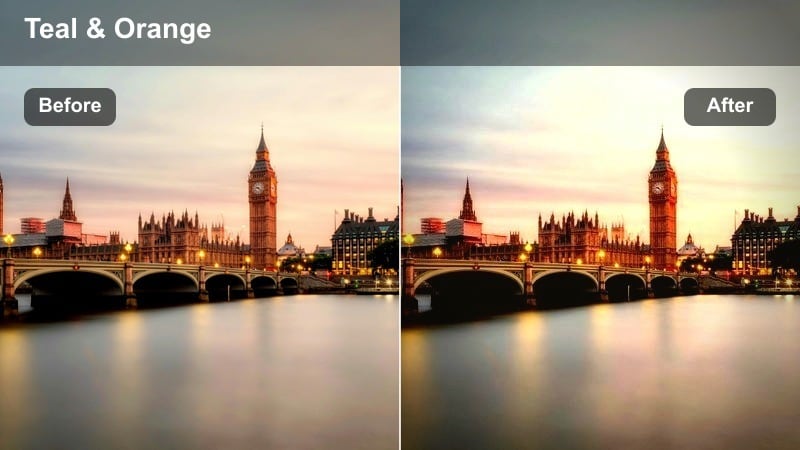
- Effect look: Rich orange and teal split-tone for sunset-lit buildings and cinematic sidewalks.
- Best for: City skyline B-roll, rooftop hangouts, and wide-angle street scenes at dusk.
- Editing tip: Push clarity slightly but keep sharpening low to avoid crunchy bricks and overly harsh textures.
Sunset Blocks gives you that classic blockbuster orange-and-teal treatment tuned for dense city blocks and layered skylines. In Filmora, start with a warm temperature, cool down shadows with the color wheels, and emphasize midtone contrast so buildings stand out crisply against a glowing sky.
This style works especially well for rooftop Reels, skyline reveals, and establishing shots before tighter street scenes. Apply the same filter to all dusk clips, then adjust only exposure and white balance per shot so your Reel feels like one continuous sunset, even if clips were filmed on different evenings.
Golden Subway Entry
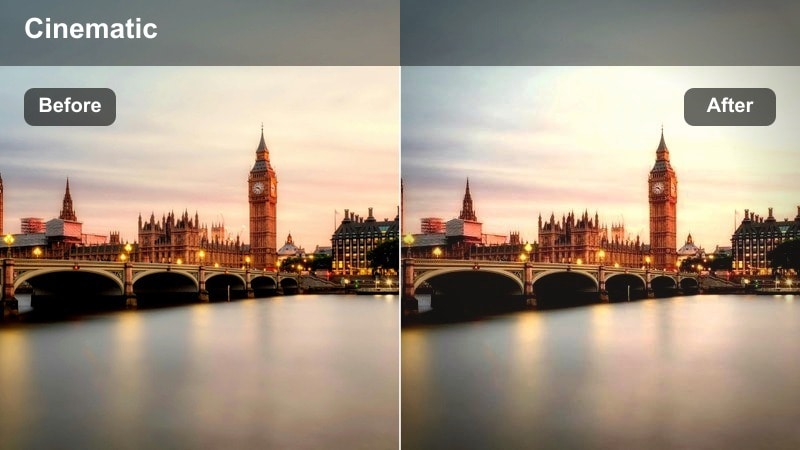
- Effect look: Warm glowing highlights with slightly faded shadows for entrances, stairways, and tunnels.
- Best for: Subway entrances, escalators, and transition shots between outdoor light and underground spaces.
- Editing tip: Raise blacks just a touch to keep dark stair areas smooth and cinematic instead of harsh and noisy.
Golden Subway Entry is perfect for bridging outdoor and underground scenes, softening harsh contrast while keeping the warm light spilling into tunnels. Use Filmora to lift blacks slightly, apply a warm tone to highlights, and reduce overall contrast so stair details remain visible without looking crunchy.
Drop these clips at the beginning or end of scenes to create natural transitions between locations in your Reel. A subtle push-in or pull-back keyframed in Filmora, combined with this warm, faded look, turns a simple staircase into a cinematic tunnel that guides viewers into the next part of your story.
Neon Nights and Downtown Energy
Neon Rush
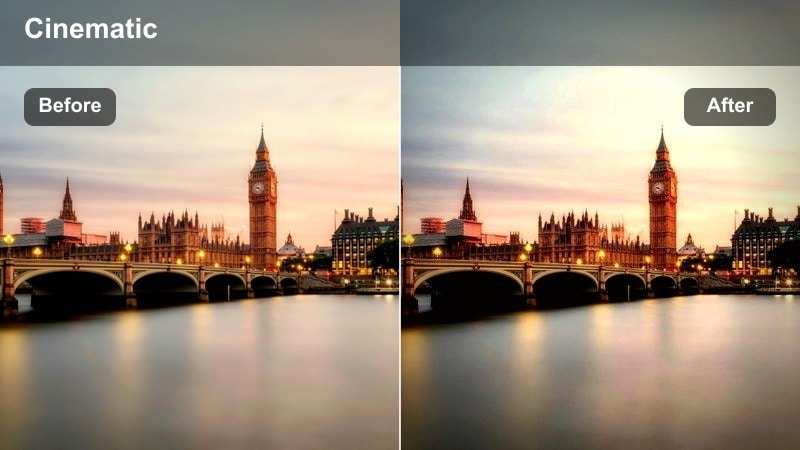
- Effect look: Punchy saturation with crisp contrast and cool shadows for vibrant nightlife.
- Best for: Nighttime street fashion, club lines, scooter rides, and city nightlife Reels.
- Editing tip: Lower highlights to protect bright signs and keep neon lights readable on mobile screens.
Neon Rush turns downtown night footage into bold, high-energy visuals with vibrant sign colors and deep, cool shadows. In Filmora, increase saturation, add contrast in the curves, and bias shadow tones slightly toward blue to intensify the nightlife mood without losing too much detail.
Because neon lights can easily blow out on phones, keep highlights under control and watch how your grade looks on a small preview. Combine this look with dynamic camera moves, quick cuts, and maybe a bit of speed ramping in Filmora to match the pace of nightlife tracks and keep your Reels feeling electric.
Cyber Alley
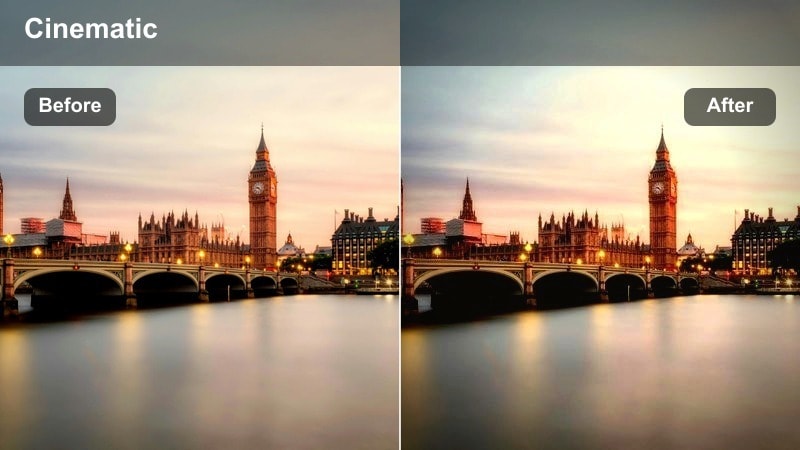
- Effect look: Cool cyan shadows, magenta highlights, and a slight matte finish for futuristic alleys.
- Best for: Graffiti alleys, bike rides through lit side streets, and cyberpunk-inspired B-roll.
- Editing tip: Add a tiny bit of film grain to smooth digital noise and enhance the retro-future vibe.
Cyber Alley pushes your night footage toward a stylized cyberpunk palette, with cyan-infused shadows and magenta glows around lights. To achieve this in Filmora, use color wheels or curves for cross-toning, slightly fade the blacks, and add a matte finish for a dreamy, futuristic softness.
This filter is ideal for slow motion shots, neon reflections on wet pavement, and minimal movements like hair flips or bike passes. Layer in a touch of film grain and, if you like, a light leak overlay from Filmora to add texture and depth, turning even simple backstreet clips into sci-fi style sequences.
Late Night Crosswalk
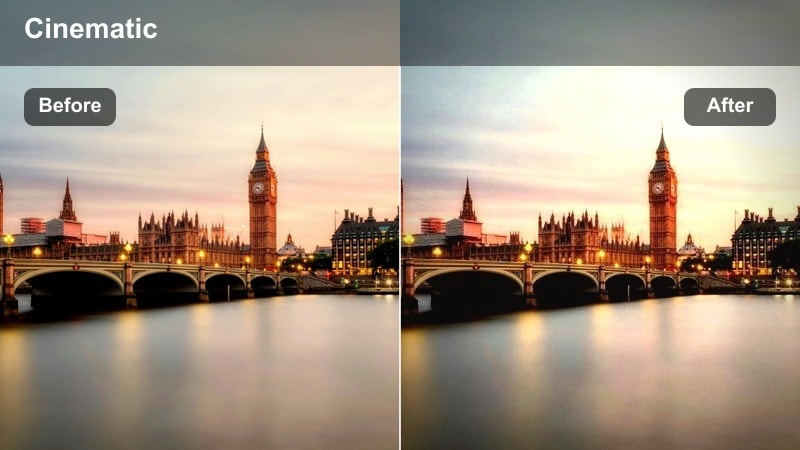
- Effect look: Balanced contrast with natural skin and slightly cooled streetlights for clean night realism.
- Best for: Handheld walking shots across crosswalks, candid friends' moments under streetlights.
- Editing tip: Keep stabilization gentle and add a very subtle motion blur so night movement feels smooth, not jittery.
Late Night Crosswalk delivers a grounded night look that cools down yellow streetlights while protecting realistic skin tones. In Filmora, slightly lower saturation, cool the temperature just a bit, and fine-tune midtones so faces stay natural even under mixed city lighting.
Use this filter for story-driven Reels where conversations, reactions, or simple walks carry the narrative. Apply light stabilization and add a barely-there motion blur effect in Filmora to smooth handheld jitters, helping your night scenes feel cinematic without losing that authentic street documentarian touch.
Moody Alleys and Gritty Corners
Concrete Noir
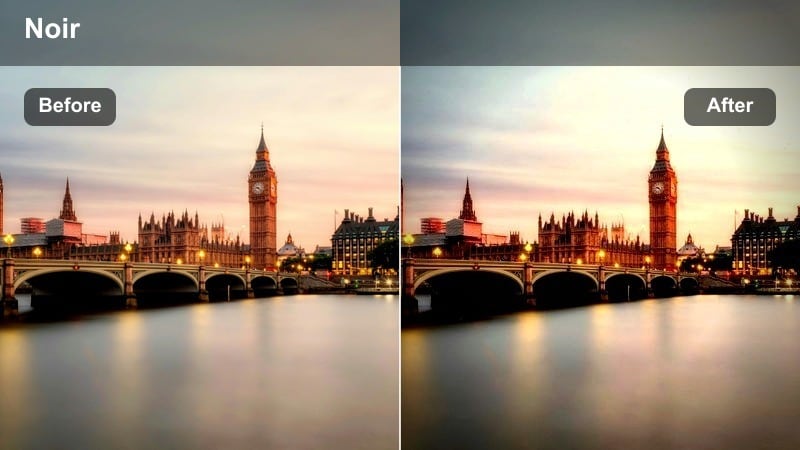
- Effect look: High-contrast monochrome with deep blacks and glowing midtones for raw city drama.
- Best for: Shadowy alleys, fire escapes, silhouettes, and handheld monochrome street stories.
- Editing tip: Drop saturation to almost zero, then fine-tune with curves to keep faces visible in the shadows.
Concrete Noir strips your footage down to bold black and white, emphasizing geometry, shadows, and silhouettes in cramped city spaces. In Filmora, desaturate nearly to zero, then use the curves tool to deepen blacks while lifting midtones so key subjects do not disappear into the darkness.
This is a powerful look for narrative or performance-based Reels where emotion and shape matter more than color. Shoot into alleyway light shafts or stairwell contrast, then use simple cuts and minimal transitions in Filmora to keep the gritty, filmic atmosphere front and center.
Smoke and Brick
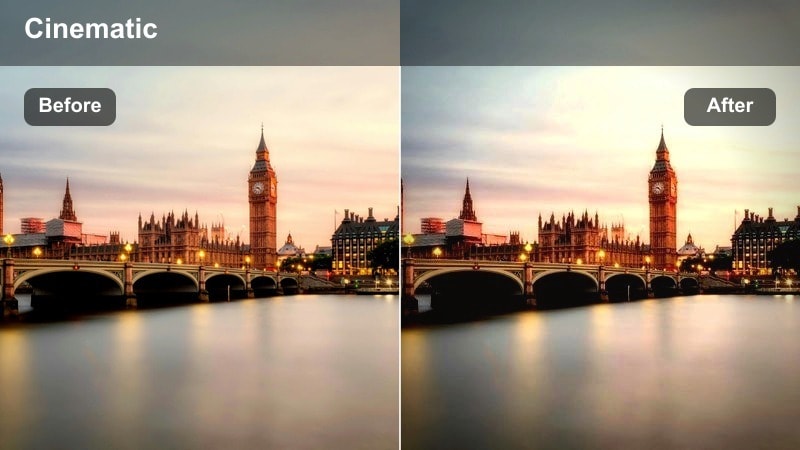
- Effect look: Desaturated colors with rusty reds and muted greens for textured brick backdrops.
- Best for: Outfit shots against brick walls, stairwell photoshoots, and moody performance clips.
- Editing tip: Pull down overall saturation, then gently raise red saturation to keep bricks rich without overpowering the frame.
Smoke and Brick dials down color intensity while letting brick reds and subtle greens carry the mood, perfect for outfit and portrait Reels in textured locations. In Filmora, lower global saturation, then use the HSL panel to nudge red hues and saturation upward until bricks feel rich but not cartoonish.
This look thrives on steady compositions, so favor tripod, gimbal, or locked-off shots over heavy handheld motion. You can add slow, subtle zooms with Filmora keyframes instead of camera shakes, letting the gritty textures speak for themselves without distracting movement.
Rainy Sidewalk Grit
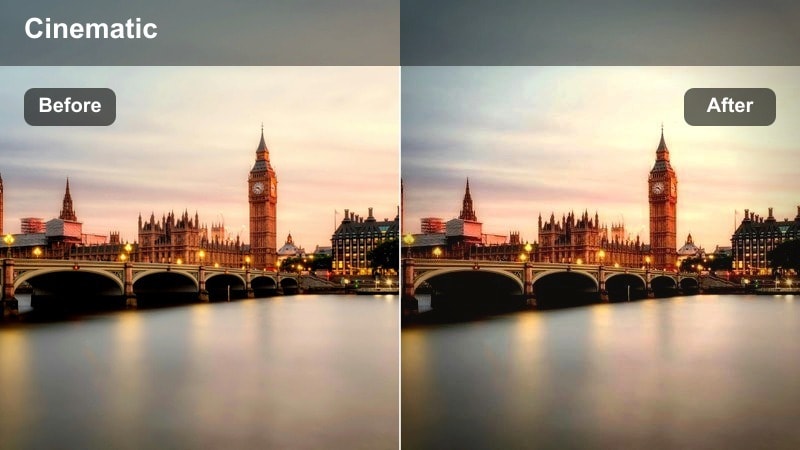
- Effect look: Cool shadows, elevated contrast, and a slight matte finish that makes wet pavement shimmer.
- Best for: Rainy walks, umbrella shots, reflections in puddles, and moody commute Reels.
- Editing tip: Lower highlights while boosting clarity to bring out reflections and texture in wet streets.
Rainy Sidewalk Grit leans into cool tones and contrast to make puddles, wet asphalt, and reflections feel like scenes from a drama film. In Filmora, cool down the temperature, lift clarity, and add a gentle matte curve so bright reflections are controlled while surface details stay sharp.
For the strongest effect, shoot low angles toward puddles or reflective sidewalks and let moving lights or passing feet ripple across the frame. Slight slow motion and carefully mixed city ambience in your Filmora timeline will complete the cinematic, rainy-day storytelling vibe.
Rooftops, Transit Lines, and City Views
Skyline Cinema
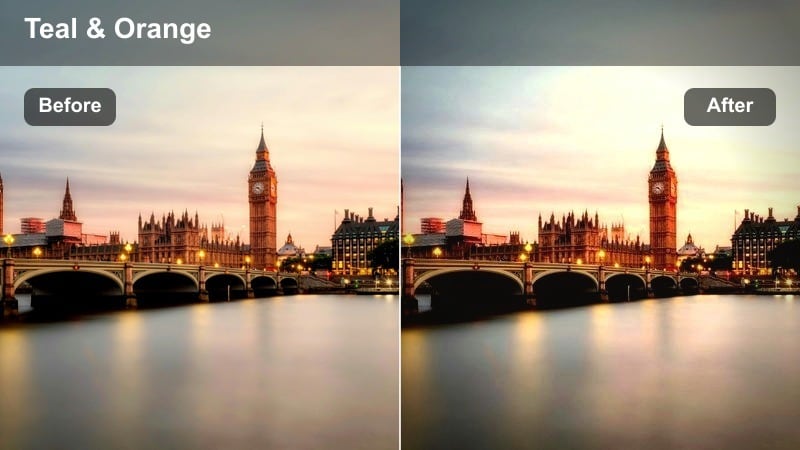
- Effect look: Clean, lightly cinematic contrast with neutral colors and a subtle teal push in the distance.
- Best for: Panoramic skyline shots, drone clips, and rooftop transitions between outfits or scenes.
- Editing tip: Keep vibrance slightly higher than saturation so skies pop without making buildings look artificial.
Skyline Cinema gives your daytime cityscapes a modern, polished finish with neutral foregrounds and a faint teal tint in far-off buildings and sky. In Filmora, keep contrast moderate, raise vibrance more than saturation, and shift shadows gently toward teal so the city feels crisp but not over-processed.
This makes a great base grade for most of your daytime urban Reels, especially if you want a consistent look across rooftops, streets, and drone shots. Save it as a custom preset in Filmora, then quickly tweak warmth per clip to adapt to overcast or bright sun without losing your overall feed aesthetic.
Transit Motion
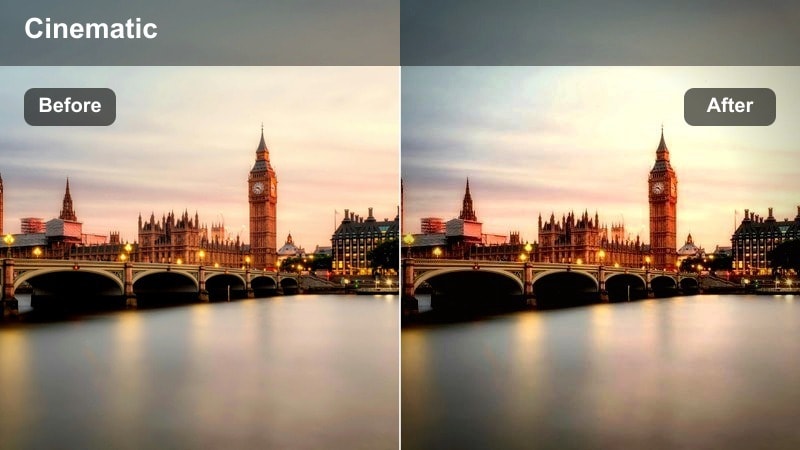
- Effect look: Slight motion blur feel with crisp midtones and cool highlights ideal for trains and buses.
- Best for: Metro rides, train windows, bus commutes, and time-lapse city travel Reels.
- Editing tip: Combine this filter with speed ramps in Filmora to emphasize changes in tempo along your commute.
Transit Motion is designed to make everyday rides feel like stylized montages, accenting midtone clarity and cool highlights as the city blurs by. In Filmora, keep midtones sharp, cool overall color slightly, and experiment with motion blur or directional blur effects for dynamic window shots.
For maximum impact, cut your commute footage to the beat of your soundtrack and use Filmora speed ramps to alternate between slow, reflective moments and fast, energetic sequences. Applying the same Transit Motion preset across the whole timeline will bind all these tempo shifts into one cohesive travel story.
Parking Deck Amber
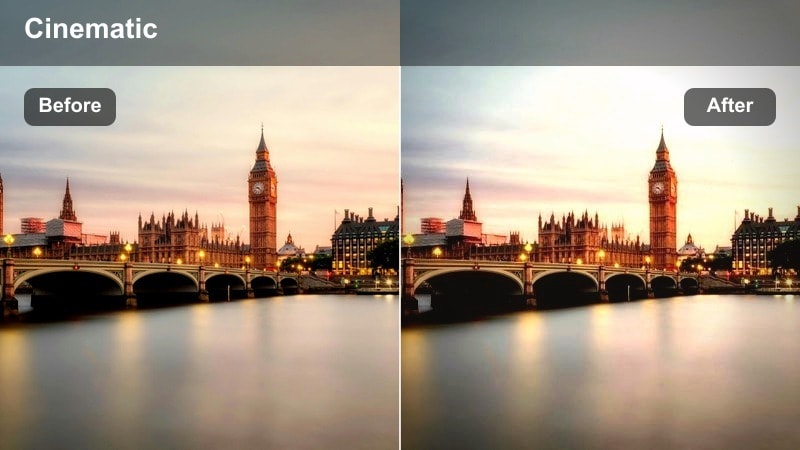
- Effect look: Muted tones with creamy highlights and slightly warm midtones for open-air parking lots.
- Best for: Parking deck outfit reels, car reveals, dance clips, and minimalist urban shots.
- Editing tip: Lower saturation of yellows to avoid harsh lines on concrete and keep the look soft but detailed.
Parking Deck Amber softens the often-harsh look of concrete lots by warming midtones and smoothing highlights into a creamy, fashion-friendly palette. In Filmora, reduce overall saturation, pull down yellows in the HSL controls, and warm midtones so skin and cars look flattering against minimal backgrounds.
Because parking decks offer clean lines and big negative space, this filter pairs well with looping moves like spins, simple walks, or car door reveals. Edit your start and end frames to closely match in Filmora and use subtle crossfades or jump cuts so the loop feels seamless when Instagram Reels replays it.
Tips for Using Instagram Reels Cinematic Luts Urban Filters in Filmora
- Shoot your Instagram Reels a little flatter than usual so your cinematic urban filters have more room to shape contrast and color.
- Always test your favorite filter on both wide skyline shots and close-up portraits to make sure skin tones still look natural.
- Keep your color style consistent for at least 6–9 Reels in a row so your grid develops a recognizable urban cinematic identity.
- Balance sound design with visuals by adding subtle city ambience beneath music to strengthen the atmosphere your filter creates.
- Save your most-used Filmora color setups as custom presets so you can apply them like LUTs across new city clips in one click.
- Check every Reel on your phone before posting, adjusting brightness and highlights so neon lights and sunsets stay readable on small screens.
- Use Filmora keyframes for gentle zooms or pans that match your color mood instead of relying only on handheld camera movement.
- Group clips by time of day in your timeline and grade them together so golden hour, night, and rainy looks stay consistent within each Reel.
With a small set of well-chosen Instagram Reels cinematic LUT-style filters, you can turn everyday city clips into a cohesive visual brand built around your favorite streets, rooftops, and subway lines. Each of the looks above is easy to recreate in Filmora and tweak to match your specific camera, lighting, and outfit choices.
Start by picking one or two urban filters from this guide, save them as presets in Filmora, and refine them as you move toward cleaner, more luxurious looks like Instagram fashion LUTs with a polished, high-end finish. Over time, your color grading will become as recognizable as your poses and locations.
secure download