

 100% Security Verified | No Subscription Required | No Malware


 ChatGPT
 Perplexity
 Gemini
 Claude
 Grok
Grok
Instagram reels storytelling LUTs help content creators quickly lock in cinematic moods so every clip feels like part of a bigger narrative, not just another random post. With Filmora's storytelling-focused filters, you can create consistent color, tone, and emotion across scenes in just a few clicks.
Below are 12 Filmora filters tailored for Instagram reels storytelling LUTs scenarios, organized by story type and scene. Use them as your go-to presets to set the emotional tone, guide your viewer's attention, and keep your Reels looking on-brand from hook to final shot.
In this article
Bright Openings and Urban Daytime Hooks
City Sunrise Hook
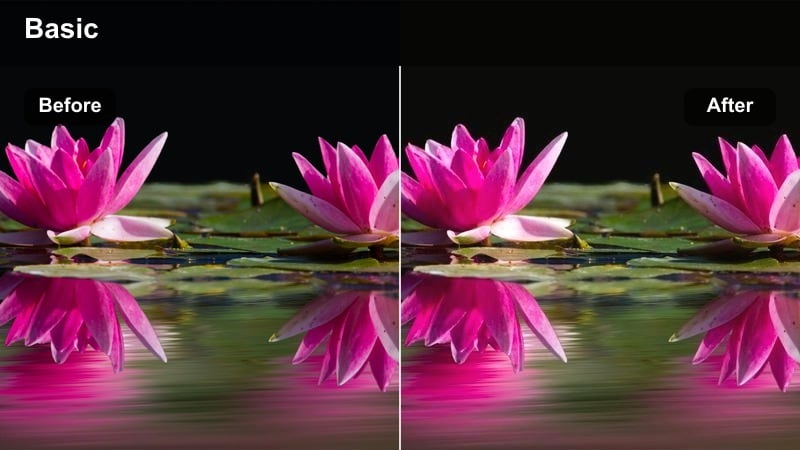
- Effect look: Soft, bright film-style contrast that warms highlights and gently lifts shadows for a hopeful opening shot.
- Best for: First 3 seconds of Reels, city morning routines, commute intros, and day-in-the-life hooks.
- Editing tip: Pair with slightly slower clips and on-screen text for the hook, then cut to faster shots while keeping this filter for continuity.
City Sunrise Hook gives your opening frames a warm, cinematic glow that instantly signals intentional storytelling. The softened contrast and lifted shadows help reveal detail in buildings, streets, and faces so viewers feel like they are stepping into the start of a new day.
In Filmora, drop this filter onto your very first clip, then trim the shot to those crucial first 3 seconds of your Reel. Add bold text that poses a question or teases the story, and keep the same filter across the first few cuts so your hook feels cohesive even as pacing picks up.
Match Your Story Mood with AI-Powered Color
Filmora's AI color tools help you quickly align your filters and Instagram reels storytelling LUTs with the exact mood you want, from hopeful openings to moody night scenes. You can let AI analyze your clips and balance exposure and color before you fine-tune the look.
Once the base grade is set, apply storytelling filters like City Sunrise Hook on top so every scene feels like part of the same cinematic universe without spending hours on manual corrections.
 secure download

Fine-Tune Story Colors with HSL Controls
After applying your preferred Instagram reels storytelling LUTs in Filmora, use HSL and color match controls to refine specific hues. This helps keep skin tones natural while still letting you stylize skies, buildings, or clothing for your narrative.
By isolating colors, you can emphasize important props or locations in your story without regrading the entire frame, keeping your Reels clean and cinematic on mobile screens.
secure downloadPreview Storytelling Filters in Real Time
Filmora's filter preview lets you hover over cinematic looks while your Reel plays, so you can instantly see how each style shapes your narrative. This makes it easy to compare bright hooks, softer mids, and moody outros without endless trial and error.
Once you find a combination that supports your emotional arc, save it as a custom preset so your Instagram reels storytelling LUTs workflow becomes fast and repeatable across episodes.
secure downloadCreator Desk Daylight
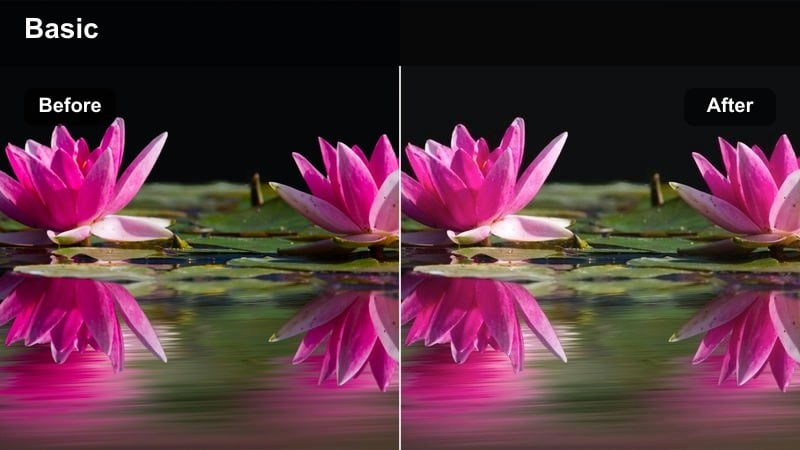
- Effect look: Clean, neutral tones with a subtle bright pop and gentle skin smoothing for desk and workspace scenes.
- Best for: Talking-head intros, creator desk setups, productivity stories, and tutorial hooks filmed by a window.
- Editing tip: Lower saturation slightly and increase sharpness when your background is busy so the subject still stands out clearly.
Creator Desk Daylight keeps your workspace colors realistic while giving your face a soft, flattering boost. This neutral look is ideal for educational and productivity content where viewers need to clearly see your expressions, gestures, and on-screen props.
In Filmora, apply this filter to all your desk-based A-roll and fine-tune saturation and sharpness so text, laptops, and stationery read well on small screens. Combine it with simple framing and minimal background clutter to keep attention focused on your story and lessons.
Street B-Roll Day
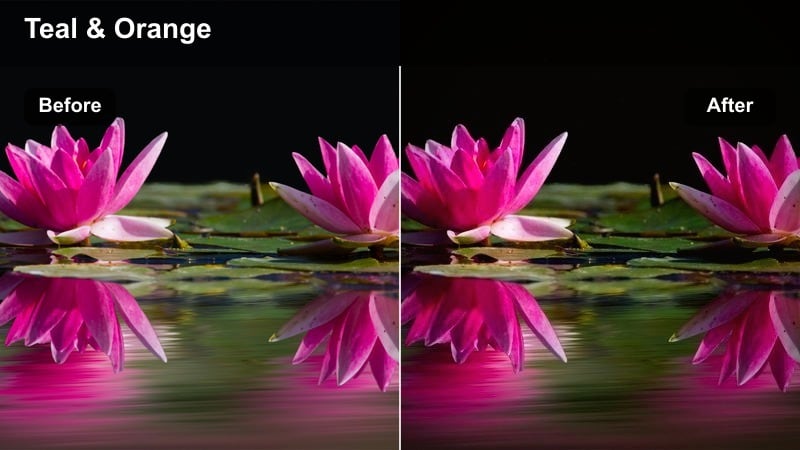
- Effect look: Slight teal and orange influence with boosted micro-contrast to give handheld street B-roll a cinematic punch.
- Best for: Walking POV shots, quick cuts of buildings, crowds, and signs in daylight that bridge between story beats.
- Editing tip: Use this filter on all your connecting shots only, and keep your A-roll more neutral so viewers feel the shift into B-roll moments.
Street B-Roll Day adds cinematic separation and richness to urban cutaways, making everyday sidewalks and traffic feel like intentional scene transitions. The subtle teal and orange palette helps subjects stand out while maintaining a familiar, film-inspired vibe.
In Filmora, place this filter on a dedicated track or adjustment layer covering all your B-roll segments. Keep talking-head clips on a more neutral filter so viewers subconsciously recognize when you move from explanation to visual storytelling beats.
Emotional Middles and Reflective Story Moments
Soft Memory Flashback
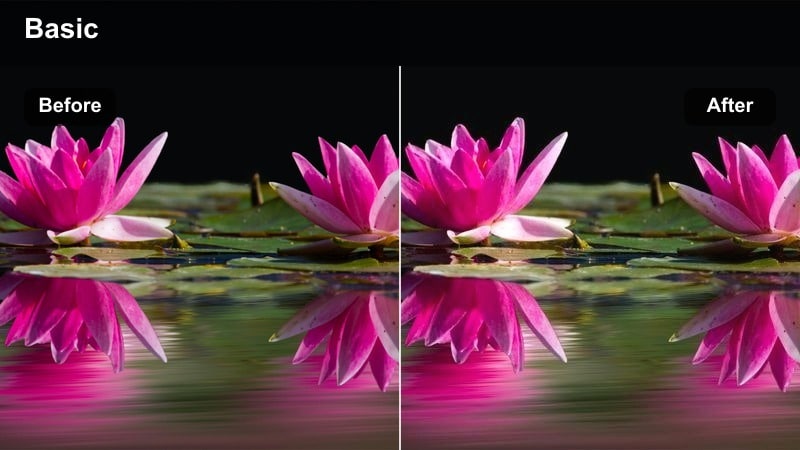
- Effect look: Low-contrast, slightly desaturated tones with a warm haze that makes scenes feel like soft memories.
- Best for: Flashback moments, before-and-after comparisons, and emotional mid-story reflections in Reels.
- Editing tip: Drop sharpness a bit and add slower crossfades between clips so the filter and transitions work together as a memory sequence.
Soft Memory Flashback gives your footage a hazy, nostalgic quality that instantly reads as past tense or inner reflection. Colors are muted and contrast is gentle, which helps distinguish these shots from your present-day, higher-clarity scenes.
In Filmora, combine this filter with slower crossfades or blur transitions to create dedicated memory blocks in the middle of your Reel. Reduce clip sharpness slightly so edges feel less defined, reinforcing the sense that viewers are watching a recollection rather than live action.
Journal Table Scene
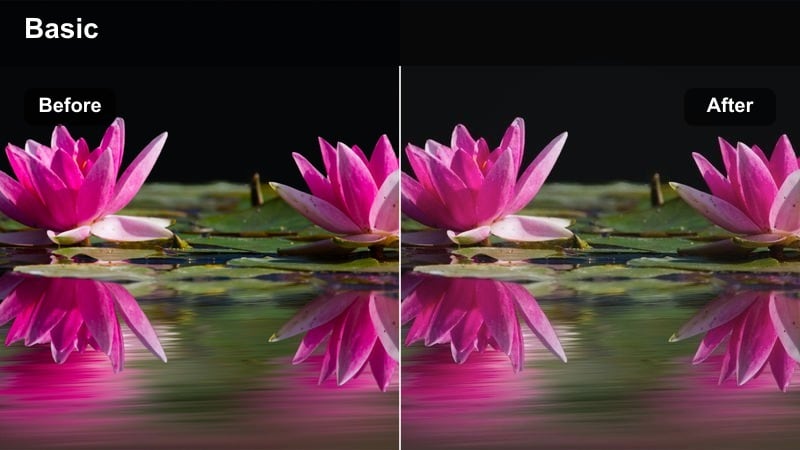
- Effect look: Muted, cozy tones with soft shadows and subtle brown tint for intimate journaling or planning shots.
- Best for: Story chapters about self-reflection, planning, and mindset shifts in lifestyle and creator Reels.
- Editing tip: Slow your shutter or add a tiny bit of motion blur in Filmora so hand movements look smooth and cinematic under this filter.
Journal Table Scene wraps your tabletop shots in warm, intimate color, making small gestures like writing, highlighting, or closing a notebook feel meaningful. The muted palette keeps distractions low and directs attention to hands, paper, and pens.
In Filmora, use this filter on close-ups that represent decisions or internal change, then pair them with subtle motion blur or reduced playback speed. These stylistic choices turn simple journaling clips into visual metaphors for planning, reflection, and personal growth.
Window Light Monologue
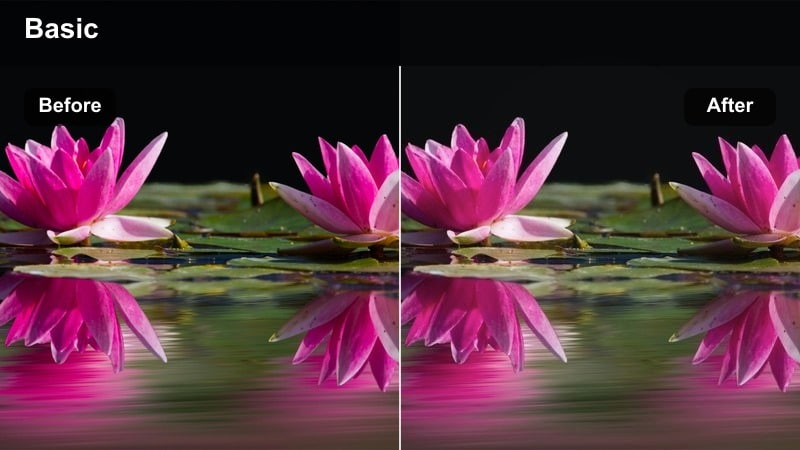
- Effect look: Directional contrast that darkens the background slightly and lifts skin tones near windows for dramatic monologues.
- Best for: Serious voiceovers, vulnerable storytelling, and lesson-learned moments delivered to camera.
- Editing tip: Frame yourself slightly off-center toward the window and keep cuts minimal so the performance and color carry the scene.
Window Light Monologue emphasizes your face with soft, directional light while letting the room fall into gentle shadow. This look draws viewers into your expression and makes confessions, lessons, or vulnerable stories feel more cinematic and intentional.
In Filmora, apply this filter to longer, unbroken clips where you speak directly to camera and keep edits minimal to preserve authenticity. Use it as a visual cue that the story has reached an emotional peak or key takeaway, supported by subtle background darkening.
Dynamic Transitions and Fast-Paced Story Turns
Jump Cut Energy
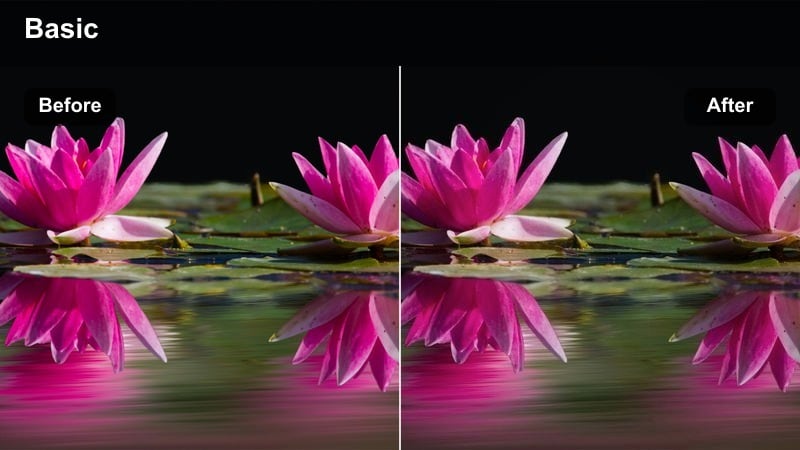
- Effect look: High contrast with punchy saturation and a slight cool shift in shadows for energetic jump cuts and quick sequences.
- Best for: Challenge Reels, fast-talking tips, scene-hopping narratives, and energetic creator days.
- Editing tip: Use hard cuts on movement or words and keep this filter across every jump cut to make hectic pacing feel intentionally stylized.
Jump Cut Energy boosts contrast and color to match the intensity of fast-paced edits and quick scene changes. The slightly cool shadows give your sequence a modern, stylized edge that pairs well with upbeat music and rapid-fire dialogue.
In Filmora, apply this filter across an entire high-energy section and cut on motion, beats, or key phrases to keep the rhythm tight. This consistent visual treatment prevents hectic pacing from feeling messy, helping viewers stay engaged through rapid transitions.
Metro Commute Rush
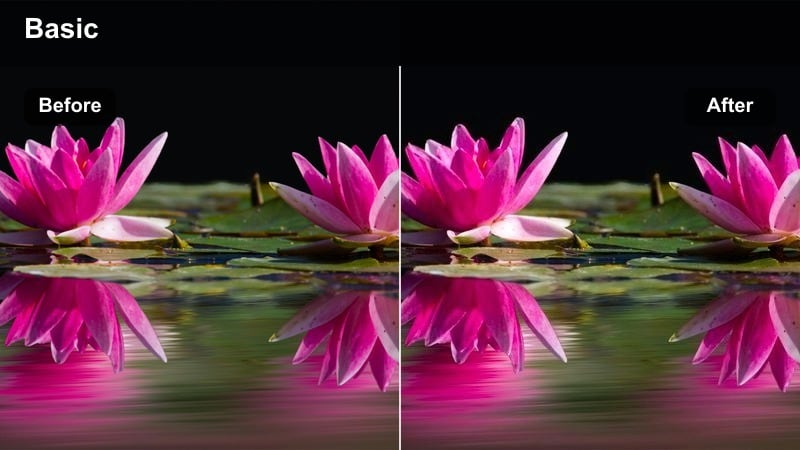
- Effect look: Slight motion-emphasizing contrast with cool highlights and warm skin tones for hectic transit scenes.
- Best for: Subway rides, bus clips, escalators, and city commute sequences that push the story forward.
- Editing tip: Stack speed ramps and direction-based transitions under this filter to turn simple travel footage into a kinetic story beat.
Metro Commute Rush uses cool highlights and balanced skin tones to turn everyday transit clips into dynamic, story-driven transitions. The enhanced contrast and motion-friendly look help convey urgency, routine, or change as you move through the city.
In Filmora, combine this filter with speed ramps, whip pans, or directional transitions between trains, escalators, and street exits. Use these sequences to visually represent shifts in your day or mindset, letting the consistent grade hold the story together across locations.
Screen Switch Montage
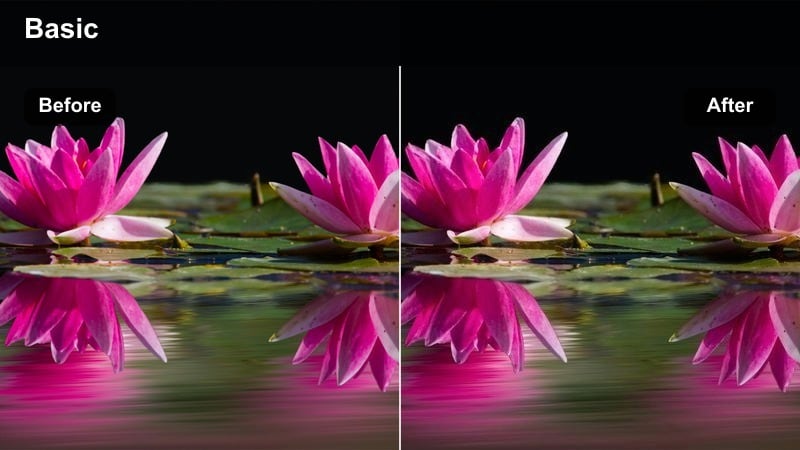
- Effect look: Balanced, slightly cool-neutral look that keeps screens, apps, and overlays clear and readable while maintaining cinematic contrast.
- Best for: App walkthroughs, creator workflow stories, and split-screen sequences that move between real life and screen recordings.
- Editing tip: Use this filter on your live-action clips and lightly match your screen recording brightness so cuts between the two feel seamless.
Screen Switch Montage is designed to bridge the gap between real-world footage and digital interfaces in the same Reel. Its cool-neutral tone and controlled contrast keep UI elements sharp and legible while still giving your environment a cinematic polish.
In Filmora, apply this filter to live-action shots around your laptop or phone and then adjust exposure and contrast on your screen recordings to visually match. Cut between face cam, over-the-shoulder shots, and captured screens so your tutorial feels like a cohesive story rather than disjointed tech demos.
Cinematic Endings and Nighttime Story Closers
City Blue Hour Outro
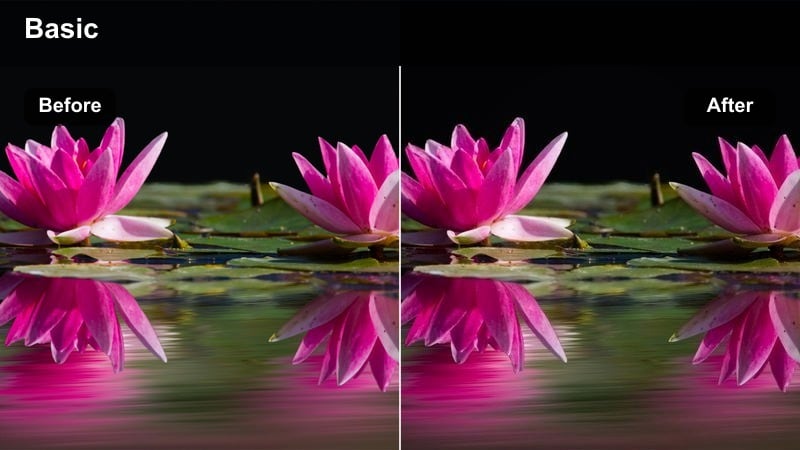
- Effect look: Cool blue cast with rich contrast and glowing highlights for city skylines and streets at dusk.
- Best for: Closing shots on rooftops, balcony reflections, and walking-away outros filmed during blue hour.
- Editing tip: Hold your last shot for at least two seconds with this filter so viewers have time to absorb the mood before the Reel loops.
City Blue Hour Outro leans into cool tones and glowing city lights to create calm, reflective endings. The strong contrast between deep blues and urban highlights makes simple balcony or rooftop shots feel like cinematic final frames.
In Filmora, apply this filter to your last one or two clips and slightly lengthen the final shot so viewers can sit with the atmosphere. Pair it with gentle music or a single on-screen line to leave a lingering emotional impression as the Reel loops.
Room Lamp Night Talk
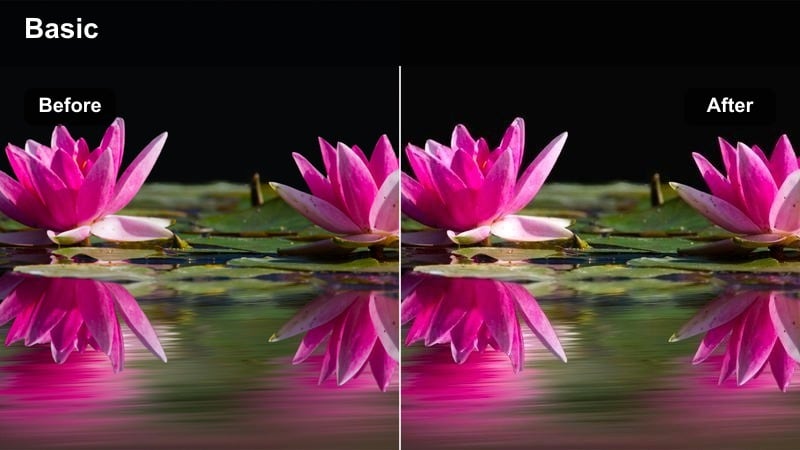
- Effect look: Warm, lamplit glow that deepens shadows and adds cozy contrast for indoor night scenes.
- Best for: Late-night reflections, story conclusions, and quiet wrap-up shots filmed by a single lamp or bedside light.
- Editing tip: Reduce exposure slightly and keep your frame locked off so the warm light feels intentional and intimate under this filter.
Room Lamp Night Talk wraps your frame in a cozy, amber glow that feels like a one-on-one conversation. The deepened shadows and focused lamplight create intimacy, making it a strong choice for sharing final thoughts, lessons, or confessions.
In Filmora, add this filter to static shots framed around your lamp or bedside table and gently lower exposure to avoid blown-out highlights. Use slower pacing, softer speech, and fewer cuts so the warmth of the grade matches the calmer tone of your closing message.
Credits Walk-Away
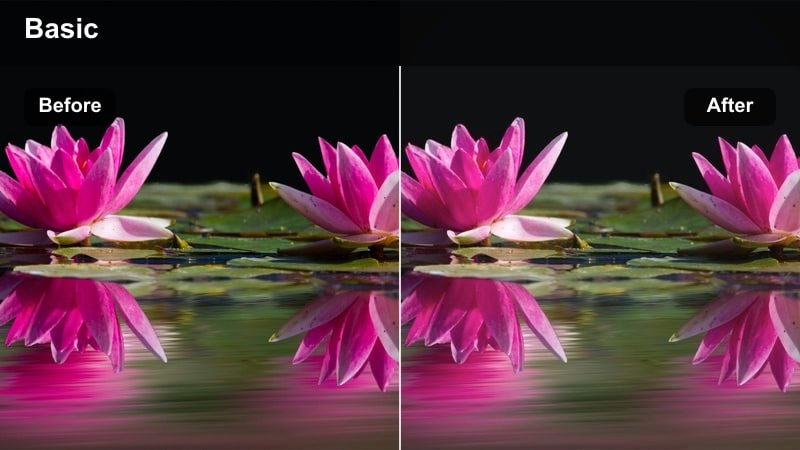
- Effect look: Subtle fade in contrast with cinematic shadows that make silhouettes and walking-away shots feel like end credits.
- Best for: Walking away from camera, closing doors, or leaving locations at the end of narrative Reels.
- Editing tip: Add slow zoom-outs or push-ins with this filter and roll your text credits or call-to-action over the final seconds.
Credits Walk-Away softens contrast and enhances shadows to make silhouettes and parting shots feel like true end credits. It works especially well when your character exits frame, closes a door, or walks down a hallway, signaling that the story has reached its final beat.
In Filmora, apply this filter to your final movement-based shot and add a subtle zoom-out or push-in to create a cinematic drift. Layer your handle, follow prompt, or next-episode tease as text over the last seconds, turning your outro into a recognizable series signature.
Tips for Using Instagram Reels Storytelling Luts Filters in Filmora
- Plan your Reel in three acts hook, conflict or transformation, and resolution and assign one or two filters to each act for a consistent visual language.
- Keep skin tones natural by avoiding heavy saturation or extreme hue shifts on talking-head clips, even when using dramatic storytelling LUTs.
- Choose one filter for all your B-roll within a Reel so transitional shots feel like cohesive story glue instead of random filler footage.
- Match major color changes to emotional beats in your script, shifting from bright to muted or cool to warm when the story turns reflective or hopeful.
- Save your favorite combinations of Instagram reels storytelling LUTs and Filmora filters as custom presets to reuse your signature look across episodes.
- Use neutral, clean filters for educational or explanatory moments and more stylized looks for flashbacks, dreams, or internal thought sequences.
- Preview your Reel on a phone screen before posting to ensure contrast, brightness, and text readability hold up inside Instagram's interface.
- Layer subtle film grain or vignettes only on key hero scenes so they feel cinematic without over-stylizing your entire Reel.
Instagram reels storytelling LUTs work best when you treat them as visual storytelling tools, not just aesthetic add-ons, using each filter to support a specific scene, emotion, or chapter in your narrative. Color and contrast become part of your script, guiding how viewers feel as the story unfolds.
Experiment with these Filmora filters, then refine your own small library of go-to looks so every new Reel feels like another episode in a cohesive, cinematic series your audience instantly recognizes.
secure download