

 100% Security Verified | No Subscription Required | No Malware


 ChatGPT
 Perplexity
 Gemini
 Claude
 Grok
Grok
These iPhone travel LUTs cinematic style filters are designed for videographers and creators who want their mobile footage to look like a polished travel film, not a quick phone clip.
Below you will find 12 scene-based filters that mimic the feel of cinematic LUTs for iPhone travel videos, from golden-hour city walks to moody night streets, all ready to drop into your edit and fine-tune in Filmora.
In this article
Golden Hour Escapes and Sunset Journeys
Sunlit Coastline Glow
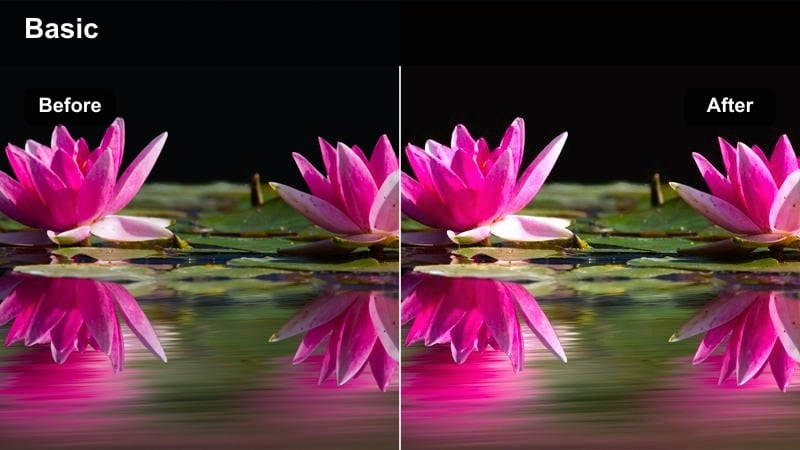
- Effect look: Soft cinematic warmth with lifted shadows and gentle halation around bright skies and water reflections.
- Best for: Beach walks, coastal roads, sailboat shots, and handheld iPhone footage facing the setting sun.
- Editing tip: Slightly lower highlights to preserve cloud detail and add a subtle vignette to keep attention on the horizon line.
Sunlit Coastline Glow wraps your iPhone travel clips in a classic golden-hour sheen, smoothing harsh edges and adding a gentle bloom to sunlit skies and water. It is ideal when you are shooting into the sun, because the lifted shadows keep your subject visible while the warm midtones make sand, cliffs, and sea foam feel lush and cinematic.
In Filmora, apply this filter to all your beach and coastal sequences, then fine-tune highlight and shadow levels in the Color panel. Use keyframes to slightly increase warmth as the sun drops lower, and pair this look with a soft vignette and minimal stabilization so your handheld iPhone footage feels like a deliberate, filmic coastal montage.
Match Cinematic Color in One Click with AI
Filmora's AI-driven color tools make it easy to match the warm, cinematic mood of Sunlit Coastline Glow across your entire travel timeline. Instead of grading every shot from scratch, you can balance colors from a hero clip and apply the same feel to all your beach walks, coastal drives, and sunset cutaways.
Once you land on a look you love, save it as a custom preset so future travel projects can instantly inherit the same cinematic color identity, even when you are shooting in different countries or lighting conditions.
 secure download

Preview Filters on Real iPhone Travel Footage
Before you commit to a final cinematic style, drop several of your iPhone travel clips into a short timeline in Filmora and compare filters side by side. Testing them on real footage helps you see how each look treats skin tones, sky gradients, and water highlights in motion, not just in still frames.
Once you pick a favorite, apply it to a full scene and tweak exposure, contrast, and saturation to refine the grade, then copy those settings across the rest of your coastal and city-sunset clips for a consistent filmic mood.
secure download1000+ Video Filters and 3D LUTs
Beyond these travel-focused looks, Filmora includes a large library of filters and 3D LUTs that can push your iPhone footage toward any style you like, from subtle documentary tones to bold, stylized color grades. You can stack filters, adjust strength, and combine them with LUT-style presets to design a unique visual signature for your channel.
Use HSL and other advanced color controls alongside these presets to protect natural skin tones while stylizing skies, foliage, and night lights, giving your cinematic travel edits a professional finish without complex manual grading.
secure downloadAmber City Horizon
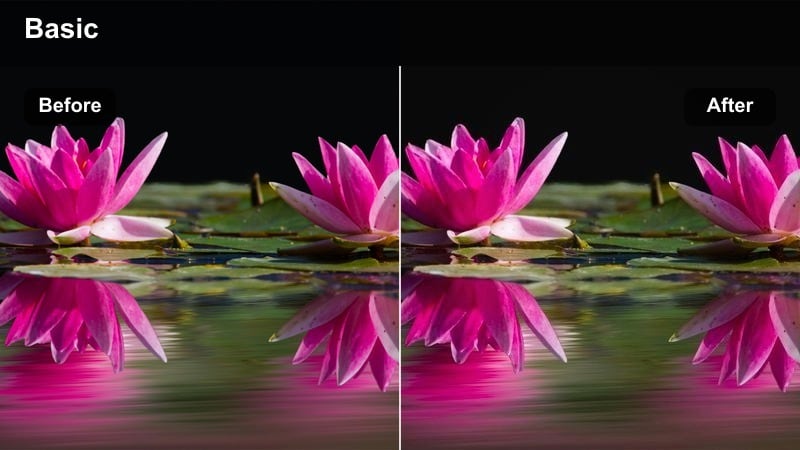
- Effect look: Amber-tinted highlights with deep yet clean shadows for a postcard-style cinematic skyline.
- Best for: City rooftop sunsets, skyline time-lapses, and high-angle iPhone shots from viewpoints.
- Editing tip: Add a small amount of clarity or texture to bring out building details without over-sharpening your mobile footage.
Amber City Horizon leans into rich, warm highlights while keeping the citys shadows crisp and noise-free, making skylines feel like cinematic postcards. The amber tint adds a romantic, end-of-day glow that works beautifully for rooftop sunsets, lookouts, and drone-style angles captured on your iPhone.
In Filmora, drop this filter on your wide establishing shots of the city and then lightly boost clarity to reveal building textures. Use it consistently across your sunset time-lapses and cutaways so the entire golden-hour chapter of your travel film feels unified, and balance exposure with Filmoras curves or basic color controls to avoid clipping bright skies.
Dusky Boulevard Fade
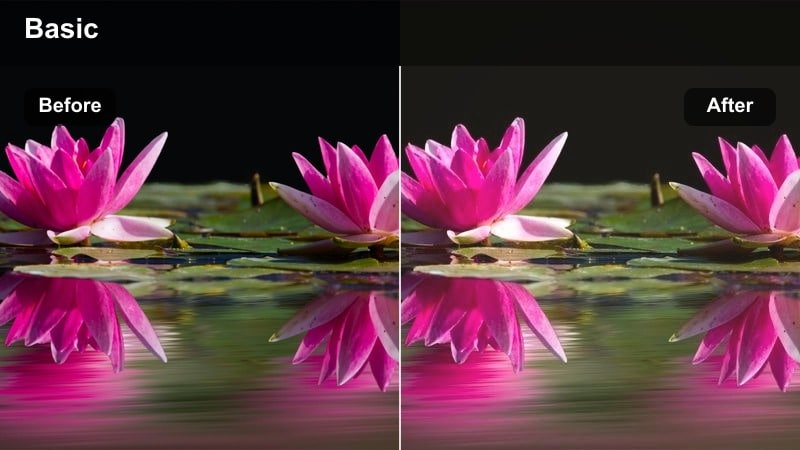
- Effect look: Faded contrast with cool shadows and warm highlights, giving a dreamy dusk-road-trip aesthetic.
- Best for: Evening boulevard walks, car window shots, and casual handheld city strolls at blue hour.
- Editing tip: Reduce contrast slightly and lift blacks a bit more for a softer, film-inspired fade that feels authentically nostalgic.
Dusky Boulevard Fade dials back contrast and adds a gentle cool-warm split, with cooler shadows and cozy highlights for that nostalgic blue-hour feel. Streetlights, car lamps, and shop signs glow softly, while lifted blacks prevent your dusk iPhone footage from looking too harsh or video-like.
In Filmora, use this look on handheld walking shots and car-window views to create a cohesive dusk sequence that bridges day and night in your travel story. Adjust the blacks slider and curves to fine-tune the level of fade, and consider pairing it with slower edits, cross-dissolves, and light background music to lean into its dreamy, reflective mood.
Sun-Drenched Streets and Daytime Adventures
Crispy Laneway Travel
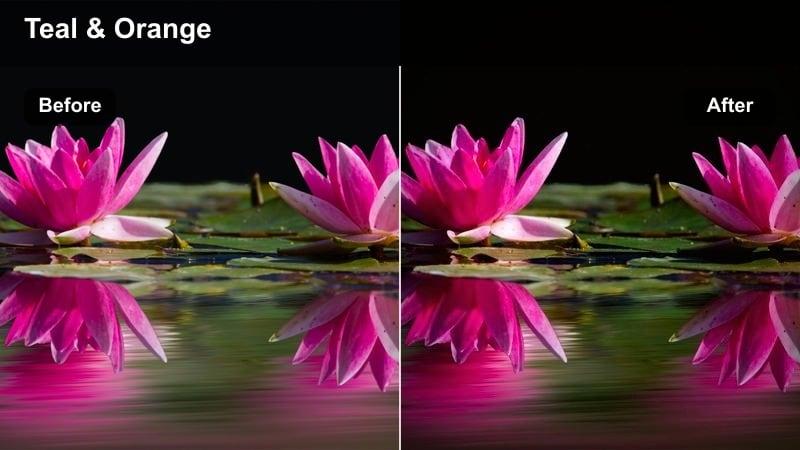
- Effect look: Clean, bright cinematic contrast with neutral colors and a slight teal shift in shadows for modern travel vlogs.
- Best for: Old town lanes, alleyway explorations, and walk-and-talk iPhone vlog shots during midday.
- Editing tip: Pull saturation back a touch to avoid harsh midday color and let the contrast and framing tell the story.
Crispy Laneway Travel is built for bright daytime walks where hard sun can easily blow out your highlights. It keeps colors mostly neutral with a contemporary touch of teal in the shadows, giving cobblestones, walls, and doorways a clean, vlog-ready cinematic feel while maintaining plenty of detail.
Apply this filter in Filmora to any tight street or alleyway sequence, then gently lower overall saturation to tame harsh midday hues. Use Filmoras stabilization on shakier clips, and consider subtle speed changes or jump cuts to keep walk-and-talk segments engaging while the strong contrast turns simple laneways into visually sharp travel moments.
Vivid Market Rush
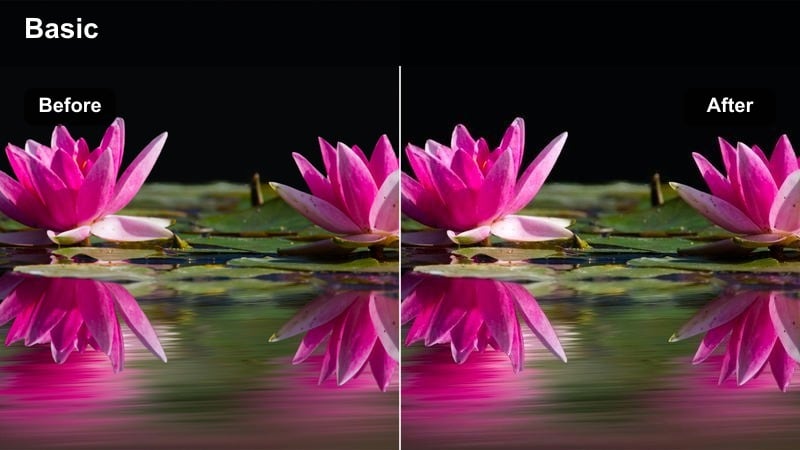
- Effect look: Punchy saturation and dynamic contrast tuned for crowded street markets and bustling city scenes.
- Best for: Bustling travel markets, busy plazas, metro entrances, and handheld POV walking shots.
- Editing tip: Use a modest amount of motion blur or speed ramping on select clips to heighten the energy without overwhelming the viewer.
Vivid Market Rush is designed for energy: it boosts saturation and contrast so stalls, street food, and crowds pop off the screen. The look emphasizes color diversity and midtone detail, turning everyday markets into sensory, cinematic experiences while still keeping skin tones relatively natural.
In Filmora, stack this filter on your busiest scenes and experiment with speed ramping or directional blur to suggest movement without causing chaos. Cut quickly between wide, medium, and close-up shots of the market, and use audio transitions or sound design to tie the sequence together while the vivid grade carries a bold, dynamic visual rhythm.
Pastel Old Town Roam
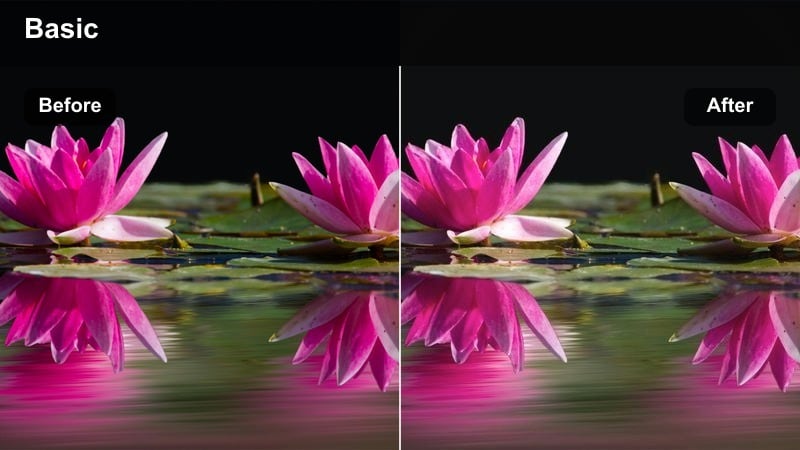
- Effect look: Soft pastel tones with reduced contrast and gentle highlights for relaxed daytime explorations.
- Best for: Charming old streets, quiet plazas, and handheld walk-throughs in bright but soft daylight.
- Editing tip: Lift midtones slightly and keep exposure a touch under to avoid clipping white walls or bright pavements.
Pastel Old Town Roam softens your frame, muting hard contrasts and shifting colors toward gentle pastels that flatter stone, stucco, and painted facades. The result is a calm, airy aesthetic that works beautifully for wandering through historic squares and side streets in soft daylight.
Use this filter in Filmora on slower, more observational sequences where you want viewers to linger on architecture and atmosphere. Keep contrast low in the Color panel and nudge midtones upward just enough to maintain detail, then support the look with slower cuts, minimal camera shake, and ambient sound to create a truly relaxed old-town travel vignette.
Moody Nights and Neon Cityscapes
Neon Rain Drift
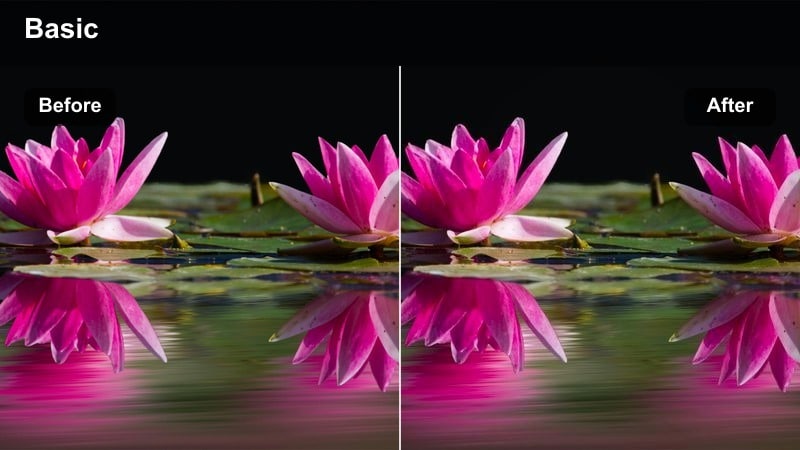
- Effect look: High-contrast night look with saturated neons, slightly lifted blacks, and cinematic reflections on wet streets.
- Best for: Rainy night streets, neon signs, reflections in puddles, and handheld iPhone night walks.
- Editing tip: Lower luminance noise in Filmora and keep ISO as low as possible in-camera to let the neons stay crisp.
Neon Rain Drift amplifies the drama of wet city nights, letting bright signs and reflections explode with color while slightly lifting blacks to control heavy noise. It is tailored for rainy walks, glowing puddles, and backlit silhouettes, transforming simple night iPhone shots into moody, cyberpunk-inspired frames.
In Filmora, apply this filter to all your night-rain sequences, then use the noise reduction tools sparingly to clean up grain without smearing details. Cut between low-angle reflection shots and closer portraits, and consider adding a subtle vignette and gentle camera shake to mimic handheld film footage while the saturated neons carry the visual impact.
Midnight Metro Frame
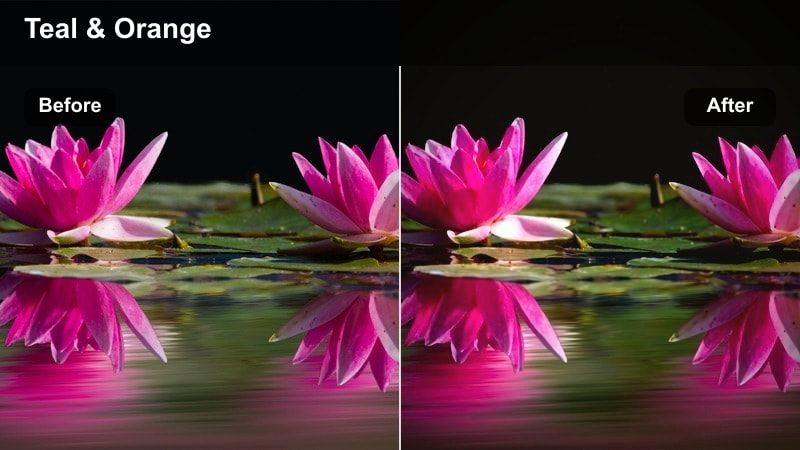
- Effect look: Cool-toned cinematic grade with teal shadows and slightly muted highlights, tuned for underground and transit scenes.
- Best for: Subway platforms, late-night train rides, and escalator shots in metro stations.
- Editing tip: Add a subtle letterbox crop to instantly heighten the cinematic travel documentary feeling.
Midnight Metro Frame pushes your underground footage into cool, teal territory, softening highlights and crafting a polished, cinematic transit look. Fluorescent lights become smoother and less harsh, while teal shadows bring a cohesive style to platforms, tunnels, and escalators.
Inside Filmora, use this filter across all metro and late-night transit clips to create a clear visual chapter in your travel film. Add a letterbox crop from the Effects library, refine exposure with basic color adjustments, and alternate between static tripod-style shots and slow push-ins so the cool, controlled palette feels intentional and documentary-grade.
City Rooftop Noir
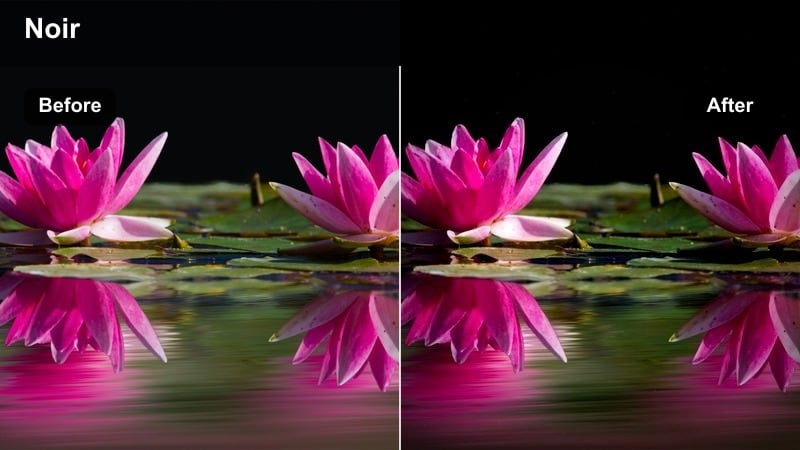
- Effect look: Desaturated cinematic night look with deep blacks, subtle color accents, and a filmic softness in highlights.
- Best for: Rooftop overlooks, high-rise balconies, and moody establishing shots of city lights.
- Editing tip: Lightly add film grain to enhance the noir mood, but avoid pushing it so far that iPhone noise becomes distracting.
City Rooftop Noir strips away most color and leans into deep blacks and soft highlights, evoking a moody, noir-inspired city-night aesthetic. Skies darken, windows glow, and the few remaining color accents guide the viewers eye, making it ideal for introspective rooftop or balcony scenes.
When editing in Filmora, combine this filter with a subtle film grain effect and gentle vignetting to complete the noir impression. Keep exposure slightly under, cut on slow movements, and use this look for your key night establishing shots so your travel film gains a sophisticated, cinematic backbone between more colorful street sequences.
Journey Transitions and Story-Driven Moments
Airport Transit Chronicle
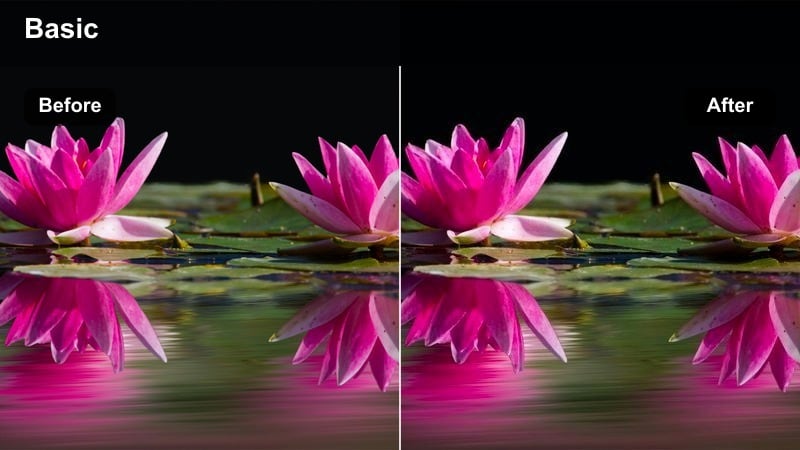
- Effect look: Clean, slightly cool cinematic grade with balanced contrast for terminals, gates, and travel transitions.
- Best for: Airports, train stations, check-in lines, and boarding moments shot quickly on iPhone.
- Editing tip: Keep cuts tight and rhythmic, using this filter across the sequence to visually tie your travel transitions together.
Airport Transit Chronicle gives terminals and stations a crisp, neutral-cool polish, making glass, metal, and signage feel modern and cinematic. It is designed to handle mixed lighting and fast, handheld clips, smoothing out the look of your travel in-between moments without overpowering them.
In Filmora, apply this filter to every shot in your departure and arrival sequences, then build a fast-paced mini-montage with tight cuts on movement and sound cues. Balance exposure and white balance in the Color panel so windows are not blown out, and use this consistent grade as a visual glue that links different legs of your trip into one continuous storyline.
Train Window Daydream
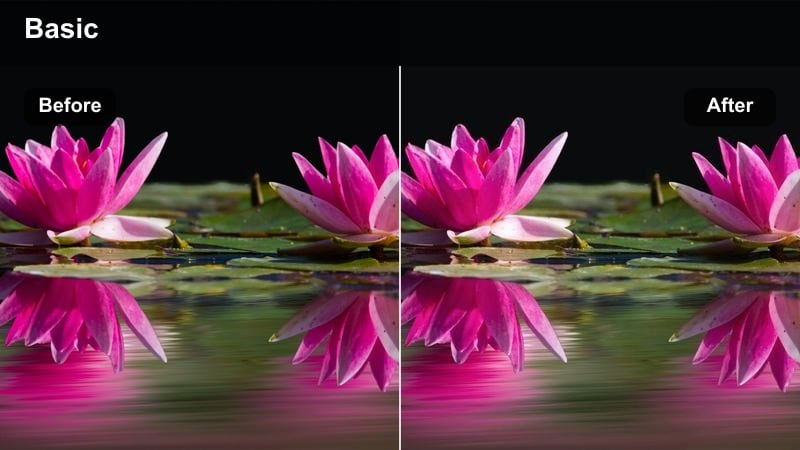
- Effect look: Soft cinematic contrast with gentle bloom on highlights and a subtle dreamy tint in midtones.
- Best for: Train rides, bus windows, and long transit shots where scenery passes behind your subject.
- Editing tip: Slow down select clips and layer gentle music to match the reflective, daydream feel of the filter.
Train Window Daydream brings a hazy, reflective quality to your transit shots, with mild bloom on highlights and a soft tint that suits introspective travel moments. It works especially well when the landscape drifts past your subject, blurring into a textured backdrop behind glass.
Inside Filmora, apply this filter to any long-form window shots, then slow a few key clips to half-speed to match the dreamy tone. Use cross-fades or dip-to-black transitions between scenes, dial in subtle highlight glow if needed, and sync the edit with gentle music so your audience can settle into the contemplative rhythm of the journey.
City Check-In Montage
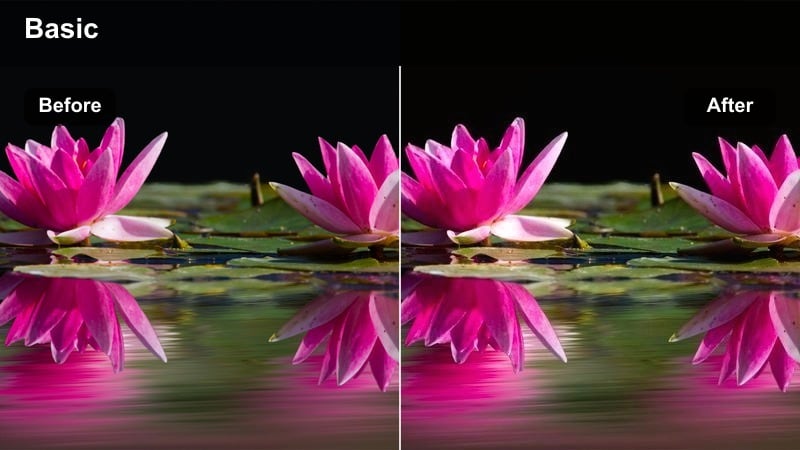
- Effect look: Balanced cinematic color with slight warmth in skin tones and neutral backgrounds, ideal for fast story beats.
- Best for: Hotel check-ins, key-card shots, luggage in the room, and quick city arrival sequences.
- Editing tip: Cut on movement and use jump cuts to compress time, keeping the same filter for a cohesive montage feel.
City Check-In Montage is a versatile, balanced grade that flatters interiors, hallways, and city-view hotel rooms without leaning too warm or too cool. It adds just enough polish and warmth to skin tones to keep your on-camera moments friendly and inviting while backgrounds stay neutral and consistent.
In Filmora, use this filter on all the micro-moments of arrival: doors opening, suitcases rolling, curtains pulling back to reveal the skyline. Build a punchy montage with quick cuts and match-on-action edits, and keep the same grade across every shot so the entire arrival sequence feels like one clean, cinematic beat in your travel story.
Tips for Using Iphone Travel Luts Cinematic Filters in Filmora
- Shoot most of your iPhone travel footage at a consistent frame rate, like 24 or 30 fps, so these cinematic filters behave predictably across clips.
- Slightly underexpose bright scenes when capturing on iPhone to preserve highlight detail and give the filters more room to shape contrast.
- Lock exposure and focus before recording important shots to avoid visible brightness shifts that become more noticeable after grading.
- Use simple, intentional camera moves, such as slow pans, tracking shots, and push-ins, so the cinematic filters enhance your storytelling instead of fighting shaky footage.
- Group clips by scene type in your Filmora timeline and apply the same filter to each group for a cohesive, chapter-based travel film structure.
- Fine-tune each filter with small adjustments to shadows and saturation to adapt them to different cities, climates, and lighting conditions.
- Add gentle film grain and a subtle vignette on top of your chosen filter to give iPhone footage a more organic, big-screen feel.
- Export a short one-minute cut first to see how your cinematic filter choices look on different screens before committing to a full travel film grade.
With the right iPhone travel LUTs cinematic style filters, even quick phone clips can feel like scenes from a carefully crafted travel film.
Save a few favorites from this collection as your go-to presets in Filmora so every new trip can be edited faster while still looking polished and cinematic.
secure downloadNext: GoPro Hero 12 LUTS
