

 100% Security Verified | No Subscription Required | No Malware


 ChatGPT
 Perplexity
 Gemini
 Claude
 Grok
Grok
These iPhone video LUTs for reels are designed for creators who want fast, cinematic looks without spending hours color grading on desktop.
Use the filters below as ready-made recipes inside Filmora to give your vertical videos a distinct mood, clean skin tones, and a polished style that stands out on any social platform.
In this article
Warm Golden Hour and Sunset Reels
Sunset Glow Reel
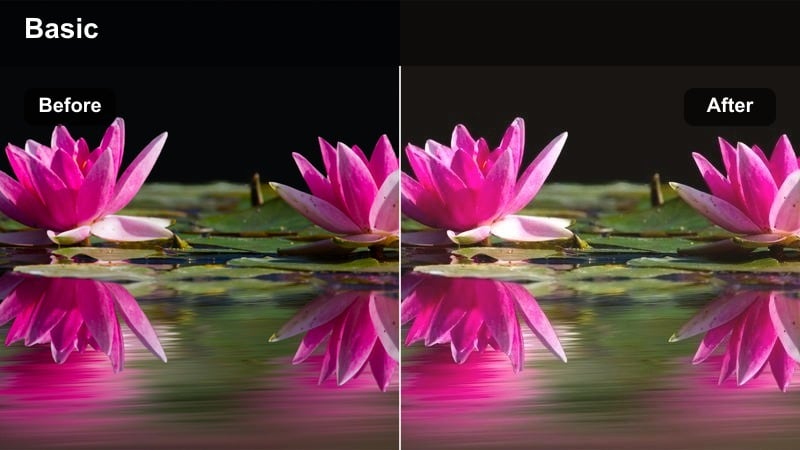
- Effect look: Soft warm contrast with golden highlights and gentle fade in the shadows.
- Best for: Reels shot during late afternoon, golden hour walks, rooftop hangs, and sunlit portraits.
- Editing tip: Slightly lower overall contrast and add a subtle vignette to keep focus in the center of the frame.
Sunset Glow Reel is ideal when you want your iPhone clips to feel like they were shot during perfect golden hour, even if the light was slightly off. The filter wraps your subject in warm highlights while gently fading the deepest shadows, so skin tones stay flattering and your background does not look overly crunchy.
In Filmora, drop this look onto your vertical footage after basic exposure tweaks, then fine-tune intensity with the filter strength slider. If your reel has several different locations, use an adjustment layer with Sunset Glow Reel on top and keyframe intensity between shots to keep the warmth consistent without overdoing it.
Speed Up Your Reels with AI Color Tools
Filmora s AI color tools quickly analyze your iPhone footage and correct exposure and color balance before you start styling. This gives you a clean, neutral base so your sunset and golden hour filters apply more evenly across every reel clip.
Once AI has balanced your shots, you can layer Sunset Glow Reel or any other LUT-style filter on top to dial in a specific mood faster instead of fighting mixed white balance or dull skin tones.
 secure download

Preview Filters Live on Your Reels
With Filmora, you can preview filters in real time simply by hovering over them while your reel plays in the timeline. This lets you quickly compare several golden hour, city, and lifestyle looks on the same vertical clip without committing to one style too early.
Use this live preview workflow to test how each LUT-style filter responds to your skin tones, backgrounds, and lighting, then lock in the one that best matches your reel s story.
secure downloadCombine Filters and LUTs for Signature Looks
Filmora includes 1000 plus video filters and 3D LUTs that you can stack together to craft your own signature iPhone reel style. Start with a base LUT to set overall contrast and color, then layer a creative filter to fine-tune mood and saturation.
When you find a combination that fits your brand, save it as a custom preset so you can apply the same aesthetic to every new short-form video you create in just one click.
secure downloadGolden City Walk
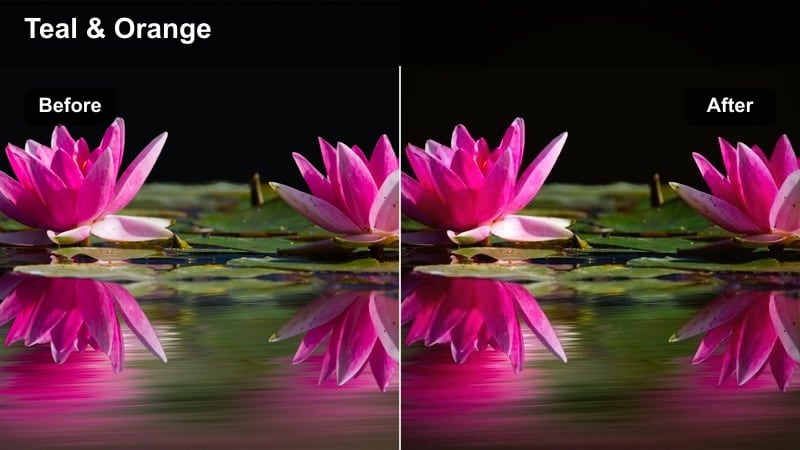
- Effect look: Rich amber highlights with a subtle teal shift in the shadows for a modern city-grade.
- Best for: City street walks, timelapse traffic reels, and urban lifestyle shots during sunset.
- Editing tip: Boost local saturation on oranges and reds to make street lights and signs pop without oversaturating skin.
Golden City Walk gives your urban reels a cinematic contrast between glowing buildings and cool-toned streets. The amber highlights add warmth to windows and sky, while the teal shadows create depth in roads and sidewalks, making vertical city content feel ready for a movie trailer.
Inside Filmora, combine this look with subtle stabilization and speed ramps to emphasize motion through the city. Use color controls to selectively target oranges and reds so neon signs, brake lights, and sunset reflections pop, while keeping faces and skin tones natural for walk-and-talk shots.
Hazy Sunflare Reel
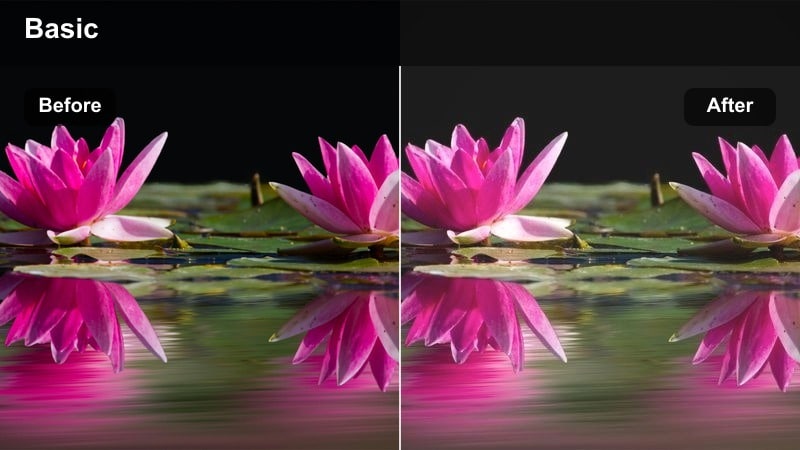
- Effect look: Low-contrast, slightly washed highlights with warm flares and pastel color shifts.
- Best for: Backlit clips, dancing in the sun, soft lifestyle reels, and dreamy transitions.
- Editing tip: Lower clarity slightly and add a touch of blur to the background to enhance the hazy, nostalgic energy.
Hazy Sunflare Reel is perfect for reels that lean into nostalgia, romance, or dreamy day-in-the-life vibes. By reducing contrast and lifting highlights, the filter adds a soft glow to bright areas and turns backlight or lens flares into a creative feature instead of a mistake.
In Filmora, pair this look with slow motion, cross-dissolve transitions, and gentle background blur to keep attention on your subject. Adjust midtones rather than overall exposure so you preserve enough detail in bright skies and clothing while still leaning into that washed, film-inspired aesthetic.
Moody Street and Urban Creator Reels
Night City Neon
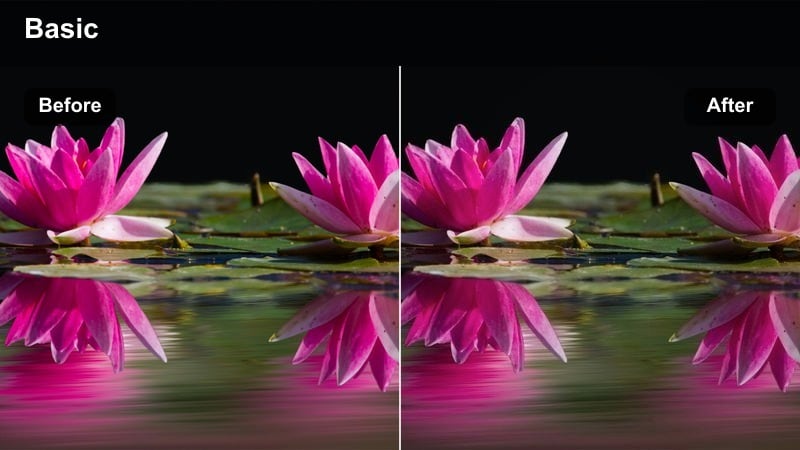
- Effect look: Punchy contrast with saturated neon reds and blues plus deep cinematic blacks.
- Best for: Night street reels, signs, reflections in puddles, and nightlife B-roll shot on iPhone.
- Editing tip: Drop highlights a bit and push saturation into magentas and blues to keep neon signs looking intense.
Night City Neon is built to turn dim iPhone night footage into bold, stylized cityscapes. The strong contrast deepens blacks and cleans up midtones, while enhanced blues, reds, and magentas make signs, LEDs, and reflections explode against dark streets in vertical format.
Use this filter in Filmora after applying light noise reduction to your low-light clips so grain does not get exaggerated. Then tweak highlight and shadow sliders to keep detail in bright signage while maintaining inky blacks, and cut quickly on the beat to emphasize passing cars, crowds, and reflections for dynamic nightlife reels.
Urban Matte Film
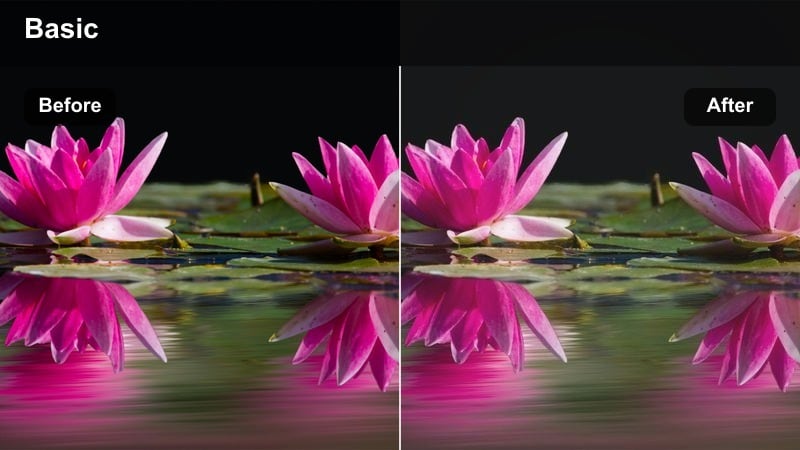
- Effect look: Muted, slightly desaturated palette with a raised matte black look and soft contrast.
- Best for: Skate reels, street fashion, alleyway B-roll, and handheld walk-and-talk content.
- Editing tip: Dial down saturation on greens and push a little warmth into skin tones for a polished streetwear aesthetic.
Urban Matte Film gives your street reels a cool, editorial finish that feels like stills from a fashion campaign. By lifting the blacks and softening contrast, it removes harsh edges and distractions while slightly muting colors so outfits, motion, and posing become the focus.
In Filmora, drop this filter onto your vertical skate lines, alleyway portraits, and behind-the-scenes clips, then selectively warm up skin tones with color controls. Combine with gentle slow motion, subtle film grain, and simple text overlays to build a cohesive, low-key aesthetic across your entire urban reel.
Graffiti Pop Reel
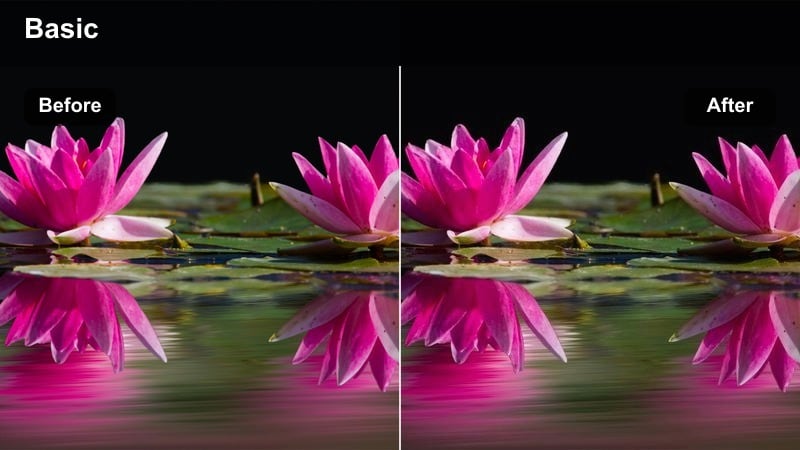
- Effect look: High saturation and crisp contrast with emphasis on bold urban colors and sharp lines.
- Best for: Reels featuring street art, murals, colorful outfits, and fast cuts synced to music.
- Editing tip: Use Filmora keyframing to punch in on details, then apply the filter so color pops stay consistent across cuts.
Graffiti Pop Reel is made for walls covered in art, vibrant outfits, and scenes that already have strong color. The filter intensifies saturation and micro-contrast, sharpening edges and making murals and accessories stand out even on small phone screens.
Inside Filmora, apply this look after you have cut your reel to the beat so you can judge how colors play across transitions and zooms. Use keyframed scale moves to punch into specific details like tags, sneakers, or accessories, and let the filter keep those details bright and punchy from clip to clip.
Clean Lifestyle and Aesthetic Creator Reels
Minimal Desk Setup
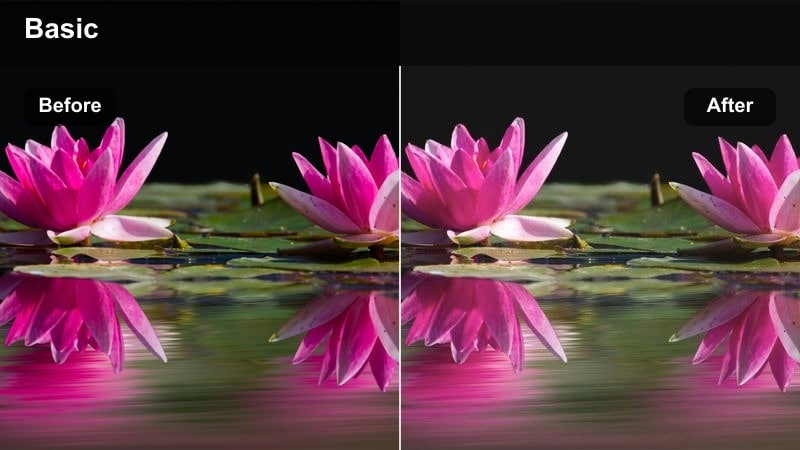
- Effect look: Bright, neutral whites with soft contrast and subtle pastel color shifts.
- Best for: Desk tours, productivity reels, tech unboxings, and creator behind-the-scenes.
- Editing tip: Lift shadows slightly and cool the temperature a touch to keep whites looking clean, not yellow.
Minimal Desk Setup is tuned to make workspaces, gear, and paper products feel clean and premium. It brightens whites while gently softening contrast, which removes harsh shadows from monitors and lamps and keeps your vertical frame looking airy and intentional.
Apply this filter in Filmora to all your top-down and desk-level shots using an adjustment layer so color stays consistent across your reel. Then nudge the temperature slider slightly cooler and raise shadows to avoid dingy corners, helping your desk, keyboard, and accessories feel fresh and on-brand for productivity content.
Soft Skin Beauty Reel
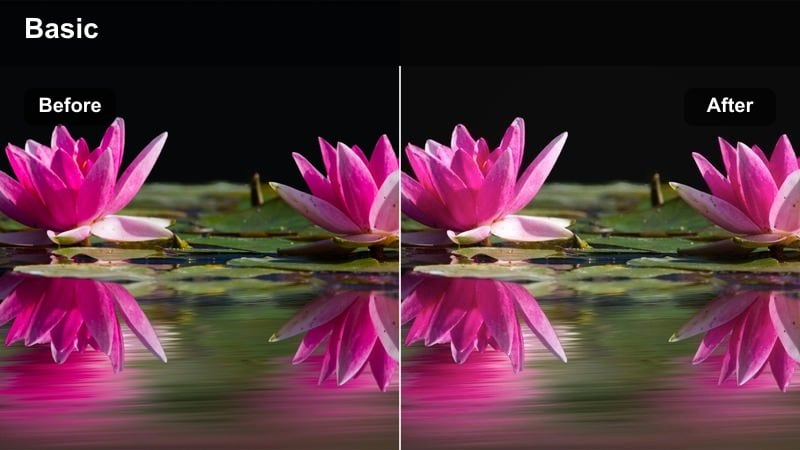
- Effect look: Gentle contrast, warm skin tones, and subtle smoothing with flattered midtones.
- Best for: Talking head reels, beauty content, GRWM, and personal storytelling clips.
- Editing tip: Use Filmora s face recognition to fine-tune brightness and saturation just on faces after applying the filter.
Soft Skin Beauty Reel is tailored to vertical portrait shots where the creator s face is the main focus. It gently warms and evens out skin tones while softening contrast, helping remove minor distractions like redness or uneven lighting without making the footage look overly airbrushed.
In Filmora, apply this filter first, then enable face recognition to refine exposure and saturation only on your face or your guest s. Pair it with slight background blur, subtle sharpening on eyes, and clean subtitles to create polished, binge-worthy talking head reels that feel studio-ready even when filmed on iPhone.
Aesthetic Daily Vlog
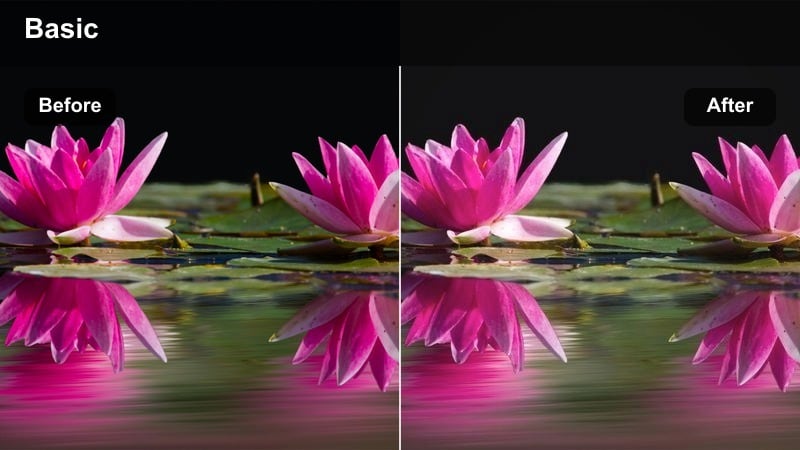
- Effect look: Lightly muted colors, gentle fade in blacks, and a calm neutral warmth.
- Best for: Morning routines, daily vlogs, coffee runs, and casual lifestyle snippets.
- Editing tip: Keep camera movement slow and steady, then add subtle speed ramps in Filmora to match the relaxed mood.
Aesthetic Daily Vlog is designed to give everyday life reels a unified, calming mood. The slight desaturation and faded blacks reduce visual noise from busy backgrounds and bright objects, while a soft warmth keeps scenes like kitchens, cafes, and hallways feeling inviting.
Use this filter across all clips in your day-in-the-life projects by applying it to an adjustment layer over your vertical timeline in Filmora. Combine with gentle speed ramps, simple text labels for each moment, and light background music so the grade and pacing work together to create a cozy, aesthetic flow.
Cinematic Motion and Travel-Style Reels
Handheld Cinema Reel
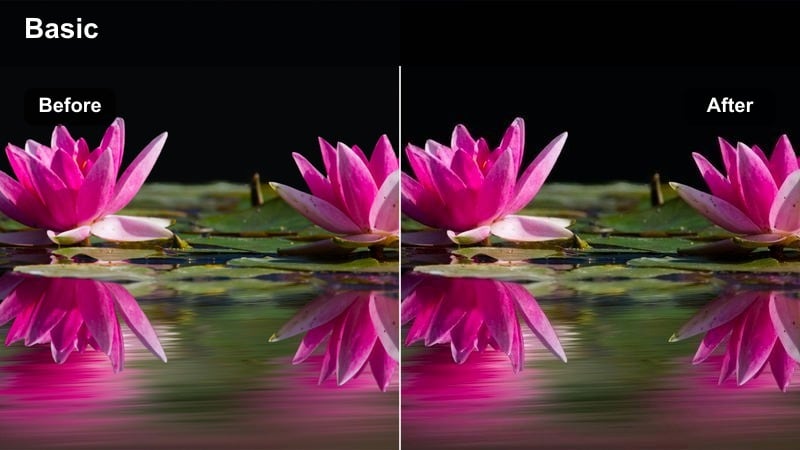
- Effect look: Rich midtones, slightly cooler shadows, and a subtle filmic curve for dynamic movement shots.
- Best for: POV walks, tracking shots, B-roll sequences, and quick travel montages filmed on iPhone.
- Editing tip: Use 60 fps or higher on iPhone and slow down in Filmora to smooth out motion before applying the cinematic filter.
Handheld Cinema Reel adds depth and polish to movement-heavy clips where the camera is always in motion. The filmic curve enhances midtones for more dimensional faces and environments, while cooler shadows give sidewalks, interiors, and landscapes a slightly dramatic edge without crushing detail.
In Filmora, stabilize handheld footage lightly, slow it down if shot at higher frame rates, and then apply this filter to tie all your travel and street B-roll together. Add gentle lens flares or letterboxing if desired, and use quick cuts between similar motions like steps, turns, or door openings to create a cohesive, cinematic reel experience.
Cinematic Travel Teal & Orange
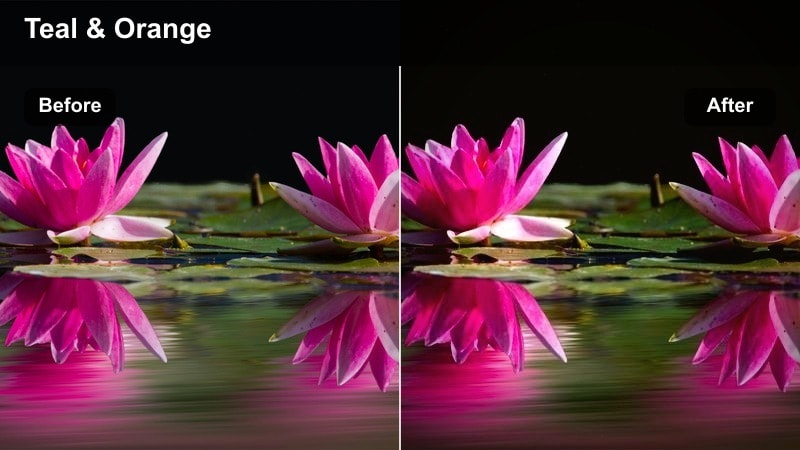
- Effect look: Classic teal and orange split with saturated skies, warm subjects, and punchy contrast.
- Best for: Travel reels, cityscapes, skyline shots, and dynamic B-roll edits.
- Editing tip: Keep your subject wearing neutral or warm tones so the teal shift mainly affects skies and buildings.
Cinematic Travel Teal & Orange brings the classic blockbuster look to your iPhone reels, separating warm skin from cool backgrounds in a way that flatters both. Skies, oceans, and glass buildings take on rich teal tones, while humans and foreground objects get a warm, sun-kissed feel that jumps out in vertical format.
Inside Filmora, use this LUT-style filter on wide establishing shots, drone-style angles, and close-up travel details to unify your whole trip into one consistent color story. Adjust saturation and color range if needed so teal stays mostly in skies and architecture, then cut between wide and close shots on the beat for a cinematic reel that feels far beyond a simple phone edit.
Slow-Mo Cinematic Fade
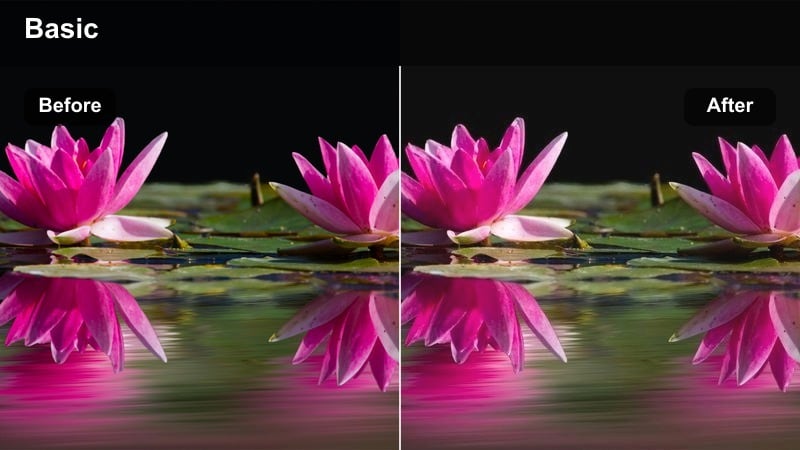
- Effect look: Soft contrast, gentle color fade, and slightly cooler shadows for emotional slow-motion reels.
- Best for: Slow-motion city shots, emotional travel moments, and storytelling transitions.
- Editing tip: Combine with Filmora s speed ramping and music beats to emphasize key slow-motion moments.
Slow-Mo Cinematic Fade softens your colors and reduces contrast so viewers focus more on movement and emotion than on bright distractions. The slightly cooler shadows and faded palette work especially well for reflective scenes like walking alone, watching a skyline, or transitions between places in a story-driven reel.
Use this filter in Filmora on your highest frame-rate clips after you have dialed in speed ramps to highlight key gestures or looks. Blend it with gentle fades to black or white, and keep transitions simple so the mood comes from the slowed motion and color grade rather than flashy effects.
Tips for Using Iphone Video Luts For Reels Filters in Filmora
- Shoot your iPhone reels in the highest resolution and frame rate you plan to export, so Filmora filters and LUT-style looks have more detail to work with.
- Lock exposure and focus in the iPhone camera app before recording, preventing brightness jumps that graded filters can exaggerate.
- Keep your lighting simple and consistent across shots; even basic window light helps Filmora filters produce more natural skin tones.
- Edit your cuts, pacing, and speed ramps first in Filmora, then apply filters so you can match the look across the entire vertical sequence.
- Use adjustment layers to apply one filter across multiple clips, then fine-tune exposure on shots that are noticeably brighter or darker.
- Mix Filmora filters with LUTs lightly instead of pushing both to 100 percent; moderate strength keeps reels looking cinematic rather than overprocessed.
- Preview several looks on the same clip using Filmora s hover preview so you choose a style that matches your brand and the reel s mood.
- Save your favorite filter and LUT combinations as custom presets so every new iPhone reel starts with your signature aesthetic in one click.
With the right iPhone video LUT-style filters, your reels can move from casual clips to cohesive, cinematic stories in just a few clicks.
Start with one or two of these looks in Filmora, refine them to match your brand, and you will quickly build a recognizable visual style across every reel you post.
secure download