

 100% Security Verified | No Subscription Required | No Malware


 ChatGPT
 Perplexity
 Gemini
 Claude
 Grok
Grok
If your TikTok nature clips look flat or washed out, the right filter can instantly transform them into scroll-stopping outdoor shorts. These Filmora-ready looks are designed for TikTok nature creators and outdoor influencers who want rich greens, golden sunsets, and clean blues with minimal tweaking.
Below are 12 nature video filters for TikTok organized by shooting scenario, from forest walks to coastal vlogs. Each includes the effect look, the best use case, and a quick editing tip so you can dial in your nature short video color fast.
In this article
Filters for Forest Hikes and Lush Greenery
Deep Fern Glow
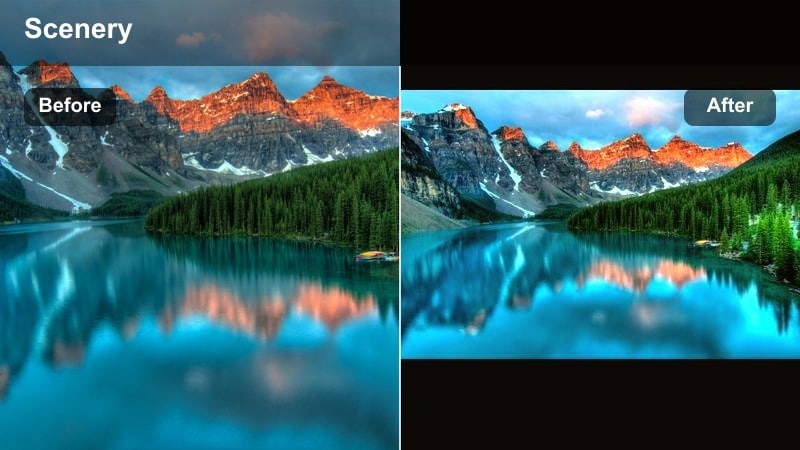
- Effect look: Rich emerald greens with soft contrast and a slight warm lift in midtones.
- Best for: Shaded forest trails, mossy rocks, and close-up leaf details in TikTok nature clips.
- Editing tip: Lower contrast slightly if your footage already has harsh sunlight to keep greens from clipping.
Deep Fern Glow is designed to make forest scenes look thick, lush, and cinematic without turning everything neon. By pushing emerald tones and softening contrast, it keeps detail in leaves, moss, and tree bark while avoiding crunchy shadows that often show up in phone footage.
In Filmora, drop this filter on hiking POVs, gimbal walks, or leaf closeups to instantly add depth. If you are filming people in the frame, combine the filter with a slight reduction in yellow saturation so skin stays natural, then add a subtle vignette to guide attention toward faces while the rich greens frame the scene.
Pro tip - Balance skin and foliage tones
When shooting people in greenery, apply Deep Fern Glow first, then slightly reduce saturation in yellows to keep skin natural.
If your subject is backlit, add a subtle vignette in Filmora to draw focus to faces while the filter handles the surrounding greens.
Let Filmora AI Tune Your Nature Colors
Instead of guessing which filter to start with, you can use Filmora s AI-driven color tools to auto-balance exposure, contrast, and white balance before layering creative filters. This gives you a clean base for every outdoor TikTok, whether you shot in harsh sun or deep shade.
Once AI has corrected your clip, save the look as a custom preset so your favorite nature video filters for TikTok are always one click away. Over time, you can build a consistent color palette that your followers instantly associate with your outdoor shorts.
 secure download

See Nature Filters in Action on TikTok Clips
Test each filter on short, 5 10 second TikTok nature clips before applying it to a full montage. This makes it easy to preview how greens, blues, and skin tones shift as you cycle through options like Deep Fern Glow or Coastal Breeze Clean.
Filmora s real-time preview lets you scrub your timeline and watch how the filter behaves in both bright and shaded parts of the same shot. You can quickly decide which effect look matches your story and pacing without rendering every version.
secure download1000+ Video Filters and 3D LUTs
Filmora includes a large library of video filters and 3D LUTs so you can stack looks, mix styles, and quickly test different moods for the same nature clip. Start with a subtle outdoor LUT for a base grade, then layer creative filters to fine-tune greens, skies, and skin tones.
Because everything previews in real time, you can scroll through options until your TikTok hook frame really pops. Save any combination you like as a custom preset so your best-performing nature looks are always ready for the next hike, beach day, or sunset.
secure downloadMossy Trail Matte
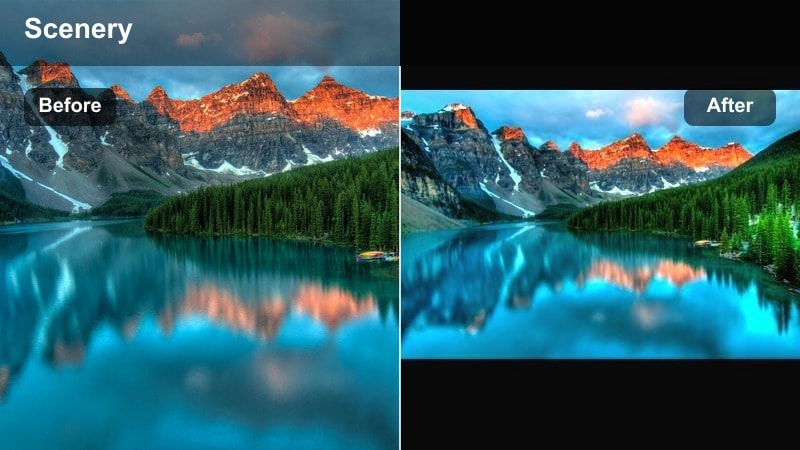
- Effect look: Muted greens, lifted blacks, and a gentle matte finish for a relaxed, moody forest vibe.
- Best for: Slow B-roll of forest floors, mushrooms, and macro nature shots meant for ASMR-style TikToks.
- Editing tip: Add a tiny bit of film grain in Filmora to match the matte style and give your clip a quiet, analog mood.
Mossy Trail Matte is ideal when you want your forest content to feel calm and introspective instead of sharp and punchy. By muting greens and lifting blacks, it creates a soft haze in the shadows that works beautifully with macro shots of moss, bark, and mushrooms.
Use this filter in Filmora on slow, stabilized footage or tripod shots. Pair it with a touch of film grain, lower overall saturation, and soft background music to create ASMR-style TikToks that viewers will replay. Matching the first and last frame brightness also helps your loops feel seamless and intentional.
Pro tip - Make loops feel intentional
Use Mossy Trail Matte on looping nature shorts by matching the first and last frames in brightness for seamless replay.
Keep motion slow and smooth; combine with Filmora speed ramps only on transitions to preserve the calm, dreamy tone.
Evergreen Pop
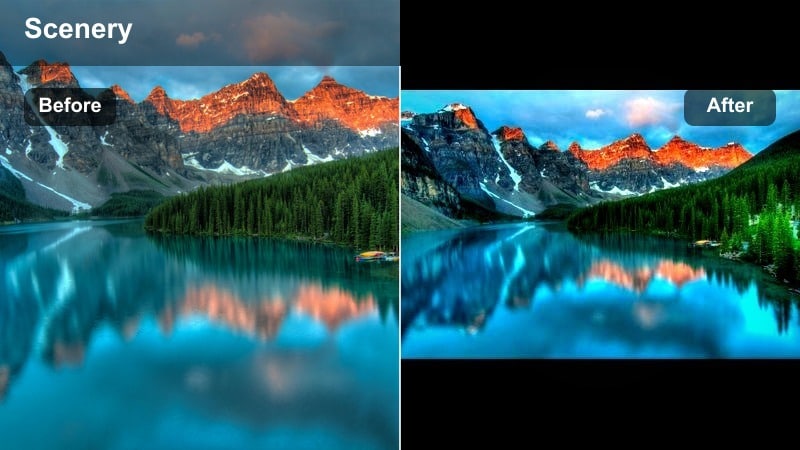
- Effect look: Punchy, saturated greens with crisp contrast and slightly cooler shadows for a fresh, outdoorsy feel.
- Best for: Fast-paced hiking TikToks, drone passes over forests, and outdoor fitness creators in green spaces.
- Editing tip: If skin tones look too cool, nudge white balance a bit warmer in Filmora while keeping the filter intensity high.
Evergreen Pop is built for energetic, fast-moving forest content where you want every tree and blade of grass to jump off the screen. The cooler shadows and higher contrast make trails look defined and crisp, perfect for hook shots, transitions, and drone passes.
In Filmora, drop this filter onto your action clips, then gently warm up white balance if faces start to skew blue. Combine with dynamic text that tracks along the path or treeline so your hook frames are both colorful and easy to read, boosting retention in the first few seconds of your TikTok.
Pro tip - Use for hook shots
Grab a 1 2 second establishing shot with Evergreen Pop at the start of your TikTok to hook viewers with instant color impact.
Combine with dynamic text in Filmora aligned to the trail path or treeline to guide the eye and keep retention high.
Filters for Golden Hour and Sunset Landscapes
Amber Ridge Glow
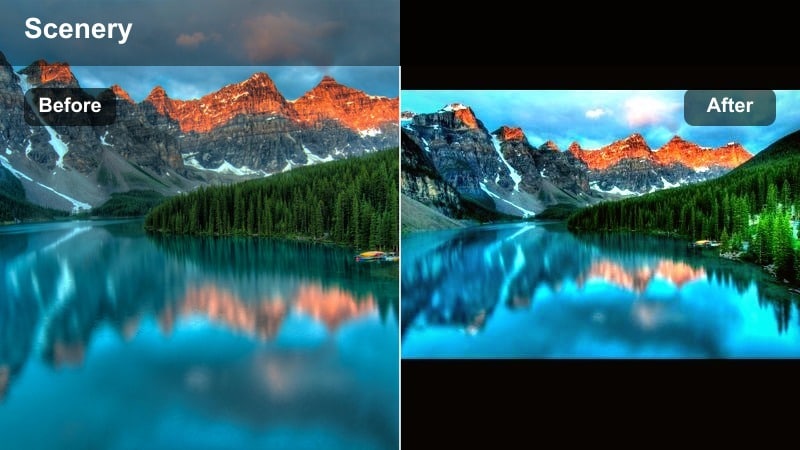
- Effect look: Warm golden highlights, soft shadows, and a subtle haze that emphasizes sunset flares.
- Best for: Mountain silhouettes, sunset overlooks, and outdoor lifestyle clips shot during golden hour.
- Editing tip: Reduce highlight intensity if the sun is in frame to keep detail in bright clouds and avoid harsh clipping.
Amber Ridge Glow wraps your sunset shots in warm, amber tones that emphasize lens flares and golden clouds. It softens shadows slightly so silhouettes remain readable while the sky becomes the star of the frame, ideal for ridge walks, overlook panoramas, and backlit portraits.
Apply it in Filmora after you lightly lower your clip s exposure, then fine-tune highlights until you can still see cloud texture around the sun. Adding a subtle glow effect on the brightest parts of the sky at low opacity will push the cinematic look without blowing out your whites.
Pro tip - Shape your sun flares
Shoot slightly off-axis from the sun to get cleaner lens flares, then apply Amber Ridge Glow to enhance warmth without overexposure.
In Filmora, add a subtle glow effect at low opacity only on the brightest parts of the sky to make the sunset look cinematic.
Golden Meadow Soft
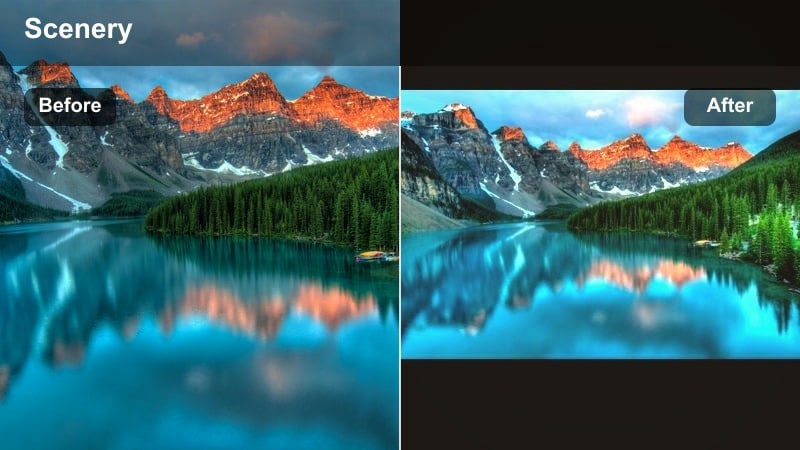
- Effect look: Creamy highlights, pastel skies, and softened contrast with gentle golden tones.
- Best for: Slow-motion grass fields, drone sweeps over meadows, and romantic outdoor TikTok transitions.
- Editing tip: Lower sharpness slightly to keep the pastel look consistent, especially on wide drone footage.
Golden Meadow Soft turns open fields and meadows into airy, storybook visuals. By dialing back contrast and pushing gentle golden tones, it creates creamy skies and soft, flattering light that works well for slow-motion B-roll and romantic transition shots.
In Filmora, apply this filter to clips with lots of negative space sky or grass. Reduce sharpness a bit to maintain the dreamy vibe, and use slow motion or subtle speed ramps to accentuate small movements like waving grass, hair in the wind, or fabric flowing in the breeze.
Pro tip - Perfect for aesthetic loops
Pair Golden Meadow Soft with slow, repetitive motions like waving grass or hair in the wind to create aesthetic, loopable TikToks.
Use Filmora speed ramping to gently ease in and out of slow motion so the filter s softness feels intentional, not blurry.
Sunset Trail Cinematic
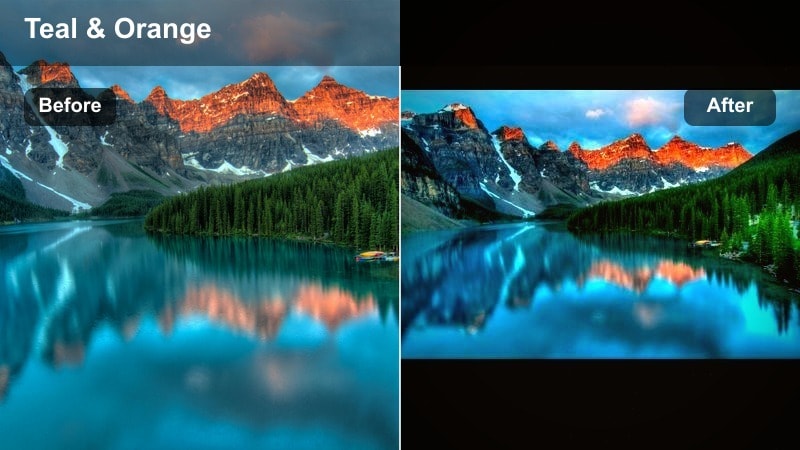
- Effect look: Teal shadows with warm orange highlights and strong contrast for a cinematic sunset grade.
- Best for: Travel vlogs, van-life TikToks, and silhouette walking shots against dramatic skies.
- Editing tip: Keep exposure slightly lower in-camera and lift shadows in Filmora to maintain dramatic skies with this filter.
Sunset Trail Cinematic gives your golden hour footage a classic teal-and-orange movie treatment. By cooling down shadows and warming highlights, it separates your subjects from the background and makes skies look bold and dramatic, especially during travel and van-life sequences.
Use this filter in Filmora on slightly underexposed clips so your highlights do not blow out. Then gently lift shadows with the color tools to reveal detail in foreground silhouettes. Sync your cuts to music beats when the sky is brightest to showcase the strongest color contrast for maximum impact in the feed.
Pro tip - Sync cuts with color peaks
Cut your TikTok to the beat right when the sky is brightest or when lens flares appear to emphasize the cinematic grade.
Use Filmora s beat detection to auto-place markers, then align transitions where Sunset Trail Cinematic shows the strongest color contrast.
Filters for Water, Coastlines, and Blue Tones
Coastal Breeze Clean
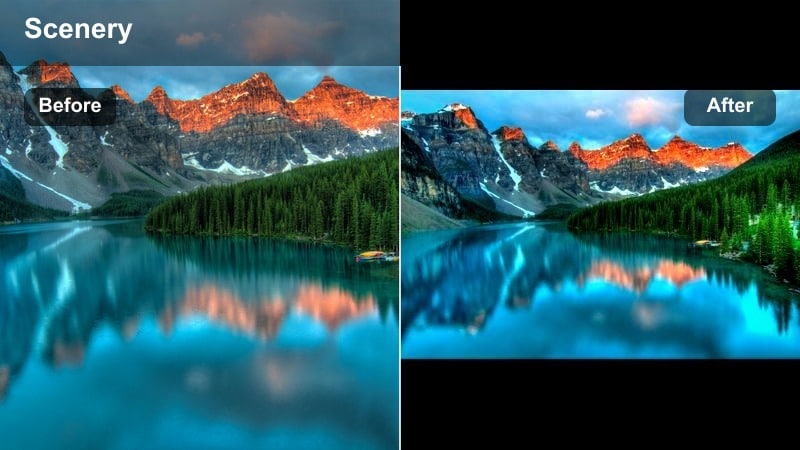
- Effect look: Bright, clean blues with neutral whites and crisp details in water texture.
- Best for: Beach walks, ocean waves, and paddle or kayak POV shots on TikTok.
- Editing tip: Drop saturation slightly in cyan if the water starts to look neon, especially on overcast days.
Coastal Breeze Clean is made to keep your ocean and beach footage looking fresh and realistic. It brightens blues while protecting white foam and clouds from picking up unwanted tints, so your seascapes stay clean and minimal rather than oversaturated.
In Filmora, pair this filter with stable shots of shorelines, waves, or boardwalks. Use the white balance eyedropper on foam or a white shirt to lock in neutral whites before you tweak saturation. This helps maintain a cohesive beach aesthetic whether you are filming under harsh sun or soft, hazy light.
Pro tip - Keep whites truly white
Avoid strong in-camera color profiles; shoot flat and let Coastal Breeze Clean handle the final color so foam and clouds stay neutral.
In Filmora, use the white balance eyedropper on the foam or a white shirt, then apply the filter for consistent beach aesthetics across clips.
Lagoon Mint Soft
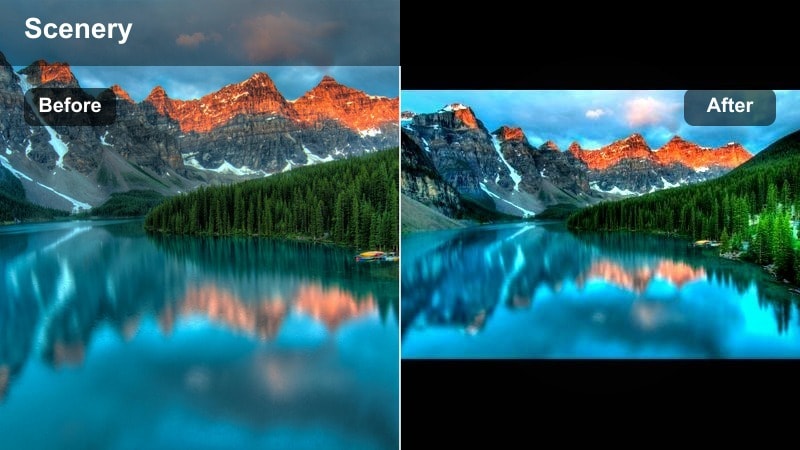
- Effect look: Soft turquoise water, slightly lifted blacks, and a gentle mint tint in midtones.
- Best for: Tropical lagoons, waterfalls, and travel TikToks featuring pools or calm water.
- Editing tip: Reduce clarity a touch for underwater or GoPro shots to keep the minty, dreamy feeling.
Lagoon Mint Soft shifts ordinary blue water into soft turquoise and mint tones, instantly giving your clips a tropical travel vibe. Lifted blacks and low contrast help waterfalls, pools, and lagoons look inviting and gentle rather than harsh or overly sharp.
Apply this filter in Filmora when editing vacation content or any scene with calm, colorful water. Normalize exposure across pool and ocean clips first, then add Lagoon Mint Soft to unify their color. Slightly reducing clarity on underwater or action cam clips will reinforce the dreamy, pastel mood.
Pro tip - Match pool and ocean clips
If you are combining pool and ocean shots in one TikTok, use Lagoon Mint Soft to unify their color for a cohesive travel story.
Use Filmora s color correction on individual clips first to normalize exposure, then apply the filter across the whole sequence for consistency.
Storm Coast Dramatic
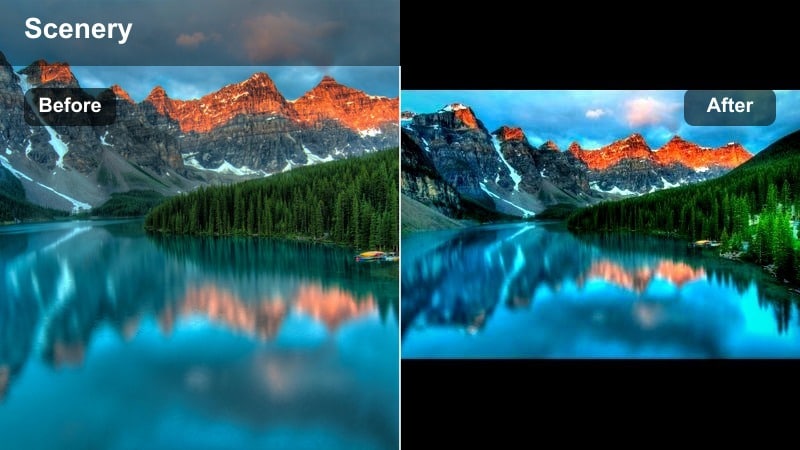
- Effect look: Deepened blues, increased local contrast, and cooler highlights for a moody seascape.
- Best for: Cloudy beach days, dramatic cliffs, and stormy wave TikToks with powerful sound design.
- Editing tip: Lower exposure slightly after applying the filter to keep clouds textured and dramatic.
Storm Coast Dramatic is perfect for turning gray, overcast coastlines into intense, cinematic scenes. It deepens blues, boosts local contrast, and cools down highlights so waves, cliffs, and storm clouds feel heavy and powerful instead of dull.
In Filmora, lower exposure a bit after applying the filter to preserve cloud texture and add weight to the sky. Layer strong wave or wind audio, and cut visuals on impact moments to sync with the dramatic grade. Subtle whoosh or rumble sound effects underneath your natural audio will match the visual intensity.
Pro tip - Lean into sound for impact
Use Storm Coast Dramatic with strong wave or wind audio, then cut visuals on impact moments to emphasize the heavy color grade.
In Filmora, layer subtle whoosh or rumble SFX under your natural audio to match the intensity of the filter and keep viewers engaged.
Filters for Macro Nature, Wildlife, and Mixed Outdoor Shots
Wildlife Neutral Focus
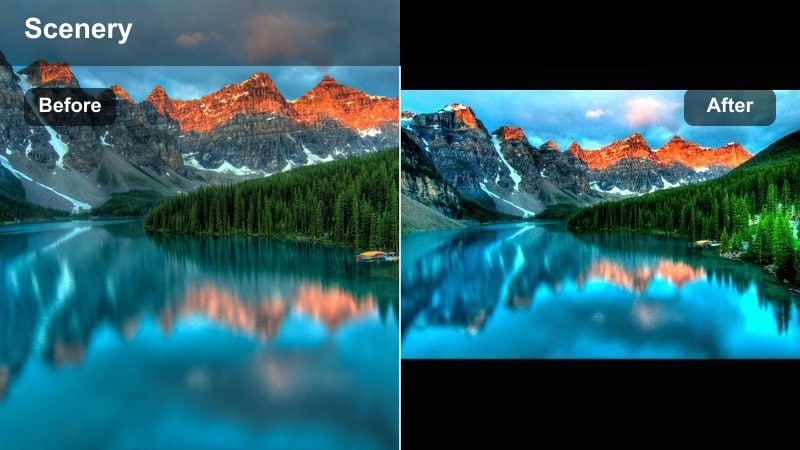
- Effect look: Balanced contrast, gentle saturation, and neutral tones that protect natural animal colors.
- Best for: Birds, deer, insects, and any wildlife TikTok clips where true-to-life color matters.
- Editing tip: Use selective sharpening on eyes in Filmora to draw attention without oversharpening fur or feathers.
Wildlife Neutral Focus is tuned for realism, keeping animal fur, feathers, and skin tones accurate while adding just enough contrast to make details pop. It avoids aggressive color shifts so your audience can trust what they are seeing, which is key for nature and wildlife content.
In Filmora, apply this filter to all your wildlife shots, then use masking and selective sharpening to enhance eyes and key facial features. Combine with a gentle vignette and slight background blur to separate the subject from the environment without sacrificing that natural, documentary-style look.
Pro tip - Maintain natural credibility
Wildlife audiences trust accurate color, so keep this filter at moderate intensity and avoid heavy saturation boosts.
Combine with Filmora s gentle vignette and slight background blur to guide focus while preserving an authentic documentary feel.
Macro Leaf Detail
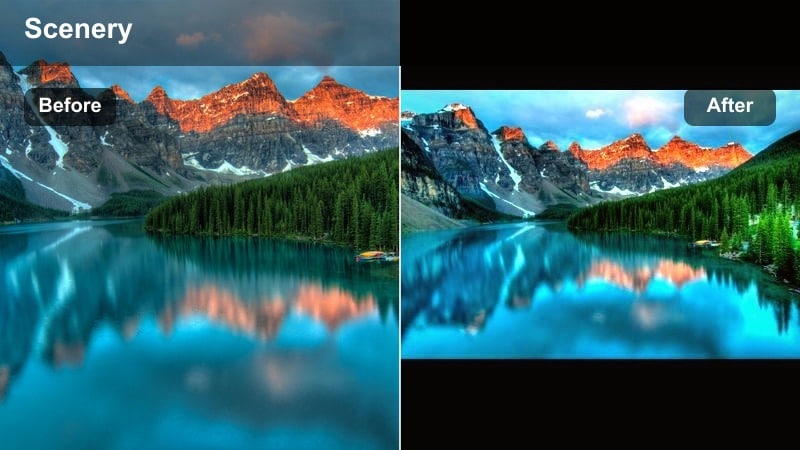
- Effect look: Enhanced micro-contrast, rich greens, and slightly warmer midtones for detailed macro shots.
- Best for: Close-up raindrops on leaves, plant textures, and ASMR-style macro nature TikToks.
- Editing tip: Slow your macro clips to 0.5x or 0.75x speed in Filmora to let viewers appreciate the detail the filter reveals.
Macro Leaf Detail is all about texture. It boosts micro-contrast and rich greens so tiny elements like veins, raindrops, and moss strands stand out clearly. Slightly warmer midtones keep the image inviting instead of clinical, which works well for close-up ASMR visuals.
Use this filter in Filmora on handheld macros or tripod shots where the camera moves very slowly. Slow the footage to 0.5x or 0.75x speed so your audience can study the details, then layer subtle ambient audio like gentle rain or forest noise to complete the sensory experience.
Pro tip - Build satisfying macro loops
Record slow camera movements or gentle focus pulls, then use Macro Leaf Detail to emphasize texture in seamless looping shots.
Layer subtle ambient sounds in Filmora, like light rain or forest noise, to match the visual micro-details and boost watch time.
Outdoor Vlog Balanced
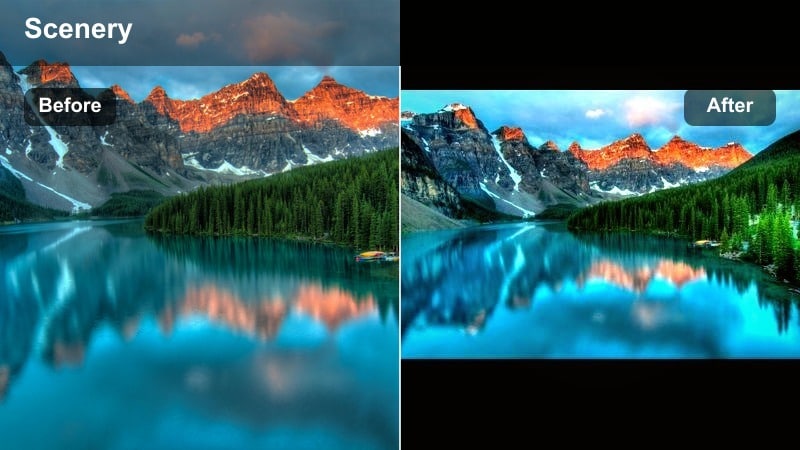
- Effect look: Even contrast, lifted shadows, and slightly warm skin tones with natural background color.
- Best for: Talking-to-camera outdoor vlogs, day-in-the-life TikToks, and mixed lighting environments.
- Editing tip: Adjust exposure on your face using Filmora s masking if you are backlit so the filter can keep both you and the background readable.
Outdoor Vlog Balanced is built for creators who talk directly to the camera while moving through different outdoor environments. It lifts shadows to keep your face visible, warms skin tones slightly, and preserves a natural look in the background so the scene still feels authentic.
In Filmora, use this as your default A-roll filter for park walks, trail updates, or campsite vlogs. If you are backlit, create a simple mask over your face and raise exposure there so both you and the scenery behind you stay clear. Saving this setup as a preset makes it easy to maintain a recognizable TikTok vlog style.
Pro tip - Create a repeatable vlog look
Use Outdoor Vlog Balanced as your default TikTok nature vlog filter so your audience instantly recognizes your style.
Save it as a custom preset in Filmora and apply it to all your talking clips, adjusting only exposure and white balance per location.
Tips for Using Nature Video Tiktok Filter Filters in Filmora
- Shoot in slightly flatter picture profiles so your nature video filters for TikTok have more room to shape contrast and color.
- Lock white balance while filming so your greens and skies do not shift color mid-clip when you apply filters.
- Capture a quick gray or white reference in each location to help Filmora s color tools and filters stay consistent.
- Keep exposure a bit darker for sunsets and bright beaches so filters can protect highlight detail without banding.
- Use different filters for A-roll and B-roll in the same TikTok only if the mood changes; otherwise, keep a single look for cohesion.
- Export in high resolution with a higher bitrate so your detailed foliage and water textures stay clean after TikTok compression.
The right nature video filters for TikTok can turn basic outdoor clips into polished, on-brand content that stands out in the feed.
Start by matching filters to your locations, fine-tune them in Filmora, and then reuse your favorite presets so every new hike, coast day, or wildlife moment fits your recognizable outdoor style.
secure downloadNext: Nature Video Filters for Instagram: Make Your Grid and Reels Match
