

 100% Security Verified | No Subscription Required | No Malware


 ChatGPT
 Perplexity
 Gemini
 Claude
 Grok
Grok
If your hiking vlogs, nature documentaries, and wildlife shots look flat or washed out, the right nature video filters can instantly add depth, contrast, and lush green tones. With Filmora, you can apply ready-made looks or build your own nature LUT style in just a few clicks.
Below are 12 curated nature video filters inspired by popular nature LUT aesthetics. They are tailored for nature photographers moving into video, outdoor vloggers who need fast grading, and wildlife creators who want consistent green nature color grades across entire series.
In this article
Warm Golden Hour Nature Filters
Sunlit Trail Glow
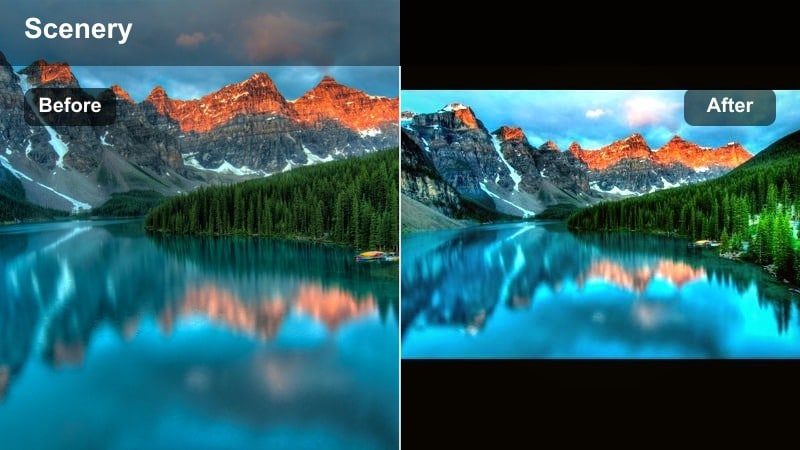
- Effect look: Soft warm glow with lifted shadows and gentle highlight bloom for sunny paths and meadows.
- Best for: Forest hikes at sunset, backlit leaves, slow-motion walking shots on trails.
- Editing tip: Lower the filter intensity to around 60-70% for talking-head trail vlogs to avoid over-warming skin tones.
Sunlit Trail Glow is designed to recreate that golden, low-angle light even if you filmed earlier in the afternoon. It gently lifts shadows so tree trunks and foliage keep detail, while a soft bloom in the highlights makes sun patches on the trail and leaf edges feel luminous and inviting.
In Filmora, you can drop this nature video filter on your clips as a starting point, then fine-tune intensity to match the real lighting in each shot. For B-roll, a stronger setting can sell the golden hour look; for A-roll and vlogs, dial it back and slightly cool the white balance if faces start drifting too orange.
AI-Assisted Nature Color Matching in Filmora
Filmora s AI tools help you quickly match the look of your favorite nature LUT or outdoor video filter across an entire project. Grade one hero shot with Sunlit Trail Glow or any other filter, and let AI suggest matching adjustments for all your supporting clips.
This is especially useful on hikes where you move between deep shade and open sun. Instead of re-building your lush golden look for every angle, AI color matching keeps a cohesive green nature color grade so your footage feels like one continuous experience.
 secure download

Preview Nature Video Filters on Real Outdoor Footage
Before you commit to a full grade, use Filmora s instant preview to test how Sunlit Trail Glow and other nature video filters behave as you move through a scene. Scrub across your timeline to see the filter react when you step from deep forest shade into bright sky openings.
This workflow makes it easy to catch issues like clipped highlights, oversaturated greens, or skin tones that look too warm. You can then adjust exposure, tweak intensity, or even mix filters to keep your outdoor vlogs and nature sequences looking natural but cinematic.
secure download1000+ Video Filters and 3D LUTs in Filmora
Beyond these nature-specific grades, Filmora includes a large library of filters and 3D LUTs you can stack, blend, and customize. Start with a nature video filter you like, then mix in subtle film looks or creative color shifts to build a unique outdoor style.
Once you have a grade that fits your forest hikes, mountain adventures, or wildlife episodes, save it as a preset so you can apply it like a nature LUT across future projects with one click.
secure downloadAmber Forest Walk
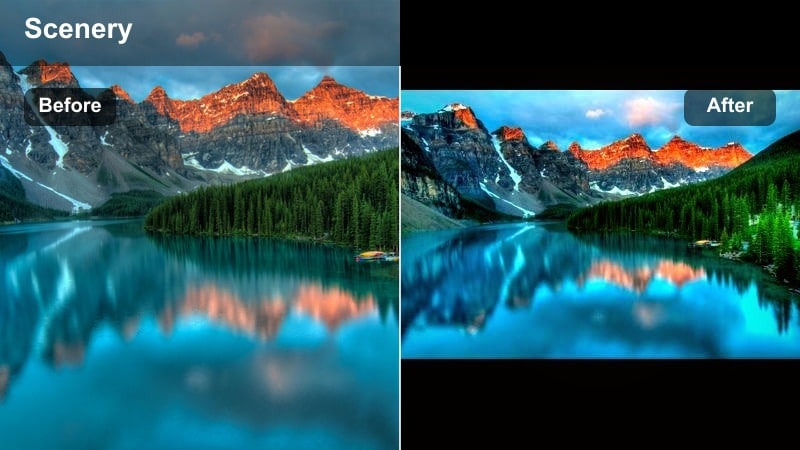
- Effect look: Rich amber highlights with slightly muted greens for a cinematic early-evening forest tone.
- Best for: Narrated forest walks, wildlife B-roll in soft light, drone passes over tree canopies.
- Editing tip: Use Filmora s HSL controls to pull greens a tiny bit towards teal if your foliage looks too yellow after applying the filter.
Amber Forest Walk adds a cozy golden tint to highlights while slightly calming down bright greens, giving your forest footage a cinematic, storybook mood. It works especially well in soft light when the sun is low, adding richness to paths, tree trunks, and canopies without pushing colors into harsh orange.
In Filmora, combine this filter with subtle white balance tweaks per clip to keep skin tones natural in talking segments while preserving that warm forest feeling. If your greens drift too yellow, nudge their hue slightly toward teal with HSL controls, then adjust saturation so foliage still looks organic.
Campfire Dusk Soft
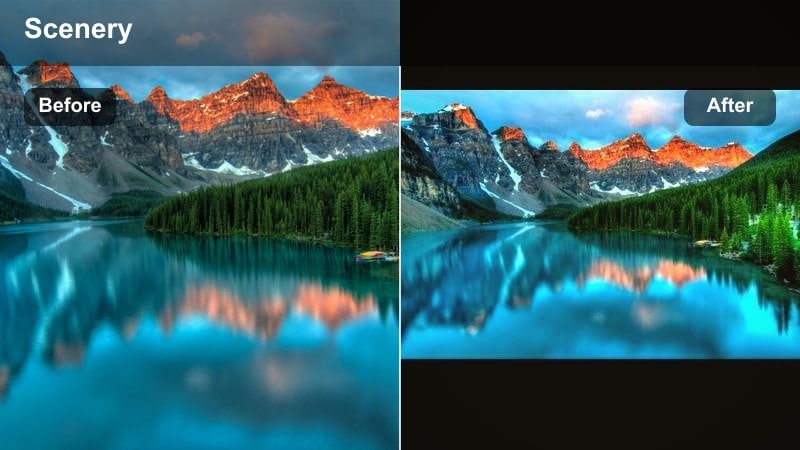
- Effect look: Soft contrast, warm midtones, and gentle fade in blacks to mimic the cozy feel of dusk around a campfire.
- Best for: Camping vlogs, riverside evenings, intimate nature storytelling segments shot near blue hour.
- Editing tip: Combine this filter with a subtle vignette and light film grain in Filmora to enhance the relaxed, nostalgic outdoor mood.
Campfire Dusk Soft lifts your blacks slightly and warms the midtones, creating a gentle, low-contrast dusk look perfect for campfire stories and riverside evenings. Highlights stay controlled so lanterns, flames, or reflections in water do not blow out while the scene still feels cozy and inviting.
In Filmora, layer a light vignette with this filter to focus attention on faces or the campfire and add a touch of film grain to reinforce the nostalgic, cinematic vibe. If skin tones become too orange, cool the temperature a bit and balance the warmth by keeping shadows slightly cooler for natural trees and water.
Lush Green Nature Color Grades
Emerald Canopy Boost
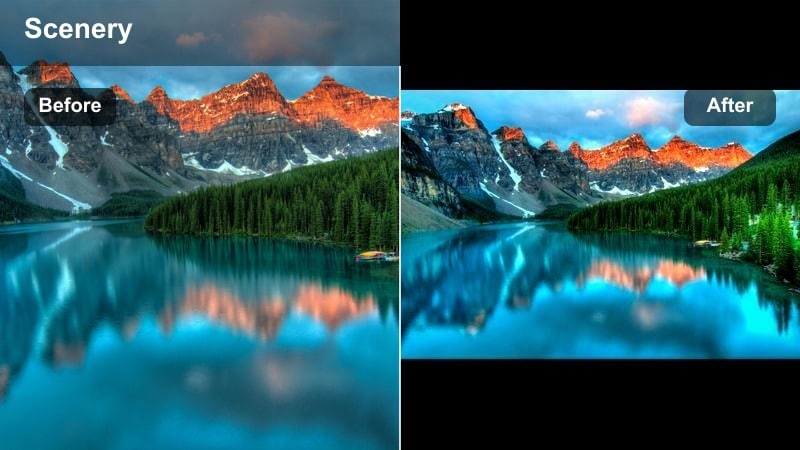
- Effect look: Punchy, deep emerald greens with enhanced contrast and crisp details in leaves and branches.
- Best for: Dense rainforest footage, overhead canopy shots, macro moss and leaf textures.
- Editing tip: Use Filmora s sharpen and clarity tools lightly after the filter to enhance texture without making leaves look crunchy.
Emerald Canopy Boost turns flat, mid-tone foliage into deep, saturated emerald greens with clear separation between highlights and shadows. It emphasizes texture in leaves, moss, and branches so rainforest clips and canopy flyovers feel dense and cinematic.
In Filmora, drop this nature video filter onto your forest sequences, then gently increase clarity or sharpening to taste. Keep these adjustments subtle, especially for 4K or drone footage, so details stay crisp without introducing noise or a harsh, crunchy look in fine foliage.
Misty Valley Soft Green
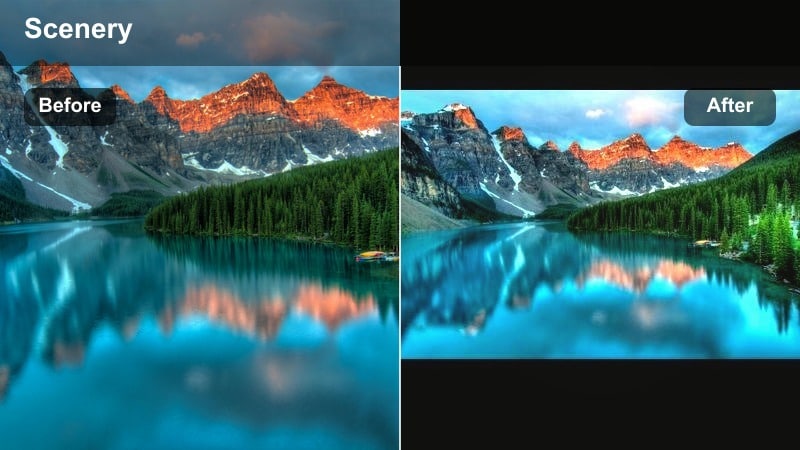
- Effect look: Muted, pastel greens with softened contrast for foggy valleys and overcast mountain scenes.
- Best for: Nature documentaries in cloudy conditions, moody hillside walks, early morning lake views.
- Editing tip: Reduce clarity and add a slight haze in Filmora to enhance the misty atmosphere without crushing shadow detail.
Misty Valley Soft Green is built for overcast days and foggy landscapes, where harsh contrast would ruin the mood. It shifts greens into gentle pastels and softens overall contrast so mist, clouds, and distant hills layer smoothly into one another.
Apply this filter in Filmora when editing lake mornings or cloudy ridge walks, then tweak highlights down a touch to protect cloud detail. Add a controlled haze or reduce clarity slightly to enhance depth, and if the image feels too flat, use a mild S-curve while avoiding strong contrast in the brightest parts of the sky.
Riverbank Verdant Pop
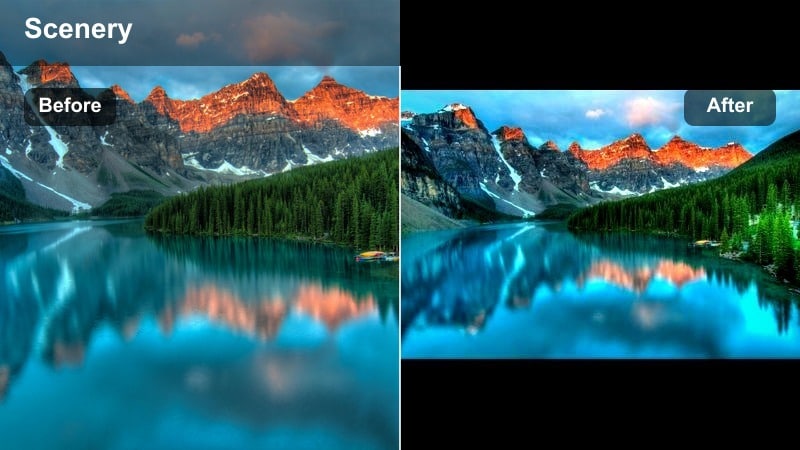
- Effect look: Clean, bright greens with cool undertones and a subtle cyan shift in water for fresh, crisp outdoor visuals.
- Best for: Riverside walks, waterfall vlogs, kayak or canoe POV shots in clear water.
- Editing tip: Use keyframed exposure in Filmora when walking from shade to sun so the filter looks consistent and prevents blown-out highlights.
Riverbank Verdant Pop gives your foliage a fresh, energetic green while cooling down water into pleasant cyan tones. The result is a bright, lively outdoor look that works well for waterfalls, riverside trails, and paddling POVs where you want the scene to feel clean and invigorating.
In Filmora, pair this filter with keyframed exposure adjustments as you move from tree shade into direct sun, preventing blown-out highlights on water surfaces. If reflections cast too much green onto faces, use masking or skin tone protection tools to keep people looking natural while the environment stays crisp.
Wildlife-Friendly Filters With Natural Tones
Neutral Safari Balance
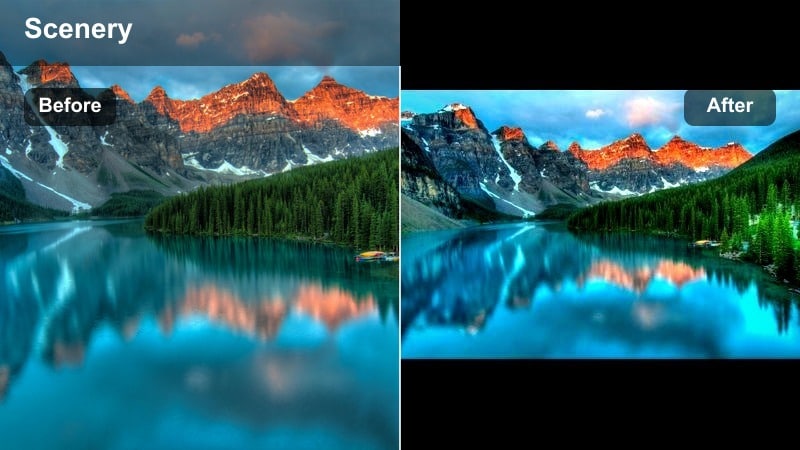
- Effect look: Balanced contrast with neutral colors that keep animal fur, feathers, and landscapes looking true-to-life.
- Best for: Wildlife documentaries, birdwatching clips, safari drives, long-lens animal behavior shots.
- Editing tip: Use local adjustments or masking in Filmora to lift shadows only on the subject so backgrounds stay rich and non-distracting.
Neutral Safari Balance prioritizes accurate, documentary-style colors so fur, feathers, and landscapes stay believable. It increases contrast just enough to give definition without adding stylized color casts that could distract from natural behavior.
In Filmora, apply this nature video filter to all your wildlife clips as a base, then use masks or local adjustments to gently lift exposure on the subject while preserving deeper, more saturated backgrounds. This approach keeps viewers focused on the animal while maintaining a realistic look suitable for educational or documentary content.
Forest Creature Soft Matte
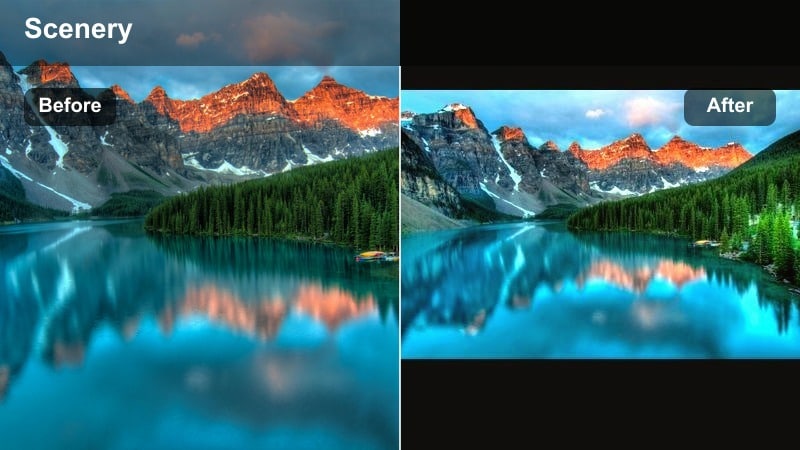
- Effect look: Soft matte contrast with slightly lifted blacks, gentle greens, and warm midtones for intimate wildlife portraits.
- Best for: Close-up wildlife shots in forests, macro insects on leaves, slow-motion animal behavior.
- Editing tip: Increase saturation slightly in the subject s color range only, using Filmora s HSL panel, to keep the background subdued and cinematic.
Forest Creature Soft Matte gives close wildlife shots a dreamy, storybook quality by lifting blacks and softening contrast. Greens stay gentle and midtones take on a subtle warmth, which can flatter small animals, birds, or insects framed against darker forest backgrounds.
In Filmora, use this filter on portrait-style clips, then selectively boost saturation in the subject s color range with the HSL panel. Keeping backgrounds more muted while your subject stays rich and colorful adds a cinematic separation that draws the eye toward the animal without resorting to heavy sharpening.
Grassland Clarity Boost
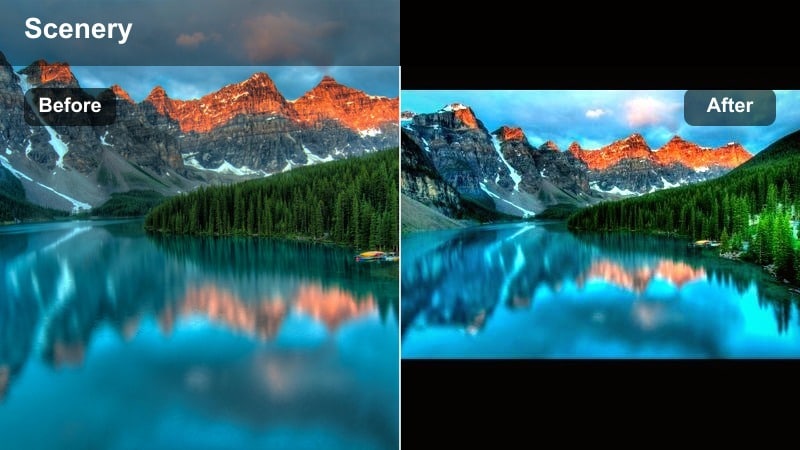
- Effect look: Crisp contrast with boosted micro-contrast and clear, slightly warm grass tones for open plains.
- Best for: Animals in tall grass, field birds, running sequences captured with telephoto lenses.
- Editing tip: Dial back the sharpening for 4K footage to avoid moire in fine grass detail; rely on contrast to make subjects stand out.
Grassland Clarity Boost pushes micro-contrast and detail so blades of grass, fur, and feathers pop against open fields. A subtle warmth in the grass tones helps animals stand out, especially in backlit or side-lit conditions common in sunrise and sunset shoots.
In Filmora, apply this wildlife video filter to open-plain shots, then moderate any additional sharpening to avoid moire or noisy textures in fine grass. Let contrast and micro-contrast do most of the work, and use masking if needed to add a bit more clarity around your subject while keeping distant backgrounds slightly softer.
YouTube-Ready Nature Filters for Outdoor Vlogs
Trail Vlog Clean Natural
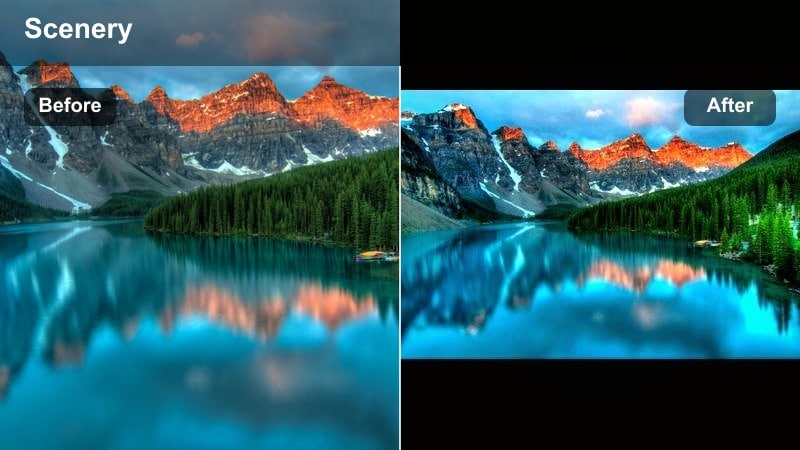
- Effect look: Clean, slightly brightened image with natural greens and skin tones tuned for YouTube compression.
- Best for: Talking to camera while hiking, gear reviews filmed outdoors, casual nature walk vlogs.
- Editing tip: Keep contrast moderate and avoid crushing blacks; YouTube compression handles mid-contrast grades best for mixed lighting.
Trail Vlog Clean Natural is built to survive YouTube compression while keeping your greens and skin tones looking realistic. It brightens the image slightly and maintains moderate contrast, which helps prevent banding and blocky shadows on phones and TVs.
In Filmora, use this as your default outdoor vlog filter, adjusting exposure per clip but keeping contrast in the mid-range. This ensures your face remains readable in mixed forest light and that your background foliage still looks vibrant without oversaturating or crushing detail after upload.
Cinematic Mountain Travel
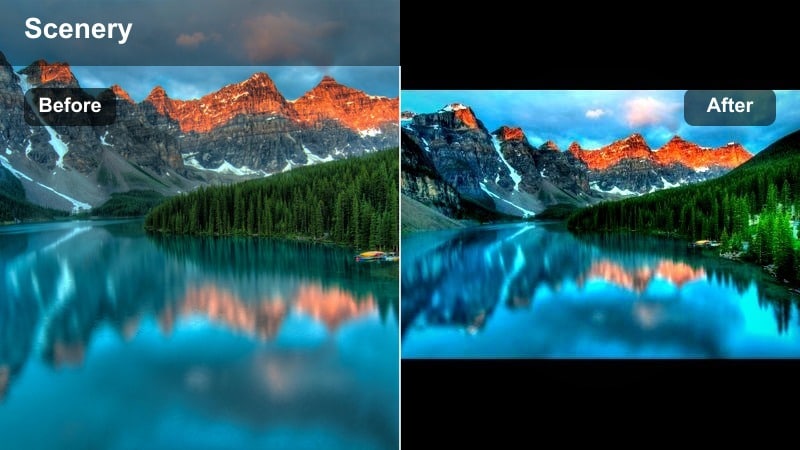
- Effect look: Cooler highlights, deep but clean shadows, and rich blues with controlled greens for travel-style mountain content.
- Best for: Mountain ridge hikes, drone flyovers, adventure intros and B-roll sequences.
- Editing tip: Add slow zooms and speed ramps in Filmora to match the cinematic tone of the grade and keep B-roll feeling dynamic.
Cinematic Mountain Travel gives your peaks, ridges, and skies a modern travel-film aesthetic with cool highlights and rich blues. Shadows stay deep but clean, and greens are gently controlled so they do not overpower the rugged textures of rock, snow, and clouds.
In Filmora, drop this filter on your mountain B-roll and accent it with slow zooms, smooth motion, and speed ramps to enhance the cinematic feel. Save your preferred settings as a custom preset so your multi-episode hiking or travel series maintains a consistent visual identity that viewers immediately recognize.
Urban Park Hybrid Nature
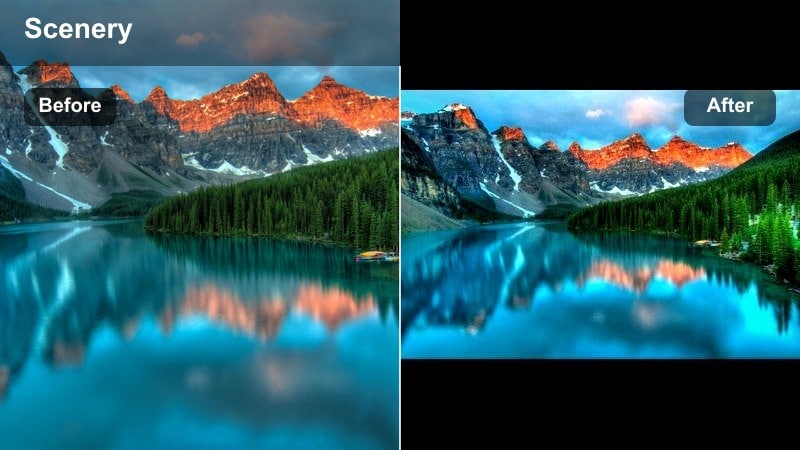
- Effect look: Balanced grade that keeps foliage vibrant while taming concrete and sky highlights for city-park shooting.
- Best for: Outdoor vlogs shot in city parks, running and fitness content, quick wildlife moments in urban green spaces.
- Editing tip: Lower saturation and exposure slightly on buildings using Filmora s masking so the viewer s eye stays on trees and people.
Urban Park Hybrid Nature is tailored for mixed scenes where trees, grass, and people share the frame with buildings and bright skies. It keeps foliage pleasantly vibrant while gently softening concrete and highlight-heavy structures so they do not dominate the image.
In Filmora, combine this filter with simple masks over buildings or skyline areas to reduce saturation and exposure slightly. You can also darken the upper sky using a gradient so tree detail and faces stay visible, making your urban-park vlogs feel nature-first even in busy city environments.
Tips for Using Nature Video Filter Filters in Filmora
- Shoot nature footage slightly flatter in-camera so Filmora filters and nature LUT styles have more room to shape contrast and color.
- Always white balance off a neutral object or gray card at the location before relying on any outdoor video filter.
- Reduce filter intensity for shots with people so skin tones stay realistic while foliage still benefits from the grade.
- Use Filmora s scopes to avoid clipping highlights in clouds and snow when applying punchy nature video filters.
- Create separate presets for forest, mountain, and water scenes so each environment keeps its own natural character.
- Test how your nature video filters look on mobile and TV screens; adjust contrast and saturation accordingly.
- Combine subtle vignettes with your green nature color grade to gently guide the viewer s eye toward the subject.
- Apply denoise before adding strong clarity or sharpening filters, especially on high-ISO wildlife footage.
Nature video filters can transform flat outdoor footage into lush, engaging stories, whether you film forest hikes, wildlife encounters, or quick park vlogs for YouTube.
Start with a small set of Filmora presets that match your typical locations, refine them into your own nature LUT style, and reuse those looks to build a consistent visual identity across every project.
secure download