

 100% Security Verified | No Subscription Required | No Malware


 ChatGPT
 Perplexity
 Gemini
 Claude
 Grok
Grok
These Panasonic GH5 vlog LUT-style filters are designed for videographers and creators who shoot in V-Log L and want fast, repeatable looks that still feel cinematic and natural on skin tones.
Each filter below mimics a common grading style GH5 shooters love, with clear guidance on the effect look, when to use it, and a quick editing tip for dialing it in on your footage.
In this article
Golden Hour City Vlogs
Sunset Amber Glow
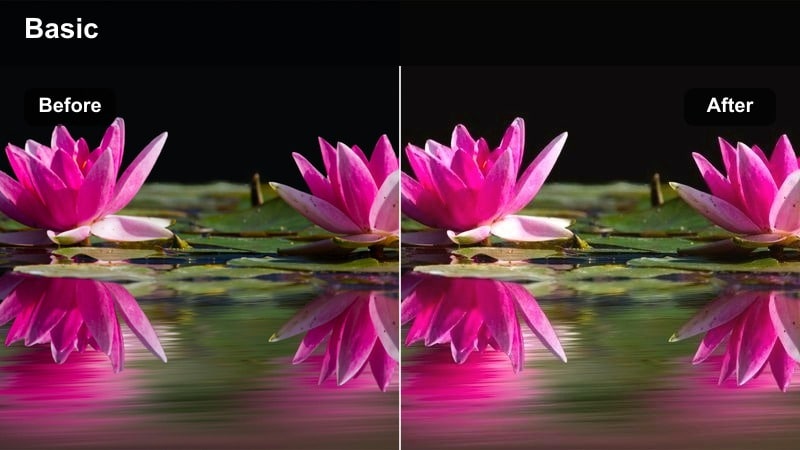
- Effect look: Warm, soft-contrast grade that wraps city streets in amber tones while holding highlight detail in the sky.
- Best for: Golden hour GH5 vlog walks downtown, talking-head intros on rooftops, and cinematic B-roll of city streets at dusk.
- Editing tip: Shoot V-Log L slightly underexposed, then add this filter and pull back saturation in the reds to avoid orange, overcooked skin tones.
In Filmora, Sunset Amber Glow quickly transforms flat GH5 V-Log L clips into rich, sunset-ready frames with natural-looking warmth. The filter lifts mids and warms highlights just enough to enhance street lights and sky color without pushing skin into cartoonish orange.
Apply it to your city walk sequences, then fine-tune exposure with the basic color sliders so the brightest parts of the sky stay just under clipping. If faces look too intense, use Filmoras HSL controls to selectively lower saturation in reds and oranges while keeping the overall amber mood intact.
Match Your GH5 Vlog Mood with AI Color Suggestions
Filmoras AI color tools can analyze your Panasonic GH5 V-Log L clips and suggest palettes that echo the look of filters like Sunset Amber Glow, keeping city skies warm and streets cohesive across multiple shots.
Once you accept a suggested palette, you can use it as a visual reference, so every new clip you add snaps toward the same cinematic golden-hour feel with minimal manual grading.
 secure download

Fine-Tune GH5 Colors with HSL and Curves
To keep your Panasonic GH5 vlog LUT-style filters looking natural, Filmoras HSL and curve tools let you target problematic hues, like oversaturated reds or color casts from mixed lighting. This is ideal when you want stylized golden tones without sacrificing realistic skin.
After applying a filter, use HSL to adjust just one color range at a time, then refine contrast with custom curves for shadows, mids, and highlights, so your grade remains cinematic but controlled.
secure downloadPreview GH5 Vlog Filters in Real Time
In Filmora, you can hover over any Panasonic GH5 vlog filter to preview how it will affect your V-Log L clip in real time without committing to the change. This makes it easy to compare cinematic, natural, or punchy looks directly on your own footage.
Once you find a style you like, apply it as a base grade, then tweak intensity, contrast, and color so the filter complements your lighting and storytelling style.
secure downloadUrban Soft Film
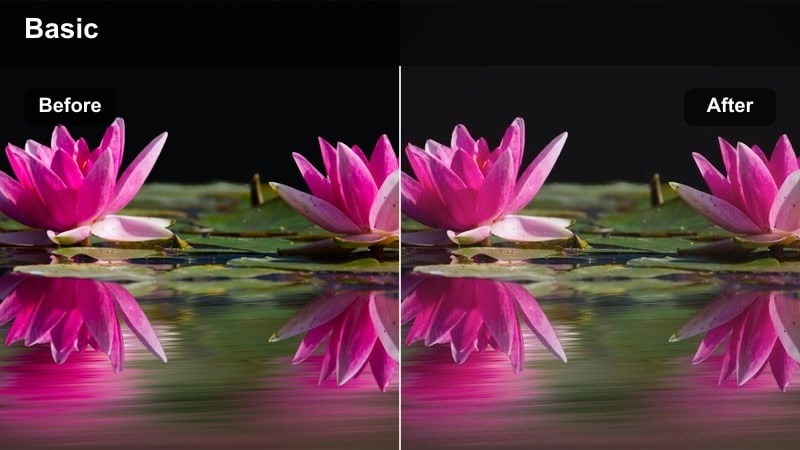
- Effect look: Low-contrast, slightly faded film-style grade with gentle halation around city lights and muted primary colors.
- Best for: Street-style vlogs, lifestyle B-roll in busy downtown areas, and cinematic openers with handheld GH5 shots.
- Editing tip: Pair this filter with a subtle vignette and a touch of grain to sell the filmic feel, keeping sharpening lower than usual on GH5 footage.
Urban Soft Film is ideal for turning razor-sharp GH5 city footage into something more relaxed and nostalgic. The filter lowers overall contrast, softens highlights, and slightly fades saturation, which helps bright signs and traffic lights glow without overwhelming the frame.
In Filmora, apply a light vignette and add a small amount of film grain after the filter to complete the analog vibe. Reduce global sharpening or use negative clarity so faces look flattering and handheld motion feels more organic while still preserving enough detail in architecture.
Neon City Pop
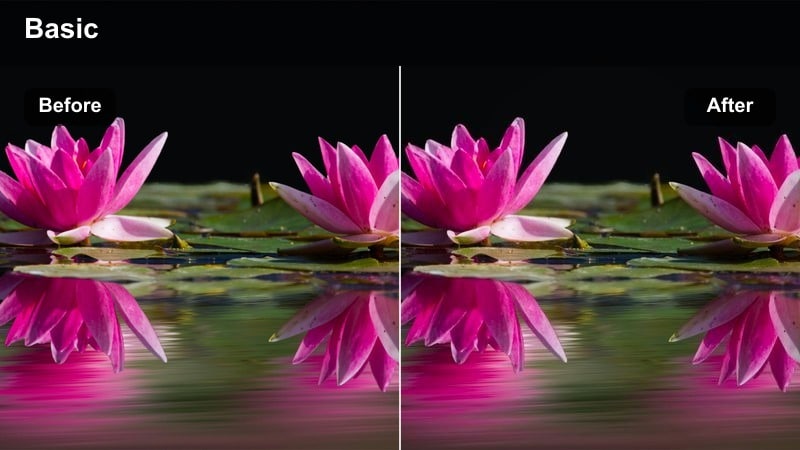
- Effect look: Punchy, saturated look that emphasizes neon signs and LED billboards while keeping shadows deep and rich.
- Best for: Nighttime GH5 vlogs in entertainment districts, cyberpunk B-roll, and slow-motion scenes under colorful urban lighting.
- Editing tip: Expose V-Log L to protect neon highlights, then apply this filter and gently pull down the blue channel in shadows for extra depth.
Neon City Pop is built to make your GH5 night footage explode with color while retaining enough contrast to feel cinematic. The filter targets saturated blues, magentas, and cyans, boosting their intensity against deep, controlled shadows for a strong cyberpunk aesthetic.
In Filmora, use this filter for city strips packed with LEDs and street signs, then fine-tune individual color channels in HSL to keep skin tones from drifting too magenta. If your shadows feel too flat, adjust the blue and cyan channels in the curves panel to add depth without crushing important detail in the scene.
Travel and Street Roam Vlogs
Clean Travel Natural
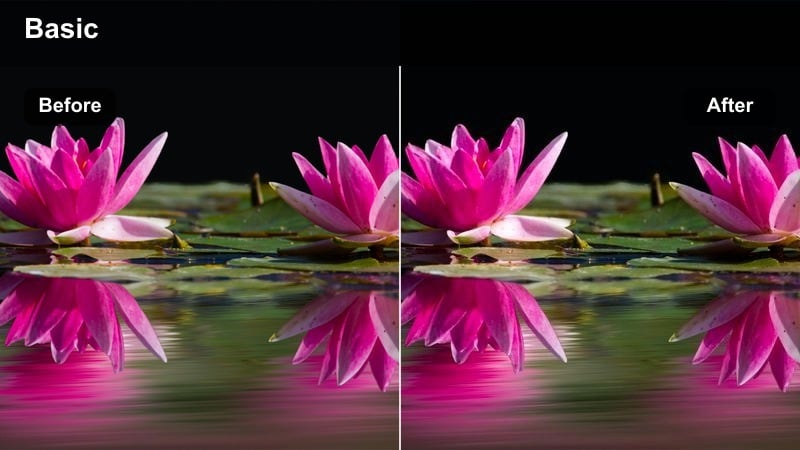
- Effect look: Balanced, neutral color grade that keeps GH5 vlog footage realistic with a small contrast and saturation lift.
- Best for: Daytime travel vlogs, run-and-gun street explorations, and destination walkthroughs where accurate colors matter.
- Editing tip: White-balance GH5 V-Log L clips before applying this filter, then fine-tune skin tones using the HSL tools instead of global warmth.
Clean Travel Natural is your go-to filter when you want Panasonic GH5 colors to look true to life, just a bit more polished. It adds gentle contrast and a mild saturation bump so buildings, foliage, and clothing appear crisp without turning the scene into a heavy stylized look.
In Filmora, correct white balance first using the temperature and tint sliders, then apply this filter as a base grade across your travel sequence. If different locations feel inconsistent, adjust exposure and white balance on a clip-by-clip basis while leaving the filter untouched to maintain a cohesive visual style.
Soft Street Matte
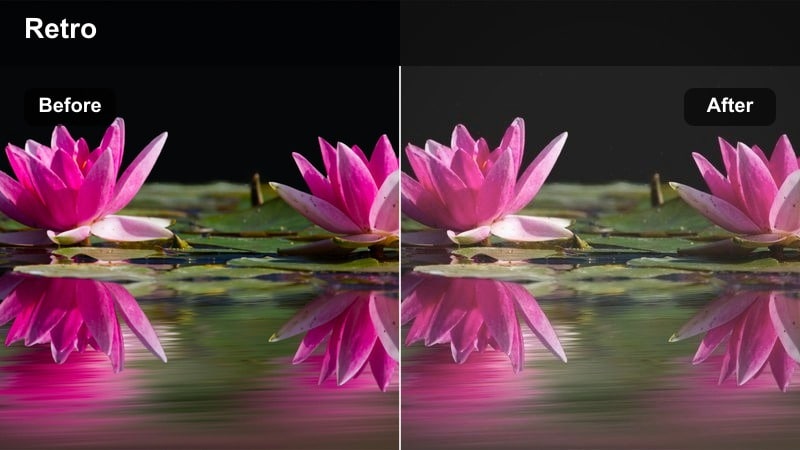
- Effect look: Matte, low-saturation grade that gently lifts blacks and gives GH5 street footage a subtle analog vibe.
- Best for: Cinematic B-roll of alleyways, scooters, street markets, and handheld GH5 shots in overcast or flat light.
- Editing tip: Use this filter on slightly underexposed clips and adjust the shadow point carefully so the lifted blacks still hold structure.
Soft Street Matte is perfect for calming down busy urban scenes and giving them a relaxed, cinematic feel. The filter lifts black levels to create a soft matte finish and desaturates strong primary colors so signage and clothing do not distract from your subject.
In Filmora, apply the filter and then use curves to gently adjust just the lowest part of the shadows, keeping texture in pavement, walls, and clothing. If the image starts to look too hazy, add a touch of midtone contrast or clarity so your GH5 details remain visible within the matte aesthetic.
Vivid Travel Punch
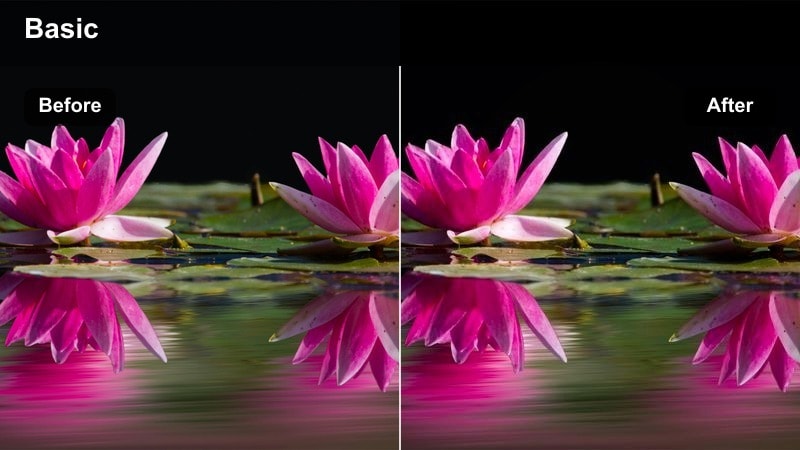
- Effect look: High-contrast, vibrant color treatment that makes buildings, street art, and signage pop without overly crushing shadows.
- Best for: Energetic GH5 travel montages, quick-cut street edits, and B-roll of markets, murals, and colorful storefronts.
- Editing tip: Use this filter sparingly on talking heads, and if applied, scale back saturation in the orange range to maintain natural skin.
Vivid Travel Punch is designed to make your GH5 travel footage leap off the screen with bold contrast and color. It enhances saturation across the scene, with special emphasis on murals, painted walls, and street signs, while maintaining reasonable detail in the shadows.
Inside Filmora, drop this filter onto your most colorful B-roll sequences and then tame overly strong hues using the HSL panel, especially reds and yellows. For any shots featuring faces, reduce saturation in the orange channel and, if necessary, slightly lower filter intensity so your vlogs remain energetic but still look natural on skin.
Indoor Studio and Talking-Head Setups
Creator Studio Neutral
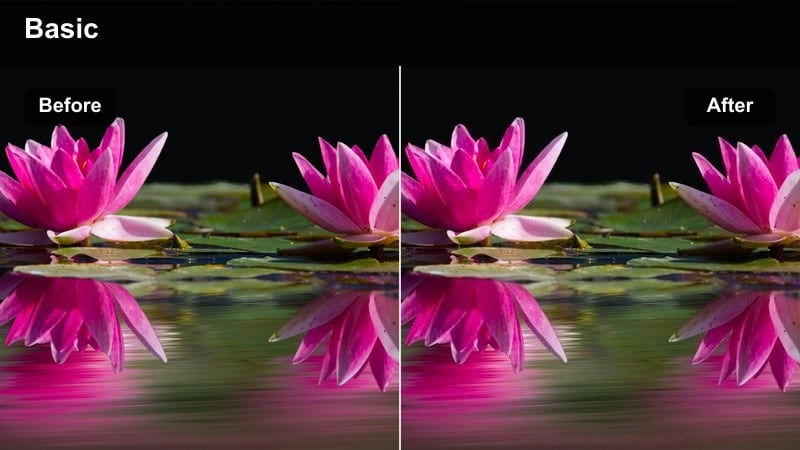
- Effect look: Clean studio look with accurate skin tones, medium contrast, and gently softened highlights on lights and monitors.
- Best for: YouTube tutorial setups, desk talk segments, and GH5 talking-head vlogs in controlled lighting.
- Editing tip: Set your GH5 white balance with a gray card in the studio and then apply this filter to minimize color cleanup later.
Creator Studio Neutral is tuned to make your Panasonic GH5 talking-head clips look professional with minimal effort. The filter focuses on accurate skin tones, moderate contrast, and subtle highlight roll-off so key lights, practical lamps, and monitor glow stay pleasing rather than harsh.
In Filmora, use this filter as your standard studio baseline across all A-roll clips, then make small adjustments to exposure and white balance to keep your face consistently bright. If your background lights appear too intense, slightly lower highlight levels or reduce saturation in the specific color channels used for your RGB accents.
Soft Skin Beauty
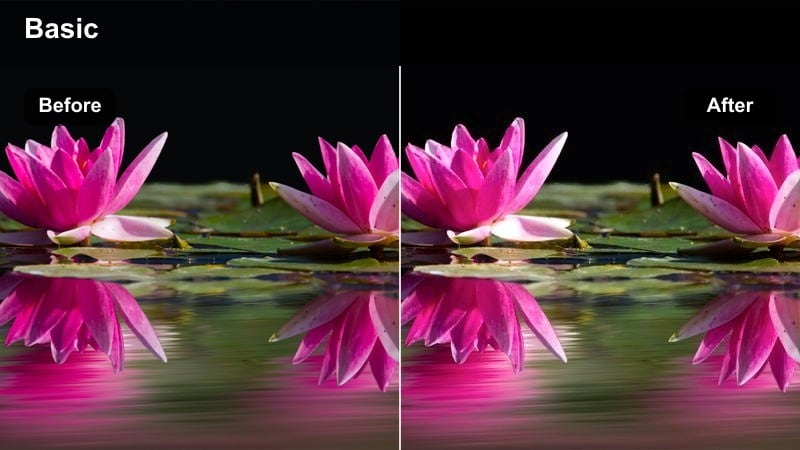
- Effect look: Gentle, flattering grade that slightly softens contrast on faces, mutes blemishes, and warms skin without affecting the background too heavily.
- Best for: Beauty, lifestyle, and sit-down commentary vlogs shot on the GH5 with controlled key light.
- Editing tip: After applying the filter, use a light touch of skin-only smoothing if needed and avoid heavy global sharpness boosts.
Soft Skin Beauty is crafted to keep faces looking smooth and camera-ready straight from your GH5 V-Log L recordings. The filter slightly reduces contrast in the midtones, adds a touch of warmth, and gently de-emphasizes minor blemishes without making the overall image look blurry.
In Filmora, apply this filter to your close-up talking-head segments, then optionally add a subtle skin smoothing effect on a masked region to refine the look. Resist the urge to increase global sharpening; if you need extra crispness, use small local adjustments on eyes and hair while keeping the rest of the face soft and flattering.
Moody Creator Desk
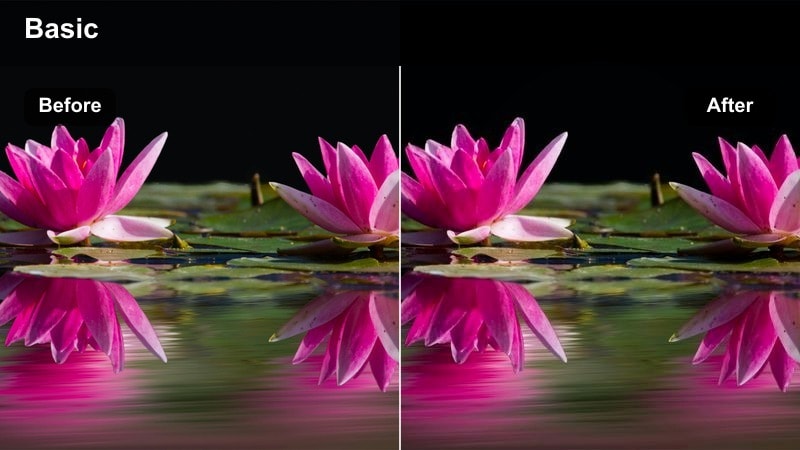
- Effect look: Low-key, contrasty look that emphasizes desk RGB lights and gear while keeping the presenter's face clear and readable.
- Best for: Tech reviews, gaming setups, and GH5 desk vlogs with monitors, keyboards, and accent lighting.
- Editing tip: Underexpose the background on the GH5, then apply this filter and gently lift shadows only around the face region using a mask.
Moody Creator Desk is tailored for dark, RGB-lit setups where you want your gear and lights to stand out but your face to remain the visual anchor. The filter deepens overall shadows and heightens contrast, making screens, keyboards, and ambient lights pop against a rich, cinematic background.
Within Filmora, combine this filter with masks to selectively brighten your face if it gets lost in the dark environment. You can add a subtle vignette and slightly reduce saturation in competing background colors so viewer attention stays on your expression and the product or gameplay you are showcasing.
Outdoor Adventure and Run-and-Gun Vlogs
Crisp Daylight Boost
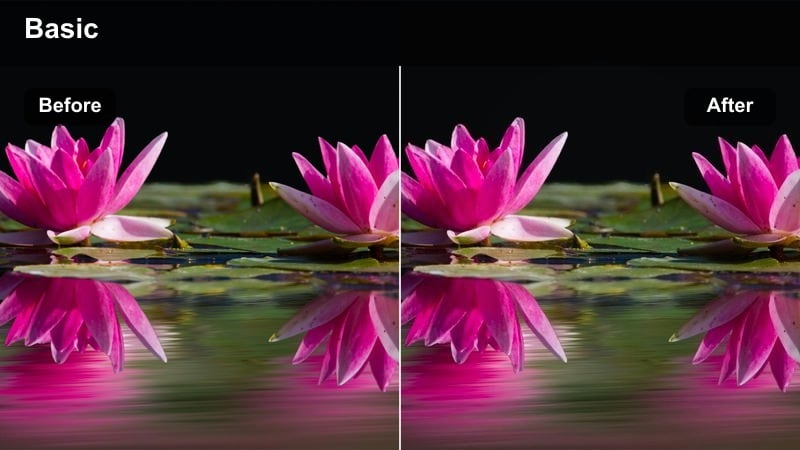
- Effect look: Bright, crisp grade that adds clarity and micro-contrast to GH5 V-Log L footage in harsh midday sun while keeping colors natural.
- Best for: Run-and-gun city walks, outdoor gear reviews, and travel day vlogs filmed under strong daylight.
- Editing tip: Apply this filter, then tame overly bright highlights with a subtle roll-off curve instead of dragging the highlight slider too far down.
Crisp Daylight Boost takes advantage of the GH5s detailed V-Log L image to produce sharp, punchy footage that still feels realistic. The filter adds micro-contrast and clarity to textures like pavement, clothing, and building facades, helping midday scenes look intentional instead of washed out.
In Filmora, apply the filter to your daytime sequences and then use curves to gently roll off the brightest highlights on faces and skies. If shadows appear too crunchy, slightly lift the dark areas and reduce clarity a touch until you strike a balance between crisp detail and viewer-friendly contrast.
Adventure Cool Contrast
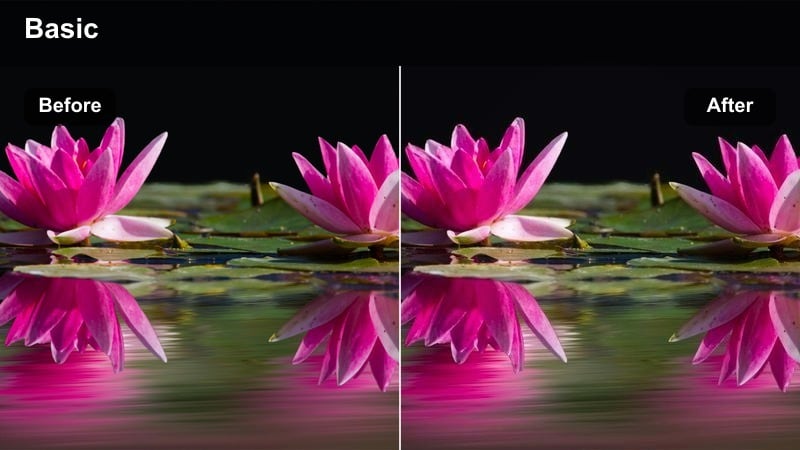
- Effect look: Cool-tinted, high-contrast look that deepens blues and greens while keeping skin tones slightly warm for separation.
- Best for: Outdoor adventure vlogs, rooftop B-roll, and fast-paced GH5 edits in breezy or overcast weather.
- Editing tip: Use this filter on shots with strong skies or glass buildings, then mask the subject's skin if it drifts too cool.
Adventure Cool Contrast is designed to add drama to skies, water, and glass while preserving warm, inviting skin tones. The filter boosts contrast and cools the overall scene, deepening blues and greens to emphasize weather, altitude, and urban structures in your GH5 footage.
In Filmora, apply this look to rooftop walks, coastal shots, or mountain vlogs, then use masking or HSL adjustments to pull skin tones a bit warmer if needed. A calibrated monitor helps you judge when the scene is cool enough to feel cinematic without making your subject look desaturated or lifeless.
Run-and-Gun Fast Grade
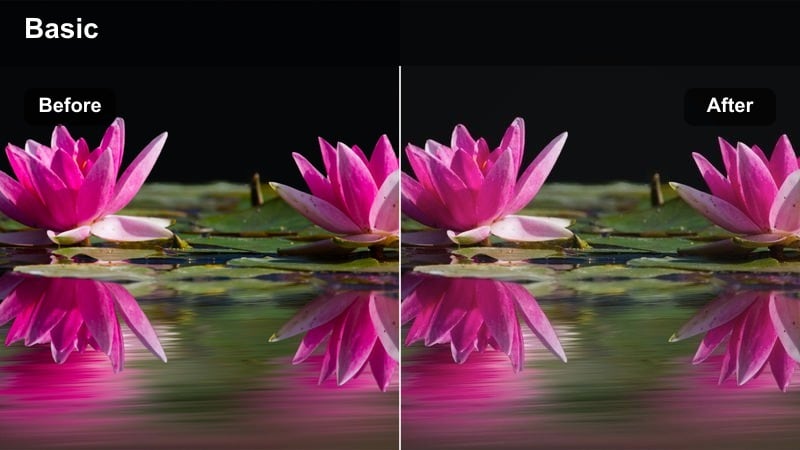
- Effect look: One-click, all-purpose look that adds moderate contrast, gentle saturation, and subtle sharpening tailored to GH5 V-Log L.
- Best for: Busy shoot days where you need quick turnaround on vlogs, events, and spontaneous GH5 clips.
- Editing tip: Use this filter as your base grade across the entire vlog, then only refine problem clips for a faster workflow.
Run-and-Gun Fast Grade is built as a dependable one-click solution for GH5 vloggers who need speed. It adds just enough contrast, color, and sharpening to make V-Log L footage look finished while staying flexible enough for most lighting situations.
In Filmora, apply this filter to your whole timeline as a starting point, then tweak exposure clip-by-clip so faces stay correctly exposed. For key hero shots, you can stack additional adjustments like HSL, curves, or masks on top of the base filter while keeping the rest of the vlog graded in seconds.
Tips for Using Panasonic Gh5 Vlog Luts Filters in Filmora
- Expose Panasonic GH5 V-Log L slightly to the right without clipping highlights so each filter has maximum color and detail to work with.
- Create a base preset in Filmora that combines your favorite GH5 vlog filter with light sharpening and noise reduction for faster, repeatable edits.
- Use scopes like waveform and vectorscope in Filmora to keep skin tones aligned on the skin tone line while experimenting with stylized looks.
- Batch-apply one filter to a full sequence via adjustment layers or copy-and-paste attributes, then refine only the clips that truly need extra attention.
- Save multiple versions of the same filter at different intensities so you can quickly match grading between sunny, cloudy, and indoor scenes.
- When combining GH5 vlog LUTs with Filmora filters, lower filter intensity to avoid overly contrasty results and preserve natural highlight roll-off.
- Organize your favorite GH5 filter combinations into named presets, such as City Night, Neutral Travel, or Studio A-roll, to speed up future projects.
These Panasonic GH5 vlog LUT-style filters give videographers and creators a fast, reliable way to turn flat V-Log L footage into cohesive, cinematic stories without getting lost in complex grading.
Experiment with a few favorite looks, build them into your editing workflow, and then explore more advanced options like dedicated LUTs and secondary corrections as your style evolves.
secure downloadNext: Panasonic S1H Film LUTS
