

 100% Security Verified | No Subscription Required | No Malware


 ChatGPT
 Perplexity
 Gemini
 Claude
 Grok
Grok
These Panasonic S1H film LUT-inspired filters are designed for videographers and creators who want a cinematic, filmic look without diving deep into complex color grading nodes.
Use these styles as a starting point to mimic the rich color science, gentle roll-off, and texture of Panasonic S1H film LUTs directly in Filmora, then fine-tune to match your project and lighting conditions.
In this article
Golden Hour and Sunset Cityscapes
S1H Golden Soft Amber
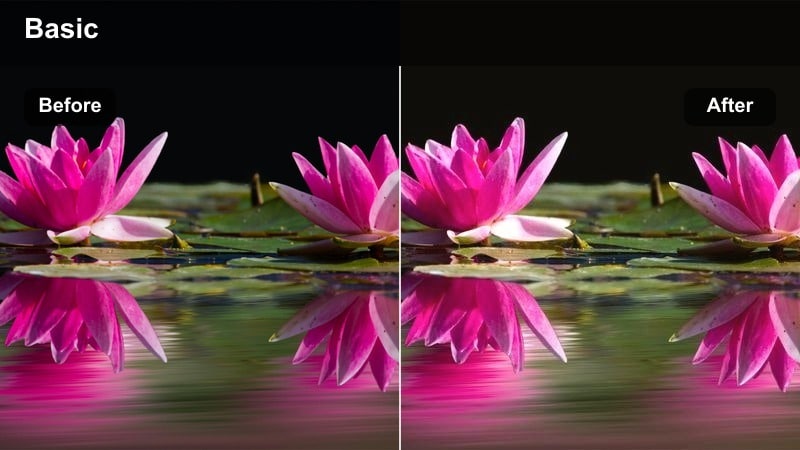
- Effect look: Soft amber cast that warms midtones and adds a gentle halation-style glow to highlights for a cinematic sunset feel.
- Best for: Urban rooftop b-roll, city skyline walk-and-talks, and travel vlogs shot at golden hour on Panasonic bodies.
- Editing tip: Slightly lower overall contrast, then pull down the highlights slider to keep skies from clipping while keeping skin luminous.
In Filmora, S1H Golden Soft Amber adds a warm, cinematic sheen to rooftop and skyline shots, mimicking the way Panasonic S1H film LUTs handle glowing highlights at golden hour. The gentle halation-style glow softens edges around bright areas, so buildings, hair light, and reflections feel more atmospheric and less harshly digital.
Use this filter as your base grade for sunset sequences, then refine exposure with the basic color controls to keep faces clean and skies controlled. If you exposed slightly under with your S1H, bring up midtones for perceived brightness while leaving the highlights rolled off, and fine-tune color temperature and tint so skin tones sit naturally within the warm amber wash.
Speed up S1H-Style Looks with Filmora's AI Color Tools
Instead of manually rebuilding Panasonic S1H film LUTs from scratch, use Filmora's AI-driven color matching and correction tools to quickly align your clips with a cinematic reference. You can get very close to your favorite S1H grades before you even start creative styling.
Capture a still frame from a graded S1H shot, bring it into Filmora, and let AI Color Match set exposure and color balance for your new footage. From there, layer these S1H-inspired filters on top to refine mood, warmth, and contrast.
 secure download

Preview Panasonic-Style Filters in Real Time
Filmora lets you quickly preview these S1H-inspired looks on your footage so you can decide which direction fits each scene. Watching filters update in the viewer while you play back a clip makes it easy to compare warmth, contrast, and saturation choices.
Toggle between several filters on the same rooftop or street shot, then dial down intensity or tweak HSL controls to keep skin tones clean while maintaining your preferred filmic style.
secure download1000+ Video Filters and 3D LUTs
Beyond these Panasonic S1H-inspired styles, Filmora includes a large library of filters and 3D LUTs that can stack with your base grade. This gives you room to blend subtle film looks, stylized color, and branded palettes without leaving the editor.
Start with a neutral conversion or S1H-style filter, then experiment by layering additional Filmora filters at reduced opacity to build richer cinematic textures and tones.
secure downloadS1H Copper Street Chrome
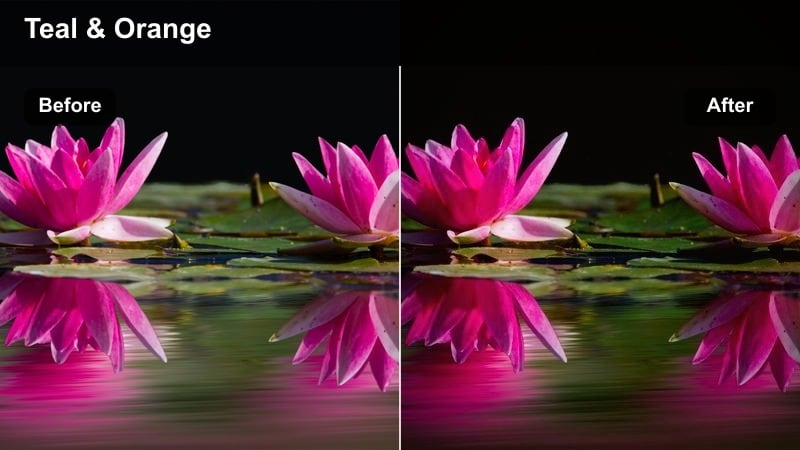
- Effect look: Rich copper tones in highlights with cooler, slightly teal shadows to create a stylized but grounded cinematic street palette.
- Best for: Street documentaries, moody city portraits, reflective storefronts, and evening b-roll with mixed color temperatures.
- Editing tip: Use selective color to dial back teal in the deepest shadows if the scene contains important dark wardrobe details.
S1H Copper Street Chrome pushes illuminated areas toward copper while cooling the darkest shadows, giving your dusk streets a modern cinema split-tone reminiscent of Panasonic S1H film LUTs. Reflections on wet pavement, cars, and glass take on a metallic warmth that contrasts nicely against cooler alleys and doorways.
Apply this filter in Filmora to unify mixed street lighting, then use HSL or color wheels to fine-tune teal density in the shadows so important clothing or hair detail does not disappear. Small saturation tweaks in orange and cyan can keep skin, signage, and storefronts expressive without overpowering the overall copper-and-teal balance.
S1H Hazy Urban Halo
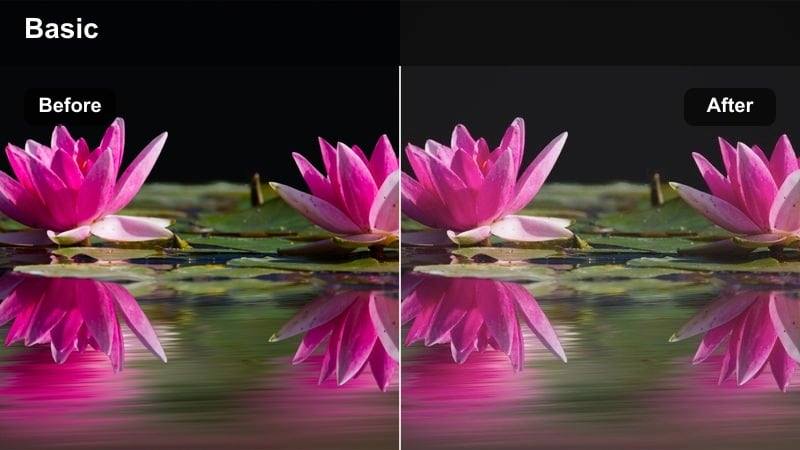
- Effect look: Low-contrast, hazy film look that lifts blacks and blooms light sources to emulate diffusion over an S1H lens.
- Best for: Backlit street scenes, fashion content on city sidewalks, and commercial-style b-roll with neon or car headlights.
- Editing tip: After applying, add a light vignette and slightly desaturate highlights to make neon signs and lamps feel more cinematic and less digital.
S1H Hazy Urban Halo softens your image by lifting blacks and adding a subtle glow to practical lights, similar to shooting through diffusion filters on a Panasonic S1H. This takes the hard edge off digital video and gives backlit subjects, car headlights, and shop windows a romantic, filmic halo.
Use it in Filmora when you want dreamy, glossy city visuals without complicated node trees. After applying the filter, restore a bit of midtone contrast so faces remain readable, then gently reduce highlight saturation to stop neon or LED lights from clipping into harsh primary colors while preserving the atmospheric haze.
Intimate Interior Dialogue and Interviews
S1H Soft Neutral Skin
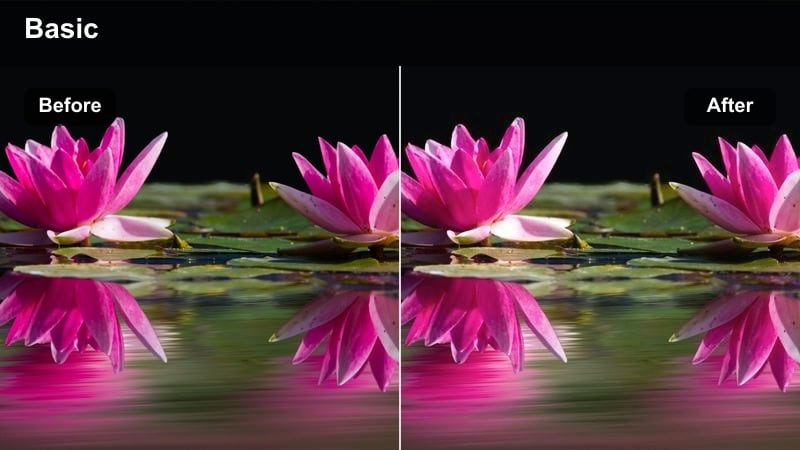
- Effect look: Gentle contrast curve with neutral, slightly warm skin tones and subtle film-style roll-off in the highlights.
- Best for: Talking-head interviews, YouTube tutorials, and corporate sit-downs shot on Panasonic S1H or similar cameras.
- Editing tip: Fine-tune the white balance after the filter is applied, warming the image slightly until skin feels natural but not orange.
S1H Soft Neutral Skin is tuned for faces, giving you a forgiving contrast curve and natural warmth that matches the character many creators love in S1H film LUTs. Highlights on the forehead and cheeks roll off smoothly so interviews look polished even when lit with simple key and fill setups.
Apply this filter to all talking-head shots in Filmora to create a consistent baseline, then tweak temperature and tint to compensate for room lighting. You can further refine oranges and reds with HSL controls or the skin tone tool so complexions match across angles, while leaving background colors slightly secondary to the subject.
S1H Warm Wood Interior
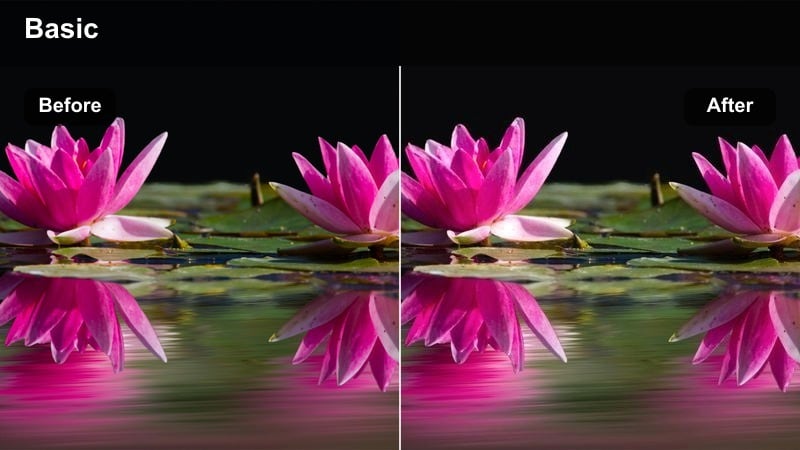
- Effect look: Soft golden warmth in midtones and highlights that enhances wood, furniture, and warm lamps for cozy, filmic interiors.
- Best for: Home vlogs, café conversations, podcast setups, and interview scenes in warmly lit rooms.
- Editing tip: Lower saturation in yellows slightly so warm walls and wooden tables do not overpower your subject's skin tones.
S1H Warm Wood Interior focuses on rich, golden midtones that flatter wooden furniture, bookshelves, and tungsten lamp light. It brings a gentle, inviting glow to cafés and living rooms while keeping contrast soft enough to feel cinematic instead of overly sharp.
In Filmora, use this filter as your go-to for lifestyle vlogs or podcasts set in warm spaces, then tame yellows and oranges so faces do not blend into the décor. A small adjustment to the yellow saturation or luminance slider will help keep attention on your talent while wood textures and lamp pools still look rich and atmospheric.
S1H Muted Room Drama
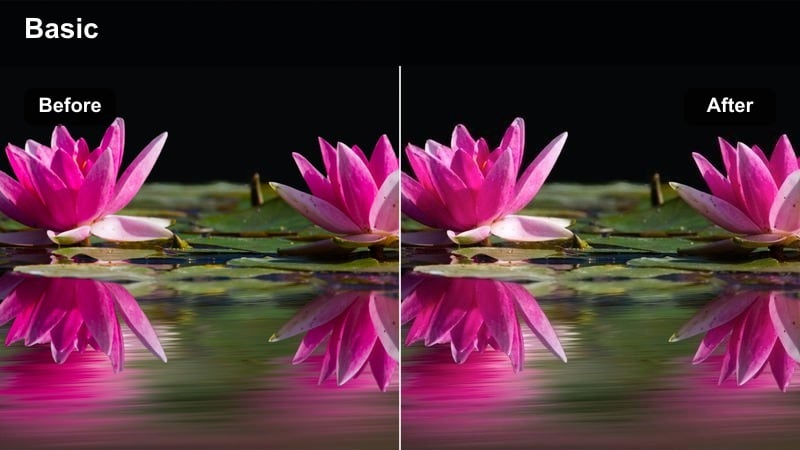
- Effect look: Desaturated, low-key look with gentle contrast and slightly cool shadows to create a subdued dramatic tone indoors.
- Best for: Short film dialogue scenes, narrative web series, and emotional monologues shot in apartments or offices.
- Editing tip: Push shadows a bit cooler and lift them slightly to keep detail in dark corners while preserving a moody feel.
S1H Muted Room Drama reduces saturation and adds coolness to shadows, echoing the restrained palettes often seen in narrative cinema. This keeps interiors from looking too colorful or vlog-like, letting performance and lighting define the emotional tone of the scene.
Apply it in Filmora to your dramatic dialogue sequences, then fine-tune exposure so important details in the frame remain visible without breaking the mood. You can lift shadows modestly and add subtle midtone contrast to maintain depth in faces while leaving overall colors understated and cohesive.
Daylight Exteriors and Narrative Sequences
S1H Neutral Daylight Film
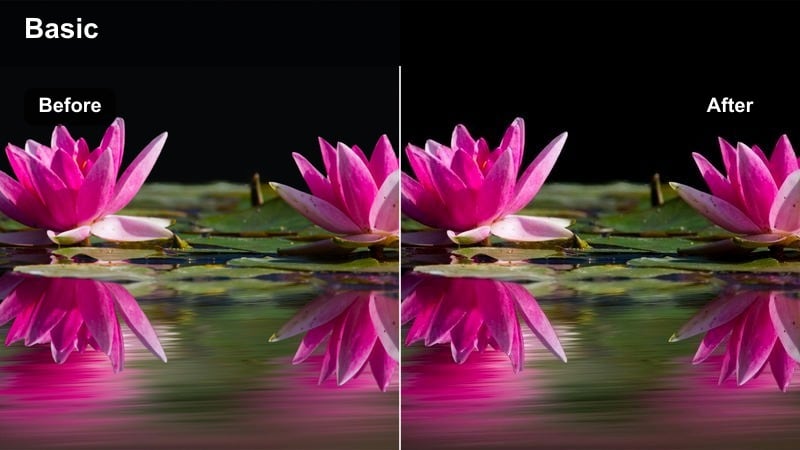
- Effect look: Clean, neutral color balance with a slight filmic toe and shoulder so exteriors feel cinematic but true to life.
- Best for: Narrative scenes in parks or streets, run-and-gun documentaries, and travel stories captured in bright daylight.
- Editing tip: Expose for the skin when shooting, then use this filter to gently roll off highlights instead of crushing skies.
S1H Neutral Daylight Film gives you a balanced, honest look with a subtle film-style contrast curve, ideal when you want your daylight scenes to feel realistic but polished. It adds a soft toe to the shadows and a gentle shoulder to highlights, smoothing out harsh sun and bright sky regions without heavy stylization.
Use it as a universal starting point for exterior sequences in Filmora, especially when matching shots from different times of day. After applying, adjust temperature and exposure per shot to correct for changing light, and rely on small contrast tweaks to maintain continuity between wide establishing shots and closer coverage.
S1H Soft Green Cinema
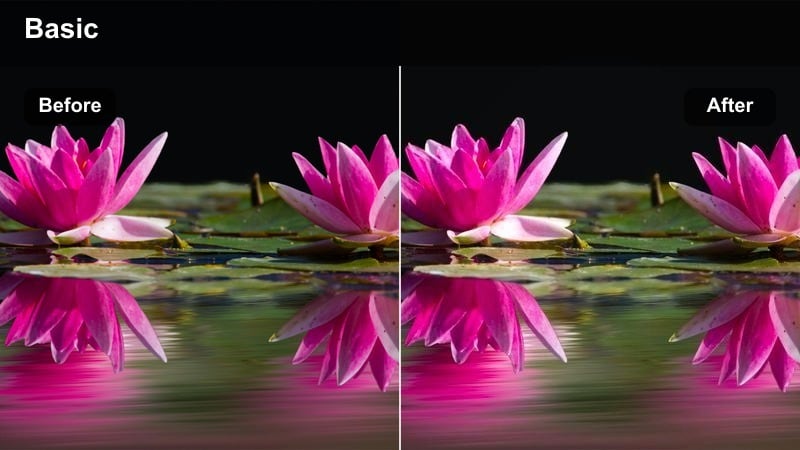
- Effect look: Gentle, slightly desaturated greens with warm skin tones, replicating a controlled cinematic outdoor palette.
- Best for: Park conversations, outdoor walk-and-talks, and dialogue scenes surrounded by trees or grass.
- Editing tip: After applying, selectively lower saturation in green and yellow while nudging their hue toward teal for a polished look.
S1H Soft Green Cinema is designed to tame vibrant foliage so characters stay visually dominant in frame. Greens and yellows are softened and slightly desaturated, while skin tones keep a warm, inviting quality that echoes controlled outdoor grading workflows used with S1H footage.
In Filmora, apply this filter to park and garden scenes, then fine-tune the HSL panel to push greens a touch toward teal and lower their luminance. This gives your backgrounds a subtle cinematic wash, reduces the distraction of bright grass, and ensures viewers naturally focus on faces and story beats.
S1H Contrasty Road Movie
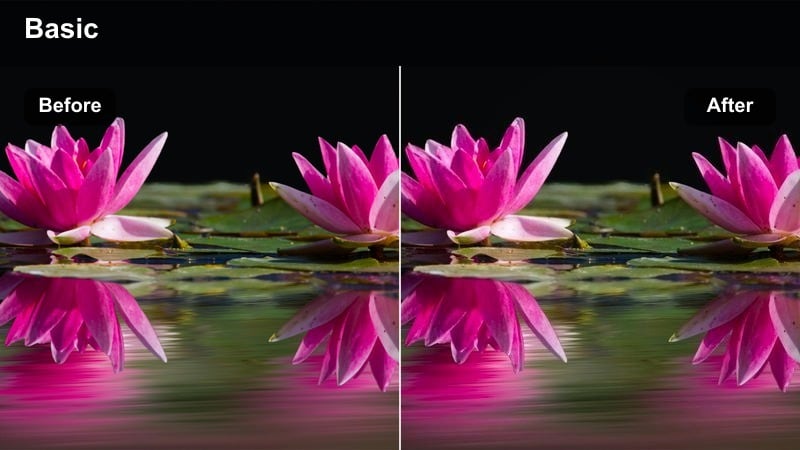
- Effect look: Punchier contrast with a mild warm bias and solid blacks for energetic road and travel sequences.
- Best for: Road trip montages, handheld adventure content, and fast-paced outdoor b-roll on highways or streets.
- Editing tip: Monitor clipped shadows; if details disappear in dark interiors or car cabins, raise shadow detail slightly.
S1H Contrasty Road Movie adds bold contrast and richer blacks to bring energy and momentum to travel sequences. The mild warmth in the midtones enhances sunlit roads, car paint, and skies, giving your footage a robust, cinematic feel that holds up well in fast-paced edits and music-driven montages.
Use this filter in Filmora on sequences that jump between in-car shots and exteriors, then individually lift shadows on interior clips so passengers do not disappear into darkness. Keeping an eye on scopes while adjusting highlights will help you retain texture in clouds and asphalt while still enjoying that punchy road-movie aesthetic.
Night, Neon, and Low-Light City Atmosphere
S1H Neon Teal Magenta
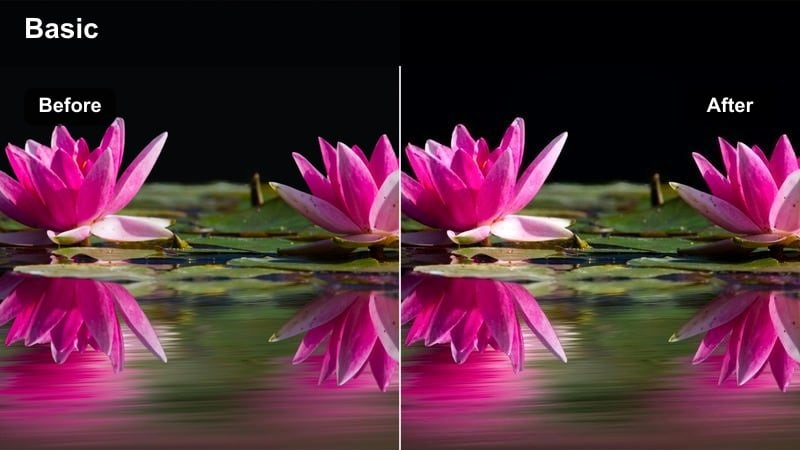
- Effect look: Stylized teal shadows and magenta highlights that embrace classic neon-city cinematography with S1H-style roll-off.
- Best for: Night city b-roll, neon-lit alleys, club entrances, and stylized commercial content.
- Editing tip: Dial back overall saturation if signage and reflections feel too electric, but keep magenta highlights lively.
S1H Neon Teal Magenta leans fully into stylized night color, shifting shadows toward teal and boosting magenta in highlights to echo cyberpunk-influenced cityscapes. This look makes neon signs, club entrances, and rain-soaked streets stand out while the S1H-style roll-off keeps specular highlights from turning into harsh spikes.
Apply it in Filmora to your low-light city sequences and then moderate saturation to taste, especially for intense signage and reflections. Because night footage often carries noise in the shadows, consider keeping blacks a bit deeper rather than lifting them, and add gentle noise reduction if you brighten midtones for better subject visibility.
S1H Noir Soft Glow
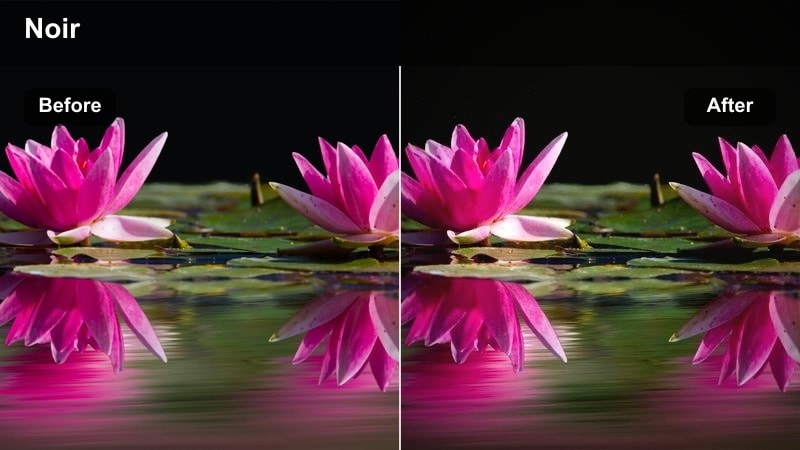
- Effect look: Deep blacks with soft blooming highlights that create modern noir vibes while protecting detail in midtones.
- Best for: Moody night scenes, character intros under streetlights, and rainy city sequences.
- Editing tip: Add a subtle split tone with cool shadows and warmer highlights to enhance the noir mood without full monochrome.
S1H Noir Soft Glow reinforces contrast at night, delivering deep, confident blacks while letting streetlights and windows bloom slightly for a moody, cinematic look. Midtones stay controlled so faces, coats, and umbrellas hold detail even when framed against very dark backgrounds.
Use it in Filmora to shape your noir-inspired sequences, then, if desired, layer on a mild split-tone effect to introduce cool shadows and warm light sources. Adjust vignetting and midtone contrast to guide the viewer's eye toward your subject without losing important environmental cues like signage or alley detail.
S1H Warm Night Ambient
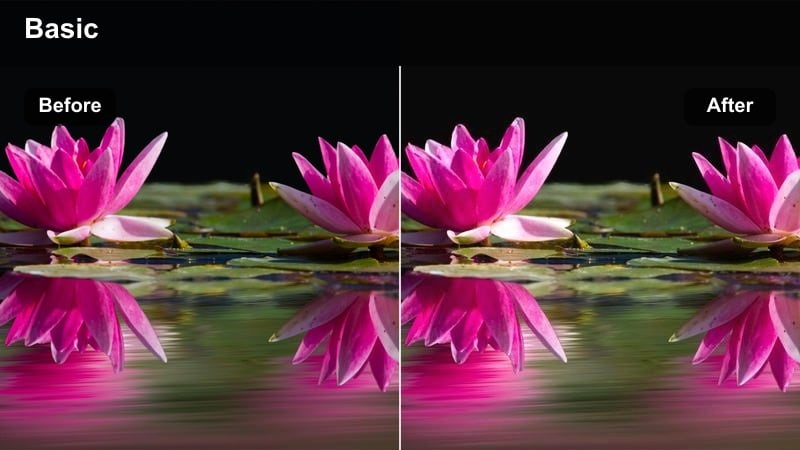
- Effect look: Soft, warm glow that leans into amber and orange practicals and car lights for romantic or nostalgic night scenes.
- Best for: Nighttime dates, city bridge walks, and lifestyle b-roll under street lamps or café exteriors.
- Editing tip: After applying, add a tiny amount of grain to mimic high-ISO film texture while keeping noise under control.
S1H Warm Night Ambient emphasizes amber and orange light sources, giving night walks and date scenes a nostalgic softness reminiscent of warm film stocks. Streetlamps, windows, and car lights pick up a pleasing glow, while overall contrast remains gentle enough to keep the mood relaxed and intimate.
In Filmora, apply this filter to romantic or lifestyle night content, then adjust global temperature slightly cooler if skin starts trending too orange. You can add a light layer of film-style grain for texture, and use masks or selective grading around faces to keep complexions natural while the environment stays richly stylized.
Tips for Using Panasonic S1h Film Luts Filters in Filmora
- Shoot in a flat or log profile on your Panasonic camera when possible to give these filters more latitude and smoother highlight roll-off.
- Set a custom white balance on location so you spend less time correcting color casts before you start applying creative looks.
- Group similar scenes in your timeline and grade them together to keep the Panasonic S1H-inspired style consistent across your edit.
- Always check scopes when pushing contrast or saturation, especially in neon and night scenes, to avoid unrecoverable clipping.
- For social content, slightly increase midtone brightness after applying filmic filters so the look holds up on mobile screens.
These Panasonic S1H film LUT-inspired filters give videographers and creators a fast route to cinematic color, whether you are shooting interviews, night streets, or narrative exteriors.
Treat each style as a flexible starting point, then refine exposure, white balance, and saturation in Filmora so every scene supports the story you are telling on screen.
secure downloadNext: BMPCC 4K Cinematic LUTS
