

 100% Security Verified | No Subscription Required | No Malware


 ChatGPT
 Perplexity
 Gemini
 Claude
 Grok
Grok
Panasonic S5 cinematic LUTs are a powerful shortcut to turning flat V-Log or Standard profiles into rich, filmic visuals, and pairing them with the right Filmora filters helps you lock in a consistent look across your entire edit.
Below you will find scene-based Panasonic S5 inspired cinematic looks, translated into Filmora filter presets with practical editing tips so videographers and creators can quickly match the vibe of big-screen color grades without complex node trees.
In this article
Golden Hour Storytelling and Dramatic Portraits
Sunset Amber Glow
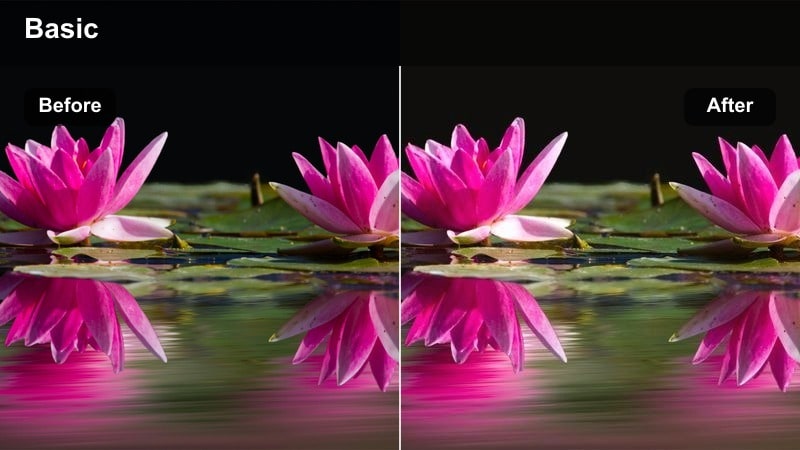
- Effect look: Soft, warm cinematic contrast that emulates S5 V-Log graded for sunset portraits.
- Best for: Golden hour talking heads, lifestyle portraits, and slow-motion walk shots.
- Editing tip: Slightly pull down highlights and lift shadows to preserve skin detail while keeping the sunset glow rich.
Use Sunset Amber Glow when your Panasonic S5 footage already has strong backlighting and visible sky color, because the filter enhances warm mids and softens contrast in a way that mimics popular log-to-film LUTs. Start with a properly exposed V-Log or Cine-D clip, apply your Panasonic S5 technical LUT in Filmora if needed, then layer this filter at around 60 to 80 percent intensity to bring out amber highlights without pushing them into yellow.
In Filmora, fine-tune the look by slightly lowering highlight exposure while raising shadows to keep facial detail intact against bright skies. If skin begins to skew too orange, jump into the HSL panel, target oranges, and pull saturation down by 5 to 10 percent so the sunset remains rich while faces stay natural and cinematic.
Speed up Panasonic S5 grading with AI-driven color matching
Filmora's AI color tools help you quickly match your Panasonic S5 footage to a chosen cinematic reference, so you spend less time manually keyframing and more time directing the story. Import a still from your favorite movie, let Filmora analyze the palette, and apply the match to your S5 timeline as a fast, consistent starting point.
Once the AI has built a base grade, use the Panasonic S5 cinematic filters on this page to push warmth, contrast, and saturation for each scene type while keeping the core palette aligned. This workflow lets you achieve a cohesive, filmic look across vlogs, short films, and client projects without having to rebuild grades from scratch.
 secure download

Preview cinematic filters directly on S5 clips
Instead of guessing how a preset will interact with your Panasonic S5 V-Log or Standard profile, Filmora lets you preview cinematic filters in real time on the exact footage you plan to use. This makes it easy to see how golden-hour looks, neon styles, or studio grades will behave before you commit them across an edit.
Drop a short S5 test sequence on the timeline, then cycle through filters while watching how they treat highlights, shadows, and skin tones under different lighting. Save any combination of LUT plus filter you like as a custom preset so you can reapply your signature style to future shoots in a single click.
secure download1000+ Filmora video filters and cinematic 3D LUTs
Beyond these Panasonic S5 specific looks, Filmora includes 1000 plus creative filters, film styles, and 3D LUTs you can stack to build complex, cinematic treatments. Mix film-grain overlays, light leaks, and color filters on top of your S5 LUT to transform simple b-roll into stylized sequences that match your brand or genre.
Use Filmora's HSL and curves tools to refine any filter or LUT, isolating problem hues or rebalancing contrast after you apply a strong look. This layered approach keeps your S5 footage flexible, so you can push into bold color grades while still protecting detail and skin tones.
secure downloadHazy Romantic Soft
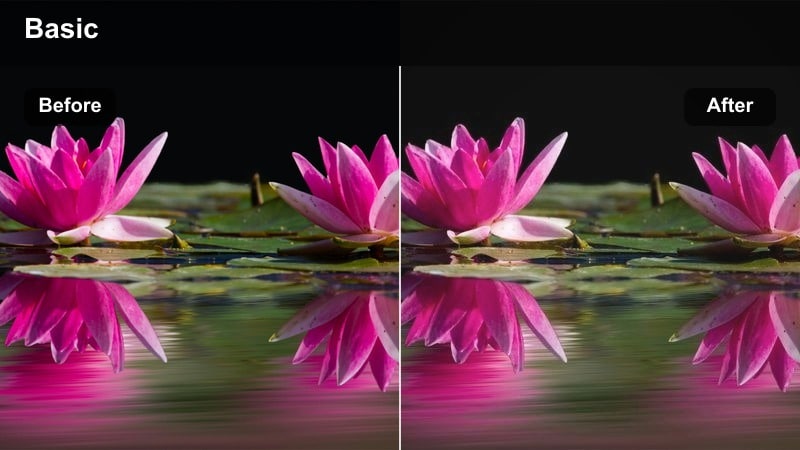
- Effect look: Dreamy, low-contrast film look with subtle halation around highlights.
- Best for: Engagement shoots, wedding couple portraits, and slow-motion B-roll at dusk.
- Editing tip: Lower clarity slightly and add a gentle vignette to draw attention toward faces while keeping the frame hazy.
Hazy Romantic Soft is ideal for S5 footage that already features backlighting or practical lights in the frame, because the filter lightly blooms highlights and rolls off contrast for a dreamy, pastel feel. Apply it after your base LUT, then reduce global contrast in Filmora so the filter's soft halation effect does not crush dark areas or make midtones muddy.
To keep your subject at the center of attention, slightly reduce clarity, add a subtle vignette, and adjust midtone saturation just enough to keep skin healthy-looking. If the sky or background lights become too bright, nudge highlights down before applying any additional glow effects so you maintain detail while still getting that cinematic haze.
Golden Film Matte
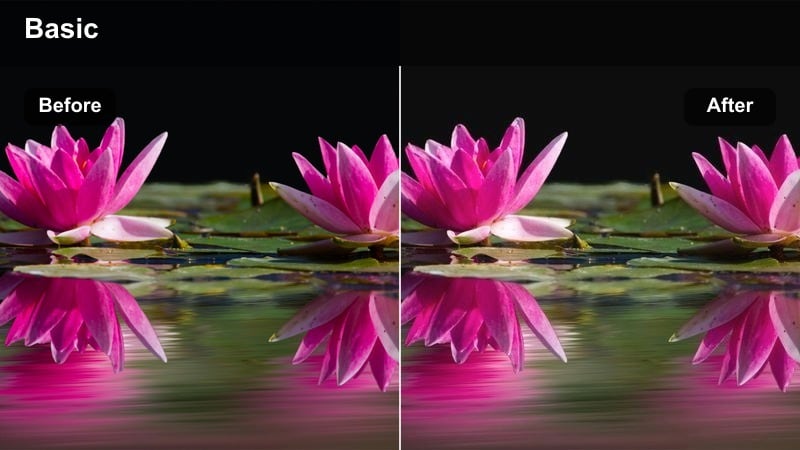
- Effect look: Matte shadows with warm midtones and gentle film-like grain.
- Best for: Narrative short films, character intros, and handheld city portraits at late afternoon.
- Editing tip: Raise the black level slightly and lower overall contrast to keep the cinematic matte effect from crushing fine details.
Golden Film Matte lifts the blacks and infuses the midtones with a subtle warmth that feels like scanned negative, making it a strong choice for story-driven S5 sequences. Use it on clips with textured backgrounds, like brick walls or city streets, so the added film-style grain and softer contrast enhance the mood without overwhelming clean, minimal sets.
In Filmora, control the matte strength by adjusting the shadows and blacks sliders until you see detail in dark clothing and hair while the histogram still shows a gentle lift from true black. If colors start to look too vintage or faded, introduce a small amount of midtone contrast and selectively boost saturation in key hues, such as skin and environment tones, to strike a balance between filmic and modern.
Night City Neon and Moody Street Scenes
Neon Teal Noir
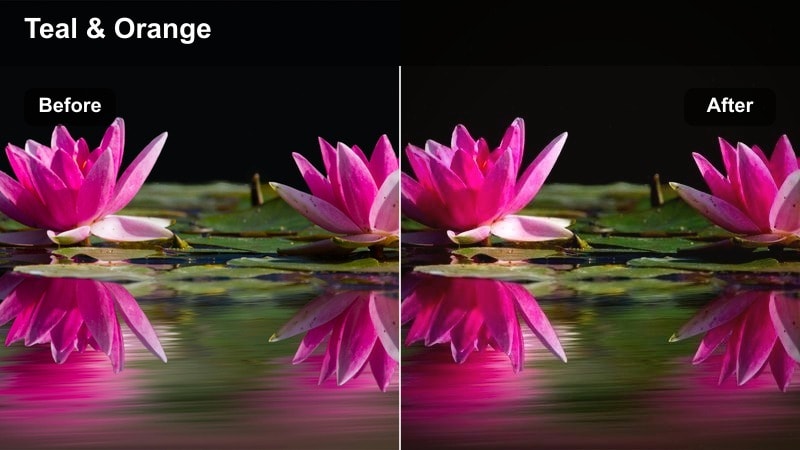
- Effect look: High-contrast teal and cyan push with deep cinematic shadows for neon-lit streets.
- Best for: Rainy night city B-roll, cyberpunk-style walk-and-talks, and reflective storefront shots.
- Editing tip: Use selective color to keep skin tones neutral so the teal shift only affects ambient city light and reflections.
Neon Teal Noir is designed to push Panasonic S5 night footage toward a stylized cyberpunk aesthetic with rich teals, saturated signage, and moody blacks. Apply it to scenes with plenty of colored lights and reflective surfaces, such as wet streets or glass windows, so the teal and cyan shift has enough material to transform without relying on heavy global saturation.
Inside Filmora, protect skin tones by using HSL controls to desaturate aquas while leaving oranges and reds closer to neutral, preventing faces from turning cyan. If shadows become too dense and lose detail when you add contrast, lift blacks just slightly and add a subtle fade, giving you a polished neon look that still retains texture in clothing and backgrounds.
Urban Crimson Dramatic
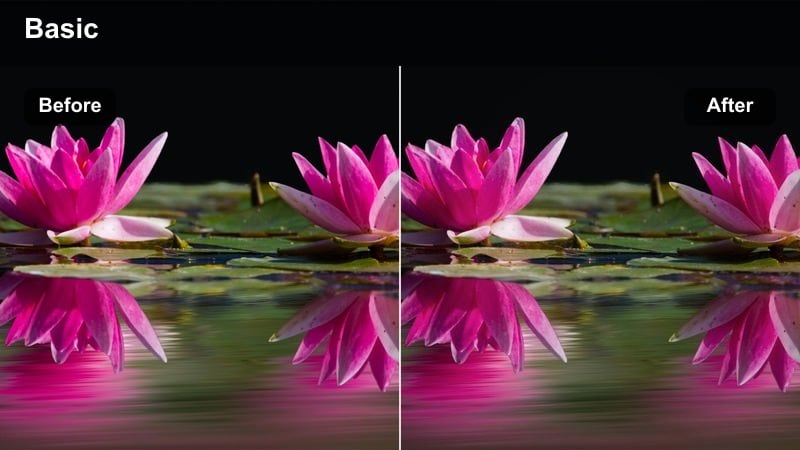
- Effect look: Bold reds and magentas with crushed shadows and punchy contrast for gritty city sequences.
- Best for: Alleyway scenes, music videos, and intense dialogue moments in underground locations.
- Editing tip: Drop saturation in greens to emphasize red and magenta neon signs and keep the scene focused on dramatic highlights.
Urban Crimson Dramatic leans heavily into red and magenta channels, giving Panasonic S5 alleyway or nightclub scenes a gritty, high-energy tone that works well for music videos and edgy shorts. It pairs best with footage that already includes red signage, brake lights, or colored LED tubes, because it intensifies existing hues rather than creating color where none exists.
When you apply this filter in Filmora, keep an eye on your waveform to prevent neon signs and practicals from clipping; lower highlights slightly before dialing in extra contrast. Desaturate greens and cyans to simplify the palette, and if skin tones get lost in the crimson shift, selectively reduce magenta in the HSL panel so faces separate from the background while the environment stays bold and dramatic.
Rainy Street Cinematic
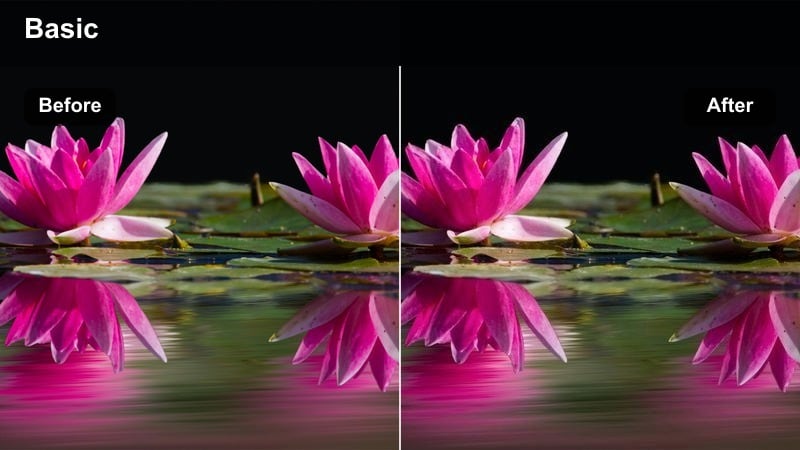
- Effect look: Cool, reflective look with emphasized specular highlights and subtle blue shadows.
- Best for: Wet pavement B-roll, reflections in puddles, and handheld tracking shots along busy roads.
- Editing tip: Add a slight blur or glow to specular highlights and keep midtones clean to make reflections pop without muddying the scene.
Rainy Street Cinematic cools down your Panasonic S5 night footage and accentuates reflections, making wet pavement and puddles feel glossy and three-dimensional. Use it on clips where car lights, billboards, or storefronts bounce off the ground, because the filter subtly deepens blues in the shadows while brightening highlight streaks for a moody, big-city vibe.
In Filmora, apply a gentle glow or small-radius blur to specular highlights after the filter to make light trails smoother without softening the entire frame. Keep midtones relatively clean and avoid over-boosting saturation, then nudge clarity up just enough to separate reflections from nearby dark areas, resulting in a cinematic look that still reads clearly on smaller mobile screens.
Daytime Travel Vlogs and Cityscape Views
Clean Travel Documentary
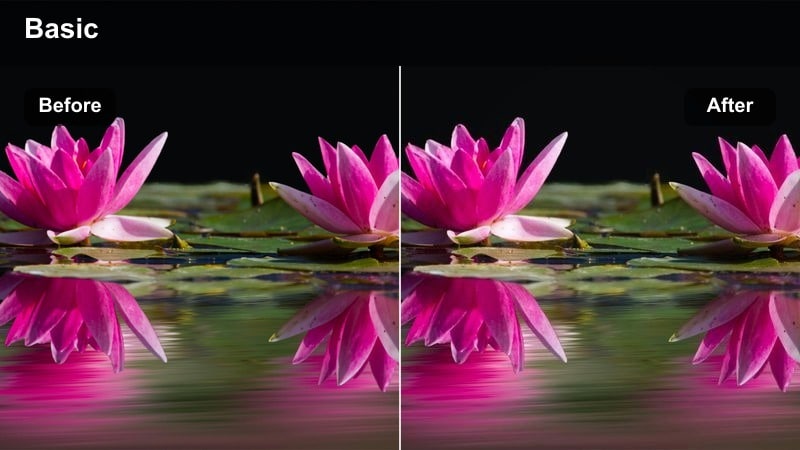
- Effect look: Neutral, slightly cinematic contrast with accurate colors and a soft highlight roll-off.
- Best for: Travel vlogs, handheld walk-throughs, and documentary-style city exploration.
- Editing tip: Dial back saturation a bit and protect whites so buildings and skies look realistic but still cinematic.
Clean Travel Documentary is a restrained, broadcast-ready look that keeps Panasonic S5 travel footage natural while adding just enough contrast and roll-off to feel cinematic. It is perfect for creators who want to showcase the real colors of cities, landscapes, and food without the heavy stylization that can distract from storytelling or misrepresent locations.
In Filmora, apply this filter first, then slightly reduce overall saturation and lower whites if clouds and bright walls are edging toward clipping. Use minor temperature adjustments on a clip-by-clip basis to correct shifts from shade to direct sun, maintaining a uniform color balance across your entire vlog or travel series.
Soft Urban Pastel
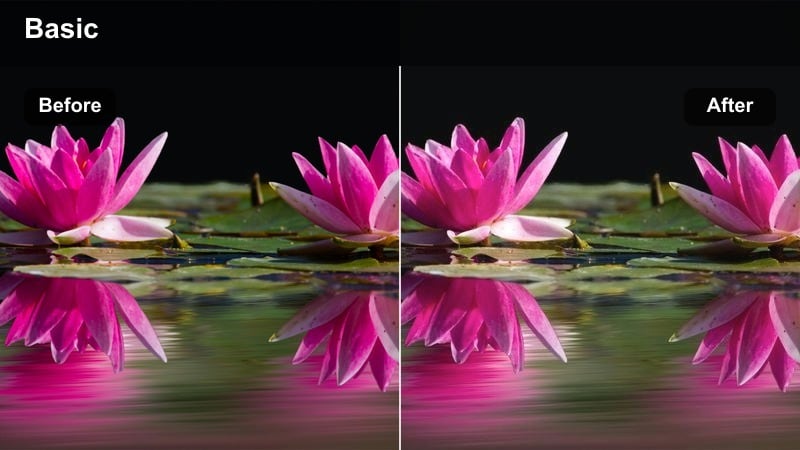
- Effect look: Desaturated pastel palette with lifted blacks for a calm, lifestyle vlog feel.
- Best for: Minimalist city cafes, co-working spaces, and aesthetic B-roll around modern architecture.
- Editing tip: Raise shadows slightly and reduce vibrance more than saturation to keep colors gentle but not washed out.
Soft Urban Pastel transforms S5 footage into a relaxed, lifestyle-friendly aesthetic by softening contrast and gently muting strong colors into airy pastels. It works especially well for content shot in modern, neutral environments, like cafes or co-working spaces, where subtle interior colors and clean lines benefit from a light, editorial-style grade.
After applying this filter in Filmora, lift shadows a little to maintain that floated-black look while ensuring there is still enough separation between tones. Instead of aggressively cutting saturation, reduce vibrance first so dominant hues calm down but key details such as brand colors, skin tones, or hero objects remain recognizable and pleasing.
Punchy City Contrast
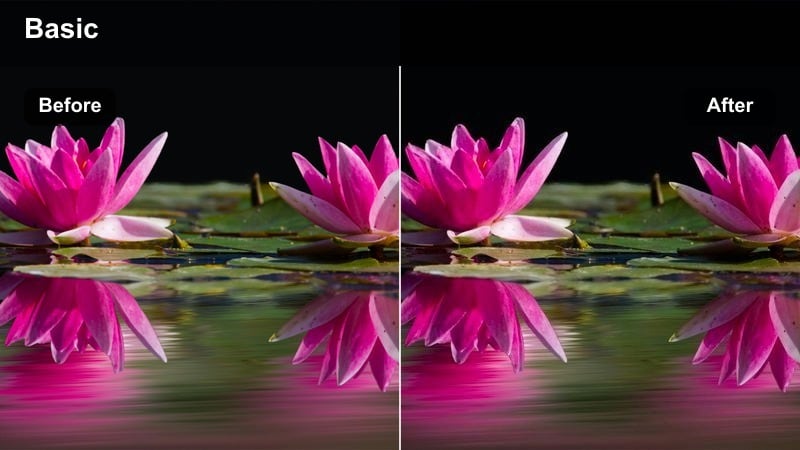
- Effect look: High-contrast, saturated city look with crisp edges and vibrant skies.
- Best for: Tourism promos, city timelapses, and handheld street B-roll with lots of signage.
- Editing tip: Avoid over-saturating reds and blues; keep them just below clipping to maintain detail in billboards and street art.
Punchy City Contrast is built for bold daytime S5 footage where you want buildings, billboards, and skies to look vivid and energetic. The filter adds strong contrast and saturation with a clean, modern finish that suits tourism promos, vertical social content, and fast-paced B-roll of busy city streets.
In Filmora, keep an eye on red and blue channels after applying the filter so street art, flags, and signage retain their fine details instead of turning into flat blocks of color. If edges start to look too crispy, reduce any prior sharpening in-camera or in post, then reintroduce a small boost of clarity to keep the image lively without creating halos or noise.
Indoor Studio Scenes and Creative B-Roll
Warm Studio Interview
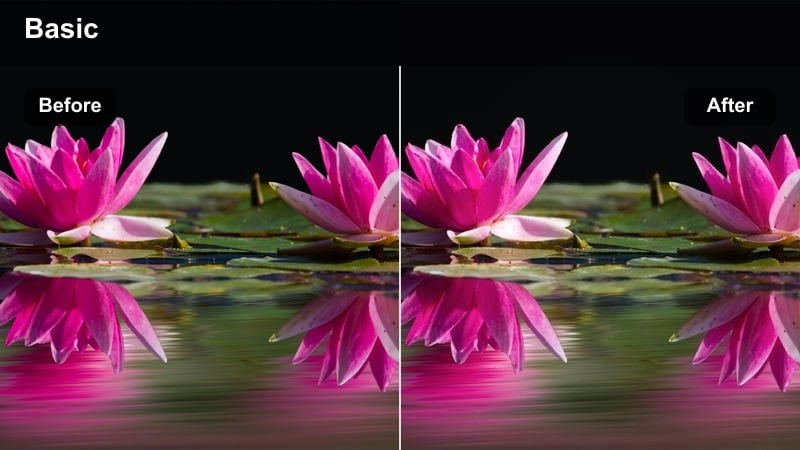
- Effect look: Soft, warm tones with gentle contrast tuned for skin-friendly studio lighting.
- Best for: YouTube sit-down videos, podcasts, and educational content shot on the Panasonic S5.
- Editing tip: Fine-tune the white balance first, then add this filter and adjust midtones to keep skin tones flattering and natural.
Warm Studio Interview is optimized for controlled lighting setups, giving Panasonic S5 talking-head footage a cozy, professional presence. It warms skin tones, slightly softens contrast, and keeps backgrounds modest so your subject stays the visual priority for tutorials, interviews, or course videos.
When grading in Filmora, correct white balance before applying the filter so it enhances, rather than fixes, your lighting choices. Afterward, tweak midtones to keep skin smooth and natural, and if the background feels too warm, selectively cool down yellows in the HSL panel so the subject remains inviting without the entire frame skewing orange.
Cool Tech Setup
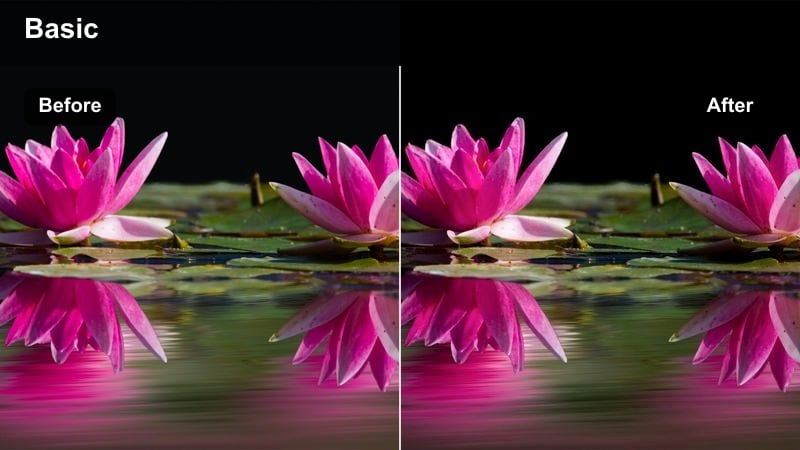
- Effect look: Cool, sleek color grade that emphasizes blues and cyans for tech desk shots.
- Best for: Desk setups, product B-roll, and monitor-lit scenes with gadgets and screens.
- Editing tip: Reduce saturation in greens and subtly boost blues to highlight LED accents and screen glows.
Cool Tech Setup gives Panasonic S5 desk and product shots a futuristic, studio-tech finish by emphasizing blue tones and polishing contrast. It is particularly effective in scenes with RGB lighting, monitors, and metallic surfaces, where the added coolness and clarity help products stand out against a darker environment.
In Filmora, combine this filter with a small reduction in green saturation to avoid color casts on walls or desktop surfaces, then gently boost blues so LED strips and screens become the visual focus. Add a subtle vignette to pull attention toward the main device, and keep sharpening moderate so fine text on screens remains legible without introducing digital harshness.
Creative Object Macro
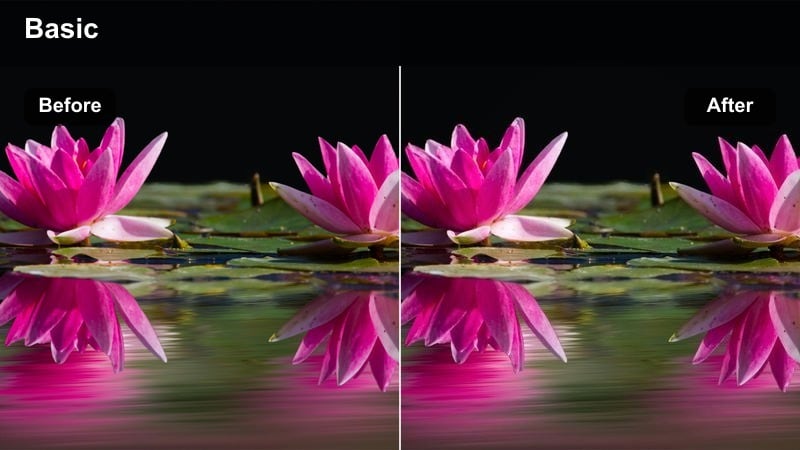
- Effect look: High-detail, low-contrast grade with subtle focus on texture and depth.
- Best for: Macro shots of everyday objects, product close-ups, and slow cinematic pans over gear.
- Editing tip: Lower contrast slightly and add a gentle sharpen to highlight the Panasonic S5's fine detail rendering.
Creative Object Macro is a subtle finishing filter that enhances the fine detail and texture captured by the Panasonic S5 in close-up work. It keeps contrast relatively low so you can see into tiny shadows on surfaces, making it ideal for product showcases, gear b-roll, and tactile shots of materials like leather, metal, or fabric.
Apply the filter in Filmora, then reduce overall contrast a touch while introducing a modest amount of sharpening to bring out micro-detail without creating halos. If color feels too intense at macro distances, slightly pull back saturation and rely on lighting and focus transitions to add drama, using the filter primarily as a polish for clarity and depth.
Tips for Using Panasonic S5 Cinematic Luts Filters in Filmora
- Shoot Panasonic S5 footage in a flat profile like V-Log or Cine-D to capture more dynamic range before applying cinematic filters or LUTs.
- Set and maintain consistent white balance in-camera so your Panasonic S5 LUTs and Filmora filters behave predictably across the entire project.
- Monitor skin tones carefully when using teal-and-orange or heavy neon looks, correcting them locally with HSL if they drift too far from natural.
- Apply noise reduction to high-ISO S5 night footage before sharpening and filters so you do not exaggerate grain or compression artifacts.
- Use Filmora's AI color matching as a base, then refine the grade with scene-appropriate Panasonic S5 cinematic filters for each location.
- Save custom presets that pair your favorite Panasonic S5 LUT with complementary Filmora filters and reuse them for recurring series or client brands.
- Test each filter on a short S5 clip from the same scene before batch-applying it to ensure highlights, shadows, and skin tones stay under control.
With the right blend of Panasonic S5 cinematic LUTs and Filmora filters, you can move from flat, log-looking clips to polished, story-driven visuals in just a few clicks. Treat your LUTs as the technical bridge from V-Log or Cine-D to Rec.709, then let Filmora's filters and grading tools shape mood, color separation, and perceived depth.
Experiment with these scene-based looks, refine them for your own brand, and then build a repeatable grading workflow that keeps every S5 project consistent and cinematic from import to export. As you grow your library of custom presets, you will be able to spend less time matching shots and more time directing performance, composition, and storytelling.
secure downloadNext: Panasonic GH5 Vlog LUTS
