

 100% Security Verified | No Subscription Required | No Malware


 ChatGPT
 Perplexity
 Gemini
 Claude
 Grok
Grok
Clean, flattering selfie video is all about smoothing skin, softening tones, and still keeping your eyes and details sharp. With the right selfie video filters in Filmora, you can upgrade daily vlogs and front camera clips in seconds.
This preset collection focuses on subtle, natural beauty looks: gentle skin retouching, soft color shifts, and eye-catching light that stays true to your style. Use these ideas as starting points to build your own favorite selfie video filters for YouTube, Reels, and everyday content.
In this article
Natural Soft Glow Filters for Everyday Selfies
Soft Skin, Clean Detail
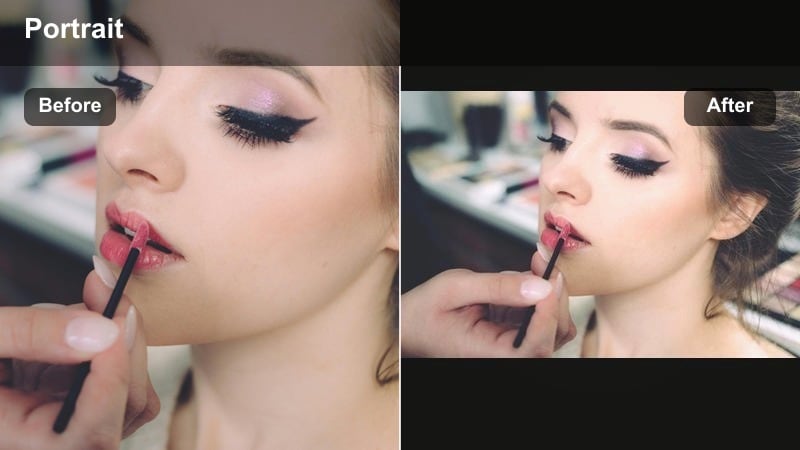
- Effect look: Gentle skin smoothing with sharp eyes and hair detail for a polished yet real-life selfie aesthetic.
- Best for: Daily vlog check-ins, casual front camera clips, talking-to-camera Instagram Stories and Reels.
- Editing tip: Lower the blur or skin-smoothing amount until pores are still slightly visible to avoid a plastic or overly airbrushed look.
This balanced beauty filter is perfect when you want to look refreshed without hiding what makes your face unique. In Filmora, combine light skin smoothing with a touch of sharpening on the eyes and hair so your selfie feels clean and HD-ready while still looking like real skin.
Use it as your go-to base filter for most front camera clips. Apply the effect, zoom in to 100 percent, and gently reduce strength until freckles, fine lines, and pores are still visible. This gives your daily vlogs a consistent, professional polish while staying authentic on both phones and larger desktop screens.
Let AI Suggest the Best Selfie Color Mood
Filmora s AI tools can read your selfie frame and suggest color moods that match your skin tone, outfit, and background. This is a fast way to find a clean, cohesive look for all your daily vlog clips.
Use AI to generate a base palette, then fine-tune warmth, tint, and saturation so your front camera filter feels unique to your channel and still looks natural on skin.
Try running one selfie clip through AI first, then copy those color settings to the rest of your vlog for an instant, consistent filter.
 secure download

Preview Selfie Filters in Real Time
Filmora lets you stack and switch selfie video effects quickly, so you can compare soft-glow, matte, and bright beauty looks on the exact same clip.
Toggle filters on and off, adjust strength sliders, and scrub the timeline to be sure your face looks clean and flattering in motion, not just in one paused frame.
Record a 10-second test selfie and use it as your go-to preview clip whenever you are building a new filter combination.
secure downloadSave Your Favorite Selfie Looks as Presets
Once you dial in your ideal selfie video filters, save the combo as a custom preset so you can apply it in one click to new vlogs and front camera clips.
You can even layer your preset over different lighting setups and tweak just exposure and white balance, keeping your overall beauty style identical across videos.
Create a preset named Selfie Video Filters: Clean Face Detail and Soft Tone so you can instantly recall your signature look in future edits.
secure downloadSoft Cream Vlog
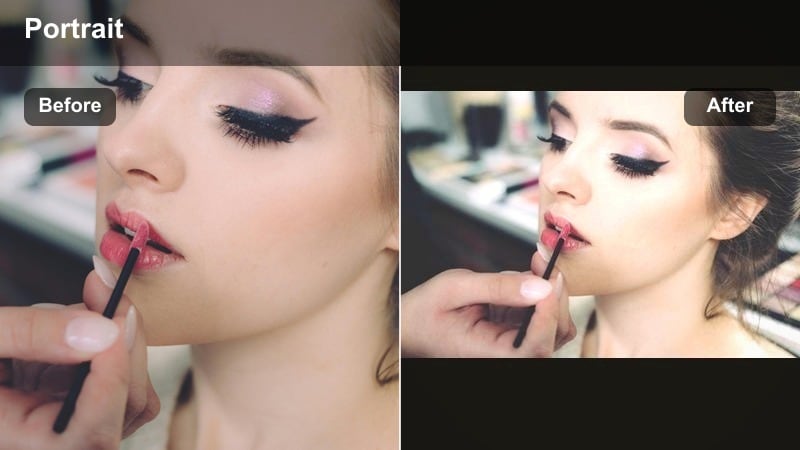
- Effect look: Warm creamy tone with mild contrast, smoothing harsh shadows for a cozy, vlog-style selfie mood.
- Best for: Bedroom chats, morning routine content, low-contrast daily lifestyle clips filmed with the front camera.
- Editing tip: Pair this filter with slightly reduced highlights and boosted midtones to add a gentle glow to your face without overexposing your skin.
Soft Cream Vlog wraps your selfie in a subtle, cozy warmth that looks great on morning routines and late-night chats alike. In Filmora, combine a light warm color cast with reduced contrast so shadows on your cheeks and under your eyes look softer on camera.
Use it whenever your lighting feels a little harsh or flat. Slightly drop highlights, lift midtones, and then adjust white balance so your skin does not go too orange. This creates a comforting, diary-style vlog atmosphere that feels intimate without sacrificing clarity.
Matte No-Makeup Look
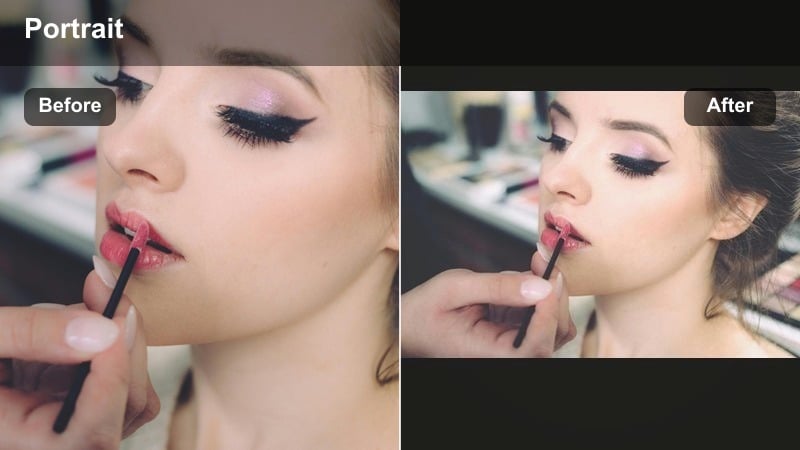
- Effect look: Soft matte finish that de-shines the T-zone and calms redness while keeping lips and eyes defined.
- Best for: No-makeup makeup days, quick front camera updates, wellness and self-care vlog segments.
- Editing tip: Use a subtle vignette and pull saturation down just a touch to reinforce the clean, low-drama mood.
The Matte No-Makeup Look filter is ideal when you want your skin to appear calm and even without a glam finish. In Filmora, gently reduce highlights and saturation in the T-zone, then slightly increase clarity around your eyes and brows so your expression still stands out.
Pair this style with minimal color grading for honest, grounded content like wellness check-ins or candid life updates. A soft vignette and slightly muted saturation keep the mood simple and distraction-free while you talk directly to your audience.
Bright Clean Beauty Filters for Polished Selfie Videos
Studio Beauty Boost
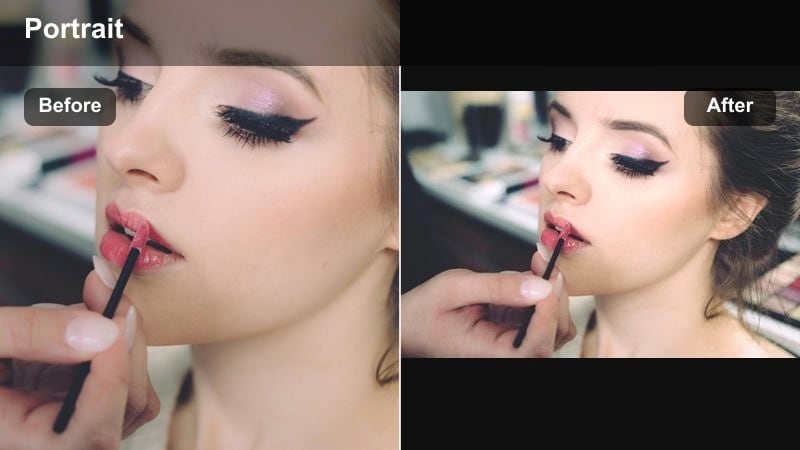
- Effect look: High-key, bright filter that lifts exposure, refines skin, and adds subtle pop to eyes and hair highlights.
- Best for: Beauty tutorials, product shoutouts, sponsored selfie clips, and thumbnail-ready moments.
- Editing tip: Keep contrast gentle and rely on local sharpening for the eyes and lips so your face looks crisp but never harsh.
Studio Beauty Boost mimics a softbox-lit studio, even if you are filming on a phone in your bedroom. Use Filmora to slightly raise exposure, brighten skin, and add a gentle sheen to eyes and hair so your selfie looks professional and brand-ready.
This filter works especially well for makeup details, skincare routines, and sponsored posts. Keep contrast moderate to avoid harsh edges, then apply selective sharpening on your eyes, lash line, and lips to make key features stand out in thumbnails and close-ups.
Glass Skin Glow
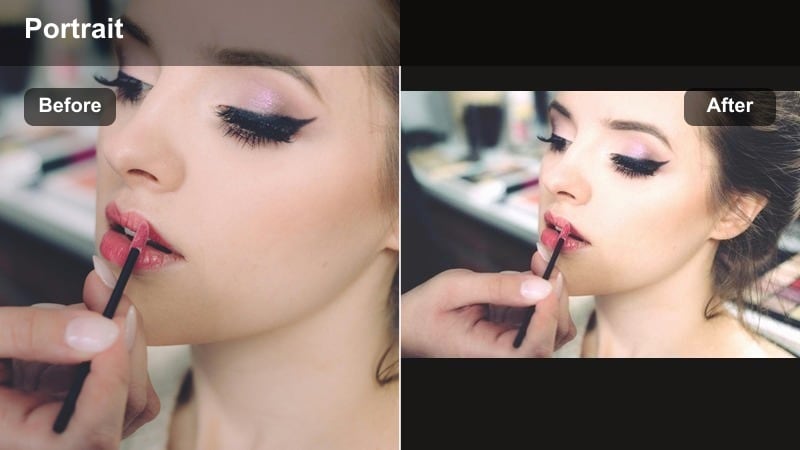
- Effect look: Sheer, luminous finish that adds soft highlight to high points of the face and a delicate, dewy sheen.
- Best for: K-beauty inspired content, skincare routines, glow-up transformation selfies and Reels.
- Editing tip: Use a radius-limited glow or bloom effect around your cheekbones and nose bridge to keep the glow in targeted zones.
Glass Skin Glow is designed to make your complexion look hydrated and lit from within. In Filmora, add a subtle bloom effect and raise highlights only on targeted areas like cheekbones, the nose bridge, and cupid s bow for that glass-skin illusion.
To keep it flattering, combine the glow with a small contrast reduction and careful masking so your T-zone does not look oily. This style is perfect for skincare demos and glow-up edits where dewy radiance is the focus.
HD Beauty Detail
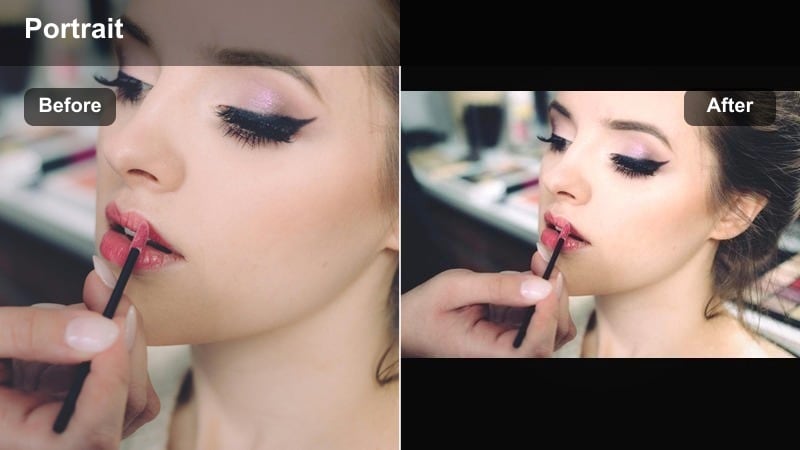
- Effect look: Fine-tuned filter that cleans up minor blemishes and uneven tone while sharpening lashes and brows.
- Best for: Close-up makeup demos, lash and brow content, 4K selfie videos where every detail shows.
- Editing tip: Use selective sharpening on the eyes and lips while reducing clarity just slightly on mid-cheek areas.
HD Beauty Detail is built for high-resolution selfie videos where viewers can see everything. Use Filmora to soften blemishes and uneven tone with light skin retouching, then emphasize lashes, brows, and lip edges so your makeup work appears crisp at any resolution.
When editing, preview at 100 percent zoom and adjust sharpening to match your final export resolution. A slight reduction in cheek clarity keeps skin flattering, while a focus on eye and brow detail ensures your beauty content looks pro-level even on large screens.
Soft Color Tone Filters for Aesthetic Selfies
Pastel Daylight Selfie
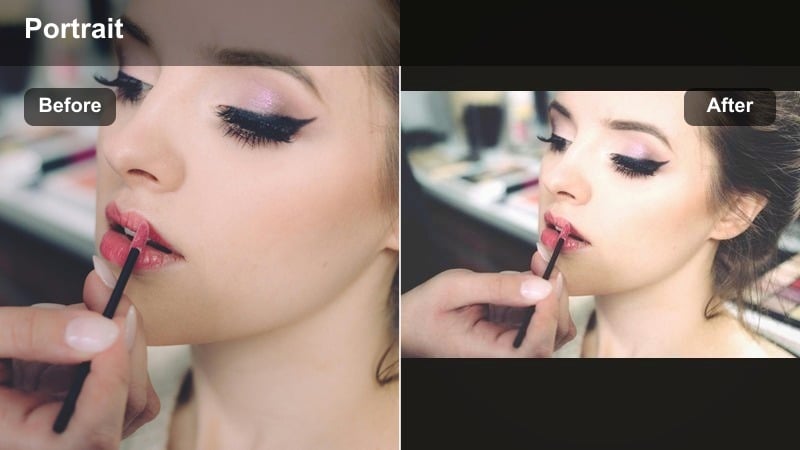
- Effect look: Light pastel color grade that mutes strong colors in the background while keeping skin softly warm and clean.
- Best for: Daily outdoor vlogs, coffee runs, park walks, and window-light front camera clips.
- Editing tip: Lower saturation in blues, greens, and yellows just a bit while keeping orange and red near normal for natural skin.
Pastel Daylight Selfie reduces loud background colors so your face stays the hero of the frame. In Filmora, slightly desaturate blues, greens, and yellows while preserving orange and red tones for realistic but flattering skin.
Use this when filming outside cafes, parks, or city streets where signage and clothing can be distracting. The pastel shift calms the scene, giving your vlog a soft, aesthetic vibe without making skin look faded or washed out.
Soft Rose Beauty
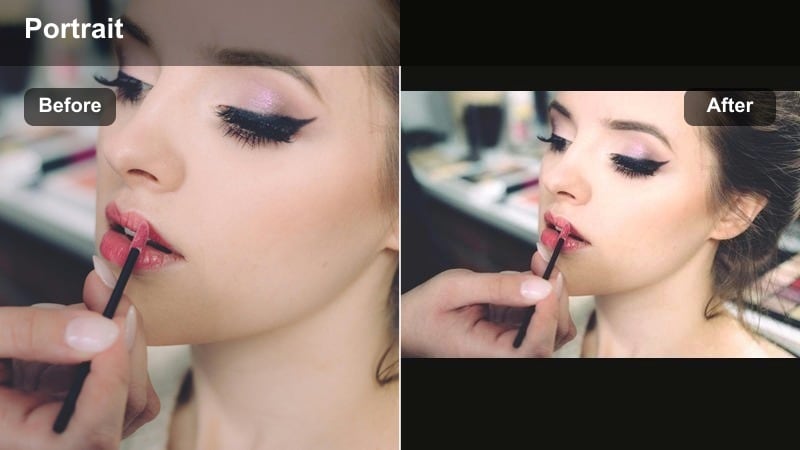
- Effect look: Gentle rose tint that adds a subtle blush effect to cheeks and lips with slightly cooler shadows.
- Best for: Romantic GRWM clips, date-night transitions, soft-aesthetic front camera scenes.
- Editing tip: Use a mask to reduce the rose tint in white areas like walls so only your face and wardrobe carry the color mood.
Soft Rose Beauty builds a natural, romantic blush into your selfie video without heavy makeup. In Filmora, introduce a mild rose tint in the midtones so cheeks and lips look softly flushed while keeping shadows a touch cooler for balance.
Apply it for GRWM, outfit transitions, or date-night storytelling. Use masks or HSL controls to pull pink out of white walls and bright backgrounds so the rosy vibe stays focused on your skin and clothing, not the entire frame.
Peachy Soft Vlog
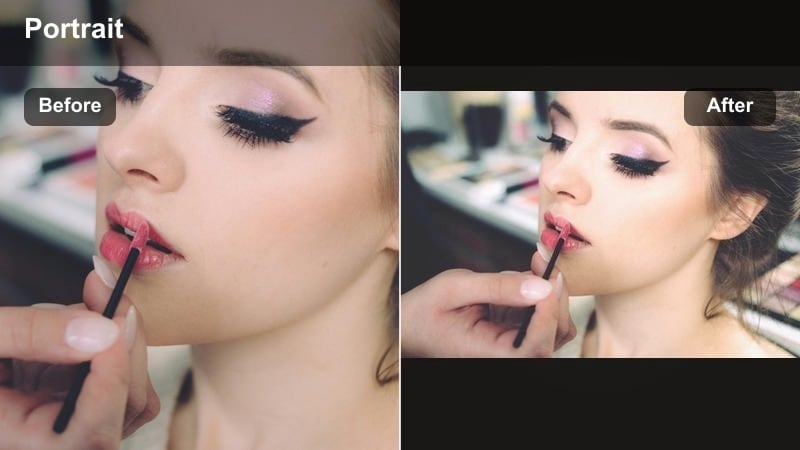
- Effect look: Warm peach tint that brightens skin and softens under-eye shadows for fresh, awake selfie vibes.
- Best for: Morning vlogs, gym check-ins, day-in-my-life selfie updates shot on the front camera.
- Editing tip: Combine the filter with a mild under-eye brightening mask rather than boosting exposure across your entire face.
Peachy Soft Vlog adds a light, energetic warmth that makes you look more awake on camera. In Filmora, layer a gentle peach tone over skin and selectively brighten the under-eye area so dark circles look softer without blowing out the rest of your face.
This filter shines in quick check-ins filmed in less-than-ideal lighting, like early mornings or post-workout clips. Keep peach saturation controlled and adjust HSL so hair, outfits, and backgrounds stay natural while skin looks fresh and healthy.
Low-Light and Fix-Up Filters for Tricky Selfie Clips
Night Soft Clean
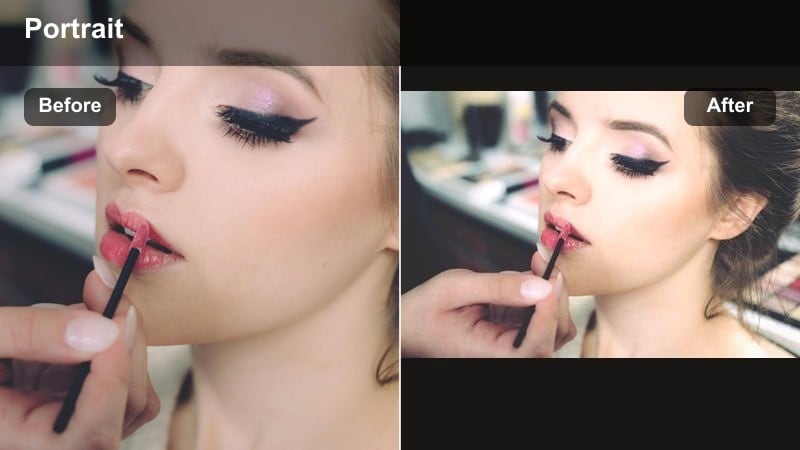
- Effect look: Noise-friendly filter that gently smooths grain, lifts shadows, and warms skin in dim or mixed lighting.
- Best for: Evening car talks, city-walk vlogs, bedroom shots lit by a lamp or LED strip lights.
- Editing tip: Use denoise before adding sharpening, and keep exposure increases small to avoid muddy low-light skin.
Night Soft Clean is designed to rescue grainy, dim selfie clips without making your face look waxy. In Filmora, apply noise reduction first, then slightly lift shadows and warm up skin tones so your expression is visible and flattering in low light.
Use it for car chats, neon-lit city walks, or cozy lamp-lit vlogs. Push denoise only until the grain softens, then add a hint of sharpening back to eyes and hair so your features remain readable even when the background stays dark.
Window Backlight Fix
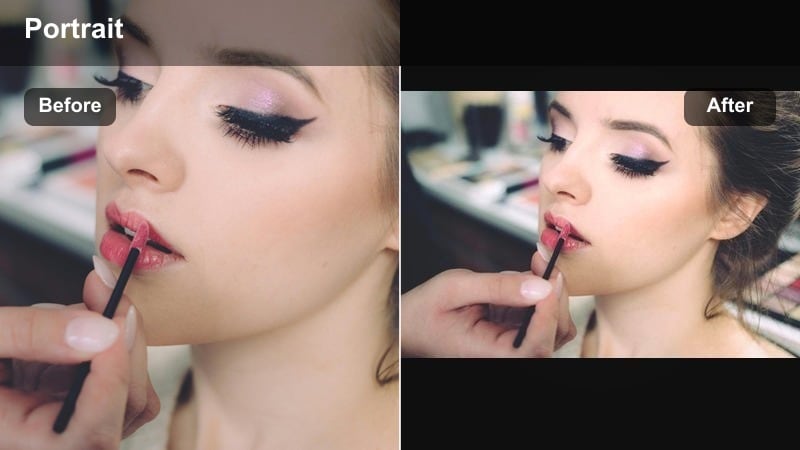
- Effect look: Corrective filter that darkens bright backgrounds and brightens your face for backlit selfie situations.
- Best for: Front camera clips filmed in front of a window, bright doorways, or strong daylight behind you.
- Editing tip: Use a face detection mask to lift exposure and shadows on your face only, leaving the background slightly darker.
Window Backlight Fix helps when your background is much brighter than your face. In Filmora, use face detection masks or manual masking to selectively brighten your skin and eyes while gently pulling down highlights in the window area.
This keeps your face from falling into silhouette while still preserving some detail outside. It is ideal for desk vlogs, travel updates in hotels, or any moment where you are sitting with strong daylight behind you.
Quick Blemish Softener
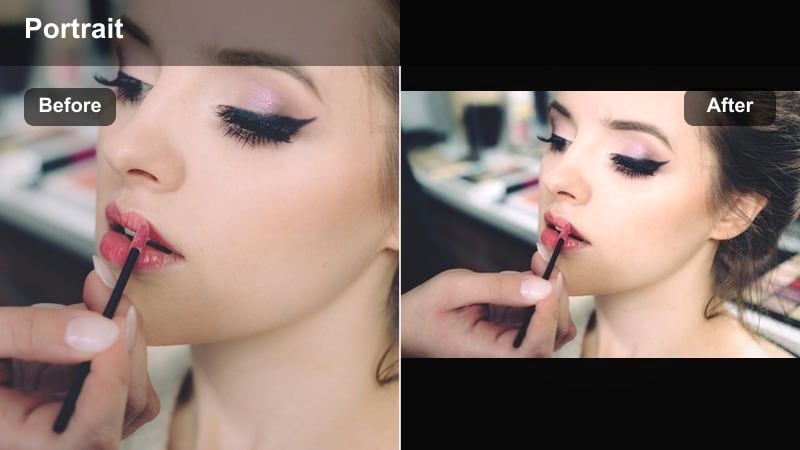
- Effect look: Targeted softening that reduces the appearance of blemishes and texture while leaving most of the frame untouched.
- Best for: Last-minute selfie clips on breakout days, zoomed-in front camera confessions, or rushed vlog segments.
- Editing tip: Use small, feathered masks to tap softly over only the problem areas instead of blurring your entire face.
Quick Blemish Softener is for days when you want to film but do not want a breakout to steal focus. In Filmora, drop small, feathered masks over specific spots and reduce texture just enough that they blend into the surrounding skin.
Because you are treating only small areas, the rest of your face stays sharp and natural. This approach keeps your overall selfie style consistent while giving you a confidence boost for close-up, to-camera moments.
Tips for Using Selfie Video Clean Filters in Filmora
- Film your selfie videos in bright, soft light first, then use filters to polish the look instead of trying to fix heavy shadows later.
- Keep filter strength slightly lower than you think you need so your selfie videos look clean on both small phones and large desktop screens.
- Always check how your front camera filter looks on different skin tones, lip colors, and outfits if you collaborate or feature guests.
- Record a few seconds of natural movement, like talking and turning your head, to make sure skin smoothing stays subtle during motion.
- Use separate layers or masks for face and background so you can refine skin without blurring everything behind you.
- If you create content for YouTube and Shorts, test your selfie filter on both horizontal and vertical exports before finalizing.
Clean, flattering selfie video filters are less about heavy retouching and more about soft tone, controlled color, and just enough smoothing to feel confident on camera.
Use these Filmora filter ideas as a starting pack, then refine the warmth, detail, and glow until you have a signature selfie look you can drop onto every daily vlog and front camera clip in seconds.
secure downloadNext: Best Selfie Video Filters for YouTube and Long-Form Content
