

 100% Security Verified | No Subscription Required | No Malware


 ChatGPT
 Perplexity
 Gemini
 Claude
 Grok
Grok
If your selfie Reels look flat or overexposed, the right filters can instantly fix skin tone, boost contrast, and give your clips a consistent aesthetic without heavy manual editing.
Below are 12 selfie video filters for Reels inside Filmora that help Reels creators and social video editors turn quick selfie edits and day-in-my-life clips into polished, engaging content in a few taps.
In this article
Soft Skin Glow Filters for Friendly Selfie Reels
Peach Soft Glow
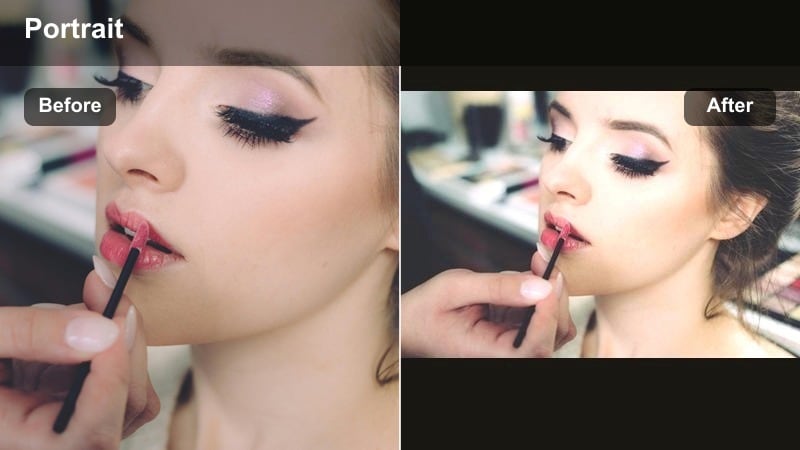
- Effect look: Soft, warm skin tones with gentle highlight bloom
- Best for: Talking-to-camera Reels in natural window light
- Editing tip: Dial filter intensity to around 60–70% to keep pores visible and avoid a plastic skin look.
A flattering soft-focus filter that warms skin and subtly brightens midtones for casual selfie Reels. Peach Soft Glow works especially well on clips shot in indirect window light, softening small imperfections while keeping your facial features recognizable and sharp.
In Filmora, drop Peach Soft Glow onto your selfie layer, then adjust the intensity slider until your skin looks creamy but still textured. If your background is mostly cool or gray, slightly raise saturation on warm colors so your skin tone stands out without blowing out reds. Combine this filter with a light vignette to keep focus on your face, especially when shooting day-in-my-life clips in busy rooms.
AI-Powered Selfie Color Matching in Filmora
Filmora’s AI tools quickly balance exposure, white balance, and color so your selfie video filters for Reels sit on top of already corrected footage, not over harsh lighting mistakes. This gives Peach Soft Glow and similar filters a clean base so they enhance your look instead of fighting uneven tones.
Use AI to auto-correct your clip first, then apply your favorite filter to keep skin tones consistent across quick selfie edits and longer day-in-my-life sequences. Open your Reels project in Filmora, run AI auto-correction on your selfie clips, and then layer one of these filters to lock in a clean base look.
 secure download

See Selfie Filters in Action on Real Reels
Drop a short selfie video into Filmora and preview multiple filters side by side to compare how each one handles skin tone, contrast, and background color. This helps you see instantly whether a soft glow, bold contrast, or cinematic look fits the vibe of your Reel.
This makes it easy for Reels creators and social video editors to pick the right reels selfie filter for talking segments, b-roll, or hook frames without guesswork. Import a 10–15 second selfie clip and quickly audition several filters to find the strongest scroll-stopping look.
secure downloadTurn Favorite Selfie Filters into Reusable Looks
Once you find a combination of adjustments and filters that fits your brand, save it as a preset so you can apply the same short selfie video effect in one click on future projects. This keeps every new Reel on-brand without rebuilding color and contrast from scratch.
This workflow keeps your social clip filter style consistent across weekly Reels, story promos, and UGC edits without rebuilding the look every time. Save your go-to selfie filter combo as a preset in Filmora so every new Reel starts with your signature aesthetic.
secure downloadCreamy Pastel Soft
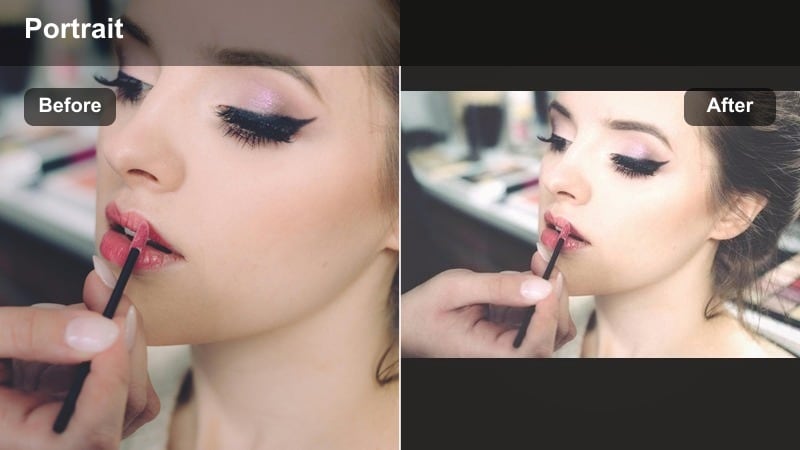
- Effect look: Low-contrast pastel tones with smoothed highlights
- Best for: Morning routine Reels, GRWM, and cozy bedroom selfies
- Editing tip: Lower contrast slightly and push vibrance instead of saturation to keep colors gentle but not washed out.
A dreamy pastel filter that makes quick selfie edits feel calm, airy, and aesthetic. Creamy Pastel Soft gently mutes strong colors so blankets, walls, and decor look cohesive while skin stays flattering and softly lit.
In Filmora, apply Creamy Pastel Soft across every clip in a multi-step morning routine so your Reel flows visually from shot to shot. If one clip is too dark, lift exposure before applying the filter so the creamy look stays consistent. Use vibrance to protect skin tones while keeping the bedroom palette smooth and aesthetic.
Natural Skin Balance
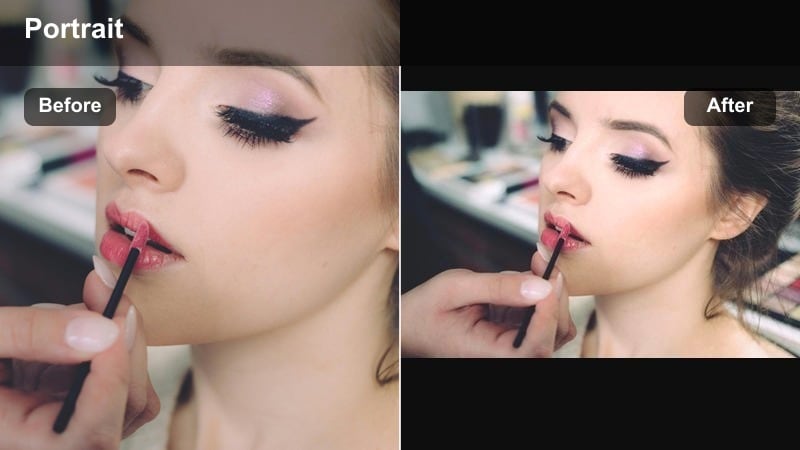
- Effect look: True-to-life skin tone with slightly brightened eyes and lips
- Best for: Professional-feel selfie intros, UGC review Reels, and branded content
- Editing tip: Use the filter first, then fine-tune white balance so your skin looks natural on both front and back camera clips.
A clean, realistic selfie filter that evens out skin tone while keeping detail and texture. Natural Skin Balance is ideal when brands want your face and the product to look accurate on camera without heavy beauty effects.
In Filmora, drop this filter on every speaking clip in your UGC Reel, then adjust white balance per clip so your skin tone matches between rooms and angles. After you like the look, save it as a preset so all future UGC or ad-style Reels keep the same skin tone balance paired with consistent lighting, like a ring light at 30–40 percent brightness.
High-Contrast Filters for Scroll-Stopping Selfie Reels
Urban Contrast Pop
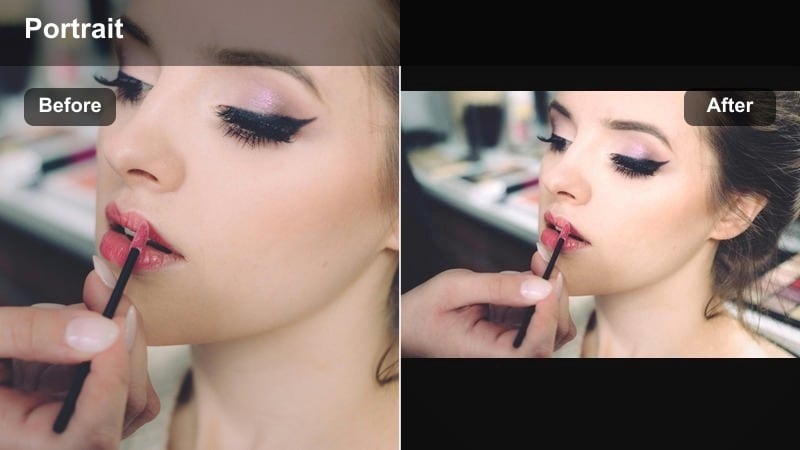
- Effect look: Punchy contrast with crisp edges and deeper shadows
- Best for: Fast-paced city walk Reels and night-out selfies
- Editing tip: Lower the filter intensity slightly for close-ups so facial shadows stay flattering, not harsh.
A bold city-inspired filter that adds strong contrast and clarity to make your selfie Reels stand out in the feed. Urban Contrast Pop carves out details in buildings, street signs, and outfits so your frame looks sharp and energetic.
In Filmora, apply this filter to both your A-roll selfie shots and B-roll street clips so the entire Reel feels unified. Keep exposure slightly under when filming to protect highlights, then let the filter lift midtones for extra pop. For tight close-ups, pull the intensity down so shadows do not become too hard on your face.
Reels Impact Contrast
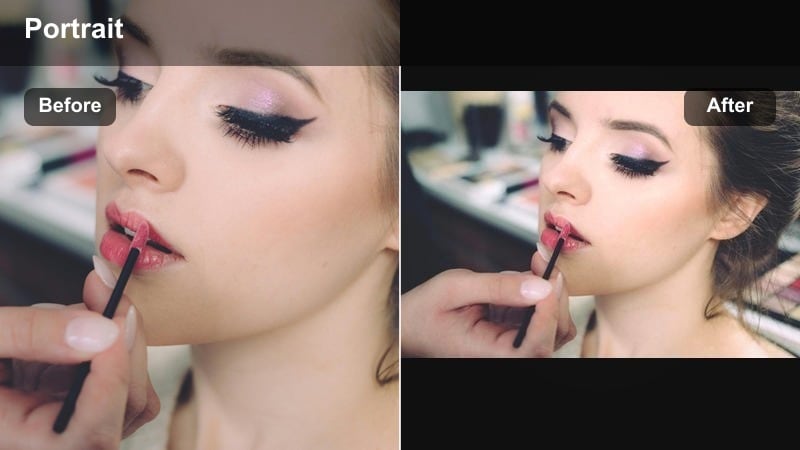
- Effect look: Intense micro-contrast and crisp midtones for face-focused frames
- Best for: Hook intros, strong expressions, and reaction selfie Reels
- Editing tip: Trim your first 1–2 seconds tightly, then use this filter to make the opening frame extra sharp and eye-catching.
A high-impact filter that sharpens facial features and adds drama to short selfie video effects. Reels Impact Contrast is designed to make your eyes, brows, and mouth ultra-readable, even when viewers are scrolling fast.
In Filmora, place this filter on your opening reaction clip and adjust the strength until lines and features feel bold but not over-sharpened. Add a freeze frame of your strongest expression for the cover image, and cut any dead time before you speak so the filter-enhanced look hits viewers the moment the Reel starts.
Neon Night Pop
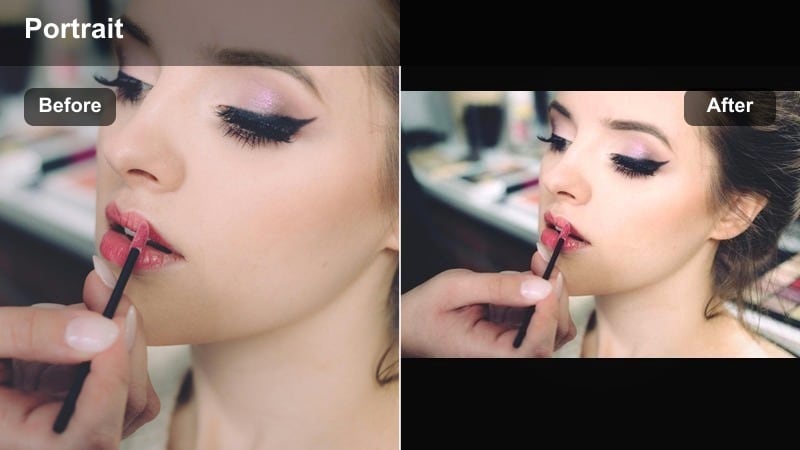
- Effect look: Vibrant neon colors with lifted shadows and glossy highlights
- Best for: Nightlife, concert, and city lights selfie clips
- Editing tip: Reduce saturation of a single dominant color (like magenta) if your skin picks up too much of the neon glow.
A nightlife-ready social clip filter that makes neon signs, LED strips, and city lights pop behind your selfie. Neon Night Pop boosts color intensity while lifting shadows so both your face and the background stay visible in low light.
In Filmora, combine Neon Night Pop with light noise reduction so dark areas look smooth on phone screens. If one neon color spills too much onto your skin, drop that specific hue slightly so your face stays natural while the background stays electric. Shooting near a softer light source, like a storefront window, lets the filter exaggerate neons without distorting your skin tone.
Cinematic Selfie Filters for Day-in-My-Life Reels
Warm Film Diary
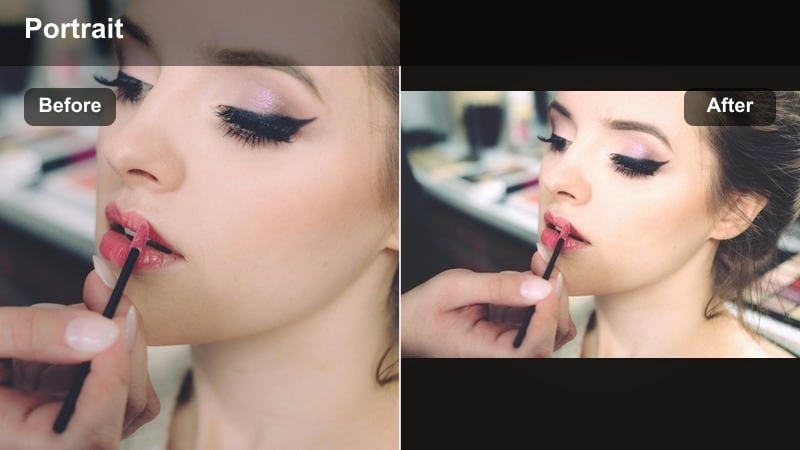
- Effect look: Subtle film-style warmth with gentle grain and softer highlights
- Best for: Day-in-my-life vlogs, coffee runs, and cozy apartment clips
- Editing tip: Keep grain low on front-camera clips so the image looks cinematic but not noisy on smaller phone screens.
A film-inspired filter that turns casual selfie moments into warm, nostalgic diary-style Reels. Warm Film Diary adds a soft amber cast and delicate grain so everyday shots feel like scenes from a movie.
In Filmora, apply this filter to both your selfie commentary and your b-roll of coffee cups, sidewalks, and desk setups so the entire vlog has one cohesive aesthetic. Trim each clip to 1–2 seconds and let the filter tie everything together into a smooth, cinematic daily Reel, adjusting grain strength to keep faces clean and flattering.
Cool Studio Matte
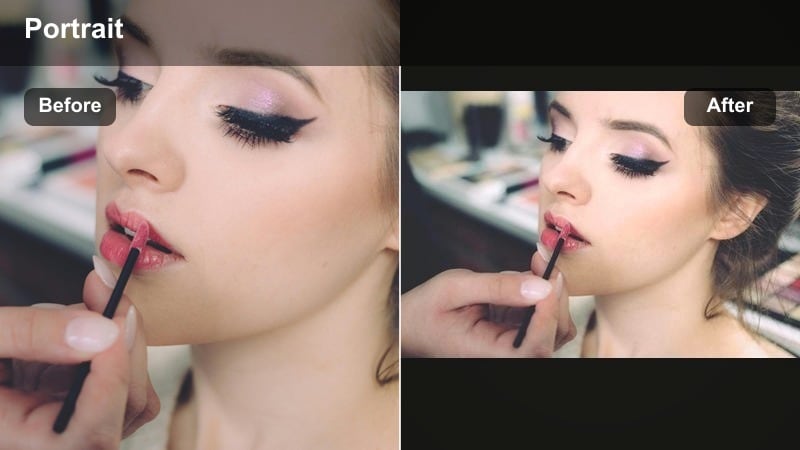
- Effect look: Desaturated cool tones with matte blacks and studio-style softness
- Best for: Minimalist outfit-of-the-day Reels and techy desk selfies
- Editing tip: Lower saturation on background colors, then slightly warm your skin tone so you stand out against the cool environment.
A sleek cinematic filter that gives your selfies a clean, editorial, studio-like finish. Cool Studio Matte flattens harsh contrast into smooth, matte shadows so your fashion pieces and tech gear look premium.
In Filmora, use this filter with simple backgrounds and solid-color outfits so your face and expressions stay the strongest focal point. Lower saturation on wall colors or clutter, then gently warm your skin tone to separate you from the cool, desaturated scene. Reusing this look across a fashion or productivity series can give your Reels grid a recognizable cinematic pattern.
Sunlit Portrait Cine
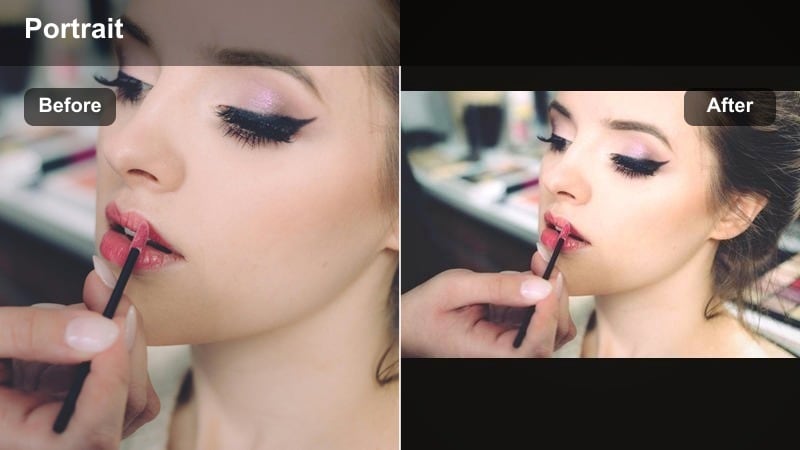
- Effect look: Golden-hour warmth with softly rolled-off highlights and rich skin tones
- Best for: Window selfies, golden hour walks, and outdoor lifestyle Reels
- Editing tip: Bring highlights down a touch before applying the filter so the glow stays soft instead of clipping to pure white.
A cinematic portrait filter that makes natural sunlight look rich and flattering on selfie videos. Sunlit Portrait Cine leans into gold and amber tones while protecting detail in bright skies and reflective surfaces.
In Filmora, slightly lower highlights and whites before applying the filter so sunlit areas roll off smoothly instead of turning pure white. Shoot during early morning or late afternoon, then let the filter enhance the natural golden cast. If the sun is too harsh, step into open shade, apply the filter, and lift warmth to keep the glow without squinting.
Playful and Creative Selfie Filters for Fast Social Clips
Bubblegum Vibe Pop
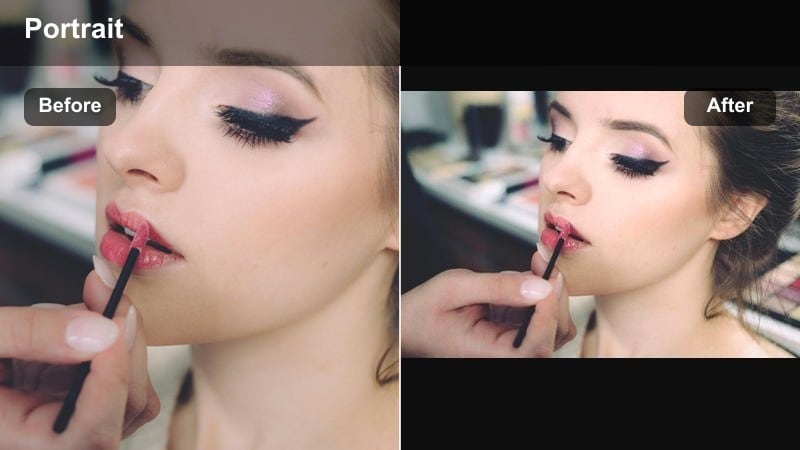
- Effect look: Bright candy colors, boosted pinks, and playful contrast
- Best for: Lip-syncs, dance trends, and fun reaction Reels
- Editing tip: Cut on beat and use quick 0.2–0.3 second jump cuts to match the high-energy color style.
A high-energy selfie filter that turns quick clips into fun, colorful social moments. Bubblegum Vibe Pop pushes pinks and vibrant hues so your outfit, makeup, and background details jump off the screen.
In Filmora, cut your clips tightly on the beat and stack quick 0.2–0.3 second jump cuts to match the bold color energy. Pair this filter with upbeat audio and, if your outfit is already bright, slightly reduce saturation so the final look feels intentional rather than overwhelming, especially on smaller phone displays.
Retro Cam Flash
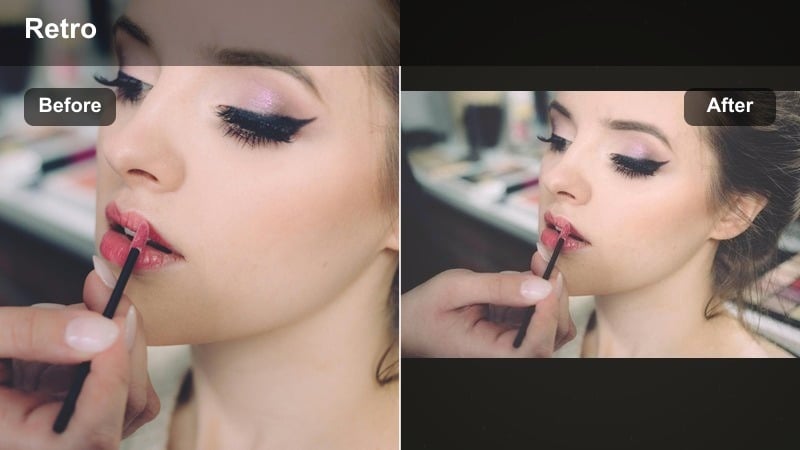
- Effect look: Throwback disposable-camera feel with slight vignette and cool flash highlights
- Best for: Throwback trend Reels and candid party selfies
- Editing tip: Use shorter clips and add subtle shake or zooms to mimic quick film snapshots.
A retro-inspired selfie filter that gives your Clips a nostalgic, disposable-camera vibe. Retro Cam Flash cools down highlights and adds a soft vignette so your party or night-out shots feel like flashes from an old point-and-shoot.
In Filmora, apply this filter to every clip in a short montage so it feels like a single roll of film from one night. Use quick cuts, tiny push-in zooms, or light shake to mimic handheld snapshots, then end on a slightly longer shot so viewers can catch your final expression before the Reel loops.
Aesthetic Story Board
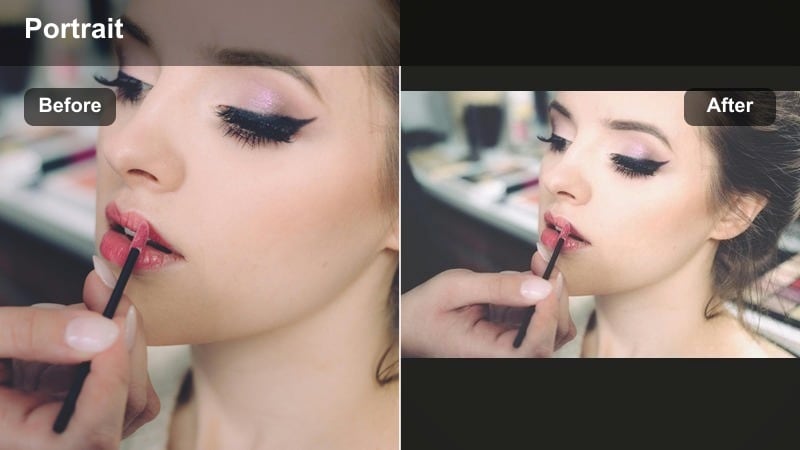
- Effect look: Soft muted colors, gentle fade, and subtle highlight tint
- Best for: Photo-dump style Reels, still-style selfies, and quiet day recaps
- Editing tip: Use slower cuts and overlays like text or doodles to match the calm, aesthetic energy of the filter.
A mellow aesthetic filter that turns simple selfie frames into on-brand social storyboards. Aesthetic Story Board mutes strong colors and adds a gentle fade so your clips feel like curated snapshots from a visual journal.
In Filmora, pair this filter with slower cuts, minimal transitions, and overlays like subtle text, doodles, or stickers. Use it on selfies you plan to repurpose as Reel covers and story posts so everything looks cohesive, and keep text colors neutral and simple so they do not fight with the soft, muted palette.
Tips for Using Selfie Reels Engaging Filters in Filmora
- Film selfie clips slightly underexposed so bright filters have room to lift highlights without blowing out your skin.
- Pick one or two core filters and reuse them across a series of Reels to build a recognizable visual identity.
- Adjust filter intensity per clip instead of leaving every shot at 100 percent to keep faces flattering and natural.
- Use the same filter on both selfie and b-roll shots in a Reel so the story feels cohesive from start to finish.
- Always check your filtered Reel on a phone screen, not just a desktop, to be sure details and text stay readable.
- Combine Filmora presets with light manual tweaks like exposure and white balance to fine-tune each unique lighting situation.
- Save your favorite filter combinations as presets so you can apply a signature look to new Reels in one click.
With the right selfie video filters for Reels, you can turn everyday clips into polished content that fits your brand, highlights your expressions, and grabs attention in the first second.
Experiment with a few of these looks in Filmora, save your favorites as presets, and keep them ready for your next wave of quick selfie edits and day-in-my-life clips.
secure downloadNext: Cinematic Selfie Video Filters for Signature Reels Aesthetics
