

 100% Security Verified | No Subscription Required | No Malware


 ChatGPT
 Perplexity
 Gemini
 Claude
 Grok
Grok
These Snapchat portrait LUT-style filters are designed for creators who want flattering, natural tone without making faces look over-edited or fake.
Use them in Filmora to keep skin tones true-to-life, smooth out harsh light, and give your vertical Snapchat videos a clean, modern look that still feels real.
In this article
Soft Window-Light Portraits
Soft Glow Neutral
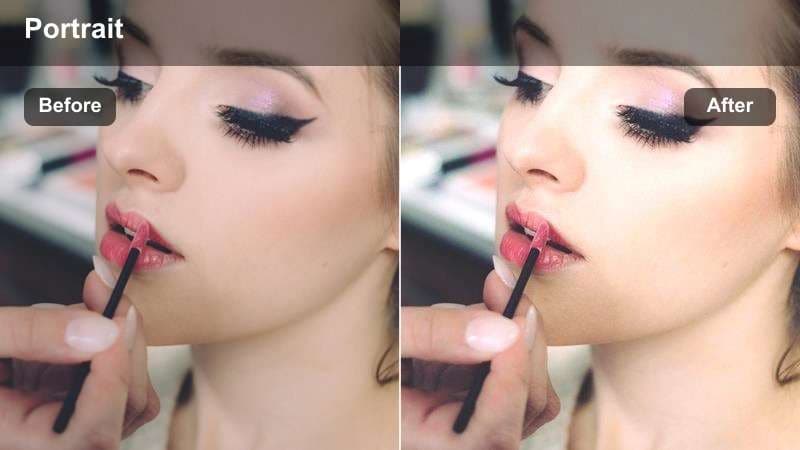
- Effect look: Gentle brightening with subtle contrast and neutral color balance for clean portrait skin.
- Best for: Snapchat selfies shot near a window or soft indoor light where you want a fresh, daytime look.
- Editing tip: Lower the intensity slightly for already bright clips and add a bit of skin-smoothing only if needed.
Soft Glow Neutral is ideal when you are filming vertical Snapchat stories in natural window light and want your skin to look bright but still believable. In Filmora, this filter lifts exposure just enough to clean up shadows on the face and keeps colors neutral so your skin does not drift too pink, yellow, or gray.
Apply the filter to your clip, then fine-tune the strength in the Effects panel to match how bright your original footage is. If your shot is already well lit, pull the intensity slider down slightly and use Filmora s subtle skin-smoothing tools to fix only minor texture, leaving pores and real detail visible for a natural finish.
Let AI Find the Most Natural Snapchat Portrait Look
Filmora s AI-powered color tools can quickly scan your Snapchat portrait clip, detect skin ranges, and suggest the most natural-tone filters for your lighting. Instead of guessing which LUT-style look works best, you can preview AI-recommended options that keep faces realistic and flattering.
Once AI proposes a base correction, you can still tweak exposure or warmth manually, but most of the heavy color balancing work is already done. This is especially helpful when you batch-edit multiple vertical stories shot in slightly different light.
 secure download

Preview Natural-Tone Filters on Real Portrait Footage
To see how each Snapchat portrait LUT-style filter treats skin, drop them onto a short selfie clip in Filmora and scrub through the timeline. You will notice how some presets protect highlights better, while others keep shadows on your cheeks softer and more even.
Compare a few options side by side and watch how your skin looks while you move your head or step through different lighting in the frame. This helps you pick a consistent, natural-tone look that stays flattering through your whole Snapchat story.
secure downloadExplore 1000+ Video Filters and 3D LUTs
Beyond these Snapchat portrait looks, Filmora includes a large library of video filters and 3D LUTs for every style, from cinematic tones to stylized color pops. You can layer subtle portrait corrections with creative looks to match trends while keeping skin realistic.
Save your favorite combinations as presets, then apply them to new Snapchat clips in one click. This speeds up your vertical editing workflow and helps you maintain a recognizable color style across all your stories.
Filmora can also export compatible color adjustments from a selected clip as a standard .cube LUT when the same portrait color base is needed in another project or in DaVinci Resolve, Adobe Premiere Pro, or Final Cut Pro.
secure downloadCream Soft Portrait
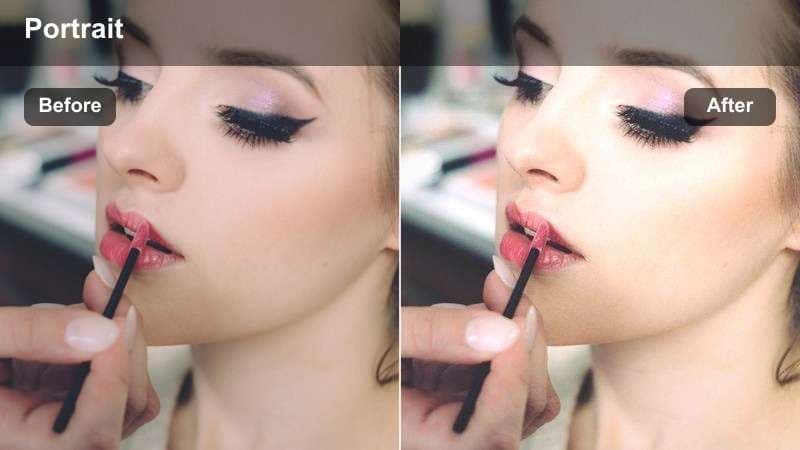
- Effect look: Warm, creamy highlights that gently smooth skin without changing the natural tone too much.
- Best for: Chatty Snapchat stories, GRWM clips, and close-up portraits filmed indoors.
- Editing tip: Dial back saturation if wall colors or clothing feel too warm so the focus stays on the face.
Cream Soft Portrait adds a soft, cozy glow to indoor Snapchat portraits, making faces look rested and healthy without pushing them into fake tan territory. In Filmora, this filter gently lifts highlights and warms them, which helps even out minor redness while preserving your natural undertones.
When your background or outfit contains strong yellows or oranges, slightly reduce saturation in the Color panel so the warmth does not steal attention from your face. You can also keep shadows a bit more neutral to balance the creamy highlights and maintain a flattering, real-life look for everyday stories and GRWM videos.
True Skin Neutral
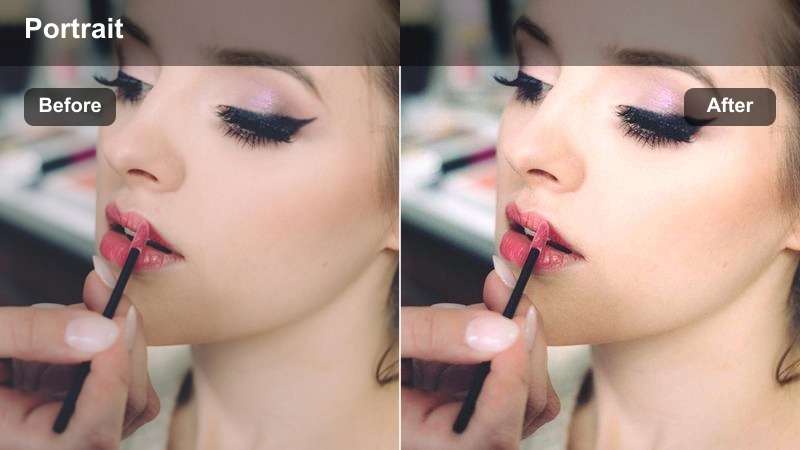
- Effect look: Very light contrast, minimal color shift, and precise skin preservation for realistic faces.
- Best for: Creators who want subtle cleanup on Snapchat portraits without an obvious filter look.
- Editing tip: Use this as a base grade, then stack light vignette or detail adjustments for a more polished finish.
True Skin Neutral is designed to be almost invisible, giving you a cleaner Snapchat portrait while still looking like the original camera capture. It lightly refines contrast and color in Filmora so your skin appears even and accurate, ideal for creators who want a professional touch without a stylized filter.
Use this preset as your default base grade on all selfie clips, then layer additional Filmora tools such as a small vignette, subtle sharpening around the eyes, or gentle noise reduction. This creates a consistent, natural-tone look across your Snapchat grid, no matter which phone or lighting setup you used.
Golden Hour Street Portraits
Sunset Soft Balance
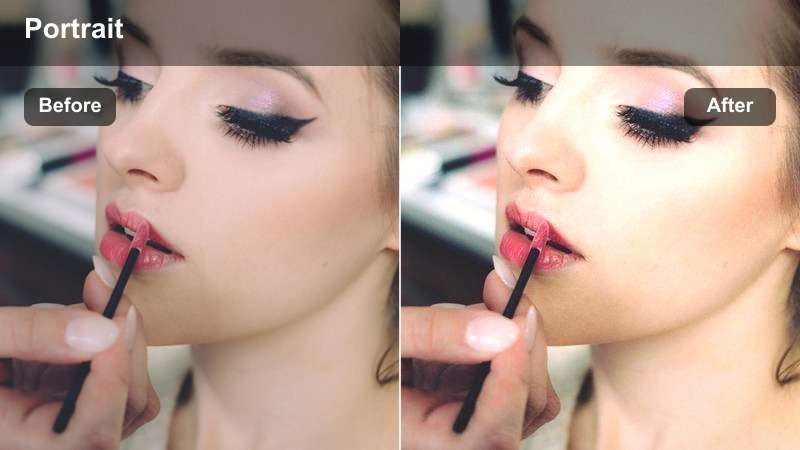
- Effect look: Soft, warm highlights with slightly cooler shadows to keep skin natural in golden hour light.
- Best for: Outdoor Snapchat portraits in late afternoon or sunset on city streets or rooftops.
- Editing tip: Lift the shadows slightly for backlit clips so your face stays visible without flattening the scene.
Sunset Soft Balance takes advantage of golden hour warmth while preventing your skin from turning unrealistically orange. In Filmora, the filter warms highlights and balances them with cooler shadows, so your Snapchat portraits keep that dreamy sunset feel but still show accurate undertones on your face.
For backlit rooftop or street shots, nudge the shadow slider up a bit so your features do not disappear against the bright sky. Avoid over-brightening the whole frame; instead, combine this LUT-style filter with Filmora s local adjustments to keep the background cinematic while your face stays clear and naturally toned.
City Gold Neutral Face
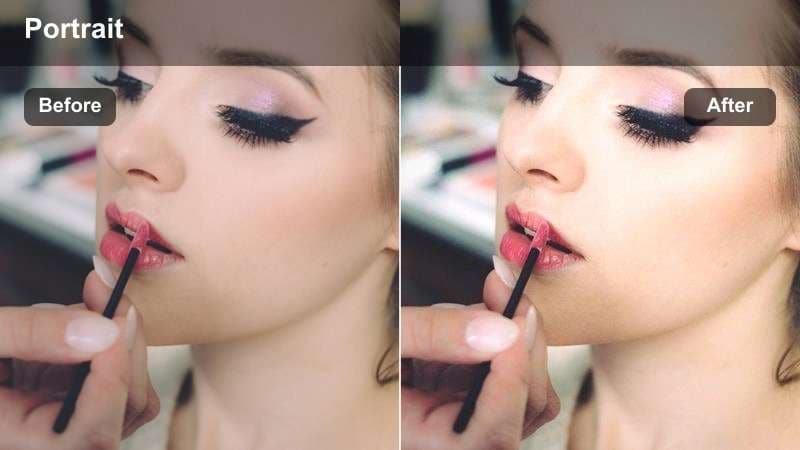
- Effect look: Golden city lights with controlled facial hue so skin looks clean under mixed lighting.
- Best for: Street portraits with neon signs, shop windows, or car lights in the background.
- Editing tip: Use a light vignette to draw attention to the face when the city background is very busy.
City Gold Neutral Face separates your portrait from chaotic city lighting, preserving natural skin while allowing background lights to stay rich and warm. In Filmora, this filter manages mixed color temperatures from street lamps and shop windows so your Snapchat selfies do not pick up strange green or magenta casts.
Apply it to night or dusk street clips, then add a soft vignette or slight blur to the background if the environment feels too distracting. You can also fine-tune individual color channels in the Color panel to reduce neon spill, keeping the urban atmosphere lively while your face remains clean and realistic.
Hazy Amber Portrait
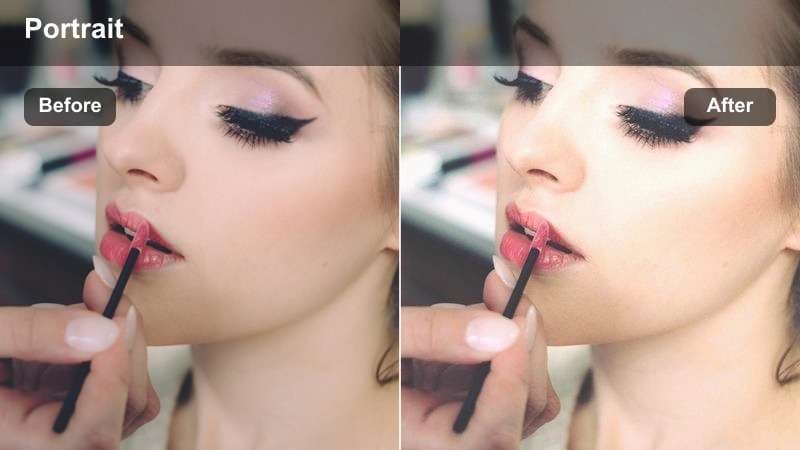
- Effect look: Soft haze, amber warmth, and gentle fade for dreamy outdoor portraits with realistic skin.
- Best for: Romantic Snapchat moments, walk-and-talk stories, and candid city park portraits.
- Editing tip: Avoid adding extra blur; let the built-in haze and softness carry the dreamy feeling.
Hazy Amber Portrait creates a soft, romantic look with warm amber tones in the highlights and a light fade in the shadows. In Filmora, this filter works well for Snapchat stories shot in parks, side streets, or quiet corners during late afternoon, giving your footage a cinematic vibe while keeping skin tones natural.
Since the effect already includes built-in softness, resist stacking additional blur or heavy glow, which can make faces look muddy. Instead, keep your eyes crisp by adding a touch of sharpness or clarity to facial details, using Filmora s adjustment tools to balance dreamy ambience with a realistic, flattering portrait.
Indoor Studio and Creator Setups
Creator Neutral Softbox
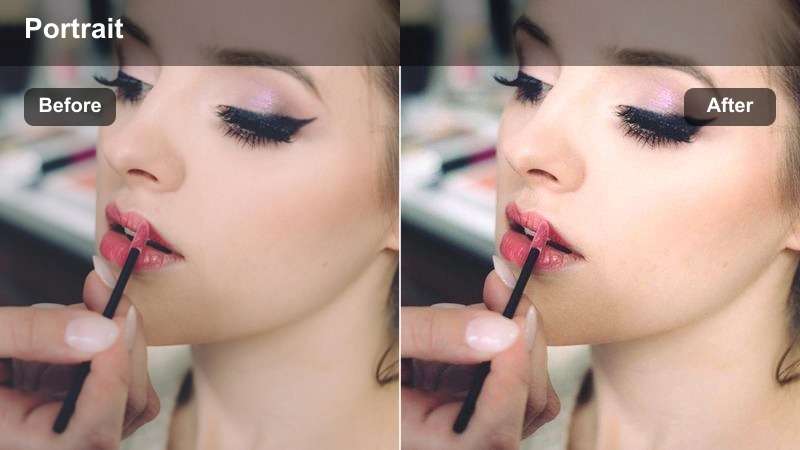
- Effect look: Clean, controlled contrast with neutral tones tuned for ring lights and softboxes.
- Best for: Talking-head Snapchat content, tutorials, and product reviews filmed in a creator setup.
- Editing tip: Lower contrast slightly if you use strong key light to avoid harsh lines on the face.
Creator Neutral Softbox is tailored for studio-style setups with ring lights, softboxes, and consistent backgrounds. In Filmora, this filter keeps whites from clipping and prevents your skin from going too cool or too warm under LED panels, which is crucial for Snapchat tutorials and reviews where you stay on screen for a while.
If your key light is intense, slightly reduce contrast and highlights so your nose, cheeks, and chin do not show hard edges. You can then fine-tune color temperature per clip to match multiple angles, using this LUT-style effect as the base look for a cohesive, professional creator brand.
Studio Soft Matte
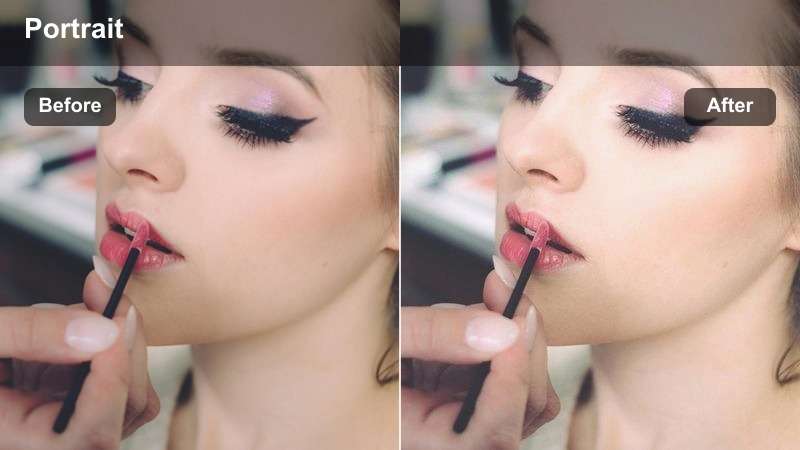
- Effect look: Light matte contrast with smoothed midtones that reduce shine on forehead and cheeks.
- Best for: Snapchat Q&A sessions, voiceovers with face cam, and calm talking clips.
- Editing tip: Combine with a mild highlight roll-off to handle oily skin or bright makeup under studio lights.
Studio Soft Matte gently lowers contrast and adds a subtle matte finish that takes down shine from bright studio lights. In Filmora, this effect is perfect for longer Snapchat Q and A sessions or calm talking-head segments where viewers focus closely on your expression.
Apply the filter, then use highlight and midtone controls to fine-tune how much sheen remains on your forehead and cheeks. If the overall image starts to look too flat, add a touch of micro-contrast or clarity in non-skin areas like hair and clothing so your portrait feels polished but still naturally lit.
Neutral LED Balance
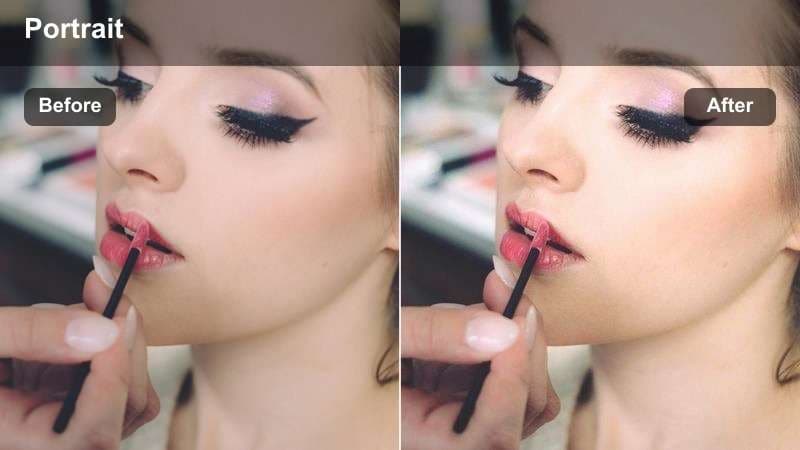
- Effect look: Balances cool LED tints with subtle warmth in skin for a believable indoor portrait.
- Best for: Gaming room setups, RGB-lit studios, and creator spaces with colored LEDs.
- Editing tip: Drop saturation of extreme RGB colors in the background if they overpower your face on screen.
Neutral LED Balance is designed for RGB-heavy rooms where colored lights can easily wash over your face. In Filmora, the filter gently warms skin while letting your background LEDs stay vivid, preventing your Snapchat portraits from looking sickly blue or green.
After applying the effect, consider reducing saturation or luminance of specific hues affecting the background so your portrait remains the focal point. You can also use Filmora s masking tools to protect skin tones while allowing bold color shifts in the rest of the frame, keeping your gaming or creator setup stylish but still realistic on camera.
Nighttime and Low-Light Selfies
Night Soft Clean
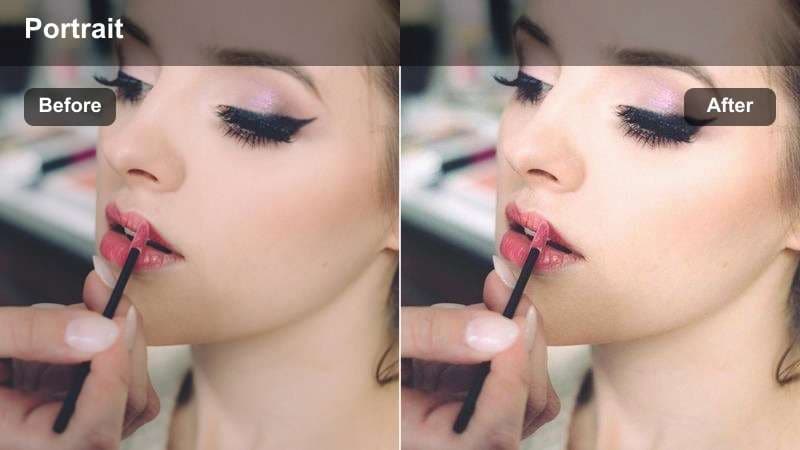
- Effect look: Softens noise and lifts shadows slightly while keeping skin tone neutral in dim light.
- Best for: Snapchat selfies in bars, cafes, cars, or dim bedrooms with minimal lighting.
- Editing tip: Avoid pushing exposure too high; let shadows stay slightly dark to prevent grainy skin.
Night Soft Clean is built to rescue low-light Snapchat selfies by gently smoothing noise while leaving your features recognizable. In Filmora, this LUT-style filter brightens midtones a touch and keeps color neutral so your skin does not turn oversaturated or muddy in dim environments.
Use it on bar, cafe, or late-night bedroom clips and keep exposure adjustments modest to avoid amplifying grain. After the filter, you can reintroduce light texture around your eyes and hair to prevent a plastic look, using Filmora s detail sliders to strike a balance between clean and natural.
City Night Neutral Skin
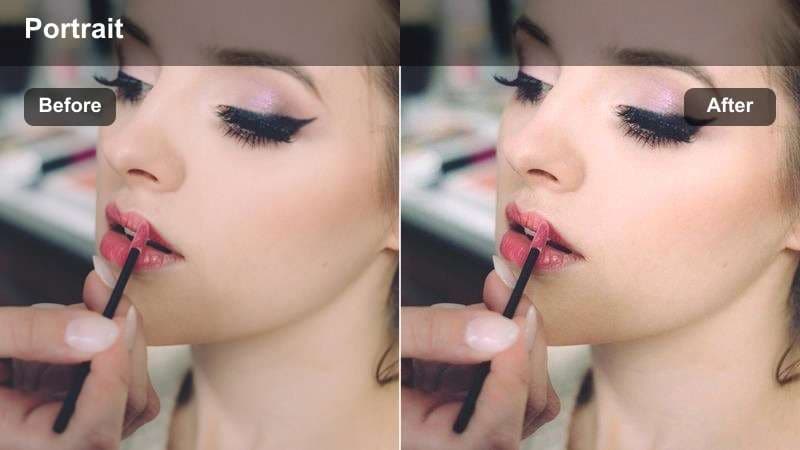
- Effect look: Deep, rich night contrast with targeted skin preservation under street and storefront lights.
- Best for: Night walks, city street Snapchat stories, and handheld portraits with bright signs behind.
- Editing tip: Lift midtones slightly if your facial features are disappearing into the background darkness.
City Night Neutral Skin keeps your face clear and naturally colored while maintaining the dark, contrasty feel of city nights. In Filmora, this filter deepens blacks and protects highlight detail from streetlights and signs so your Snapchat stories look cinematic, not washed out.
If your face is getting lost in the shadows, gently raise midtones or use selective brightening just on your portrait area. Avoid brightening the entire frame; instead, let the background stay moody so the nighttime atmosphere remains intact while your skin tone stays believable.
Warm Cafe Portrait
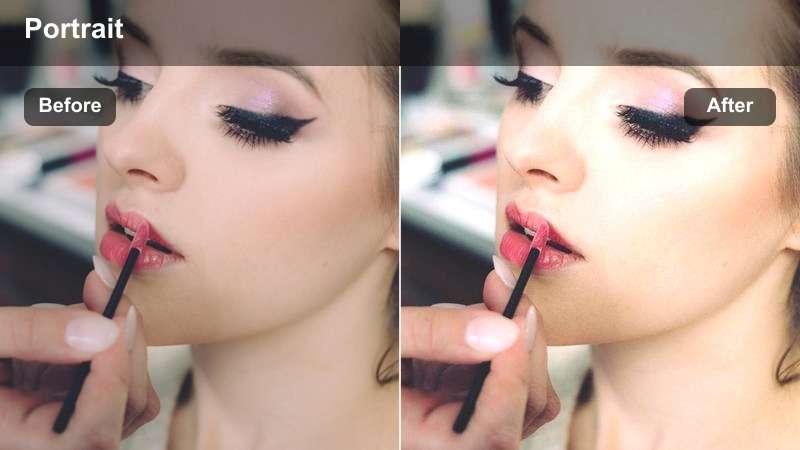
- Effect look: Warm tungsten glow with neutralized skin so faces do not look too orange in cafes and restaurants.
- Best for: Cafe check-ins, dinner selfies, and cozy Snapchat stories under yellow indoor lights.
- Editing tip: If faces still feel too warm, cool the temperature just a little instead of lowering saturation heavily.
Warm Cafe Portrait lets you keep the cozy, amber ambiance of restaurants and cafes without turning your skin into a solid orange block. In Filmora, this filter slightly cools and balances midtones on faces while preserving warm highlights from hanging bulbs and candles.
Use it for dinner selfies or table-side stories and then fine-tune overall white balance if your camera captured very strong yellow light. Rather than crushing saturation, a small temperature adjustment plus this LUT-style effect will keep your skin natural while the background remains inviting and warm.
Tips for Using Snapchat Portrait Luts Natural Tone Filters in Filmora
- Always correct exposure and white balance first in Filmora so your Snapchat portrait filters start from a neutral, accurate skin tone.
- Preview vertical videos full-screen on your phone to judge how natural your face looks at real viewing size, not just on a desktop monitor.
- Use slightly lower filter intensity on faces than on the background to avoid plastic, over-smoothed, or washed-out skin.
- Save multiple versions of your favorite portrait filter at low, medium, and high strength so you can match bright daylight, studio, and night scenes quickly.
- When makeup colors shift, adjust saturation and hue for specific color ranges like reds or magentas instead of desaturating the whole image.
- Keep sharpening modest on close-up selfies so pores and fine texture do not become distracting in Snapchat stories.
Natural-tone Snapchat portrait filters help you stay polished on camera while still looking like yourself, no matter what lighting you are filming in. With the right LUT-style looks, you can clean up color and contrast while preserving the real character of your skin.
Build a small set of go-to presets in Filmora and you will be able to color match your selfies, vlogs, and late-night stories in just a few taps. Over time, this consistent approach gives your Snapchat presence a recognizable, professional style that still feels authentic.
secure download