

 100% Security Verified | No Subscription Required | No Malware


 ChatGPT
 Perplexity
 Gemini
 Claude
 Grok
Grok
These curated Filmora filters are tuned to help Sony A6700 users quickly achieve cinematic, LUT-style looks without diving deep into complex color grading tools.
Whether you shoot in S-Log3 or standard profiles, these filter presets give videographers and creators filmic contrast, rich color, and mood-driven styles tailored for narrative, travel, and content work.
In this article
Golden Hour Storytelling and Warm Narrative Looks
Sunset Amber Glow
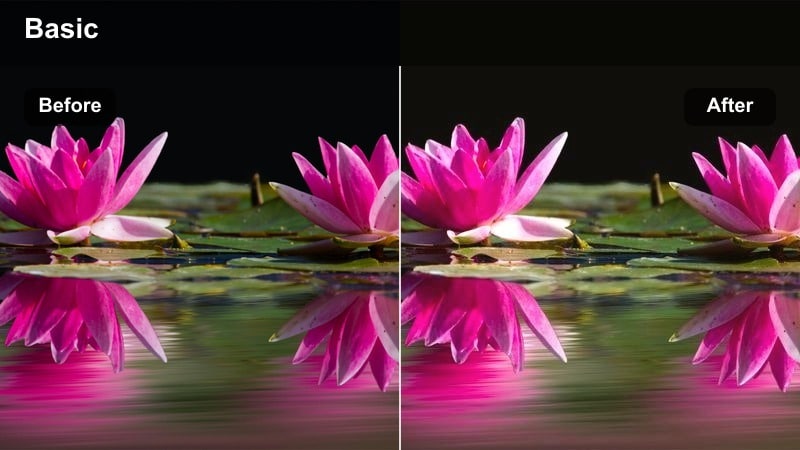
- Effect look: Soft, warm golden contrast with subtle highlight bloom inspired by late-afternoon cinema.
- Best for: Golden hour walk-and-talk scenes, engagement films, and warm city street B-roll on the Sony A6700.
- Editing tip: Lower the filter intensity to around 60% and slightly reduce saturation on skin tones to keep faces natural while preserving the warm cinematic feel.
Sunset Amber Glow wraps your Sony A6700 footage in a warm, golden cast that enhances backlit scenes, flares, and edge light on your subjects. It is designed to emulate the soft roll-off and highlight bloom you see in narrative films, gently boosting contrast while protecting the nuance in skies and bright windows.
In Filmora, apply Sunset Amber Glow to sequences shot late in the day, then fine-tune intensity so details in hair and clothing stay clear rather than washed in orange. Combine this filter with slight shadow cooling and selective HSL tweaks for skin tones to keep your characters looking natural while the environment takes on that story-ready cinematic warmth.
Match Sony A6700 Shots with AI Color Palette
Filmora's AI Color tools help you quickly align Sony A6700 clips captured in different lighting so your cinematic filters look consistent from shot to shot. By normalizing exposure and color balance first, your warm looks, cool city grades, and neutral doc styles all feel like part of the same film.
Import a reference frame or hero shot you love, let AI Color Palette guide the match, then layer your preferred Sony A6700 cinematic LUT-style filters for polish and mood.
 secure download

Fine-Tune Sony A6700 Color with HSL Controls
Once your base look is set, Filmora's HSL and color wheel controls let you refine specific ranges like skin, skies, or city lights. This is especially useful with Sony A6700 footage, where you may want to push backgrounds into stylized tones while keeping faces neutral and flattering.
Use the HSL tools to tame oversaturated hues from strong filters, correct color casts from mixed lighting, and subtly separate subjects from their environment for a more cinematic grade.
secure downloadPreview Sony A6700 Filters in Real Time
With Filmora's real-time filter preview, you can hover across cinematic looks and instantly see how they reshape your Sony A6700 clips. This makes it fast to compare warm narrative grades, cool city palettes, or neutral doc treatments without committing to heavy manual color work.
Drop a short A6700 clip on the timeline, explore different presets, and lock in one or two signature styles you will use across the project for a consistent filmmaker-grade finish.
secure downloadGolden Heritage Film
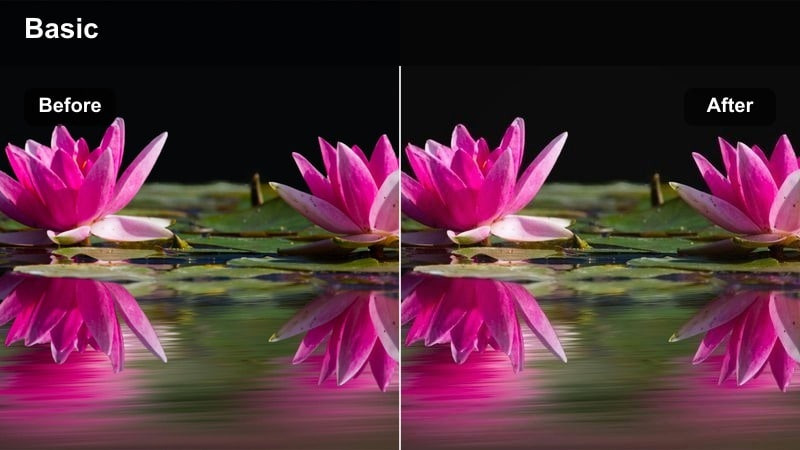
- Effect look: Subtle film-stock inspired curve with warm highlights and gently lifted blacks.
- Best for: Narrative vlogs, family documentaries, and nostalgic travel stories captured on the Sony A6700.
- Editing tip: Raise the blacks slightly and add a touch of grain for a more analog, heritage-film impression that still feels clean for online delivery.
Golden Heritage Film introduces a soft, analog-style curve that lifts shadows and adds a gentle warmth to highlights, echoing classic print film. On the Sony A6700, this filter smooths digital sharpness and gives everyday scenes a nostalgic, memory-like quality without sacrificing detail.
In Filmora, pair this look with a subtle grain effect and restrained sharpening so your footage feels cohesive and timeless across interviews, B-roll, and family moments. Slightly dropping overall exposure before applying the filter helps protect highlight detail from Sony sensors, letting you keep skies, windows, and practical lights natural and cinematic.
Sunrise Soft Cinema
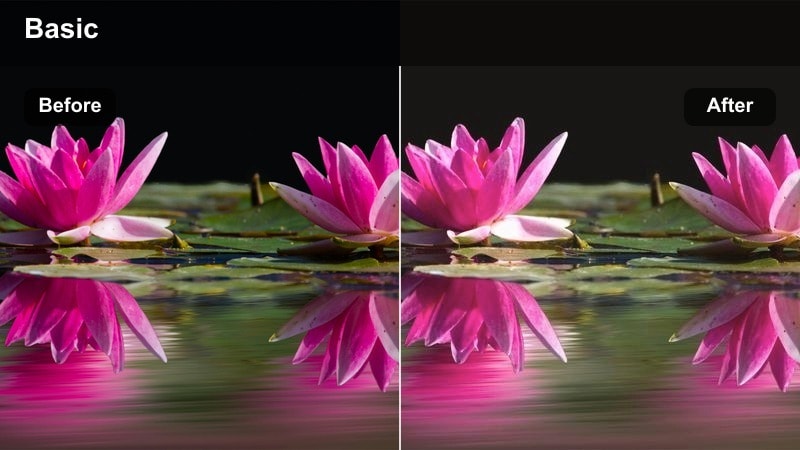
- Effect look: Pastel-toned warmth with gentle contrast and softened clarity for dreamy sunrise footage.
- Best for: Quiet opening shots, reflective walking sequences, and travel establishing shots filmed early in the day.
- Editing tip: Pair this filter with a slight vignette and reduced clarity to keep the viewer focused on your subject while maintaining a soft cinematic atmosphere.
Sunrise Soft Cinema shifts your Sony A6700 images toward delicate pastel hues and lower micro-contrast, perfect for opening sequences or reflective story beats. The look smooths edges and tames harsh morning light, turning simple skyline or street shots into gentle transitions between scenes.
Inside Filmora, combine this filter with a mild vignette and reduced clarity so your subject stays central while the frame falls off softly at the edges. Slowing clips slightly and adding subtle ambient audio can further enhance the dreamy mood, making this preset ideal for chapter cards, titles, or emotional interludes in your edit.
Urban Night, Neon Streets, and Moody Cityscapes
Neon Noir City
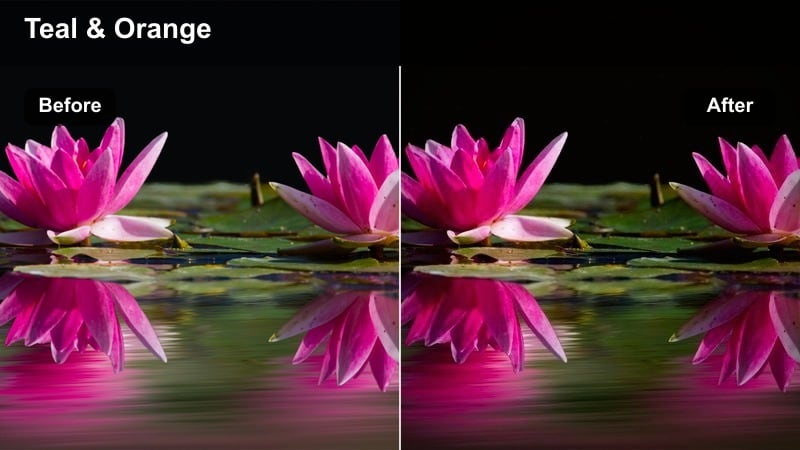
- Effect look: High-contrast teal and magenta color shift with deep blacks for neo-noir night scenes.
- Best for: Neon-lit alleys, rainy streets, and cyberpunk-style B-roll shot with the Sony A6700 in the city at night.
- Editing tip: Reduce color noise first on your A6700 night footage, then apply the filter and pull saturation down slightly to avoid overcooked neon colors.
Neon Noir City leans heavily into stylized teal and magenta hues, carving out deep blacks and glowing sign highlights for a neo-noir aesthetic. Your Sony A6700 night footage benefits from this targeted shift, transforming ordinary storefronts and alleys into cinematic frames packed with color contrast.
In Filmora, start by cleaning up noise in the shadows, then apply the filter and refine saturation so the neon palette remains bold but not overwhelming. Protect subject detail by lifting only the darkest regions slightly and using masks or keyframes if needed, keeping faces visible while the rest of the scene falls into rich, noir-style darkness.
Metro Cyan Sci-Fi
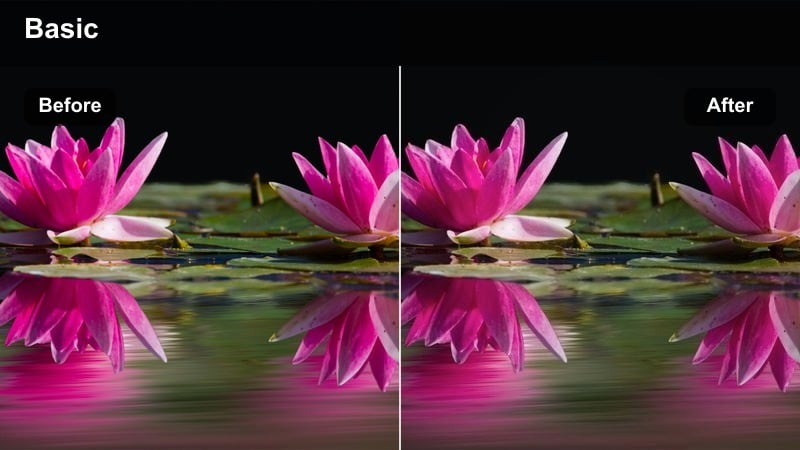
- Effect look: Cool cyan emphasis with subtle green undertones, strong midtone contrast, and clean highlights.
- Best for: Subway sequences, escalators, and modern glass architecture shot at night or indoors with artificial light.
- Editing tip: Dial contrast down slightly if you plan to add text overlays or motion graphics so they stand out against the stylized background.
Metro Cyan Sci-Fi pushes your Sony A6700 footage into a cool, futuristic palette where cyan lights and reflective surfaces feel like they belong in a sci-fi film. The filter emphasizes midtone contrast and keeps highlights clean, making illuminated staircases, tunnels, and glass structures visually striking.
When grading in Filmora, use this look on metro, subway, and urban infrastructure shots to create transitions or B-roll sequences that separate from your daytime narrative. If you add titles or user-interface style graphics, slightly reduce contrast and brightness behind the text so it remains readable while the stylized environment carries the sci-fi mood.
Rain-Slicked Streets
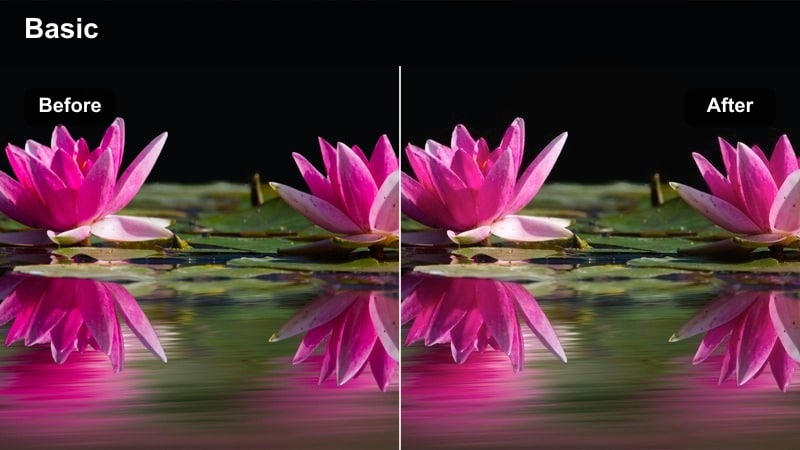
- Effect look: Muted midtones with rich reflections, deeper blues, and gentle halation on highlights.
- Best for: Rainy night B-roll, car passes, and handheld street footage where puddles reflect city lights.
- Editing tip: Lightly increase saturation in blues and reduce yellows for a more atmospheric, reflective look that keeps the scene moody.
Rain-Slicked Streets enhances wet surfaces and reflections in your Sony A6700 footage, adding depth through cooler blues and subtle highlight glow. The filter mutes midtones slightly so streetlights, car trails, and window reflections become the main visual focus in your frame.
In Filmora, apply this look to low-angle shots, crosswalks, and slow pans across puddles to emphasize texture and atmosphere. Tweak blue and cyan saturation to taste, and consider adding a touch of motion blur or slower playback on passing vehicles to heighten the cinematic feel of damp, late-night city scenes.
Daytime Travel, Adventure, and Run-and-Gun Documentary
Travel Chrome Pop
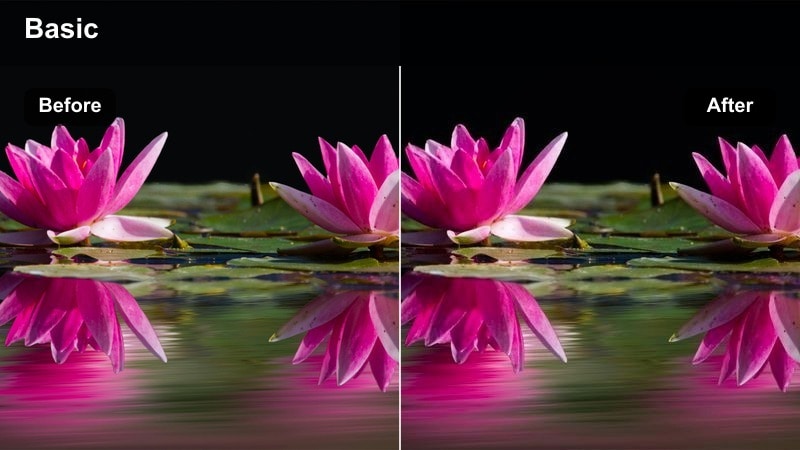
- Effect look: Vibrant yet controlled saturation with crisp contrast and slightly cooler shadows.
- Best for: City tours, handheld street explorations, and dynamic travel montages on the Sony A6700.
- Editing tip: Use this filter at 70-80 percent strength and avoid stacking multiple saturation boosts to keep the look punchy but not cartoonish.
Travel Chrome Pop is tuned to give your Sony A6700 travel footage a vivid, postcard-ready finish without pushing colors into an unrealistic realm. Buildings, signs, and markets gain extra punch while shadows lean just cool enough to keep the image feeling fresh and modern.
Inside Filmora, use this filter as a base for travel montages and city walk B-roll, then adjust overall saturation to match your channel or brand style. Protect skin tones by slightly pulling back reds and oranges using HSL, and consider adding light stabilization and music-driven cuts to match the energetic visual pop this look provides.
Sunlit Documentary Neutral
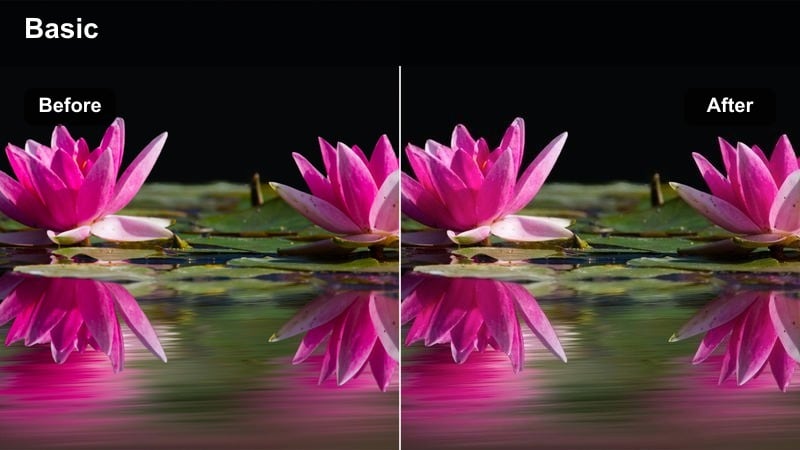
- Effect look: Balanced, documentary-style tone with gentle contrast and neutral color balance.
- Best for: Interviews, talking-head pieces, and observational documentary shots in mixed daylight.
- Editing tip: White balance carefully in-camera on the A6700, then apply this filter and fine-tune contrast to keep faces and environments honest but cinematic.
Sunlit Documentary Neutral gives your Sony A6700 footage a polished, true-to-life baseline ideal for interviews and client work. It adds just enough contrast and depth to feel cinematic while keeping colors accurate, which is crucial when you need viewers to trust what they see on screen.
In Filmora, apply this filter across entire interviews or documentary sequences to establish a consistent master look. From there, fine-tune exposure and white balance clip by clip, and add subtle vignette or sharpening only where needed so your subjects remain natural, clear, and the focus of the story.
Adventure Soft Film
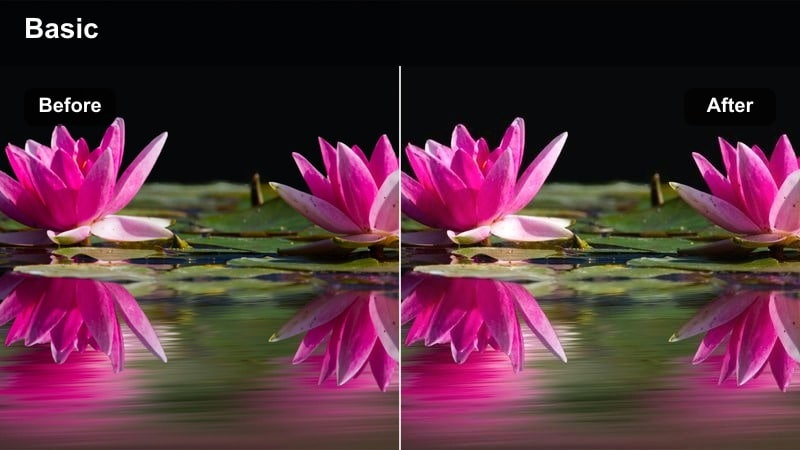
- Effect look: Low-contrast, slightly desaturated filmic tone with soft highlights for outdoor adventures.
- Best for: Hiking sequences, handheld exploration, and action camera cutaways paired with your Sony A6700 footage.
- Editing tip: Reduce sharpening in Filmora and introduce a hint of grain so the soft filmic look remains organic instead of digital.
Adventure Soft Film is designed to tame harsh midday light and vivid landscapes, giving outdoor shots from your Sony A6700 a gentle, cinematic wash. The filter pulls contrast down and slightly mutes color for a cohesive, film-inspired tone that works especially well on wide shots and exploratory sequences.
When editing in Filmora, turn down digital sharpening and add a touch of grain so fine details feel organic and not overly crisp. Combine this filter with stabilized clips, longer cuts, and atmospheric sound design to emphasize the calm, immersive side of your travels, even when the footage was captured run-and-gun.
Dramatic Studio, Portraits, and Creative B-Roll
Cinematic Portrait Contrast
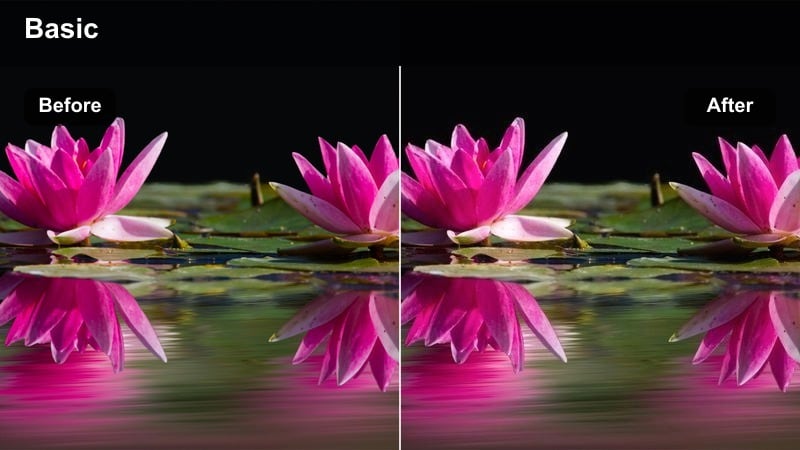
- Effect look: Strong contrast with clean skin tones and slightly subdued background saturation.
- Best for: Sony A6700 close-up portraits, product showcases, and studio-style talking head content.
- Editing tip: Add a gentle vignette and lower saturation in the background colors to make the subject's face the primary focus on screen.
Cinematic Portrait Contrast shapes light on faces, deepening shadows and defining features while preserving believable skin tones from your Sony A6700. Background colors are subtly toned down so the viewer naturally locks onto eyes, expressions, and the main subject.
In Filmora, use this filter for talking-head content, thumbnails, and hero shots, then enhance the effect with a soft vignette and selective saturation reduction behind the subject. Adjust midtone contrast to balance detail and flattering smoothness, and pair with clean audio and minimal distractions in frame for a high-end portrait presentation.
Studio Desaturated Drama
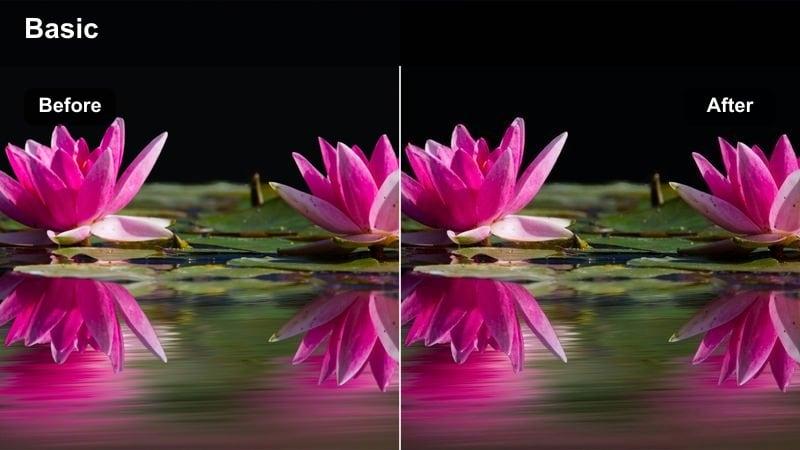
- Effect look: Muted colors, deeper shadows, and cool-leaning midtones for serious or introspective scenes.
- Best for: Interviews on heavy topics, narrative monologues, and moody studio B-roll.
- Editing tip: Pull overall saturation back just a little more after applying the filter if the emotion of the scene needs to feel especially serious.
Studio Desaturated Drama pulls color and brightness out of your Sony A6700 studio shots, leaving a cool, subdued palette that centers attention on expression and dialogue. Shadows grow deeper, midtones tilt slightly cooler, and the overall mood becomes more introspective and serious.
Inside Filmora, blend this filter with careful framing that uses negative space and minimal props to heighten the emotional tone. Fine-tune saturation and exposure scene by scene, and keep music sparse or entirely absent so the desaturated visuals and spoken words carry the full weight of the moment.
Product Gloss Cinema
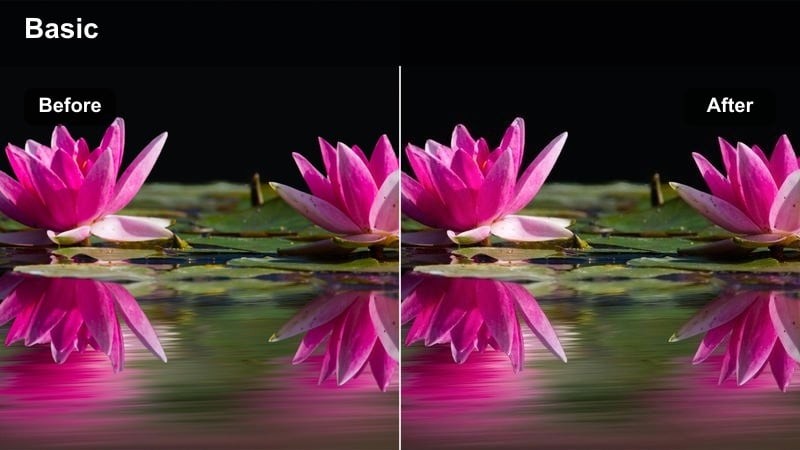
- Effect look: Polished, high-contrast look with crisp highlights and boosted micro-contrast on surfaces.
- Best for: Tech product shots, tabletop B-roll, and gear-focused content filmed with the Sony A6700.
- Editing tip: Slow down your shots slightly in Filmora and add light sound effects so the glossy cinematic look matches the premium feel of the product.
Product Gloss Cinema gives your Sony A6700 product and gear shots a sleek, high-end finish where edges, reflections, and textures stand out. Contrast and micro-contrast are boosted to make surfaces pop, while highlights remain controlled for a premium, commercial-style appearance.
In Filmora, apply this filter to slider, gimbal, or handheld macro passes over devices, then add gentle speed ramps and whoosh-style sound effects for extra impact. Keep white balance on the neutral or slightly cool side so metals, glass, and branding elements stay crisp, and avoid over-saturating background elements that might distract from the hero product.
Tips for Using Sony A6700 Cinematic Luts Filters in Filmora
- Shoot slightly flatter on the Sony A6700 and protect highlights so your cinematic filters have room to add contrast without clipping detail.
- Keep filter intensity under 80 percent for most narrative scenes to maintain a professional, filmic balance between style and realism.
- Use separate color adjustments for skin tones in Filmora when applying strong stylized looks to city lights or backgrounds.
- Batch-apply one base filter per sequence, then tweak exposure and white balance clip by clip for a clean, continuous grade.
- Export a short test sequence at your final delivery settings to ensure your Sony A6700 cinematic looks hold up on phones, tablets, and TVs.
- Combine Filmora filters with imported Sony A6700 LUTs at lower opacity to build layered, scene-specific grades without overprocessing.
- Use Filmora's scopes and histogram while grading to keep contrast and brightness within a comfortable range for online platforms.
- Save your favorite filter and color settings as custom presets in Filmora so you can quickly reuse cinematic looks across new A6700 projects.
With the right combination of Filmora filters, your Sony A6700 footage can take on rich, cinematic character that matches the tone of each scene, from golden hour streets to neon-soaked nights.
Start with a base look from these cinematic presets, refine exposure and color, and build a repeatable workflow that keeps your films consistent whether you shoot travel, client work, or narrative projects.
secure download