

 100% Security Verified | No Subscription Required | No Malware


 ChatGPT
 Perplexity
 Gemini
 Claude
 Grok
Grok
These sunset video filters for Reels are designed to keep your dusk colors rich, cinematic, and scroll-stopping, even when the light is fading fast. Whether you are shooting travel views, beach walks, or skyline silhouettes, the right filter can turn a quick clip into a cinematic sunset reel.
Below you will find 12 curated sunset-focused filters grouped by vibe: warm cinematic grades, soft pastel evenings, dramatic dusks, and bold creative looks. Each style includes what the effect looks like, what type of reels it is best for, and an editing tip to help Reels creators and travel videographers get consistent dusk aesthetics.
In this article
Warm Cinematic Glow Filters for Golden Hour Reels
Golden Ember Glow
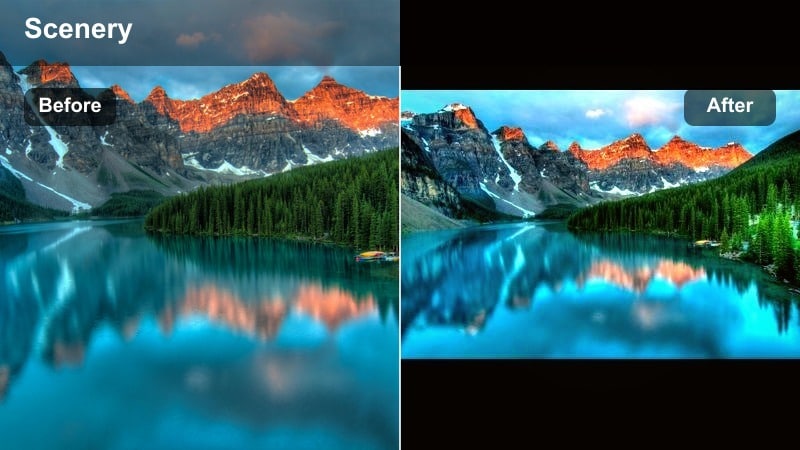
- Effect look: Rich golden midtones, soft contrast, gentle halation around bright highlights to enhance the sun’s edge
- Best for: Beach sunsets, couples walking against the sun, slow-motion hair and fabric shots on Reels
- Editing tip: Lower overall saturation slightly and increase vibrance instead to keep skin tones natural while the sky stays intense.
Golden Ember Glow wraps your reel in rich, cinematic gold, keeping midtones warm and luminous while preserving detail in darker areas. The subtle halation around highlights makes the sun and reflections on water feel like a movie frame rather than raw phone footage.
In Filmora, apply this filter to your sunset clips, then gently reduce global saturation and raise vibrance in the Color panel. This workflow keeps faces believable while intensifying skies and reflections, especially when combined with light sharpening on landscapes and a touch of contrast for extra punch.
Match Every Sunset Clip With Smart Color Detection
Filmora’s AI-powered color tools can quickly scan your sunset footage and suggest filters that match its natural tones, from fiery orange to soft pastel purple. This helps you avoid guesswork and keeps your sunset video filters for reels consistent across multiple shots in the same project.
Once the AI suggests a look, you can fine-tune warmth, saturation, and contrast, then save it as a reusable preset for future dusk reels. This is ideal if you want a recognizable aesthetic for travel or lifestyle content on Instagram Reels.
 secure download

Preview Sunset Filters Live on Your Reels Clips
Before committing to any sunset filter for Instagram Reels, Filmora lets you preview multiple looks in real time on the same clip. You can quickly see how each filter affects skies, skin, and silhouettes without waiting for exports, making it easier to pick the strongest hook for your reel.
Try cycling through warm cinematic, pastel, and dramatic dusk grades while scrubbing your timeline. Combine your favorite look with speed ramps or slow-motion shots to build a cinematic opening that grabs attention in the first seconds.
secure download1000+ Video Filters and 3D LUTs for Cinematic Dusk Grades
Beyond dedicated sunset filters, Filmora includes a large library of video filters and 3D LUTs you can stack to build complex dusk looks. Mix cinematic color grades with subtle grain, vignettes, and glow effects to turn simple sunset shots into polished, filmic reels.
Once you dial in a combination that works, save it as a custom preset or LUT-style grade. You can then apply it with one click to new travel clips, ensuring your entire sunset reel series looks cohesive from beginning to end.
secure downloadBalance Golden Skies With Natural Skin Tones
When using warm cinematic sunset filters, keep an eye on faces. Too much global warmth can make skin appear orange or muddy in your reels.
If your subject is close to the camera, slightly pull down temperature and raise tint toward magenta while keeping the filter on. This keeps the background sky glowing while skin looks realistic.
Amber Road Travel
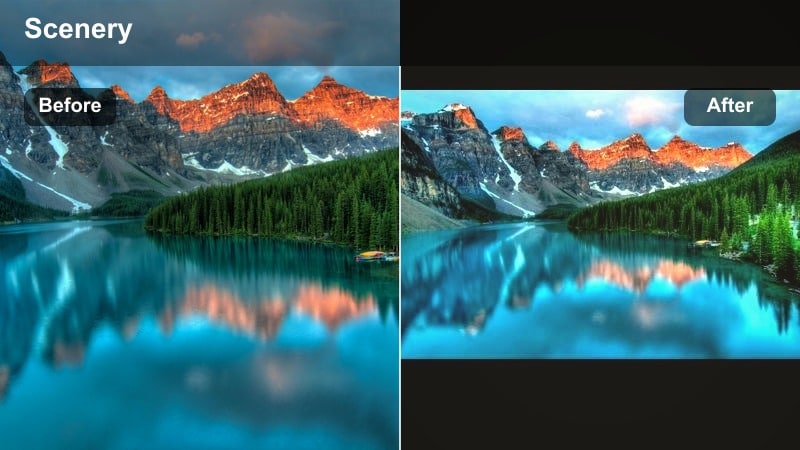
- Effect look: Soft amber warmth with lifted shadows, subtle film-like grain, and gentle fade in the blacks
- Best for: Travel reels from city rooftops, road trip window shots, and handheld POV sunset walks
- Editing tip: Add a slight vignette and stabilize handheld footage so the soft amber tones feel intentional and cinematic instead of shaky.
Amber Road Travel gives rooftops, highways, and horizon lines a nostalgic amber cast that feels like golden-hour travel diaries. Lifted shadows and a hint of grain create a film-inspired mood that flatters both streets and landscapes without crushing detail.
Inside Filmora, apply the filter, then use the Stabilization tool to smooth handheld clips. Add a subtle vignette in the Effects panel and fine-tune brightness so faces remain readable while the sky and city lights take on a dreamy amber glow.
Use Motion to Emphasize Warmth
Combine this filter with slow pans or push-ins toward the sun to emphasize the nostalgic amber mood.
If your clip has bumps or shakes, apply light stabilization before exporting so the warm tones feel cinematic, not accidental.
Horizon Flare Cinema
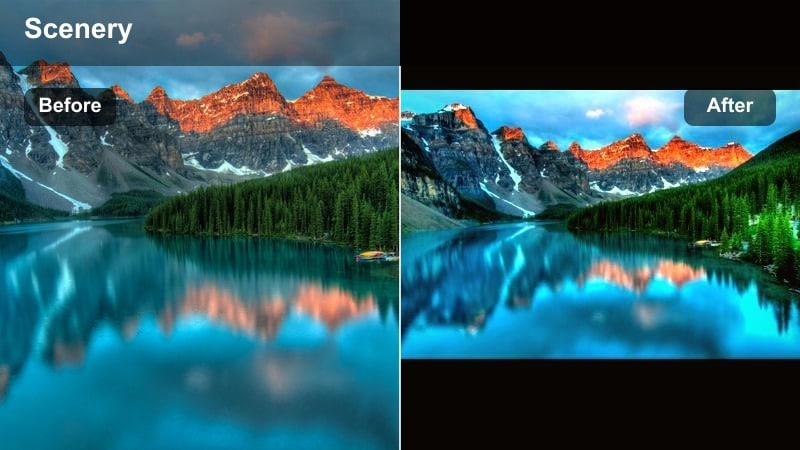
- Effect look: High-impact flares, boosted warmth in highlights, and slightly cooler shadows for a dramatic sunset split tone
- Best for: Cinematic sunset reels with lens flares, silhouettes, drone passes over the ocean or cliffs
- Editing tip: Turn down clarity or sharpness slightly on people while keeping landscape detail crisp to avoid harsh skin in backlit shots.
Horizon Flare Cinema is made for bold horizon lines and dramatic lens flares. By warming highlights and cooling shadows, it creates a cinematic split-toned look that makes oceans, cliffs, and skylines feel larger than life.
In Filmora, use this filter on drone passes and wide silhouettes, then selectively reduce sharpness on faces with masking so backlit subjects stay soft while the environment remains crisp. Adjust highlight recovery to keep flares bright without losing cloud texture or gradient color in the sky.
Protect Detail in Bright Horizons
When your horizon is extremely bright, slightly reduce exposure before applying this filter so the highlights do not clip.
After applying the filter, use highlight recovery and lower contrast in the brightest zones to bring back cloud details and color bands.
Soft Pastel Sunset Filters for Romantic Reels
Cotton Candy Dusk
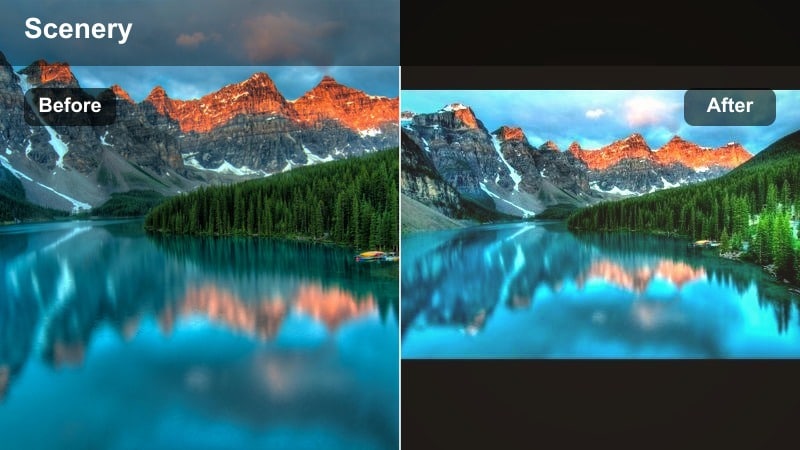
- Effect look: Soft pastel pinks and purples in the sky, muted contrast, and a dreamy low-clarity finish
- Best for: Romantic couple reels, engagement trips, slow dancing silhouettes, and dreamy travel vlogs
- Editing tip: Lower clarity only slightly to avoid a hazy look on faces; keep eyes and hair detail sharp for close-up shots.
Cotton Candy Dusk transforms ordinary dusks into soft pink and purple gradients that feel perfect for romantic or sentimental reels. Reduced contrast and a light clarity drop give your footage a dreamy, almost storybook quality.
In Filmora, apply the filter and then use the Sharpen and Clarity controls locally through masks to keep eyes, hair, and key details crisp. This lets you maintain a cotton-candy sky and soft backgrounds while ensuring your subject still looks sharp enough on mobile screens.
Keep Pastels Soft but Not Washed Out
If your footage looks flat after applying a pastel filter, gently increase midtone contrast instead of global contrast.
This keeps the dreamy pastel mood while giving faces and clothing enough depth to pop on small phone screens.
Lavender Twilight Walks
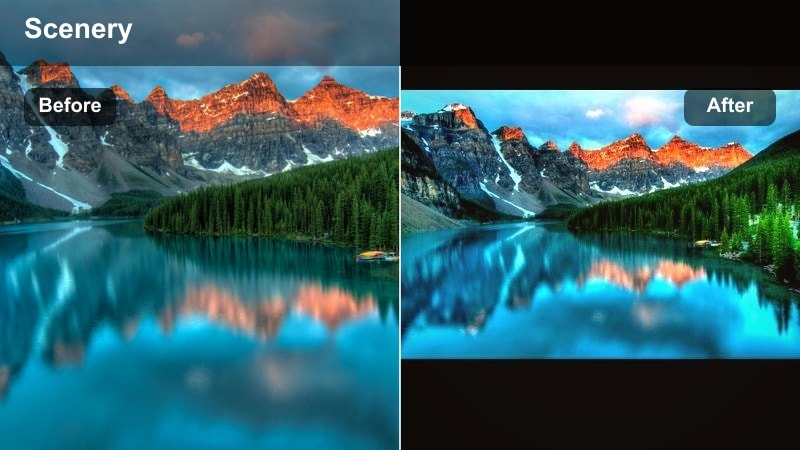
- Effect look: Cool lavender tint in shadows, slightly desaturated background, and clean skin tones in the mids
- Best for: Twilight city strolls, park benches at dusk, and soft storytelling reels with voiceovers
- Editing tip: Increase audio presence and ambience since the cooler, calmer visuals pair well with detailed sound design.
Lavender Twilight Walks adds a subtle lavender shift to shadows, giving parks, city paths, and quiet streets a reflective, end-of-day atmosphere. Background saturation drops slightly, so your subjects and highlights remain the visual focus.
Use this filter in Filmora on narrative reels with voiceovers or ambient sound. Enhance the effect by balancing audio levels and adding gentle background tracks; the cooler visuals pair beautifully with soft music and environmental sounds like footsteps, wind, or distant traffic.
Match Your Music to the Mood
Use slower, atmospheric tracks or soft piano to match the cool lavender tone of this filter.
If you add quick cuts or fast music, slightly raise contrast and saturation to keep the reel feeling energetic instead of sleepy.
Peachy Horizon Soft
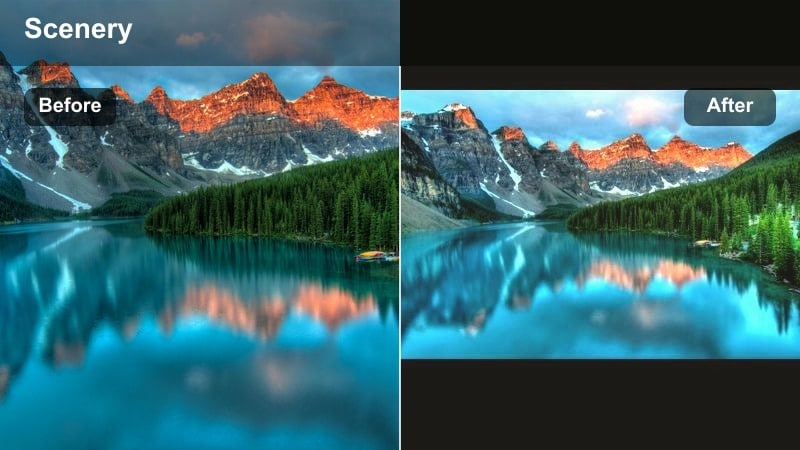
- Effect look: Light peach tones in highlights, gentle fade in blacks, and subtle glow around the brightest clouds
- Best for: Family sunset reels, travel diary clips, and everyday lifestyle moments shot near windows or balconies
- Editing tip: If your reel has both indoor and outdoor shots, keyframe exposure so the peach tones stay consistent across different lighting.
Peachy Horizon Soft leans into light peach highlights and a softened black level for a tender, intimate take on golden hour. It is ideal for balcony scenes, window light, and everyday moments where you want warmth without heavy contrast.
In Filmora, apply this filter to both indoor and outdoor clips, then keyframe exposure and white balance so the peach hue feels unified throughout your reel. Add a slight glow or bloom effect to clouds and brighter areas to enhance the gentle, cozy atmosphere.
Use Subtle Zooms for Emotional Impact
Apply slow digital zoom-ins or zoom-outs on key moments to emphasize the gentle peach tone and the subject’s emotion.
Keep transitions simple, using cuts or soft cross dissolves, so the viewer focuses on color and expression, not flashy effects.
Dramatic Dusk Grades and LUT-Style Filters
Dusk Noir Cinema
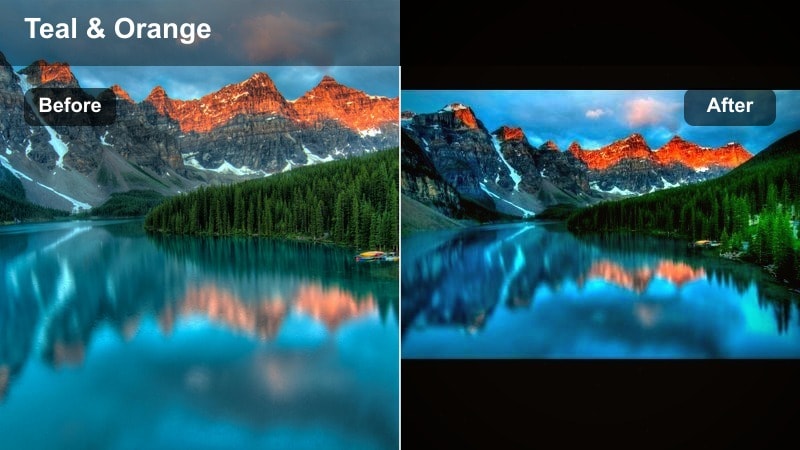
- Effect look: Deep blues in shadows, rich orange highlights, and strong contrast for a dramatic teal-and-orange dusk grade
- Best for: Cinematic sunset reels with silhouettes, rooftop scenes, and story-driven short films on Reels
- Editing tip: Expose slightly brighter in-camera, then pull down shadows in post so details do not disappear when contrast is added.
Dusk Noir Cinema delivers a classic teal-and-orange dusk grade with bold contrast, perfect for cinematic skyline stories and silhouette-focused reels. Deep blue shadows and vivid orange highlights create a strong, film-like separation between subject and background.
In Filmora, start with slightly bright footage, then apply the filter and pull down shadows and blacks in the Color controls. Use selective grading to preserve detail in darker areas and add a bit of vignette or letterboxing to accentuate the movie-like framing.
Control Noise in Dark Dusk Shots
Dramatic dusk grades can reveal noise in underexposed areas, especially in phone footage.
Apply light denoising before boosting contrast, and avoid lifting shadows too high so the image stays clean and cinematic.
Ember City Dusk LUT
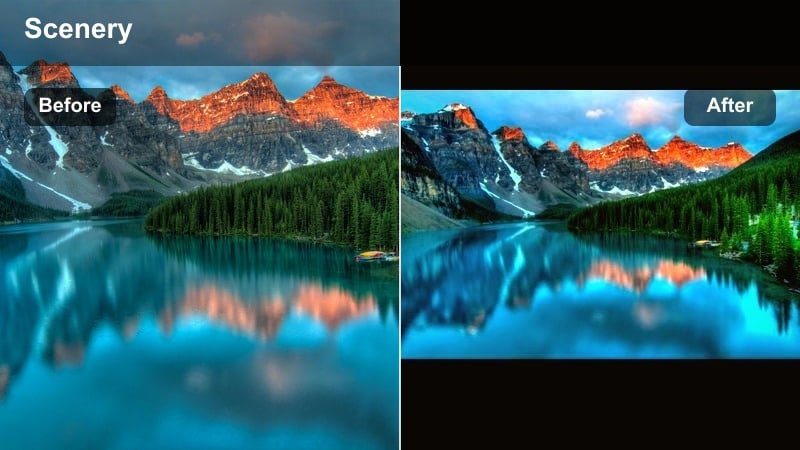
- Effect look: Warm ember tones on streetlights and windows, cooler blues in the sky, and crisp detail in midtones
- Best for: Urban sunset and blue-hour city reels, balcony cityscapes, and skyline time-lapses
- Editing tip: If your sky is already very dark, reduce the filter intensity so the blue channels do not clip and band in gradients.
Ember City Dusk LUT is tuned for blue-hour skylines and city lights, pushing windows and streetlamps into warm ember tones while keeping the sky a deep, cinematic blue. Midtones stay crisp so buildings and streets retain structure and detail.
In Filmora, use this LUT-style look on balcony views, time-lapses, and urban B-roll. Adjust filter intensity or opacity to avoid banding in darker skies, and consider adding a small amount of motion blur or speed ramping to give your city sunset reels extra energy.
Use Blue Hour as Your Secret Weapon
Shoot 10–20 minutes after sunset so the sky is still blue while city lights are bright for the strongest ember-and-blue contrast.
Lock your white balance in-camera to avoid color shifts between clips when you apply this LUT-style filter.
Crimson Edge Silhouette
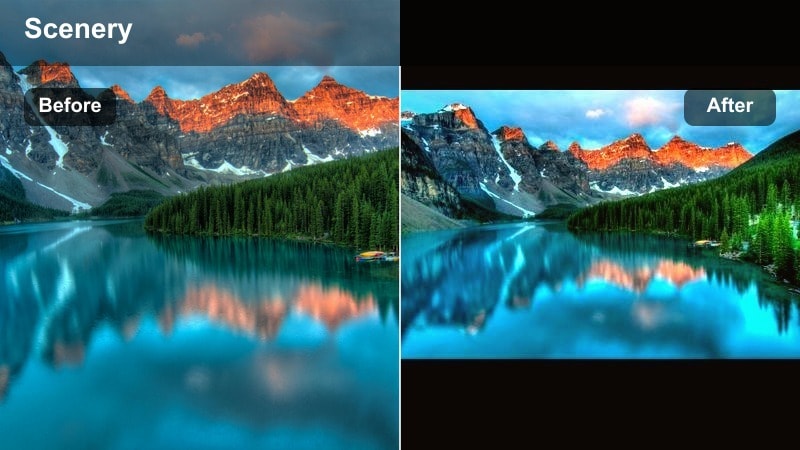
- Effect look: Deep reds and magentas near the horizon, punchy blacks for silhouettes, and vivid highlight roll-off
- Best for: Strong storytelling reels with silhouettes, dramatic landscape reveals, and dancer or fitness outlines at sunset
- Editing tip: Increase local contrast around your subject with selective tools so silhouettes stay defined against the glowing sky.
Crimson Edge Silhouette focuses on intense reds and magentas at the horizon while driving shadows into bold black silhouettes. It is perfect for dancers, fitness outlines, and dramatic poses that rely on strong shapes more than facial detail.
Within Filmora, apply the filter and then use masking or local contrast controls to sharpen the edge where subject meets sky. Expose for the brightest part of the sky in-camera so when you grade, you keep a clean, graphic outline without losing color in the sunset.
Expose for the Sky, Not the Subject
When planning a silhouette reel, tap to expose on the brightest part of the sky so your subject falls into clean shadow.
Avoid bright clothing on your subject if you want a pure silhouette; darker outfits produce a stronger outline with this filter.
Bold Creative Sunset Filters for Standout Reels
Neon Sunset Vibes
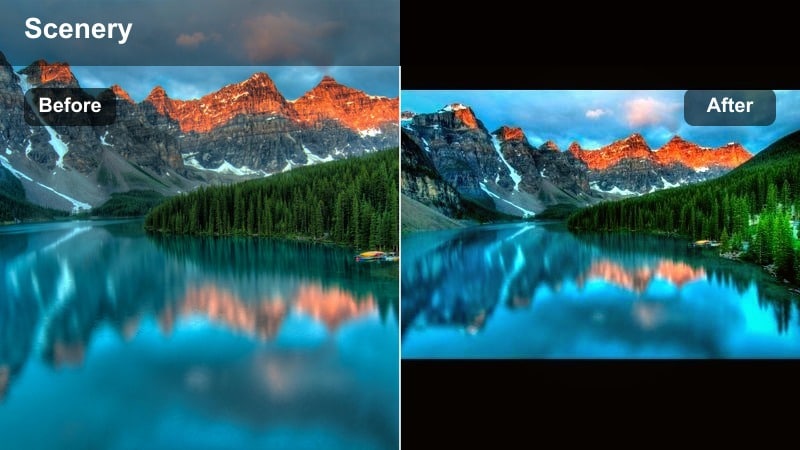
- Effect look: Punchy saturation, stylized magenta and cyan shifts, and high micro-contrast for an almost neon dusk palette
- Best for: Trendy Instagram Reels, fashion or dance content against sunsets, and bold travel edits that need to stand out
- Editing tip: Use shorter clips and faster cuts with this intense look so the strong colors feel exciting rather than overwhelming.
Neon Sunset Vibes takes natural dusk color and pushes it into a vivid magenta-and-cyan spectrum, making skies look almost neon. High micro-contrast and strong saturation turn simple movements into eye-catching, scroll-stopping visuals.
In Filmora, apply this filter to dance, fashion, or high-energy travel reels, then cut your clips shorter and sync them to the beat. Use it sparingly across a sequence to avoid visual fatigue, and tame overly intense skin tones with HSL controls focused on reds and oranges.
Keep Skin Real While Colors Go Wild
If faces start to look too pink or cyan, selectively reduce saturation in the orange and red channels after applying the filter.
You can also slightly warm midtones while keeping shadows and highlights vivid for a better balance between realism and style.
Vintage Sun Fade
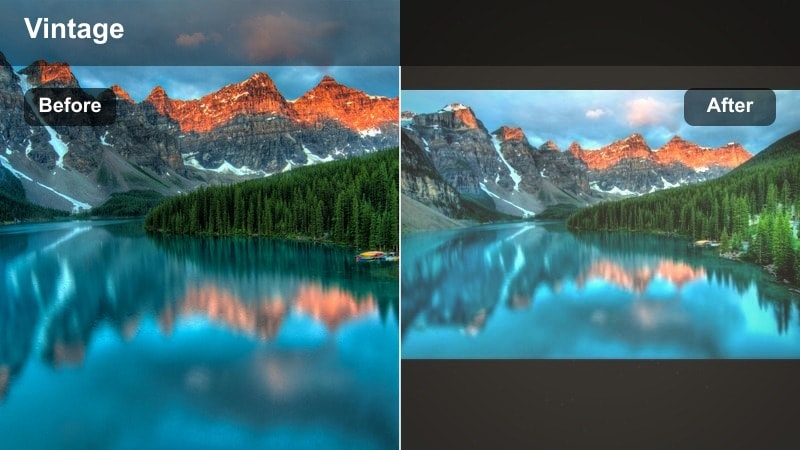
- Effect look: Soft faded contrast, subtle film grain, warm highlights, and a light green tint in shadows for a retro feel
- Best for: Nostalgic travel reels, road trip diaries, Super-8 style vacation clips, and family sunset memories
- Editing tip: Pair the filter with 4:5 or 9:16 framing and occasional film-burn overlays to sell the retro story fully.
Vintage Sun Fade mimics old film stocks with lowered contrast, gentle grain, and slightly warm highlights paired with green-tinted shadows. It is ideal for road trips, vacation montages, and family reels where you want a memory-filled, analog look.
In Filmora, combine this filter with film-burn overlays, dust, and subtle frame shake to enhance the retro vibe. Crop or export in vertical formats like 9:16 for Reels while keeping key subjects centered so the nostalgic treatment feels intentional and cinematic.
Use Gentle Camera Movement for Retro Vibes
Slow handheld sways and imperfect framing actually help sell the vintage aesthetic with this filter.
Avoid hyper-smooth gimbal shots; instead, add a tiny amount of motion blur and grain for an analog-inspired feel.
Prism Dusk Artistry
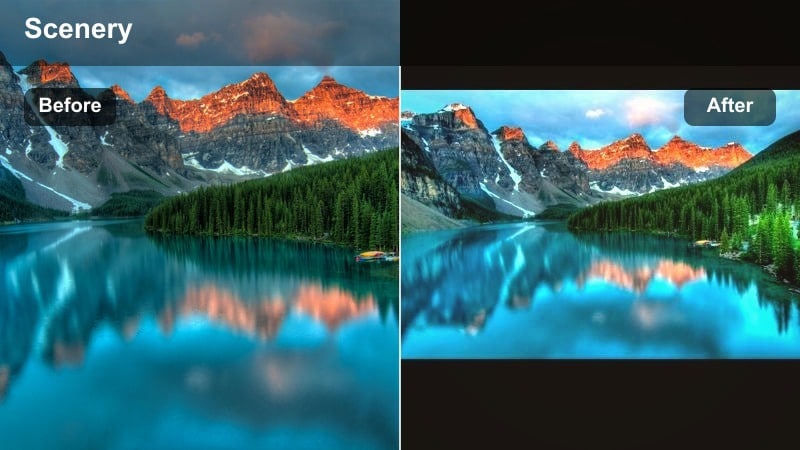
- Effect look: Split-toned highlights with soft rainbow tints, slightly blurred edges, and centered sharpness for an artistic prism effect
- Best for: Creative sunset reels, artistic self-portraits, concept travel edits, and experimental storytelling
- Editing tip: Frame your subject in the center of the shot to keep them sharp while the edges bloom with color and blur.
Prism Dusk Artistry wraps your frame in soft rainbow-tinted edges while keeping the center sharp, imitating an in-camera prism effect. It works best for creative portraits and concept reels where the color itself is part of the story.
In Filmora, use this look on clips where your subject is centered and there is plenty of negative space at the edges, like open sky or water. Add slow motion or gentle camera moves and avoid placing text near the borders, where blur and color shifts are most intense.
Use Negative Space to Enhance Prism Effects
Leave empty sky or open water near the edges of your frame so the prism colors have room to show without distracting from your subject.
Keep text and key details away from the outer edges since the blur and color shifts can make them hard to read.
Tips for Using Sunset Video Reels Filter Filters in Filmora
- Shoot your sunset reels slightly underexposed so filters have more color detail to work with in the brightest parts of the sky.
- Lock white balance on your phone or camera before recording so the color temperature does not shift between clips when you apply sunset filters.
- Use slow, deliberate camera movements like pans and push-ins to help cinematic sunset filters feel smooth and professional.
- Avoid over-sharpening backlit faces; sunset filters work best when skin looks soft and natural, not crunchy.
- Preview different sunset video filters for reels in Filmora and adjust intensity so skies stay rich without looking artificial.
- Mix subtle grain, vignettes, and glow effects with your chosen dusk reel LUT for a more polished cinematic finish.
- Organize your favorite sunset looks as presets in Filmora so you can color-match new reels in just a few clicks.
- Export a short 5-second test reel after grading to see how your sunset colors look on Instagram’s compression and your viewers’ phones.
With the right sunset video filters for reels, even quick handheld clips from your phone can feel like polished, cinematic dusk sequences. By pairing warm, pastel, dramatic, and creative looks with simple editing moves, you can turn everyday horizons into standout Instagram Reels sunset content.
Experiment with a few of these styles inside Filmora, save your favorite dusk reel LUT-style grades, and build a sunset aesthetic that followers instantly recognize across your travel videography and daily reels.
secure download