

 100% Security Verified | No Subscription Required | No Malware


 ChatGPT
 Perplexity
 Gemini
 Claude
 Grok
Grok
Sunset footage can look flat or washed out straight from the camera, especially for YouTube vlogs and travel videos. With the right sunset video filters for YouTube, you can instantly add warmth, contrast, and a cinematic glow that matches how the moment actually felt.
Below are 12 easy, repeatable filter styles you can build or adapt in Filmora to create consistent golden hour grades for your channel. Each comes with a clear effect description, best use case, and a quick editing tip tailored to YouTube vloggers and travel creators.
In this article
Warm Glow Sunset Filters for YouTube
Soft Amber Glow
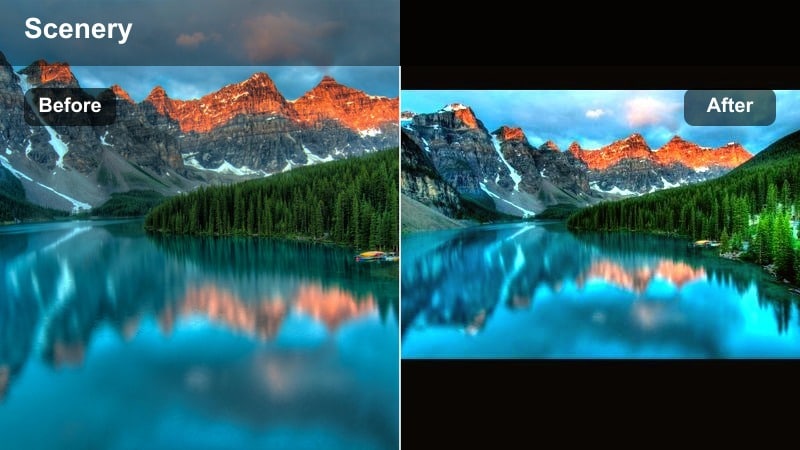
- Effect look: Gentle warm cast with lifted midtones and soft highlights that make skin tones glow during sunset.
- Best for: YouTube sunset vlogs where you are talking to camera with the sun behind or to the side.
- Editing tip: Lower contrast slightly and use a subtle vignette so the viewers eye stays on your face, not the sky.
This flattering warm filter adds an amber sheen that smooths out minor skin imperfections while keeping the natural golden hour feel. In Filmora, you can combine a small temperature boost with slightly lifted midtones to keep faces bright even when the sun is backlighting your shot.
Softening highlights and adding a light vignette helps keep attention on you rather than the brightest part of the sky. Save this as a sunset vlog preset in Filmora so you can apply the same glow to every talk-to-camera segment you shoot during golden hour, even on different days or locations.
Build Reusable Sunset Presets with Filmora
Once you dial in a sunset grade you love, save it as a custom preset inside Filmora so you can apply it instantly to new clips. This keeps your golden hour look consistent across vlogs, travel episodes, and shorts.
Use one or two base presets as your YouTube sunset LUT alternatives, then tweak exposure or white balance per scene instead of rebuilding filters from scratch.
 secure download

Preview Your Sunset Filters for YouTube and Shorts
Before committing to a grade, drop several sunset filters on duplicate clips in Filmora and compare them side by side. This lets you quickly see which style fits your channels vibe and which look stands out most in YouTube thumbnails and Shorts previews.
Check your edits on both desktop and phone, because most viewers will experience your golden hour footage on a smaller, brighter screen where contrast and saturation can feel stronger.
secure downloadCombine Filters and LUT-Style Looks for Unique Grades
You do not need a dedicated YouTube sunset LUT to get a professional look. Stack Filmoras built in filters with subtle color adjustments to imitate popular LUT styles while staying original and on brand for your channel.
Start with a light warm filter, add small curve and HSL tweaks, and save that stack as your signature sunset vlog grade that you can reuse across vlogs, travel reels, and Shorts.
secure downloadGolden Hour Pop
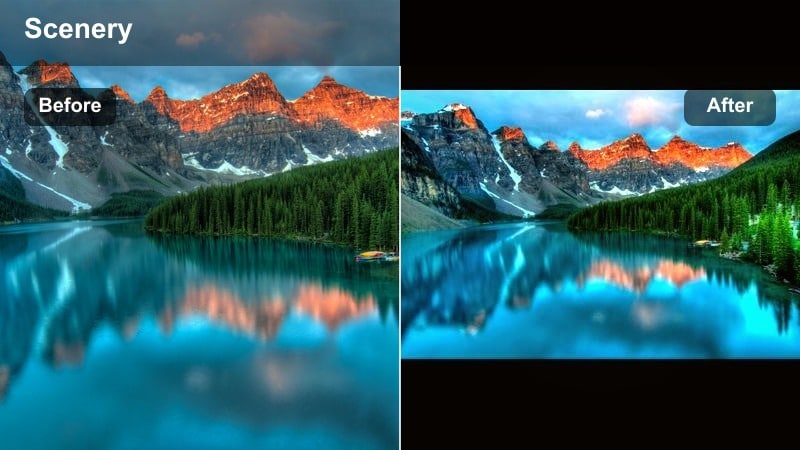
- Effect look: Warm, punchy filter that boosts saturation in oranges and reds while deepening blues in the sky.
- Best for: Golden hour YouTube videos that need extra color impact for thumbnails and short-form cuts.
- Editing tip: Use HSL controls to specifically target orange saturation instead of globally raising saturation on the whole image.
Golden Hour Pop is designed to make sunsets and oceans leap off the screen without turning everything into a neon mess. In Filmora, you can deepen blues in the sky and water while pushing orange and red saturation for bold clouds and warm skin.
This style works especially well for travel creators who rely on eye catching thumbnails and Shorts. Keep an eye on reds in clothing or signs; if they clip or glow, pull back overall saturation and rely more on targeted HSL adjustments.
Sunset Vlog Grade (Classic)
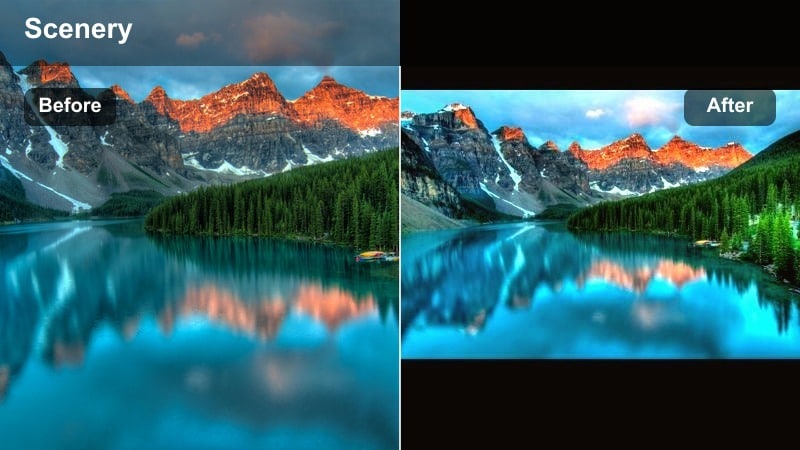
- Effect look: Balanced warm grade with gentle contrast, bright faces, and subtle saturation for everyday vlogs.
- Best for: Daily sunset vlog segments where you want a natural but elevated look across multiple clips.
- Editing tip: Use adjustment layers in Filmora so this sunset vlog grade sits across your whole timeline for consistency.
The classic Sunset Vlog Grade aims for a look that feels real but refined. By combining moderate warmth with gentle contrast and a small saturation lift, you get footage that is easy on the eyes and simple to match across different cameras.
Apply this look as an adjustment layer in Filmora, then tweak exposure on individual clips underneath to fix minor brightness differences. Over time, you can refine this grade into a recognizable visual identity for your YouTube channel.
Cinematic Sunset Filters and LUT-Inspired Looks
Cinematic Teal and Amber
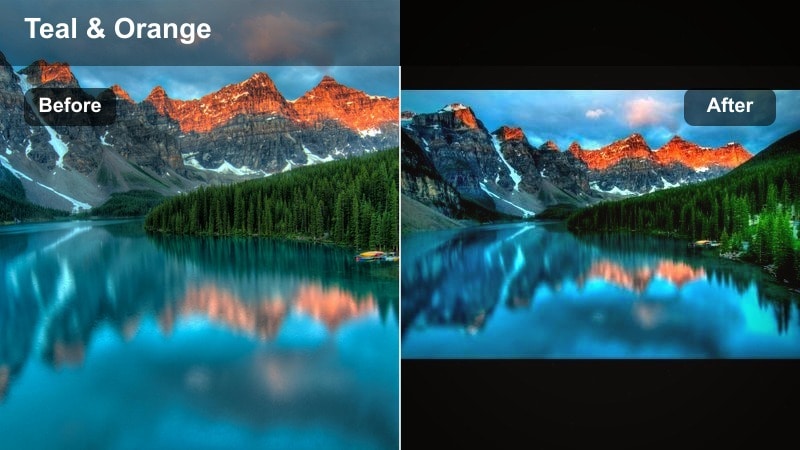
- Effect look: Classic teal shadows and warm amber highlights with rich contrast and subtle film softness.
- Best for: Travel b-roll, drone shots, and cinematic sunset sequences in YouTube travel videos.
- Editing tip: Use color wheels to push shadows towards teal and highlights toward orange while keeping midtones neutral for skin.
This filter recreates the popular Hollywood teal and orange style, perfect for dramatic travel sequences and drone flyovers at sunset. In Filmora, nudge your shadow wheel toward teal while warming highlights so the sky and sun glow against cooler land and water.
Keep midtones closer to neutral so skin tones remain believable even with the stylized color contrast. A bit of blur or film softness can help minimize harsh digital edges and bring the whole frame together.
YouTube Sunset LUT Style: Soft Film
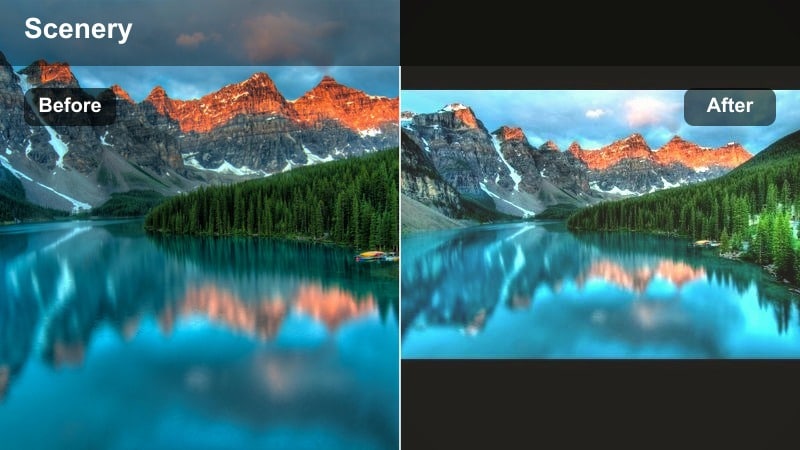
- Effect look: LUT-inspired pastel sunset look with slightly faded blacks, warm highlights, and smooth rolloff.
- Best for: Story-driven sunset montages, intros, and outros on lifestyle or travel channels.
- Editing tip: Lower the black point carefully; too much fade removes depth and can make YouTube compression more obvious.
Soft Film turns harsh, contrasty sunsets into gentle pastel scenes that feel dreamy and nostalgic. By lightly fading blacks and smoothing highlight rolloff in Filmora, you can mimic the feel of a sunset LUT without relying on external files.
This look works best for intros, outros, and reflective b roll sequences. Pair it with slower pacing and softer music, and avoid over-fading blacks so your video does not look washed out once YouTubes compression kicks in.
Deep Sunset Cinema
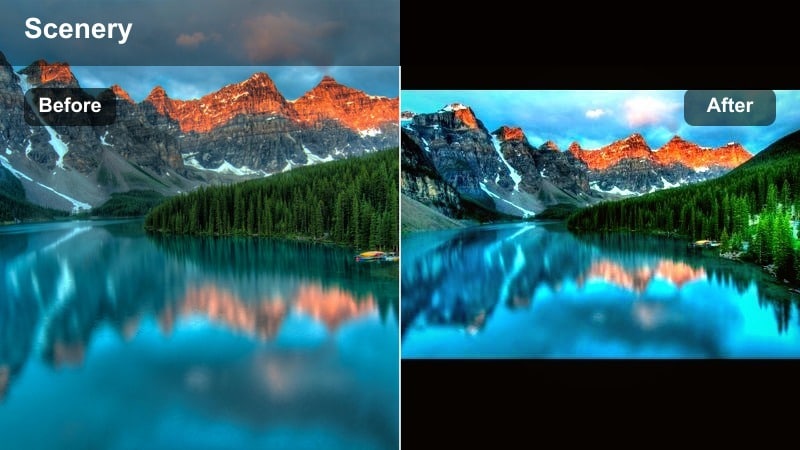
- Effect look: High-contrast, saturated sunset filter with deep shadows, bold oranges, and crisp edges.
- Best for: Epic landscape sunsets, mountains, ocean cliffs, and drone reveals in cinematic YouTube videos.
- Editing tip: Mind clipping in the red channel; use highlight recovery and lower saturation slightly if skies band or blow out.
Deep Sunset Cinema is made for jaw dropping landscape shots where you want the sky to feel almost larger than life. In Filmora, push contrast and saturation while carefully protecting highlights in the reds and oranges so clouds keep their texture.
Use scopes or your eyes to check for banding and clipping, especially on bright clouds near the sun. If detail starts to disappear, dial back saturation and use highlight recovery and curves to reclaim nuance in the brightest parts of the frame.
Moody and Soft Sunset Filters for Storytelling
Dusty Rose Sunset
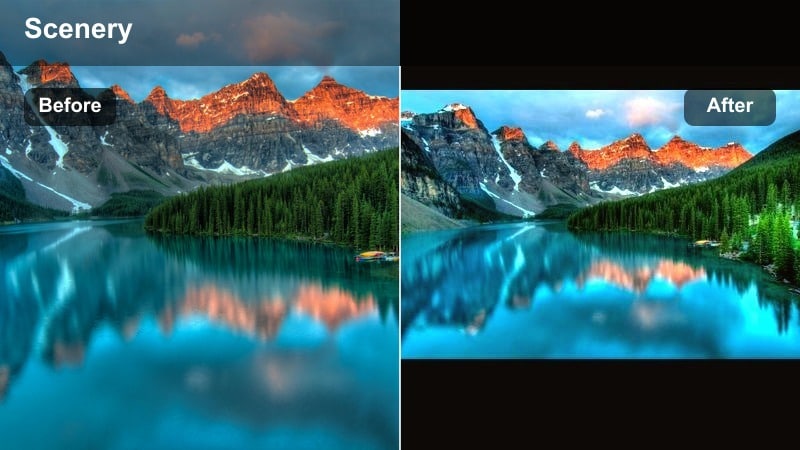
- Effect look: Desaturated background with a gentle pinkish tint in highlights and natural skin tones.
- Best for: Romantic travel vlogs, couple content, and reflective storytelling over sunset b-roll.
- Editing tip: Use the tone curve to soften contrast, then add a slight pink tint only to highlights with the color wheels.
Dusty Rose Sunset leans into soft pinks and muted backgrounds to create a romantic, intimate feeling. In Filmora, you can desaturate non skin tones a bit while adding a light magenta or pink shift to the highlights for a dreamy glow in clouds and reflections.
This style is ideal for couple shots, proposal stories, or quiet reflective voiceovers. Keep contrast low and avoid heavy grain so the image stays clean and YouTube compression does not introduce unwanted artifacts.
Hazy Golden Memoir
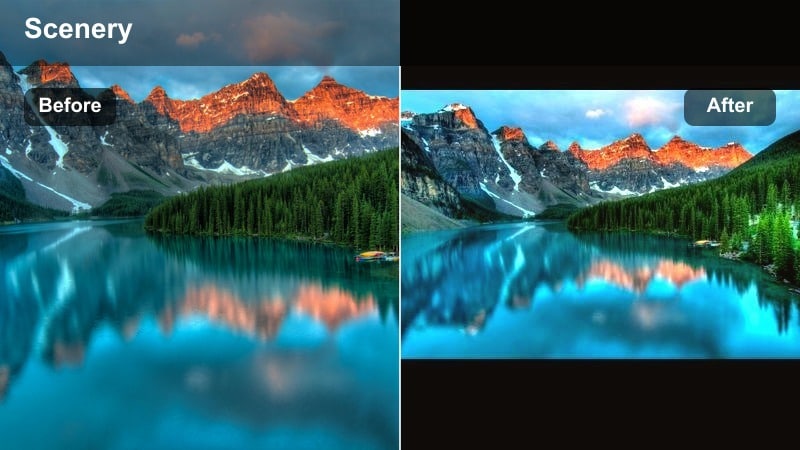
- Effect look: Soft focus feel with lifted blacks, warm haze, and reduced micro-contrast for a nostalgic vibe.
- Best for: Voiceover segments about memories, endings of travel episodes, and reflective sunset scenes.
- Editing tip: Add a glow or bloom effect subtly, then counter it with a touch of clarity so the image does not become muddy.
Hazy Golden Memoir makes your sunsets feel like they are being remembered rather than experienced live. Adding a soft bloom or glow in Filmora, combined with lifted blacks and reduced clarity, gives the frame a nostalgic, memory like quality.
This filter works especially well over slow pans, tripod shots, or gentle push ins while you narrate a story or reflect on your trip. Keep movements slow and hold shots longer so the hazy aesthetic has time to register with viewers.
Moody Golden Contrast
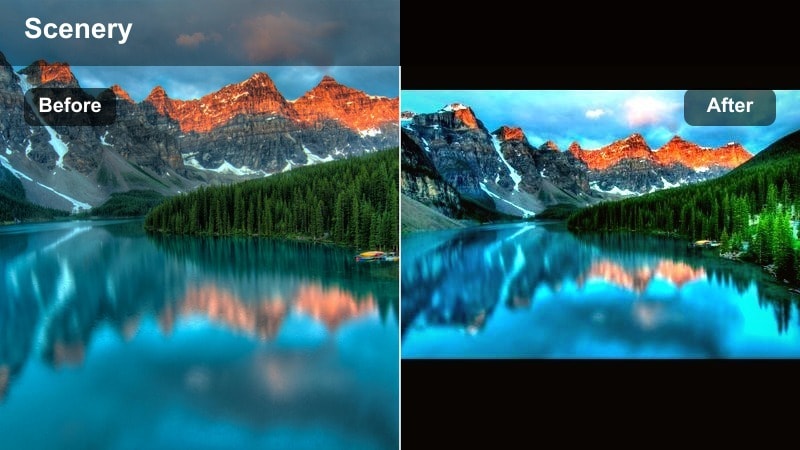
- Effect look: Darkened shadows, rich warm highlights, and cooler midtones for a dramatic moody golden hour.
- Best for: Travel creators who want cinematic drama in cliffs, forests, and city rooftop sunsets.
- Editing tip: Use selective color to cool midtones slightly while keeping highlights warm so the image feels layered.
Moody Golden Contrast plays with warm light against dark surroundings for a dramatic, story heavy feel. In Filmora, you can pull down shadows, keep highlights warm, and cool down midtones just a touch to create color separation and depth.
This look is great for forests, city rooftops, or any location where the sun is raking across darker environments. Expose for the highlights when filming and then lift shadows only enough to preserve important details and silhouettes in post.
Clean and Natural Sunset Filters for YouTube Vlogs
Clean Golden Vlog
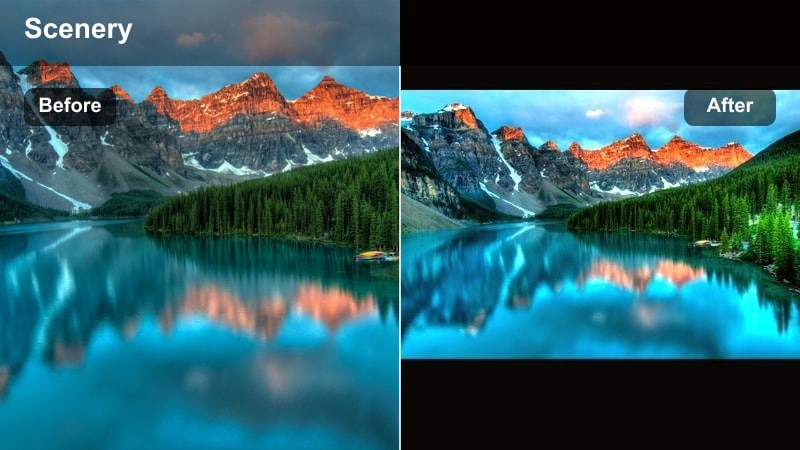
- Effect look: Light touch warm filter with gentle contrast, clear skin, and minimal color shift elsewhere.
- Best for: Everyday YouTube sunset vlogs where you want authenticity with just a bit of polish.
- Editing tip: Start with basic corrections for exposure and white balance before adding this subtle sunset filter.
Clean Golden Vlog is for creators who want their sunset shots to look real, just a little better than straight out of camera. In Filmora, fix exposure and white balance first, then add a mild warmth and contrast boost to keep everything natural.
This is a great default look for daily vlogs and street content, especially when you film quickly and need a reliable one click upgrade. Save it as part of your base correction stack so it is always a couple of clicks away.
Neutral Sky Protect
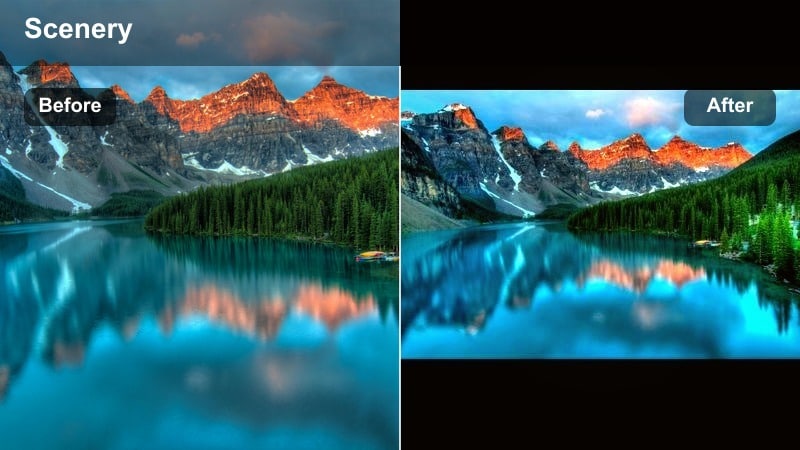
- Effect look: Neutral, low-contrast grade that preserves highlight detail and accurate sky color with mild warmth on faces.
- Best for: High dynamic range situations where the sunset is very bright but you still need to see your subject.
- Editing tip: Use masks or Filmoras highlight/shadow controls to protect the sky separately from your subject.
Neutral Sky Protect focuses on keeping skies detailed and clean while still flattering your subject. In Filmora, you can lower contrast, pull back highlights, and add just a hint of warmth to skin so the frame stays well balanced.
This filter is especially useful when filming directly against a bright horizon where your camera might struggle. By preserving sky detail, you get better looking thumbnails and more dynamic looking b roll without sacrificing your face or storytelling.
Subtle Golden Street
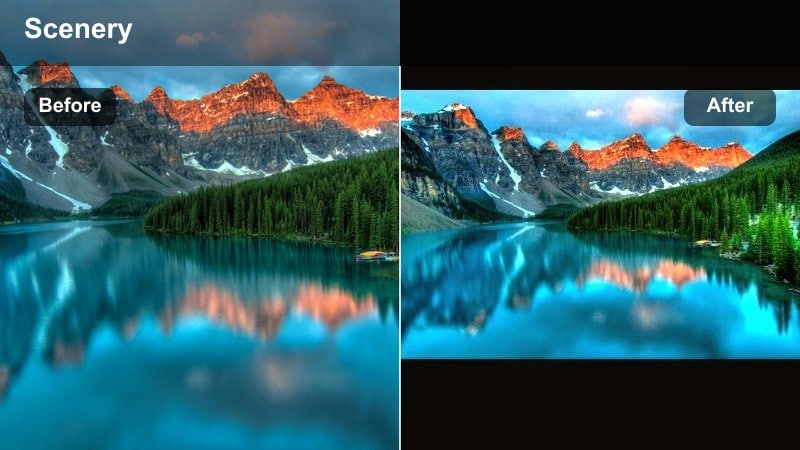
- Effect look: Minimal warmth, gentle clarity, and slight saturation boost focused on oranges and yellows.
- Best for: Street and city sunset footage for creators who mix travel storytelling with urban life.
- Editing tip: Use localized adjustments to keep street lights and signs from becoming overly saturated and distracting.
Subtle Golden Street is tuned for mixed lighting, where sunset colors blend with artificial city lights. In Filmora, you can give a small warmth boost and targeted saturation to oranges and yellows while keeping neon signs and traffic lights under control.
This keeps your frame cinematic instead of chaotic, even in busy urban environments. Use masks or selective adjustments to protect important skin tones so they do not pick up unwanted color casts from nearby lights.
Tips for Using Sunset Video Youtube Filter Filters in Filmora
- Shoot in the flattest picture profile your camera offers so you have more flexibility when applying sunset filters later.
- Lock white balance during golden hour to avoid sudden color shifts between clips that are hard to match in editing.
- Expose slightly darker than you think to protect bright skies, then raise shadows in Filmora for a cleaner grade.
- Create separate presets for talking head sunset shots and pure landscape b roll so each stays optimized.
- Always preview your sunset grades at 100 percent playback and full brightness to spot banding or clipping before export.
- Test your sunset grades on both desktop and mobile screens to be sure saturation and contrast feel balanced everywhere.
- Organize your favorite Filmora presets into folders based on vlog type, like daily vlog, cinematic travel, or Shorts.
- Periodically refine your presets instead of creating new ones every time so your channels look stays consistent.
With a small set of well tuned sunset video filters for YouTube, you can transform flat evening footage into warm, cinematic scenes that fit your channels identity.
Save your favorite golden hour grades as presets in Filmora, reuse them across vlogs and travel episodes, and refine them over time so every sunset upload looks consistently polished.
secure downloadNext: Best Sunset Video Filters for TikTok: Mobile-Friendly Golden Hour Looks
