

 100% Security Verified | No Subscription Required | No Malware


 ChatGPT
 Perplexity
 Gemini
 Claude
 Grok
Grok
The Cinematic Travel Filter. Epic Journey preset is designed for filmmakers and travelers who want their trips to feel like scenes from a movie. With dramatic contrast, rich colors, and subtle film grain, it turns ordinary vacation clips into cinematic travel video stories.
Whether you are capturing remote landscapes, city skylines, or intimate travel documentaries, these cinematic travel video filters help you shape mood, depth, and narrative. Use them as a starting point, then tweak exposure and color to match your unique style.
In this article
Epic Landscape Travel Filters
Sunset Range Glow
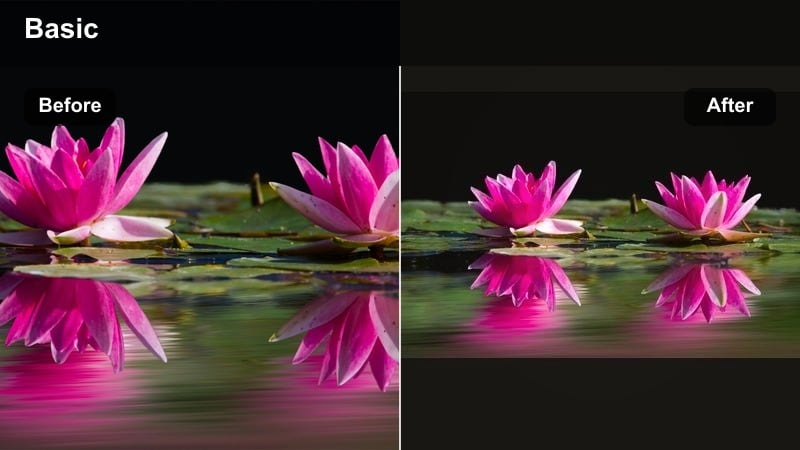
- Effect look: Warm, glowing skies with deep, cinematic shadows for mountain and desert ranges
- Best for: Golden hour hikes, desert road trips, aerial shots over valleys
- Editing tip: Lower highlights slightly to keep clouds detailed, and add a subtle vignette to pull focus into the frame center.
Sunset Range Glow wraps your landscapes in warm, cinematic light, intensifying oranges and reds in the sky while carving out rich shadows along ridgelines and deserts. In Filmora, it instantly gives your golden hour hiking and road trip shots that movie travel filter feel, with glowing horizons and dramatic contrast that make even simple silhouettes look epic.
Apply this filter to your wide establishing shots, then fine tune exposure with the basic color controls so foreground elements do not disappear into pure black. Add a gentle vignette in Filmora to guide the eye toward the center of the frame, and use subtle film grain on selected clips to push the final sequence toward a cohesive film look.
AI-Assisted Cinematic Color for Travel Footage
Filmora s AI tools help you push the Cinematic Travel Filter. Epic Journey preset even further by automatically analyzing exposure, contrast, and color. Before diving into creative grading, you can let AI smooth out problematic clips, bringing highlights under control and balancing shadows for a more neutral starting point.
With AI color matching, you can keep scenes shot in different countries, cameras, or times of day visually consistent. Your glowy sunsets, blue hour transitions, and midday hikes can all share the same cinematic travel palette, making your final film feel like one continuous journey instead of disconnected clips.
 secure download

Preview Cinematic Travel Video Filters in Real Time
Filmora s live preview lets you scroll through cinematic travel video filters and see the impact on your landscapes, city shots, and travel b roll instantly. You can compare subtle tweaks in contrast, saturation, and warmth without rendering, which is ideal when dialing in a precise film look for a multi location travel edit.
Test several versions of the Cinematic Travel Filter. Epic Journey preset alongside other travel filmmaking filters to decide which combination best fits your story. Once you have found the tone that matches your trip, apply it across similar scenes so the whole journey feels visually unified.
secure downloadCombine Filters and LUTs for a Complete Film Look
For the strongest cinematic travel aesthetic, combine the Cinematic Travel Filter. Epic Journey preset with camera specific LUTs in Filmora. The LUT locks in a predictable base contrast and color response, while the filter shapes mood, warmth, and saturation for each scene.
After adding your LUT, reduce its intensity if highlights or shadows clip, then stack your preferred travel cinematic filter on top. From there, refine with Filmora s HSL and local adjustments so skin tones, skies, and foliage stay natural while preserving the dramatic travel feel.
secure downloadGlacier Film Matte
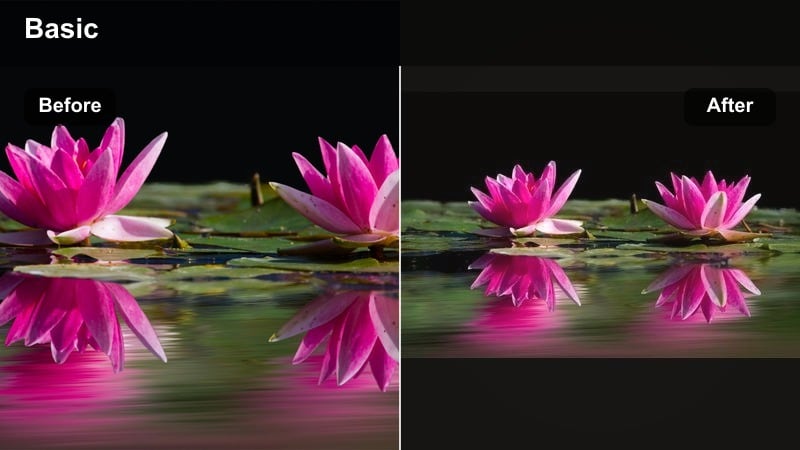
- Effect look: Cool-toned, soft matte finish with subtle film grain for dramatic high-altitude scenes
- Best for: Snowy peaks, ice caves, glacier tours, cold coastal cliffs
- Editing tip: Lift the blacks slightly for a soft film look, then increase midtone contrast to keep texture in snow and rock.
Glacier Film Matte shifts your palette toward cool blues and teals while adding a gentle matte to the shadows for that elevated, cinematic travel color grade. In Filmora, this is perfect for snow covered peaks and ice caves, where you want dramatic scale without blowing out whites or losing subtle details in the terrain.
Apply the filter, then use the curves and contrast sliders to lift the black point slightly while boosting midtones, so snow keeps its contours instead of becoming flat. If the scene feels too blue, warm the temperature just a little and preserve teal accents in the shadows, maintaining a balanced yet stylized film look.
Tropical Epic Journey
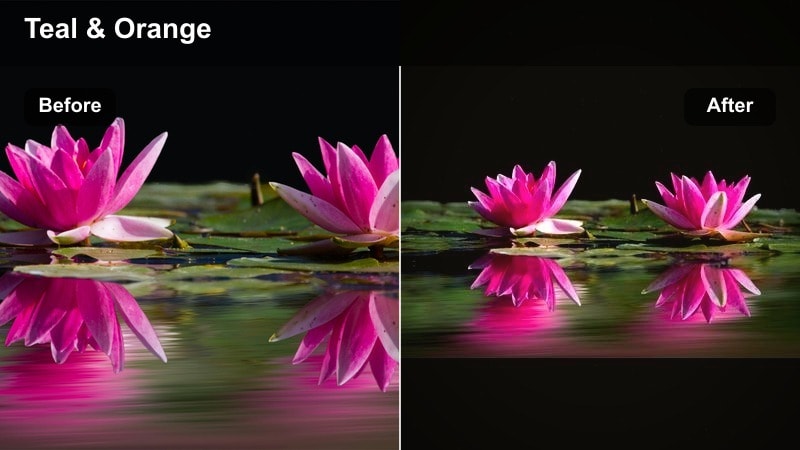
- Effect look: Rich teal waters, lush greens, and warm skin tones with a cinematic contrast curve
- Best for: Island hopping, beach adventures, drone footage over reefs
- Editing tip: Boost saturation selectively in aquas and greens while slightly lowering global saturation to keep the frame cohesive.
Tropical Epic Journey transforms beaches and islands into vibrant, movie ready locations with deep teal water, lush foliage, and flattering warmth on skin. In Filmora, it helps your drone footage and handheld clips feel like a polished travel campaign rather than casual vacation shots.
After applying the filter, fine tune the HSL controls to push aquas and greens while holding back overall saturation so the scene looks cinematic instead of cartoonish. Balance teal and orange tones carefully and soften overly bright greens, ensuring your tropical grades stay rich, modern, and ready for cinematic travel videos.
Urban Journey Travel Filters
City Noir Cinema
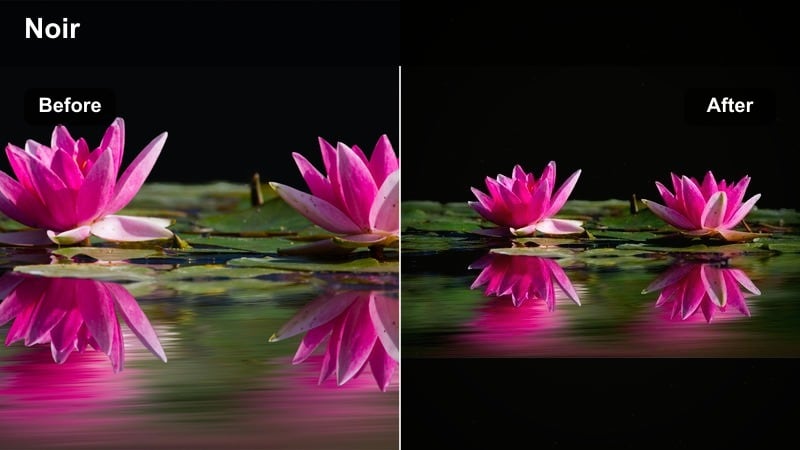
- Effect look: Moody, low-key contrast with muted colors and cinematic shadows
- Best for: Night streets, neon-lit alleys, rainy cityscapes, urban travel b-roll
- Editing tip: Crush blacks slightly, then bring up shadow detail where needed with local adjustments to keep important elements visible.
City Noir Cinema leans into deep shadows, soft highlights, and muted colors to create a noir inspired city travel aesthetic. In Filmora, this filter is ideal for rainy streets, neon signs, and nighttime b roll, turning simple street walks into sequences that feel ripped from a thriller.
Use local adjustment tools to selectively recover detail around faces, shopfronts, or key story elements while letting the rest of the frame fall into moody darkness. After applying the filter, reduce color noise in the shadow areas and let light sources, like signs and windows, become your primary compositional anchors.
Metro Film Look
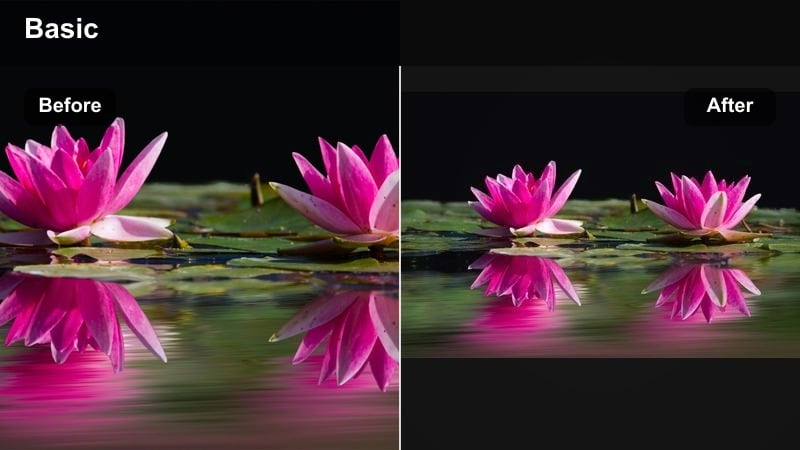
- Effect look: Soft film contrast with slightly lifted blacks and subtle halation around lights
- Best for: Subways, trains, station platforms, handheld urban travel vlogs
- Editing tip: Stabilize handheld shots lightly, then add this filter and reduce clarity a touch to get a smooth film-like motion feel.
Metro Film Look brings a nostalgic film texture to underground stations and transit shots, softening contrast and lifting blacks to mimic analog footage. In Filmora, it works beautifully on handheld vlog clips and platform scenes, especially when paired with gentle stabilization.
Apply the filter and drop clarity slightly so motion blur feels intentional and cinematic rather than shaky. Add a touch of halation around strong light sources and keep saturation moderate, allowing the warm station lights and passing trains to set the mood without overwhelming your subjects.
Rooftop Sun Fade
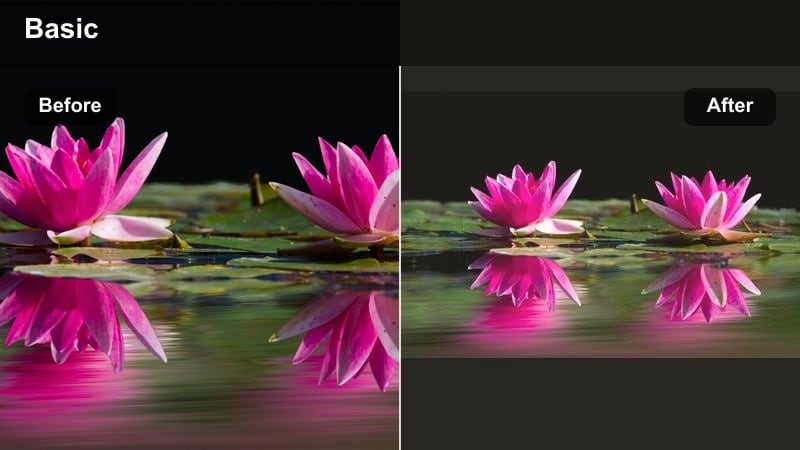
- Effect look: Backlit flares, warm highlights, and a gentle matte for skyline silhouettes
- Best for: Rooftop sunsets, skyline time-lapses, city intros and outros
- Editing tip: Add a slow push-in or tilt movement in editing, then apply this filter to turn static skyline shots into cinematic transitions.
Rooftop Sun Fade is designed to give skyline silhouettes and rooftop sunsets a dreamy, backlit glow with gently faded shadows. In Filmora, this filter helps you build strong intros and outros for your travel films, turning static cityscapes into emotional scene setters.
Use keyframed zooms or tilts on locked off shots, then apply the filter to blend the movement with warm, hazy highlights for a polished cinematic travel look. Protect your sky by lowering highlights and whites first, then refine through gradient masks so buildings remain crisp while the sky stays rich and detailed.
Intimate Travel Moments Filters
Café Journal
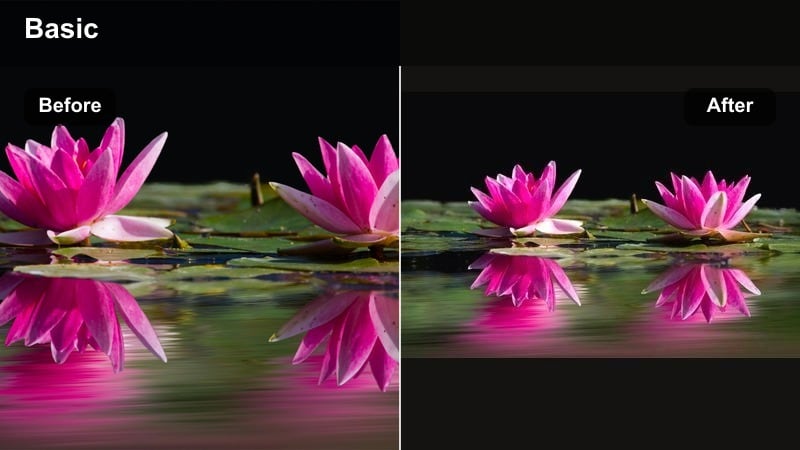
- Effect look: Soft, warm midtones with gentle contrast and natural skin tones
- Best for: Cafés, markets, hostel life, close-up travel storytelling
- Editing tip: Reduce sharpness slightly and add a touch of film grain to make candid moments feel like frames from a travel diary film.
Cafe Journal wraps everyday travel moments in warm, soft midtones, making notebook scribbles, coffee shots, and candid conversations feel intimate and cinematic. In Filmora, it is perfect for slow paced storytelling sequences that bridge your big landscape and city scenes.
Apply the filter and then fine tune skin tones with selective color adjustments to keep faces natural. Slightly reduce sharpness and add subtle film grain so your diary style clips feel like they were captured on a gentle analog lens rather than a harsh digital sensor.
Hostel Evening Amber
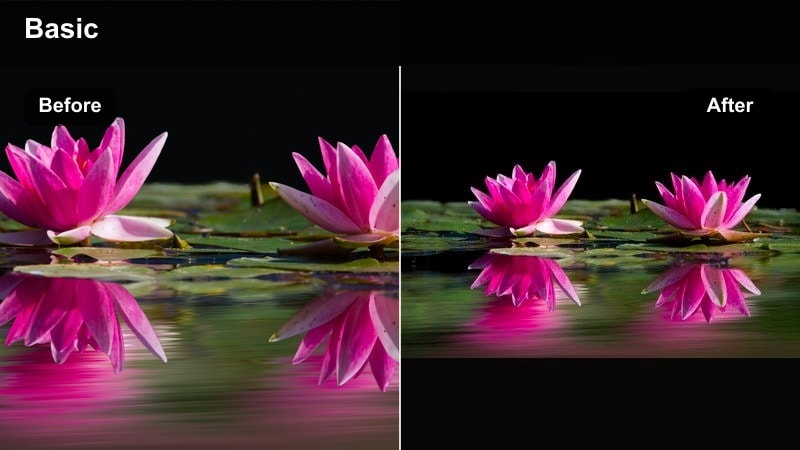
- Effect look: Amber warmth, softened highlights, and a nostalgic film tint
- Best for: Hostel hangouts, campfire scenes, late-night travel conversations
- Editing tip: Drop saturation in yellows slightly while keeping warmth high to avoid overly orange skin and walls.
Hostel Evening Amber adds an amber glow and subtle film fade to low light gatherings, emphasizing warmth and connection over technical perfection. In Filmora, it turns dim hostel corners and campfire chats into emotionally charged scenes that carry your story forward.
After applying the filter, tame yellow saturation so skin tones and walls do not go overly orange, while keeping overall warmth high. Shape light with vignettes and exposure masks around faces, helping viewers lock onto expressions and interactions even in busy, cluttered environments.
Market Film Story
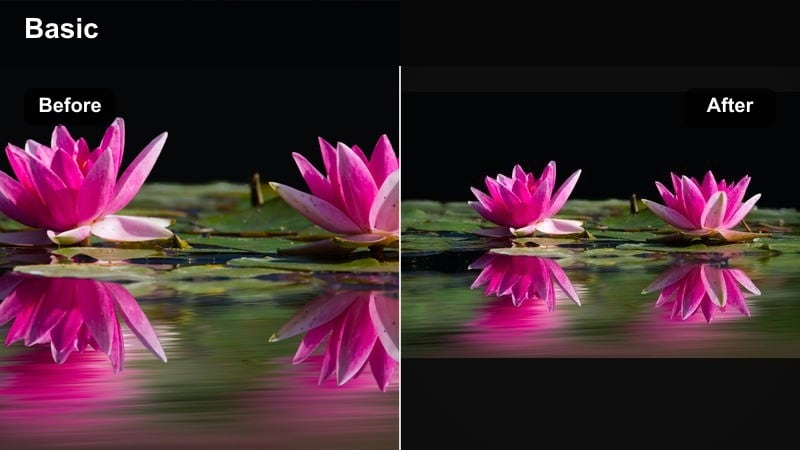
- Effect look: Rich colors with slightly muted primaries and strong micro-contrast
- Best for: Street markets, food stalls, busy local streets, documentary-style travel
- Editing tip: Use selective color to keep food and textiles vibrant while letting the background stay slightly desaturated.
Market Film Story balances rich color with controlled primaries to keep hectic markets vibrant yet cinematic. In Filmora, it excels at documentary style travel sequences where you want food, fabrics, and key details to stand out without turning the whole frame into a color overload.
Use selective color tools to boost saturation for specific items like fruit, spices, or textiles while gently desaturating backgrounds and nonessential elements. Add micro contrast with sharpening and clarity carefully, keeping motion smooth so your audience can follow the story through the chaos.
Documentary Travel Filters
Neutral Film Doc
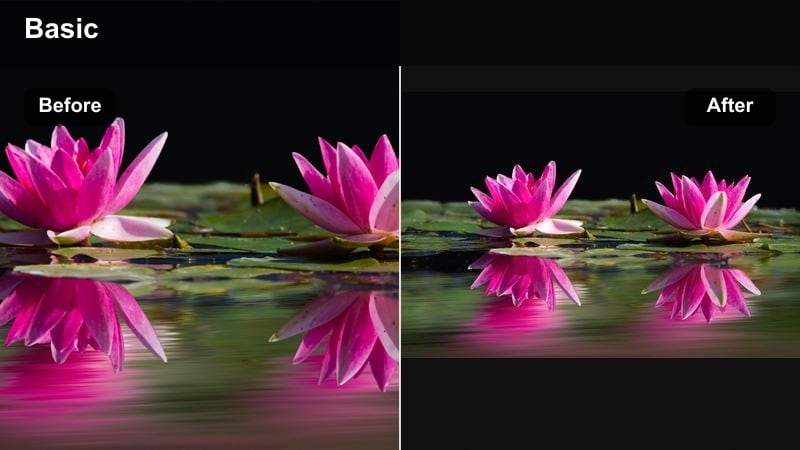
- Effect look: Balanced contrast, natural colors, and subtle film texture for honest storytelling
- Best for: Travel documentaries, interviews on location, educational travel content
- Editing tip: Keep white balance accurate and adjust tint carefully so skin and landscapes stay believable and consistent across scenes.
Neutral Film Doc offers a restrained, realistic film look with natural colors and a slight texture, ideal for serious storytelling. In Filmora, it keeps interviews, educational content, and on location explanations grounded while still adding polish beyond a straight out of camera image.
Apply the filter across your entire documentary timeline as a base look, then match exposure and white balance between clips for consistency. From there, make only subtle tweaks to contrast and saturation so viewers focus on your story, locations, and subjects rather than flashy grading.
Heritage Chronicle
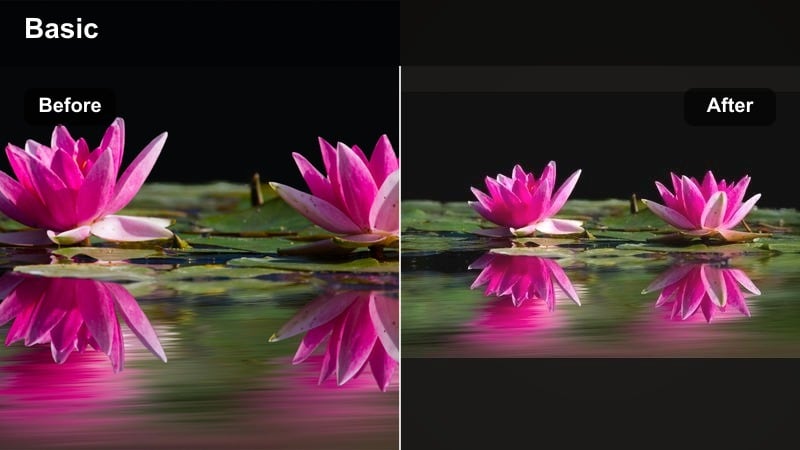
- Effect look: Soft warm highlights, gentle fade, and slightly desaturated colors for historical sites
- Best for: Temples, ruins, museums, cultural heritage travel stories
- Editing tip: Reduce saturation in reds and yellows to avoid tourist-poster vibes and keep the tone respectful and cinematic.
Heritage Chronicle introduces soft warmth and a subtle fade to scenes set in temples, ruins, and historical streets, giving them a timeless, respectful tone. In Filmora, it helps you avoid overly punchy, postcard like grades when covering culturally important locations.
After applying the filter, slightly lower saturation in reds and yellows and keep camera moves slow and deliberate. Use gentle pushes or pans along architectural lines, letting the filter and composition work together to highlight detail and atmosphere rather than bright tourist colors.
Road Journal Raw
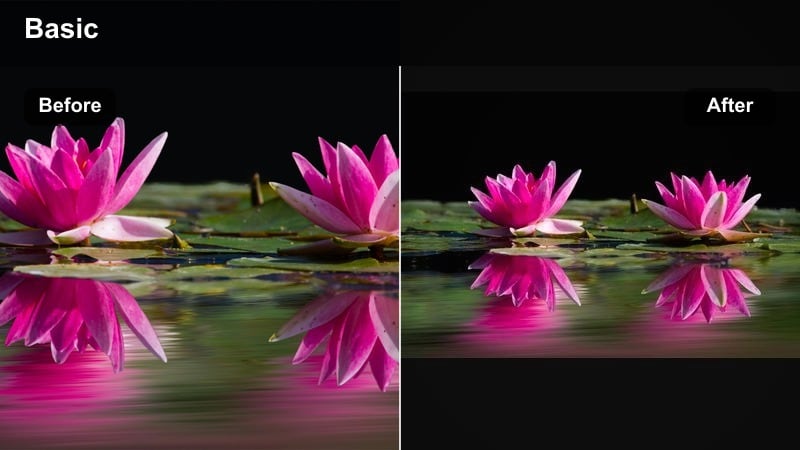
- Effect look: Low saturation, higher contrast, and a touch of grain for authentic road-trip realism
- Best for: Long drives, bus rides, motorcycle journeys, behind-the-scenes travel footage
- Editing tip: Cut quickly between shots, then add this filter to tie the sequence together and emphasize the feeling of distance and time.
Road Journal Raw leans into muted colors, stronger contrast, and visible grain to capture the grit and realism of life on the road. In Filmora, it turns simple bus windows, gas station stops, and dashboard views into cohesive montages that emphasize time, distance, and fatigue.
First assemble your journey with relatively quick cuts and match exposure roughly, then apply the filter across the entire sequence to unify the look. Add a bit more grain to clips meant to represent memories or reflections, and keep ambient road audio intact so the visuals and sound tell a grounded travel story together.
Tips for Using Travel Cinematic Filters in Filmora
- Shoot as flat as your camera allows and slightly underexpose bright scenes so cinematic travel video filters have more highlight detail to work with.
- Group similar locations on your timeline and apply the same filter settings to maintain a consistent film look across entire sequences.
- Use filters at reduced intensity if you are mixing cinematic travel films with talking head or vlog style segments for a smoother transition.
- Always color correct white balance and exposure before adding dramatic travel filters to avoid color shifts that are hard to fix later.
- Export a short test sequence with different filter intensities and watch it on your phone and laptop to be sure your travel film holds up across screens.
The Cinematic Travel Filter. Epic Journey preset gives filmmakers and travelers a fast way to turn raw clips into cohesive, movie-like travel sequences without needing advanced color grading skills. By choosing the right style for each location, from glaciers to night streets, you can build a visually rich narrative from departure to return.
Combine these cinematic travel video filters with careful shooting, consistent exposure, and clear storytelling and your trips will feel less like random clips and more like a complete, immersive film experience.
secure downloadNext: Explore the Travel Moody Filter for Deeper, Atmospheric Journeys
