

 100% Security Verified | No Subscription Required | No Malware


 ChatGPT
 Perplexity
 Gemini
 Claude
 Grok
Grok
Travel vloggers and YouTubers know that the right filter can turn casual trip footage into a cinematic journey. Thoughtful color and contrast choices help your audience feel the warmth of sunsets, the cool air of mountain peaks, and the energy of busy streets.
Below are curated travel video filters for YouTube, organized by shooting scenario. Use them as creative starting points to build a consistent visual style across all your travel vlogs and YouTube travel videos.
In this article
Warm Golden Hour and Beach Travel Filters
Sunset Glow Journey
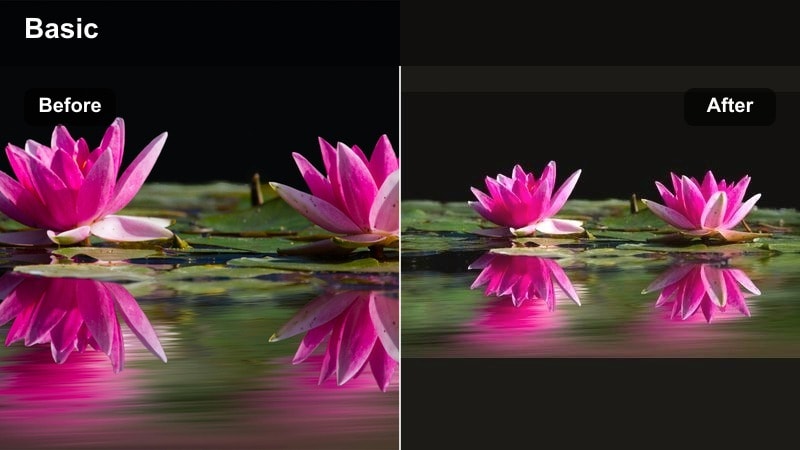
- Effect look: Warm oranges and soft magenta highlights that push sunsets and beach skies into a dreamy glow.
- Best for: Golden hour beach walks, coastline drone shots, and silhouettes against the setting sun.
- Editing tip: Lower the filter intensity to around 60-70 percent and slightly pull down highlights to keep the sky from clipping.
Sunset Glow Journey is designed to make your golden hour travel vlogs feel rich and cinematic without destroying natural color. It leans into warm oranges and magentas so skies look dreamy, but it keeps skin tones controlled so your face does not turn overly orange on YouTube.
In Filmora, drop this filter on your sunset clips, then fine tune intensity and highlights to protect bright clouds and water reflections. Combine it with gentle contrast and a touch of vibrance to maintain detail while still getting that classic YouTube travel look your audience expects.
Use AI to Match Filters Across Your Travel Vlogs
Instead of rebuilding your look from scratch every episode, Filmora AI color tools can analyze a favorite frame from a past travel vlog and help you match that style on new clips. This is ideal when you shoot beach, city, and hotel scenes on different days with changing light.
The AI tools help keep skin tones, skies, and interiors aligned so your audience experiences one unified journey, not a patchwork of color shifts. Start with your favorite beach or city grade, then let Filmora spread that vibe across your timeline.
 secure download

Preview Travel Filters in Real Time
Filmora lets you preview filters simply by hovering over them in the Effects panel, so you can instantly see how each look will treat your beach, city, or hotel clips. This makes it easy to compare warm golden hour styles against cooler cinematic grades without endless trial and error.
Build your own travel video YouTube filter combo by choosing a base look, then nudging exposure and white balance until skies, water, and skin tones sit exactly where you want them. That way, your preset feels custom to your footage instead of a one-click effect.
secure downloadMix Filters with LUT Style Looks for YouTube
If you already rely on a signature travel YouTube LUT or vlog color grade, Filmora filters can sit on top as a quick finishing layer. This lets you refine contrast, add glow, or introduce filmic grain without breaking the color identity your subscribers recognize.
Apply your LUT first, then bring in subtle Filmora filters at low opacity to push your footage toward warm beach, neon city, or clean hotel aesthetics. Small stacks like this help your channel feel polished while staying fast to edit on a travel schedule.
secure downloadTropical Teal Waves
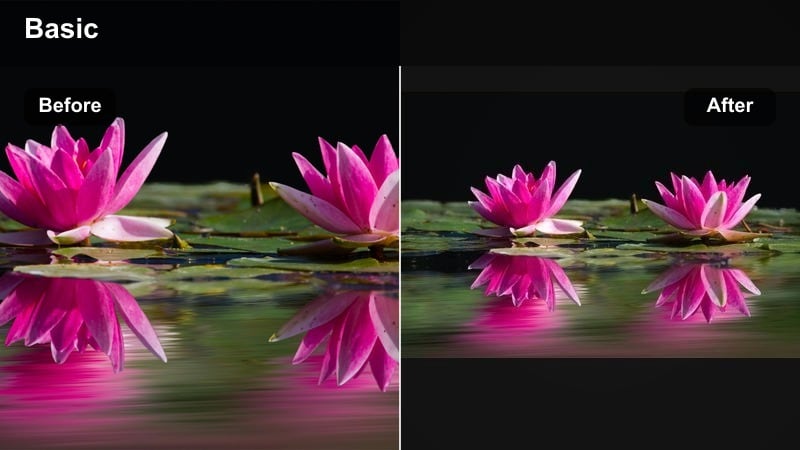
- Effect look: Punchy teal water, clean whites, and gentle warmth in midtones for sunny coastal scenes.
- Best for: Tropical island vlogs, snorkeling clips, and seaside hotel b-roll for YouTube travel videos.
- Editing tip: Use a selective color tool to fine-tune blues and cyans so the ocean looks rich without turning skin tones unnatural.
Tropical Teal Waves is built to make ocean water and clear skies stand out with a bold, modern teal push. It brightens the scene and keeps midtones slightly warm, so your beach resort and island adventures feel energetic but still natural.
In Filmora, apply this filter to drone passes, snorkeling shots, and poolside vlogs, then refine blue and cyan hues in the HSL controls. Mask your face if needed so the background stays vibrant while your skin retains a realistic, flattering tone for YouTube.
Sun-Kissed Vlog Glow
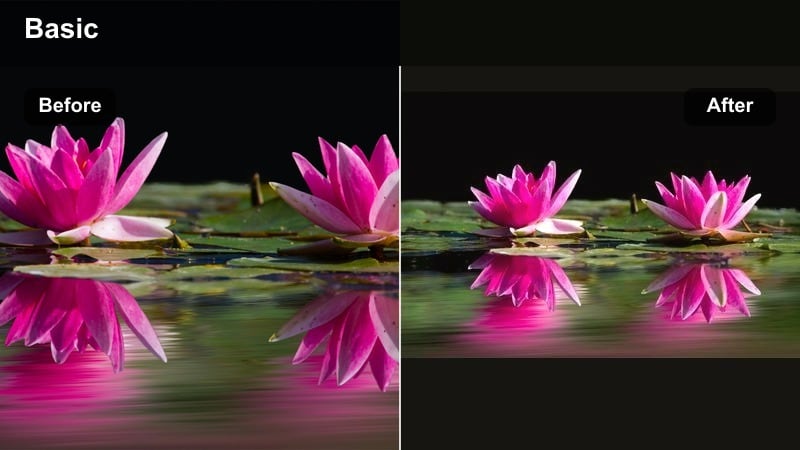
- Effect look: Soft contrast, subtle bloom in highlights, and warm skin tones for cozy, friendly vlog shots.
- Best for: Handheld talking segments on the beach, poolside hotel intros, and travel storytime clips.
- Editing tip: Add a tiny bit of grain and reduce clarity slightly for a smoother, flattering look on faces.
Sun-Kissed Vlog Glow focuses on people first, giving your face and hands a gentle warmth that feels inviting on camera. By softening contrast and adding a hint of highlight bloom, it smooths hard edges so viewers pay attention to your story, not minor skin imperfections.
Use this filter in Filmora for intros, outros, and sit-down travel segments recorded near windows or outside in bright light. Keep the intensity moderate, then combine it with a bit of grain and lower clarity to create a subtle, cinematic softness that fits lifestyle travel channels.
Urban City and Night Travel Filters
Neon City Streets
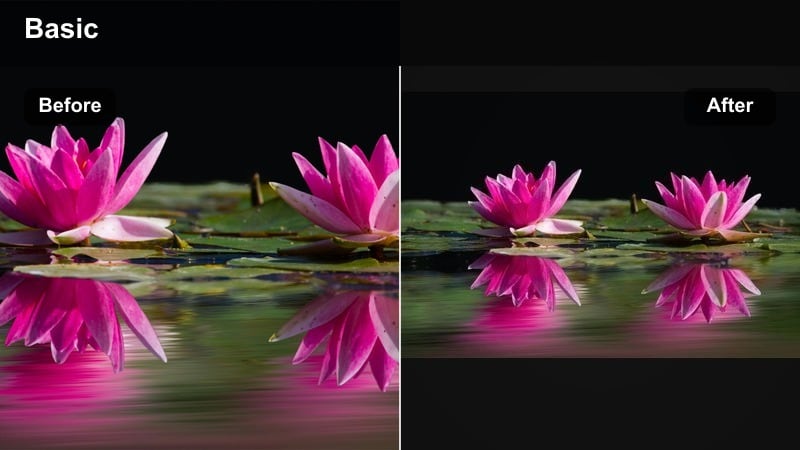
- Effect look: Bold contrast with saturated blues and magentas that make neon signs and nightlife pop.
- Best for: Night market vlogs, city time-lapses, and rainy street b-roll in busy downtown areas.
- Editing tip: Lift shadows slightly to reveal more detail in dark streets, then selectively boost saturation only in neon colors.
Neon City Streets is your go-to travel YouTube filter for busy nightlife, turning wet sidewalks and glowing signs into a vivid backdrop. It leans into blues and magentas while using higher contrast to emphasize reflections, traffic, and movement in city scenes.
Inside Filmora, use this filter on handheld walking shots, timelapses, or slow-motion city b-roll. Tweak shadows upward to keep detail in dark corners, then use color controls to selectively push neon saturation so the streets feel alive without crushing the rest of the scene.
Cinematic Metro Commute
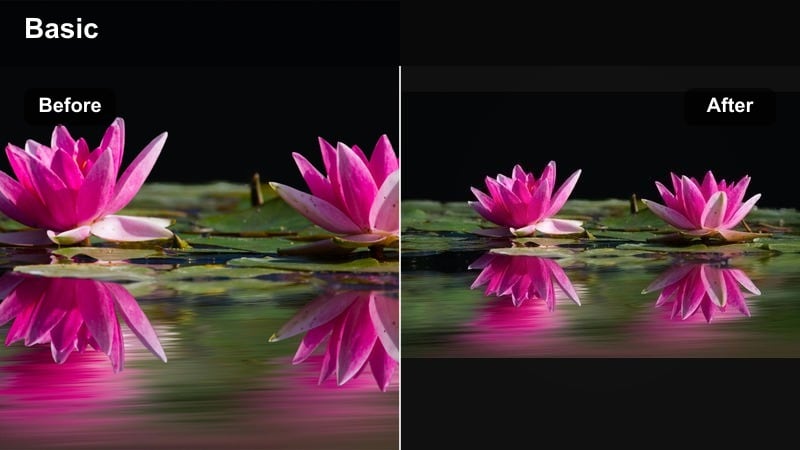
- Effect look: Muted color palette with soft greens and cool shadows for an understated cinematic street style.
- Best for: Subway rides, airport transitions, and city walk sequences that connect major travel moments.
- Editing tip: Lower global saturation slightly and let specific accent colors, like signs or clothing, remain bright for storytelling.
Cinematic Metro Commute tones down overall saturation and shifts shadows cooler, giving everyday city commutes a filmic, transitional feel. It is perfect for connecting shots between destinations in your travel vlog, such as trains, airports, and long walks through station corridors.
Apply this look in Filmora to establish mood between your main scenes, then selectively keep pops of color in signage or luggage. By letting only a few hues stay vibrant, you guide your viewers eyes and make transitions feel purposeful rather than filler.
Urban Grit Explorer
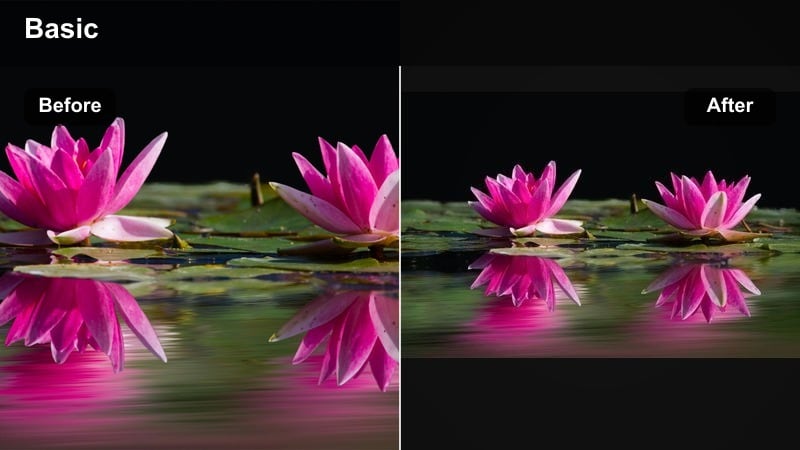
- Effect look: High micro-contrast with desaturated blues and rich browns for textured city details.
- Best for: Street photography style b-roll, alleyway shots, and local market visuals in older city districts.
- Editing tip: Avoid pushing clarity too high on faces; use masks to keep grit in the background but smooth the subject.
Urban Grit Explorer emphasizes textures in walls, pavement, and architecture, making old city streets and markets feel tactile on screen. It slightly desaturates cooler tones while deepening browns, so your viewers notice stone, brick, and worn surfaces.
In Filmora, pair this filter with smooth camera moves or static shots to showcase character-rich neighborhoods. Use masking on your subject to keep people flattering while backgrounds stay crunchy and detailed, matching documentary-style or exploration-focused travel vlogs.
Nature, Mountains, and Adventure Filters
Evergreen Trail Adventure
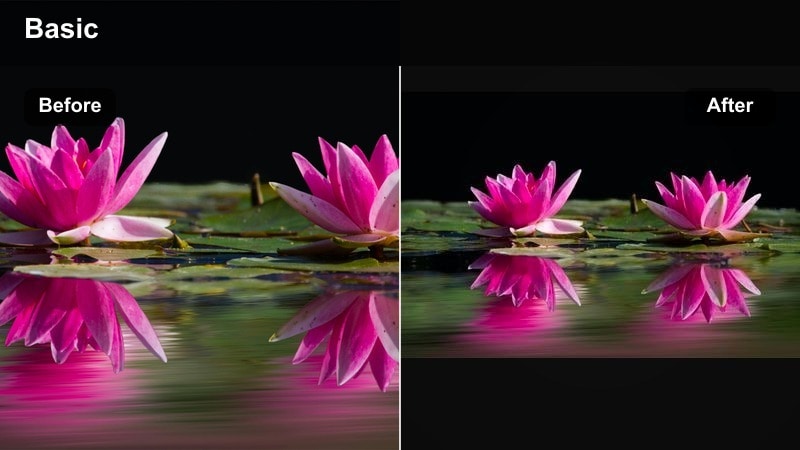
- Effect look: Rich greens, natural contrast, and slightly cool highlights that keep forests crisp and lively.
- Best for: Hiking vlogs, forest drone shots, and camping lifestyle b-roll.
- Editing tip: Fine-tune the green hue slider so foliage looks natural; avoid nuclear greens by reducing saturation slightly.
Evergreen Trail Adventure is tuned for forests and fields, enhancing greens while protecting a realistic, grounded look. Slightly cooler highlights keep leaves and branches crisp, which helps your audience feel the freshness of mountain air and shaded trails.
When editing in Filmora, drop this filter onto hiking b-roll, tent setups, and forest drone passes. Then nudge green hue and saturation until trees match the way you remember them, ensuring your travel vlog looks cinematic without sliding into cartoonish color.
Alpine Clear Air
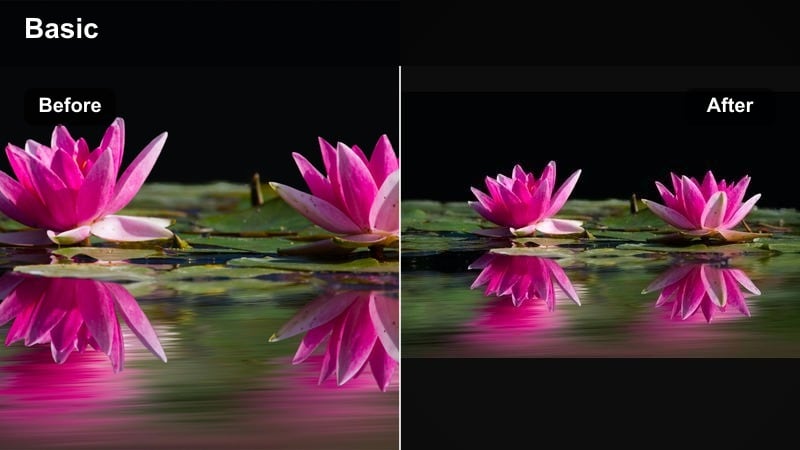
- Effect look: Cooler overall temperature, crisp blues, and lifted shadows that reveal detail in snowy peaks.
- Best for: Mountain hikes, ski trips, glacier tours, and high-altitude drone footage.
- Editing tip: Reduce highlights and whites to keep snow from blowing out, then add local contrast for rock detail.
Alpine Clear Air cools your image and boosts clarity in blues, making snowfields, glaciers, and mountain lakes look clean and expansive. Lifted shadows help you keep detail in dark ridges and jackets, so your audience sees both the landscape and your adventure clearly.
Use this travel video YouTube filter in Filmora for ski vlogs, cable car rides, and drone reveals above peaks. After applying, manage highlights carefully and introduce local contrast only where needed, keeping snow crisp without turning it harsh or grey.
Wanderlust Soft Travel
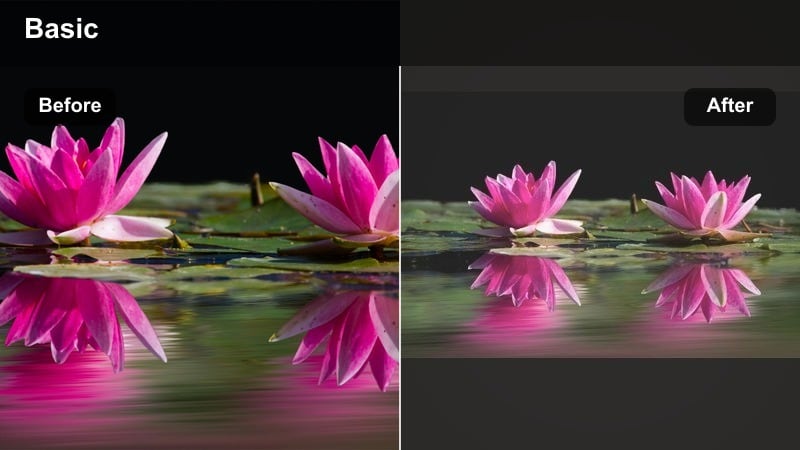
- Effect look: Soft contrast, gentle pastel tones, and a mild fade in blacks for an airy travel diary feel.
- Best for: Picnics, slow travel days, small town explorations, and handheld vlog moments.
- Editing tip: Use this look for B-roll and talking shots across the same episode to keep your travel vlog color grade consistent.
Wanderlust Soft Travel introduces pastel colors and a subtle fade, perfect for relaxed days in small towns, countryside stops, or cozy breakfast scenes. The reduced contrast makes everything feel lighter and more nostalgic, ideal for reflective voiceovers or journal-style episodes.
In Filmora, apply this filter across both A-roll and B-roll to unify an entire vlog around a soft aesthetic. Slightly adjust exposure clip by clip, but keep the overall style consistent so your viewers instantly recognize episodes built around slower, more intimate travel days.
Indoor, Hotel, and Food Travel Filters
Cafe Cozy Vibes
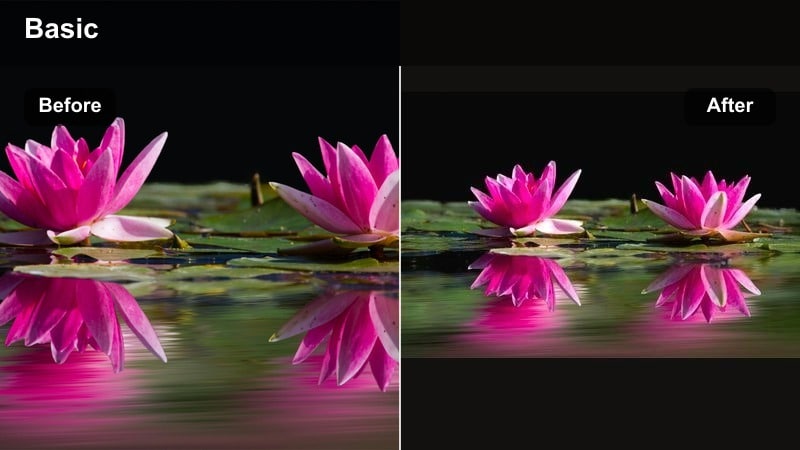
- Effect look: Warm, low-contrast tones with soft highlights and enhanced browns for inviting indoor scenes.
- Best for: Coffee shop segments, coworking spaces, and casual laptop work scenes during travel days.
- Editing tip: Reduce yellow saturation and shift it slightly toward orange to fix strange indoor lighting while staying warm.
Cafe Cozy Vibes warms up indoor scenes and lifts shadows, turning coffee shops and hotel lobbies into welcoming backdrops for your travel narration. It emphasizes browns and wood textures, so tables, cups, and decor feel rich without overpowering your skin tones.
Apply this filter in Filmora when editing laptop check-ins, planning sessions, or casual meetups in cafes. Correct white balance first, then fine tune yellows toward orange to smooth out mixed lighting while keeping that cinematic, cozy mood your audience enjoys.
Street Food Festival
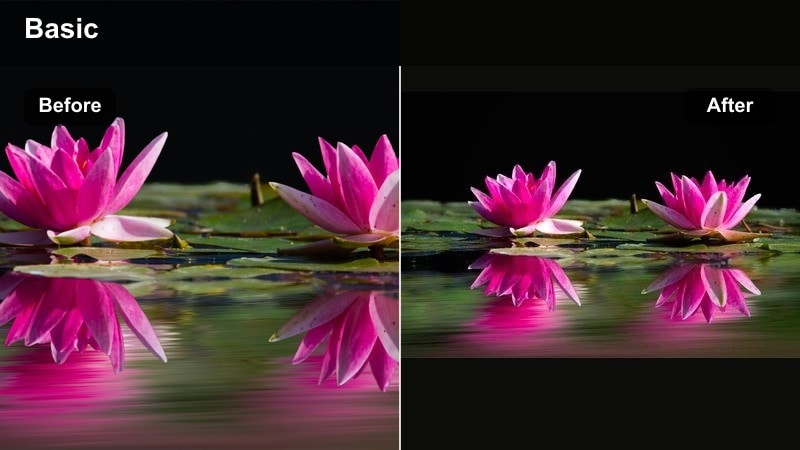
- Effect look: Rich saturation with punchy reds and oranges that make dishes look fresh and appetizing.
- Best for: Food vlogs, night markets, and close-up shots of local dishes and drinks.
- Editing tip: Mask your face or hands and reduce saturation slightly there so food remains the main color focus.
Street Food Festival focuses on making dishes, drinks, and market stalls look vivid and mouthwatering. It boosts warm colors like reds and oranges, which helps highlight sauces, grilled foods, and bright packaging without sacrificing detail.
In Filmora, use this filter on close-up food shots, vendor interactions, and slow pans across market stands. Keep an eye on reds and skin tones, masking hands or faces if necessary so the most intense color remains on plates and bowls, naturally pulling viewer attention to the food.
Hotel Suite Clean
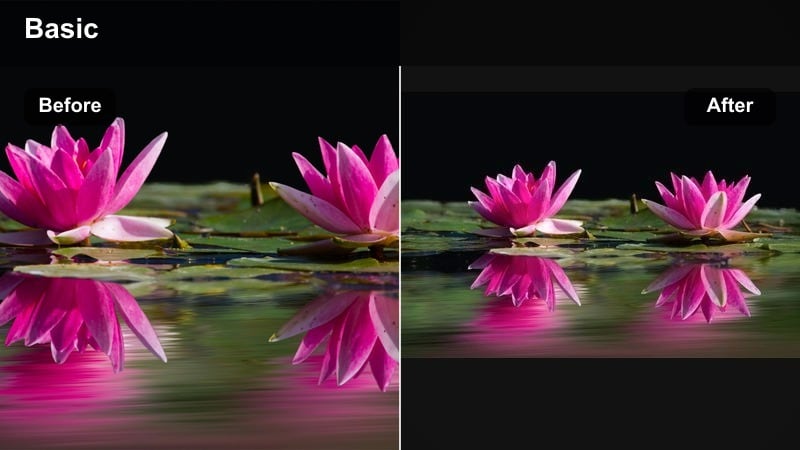
- Effect look: Bright, neutral whites with soft shadows and a subtle cool tint that makes interiors feel modern.
- Best for: Hotel room tours, Airbnb walkthroughs, and packing or unpacking sequences.
- Editing tip: Raise exposure and use the filter to keep whites neutral instead of purely warm or cold, then add a little vignette.
Hotel Suite Clean is tuned to make interiors look bright, spacious, and premium, which is ideal for room tours and accommodation reviews on YouTube. It keeps whites neutral and slightly cool, countering ugly color casts from mixed bulbs and window light.
When editing in Filmora, apply this filter to your walkthroughs, then adjust exposure so details in bedding, furniture, and decor are easy to see. Add a subtle vignette and light stabilization to push your video toward a professional review style that helps viewers judge the space clearly.
Tips for Using Travel Video Youtube Filter Filters in Filmora
- Shoot in a flat or log profile when possible so your travel filters for YouTube have more room to shape contrast and color.
- Create separate presets for beach, city, and indoor scenes so you can grade travel vlogs quickly while staying consistent.
- Always adjust white balance before applying filters; this makes any vlog color grade or YouTube travel filter look more professional.
- Lower filter intensity for close-up talking shots so faces remain natural while B-roll can use a stronger stylized look.
- Export a short test clip and watch it on your phone and laptop to confirm your travel video filters look good across devices.
- Use Filmora masks and keyframes to keep your subject natural while backgrounds carry most of the stylized color grade.
Thoughtfully chosen travel video filters for YouTube can turn casual clips into a cohesive visual journey, helping your audience feel each destination and remember your channels look.
Build a small toolkit of go-to filters for beach, city, nature, and indoor scenes, then refine them over time so every new vlog feels polished, recognizable, and ready to binge.
secure download