

 100% Security Verified | No Subscription Required | No Malware


 ChatGPT
 Perplexity
 Gemini
 Claude
 Grok
Grok
If you film once for YouTube and then slice it down for TikTok, you need filters that stay consistent across both platforms. These YouTube video filters for TikTok are tuned for cross-platform color so your long-form uploads and short clips feel like the same brand, not two different creators.
Below are 12 Filmora filter styles built for cross-platform creators and multi-channel workflows, with quick editing tips that keep your repurposed YouTube to TikTok content sharp, punchy, and on-brand.
In this article
Cinematic Cross-Platform Looks
Soft Cinematic Neutral
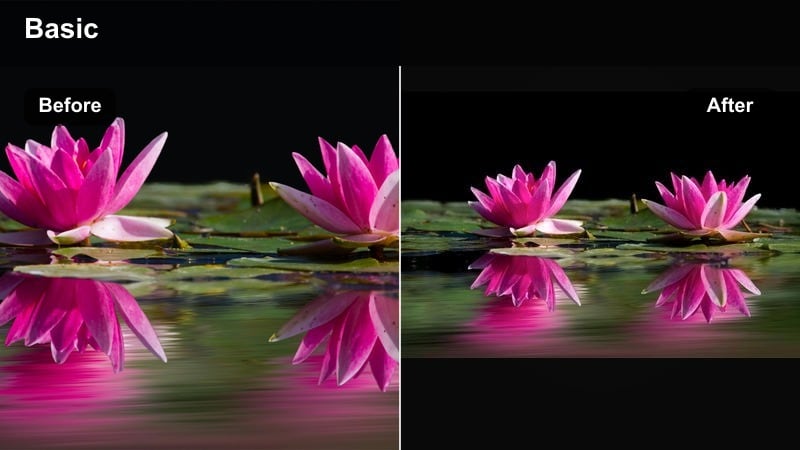
- Effect look: Gentle contrast and muted saturation that mimics a neutral filmic base grade, perfect as a starting point for YouTube long-form and TikTok punch-ins.
- Best for: Talking-head tutorials, commentary channels, educational creators repurposing one A-roll for multiple platforms.
- Editing tip: Apply this first on your master YouTube timeline, then export vertical crops for TikTok without adding extra filters so skin tones stay consistent.
Soft Cinematic Neutral gives you a flexible base grade that looks polished on a 16:9 YouTube upload and still feels natural when you cut into tight 9:16 TikTok shots. By slightly lowering saturation and contrast, it smooths out harsh lighting and protects skin tones, creating a filmic feel that will not clash with your overlays, subtitles, or on-screen graphics.
In Filmora, apply this look at the start of your workflow on the master horizontal sequence. Once the color feels right, duplicate the sequence, reframe for vertical, and keep the same settings. This way, every TikTok highlight, hook, or short clip taken from that project inherits the same consistent look, so your audience recognizes your brand instantly across platforms.
AI-Assisted Matching Across YouTube and TikTok
Filmora s AI-driven color tools help you build a single look that holds up across different aspect ratios, exports, and platforms. Instead of recreating a grade from scratch every time you crop for vertical, AI suggests a base look that is automatically tuned to your footage.
Use these intelligent adjustments to keep your YouTube video filters for TikTok closely aligned with your main channel aesthetic. Whether you shoot talking-heads, cinematic B-roll, or branded content, AI can quickly get you 80 percent of the way to a solid cross-platform grade that you then refine and save as a reusable preset.
Open your latest YouTube project in Filmora and let AI suggest a base look, then tweak it into a reusable cross-platform preset.
 secure download

See Filters in Action on Cross-Platform Timelines
To understand how a filter behaves from YouTube to TikTok, build a simple test project in Filmora: one horizontal sequence for YouTube and one vertical sequence for TikTok, both using the same source clips. Apply your chosen filter stack to the master sequence first, then copy it to the vertical version.
This side-by-side setup lets you preview contrast, saturation, and skin tones in both aspect ratios before you batch-export. You will see immediately whether your YouTube-friendly look still pops on TikTok or needs minor tweaks in exposure or saturation for mobile viewing.
Drop three or four test clips into Filmora, duplicate the sequence, and experiment with filter variations before locking in your new channel look.
secure download1000+ Video Filters and 3D LUTs
Filmora includes a large library of built-in filters and 3D LUT-style looks that you can stack, mix, and customize for both YouTube and TikTok. Instead of limiting yourself to one default aesthetic, you can build themed looks for tutorials, vlogs, product shots, and cinematic edits that all stay consistent across platforms.
After you dial in a combination you love, save it as a preset so it behaves like a cross-platform LUT: one click applies the same color treatment to your long-form videos, Shorts, and TikToks. From there, you only need to fine-tune exposure or saturation to match each platform s viewing environment.
Convert your favorite Filmora filter stack into a named preset, then apply it across projects whenever you repurpose YouTube videos for TikTok.
secure downloadCinematic Contrast Punch
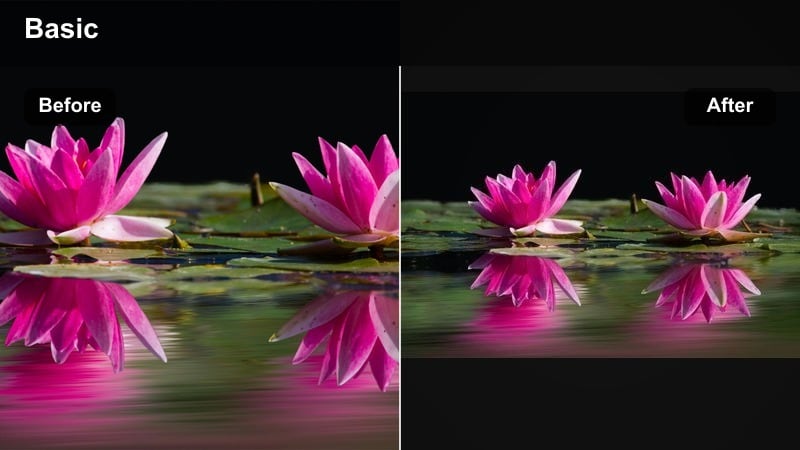
- Effect look: Higher contrast with slightly crushed shadows and rich colors that hold up even after heavy reframing and cropping.
- Best for: B-roll montages, travel vlogs, product close-ups that appear in both cinematic YouTube edits and fast TikTok cuts.
- Editing tip: Reduce contrast by a small amount before exporting to TikTok to avoid over-crushing blacks on smaller, lower-brightness phone screens.
Cinematic Contrast Punch adds drama and depth to your shots, making details like city lights, product textures, and landscape contours stand out. It is designed to survive platform compression, so your footage keeps its richness when resized and re-encoded for TikTok Shorts and YouTube alike.
Inside Filmora, start with this filter on your horizontal timeline to shape shadows and midtones, then slightly dial back contrast before exporting vertical TikTok versions. That small adjustment keeps blacks from looking muddy or crushed on dim phone screens, while your YouTube upload remains bold and cinematic on larger displays.
Soft Teal and Orange Cinematic
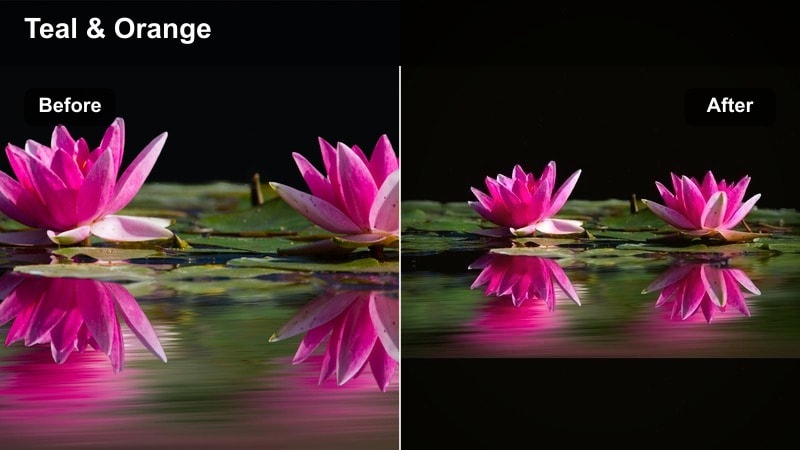
- Effect look: A gentle teal shadows and warm skin tone combo that mimics a classic teal-and-orange grade without looking over-edited on TikTok.
- Best for: Lifestyle content, studio vlogs, and talking-heads where you want a filmic vibe that still looks natural on casual TikTok feeds.
- Editing tip: Keep saturation lower on your YouTube export and raise it slightly just for the TikTok version if your vertical crop feels flat.
Soft Teal and Orange Cinematic brings a modern movie-style palette to everyday content by cooling your shadows toward teal while nudging skin tones warm. The result is a subtle separation between subject and background that feels premium on YouTube but is understated enough not to look out of place on TikTok s fast-moving feed.
In Filmora, apply this style as part of your base grade, then fine-tune saturation and temperature depending on the platform. You can keep a more restrained version for YouTube to preserve a natural studio look, and create a TikTok-specific preset with a small saturation boost so tight vertical crops and quick cuts still feel vivid on mobile.
Creator Branding Filters for Multi-Channel Consistency
Clean Brand Neutral
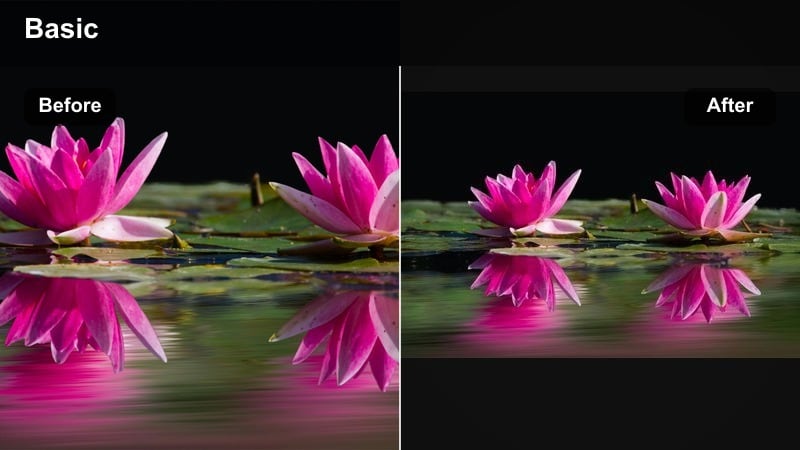
- Effect look: Bright, low-contrast, color-accurate look that keeps logos, text overlays, and product colors true across YouTube and TikTok.
- Best for: Brand deals, product explainers, sponsorship segments, and UGC-style videos shared to both platforms.
- Editing tip: Lock exposure by matching your white levels to a white object in the frame so your neutral filter stays consistent scene to scene.
Clean Brand Neutral prioritizes accurate color reproduction so that logos, packaging, and UI elements look the same wherever your content plays. By using gentle contrast and bright but controlled highlights, it keeps overlays and sponsor callouts crisp and easy to read across phones, tablets, and desktops.
When editing in Filmora, enable this filter as your baseline for any sponsored or branded segment, then use scopes to make sure whites and brand colors are not clipping. Save it as a preset tied to your channel name so any YouTube integration, TikTok Spark Ad, or UGC submission can instantly match your established brand look.
Warm Community Vibes
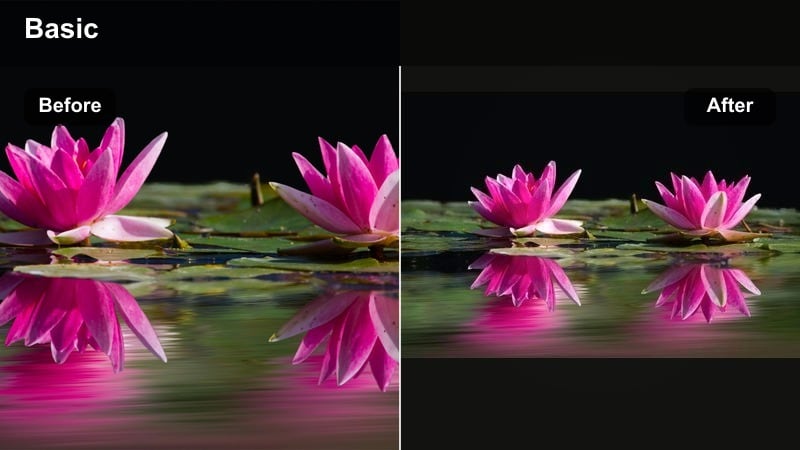
- Effect look: Soft, warm tones with gentle highlights that make skin look inviting and comments feel more personal.
- Best for: Q and A videos, storytimes, community updates, and casual streams you repurpose as TikTok highlights.
- Editing tip: Slightly lower highlights for TikTok reposts where white UI elements and subtitles already add extra brightness on screen.
Warm Community Vibes wraps your frame in a cozy tone, adding a subtle warmth that flatters skin and makes your space feel more welcoming. It is ideal for videos where connection matters most, such as storytimes and community updates that you later cut into snackable TikTok clips.
In Filmora, apply this look to your talking-head track and fine-tune highlight rolloff so your face stays softly lit without blowing out. For TikTok versions, reduce highlights a touch more to balance the brightness added by subtitles, emojis, and UI, keeping the overall feel gentle and easy on the eyes.
Cool Tech Modern
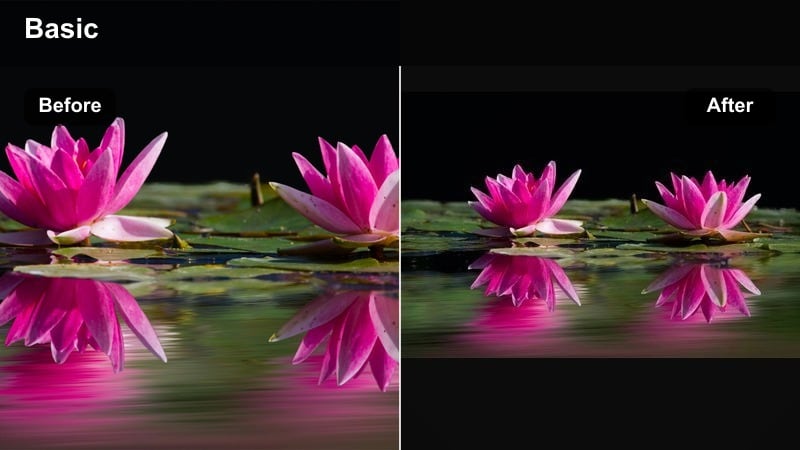
- Effect look: Clean, cool temperature with crisp edges and subtle contrast that emphasizes screens, devices, and UI callouts.
- Best for: Tech reviews, how-to tutorials, software demos, and app breakdowns shared from YouTube to TikTok.
- Editing tip: Slightly boost clarity and sharpness on TikTok versions to keep on-screen text and UI details readable on small displays.
Cool Tech Modern shifts your overall tone a bit cooler while maintaining neutral whites and sharp edges, which suits minimalist sets, RGB lighting, and on-screen UI. This aesthetic helps gadgets and interfaces look precise and high-end whether your viewer is on a large monitor or a phone.
Within Filmora, combine this filter with mild clarity and sharpness boosts, especially for the TikTok cut where viewers watch on smaller screens. Keep contrast moderate so text and icons remain legible, then save your adjustments as a preset you can reuse on every app tutorial, unboxing, or review across platforms.
TikTok-Optimized Filters Built From YouTube Grades
Punchy Vertical Pop
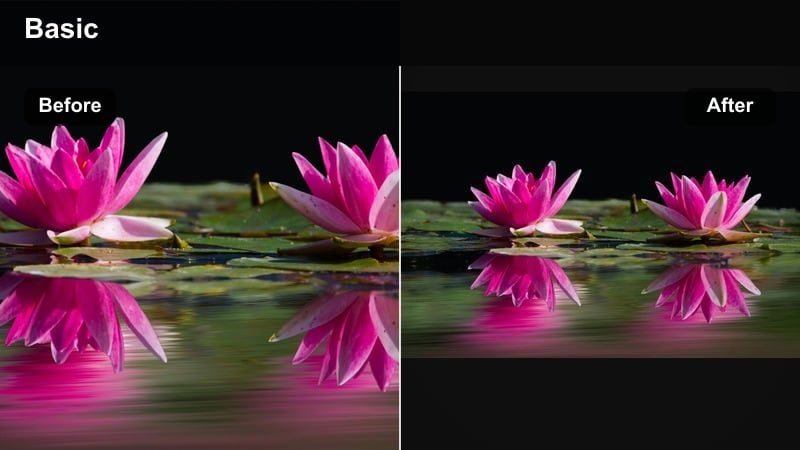
- Effect look: High saturation and midtone contrast designed to survive TikTok compression while still matching a slightly softer YouTube grade.
- Best for: Short hooks, punch-in highlights, and high-energy transitions cut from longer YouTube edits.
- Editing tip: Match this filter s hue and contrast to your YouTube base look, then save a TikTok-only preset with 5 to 10 percent extra saturation.
Punchy Vertical Pop is tuned to cut through the fast scroll of TikTok by giving midtones extra contrast and color. It keeps your subject and key elements vibrant even after heavy compression, which is crucial when you turn longer YouTube edits into quick hooks or highlights.
In Filmora, first match this look to your main YouTube grade, then create a duplicate preset with a small saturation boost for TikTok exports. Apply it only to your vertical sequences so the same scene feels consistent between platforms while giving the TikTok version a bit more intensity to grab attention quickly.
Subtle Mobile Boost
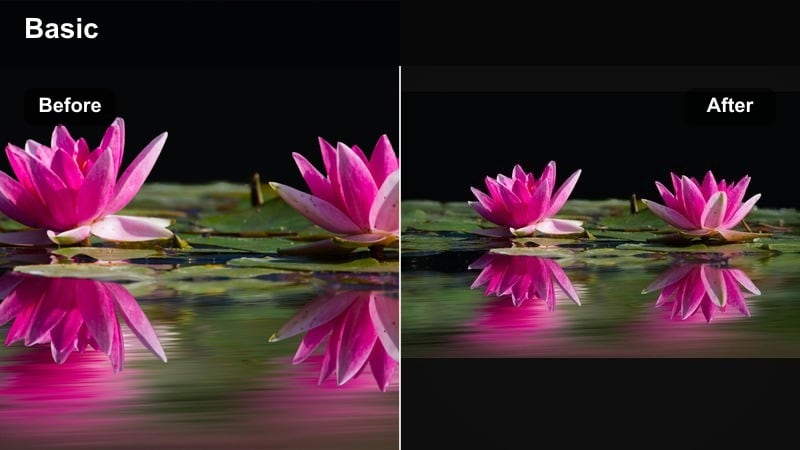
- Effect look: Light saturation and brightness lift that adds just enough pop for vertical playback while staying nearly invisible on YouTube.
- Best for: Educational clips, coding tutorials, and calm lifestyle videos that get repurposed into quieter TikTok moments.
- Editing tip: Keep saturation boosts below 10 percent and use local adjustments on your subject s face instead of raising global exposure.
Subtle Mobile Boost is meant for creators who prefer a clean, understated style but still want their content to hold up on phones. By gently lifting brightness and saturation, it offsets the darker, more compressed look that videos sometimes get in TikTok s feed without noticeably changing your aesthetic.
Apply this effect in Filmora as a final polish on a TikTok-specific sequence that already shares your YouTube grade. Instead of pushing global exposure, use local adjustments or masks to keep faces and key details clear, allowing your explanations, captions, and audio to remain the primary focus.
Dynamic Split Tone
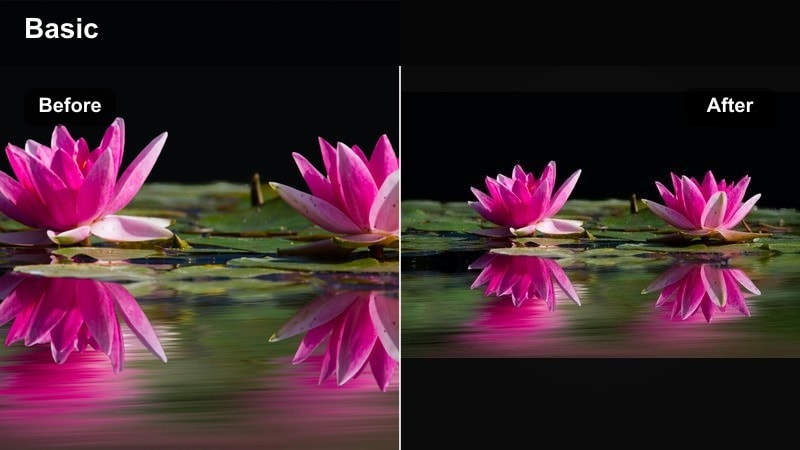
- Effect look: Split-toned highlights and shadows that create a distinct look while staying calibrated enough for both platforms compression.
- Best for: Art, design, cinematic B-roll sequences, and aesthetic edits that appear as reels, shorts, and TikToks.
- Editing tip: Keep the hue shift in your split tone subtle; strong tints can look stylish on a big monitor but harsh on phones.
Dynamic Split Tone lets you create a signature mood by giving your highlights and shadows different hues, such as warm lights and cooler darks. Done subtly, this adds atmosphere to aesthetic desk shots, art process videos, or cinematic B-roll while staying friendly to both YouTube and TikTok encoders.
In Filmora, start with small hue and saturation values in the split-toning controls, then preview your work on a phone before locking the look in as a preset. Over time, you can align your split-tone colors with your brand palette so every short, reel, and TikTok reinforces your visual identity.
Environment-Specific Filters for Cross-Platform Shoots
Daylight Studio Balance
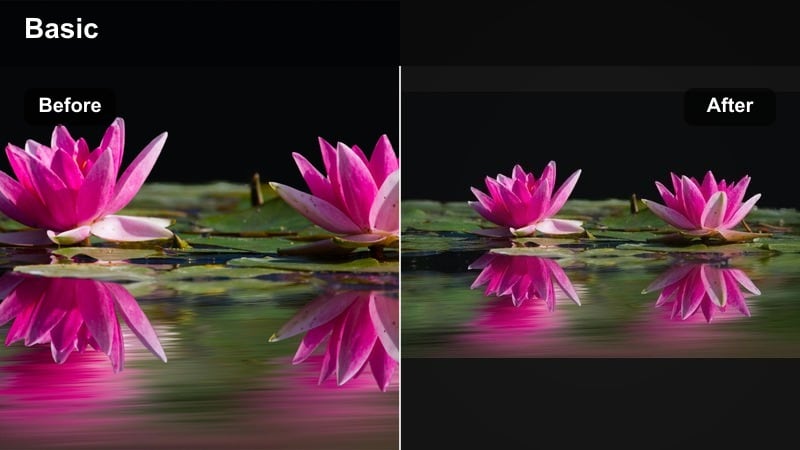
- Effect look: Balanced white point and even contrast that tame mixed daylight and softbox setups common in home studios.
- Best for: Desk setups, standing intros, and screen-record overlays filmed once and exported to both YouTube and TikTok.
- Editing tip: Use the same white balance value in every video, then layer this filter to keep your studio environment feeling consistent.
Daylight Studio Balance is designed for creators who shoot in spaces with windows, key lights, and accent lights all interacting. It evens out color temperature and contrast so your walls, skin tones, and background elements look stable from video to video, no matter how you crop.
In Filmora, first set your white balance to a consistent Kelvin value for your studio footage, then apply this filter to refine contrast and color. Save that combination as a preset labeled for your studio so any YouTube episode, TikTok clip, or live replay cutdown feels like it was filmed in the same controlled environment.
Low-Light Noise Friendly
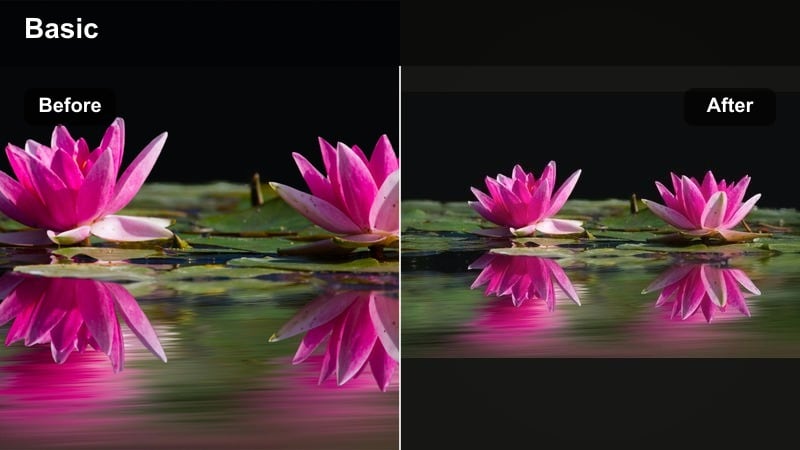
- Effect look: Gentle contrast with lifted shadows and mild noise reduction so compression on TikTok does not destroy dark scenes.
- Best for: Night city vlogs, concerts, moodier B-roll, and late-night streams cut down into clips.
- Editing tip: Avoid extreme sharpening; keep edges soft so both platforms compression algorithms add less visible noise.
Low-Light Noise Friendly helps protect your night footage from turning into a grainy mess once it hits social media compression. By carefully lifting shadows and easing off harsh contrast, it preserves detail without emphasizing digital noise in dark areas.
Within Filmora, pair this filter with moderate noise reduction and minimal sharpening for both YouTube and TikTok exports. It is especially useful when you know clips will be heavily compressed or watched on dim phone screens, where subtle noise can quickly become distracting.
Outdoor Vlog Balanced
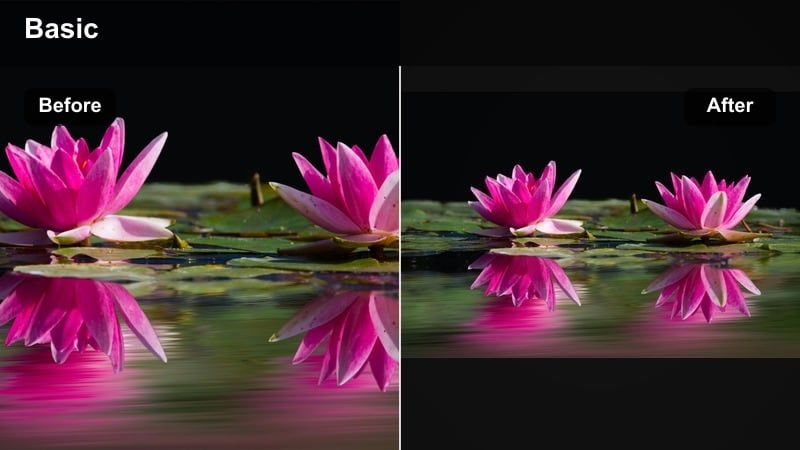
- Effect look: Natural colors with protected highlights for bright skies and reflective surfaces that often blow out on phones.
- Best for: Travel vlogs, day-in-the-life walks, adventure clips, and POV shots repurposed for shorts and TikToks.
- Editing tip: Use this filter and then pull highlights down slightly more on your TikTok version to keep clouds and faces visible.
Outdoor Vlog Balanced keeps your travel and adventure footage looking real while protecting bright skies, water reflections, and sunlit faces. It gently shapes contrast so landscapes stay detailed and skin does not get washed out, even when viewed on smaller mobile screens.
In Filmora, apply this look as your outdoor base grade and pay particular attention to highlight control. For TikTok exports, reduce highlights a bit more and check how the clip looks on a dim phone to ensure clouds, buildings, and facial features remain clearly visible.
Tips for Using Youtube Video Filter Tiktok Filters in Filmora
- Grade once on your master YouTube timeline, then reuse the same filter preset for TikTok and make only minor exposure or saturation tweaks.
- Always test your filters on a dim phone screen, because colors that look perfect on a monitor can appear crushed or oversaturated on TikTok.
- Save a small library of presets labeled by environment, such as studio, outdoor, and low light, to keep your cross-platform content consistent.
- Avoid stacking too many heavy filters; one solid base look with subtle adjustments usually survives compression better on both apps.
- Use scopes in Filmora to keep skin tones natural when you push stylized looks; viewers notice skin first in both YouTube and TikTok feeds.
- Create separate export presets per platform in Filmora so bitrate, resolution, and aspect ratio always match YouTube and TikTok s best practices.
- Check your vertical crops after applying filters to ensure important UI, captions, and faces stay inside the safe frame on TikTok.
- Periodically revisit your presets and refine them based on audience feedback and how your clips actually look in each app s feed.
Choosing the right YouTube video filters for TikTok is less about chasing trends and more about building a repeatable, cross-platform look that fits your brand.
Start with one or two of the filters above, save them as presets, and refine them as you post so your audience recognizes your content instantly whether they find you on long-form YouTube videos or fast TikTok clips.
secure downloadNext: Best YouTube Video Filters for Instagram Reels and Shorts
