

 100% Security Verified | No Subscription Required | No Malware


 ChatGPT
 Perplexity
 Gemini
 Claude
 Grok
Grok
Creating a smooth, seamless blender animation loop without any visible breaks is an important skill in 3D animation. Whether you're making a looping background for a music video, a repeating character walk cycle, or a continuous UI animation, knowing how to loop animation in Blender can make your projects look more polished and professional.
Many users search for blender to loop animation after noticing that their animation suddenly stops or has a visible jump when it starts over. The goal is to create a seamless animation where viewers can't tell when the loop begins again.
In this guide, you'll learn the basics of creating seamless animation loops in Blender and explore simple, effective methods to make your animations play continuously. You'll also learn how to fix common issues like visible jumps between the first and last frames, unwanted pauses caused by Blender's default interpolation, and the time-consuming process of manually adjusting keyframes.
In this article
- How Blender Animation Loops Work
- Traditional Ways to Create Animation Loops
- Common Blenders Animation Loop Challenges
- Best Ways to Create Path Animations
- How to Create and Assemble a Seamless Animation Loop in Wondershare Filmora
- Tips for Creating Smooth Animation Loops
- Practical Use Cases
- Best Practices for Smooth Path Animations
How Blender Animation Loops Work
A Blender animation loop is an animation that plays over and over without any noticeable pause or jump between the end and the beginning.
How it works: The last frame should match the first frame, or transition smoothly into it, so the animation repeats without any visible break.
Common uses: Animation loops are often used for moving backgrounds, character walk cycles, repeating effects, endless simulations, and eye-catching social media content.
Creators use Blender animation loops for repeating backgrounds, rotating objects, UI animations, character walk cycles, and social media videos. Smooth loops make animations look more natural, professional, and continuous without any noticeable breaks.
Traditional Ways to Create Animation Loops
Before newer tools became available, animators created Blender animation loops by manually adjusting keyframes and timeline settings. Here are some of the most common methods:
- Copy and Paste Keyframes: Copy the first keyframe and place it at the end of the timeline so the animation starts and ends in the same position.
- Use Linear Interpolation: Set the animation to move at a constant speed. This helps prevent sudden slowdowns or speed changes that can create a noticeable jump when the loop repeats.
- Use the NLA Editor: The NLA Editor lets you turn an animation into a strip that you can duplicate and repeat, making it easier to create continuous looping animations.
Common Blenders Animation Loop Challenges
When creating a Blender animation loop, you may run into a few common problems:
- The "Jump" Effect: The animation suddenly snaps back to the starting position, creating a noticeable flicker.
- Complexity: Animating multiple moving parts, such as a character rig, can be difficult because each part may have different timing.
- Ease-in/Ease-out: When keyframes use Bezier interpolation, the animation naturally slows down at the beginning and end. Without adjustments in the Blender Graph Editor, this can create a visible pause when the loop repeats.
Best Ways to Create Path Animations
You don't need advanced animation software to create professional-looking path animations. Wondershare Filmora includes easy-to-use tools that help you create smooth and creative animations in just a few steps.
- Draw Your Own Path: This gives you full control over where your animation appears.
- Use Trim Path Animation: The Trim Path feature makes a line appear as if it is drawing itself on the screen. It's perfect for creating map routes, signatures, outlines, or highlighting important parts of your video.
- Make Objects Follow a Path: You can animate objects like arrows, icons, or emojis so they move along your drawn path. This creates a more engaging animation without manually adjusting the object's position frame by frame.
Filmora also offers flexible Video Animation tools to add more dynamic movement to your clips. In addition to In and Out animations, the latest Combo Animation feature lets you apply dynamic effects to selected sections in the middle of a clip, giving you more control over how your animations move and transition.
Tips to Improve Your Animation Workflow
- Save Time with Presets: If you've created an animation you like, save it as a preset so you can quickly use the same style in future projects.
- Preview Your Animation Instantly: Use Filmora's real-time preview to see your animation as you edit. This makes it easy to adjust the speed and timing until it looks just right.
- Edit Keyframes Easily: Filmora's simple keyframe controls let you add, move, or remove keyframes with just a few clicks, making it easy to create smooth animations.
- Combine with Other Effects: Place your path animation on top of your video, then add text, transitions, music, or filters to create a polished final result.
- Duplicate Animations: If you want a longer animation, simply duplicate your finished path animation on the timeline. This helps you create a smooth, continuous effect without starting over.

 secure download

How to Create and Assemble a Seamless Animation Loop in Wondershare Filmora
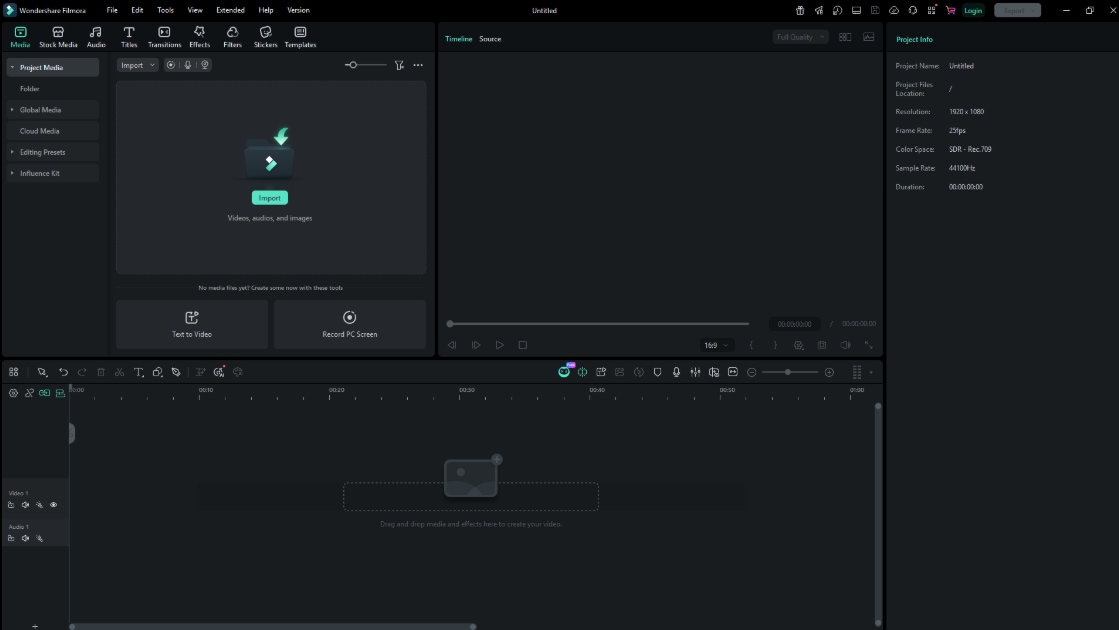
While Wondershare Filmora is mainly a video editor, it makes it easy to create simple motion effects and turn them into seamless animation loops. Follow these steps to build and repeat your animation smoothly.
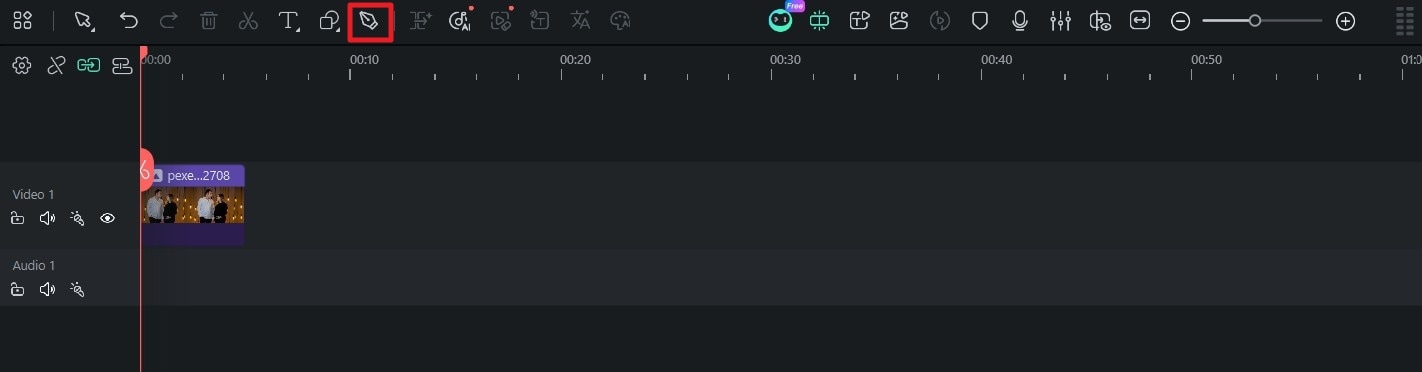
Step 1: Add Your Image or Video
Add your image or video to the timeline. Click it and use the pen tool to create a path.
Step 2: Set the Animation Length
Choose how long one complete animation should last, such as 2 or 3 seconds. Keep the duration fixed so it is easier to repeat the animation without gaps.
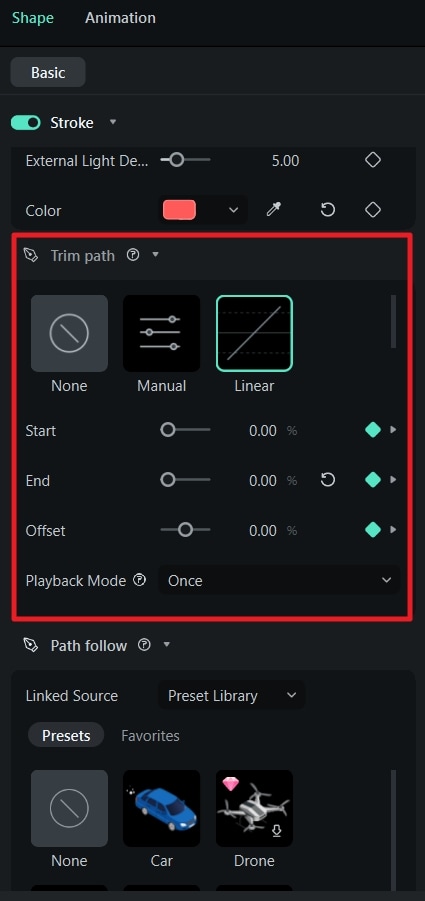
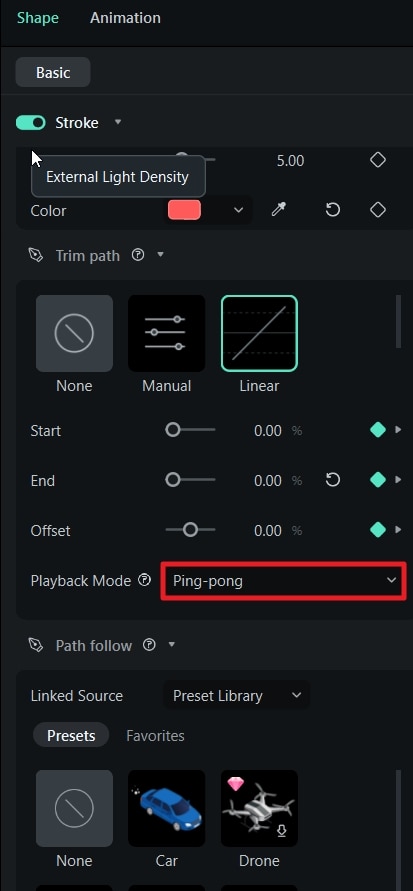
Step 3: Select the Loop Type
Select the type of loop from the options in “Playback Mode.” You can choose between Loop and Ping-pong.
Step 4: Check the Loop
Preview the animation and make sure the ending connects smoothly to the beginning. If the transition looks noticeable, adjust your keyframes until the motion flows naturally.
Step 5: Export the Animation
Once you're happy with the result, export the animation as a high-quality video file. This will become your loop asset.
Tips for Creating Smooth Animation Loops
To make your animation loop look clean and professional, keep the motion smooth and make sure the beginning and end of the animation connect naturally.
- For a seamless loop, the last frame should connect smoothly to the first frame. If your animation ends in a different position, the loop may look like it jumps.
- Use a steady animation speed for most looping effects. If you want smoother movement, apply ease-in or ease-out carefully so the animation still loops naturally.
- When duplicating your animation in Filmora, turn on the Snap feature. This helps place clips next to each other without gaps or overlapping frames, creating a smooth continuous loop.
- If your animation includes text, icons, or other elements, make sure they all start and finish at the right time. Matching their timing helps the entire animation loop smoothly.
- Simple paths and clean animations are easier to loop than complex ones. If you're creating map routes, dashed lines can also help make the animation look more natural.
- If your animation looks slightly choppy, adding Motion Blur can make movement appear smoother by blending the motion between frames.
Practical Use Cases
Animation loops are useful in many creative projects, with Blender creating the animation and Filmora putting everything together.
- Logo Animations: Create smooth, repeating logo animations.
- Motion Graphics: Make looping backgrounds for presentations, events, or videos.
- Social Media Content: Create seamless looping videos for Instagram, TikTok, and YouTube Shorts.
- UI Animations: Show repeating button, icon, or loading animations.
- Background Loops: Create looping scenes for livestreams or virtual meeting backgrounds.
- Educational Content: Show repeating movements or processes without restarting the animation.
Best Practices for Smooth Path Animations
Creating a smooth path animation is not only about using the right tools. Good timing and an organized workflow also help make your animation look more professional.
- Set a Fixed Animation Length: Before you start, decide how long your animation will be, such as 2 seconds or 60 frames. Using a fixed duration makes it easier to duplicate clips and create smooth, continuous animations in Filmora.
- Keep the Animation Speed Consistent: Try to keep the drawing speed steady from beginning to end. A consistent speed makes the animation look smoother and helps create seamless loops.
- Organize Your Layers: Place different elements, such as the path, icons, and text, on separate layers. This makes it easier to edit each element without affecting the rest of your animation.
Common Mistakes to Avoid
- Changing the Speed Too Much: Avoid making the animation suddenly speed up or slow down at the beginning or end. Smooth, even motion creates a more natural-looking result.
- Adding Too Many Elements: Don't overload your timeline with too many effects or objects. Keeping your project simple makes it easier to edit and improves the overall look of your animation.
- Using Different Frame Rates: Use the same frame rate throughout your project, such as 30 fps or 60 fps. Mixing frame rates can cause your animation to look choppy or flicker.
Troubleshooting Tips
- The Animation Jumps at the End: If you notice a jump or pause, check that your clips are aligned correctly on the timeline. Even a single extra frame can interrupt a seamless animation.
- The Animation Looks Choppy: If your path animation doesn't look smooth, make sure your project and export settings use the same frame rate and resolution.
- The Loop Doesn't Look Continuous: If your animation doesn't loop smoothly, check that the ending matches the beginning. The final frame should connect naturally to the first frame so the animation repeats without a noticeable break.
Conclusion
Mastering the Blender animation loop helps you create smooth, professional 3D animations with less manual work. Instead of copying keyframes, use tools like the Cycles Modifier and Graph Editor to build seamless loops. Using tools like Wondershare Filmora, you also can create smooth, professional animations that repeat naturally. The key is to keep your animation timing consistent, use clean keyframes, and make sure the beginning and end of the animation connect smoothly.
Whether you're making a loading animation, a map route, a signature effect, or other motion graphics, planning your animation carefully will help you achieve better results. Start with simple designs, adjust the timing as needed, and use Filmora's timeline to create polished, continuous animation loops.
secure download FAQs About Blender Animation Loops
-
How do I create a seamless animation loop?
Choose a fixed animation length, such as 2 seconds or 60 frames. Make sure the first and last frames connect smoothly, and place your clips together on the Filmora timeline without leaving any gaps. -
Why does my animation pause or stutter when it loops?
This usually happens when the animation speed changes at the beginning or end, or when there is an extra frame between clips. Keep the animation speed consistent and check that your clips are aligned correctly on the timeline. -
Can I use Trim Path to create looping UI animations?
Yes. Trim Path is great for creating looping animations such as loading bars, progress circles, outlines, and animated lines. You can easily control how the line appears and repeats. -
Can I create looping character animations in Filmora?
Yes. If you already have a short animation, you can duplicate the clip on the timeline to create a continuous walking, running, or other repeating movement. -
Why is the frame rate important for animation loops?
Using the same frame rate throughout your project, such as 30 fps or 60 fps, helps your animation play smoothly. Different frame rates can cause stuttering or uneven motion. -
Why create animation loops in Filmora?
Filmora makes it easy to edit your animation together with music, voiceovers, text, and video clips. You can quickly adjust the timing without creating the animation from scratch again. -
How do I make a longer loop from a short animation?
Create one seamless animation, then duplicate it several times on the timeline. If the original loop is smooth, the repeated clips will play continuously without noticeable breaks. -
How can I hide the point where the loop repeats?
Make sure the animation ends in the same position where it begins. When the first and last frames match, the loop will repeat smoothly without a visible jump.
