

 100% Security Verified | No Subscription Required | No Malware


 ChatGPT
 Perplexity
 Gemini
 Claude
 Grok
Grok
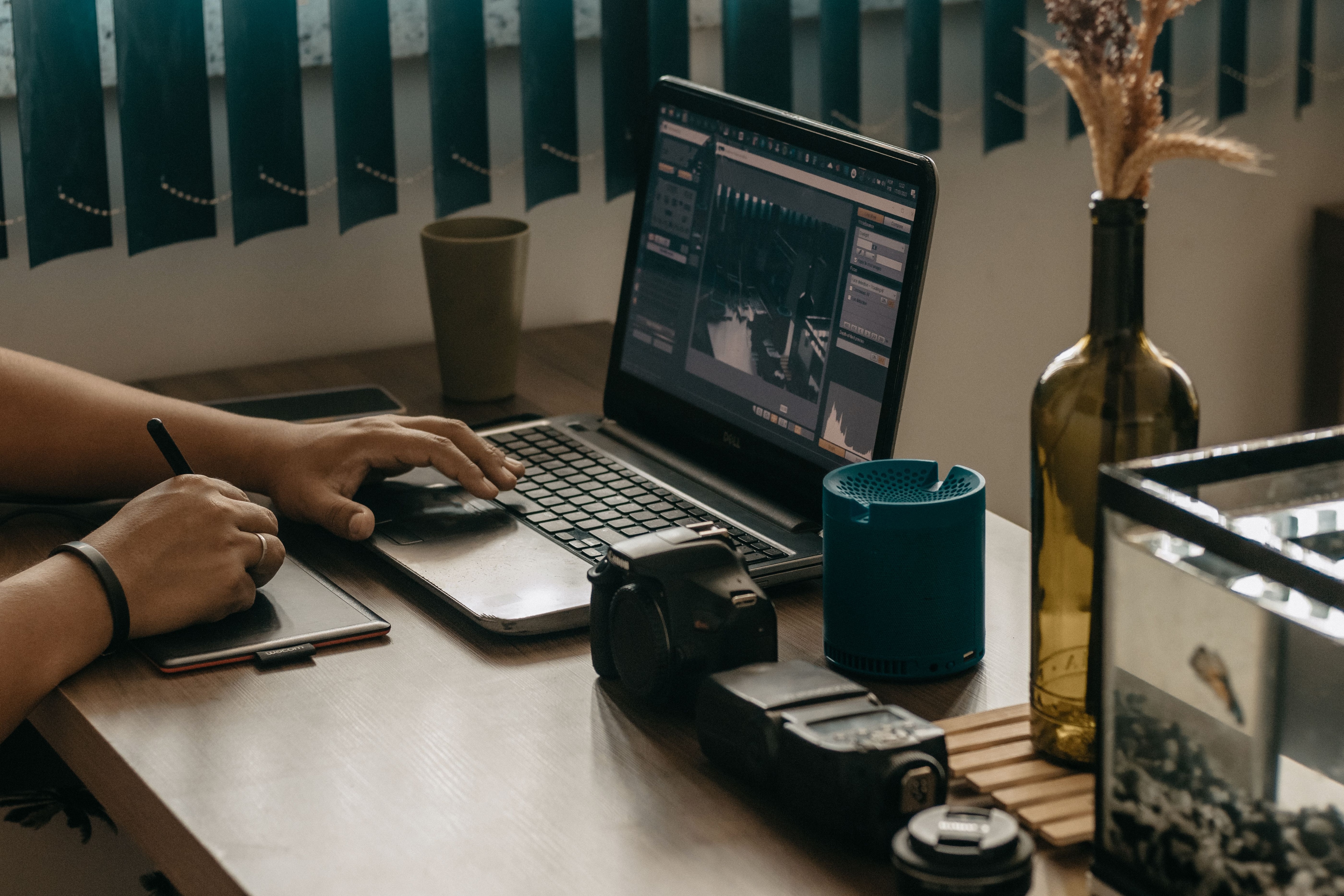
A logo loop animation is a great way to make your brand look more professional and engaging. Instead of showing a static logo, a looping animation keeps your logo moving smoothly, making it perfect for websites, social media, videos, presentations, and digital branding.
The key to a good logo loop is making the animation start and end at the same point, so it repeats seamlessly without any noticeable jumps. In this guide, you'll learn simple techniques, the best tools, and helpful tips for creating smooth, professional logo loop animations.
In this article
What is a Logo Loop Animation?
A looping logo animation is an animation that repeats continuously without any noticeable pause or jump. To create a smooth loop, the animation should end in the same position or appearance where it begins, making the transition seamless.
Common Uses of Logo Loop Animations
- Website Headers: Add subtle motion to make your website look more modern and engaging.
- Social Media Posts and Stories: Create eye-catching animations that help your brand stand out.
- Video and Live Stream Overlays: Display your logo continuously during videos or live broadcasts.
- Digital Signage: Keep your logo playing smoothly on screens in stores, events, or public spaces without interruption.
Common Tools for Creating Logo Loop
In the past, designers created logo loop animations by manually adjusting keyframes so the animation started and ended in the same position. Today, there are many tools that make the process easier, whether you're a beginner or a professional.
Tools for Creating Logo Loop Animations
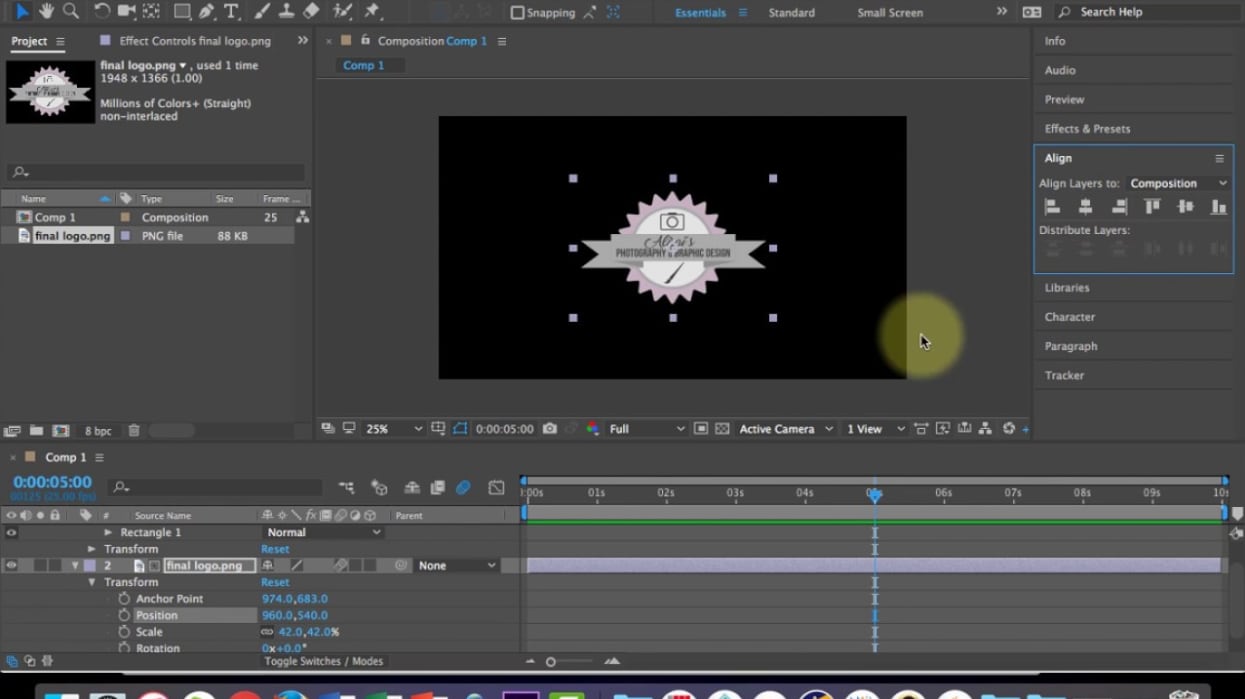
Adobe After Effects
A professional tool for creating advanced 2D motion graphics and logo animations.
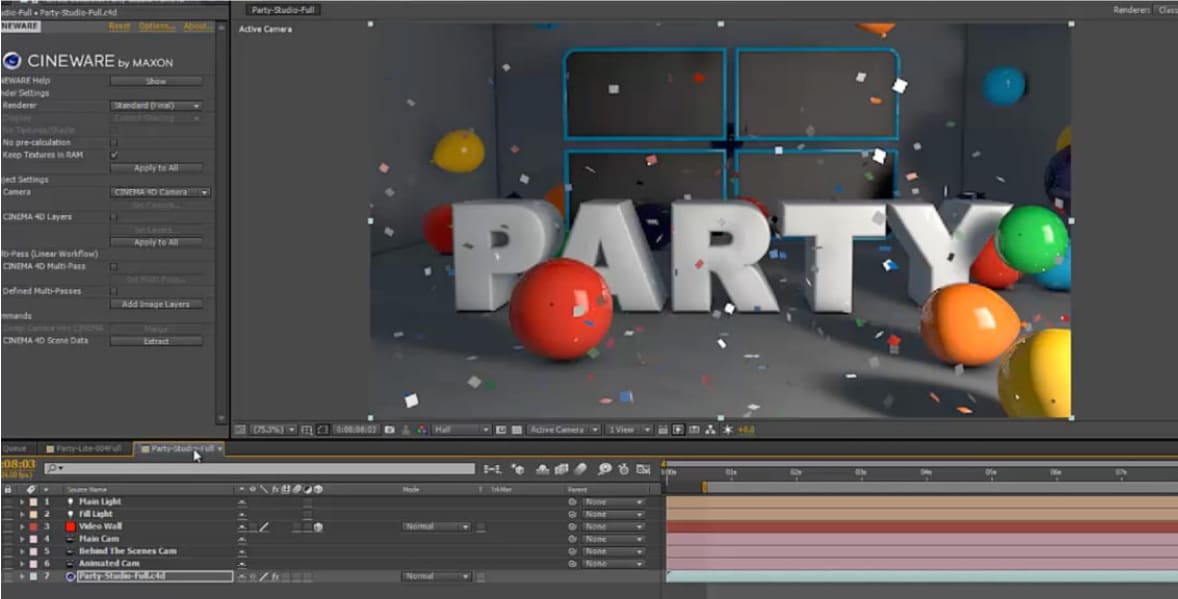
Maxon Cinema 4D
Ideal for creating high-quality 3D logo animations.
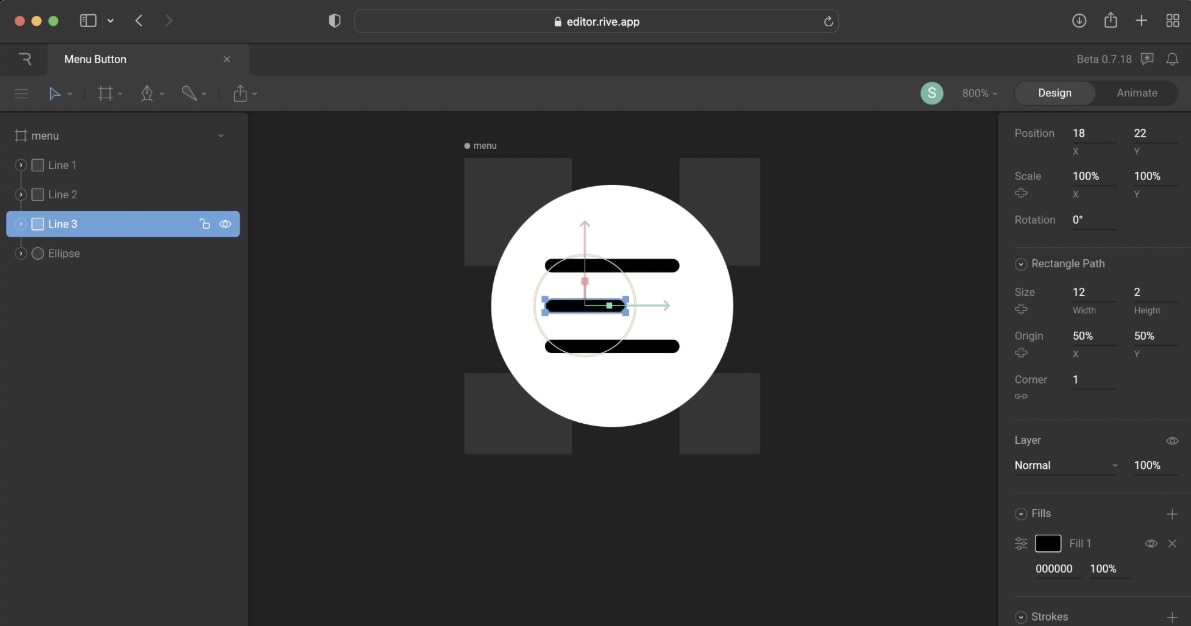
Rive
Great for making interactive and lightweight animations for websites and mobile apps.
Basic Workflow
- Decide how long your logo animation will be, for example, 5 seconds.
- Add keyframes at the beginning and end of the timeline.
- Make sure the logo returns to its original position or appearance in the final frame.
- Adjust the motion using easing or smooth motion curves.
Common Challenges When Creating Logo Loop Animations
Creating a seamless logo loop may seem simple, but it can be challenging, especially for beginners. Here are some common issues you may encounter:
- Creating a Smooth Loop: If the first and last frames don't match perfectly, the animation may have a noticeable jump or pause when it repeats.
- Time-Consuming Editing: Manually adjusting keyframes and motion paths to create a seamless loop can take a lot of time.
- Optimizing for Different Platforms: Exporting an animation with the right file size, frame rate, and quality for websites, social media, and videos can be difficult without the right setting.
Available Ways to Create a Logo Loop Animation
The best method depends on your needs. If you want full control, manual animation is a good choice. If you need faster results, Filmora offers simple tools that help you create professional logo animations in less time.
Comparison of Animation Methods
| Method | Best For | Pros | Cons |
|---|---|---|---|
| Manual Keyframing | Custom animations | Full control and flexibility | Takes more time and skill |
| Animation Presets | Quick projects | Fast and easy to use | Limited customization |
| Filmora Hybrid Workflow | High-quality results | Easy, fast, and customizable | Requires basic editing knowledge |
Filmora's Trim Path Feature
Filmora lets you create a Trim Path effect, making your logo appear as if it is being drawn on the screen.
- Easy to Use: Draw a path with the Pen Tool and animate it using keyframes.
- Customize the Look: Change the stroke color, thickness, and add effects like glow or blur.
- Create Smooth Motion: Use Motion Paths to move your logo naturally and preview the animation frame by frame.
- Save Time: Combine animation presets with custom keyframes for faster, professional-looking results.
Which Method Should You Choose?
- Choose Manual Keyframing if you need complete creative control for advanced animations.
- Choose Wondershare Filmora if you want an easier way to create smooth, professional logo animations without spending too much time.

 secure download

Step-by-Step: Create a Smooth Logo Reveal and Loop
A professional logo animation has two parts. First, reveal the logo with a Trim Path effect. Then, add a smooth looping animation so your logo stays active without repeating the reveal.
Step 1: Draw the Path
Draw the path using the Pen tool. Trace your logo and press Esc when you're done.
Step 2: Customize the Stroke
In the Properties panel, choose the stroke color, thickness, and optional effects like Glow or Blur.
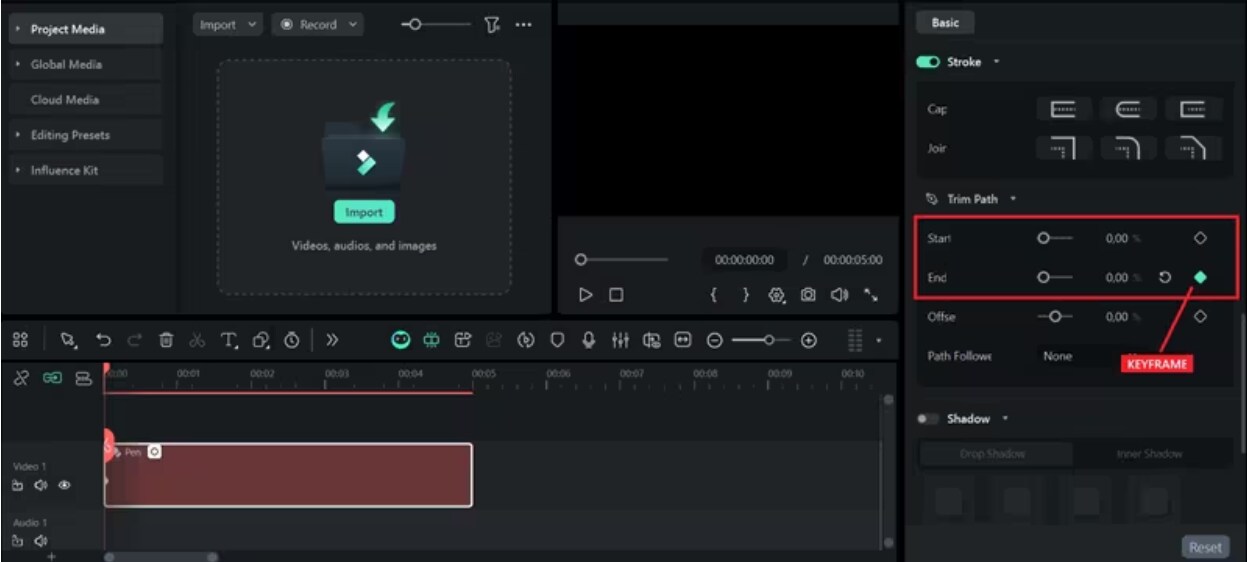
Step 3: Animate the Reveal
Set the End value to 0% and add a keyframe. Move the playhead about 2 seconds forward, change the End value to 100%, and add another keyframe. Your logo will appear as if it is being drawn.
Step 4: Select Loop as the Playback Mode
Select Loop as the Playback Mode. Preview the animation, and then export your looping logo animation.
Why This Workflow Works
- The logo reveal plays only once to grab attention.
- The loop animation keeps the logo moving naturally without becoming repetitive.
- This creates a clean, professional look for websites, videos, and social media.
You don't need advanced animation software to create a professional logo loop. With Wondershare Filmora, you can easily make a smooth, repeating animation using its timeline and keyframe tools.
You don't need advanced animation software to create a professional logo loop. With Wondershare Filmora, you can easily make a smooth, repeating animation using its timeline and keyframe tools.
For more flexible animation control, Filmora also offers Video Animation with In, Out, and the latest Combo Animation. Combo Animation lets you add dynamic effects to selected sections in the middle of a clip, while In and Out animations control how the clip enters and exits. This gives you more flexibility to create dynamic logo animations beyond a simple repeating loop.
Tips for Better Logo Loop Animations
Creating a smooth and professional logo animation takes careful planning. Whether you're making a Trim Path reveal or a seamless loop, following these simple tips can help your animation look clean, smooth, and more professional.
Best Practices
- Use proxy files if your project is large to make editing smoother.
- Export in 1080p (H.264) for social media. For websites, use WebM or Lottie if supported.
- Match the first and last keyframes to create a seamless loop.
- Use Ease In and Ease Out to make the motion look smooth and natural.
Common Mistakes to Avoid
- Don't animate every small detail. Focus on the main parts of the logo.
- Avoid fast looping animations. Keep the movement subtle.
- Don't use long transitions. Short transitions create smoother loops.
Quick Fixes
- The loop jumps: Make sure the first and last keyframes have the same values.
- The reveal looks shaky: Draw smoother paths with fewer anchor points.
- The exported video stutters: Use the same frame rate for both your project and export settings.
Conclusion
A logo loop animation is a great way to make your brand look more professional and engaging. By combining a Trim Path reveal with a smooth looping animation, you can create a logo that grabs attention and keeps your brand active without being distracting.
If you want an easy way to create professional logo animations, Wondershare Filmora is a great option. It includes simple tools like the Pen Tool, keyframes, and easing to help you create smooth animations without advanced editing skills. With the right workflow, you can make high-quality logo animations for websites, social media, and videos.
secure download Frequently Asked Questions
-
How do I make my logo loop smoothly?
Make sure the first and last keyframes have the same position, size, and rotation. You can also use a short Dissolve transition or the Reverse effect to make the loop smoother. -
Is Wondershare Filmora good for logo animation?
Yes. Filmora offers easy-to-use tools like the Pen Tool, keyframes, and animation effects to help you create professional-looking logo animations. -
What is the best file format for a logo loop?
For websites, use Animated WebP or Lottie if supported. For videos and social media, MP4 (H.264) is the best choice. -
How long should a logo animation be?
Keep the logo revealed for around 2-3 seconds. A looping animation of 5-10 seconds works well for most projects. -
Can I use the same logo animation on different platforms?
Yes. You can save your animation and reuse it on websites, YouTube, Instagram, TikTok, and other platforms. -
Why does my Trim Path animation look rough?
This usually happens when the path has too many anchor points. Use fewer points and smoother curves for better results. -
Do I need to be a professional animator?
No. Filmora is beginner-friendly, and by following the steps in this guide, anyone can create smooth and professional logo animations.
