

 100% Security Verified | No Subscription Required | No Malware


 ChatGPT
 Perplexity
 Gemini
 Claude
 Grok
Grok
If you often need to speak in front of a camera, trying to memorize a complex script or constantly glancing down at messy notes can ruin your pacing and break that crucial connection with your audience. Fortunately, setting up a reliable autocue for PC can instantly take the pressure off your shoulders and make you look like a seasoned broadcaster.
So, for all the desktop creators, teachers, and business presenters out there, we have hunted down and tested the absolute best teleprompter for PC options available right now to help you level up your video production.
In this article
How We Picked the Tools That Are Actually Worth Your Time
To separate the actual useful tools from the glitchy tools that just cause headaches, we put these teleprompter apps for Windows through a rigorous review process.
Here are the main criteria we looked at during our hands-on tests:
- Text Scroll Smoothness: Stuttering text causes eye strain and messes up your reading rhythm, so fluid movement was a non-negotiable requirement.
- Script Control: Can you adjust speed, font size, position, mirroring, and layout?
- Recording Support: Does it work well with webcams, screen recorders, Zoom, OBS, or live presentations?
- Free Access: Is there a free version, free trial, or free teleprompter app for Windows users?
- Extra Value: Does it offer anything beyond basic scrolling?
Part 1. Teleprompter Software Comparison Chart
Before we dissect each tool, let’s take a quick glance at how these top teleprompter software for Windows stack up next to each other. This table gives you the general idea of what each software is best at, where it works, and whether you can start for free.
| Software Name | Compatibility | Pricing | Best For |
|---|---|---|---|
| Filmora | Windows 11 / 10 / 8 / 7 | Free version & paid plans available | Recording, editing, and prompting in a single workflow |
| GhostPrompter | Windows 11 / 10 | Free trial & one-time payment | Screen recordings, demos, tutorials, and meetings |
| PromptSmart | Windows 11 / 10 | Free trial & paid plans available | Voice-following teleprompter sessions |
| TeleprompterPAD | Windows 11 / 10 | Free | Free mirror-style teleprompter use |
| Speakflow | Windows 11 / 10 | Free trial & paid plans available | Browser-based team collaboration and remote sync |
| EZ Teleprompter | Windows 11 / 10 | Free trial & in-app purchases available | Simple script creation and basic prompting |
| Virtual Teleprompter | Windows 11 / 10 | Free trial & one-time payment | Transparent overlay for meetings and presentations |
| QPrompt | Windows 11 / 10 | Free | Free open-source desktop prompting |
💡 Quick Recommendation Note: If your main goal is to record tutorials, vlogs, or social content without jumping back and forth between three different programs, Wondershare Filmora is easily your best bet. That's because having a reliable prompter living natively inside your video recorder and editor saves massive amounts of project setup time.
Part 2. Top Teleprompter Software for PC
Now, it's time to look at these teleprompter for PC apps one by one. Every creator has a slightly different workflow, so we have formatted these breakdowns identically to help you spot the exact feature set you need.
1. Wondershare Filmora: Best for Recording and Editing Together
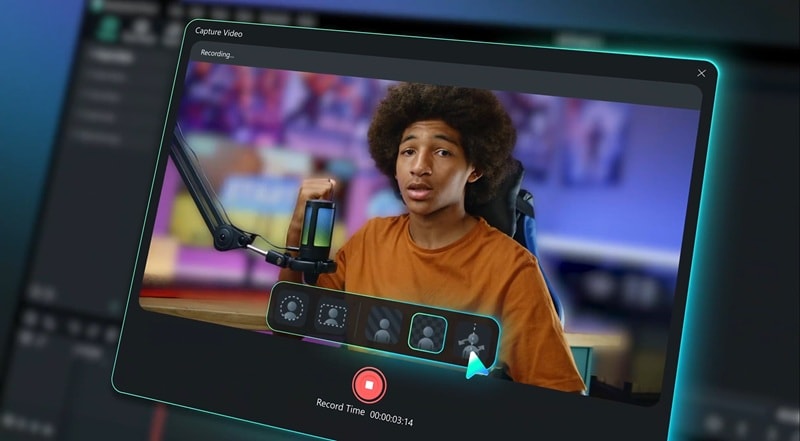
Let's start strong with the best teleprompter software for PC, Wondershare Filmora. Inside its comprehensive screen and camera recording dashboard, you will find a highly customizable, built-in teleprompter module. You can add or import your script, adjust the text style, set the playback speed, and place the teleprompter window anywhere on your desktop.
Key Features:
- Screen Recorder that can capture your PC screen, webcam, system audio, and microphone.
- AI Eye Contact to help make your gaze look more camera-focused.
- Easily adjust text size, font choices, background opacity levels, and scrolling speeds.
- Video editing timeline with trimming, transitions, titles, audio tools, and effects.
- AI-powered tools for captions, audio cleanup, video enhancement, and faster editing.
Compatibility: Windows 7 or later, 64-bit OS. For the best experience, Windows 10 or Windows 11 is better.
Pricing: Free version available. Flexible and affordable paid plans are listed on the Filmora pricing page.
Best For: YouTubers, educators, online course creators, marketers, tutorial makers, and business presenters.

 secure download

2. GhostPrompter: Best for Screen Recordings and Software Demos
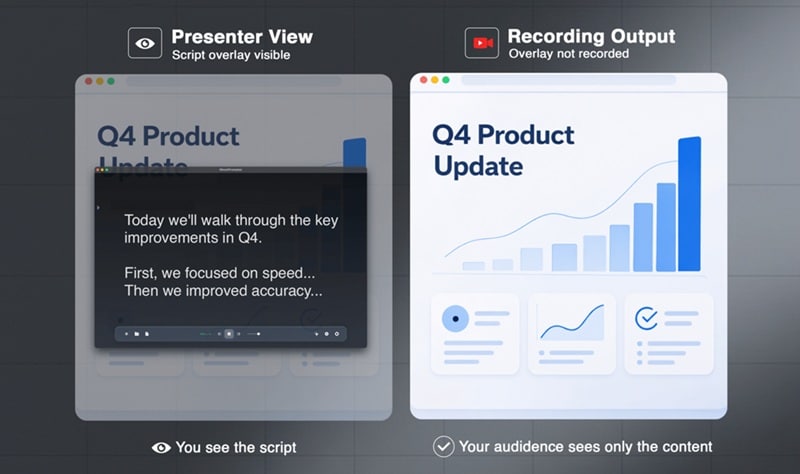
Continuing down our list of reliable teleprompter software for PC is GhostPrompter. This is made for people who need to read a script while still using their computer normally. Its biggest trick is the click-through transparent overlay. Your script floats on the screen, but your mouse and keyboard can still interact with the app behind it.
Key Features:
- Invisible script during screen recording, screen sharing, or live streaming.
- Basic speech detection options to help manage text movement without constant manual input.
- Works with Zoom, Loom, OBS, ScreenFlow, and Teams.
Compatibility: Windows 11 and 10.
Pricing: Free trial available. Paid access is offered as a one-time purchase at $29.
Best For: Software reviewers, SaaS demo creators, coding teachers, sales teams, course creators, and livestreamers.
3. PromptSmart: Best for Voice-Following Scripts
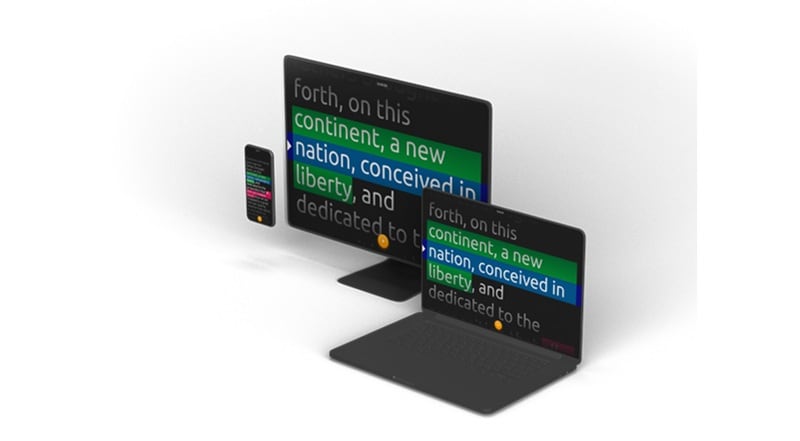
PromptSmart is one of the better-known names in teleprompter software for PCs because of its VoiceTrack technology. Instead of scrolling at one fixed speed, the script follows your voice. This is helpful if you hate sounding rushed or robotic. You can speak more naturally, take a pause, add a side comment, and return to the script without losing your place.
Key Features:
- VoiceTrack automatic scrolling.
- Web-based document editing and cross-platform content sync.
- Crisp text flipping capabilities designed to work with professional glass teleprompter rigs.
Compatibility: Windows 11 and 10.
Pricing: 7-day free trial available. Paid plans start at $9.99/month or $99.99/year.
Best For: Presenters, educators, actors, audiobook narrators, salespeople, and YouTubers.
4. TeleprompterPAD: Best Free Tool for Mirror Teleprompter Setups
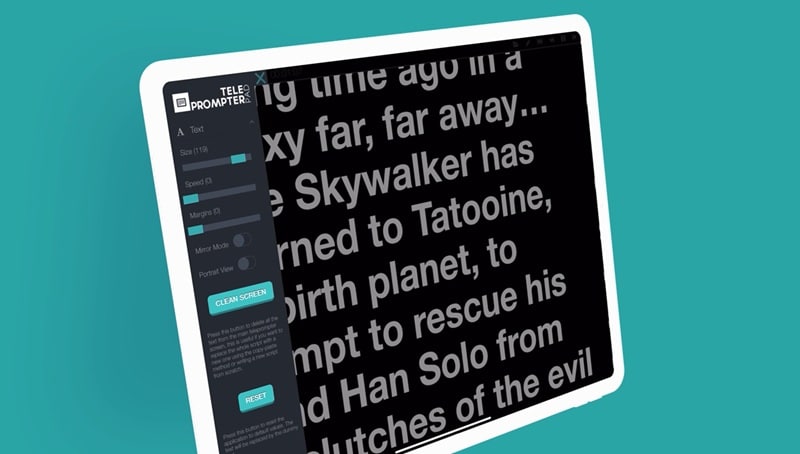
If you're looking for a free teleprompter app for Windows, then TeleprompterPAD should be high on your list. This one focuses on the core teleprompter job: open your script, adjust it, scroll it, mirror it, and control it while you speak. Thus, it is especially useful if you already use physical teleprompter hardware, mirror glass, or a Bluetooth remote.
Key Features:
- Works on Windows, macOS, iOS, Android, and in a browser.
- Opens Word, PDF, ODT, RTF, and TXT files.
- Remote and pedal support for hands-free control.
Compatibility: Windows 11 and 10.
Pricing: Free.
Best For: Speakers, vloggers, teachers, and creators who need a prompter for mirror hardware.
5. SpeakFlow: Best for Production Teams
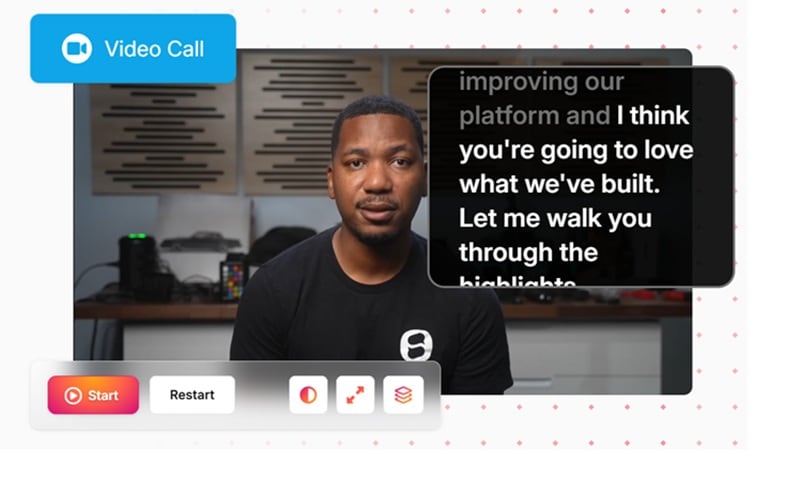
If you work with other people, SpeakFlow feels more flexible than many basic free teleprompter software for Windows. Its big appeal is voice-activated scrolling, script organization, device syncing, and team collaboration. You can write scripts, organize them, share them with teammates, record videos in the browser, and use remote control features across devices.
Key Features:
- Smooth voice activation that tracks your speech and advances text naturally.
- Keeps tabs on script edits and modifications across your creative team.
- Organized folder structures to manage large volumes of script files and client video projects.
Compatibility: Windows 11 and 10.
Pricing: Free plan available. Paid plans start at $19 per month.
Best For: Video production agencies, marketing teams, and collaborative video creators who work alongside scriptwriters or directors.
6. EZ Teleprompter: Best for Simple Option
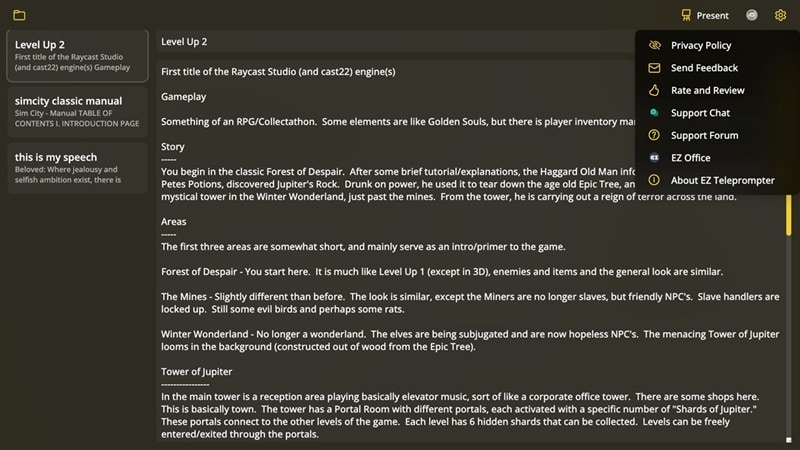
If you want a lightweight teleprompter for PC that you can install from the Microsoft Store and use for basic script scrolling, EZ Teleprompter is worth considering. Its strength is simplicity. It lets you create scripts inside the app or import plain text files, which makes it useful for quick speeches, podcasts, video blogs, and basic recording setups.
Key Features:
- Simple slider controls and hotkey inputs to change text velocity mid-speech.
- Import plain text files.
- Clear visual bars across the display to help keep your eyes anchored to a single line.
Compatibility: Windows 11 and 10.
Pricing: Free to download with optional in-app purchases to unlock advanced formatting options.
Best For: Beginners, casual presenters, podcasters, and anyone looking for a simple teleprompter app.
7. Virtual Teleprompter: Best Transparent Overlay for Meetings

Next, we have a Virtual Teleprompter. This one works as teleprompter software for PC with adjustable transparency, so you can keep notes visible while still looking at your call, slides, or shared window. This is a nice option if you often present on Zoom, Microsoft Teams, Google Meet, Webex, or webinars.
Key Features:
- Adjustable speed, font size, colors, layout, and transparency.
- Timer and word counter.
- Mirror text support for beam splitter setups.
Compatibility: Windows 11 and 10.
Pricing: Free version available. The Paid Pro version removes the limit through a one-time fee of $7.99.
Best For: Remote workers, webinar hosts, interviewees, livestreamers, and business presenters.
8. QPrompt: Best for Open-Source Enthusiasts
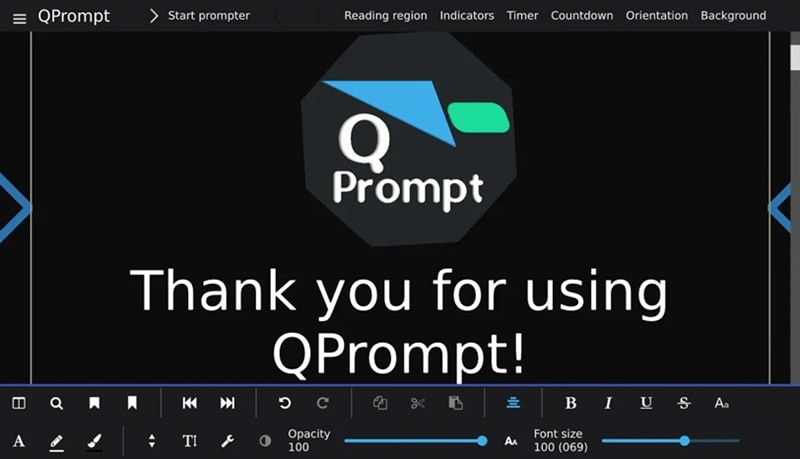
And lastly, for creators who love free teleprompter software for Windows that values user privacy and community-driven development, QPrompt is a phenomenal open-source option. It is built for content creators and teleprompter operators who want a dedicated desktop tool without subscriptions. It supports rich text, markers, mirroring, adjustable reading areas, multi-screen setups, and smooth scrolling.
Key Features:
- Displays precise counters showing exactly how much time is remaining in your script.
- Highlight key sentences in different colors and jump between sections instantly.
- Multi-screen support and adjustable reading area.
Compatibility: Windows 11 and 10.
Pricing: Free.
Best For: Creators, event operators, teachers, open-source fans, and users who want free teleprompter software for Windows without ads or subscriptions.
Part 3. Limitations of Traditional Teleprompter Software
While all of these teleprompter apps for Windows are fantastic at displaying text, relying on a standalone traditional teleprompter app can introduce a handful of annoying workflow speed bumps that catch many video creators off guard.
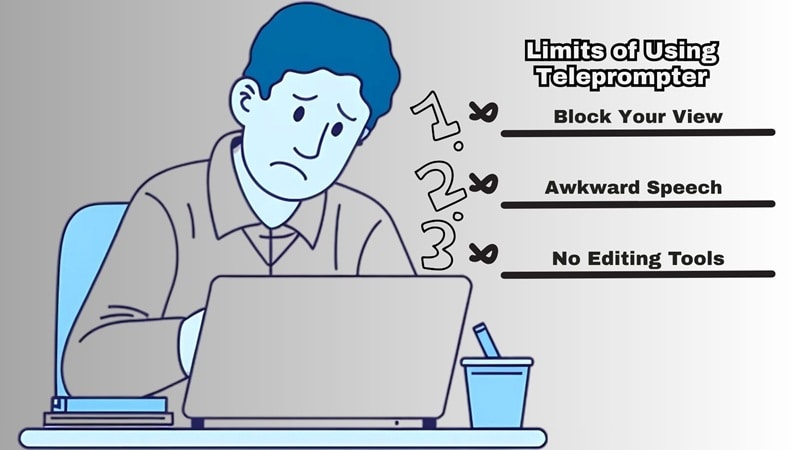
Some limitations you may encounter are:
- Losing Sight of the Screen: Full-screen prompter modes completely take over your monitor, blocking out your recording software previews or live presentation windows.
- Fixed-Speed Scrolling Can Make You Sound Stiff: If you speak faster or slower, you either chase the text or wait for it. That can make your delivery sound unnatural.
- Eye Contact Can Still Look Slightly Off: Even with the script close to your webcam, your eyes may still move while reading. This is especially noticeable in close-up talking-head videos.
- You Still Need Another Tool to Edit the Video: After recording, you still need another editor to cut mistakes, add captions, clean audio, fix pacing, and export the video properly.
Bonus: Filmora's Built-In Teleprompter for Smooth Video Recording
Thankfully, those limits we covered above do not have to be a big problem if you use the right autocue for PC. In this case, Filmora is the perfect option because its teleprompter is built into a video creation software, not separated from it.
That means you can use the teleprompter while recording, then move straight into editing. You can trim awkward pauses, add AI captions, improve audio, use AI Eye Contact, add visual effects, and export the finished video from one place.
For creators who record regularly, that is much easier than juggling a separate teleprompter for PC, screen recorder, audio cleaner, caption tool, and editor.
How to use Filmora's Teleprompter: Step-by-step guide
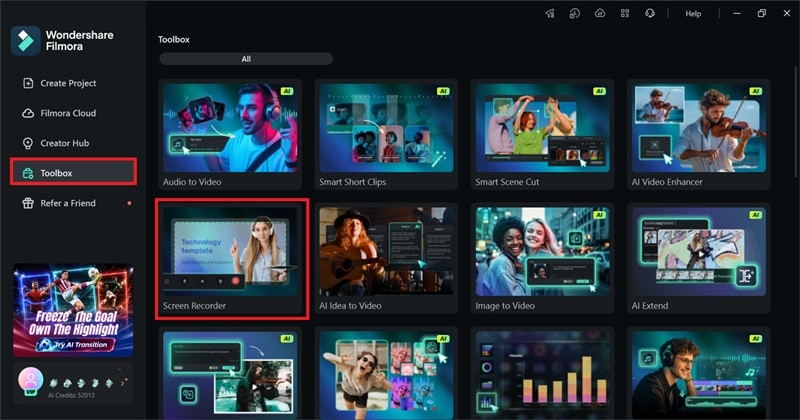
Step 1. Open Filmora and Start a Presentation Recording
Launch Filmora on your Windows PC. Head to the Toolbox section and open the Screen Recorder feature.
Step 2. Click the Teleprompter Button
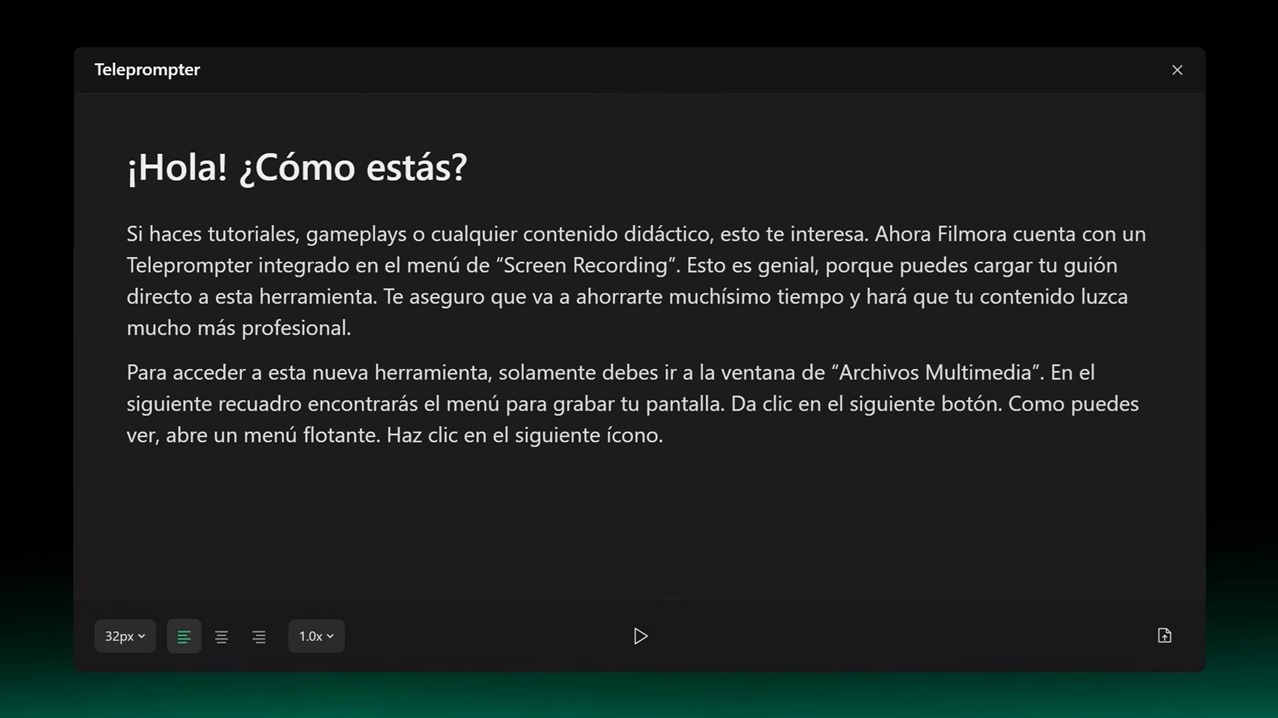
In the recording preview window, click the Teleprompter icon to open up the script panel.
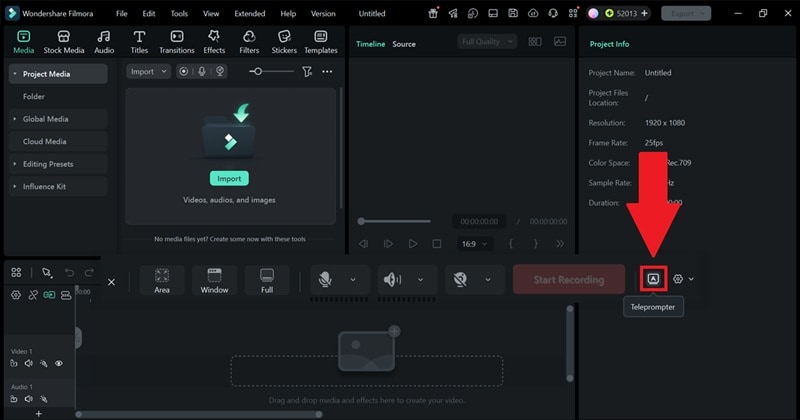
That's pretty much it. Inside the teleprompter window, you can type your script directly or import a text file. Feel free to change the font size, style, and playback speed.
Conclusion
At the end of the day, picking the ideal teleprompter software for PC depends on how you record. If you need a transparent overlay, GhostPrompter and Virtual Teleprompter are more practical. If voice scrolling matters most, PromptSmart and Speakflow are worth a look.
But if your goal is to create a finished video, Filmora is the easiest recommendation. It gives you a built-in teleprompter, screen recording, webcam recording, AI Eye Contact, captions, audio tools, and a full editor in one place. You can write your script, record your presentation smoothly, and polish up your final video all within the same application, giving you a faster, stress-free creative workflow.
secure download FAQs About Teleprompter Software for Windows PC
-
Can a Teleprompter Help Me Look More Natural on Camera?
Yes, but placement matters. Put the script as close to your camera as possible, use a comfortable font size, and avoid reading too fast. Tools like Filmora’s AI Eye Contact can also help improve off-camera gaze after recording. -
What Is the Difference Between a Teleprompter and an Autocue?
They are basically the same idea. “Autocue” is often used in broadcast and professional production settings, while “teleprompter” is the more common everyday term. -
Can I Use a Teleprompter on a Laptop Without Extra Hardware?
Yes. Most teleprompter software for PCs can run directly on your laptop screen. You do not need physical teleprompter glass unless you want a more professional studio setup.
